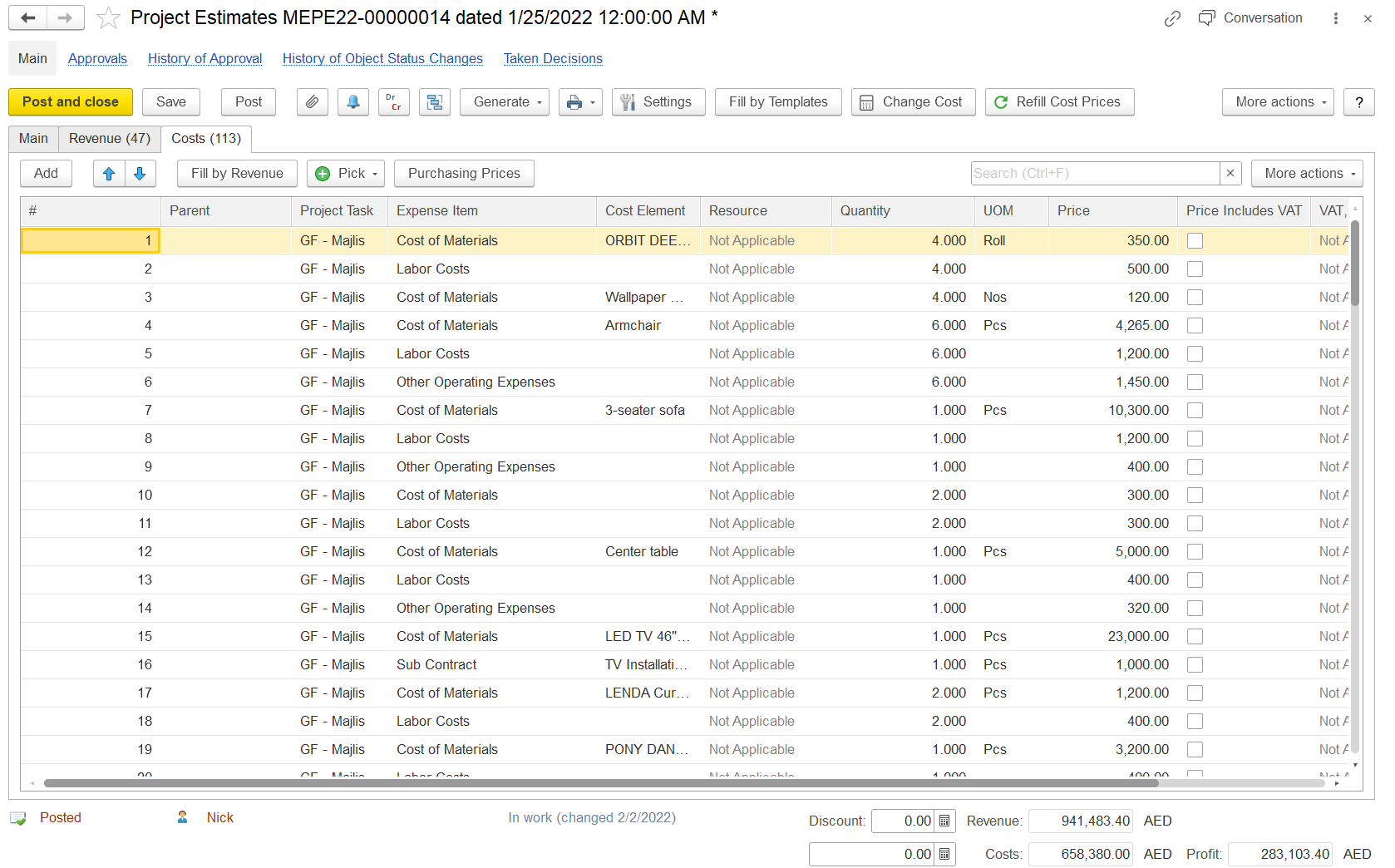
The Cost tab in the Project Estimates form allows users to enter and manage all cost-related data for a project when the estimation method is set to Independent Calculation of Costs and Revenues. This means cost and revenue figures are maintained and calculated separately.
Feature | Revenue-Based Calculation | Independent Calculation |
|---|---|---|
| Cost derived from revenue | Yes (markup applied) | No (costs are entered independently) |
| Revenue auto-filled based on cost | Yes | No |
| Separate handling of VAT, price, and items | Limited | Fully flexible and detailed |
| Cost and revenue linkage | Direct | No linkage (manual entry) |
The Fill by Revenue button auto-populates the Cost tab with relevant data from the Revenue tab. This serves as a starting point for estimating costs based on revenue items and can then be edited manually. Useful for scenarios where cost estimates closely mirror expected revenues.
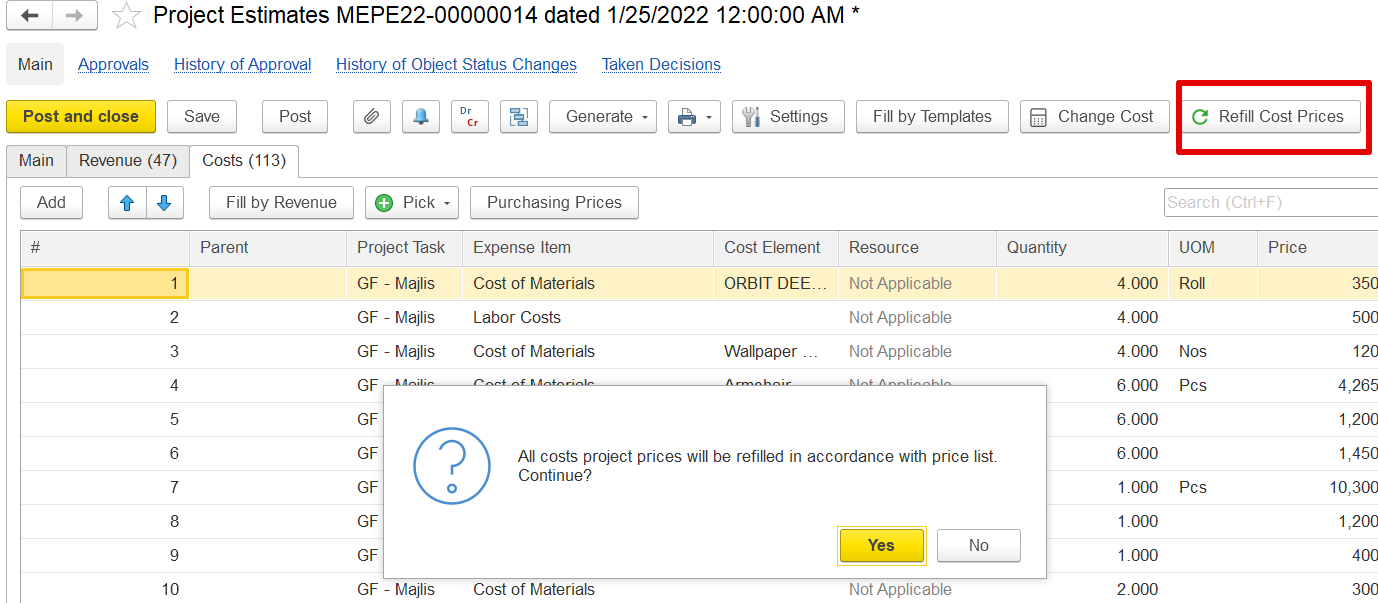
The Refill Cost Prices button updates the price fields in the Cost tab based on current purchasing prices. This ensures that estimates reflect the most recent known costs.
The Purchasing Price form lets users select and apply the most relevant price for an item from historical purchase data, supplier tenders, or price lists.
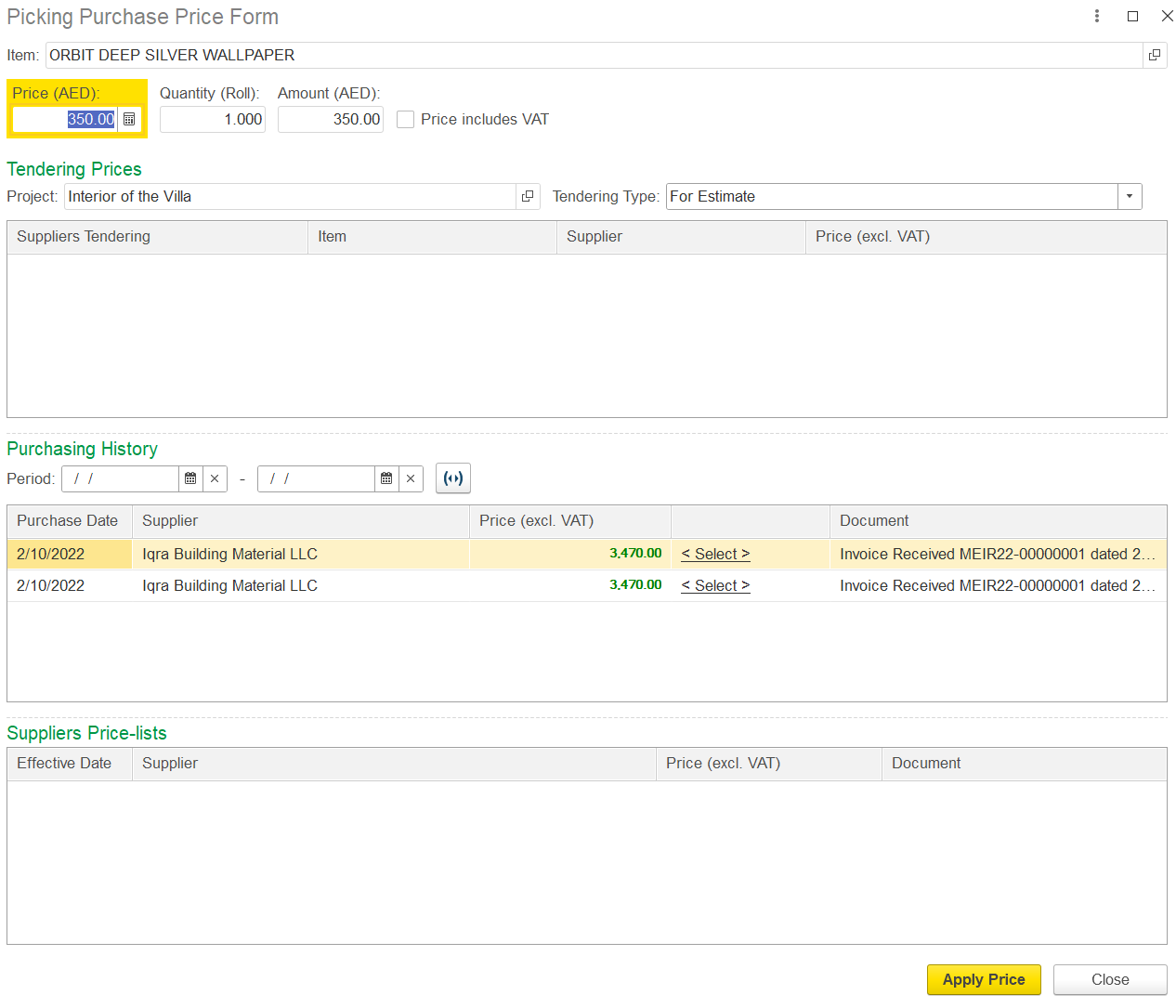
Shows quantity and price in AED.
Includes a toggle for VAT inclusion.
Displays history of purchases by supplier and price.
Allows applying the selected price directly to the estimate.
This ensures cost accuracy and standardization based on previous procurement.
The Change Cost Form enables bulk adjustment of existing cost estimates by a defined percentage or AED value. Key features include:
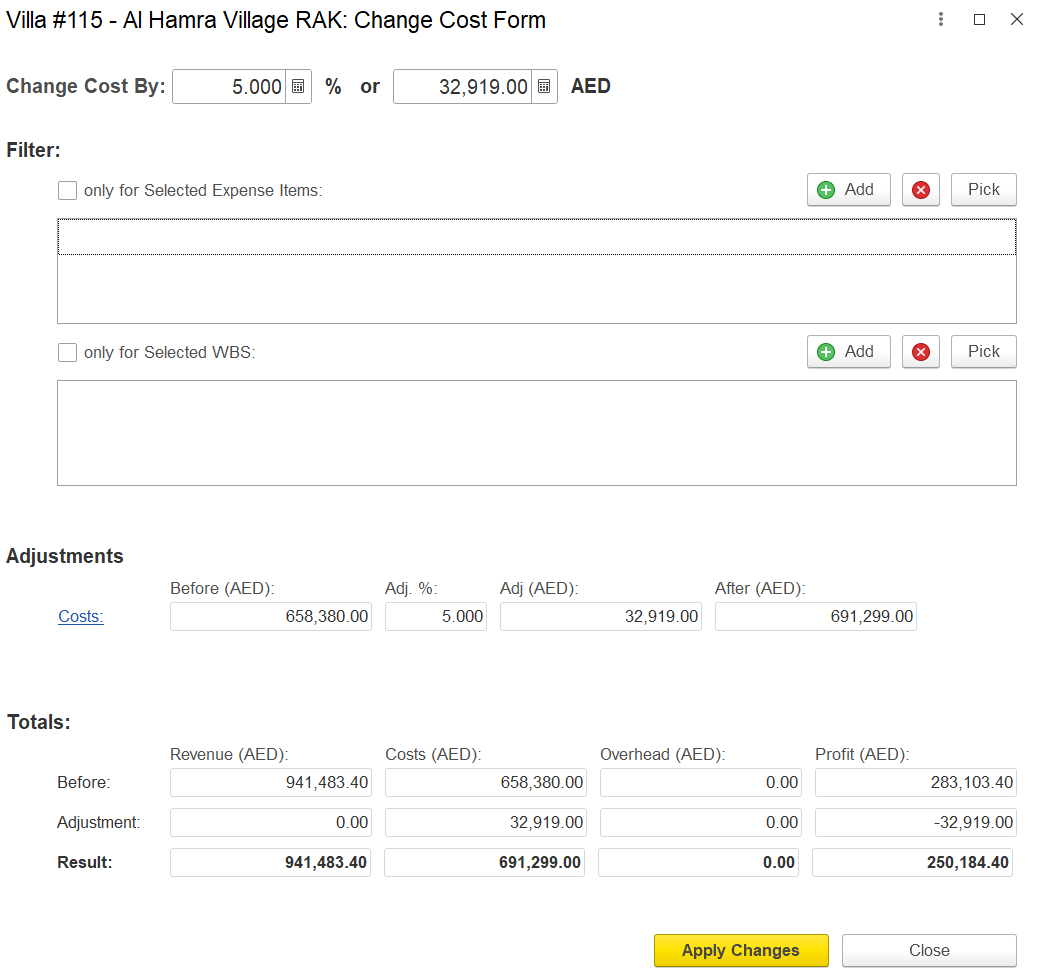
Change Cost By: Input either a percentage (%) or absolute value (AED) to increase or decrease the total project cost.
Filters: Adjustments can be restricted to specific Expense Items or WBS elements using selection filters.
Adjustments Table:
Displays current cost (“Before”), entered adjustment, and updated cost (“After”).
Auto-calculates the impact of changes on total cost.
Totals Section: Shows how changes affect:
Revenue
Costs
Overhead
Profit
Apply Changes: Confirms the update and recalculates totals.
Close: Exits without saving changes.
Example: Increasing cost by 5% on a 658,380 AED budget automatically adds 32,919 AED, updating the total cost and reducing profit accordingly.
The Pick button (when used with Resource Type filters) helps select relevant cost elements such as:
Employees (for labor)
Items (materials or goods)
Fixed assets (equipment usage)
Speeds up the process by filtering available elements according to the type of cost you're estimating.
The Fill by Templates feature allows loading pre-defined sets of cost structures into the Cost tab.
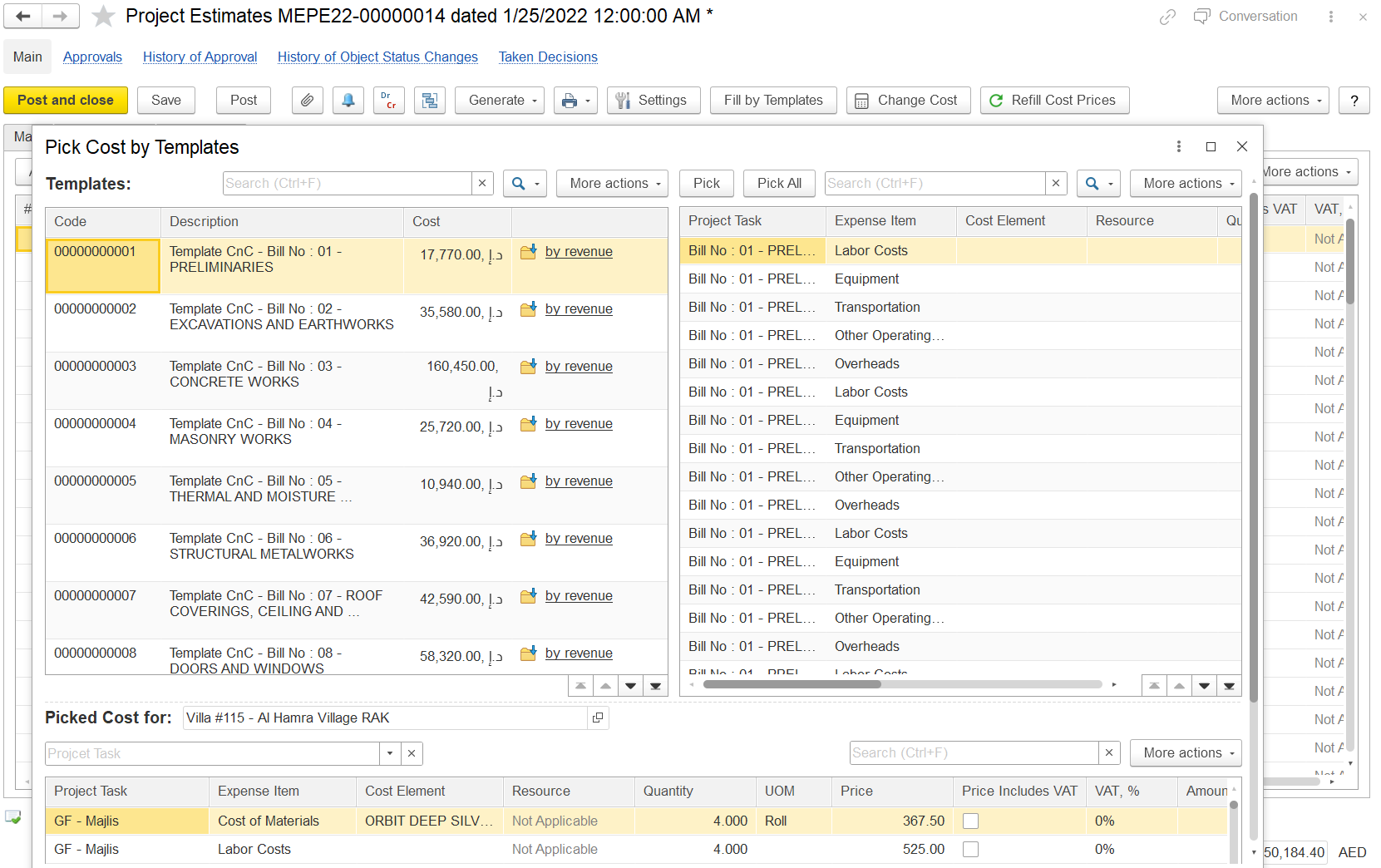
Pick by templates (link to templates page);