This screen displays all project tasks organized by their status, moving from left to right as they progress through the workflow.
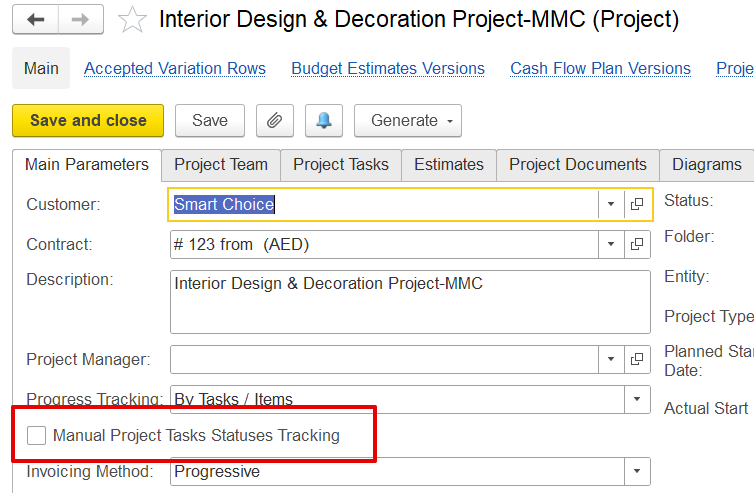
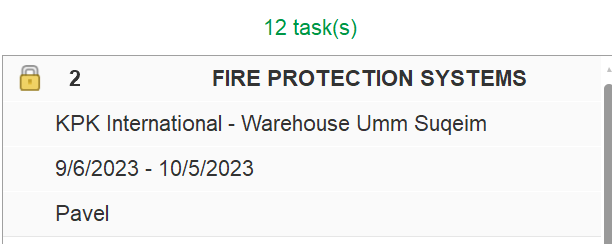
Important: Only tasks from projects with the manual task status tracking option enabled can be moved between columns. Otherwise, a lock icon will appear next to the Task Number, indicating that the task cannot be moved.
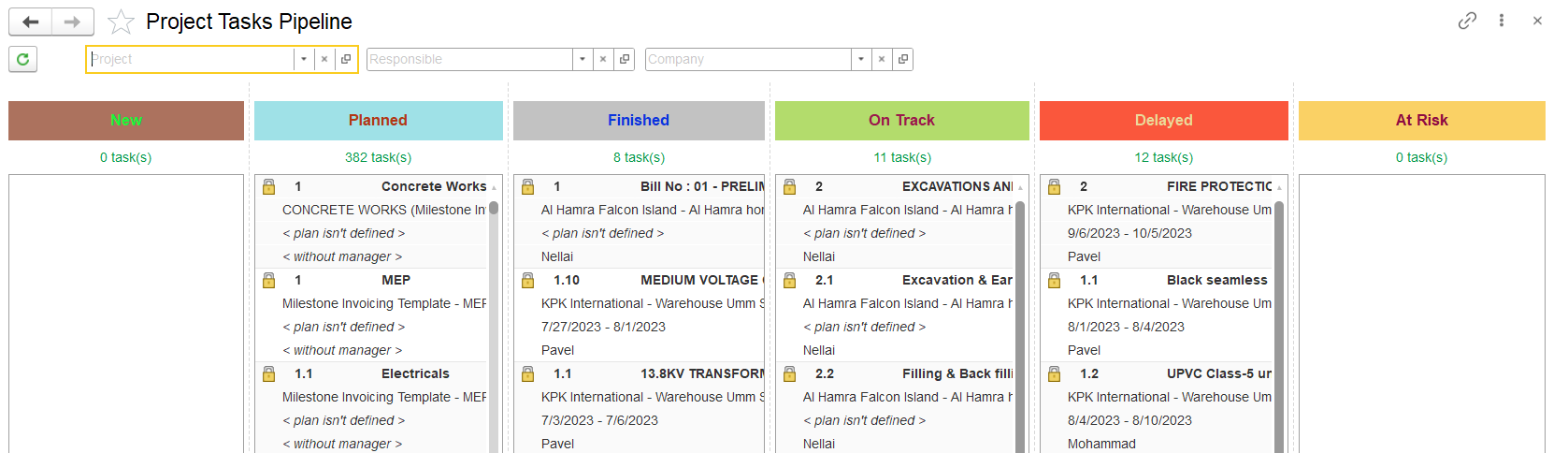
New: Tasks that are created but not yet planned.
Planned: Tasks that are scheduled, but work has not yet started.
On Track: Tasks that have started and are progressing as expected.
Delayed: Tasks that are behind schedule.
At Risk: Tasks that are at risk of being delayed.
Finished: Tasks that are completed.
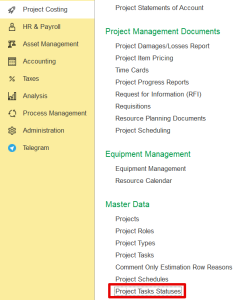
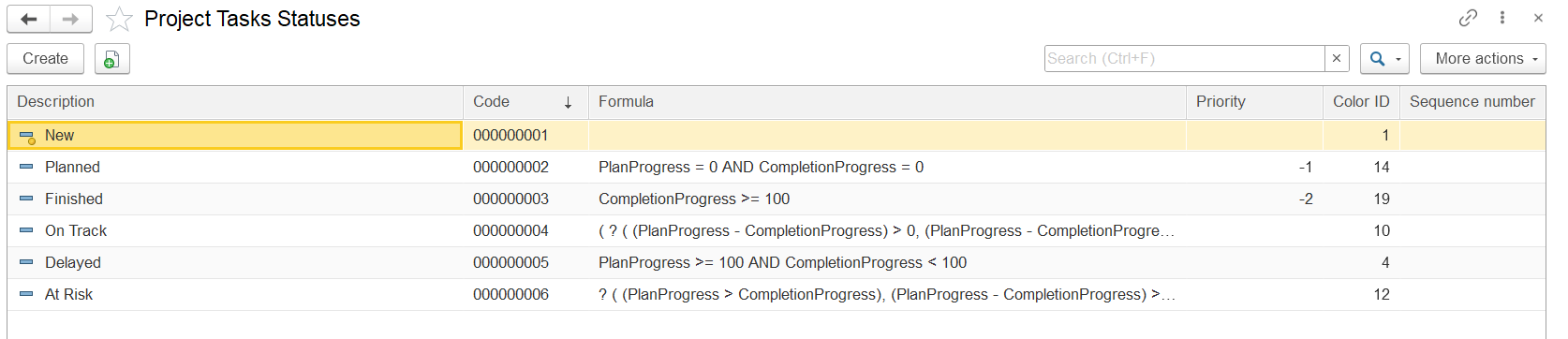
The columns in this view are derived from the Project Task Statuses catalog. These statuses must be initially created and can be adjusted later as needed to reflect changes in the project workflow.
Each task card displays the task number, task name, project name, plan dates (or "< plan isn't defined >" if missing), the responsible person, and a lock symbol if the task is locked and cannot be moved between columns.
You can search by:
Project, Responsible Person, Company. This helps to quickly find tasks.
Tasks must be updated regularly by the responsible person.