|
|
Backup data files are not standalone applications, meaning you cannot work with them in the usual way. To fully operate FirstBIT Software restored from data backups, you will need to deploy the entire software suite and organize user access. Deploying all parts of the system is resource-intensive and requires:
|
Reference Information
All backups can be divided into two types:
This classification is designed to reduce the amount of data during frequent copying. More detailed information about backup types can be found on the official website |
Backups are created automatically according to a schedule:
|
Backup rotation is the process of removing outdated backups. The deletion follows this policy:
If you need to store backups for a longer period, please contact your account manager. |
Downloading Backup Files
Backup files are stored within the hosting platform.
These files can be obtained for storage or use.
The download speed limit from the hosting side is 5 MB/sec. Additionally, the download speed will depend on the speed and load of your internet connection. |
To gain access to the file storage, please contact your account manager. |
Below is an example of how to download files through the web panel (sftpgo). |
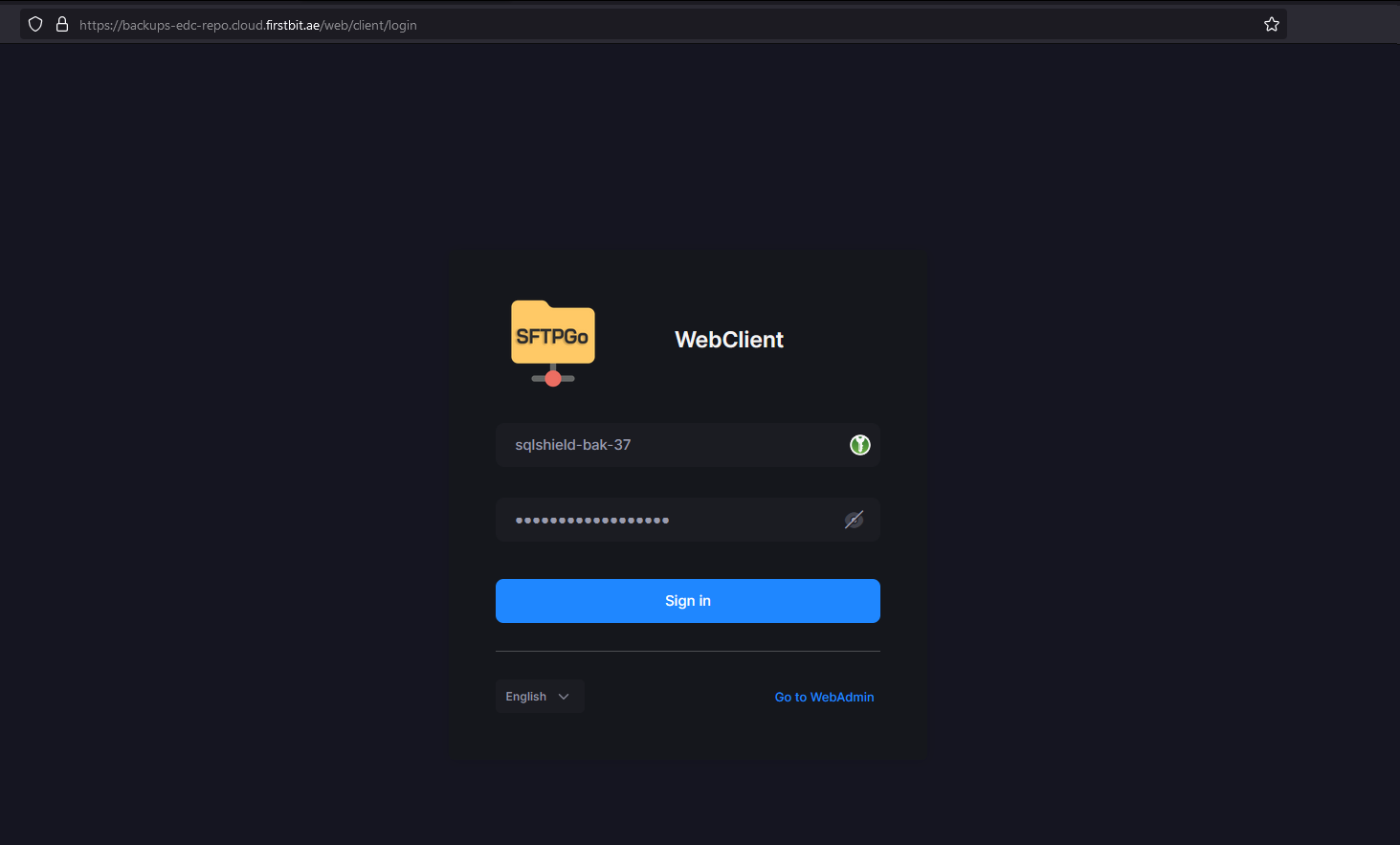
Step 1 – Go to the web page and log in using the credentials provided by your manager - https://backups-edc-repo.cloud.firstbit.ae
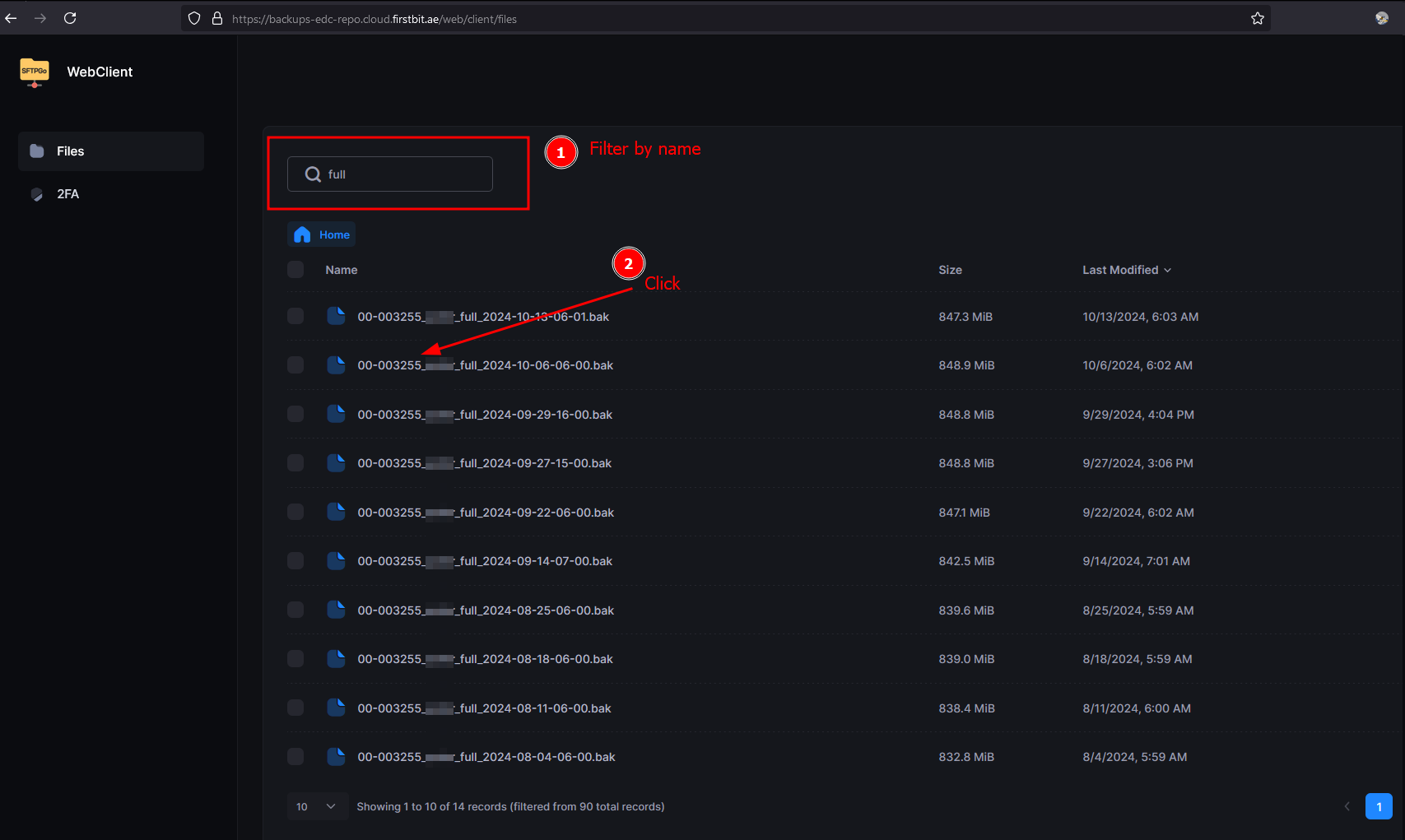
Step 2 – Select the backup file and click on it once. The file will begin downloading to your local computer.
Use Case Scenario – Long-Term Local Storage of Backups
In this scenario, we describe the organization of backup storage for an extended period on your internal resources. |
For this type of storage, we recommend using only full data backups. |
When planning for long-term storage of files on local resources, consider the following:
|
To implement this task, you need to:
- Organize a local storage where you will keep the files.
- Regularly access the web portal and download full backup files to your local storage.
- Clean up outdated copies based on the required retention periods.
Information for Technical Specialists
This section is intended for technical specialists. |
This information is applicable only to applications in the domain - erp.firstbit.ae |
Backup Organization
This article describes the backup system for applications hosted on FirstBIT Cloud.
In this deployment option (classic), a separate SQL database is provided for each application.
Microsoft SQL Server is used as the DBMS, and the standard mechanism of this software is utilized for backup purposes.
This means that the deployment of the data backup file is only possible on Microsoft SQL Server.
Choosing the SQL Server Edition for Deployment of Backups
For one-time deployment, not for continuous operation, the free version – Developer Edition – is suitable.
You can find more information about licensing on the - official website
Backup File Naming Rules
Below are two examples of backup files:
- 00-015441_data_full_2024-12-15-07-12.bak
- 00-015441_data_diff_2024-12-16-11-05.bak
When creating a backup, the file is generated according to the following logic:
- 00-015441_data – the name of the SQL database;
- full / diff – the type of backup;
- 2024-12-15-07-12 – the date and time of the backup creation in the following format:
- 2024-12-15 – year-month-day;
- 07-12 – hour-minute.
Using Backups
In this scenario, we will implement the restoration of the database to a specific point in time. |
Before starting, it is assumed that:
|
After successful execution, the restored database will be available for use via direct SQL queries or by connecting to the 1C application server. |
To implement this task, you need to:
- Connect to the storage.
- Download the necessary set of files – a full backup and a differential backup if you need to restore as close as possible to a specific date.
- Perform the database restoration from the backup.
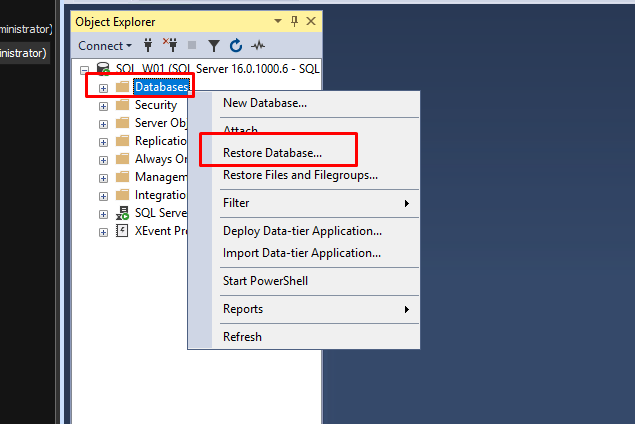
1. Starting the Database Restoration Wizard:
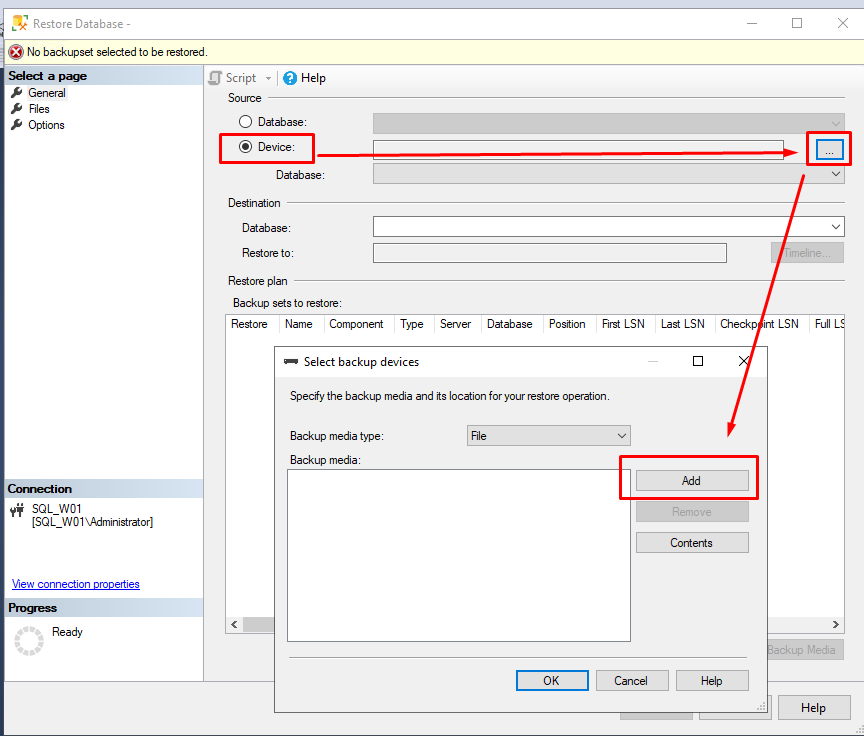
2. Specifying the Backup Source:
Add downloaded files as source.
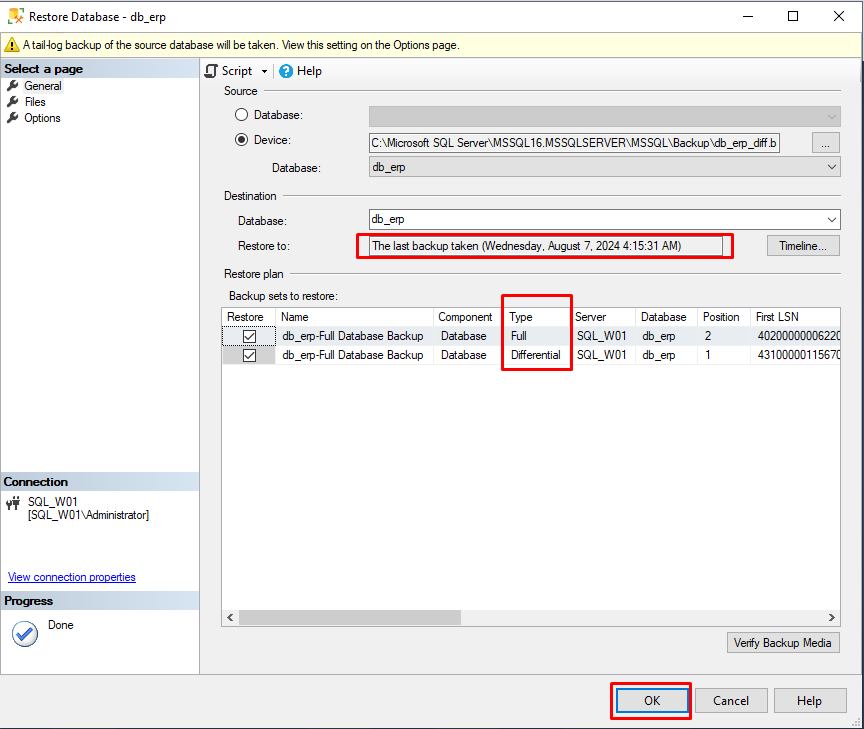
3. Choosing the Date and Time for Restoration:
4. Verifying Selected Files and Parameters:
Check files and date to restore. 5. Completing the Restoration:
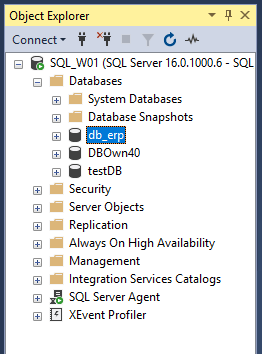
Database restored. |