Scope
This article applies to both FirstBIT ERP and FirstBIT Contracting configurations.
The described behavior is part of the standard payment status calculation logic implemented in both configurations.
Overview
The Payment Indicator is calculated automatically by the system.
The calculation logic depends on the document type.
For example:
- for Invoice and Invoice Received, the indicator is calculated by comparing values from the Sales and Accounts Receivable registers;
- for Customer Order and Purchase Order, the indicator is calculated using the Invoices and Orders Payment accumulation register.
Based on these calculations, the system displays the appropriate Payment Indicator for the document.
As a result, reducing the outstanding balance does not always change the Payment Indicator.
Payment Status Icons
Depending on the calculated payment status, one of the following Payment Indicators is displayed for the document.:
| Status | Description | Icon |
|---|---|---|
| Unpaid (payment not required) | The document is unpaid, but payment is not required because a Credit Note has been posted. |
|
| Partially paid (not overdue) | The document has not been fully paid, but the payment due date has not yet passed. |
|
| Fully paid | The document has been completely settled. |
|
| Fully unpaid | No payments have been registered for the document. |
|
| Partially paid (less than 50%) | Less than half of the document amount has been paid and the payment is overdue. |
|
| Partially paid (more than 50%) | More than half of the document amount has been paid and the payment is overdue. |
|
| Not posted | The document exists in the system but has not been posted. |
|


Payment Status Calculation Logic
The Payment Indicator is calculated differently depending on the document type.
Invoice and Invoice Received
For Invoice and Invoice Received documents, the system calculates the following values.
Sales Amount
Calculated based on the turnover in the Sales register.
Accounts Receivable Amount
Calculated based on the remaining balance in the Accounts Receivable register.
The Payment Indicator is determined by comparing these calculated values according to the implemented algorithm.
Therefore, for Invoices, the Payment Indicator reflects the relationship between register values rather than simply the remaining outstanding balance.
Customer Order and Purchase Order
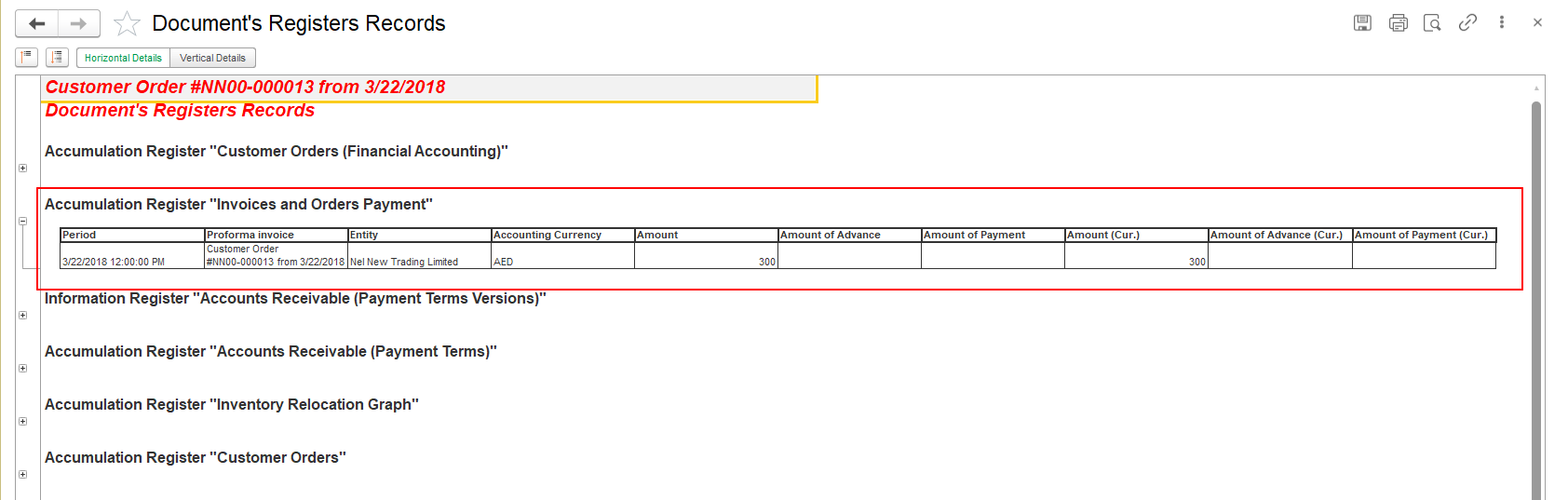
For Customer Order and Purchase Order documents, the Payment Indicator is calculated using the Invoices and Orders Payment register.
The system compares the following values:
- Amount (the total amount of the Order);
- Amount of Advance;
- Amount of Payment.
Based on the comparison of these values, the system automatically determines the Payment Indicator displayed for the Order.
Unlike Invoices, the Payment Indicator for Orders is not based on the Sales and Accounts Receivable registers. Instead, it reflects the payment progress recorded in the Invoices and Orders Payment accumulation register.

Filtering by Payment Indicator
The Payment Indicator is intended for visual reference only.
It is calculated dynamically by the system and is not stored as a separate document attribute.
Therefore, the Payment Indicator:
- cannot be used as a filter in list forms;
- cannot be used in search conditions;
- cannot be used as a selection criterion in standard reports.
To analyze outstanding invoices, use the Balance column or settlement reports instead.
How to Check the Actual Outstanding Balance
The Payment Indicator is intended for visual reference only and should not be used as the primary source for analyzing customer debt or filtering documents.
To verify the actual outstanding amount, use one of the methods below.
Method 1. Display the Balance Column
Enable the Show Balance column in the Invoice or Invoice Received list.
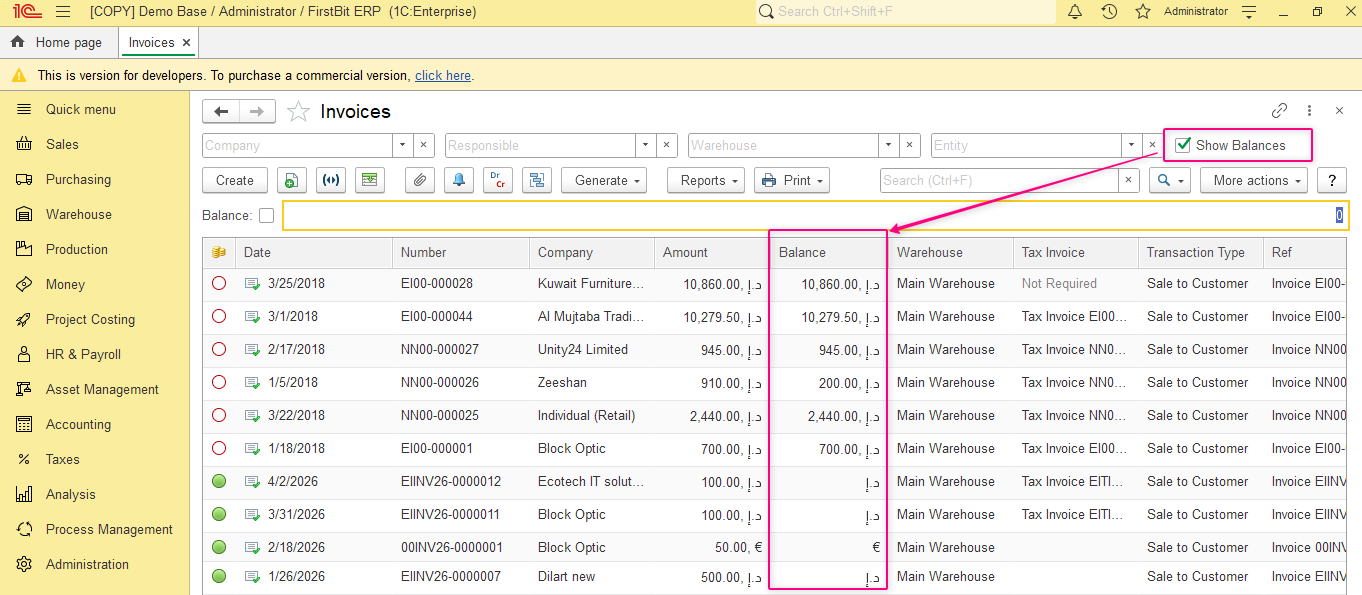
The Balance column displays the current remaining amount due for each document and allows users to analyze:
- fully paid documents;
- partially paid documents;
- unpaid documents.
You can also configure filters for this column using appropriate comparison conditions.
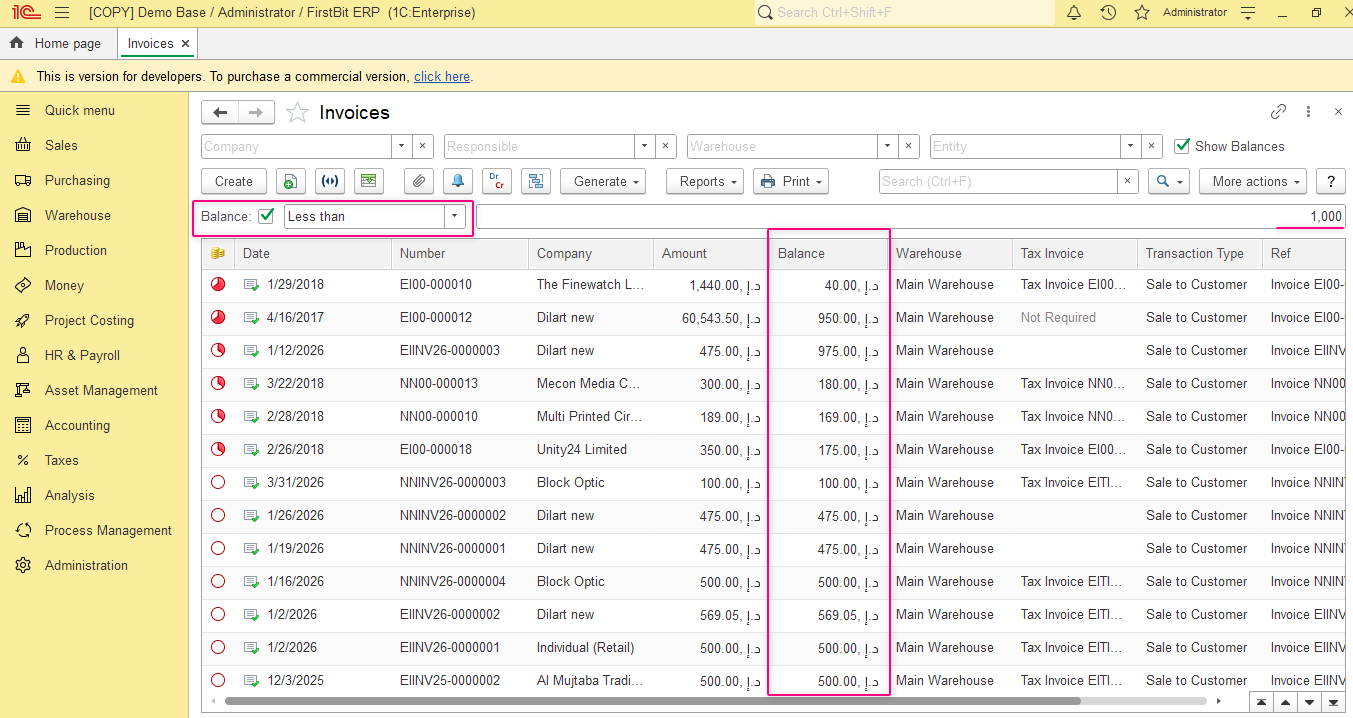
For additional information, refer to:
Method 2. Generate the Statement of Settlements Report
Generate the Statement of Settlements with Customers/Suppliers report from the Sales or Purchasing module.
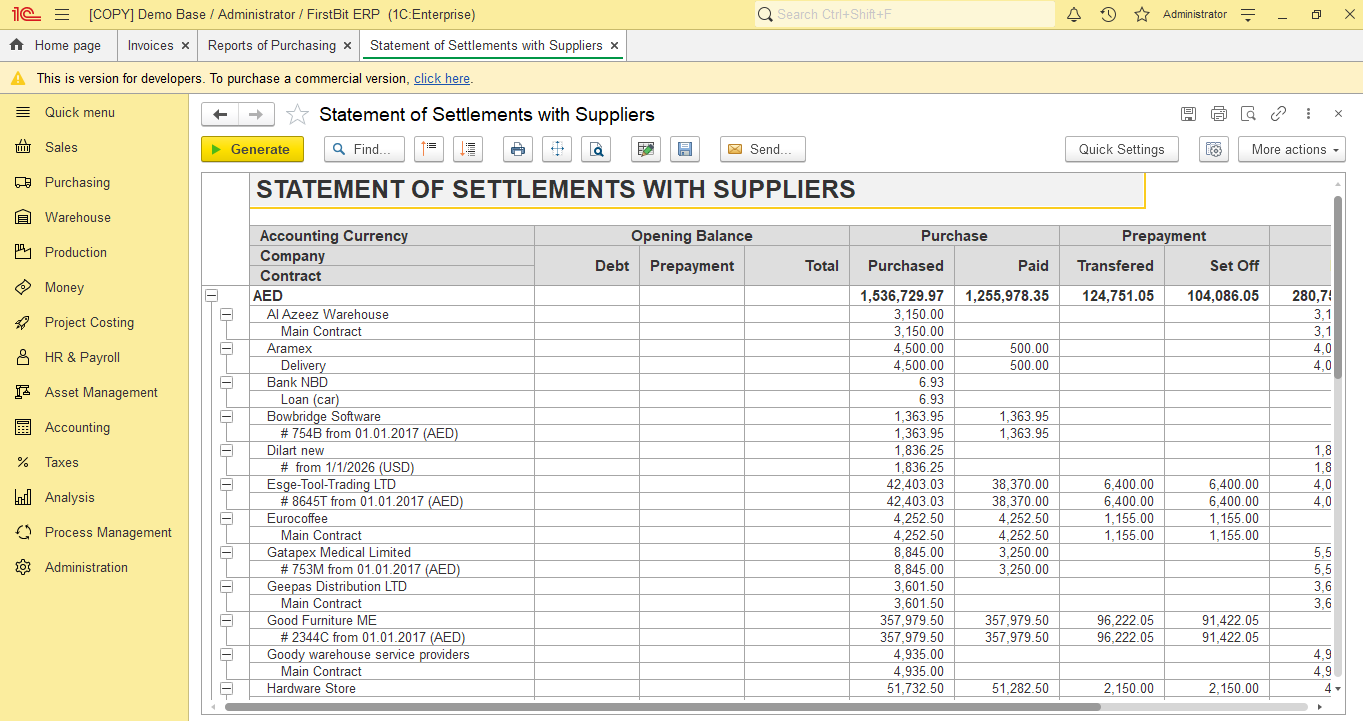
This report provides detailed information about:
- settlements with customers and suppliers;
- payment allocations;
- remaining balances;
- payment history across all related documents.
Credit Notes documents and the Payment Indicator
Situation:
Based on Invoice document Credit Note was created (Inoice Correction or Goods Return transaction type) amount of initial document was corrected - but will it be visible with indicator?
Example:
initial Invoice:
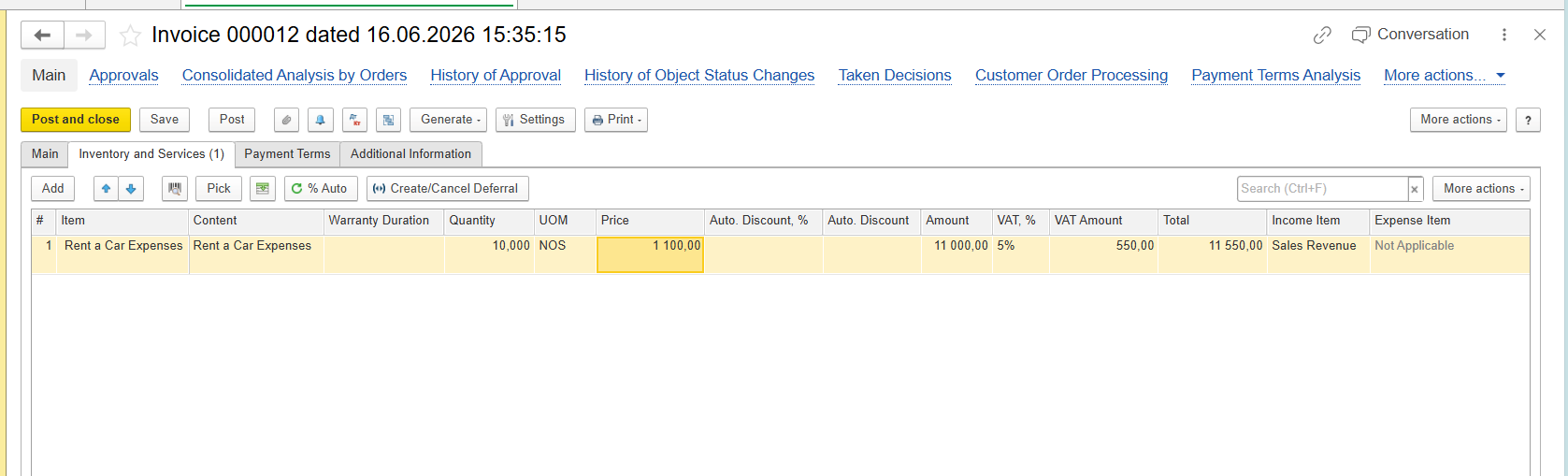
Credit Note:
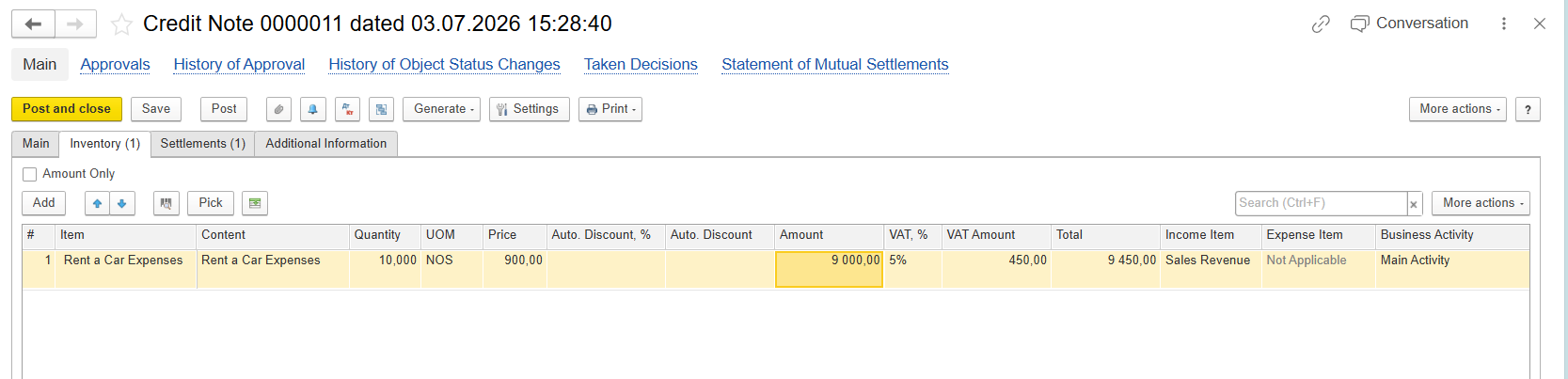
And setting on Settlements tab may have impact to payment indication.
Credit Note without Advance
When a Credit Note is created without the Advance option (on Settlements tab):
- the outstanding Accounts Receivable balance is reduced correctly;
- the remaining amount due is recalculated correctly;
- subsequent Bank Receipt documents will suggest only the remaining outstanding amount for payment.
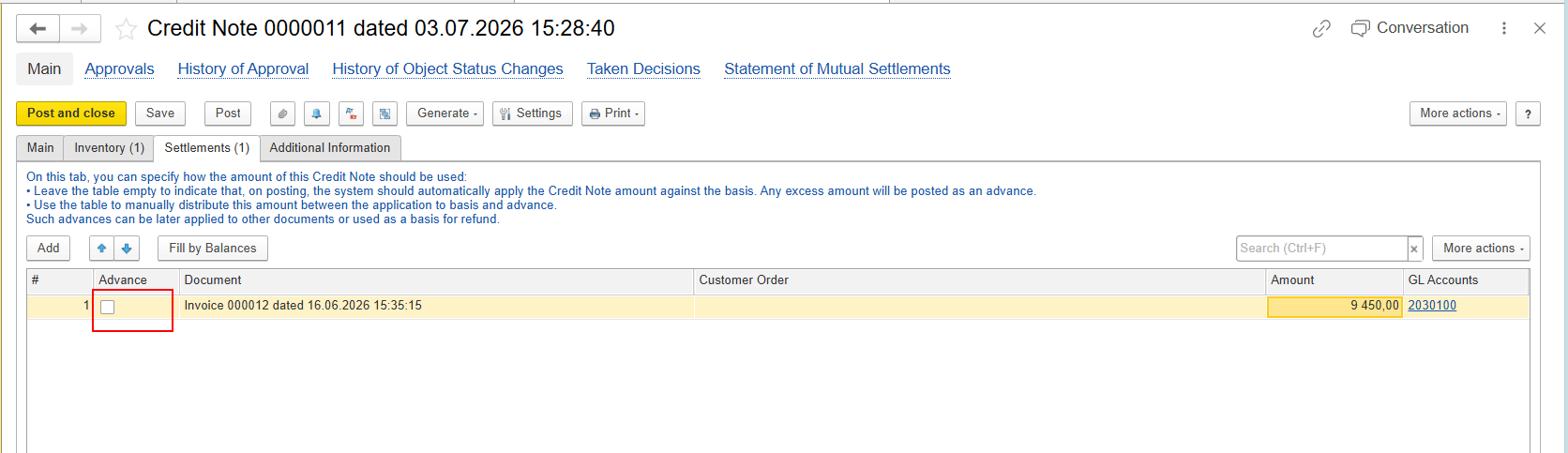
However, because both the Sales Amount and the Accounts Receivable Amount are reduced proportionally, the values remain equal. According to the implemented payment indicator algorithm, the Invoice continues to display the Not Paid status.
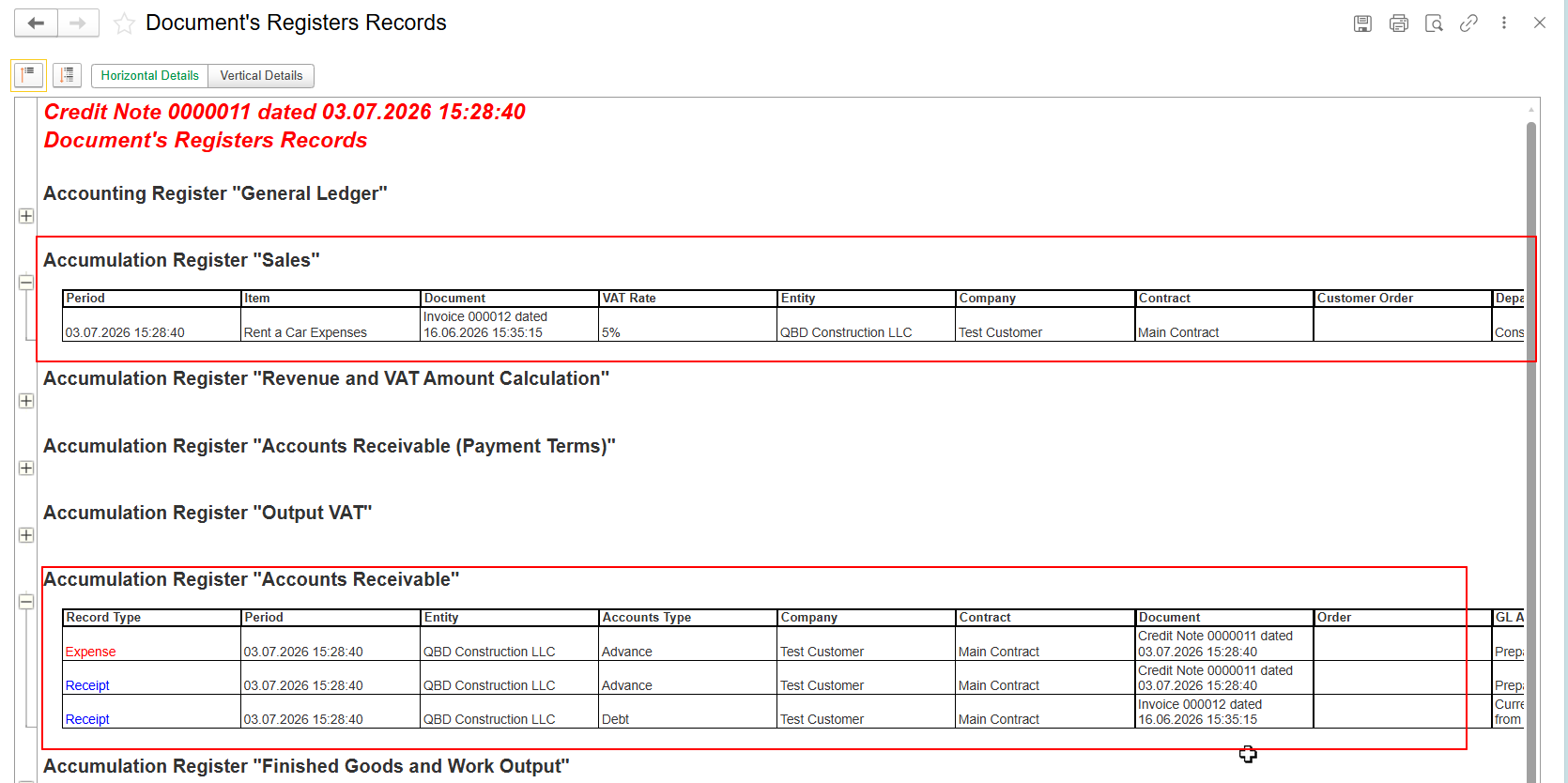
And indication:

This behavior is expected.
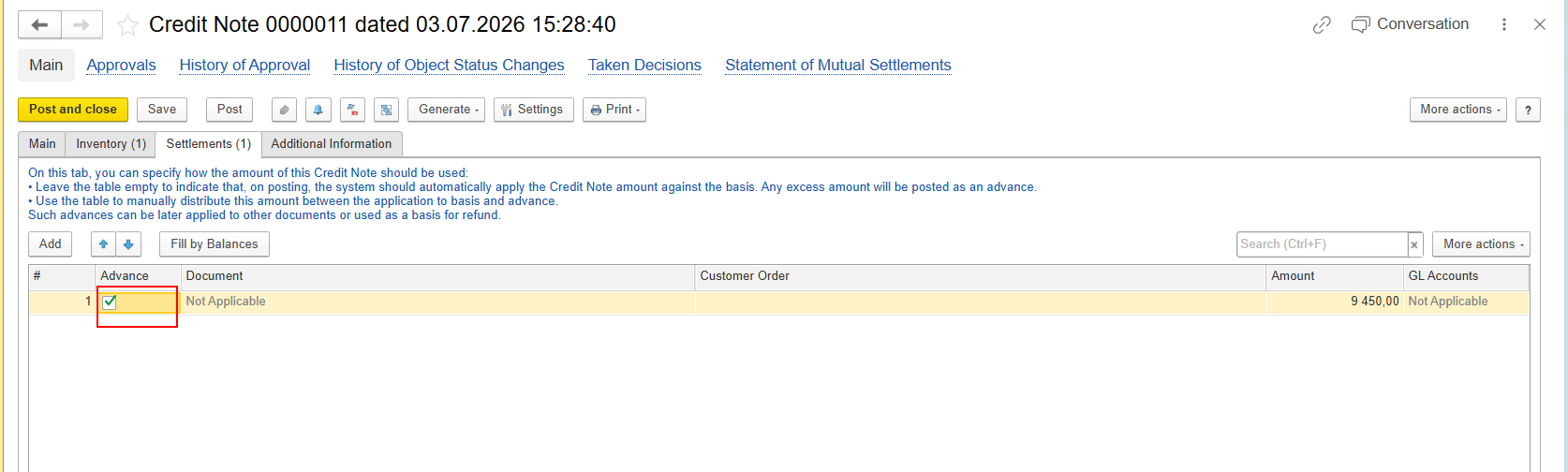
Credit Note with Advance
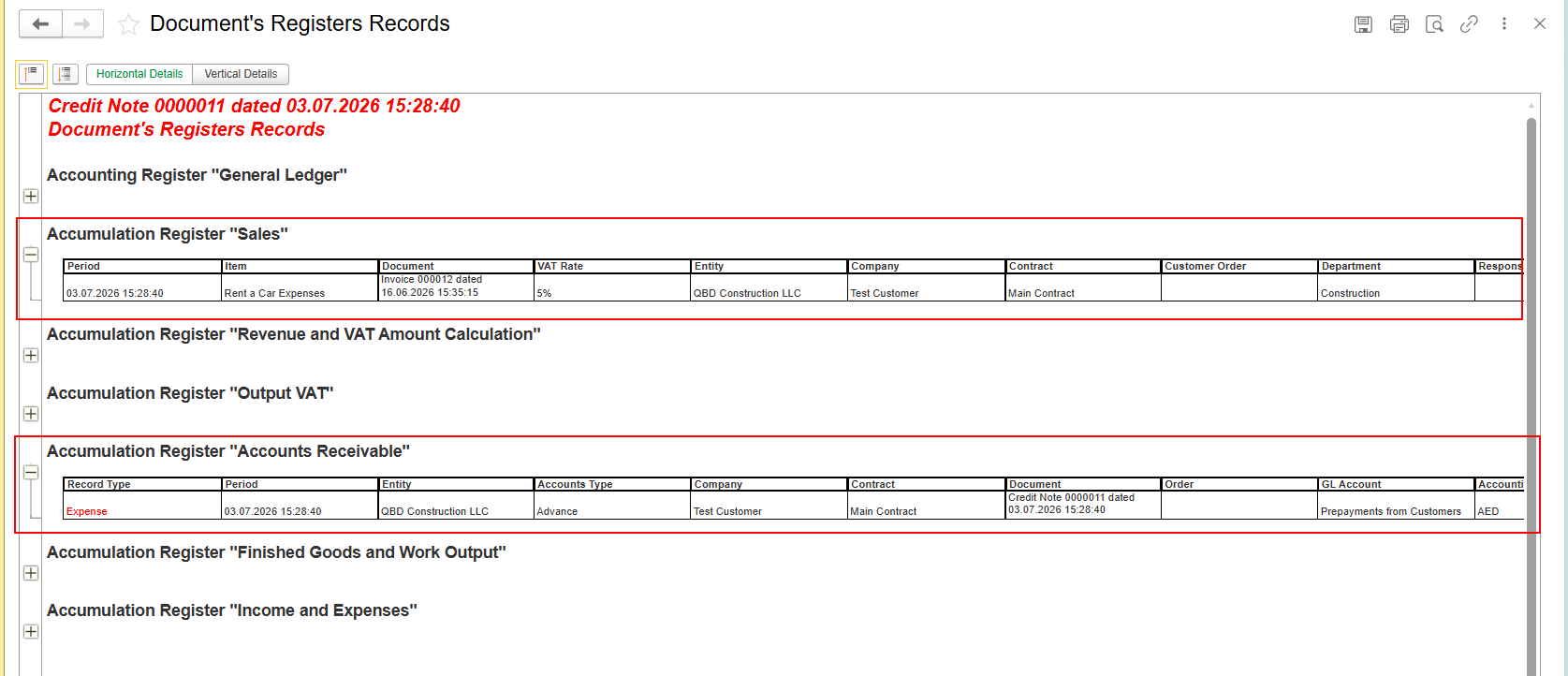
When the Advance option is selected:
- the posting logic differs from a standard Credit Note;
- the calculated values of the Sales and Accounts Receivable registers are no longer equal;
- therefore, the Invoice payment indicator changes to reflect a Partially Paid status.
And indication:

This behavior is also expected.
Important Note
The Payment Indicator should not be interpreted as the customer's outstanding balance. It provides a visual indication of the document settlement status but does not represent the actual amount due.
A Credit Note may reduce the remaining amount due while the payment status indicator remains unchanged, depending on how the document affects the values used in the payment status calculation.
To verify the actual outstanding balance, always refer to the Accounts Receivable information and settlement calculations rather than relying solely on the payment indicator.
Summary
The Payment Indicator is calculated using different algorithms depending on the document type.
- For Invoice and Invoice Received, the system compares values from the Sales and Accounts Receivable registers.
- For Customer Order and Purchase Order, the system compares the Order Amount with the registered Advance and Payment amounts stored in the Invoices and Orders Payment register.
Therefore:
- a standard Credit Note created without the Advance option may reduce the outstanding balance without changing the Payment Indicator;
- a Credit Note created with the Advance option may update the Payment Indicator;
- the Payment Indicator is intended for visual reference only and cannot be used for filtering or searching documents;
- actual debt analysis should always be performed using the Balance column, settlement reports, and Accounts Receivable balances;
- this behavior is standard and is implemented identically in both FirstBIT configurations.
Thank you for being FirstBIT Customer!