The accounting treatment of a deposit depends on how the funds are received and used:
1. Deposit as Storage of Own Funds
If the deposit is used to store company funds for later withdrawal:
- Record a transfer from the current account to the deposit account using Money Transfer
- The funds remain an asset but change form
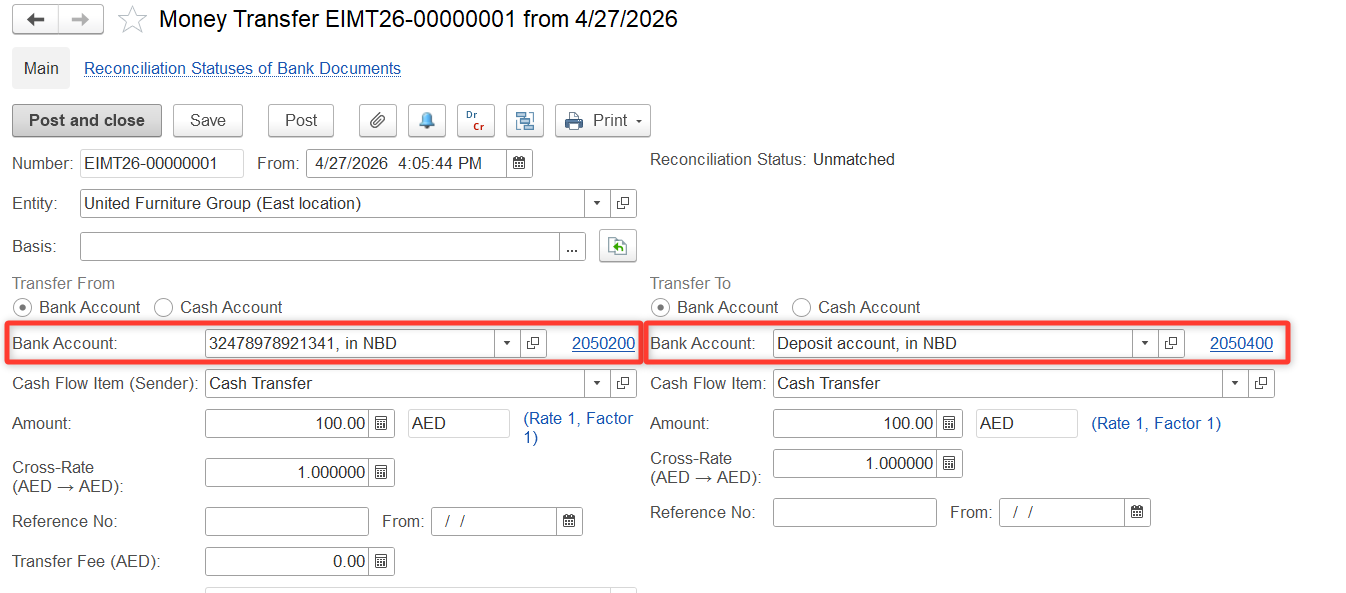
Entry:
- Dr Deposit Account
- Cr Current Bank Account
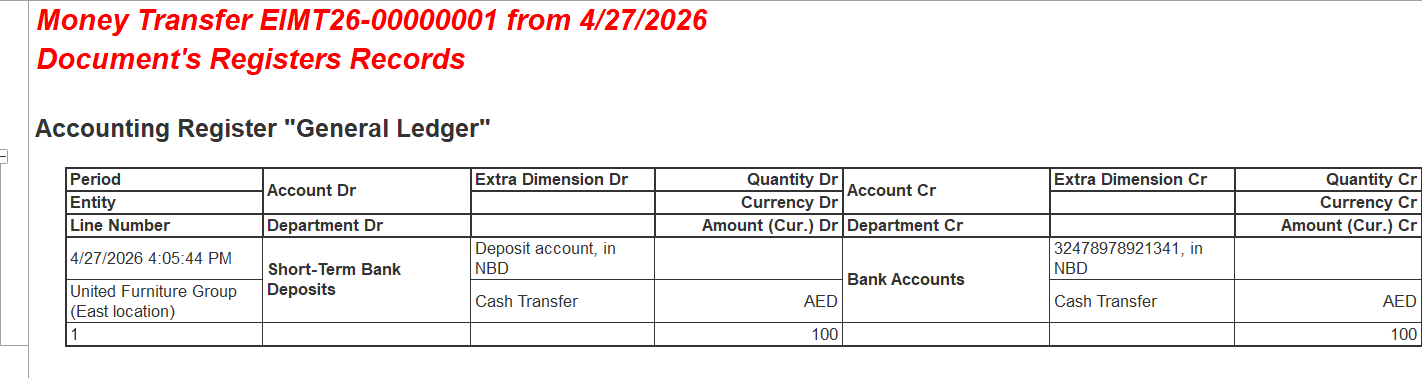
The return of funds to the current bank account can be also performed by Money Transfer
See more on Money Transfers
2. Deposit to Supplier
If money is transferred to a supplier as a deposit, it is not an expense, but an asset (prepayment/deposit):
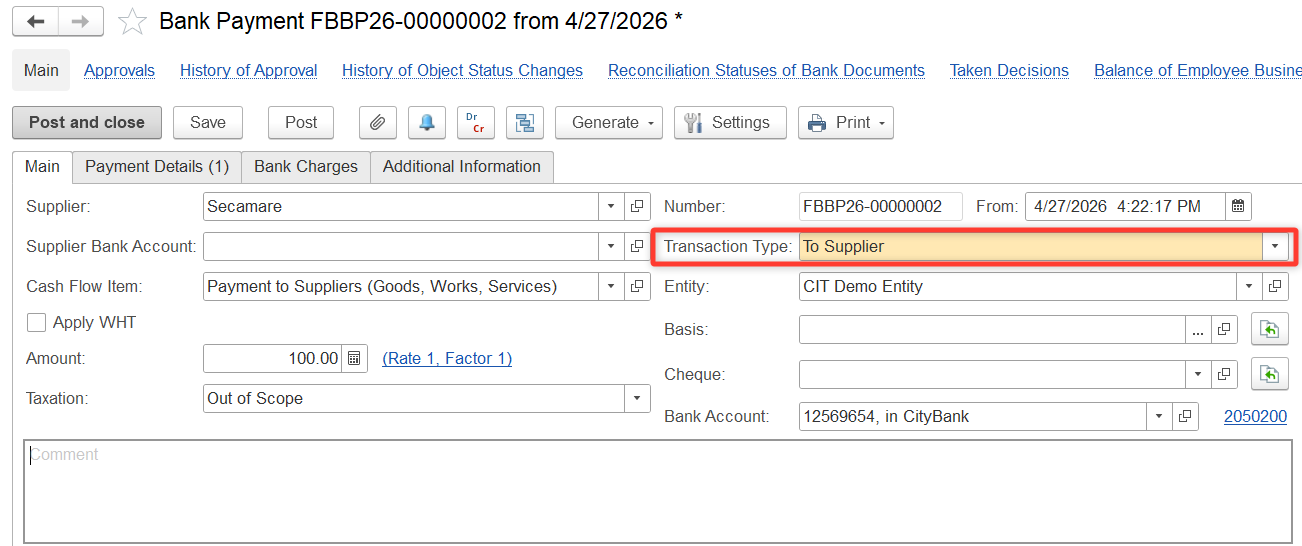
Step 1. Create a Bank Payment (or Cash Payment)
Create a Bank Payment (or Cash Payment) with the Transaction Type: To Supplier.
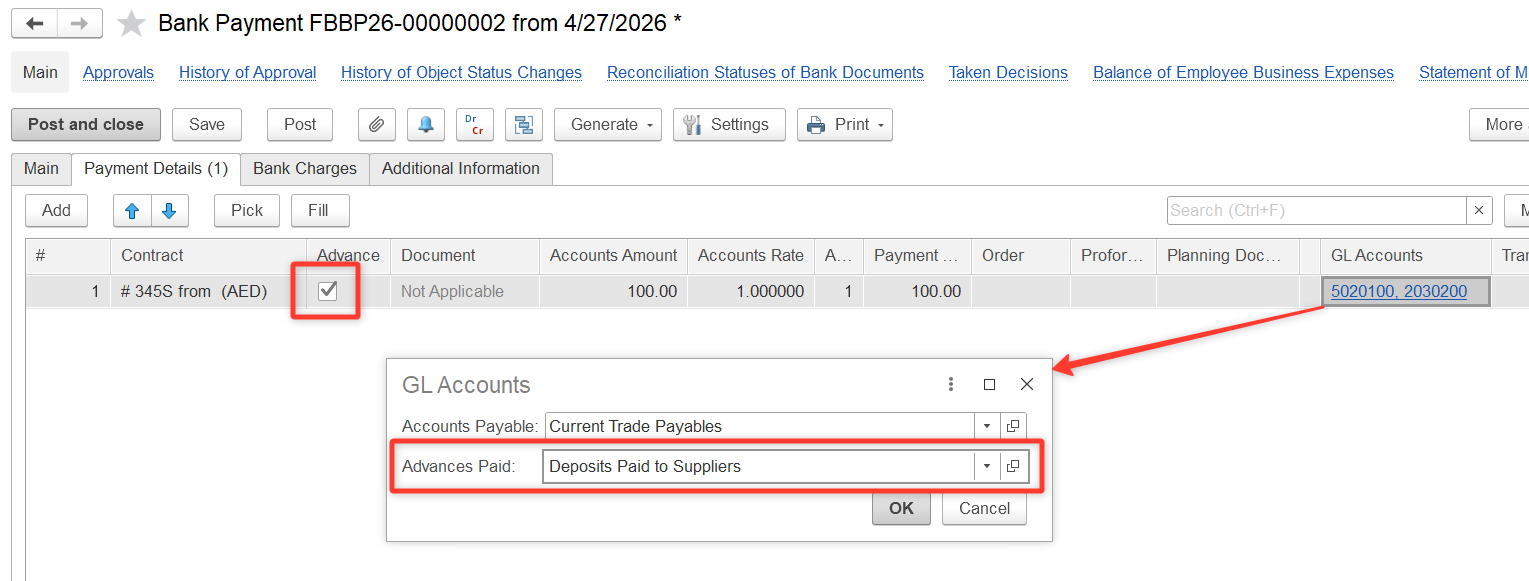
On the Payment Details tab:
- Select the supplier
- Check the Advance box
- Choose GL Account: Deposits Paid to Suppliers
Entry:
- Dr Deposits Paid to Suppliers
- Cr Cash / Bank
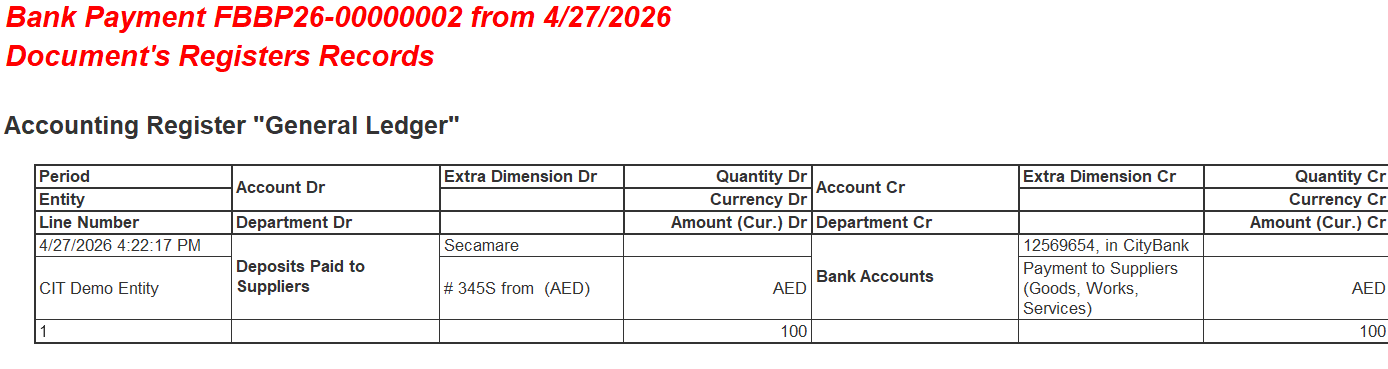
See more on Cash/Bank Deposit (to Supplier)
Step 2. Receive the Accrued Deposit Interest
Create a Bank Receipt with the Transaction Type: Others.
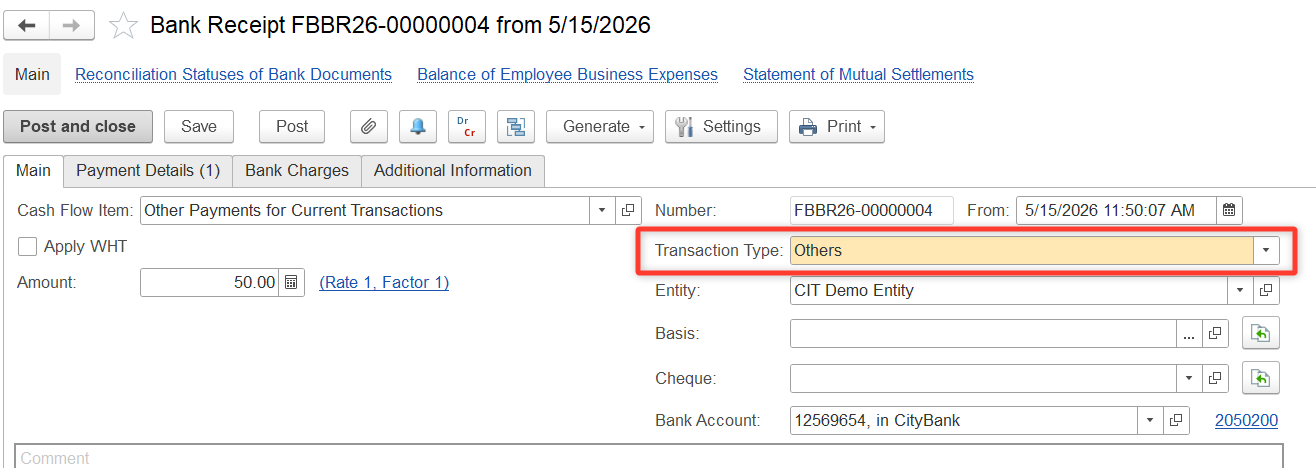
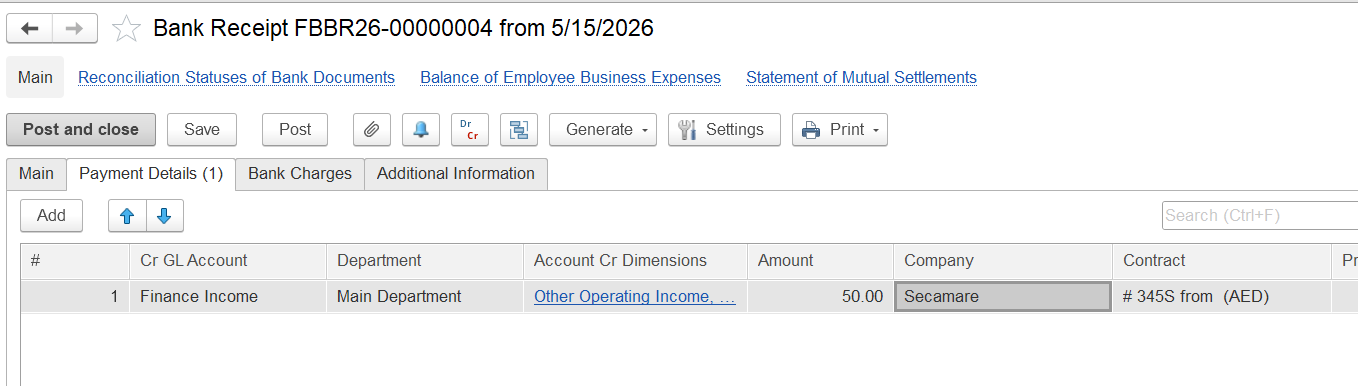
On the Payment Details tab, enter the following:
- GL Account
- Department
- Income Item
- Business Activity
- Amount
- Company
- Contract
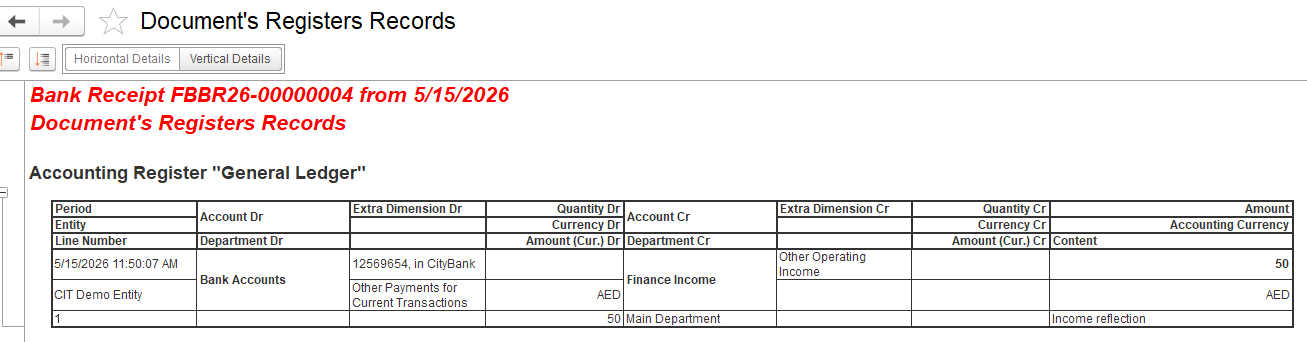
Press Post or Post and Close
3. Deposit Issued as a Loan
If the deposit represents a loan issued to another party (with interest):
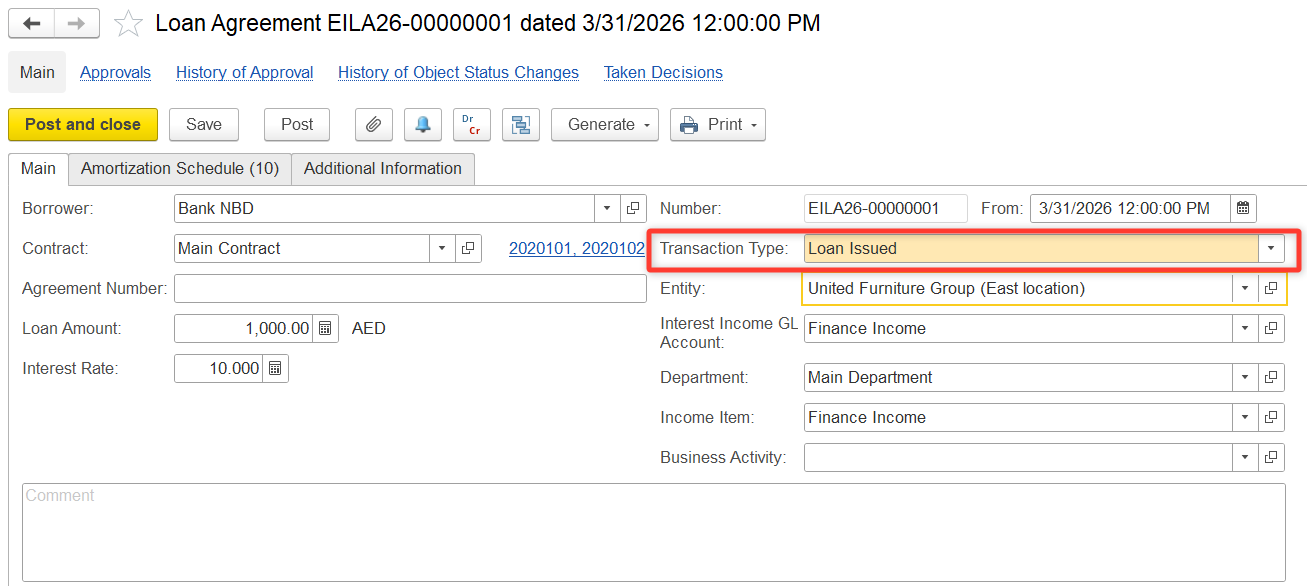
Step 1. Create a Loan Agreement
Path: Money > Loan Documents > Loan Agreements
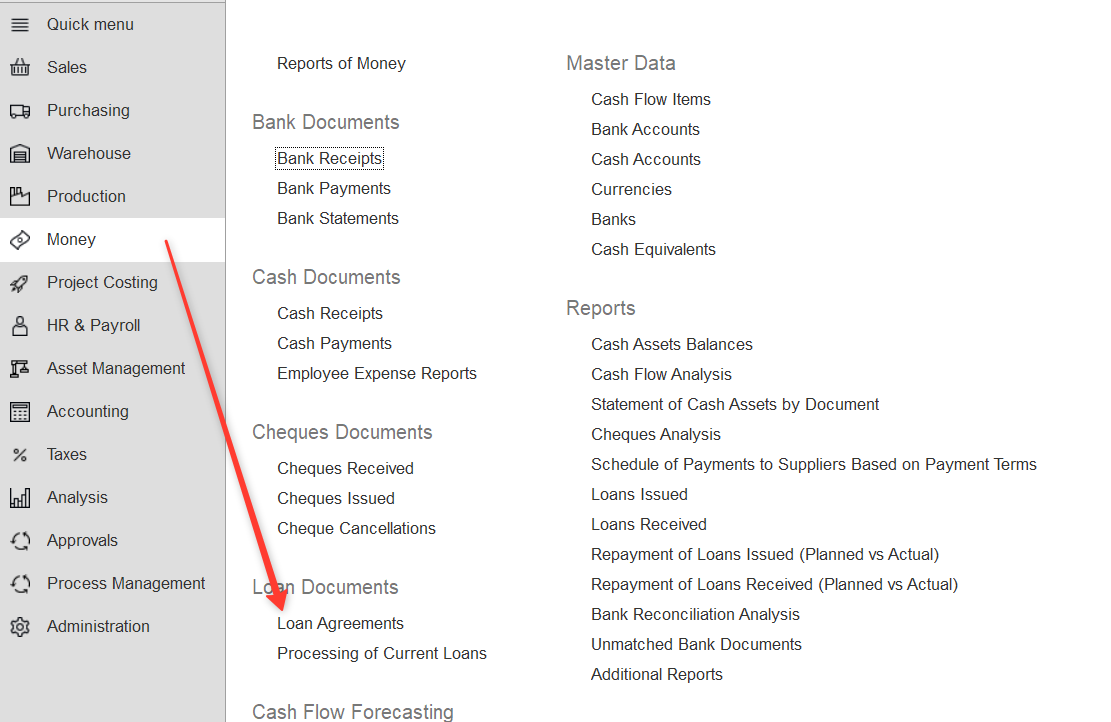
- Select Transaction Type: Loan Issued
- Fill in:
- Borrower
- Contract / Agreement number
- Loan amount
- Interest rate
- GL accounts and other dimensions
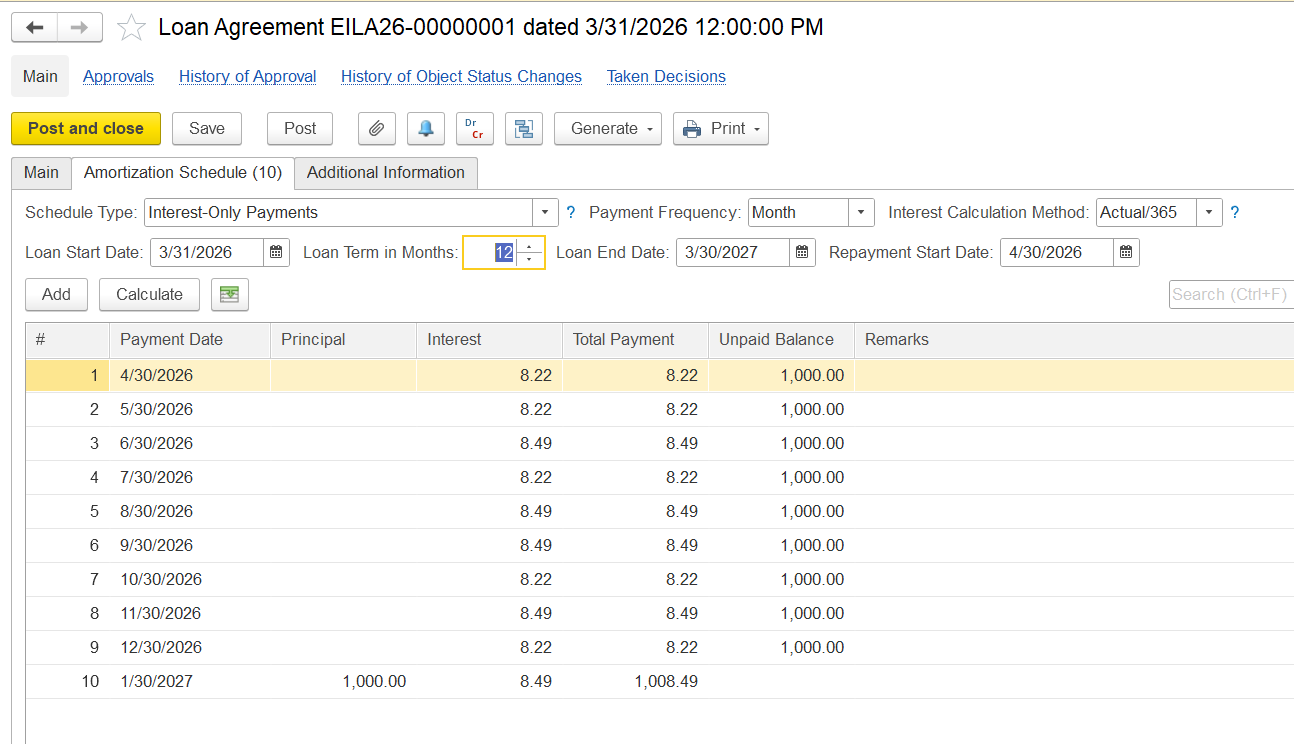
On the Amortization Schedule tab:
- Set schedule type and payment frequency
- Enter loan start date, term, and repayment start date
- Click Calculate, then review and post
See more on Loan Agreements
Step 2. Record the Loan Disbursement
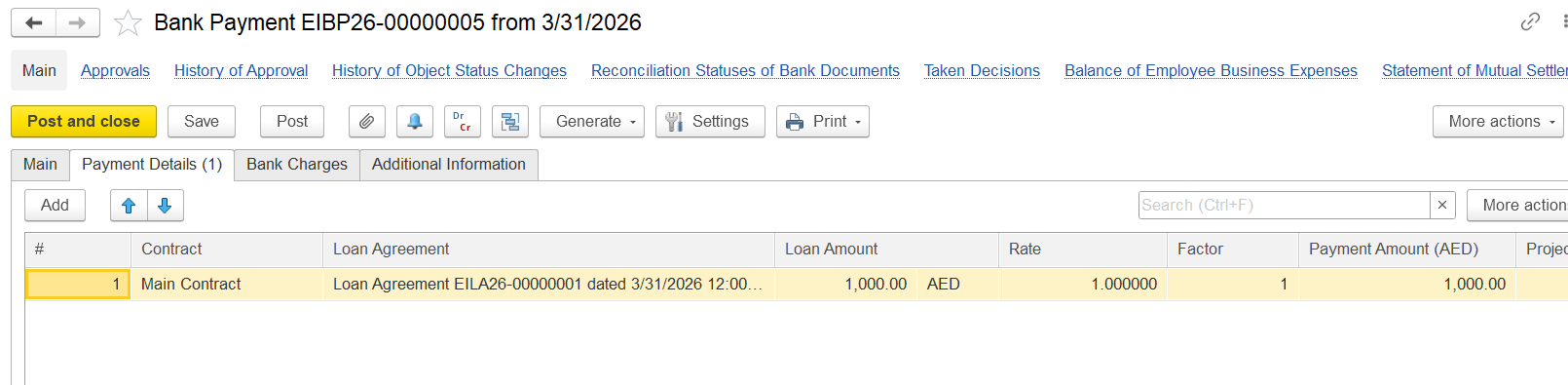
- Create a Bank Payment with Transaction Type: Loan Issued
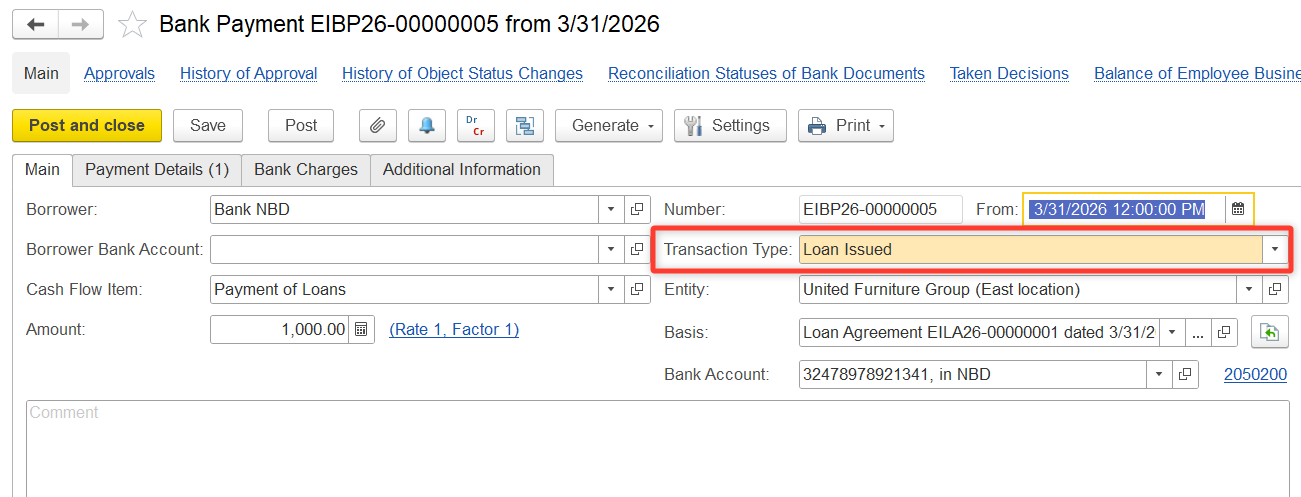
On Payment Details tab, select:
- Contract
- Loan Agreement
- GL Account (Loan Receivable)
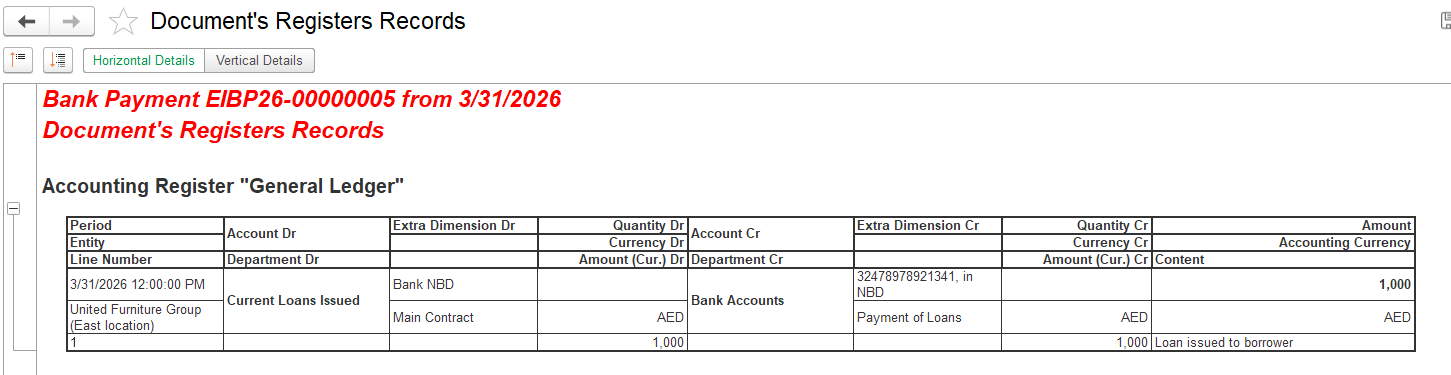
Entry:
- Dr Loan Issued
- Cr Cash / Bank
See more: Deposit in Bank (as Loan)
Step 3.
Step 4. Receive the Accrued Deposit Interest
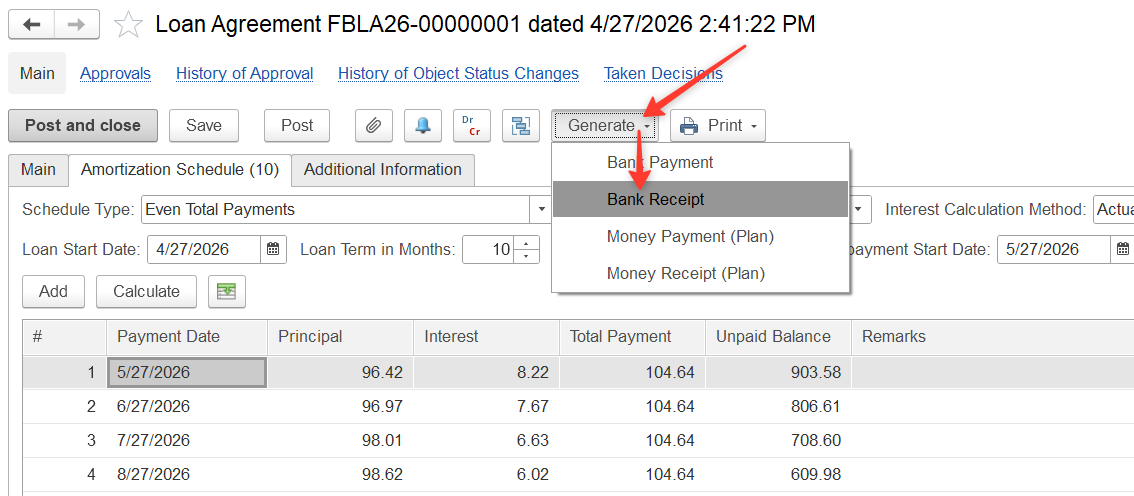
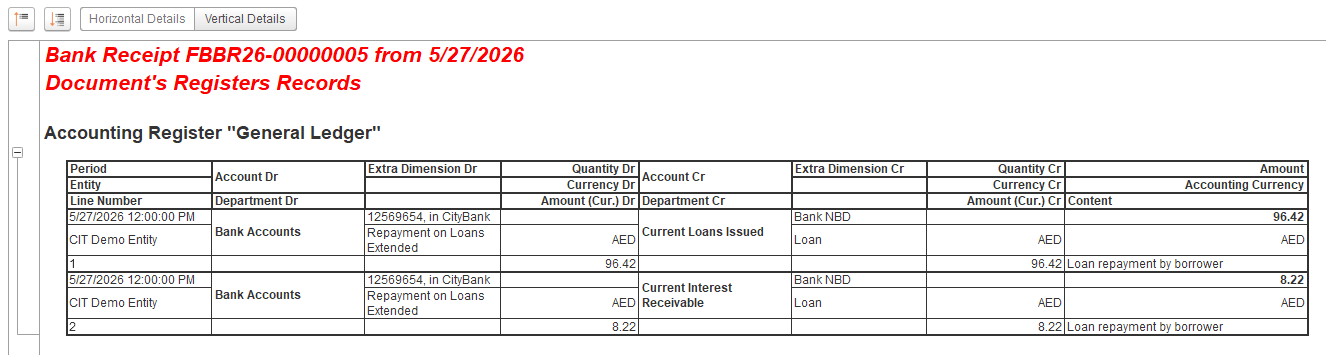
Create a Bank Receipt directly from the Loan Agreement.
Click Generate > Bank Receipt.
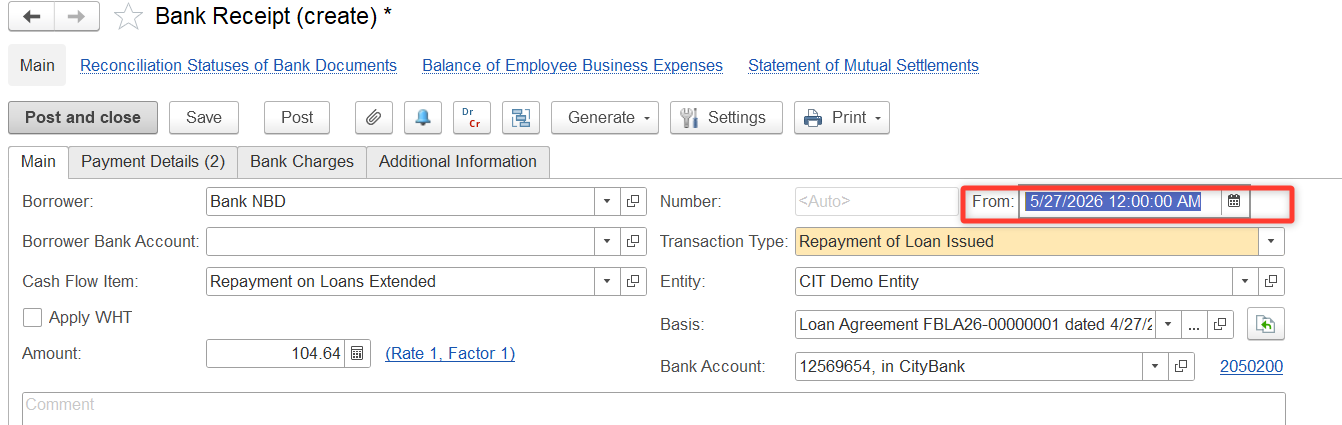
On the Main tab, enter the date of the next payment.
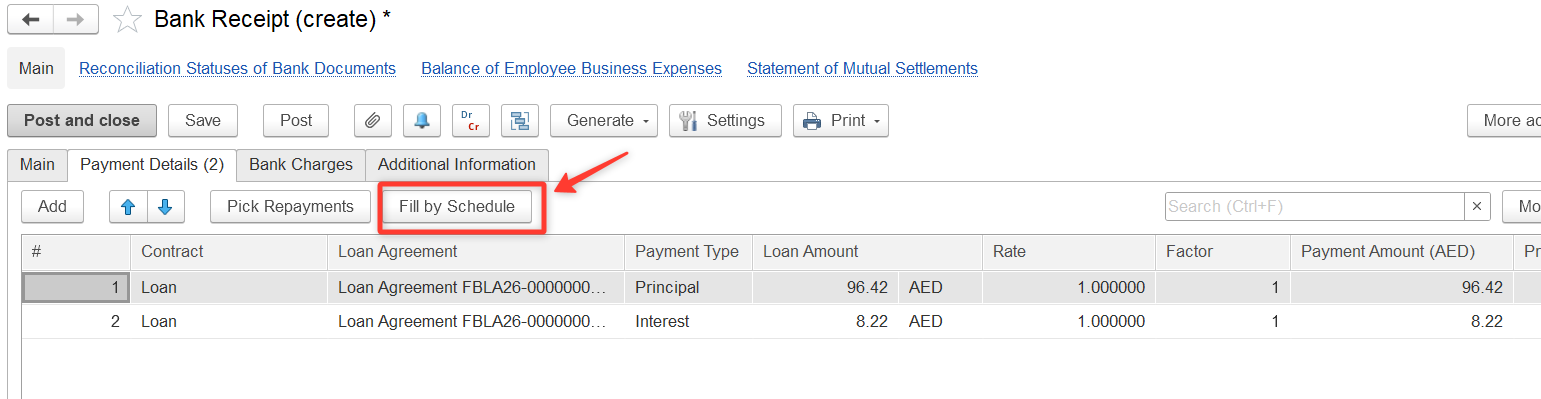
On the Payment Details tab, click Fill by Schedule. All data will be filled automatically based on the loan agreement schedule.
Thanks for being a Firstbit Customer! #BankDeposit #SupplierDeposit #Deposits #DepositAccounting #DepositToSupplier #DepositsPaidToSuppliers