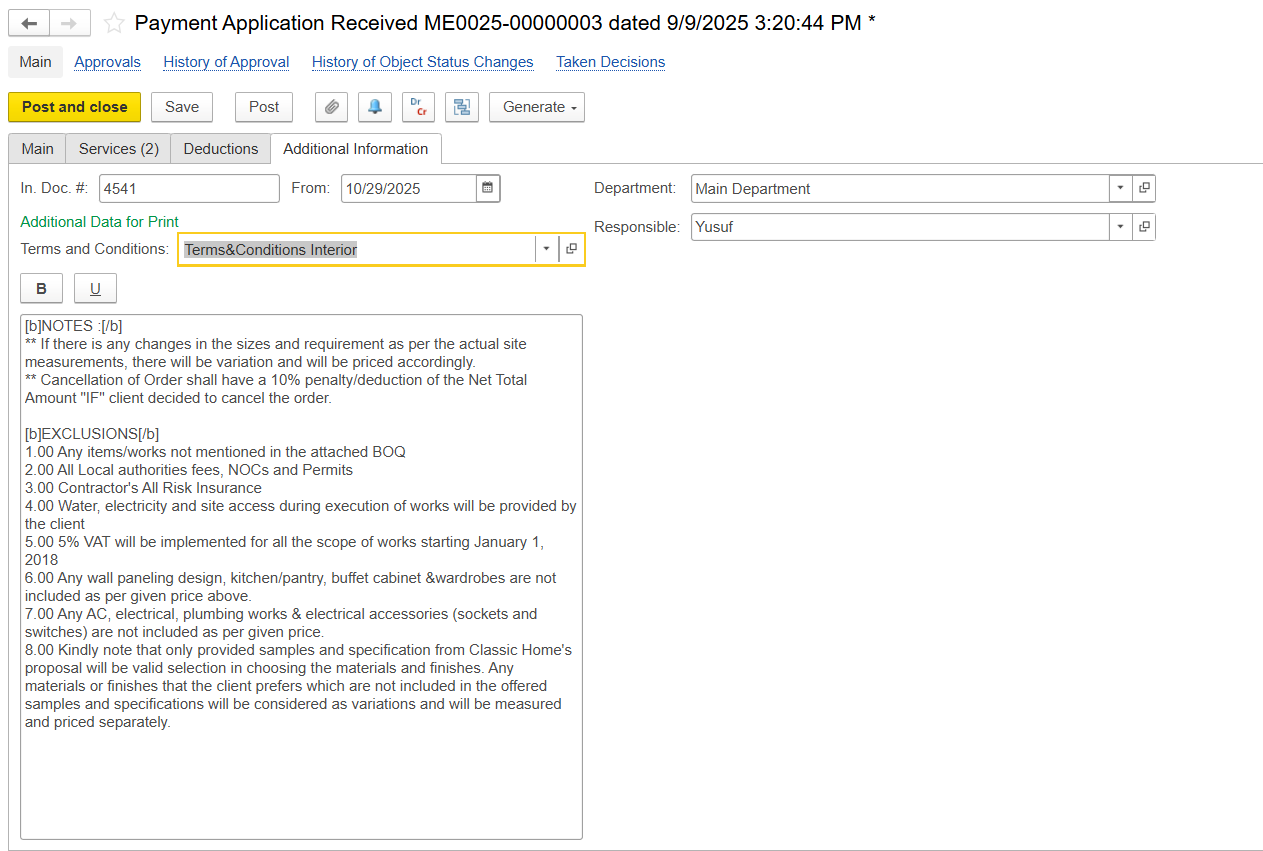
The Payment Application Received document is used to record a subcontractor’s claimed amount for work performed under a Subcontractor Agreement (SA). It provides the basis for certifying the value of work completed and, when configured, for recognizing related expenses in the financial accounts.
How to Create
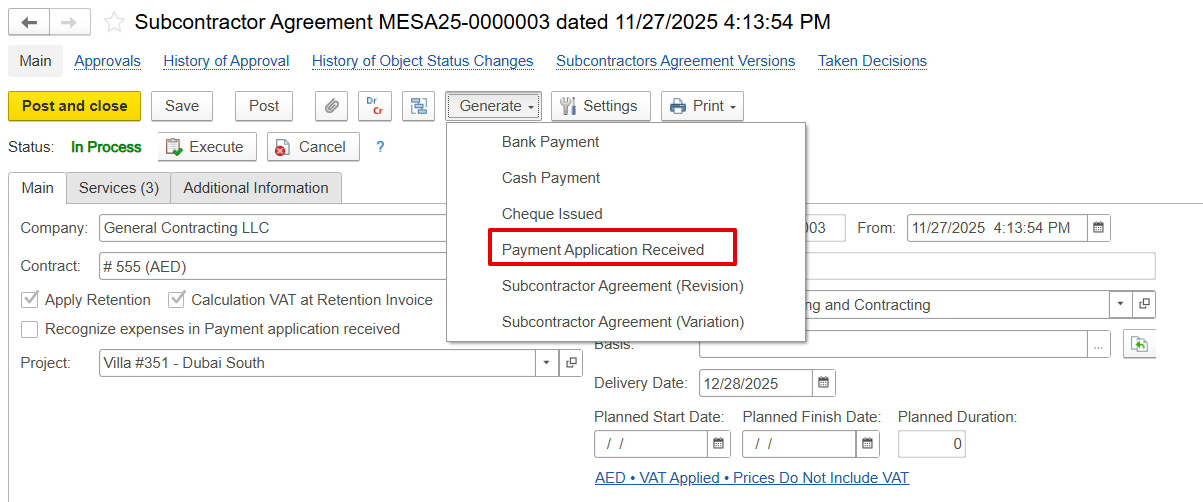
The Payment Application Received document is mainly created from the Subcontractor Agreement using the generate feature, which automatically transfers all default information from the subcontractor agreement.
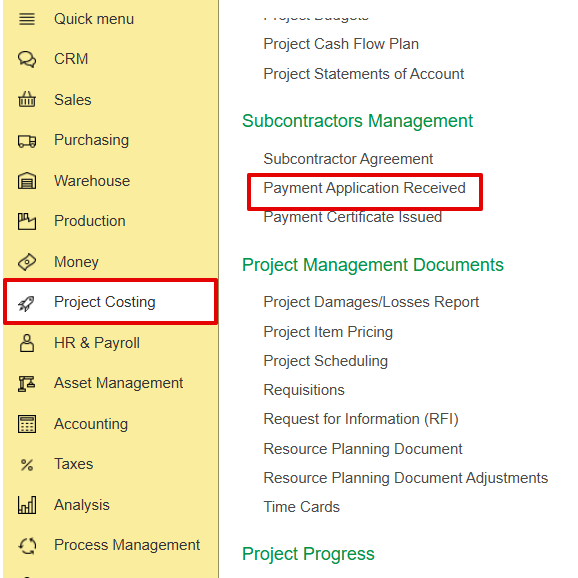
Alternatively, it can also be created from the Project Costing and Purchasing module.
- Project Costing → Subcontractor Management → Payment Application Received.
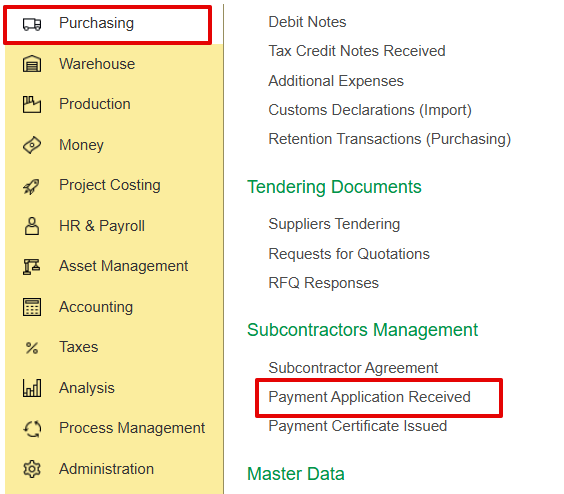
- Purchasing→ Subcontractor Management→ Payment Application Received.
Main Tab
Captures the general details and linkages of the document
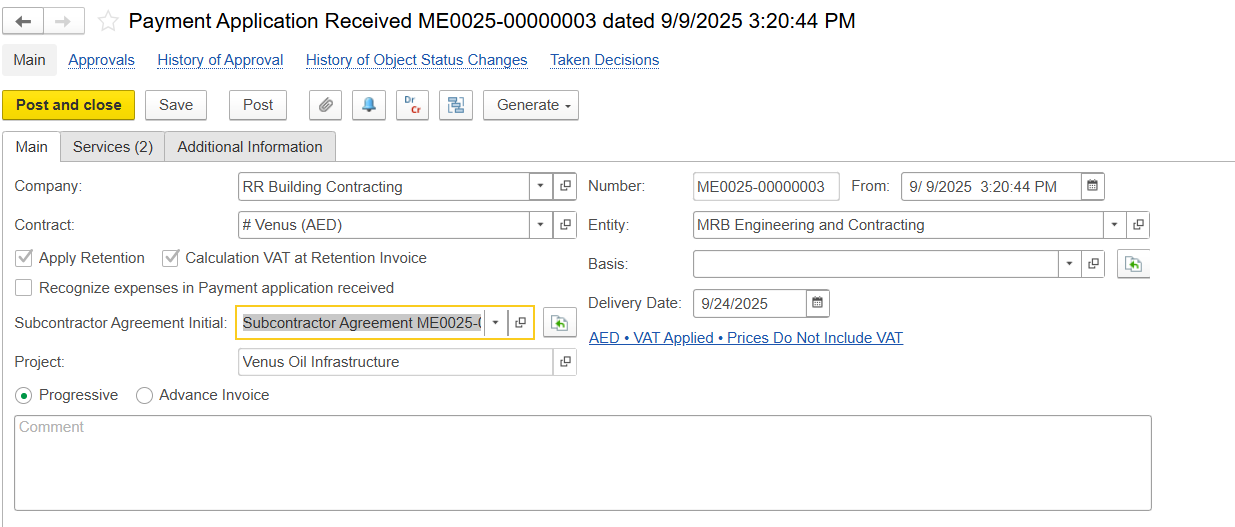
Company- Subcontractor submitting the payment request.
Contract-Contract associated with the subcontractor.
Apply Retention / VAT on Retention-Option to hold back a portion of the payment to ensure work quality; VAT is to be calculated on the retained amount.
Recognize Expenses in Payment Application Received-
If the Subcontractor Agreement Basis is set to Recognize Expenses by Payment Application, expense recognition and financial postings occur when the document is approved/posted
GL Transactions:
Dr Expense (based on the linked cost item and analytics)
Cr Unbilled Purchase (liability representing the subcontractor’s claim)
When the subcontractor’s invoice is later received, this liability is cleared to Payables
Subcontract Agreement Initial-Reference to the original subcontract agreement document.
Project-Project linked to the payment claim.
Delivery Date-Indicates the time period or cut-off date for the claimed work.
Services Tab
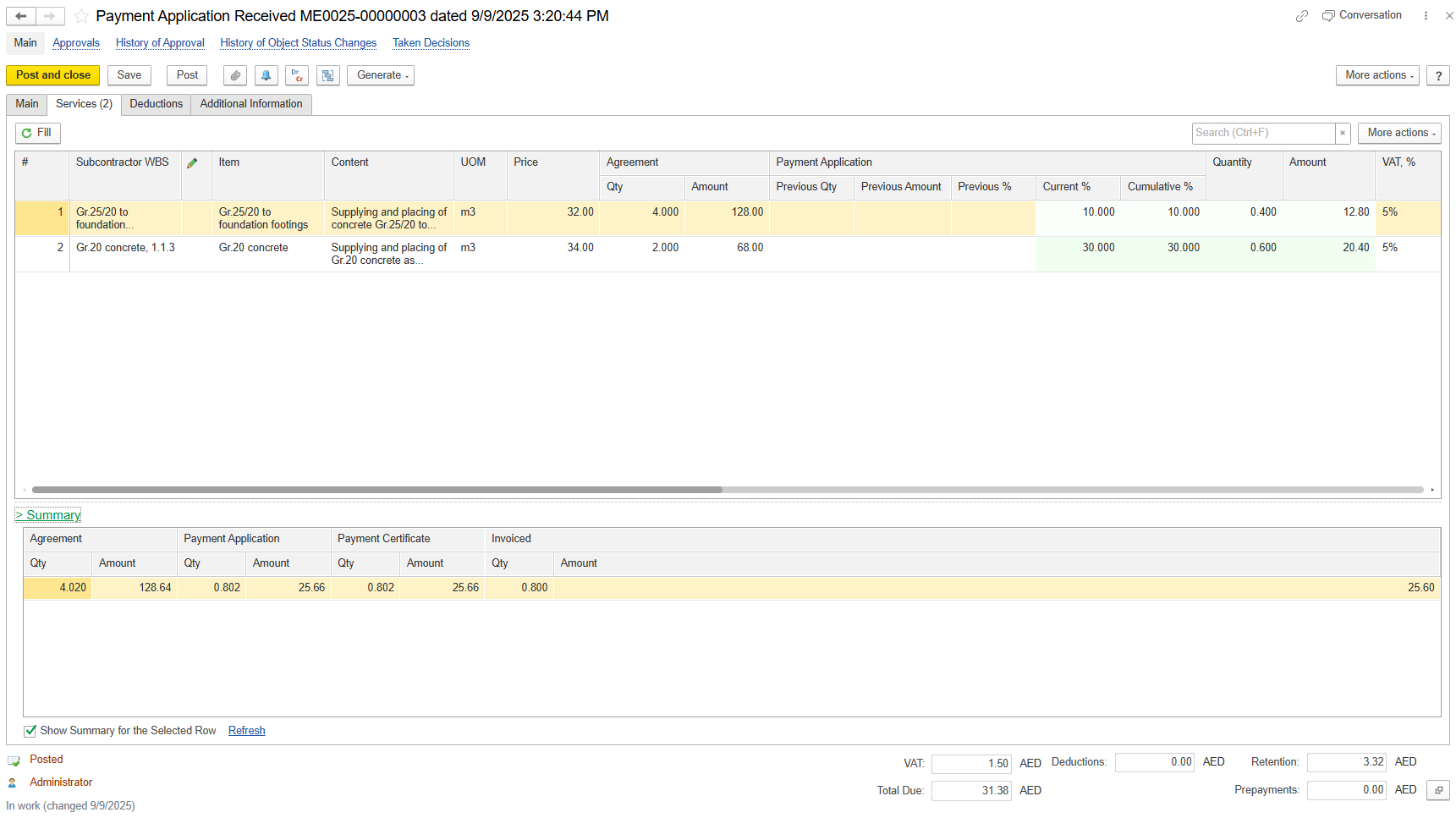
The Service tab provides a detailed breakdown of all work items or services being claimed by the subcontractor in a payment application.
Subcontractor WBS-Optional code to identify work as defined by the subcontractor.
Item -BOQ line service item.
Content-item reference and Description of this work or service performed.
UOM-Unit of measure.
Price -The agreed unit rate for this work item as defined in the Subcontract Agreement (SA).
Agreement-This section shows the quantities and values that were originally agreed upon in the Subcontractor Agreement (SA)
- Quantity-The total number of units of work agreed in the SA for this item.
- Amount-Total value based on the linked Subcontractor Agreement.
Payment Application
- Previous Quantity -Cumulative quantity of work approved in all prior payment applications.
- Previous Amount-Total value of previously approved quantities (before retention and VAT).
- Previous %-Percentage of progress achieved up to the last approved application.
- Current % -Progress percentage being claimed for the current application document.
- Cumulative %-Total progress achieved to date, including previous and current claims.
- Quantity -Units of work being billed
Amount -Gross value of work before retention and VAT.
- VAT %-Percentage of VAT applied to the billed amount
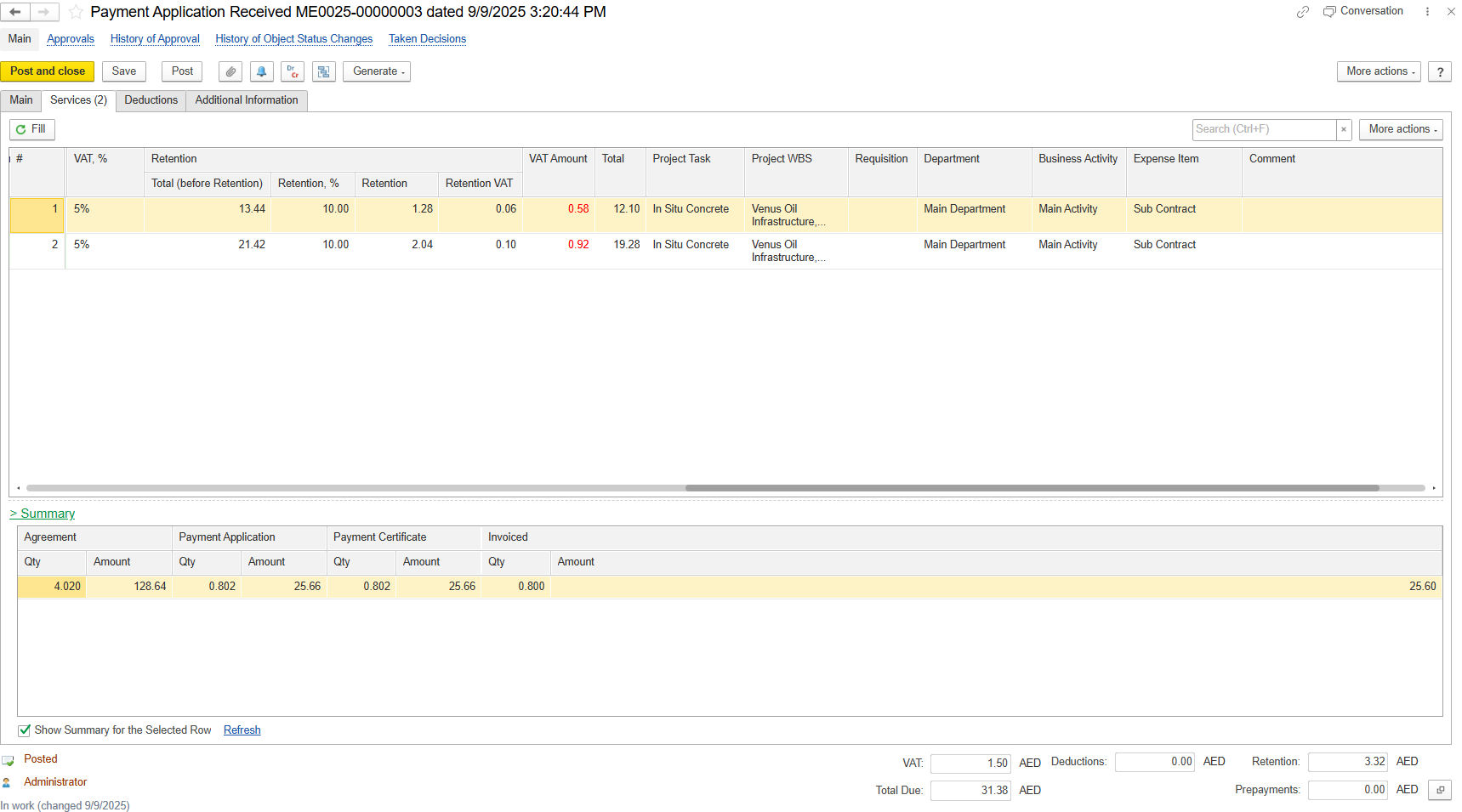
Retention-Portion of the payment withheld to ensure contractual and quality compliance
- Total (before retention) -The total billed value before retention is deducted.
- Retention % -Rate used to calculate the retained amount
- Retention -The monetary value withheld based on the retention percentage.
- Retention VAT-VAT amount applied to the retained portion.
VAT Amount -Total VAT calculated (including VAT on retention where applicable).
Total -Net payable amount after retention and VAT calculations.
Project Task -Specific task the work relates to within the project.
Project WBS -Work Breakdown Structure code to classify the tasks within the project hierarchy.
Requisition -Original request or source of the work order.
Department -Department responsible for the activity.
Business Activity -Work category or operational classification.
Expense Item -Cost or budget category used for expense tracking.
Comment -Additional text or details can be added in the field.
Summary Tab
The Summary section shows consolidated totals for the currently selected service line and for the entire document.
Agreement-Represents the original contracted values from the Subcontractor Agreement (SA).
- Quantity -The total quantity of work originally agreed with the subcontractor.
- Amount -The total contract value for that quantity based on the SA.
Payment Application-Shows what the subcontractor is claiming in the current payment application, plus previous approved claims (cumulative).
- Quantity -The total quantity of work claimed to date.
- Amount -The total monetary value claimed to date.
Payment Certificate-Shows what has been reviewed, approved, and certified
Quantity -The amount of work certified as actually completed.
Amount -The certified value based on approved quantities.
Invoiced-Represents the portion that has already been invoiced (billed) by the subcontractor based on certified work.
- Quantity -The amount of certified work already invoiced.
- Amount -The total value that has been billed to date.
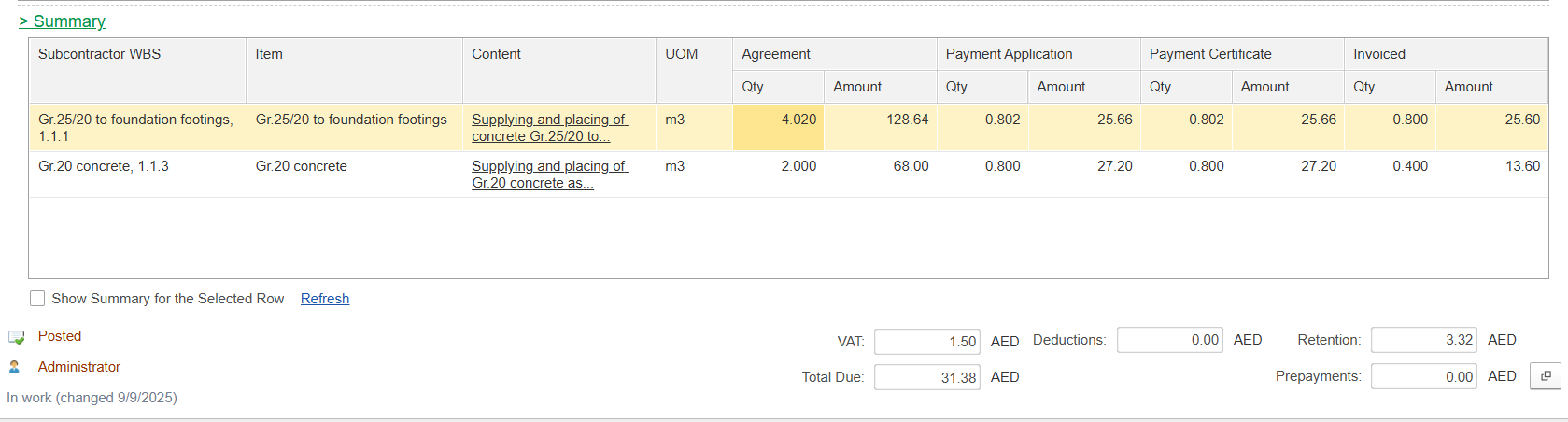
If "Show Summary for the Selected Row" is enabled, the summary displays only the totals related to the specific subcontract service line currently selected. When disabled, the summary shows totals for the entire subcontract payment application document.
Deduction Tab
This tab is used to record deductions applied to the subcontractor’s claim, such as penalties, material supply recoveries, advance recoveries, or other contractual adjustments
Item - Name of the material, service, or deduction type.
Content - Details or description of the deduction.
Quantity - Quantity being deducted.
UOM (Unit of Measure) - Measurement unit for the quantity (e.g., Litre, Hour).
Price - Cost per unit of the item.
VAT % - Tax percentage applied to the item (for calculation purposes only).
VAT Amount - Tax amount calculated from VAT % (not posted as input or recoverable VAT).
Note: VAT % and VAT Amount in this tab are for calculation purposes only. All deduction-related transactions, including VAT posting, must be processed through the Invoice Received document.
Amount (Net Value) - Total deduction amount before tax (Quantity × Price).
Total Amount (Gross Value) - Total deduction amount including VAT (Net + VAT).
Subcontractor WBS - Project Work Breakdown Structure code for allocating cost to the correct project activity.
GL Account - Financial account to which the expense or revenue is posted.
Department - Responsible company department for this cost.
Business Activity - Internal reporting classification category.
Income Item -
Comment - Optional notes or remarks about the line.
Note
The VAT % and VAT Amount fields in this tab are for calculation purposes only and will not be posted as input or recoverable VAT.
All deduction-related transactions, including VAT calculation and posting, must be recorded through the Invoice Received document.

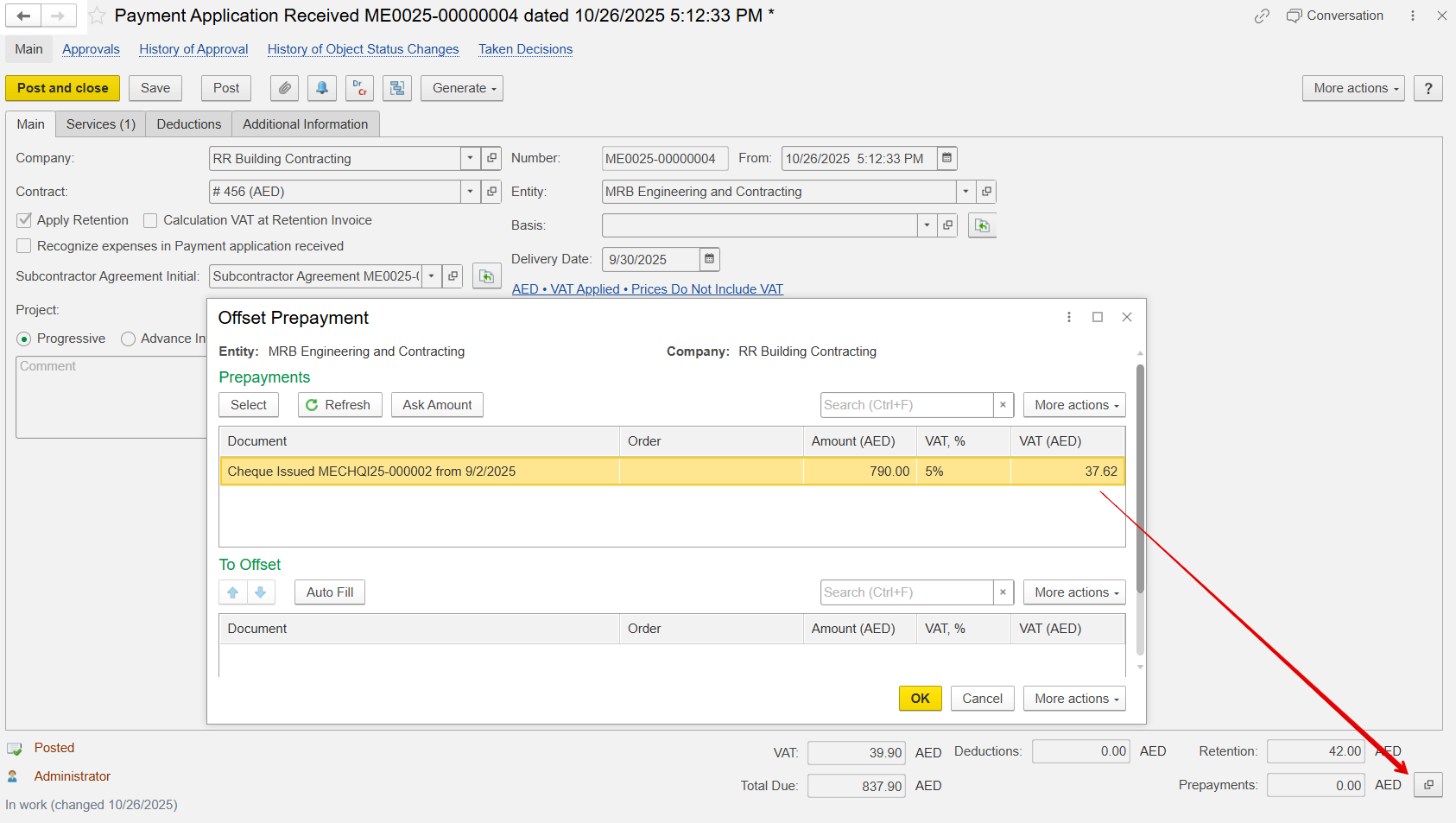
Advance Offset
Only the advance payment is recorded as an offset balance and entered into the prepayment field, regardless of the payment method (bank transfer, cheque, etc.). This advance is linked to the current document so that any subsequent linked document automatically carries forward the prepayment. The final accounting offset occurs in the Invoice Received document.
Additional Information Tab
This tab is for adding extra details related to the project
In Doc. # and date- Internal or reference document number linked to this payment application.
Department- Department responsible for reviewing and approving the subcontractor’s payment.
Responsible- Person who prepared or approved the payment record.
Terms and Conditions Dropdown- Stores predefined T&C templates for printing.