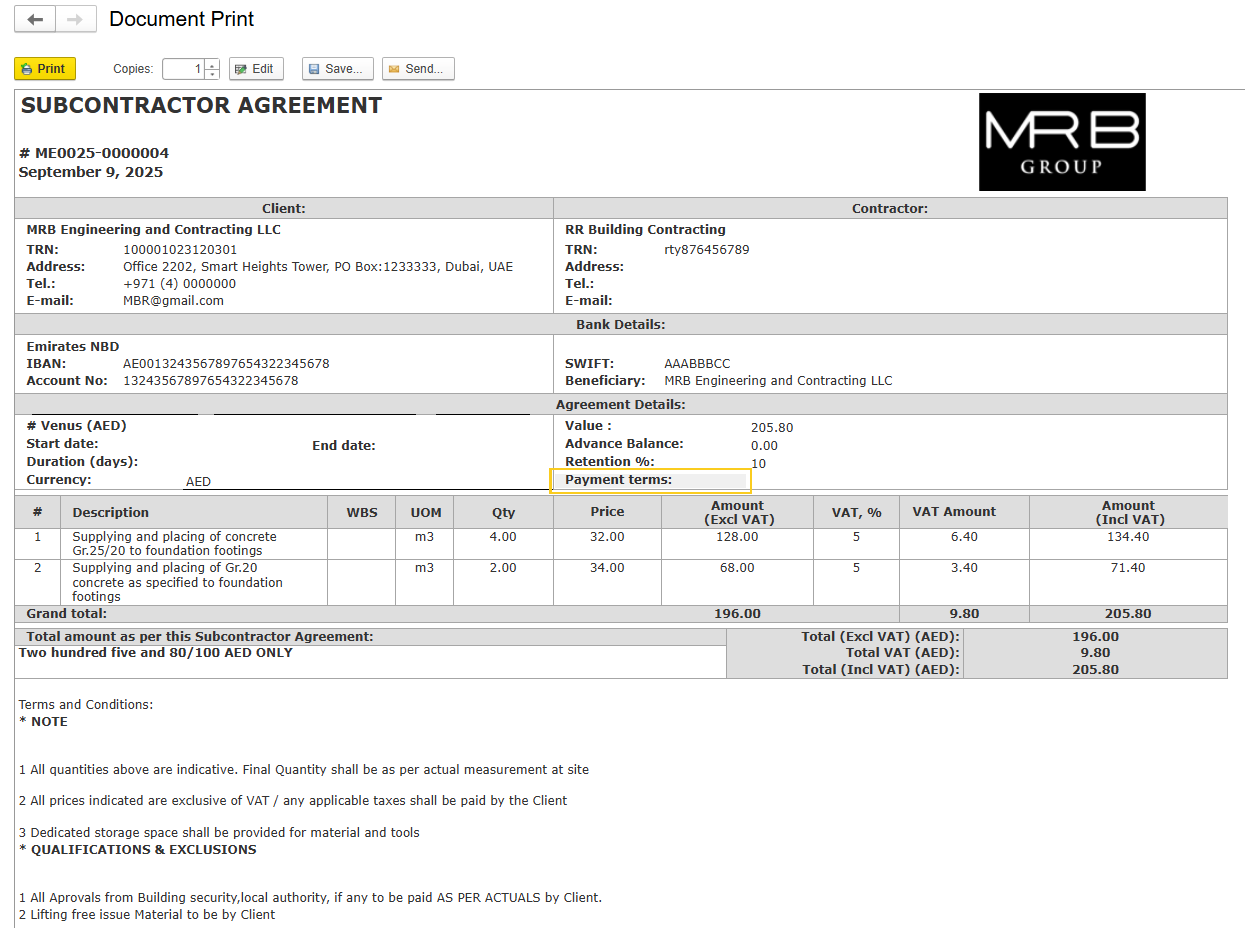
The Subcontractor Agreement represents the formal internal document used to record and manage the portion of the project BOQ that is assigned to a subcontractor for execution.
It defines the scope of work, quantities, unit rates, and total value agreed upon with the subcontractor.
This document serves as a base reference for all future subcontractor-related processes, such as Payment Applications, Payment Certificates, and Variation Orders, to ensure consistent tracking of quantities, rates, and scope against the project budget.
How to Create
The Subcontractor Agreement can be created through several paths, depending on the business flow:
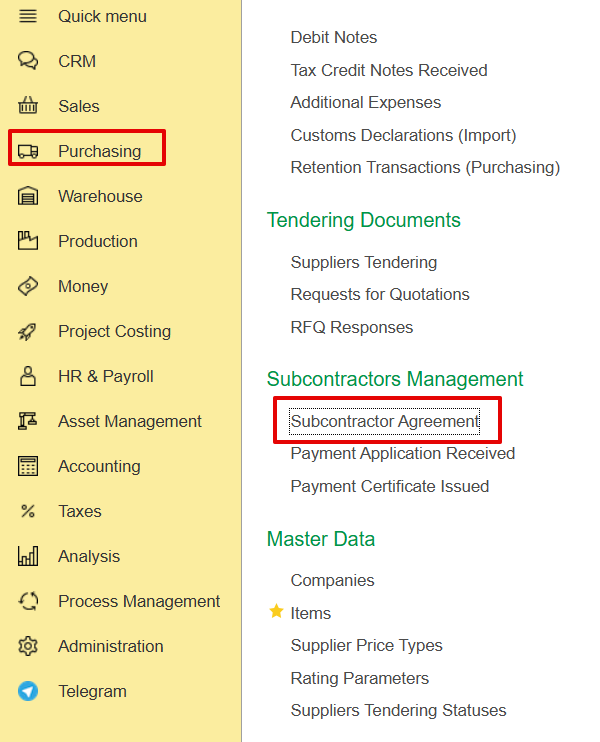
From Purchasing → Subcontractor Management → Subcontractor Agreement
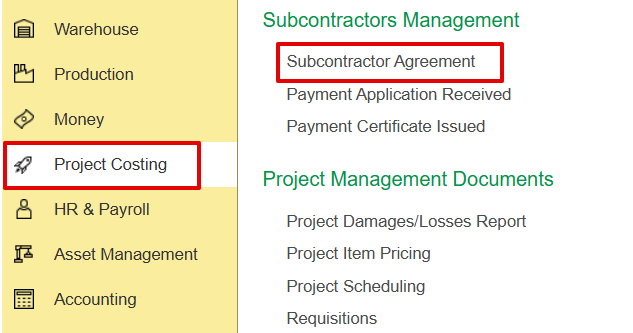
From Project Costing→ Subcontractors Management→Management Agreement
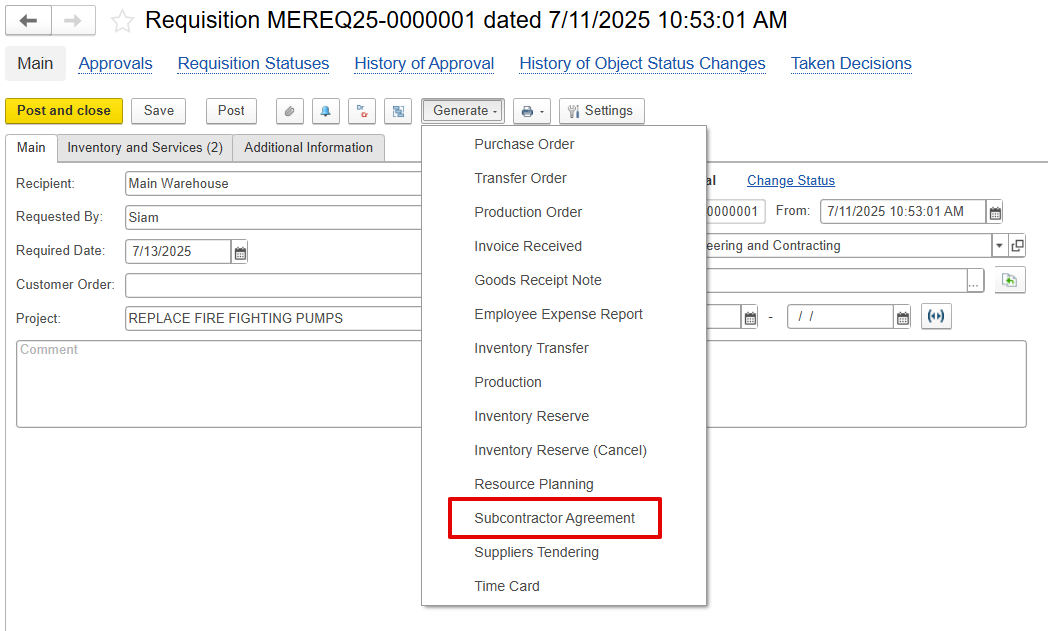
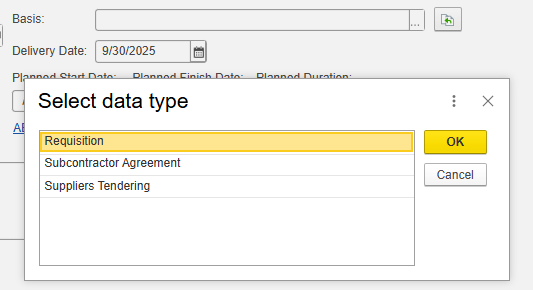
Based on a Requisition, converting internal material or service requirements into a subcontracting scope.
As a result of Supplier Tendering, a selected supplier from the tender comparison is finalized as a subcontractor.
Main Tab
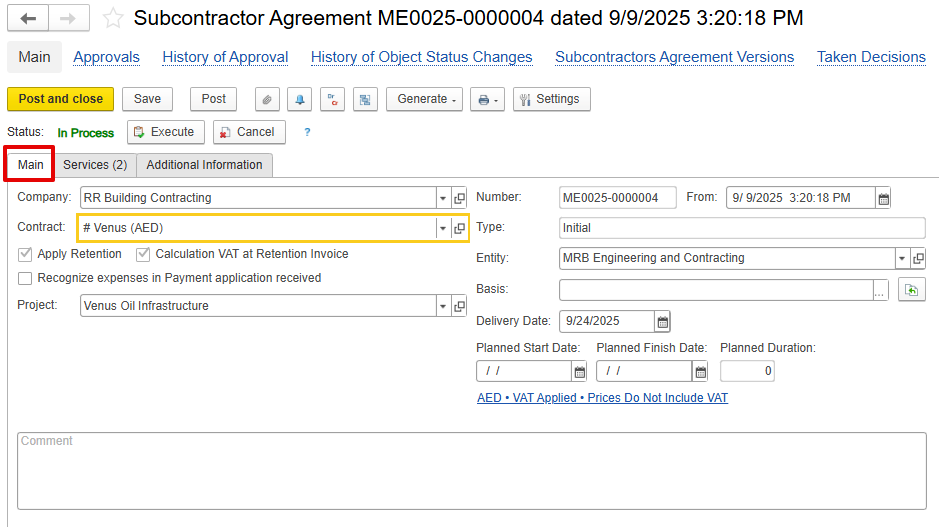
Company - The subcontractor responsible for executing the assigned work.
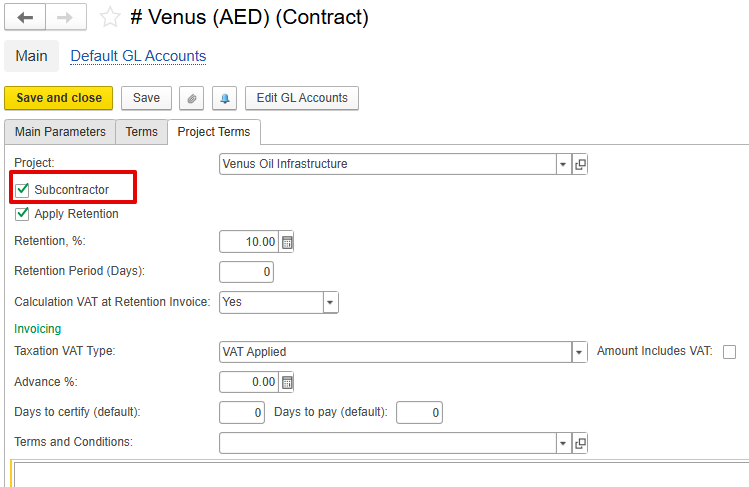
Contract - The contract associated with the subcontracted work. It must be marked as a Subcontractor under the project terms.
VAT and Retention settings defined in the contract will be automatically used in the Subcontractor Agreement document.
Type-Defines document version
Initial-Original agreement.
Revision-Updated version of the agreement before execution.
Variation-Additional scope or changes to the approved agreement.
Project-Links subcontracted work to a specific project.
- Apply Retention - Enables retention for the document, based on the retention settings defined in the related contract.
- Calculation of VAT at Retention Invoice - Applies VAT on the retention amount, following the VAT configuration specified in the contract.
- Recognize expenses in the Payment Application received- When enabled, the system records a transaction similar to a GRN but for expenses, posting Dr Expense and Cr Unbilled Purchase. Later, upon receiving the invoice, the Unbilled Purchase is cleared to Payables.
But, if this option is not enabled, expenses will be recognized by default at the time of Invoice Received.
- Basis- Add the linked document
Delivery / Planned Start / Finish Dates- Define execution timeline.
- Comments- to add Internal remarks or notes.
Inventory and Services Tab
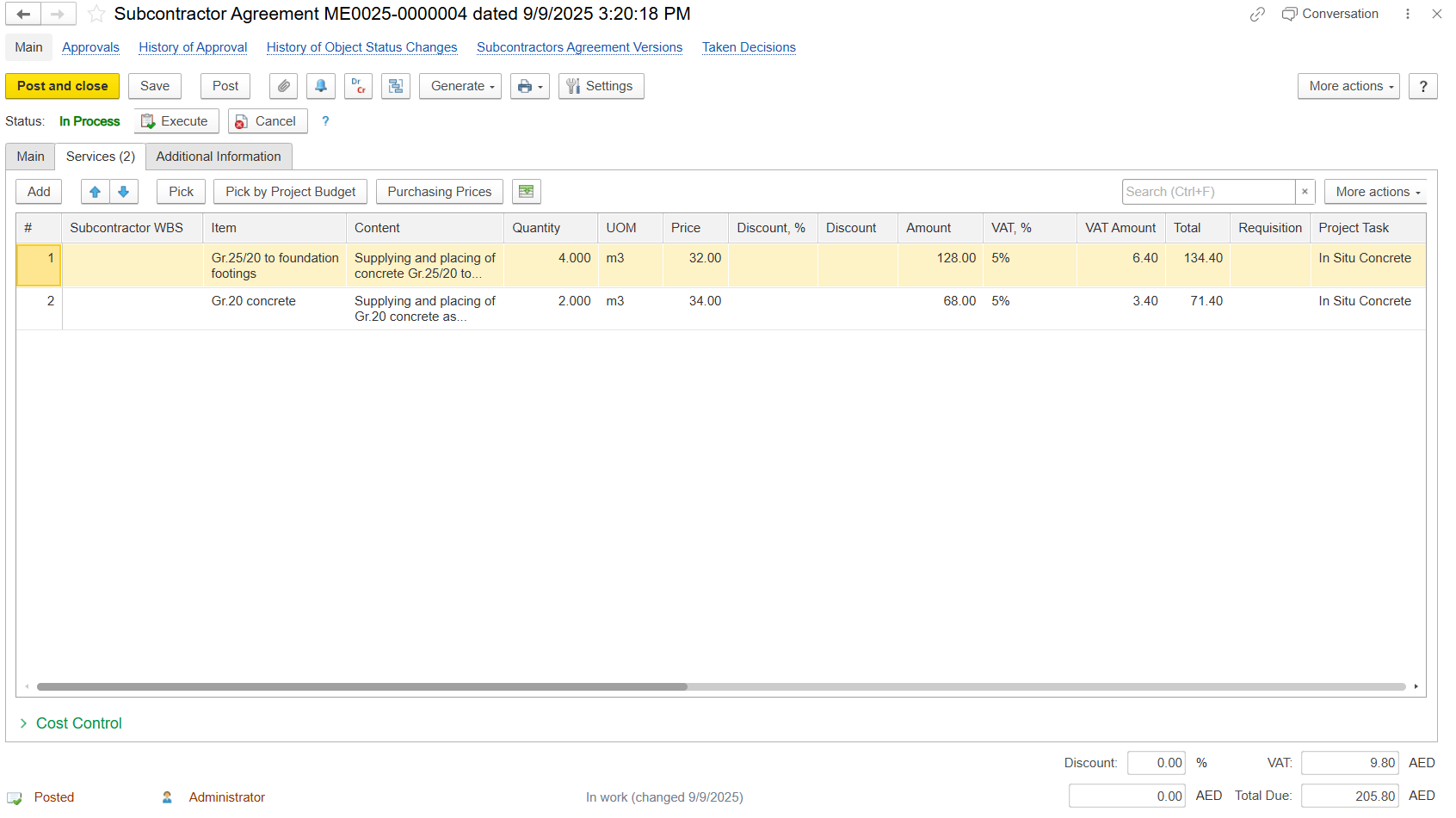
This tab defines detailed work items agreed with the subcontractor.
Subcontractor WBS-Optional code to identify work as defined by the subcontractor. It can be typed manually by the user.
Item-Description of BOQ or service item.
Content-Detailed description of work.
- Quantity / UOM / Price - Define the amount of work, its measurement unit, and the agreed rate used to calculate the contract value.
- Discount / VAT / Total - Represents the pricing breakdown, including any discounts, applicable VAT, and the final payable amount.
Project Task - Defines a specific activity or work item to be performed within the project scope.
Project WBS - Represents the hierarchical Work Breakdown Structure element that groups and identifies where the task belongs within the overall project.
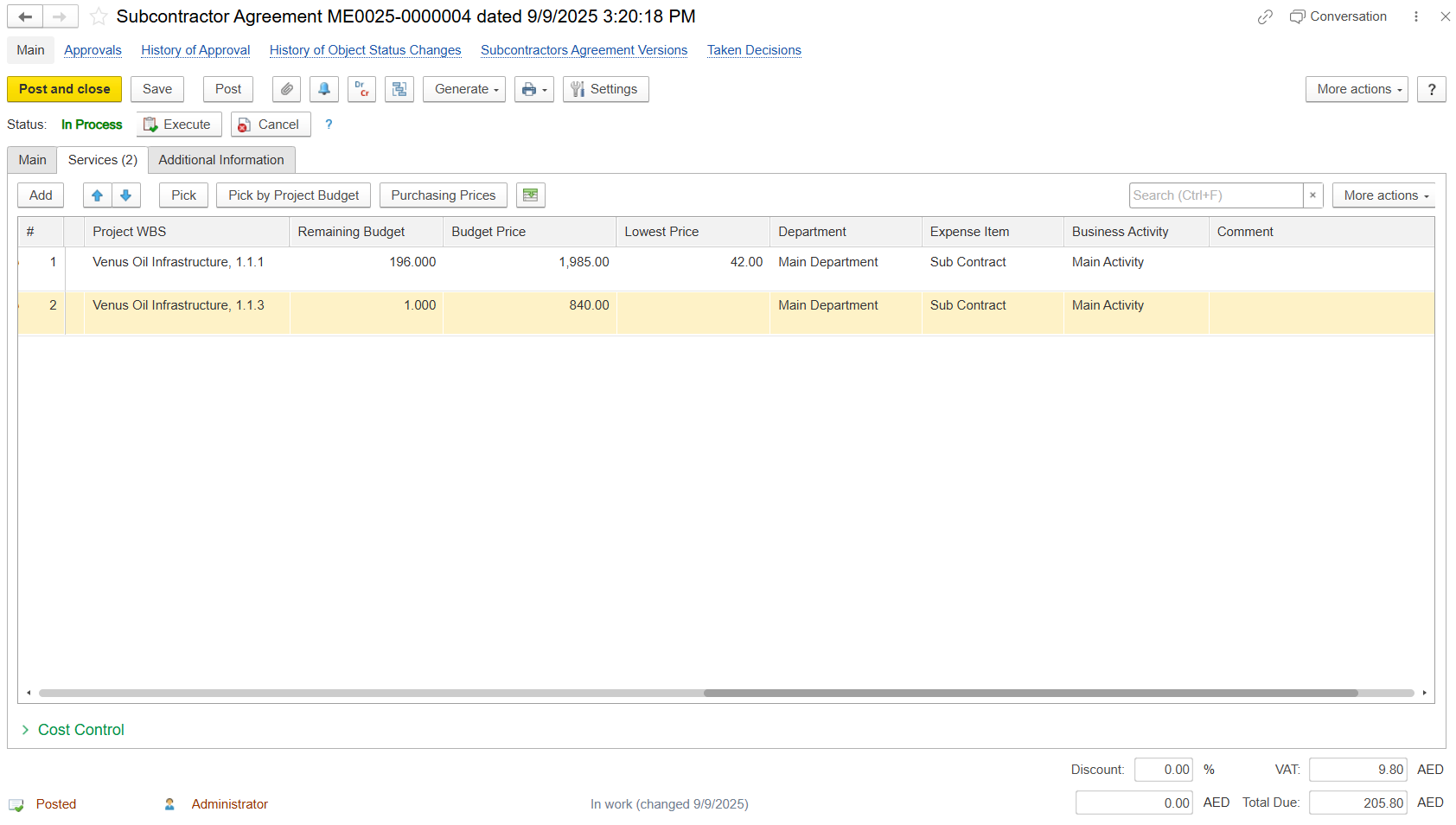
Remaining Budget - Unused budget balance for the selected WBS before this agreement.
Budget Price - Planned cost allocated for the subcontracted work.
Lowest Price - Minimum quotation received during comparison or bidding.
Department - Internal department responsible for the subcontract.
Expense Item - Cost category under which the subcontract expense is recorded (e.g., Sub Contract).
Business Activity - Operational or cost center activity linked to the work (e.g., Main Activity).
Comment - Field for additional notes or clarifications about the line item.
Functions
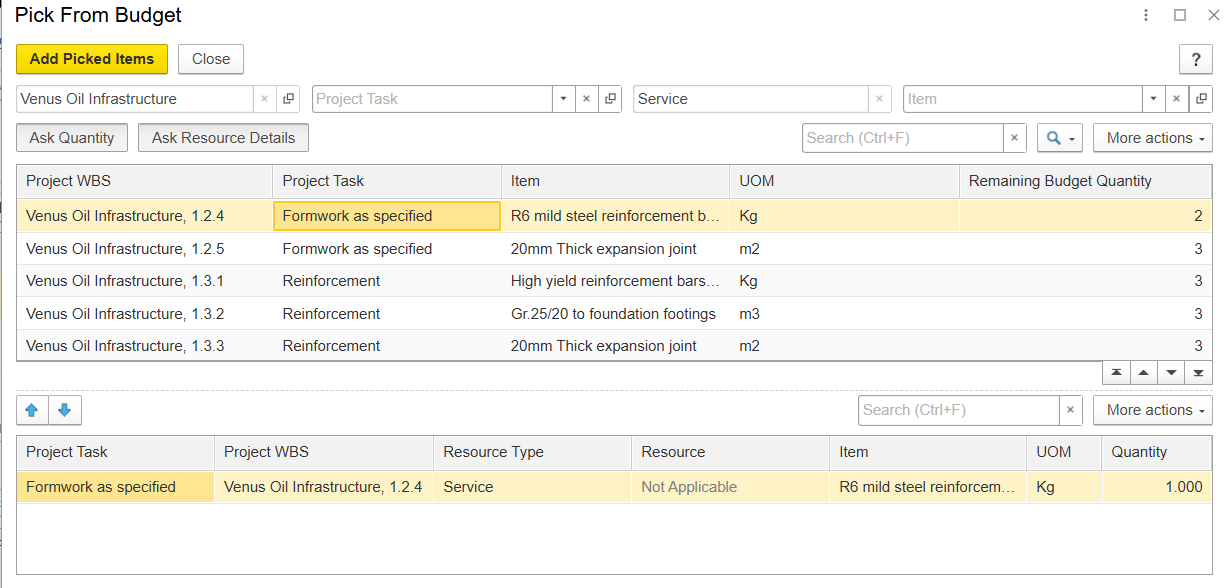
Pick by Project Budget-Assigns a budgeted item to a specific project task or service, ensuring that only approved quantities and resources are used.
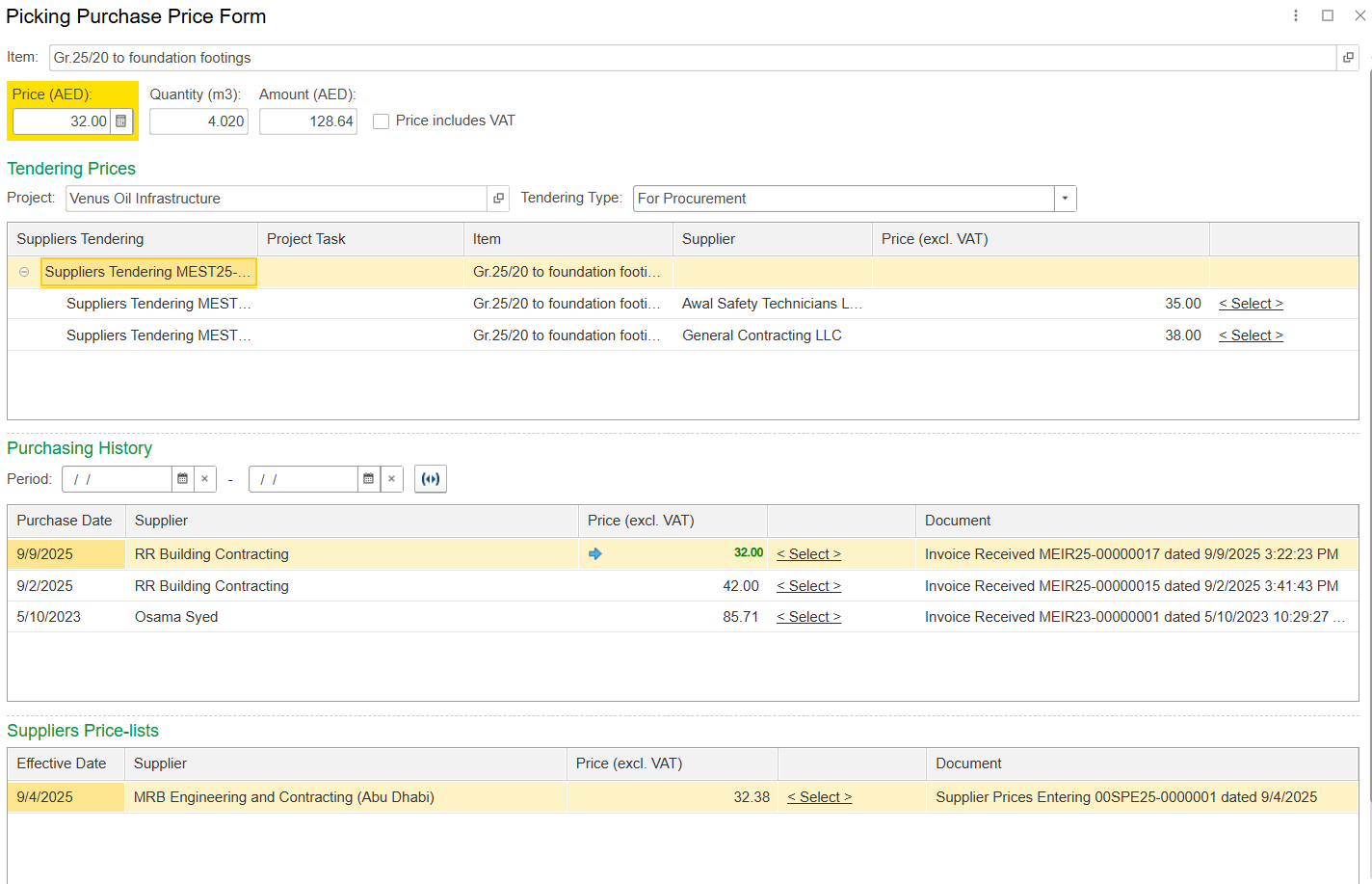
Purchasing Prices-Pull prices from historical purchase data for reference.
Item Details - Displays item name, unit price, quantity, total cost, and VAT option
Tendering Prices - Lists current supplier offers from tender documents with supplier name, item description, price (excl. VAT), and selection dropdown
Purchasing History - Shows previous purchases with supplier, date, invoice reference, and selection dropdown for comparison
Suppliers Price-lists - Presents supplier catalog prices with effective dates, reference documents, and selection options
Cost Control Tab
The Cost Control tab provides a real-time link between the Subcontractor Agreement (SA) and the project’s cost tracking. It allows users to review and analyze budget utilization based on the data from the linked SA document lines.
This section displays amounts as of the current document date, summarized by Project, Project WBS, and Expense Item. It represents costs that have already been recognized or are in the process of being committed.
Update Cost Control Table - Refreshes the data to reflect the most current budget and order values.
Project / Project WBS / Expense Item - Identifies the project, its work breakdown structure element, and the corresponding cost category.
Budget Amount - The approved budgeted amount for the specific WBS and expense item.
Orders and Agreements - Total value of commitments, including active and planned agreements.
Current - Value of active contracts or POs already issued and expected to be executed.
Other Remaining - Value of pending or planned commitments not yet finalized, used for forecasting and budget planning.
Materials Delivered - The value of goods received or work completed to date.
Actual Expense - The cost already recognized or posted in the system.
% of Budget - Portion of the budget that has already been utilized.
Remaining Budget Amount - The amount of the budget still available after accounting for expenses and commitments.

Revision
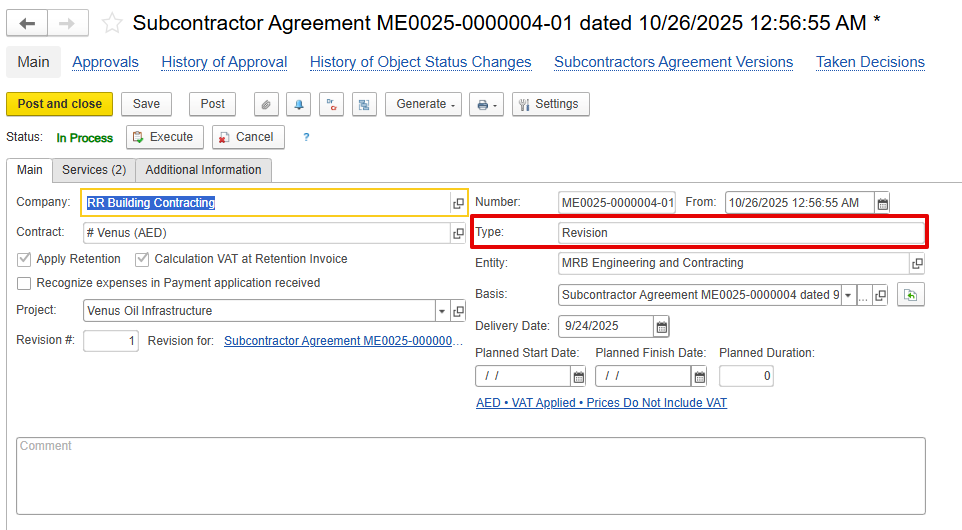
A Subcontractor Revision allows modifying a Subcontractor Agreement before any related documents, such as Payment Applications, are processed. At the time of revision, the initial data is copied, and all original parameters are retained.
Revisions enable updates to quantities, rates, or descriptions while maintaining a version history for tracking changes. The system ensures that no request exceeds the limits of the original linked requisition, and multiple versions provide a clear summary of all adjustments, similar to Estimation Revisions.
This can be created using the Generate option; make the necessary changes or amendments in the revision document, and then post.
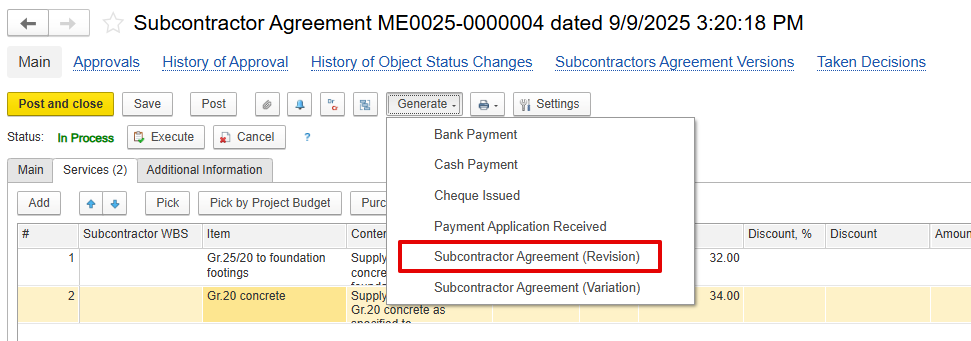
The type will be “Revision,” and the basis will be the initial Subcontractor Agreement.
Variation
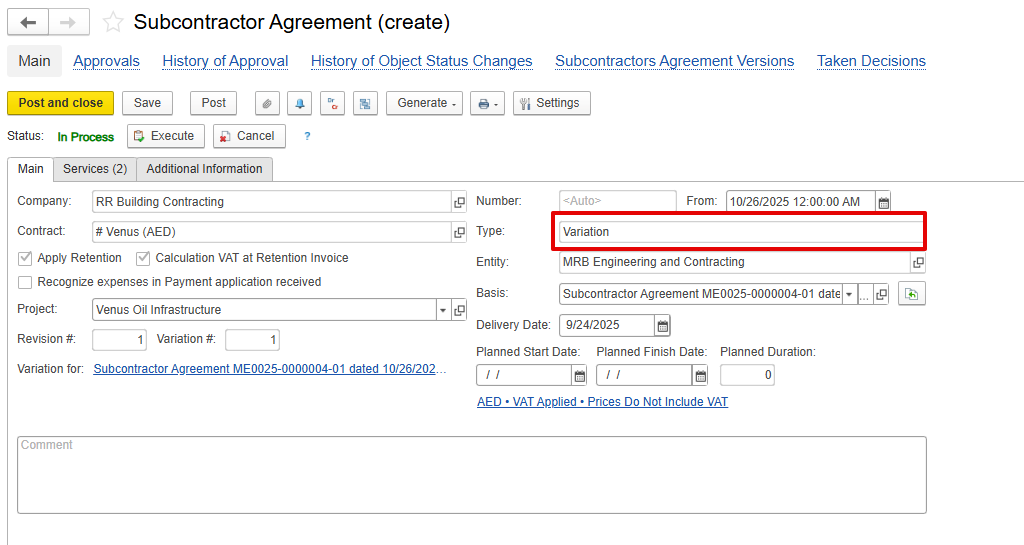
Variations are used to record additional or modified work under the subcontract after the initial agreement is in place. It functions like Variation in Estimation, but is specific to the Subcontractor Agreement.
A variation can be created only based on the latest version of the active agreement, which can be identified via the subcontractor agreement version link listed under the Subcontractor Agreements document

The type will be Variation, and the basis will be the latest Subcontractors agreement.
Additional Information Tab
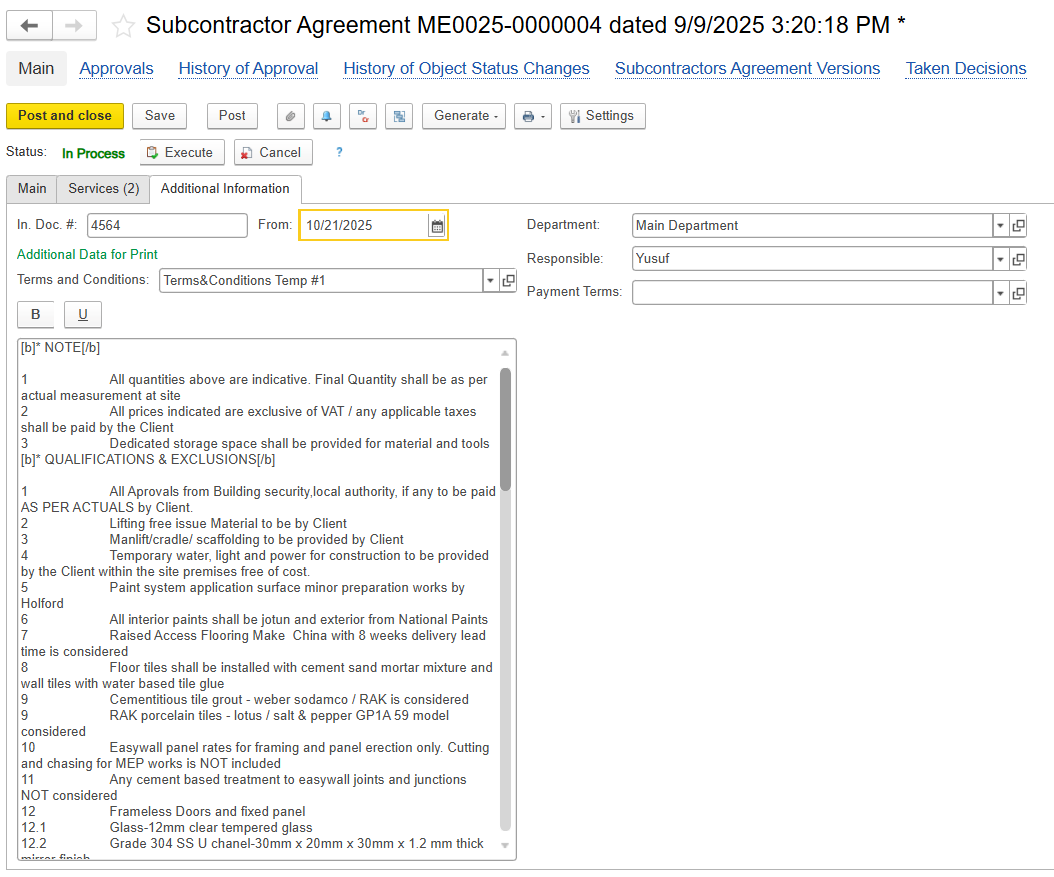
Contains supplementary details for internal or reporting purposes, such as:
In Doc.# and Date - Internal reference numbers
Subcontractor contact details
Custom attributes for reporting or classification
Print Form
A dedicated Subcontractor Agreement Print Form is available to formalize the contract.
The print form includes:
Agreement header information (Company, Subcontractor, Project, Dates)
Detailed list of agreed work items, quantities, unit rates, and totals
Retention and VAT terms
Signature and approval section