Revenue (BOQ) refers to the Bill of Quantities (BOQ). It is a detailed document used in construction and project management to outline the estimated quantities of materials, labor, and overhead costs needed for a project. It serves as a key reference for calculating a project's revenue, particularly for projects priced based on work quantities.
It can be viewed in Estimation mode or Project structure mode.
Project Structure shows the breakdown of project tasks and their hierarchy (what work is being done and how it's organized). 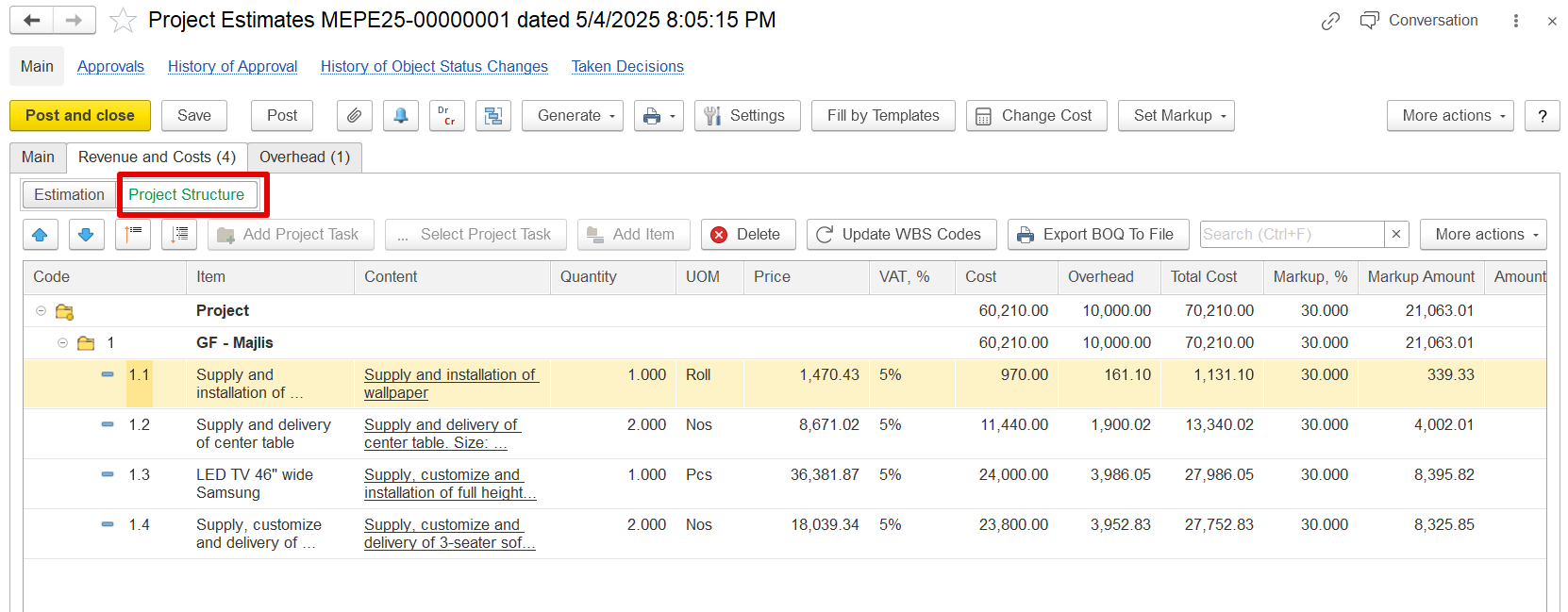
Details Shown:
Task codes (e.g., 1, 1.1, 1.2)
Task names and descriptions (e.g., "GF – Majlis", "Supply and installation of wallpaper")
Used to define where the work happens and how it’s grouped.
Estimation shows the cost, overhead, VAT, and markup for each task (how much the work will cost and what revenue it will generate).
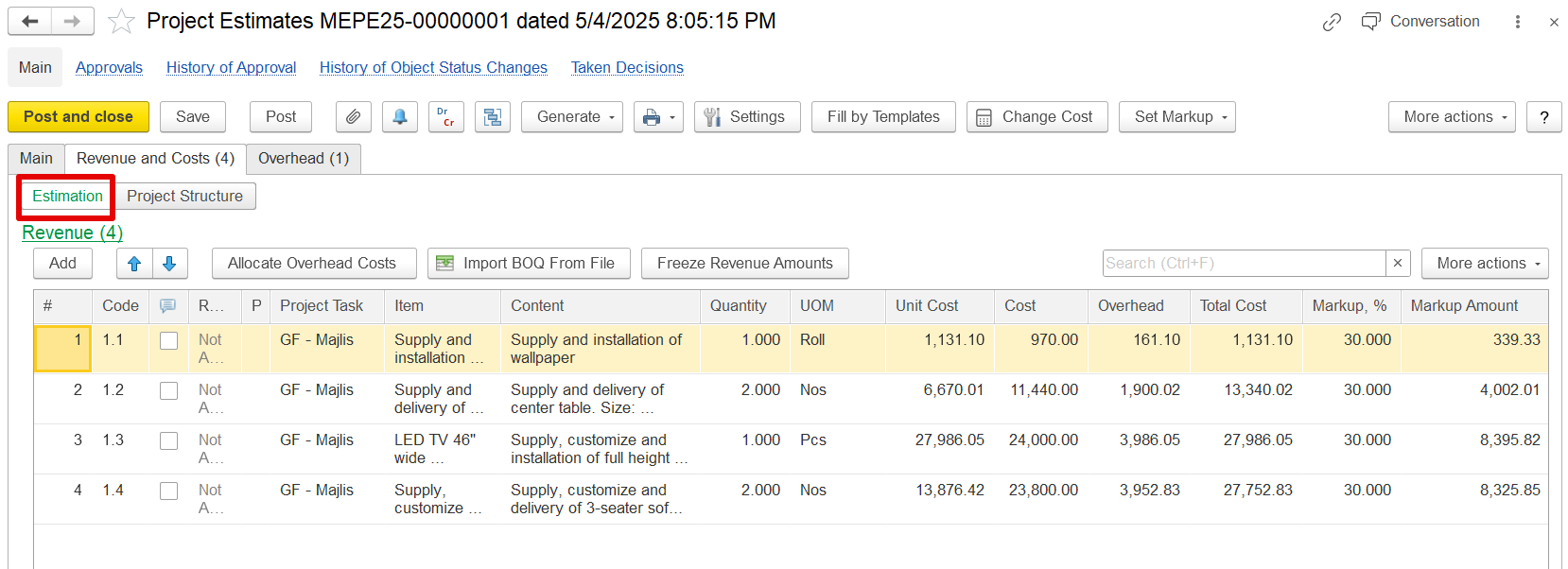
Markup Functionality
The system calculates revenue for each estimation line by applying a markup—either a percentage or a fixed amount—to the entered cost.
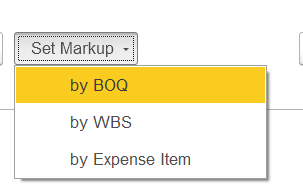
a) By BOQ- The markup will be applied based on the individual line items specified in the BOQ. The percentages are entered in the dialog box and are then applied to each corresponding line item.
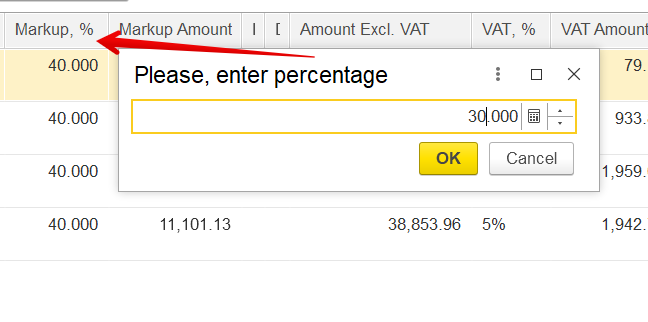
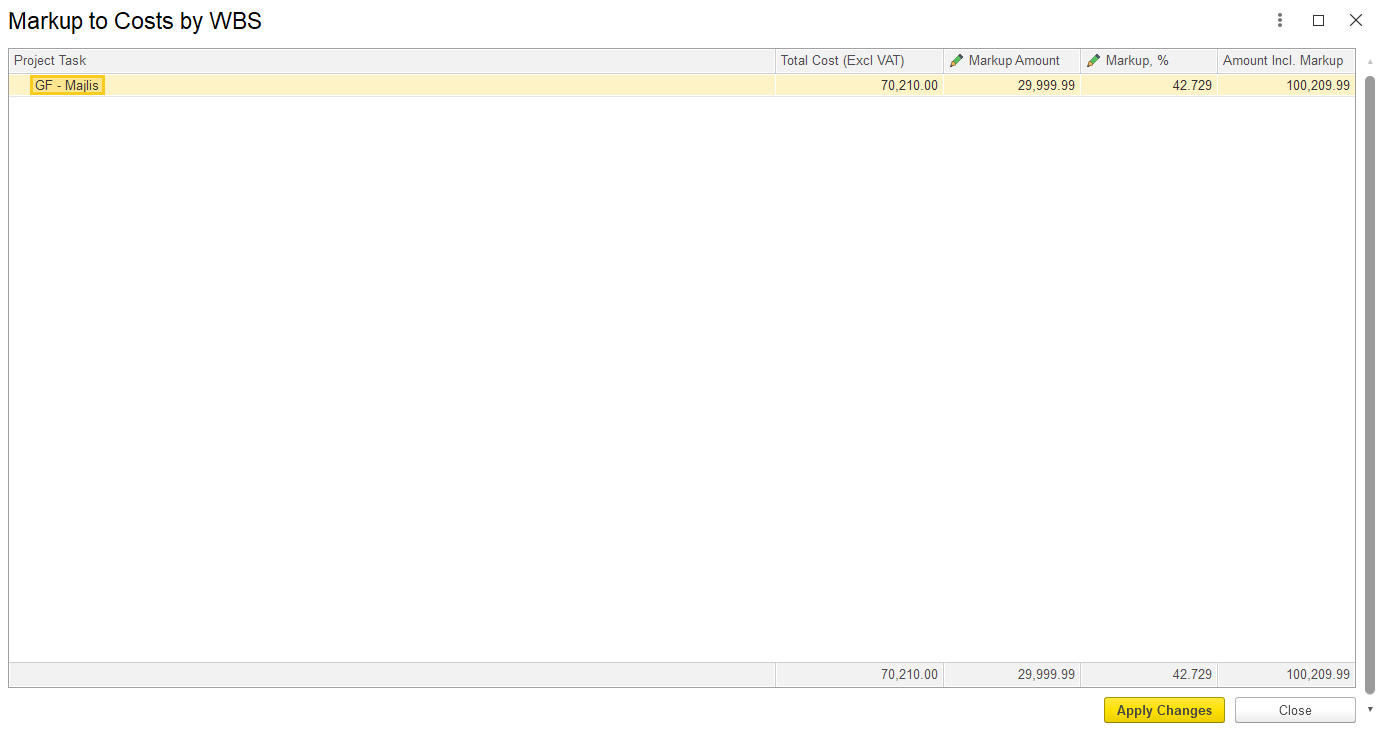
b) By WBS – This option applies markup based on the Work Breakdown Structure (WBS). In the dialog box, either a markup amount or a percentage can be entered, which will then be allocated to the respective project tasks. Separate markup values can be defined for each task.
c) By Expense Item-
It can be updated based on
Freeze Revenue Amounts
In practice, once revenue is agreed with a client, it should remain fixed, even if internal costs change. To support this, the Estimation Document includes a "Freeze Revenue Amounts" button that modifies the system’s recalculation behavior.
Revenue amounts in parent estimation lines are locked and no longer update automatically.
Cost and markup values continue to recalculate as needed.
This applies to both manual cost changes and overhead reallocations.
Example:
If a revenue value of 1,450.15 is frozen and overheads are adjusted using the "Allocate Overhead Costs" function, the cost and markup will update, but the revenue will stay at 1,450.15, instead of changing to 1,470.43.
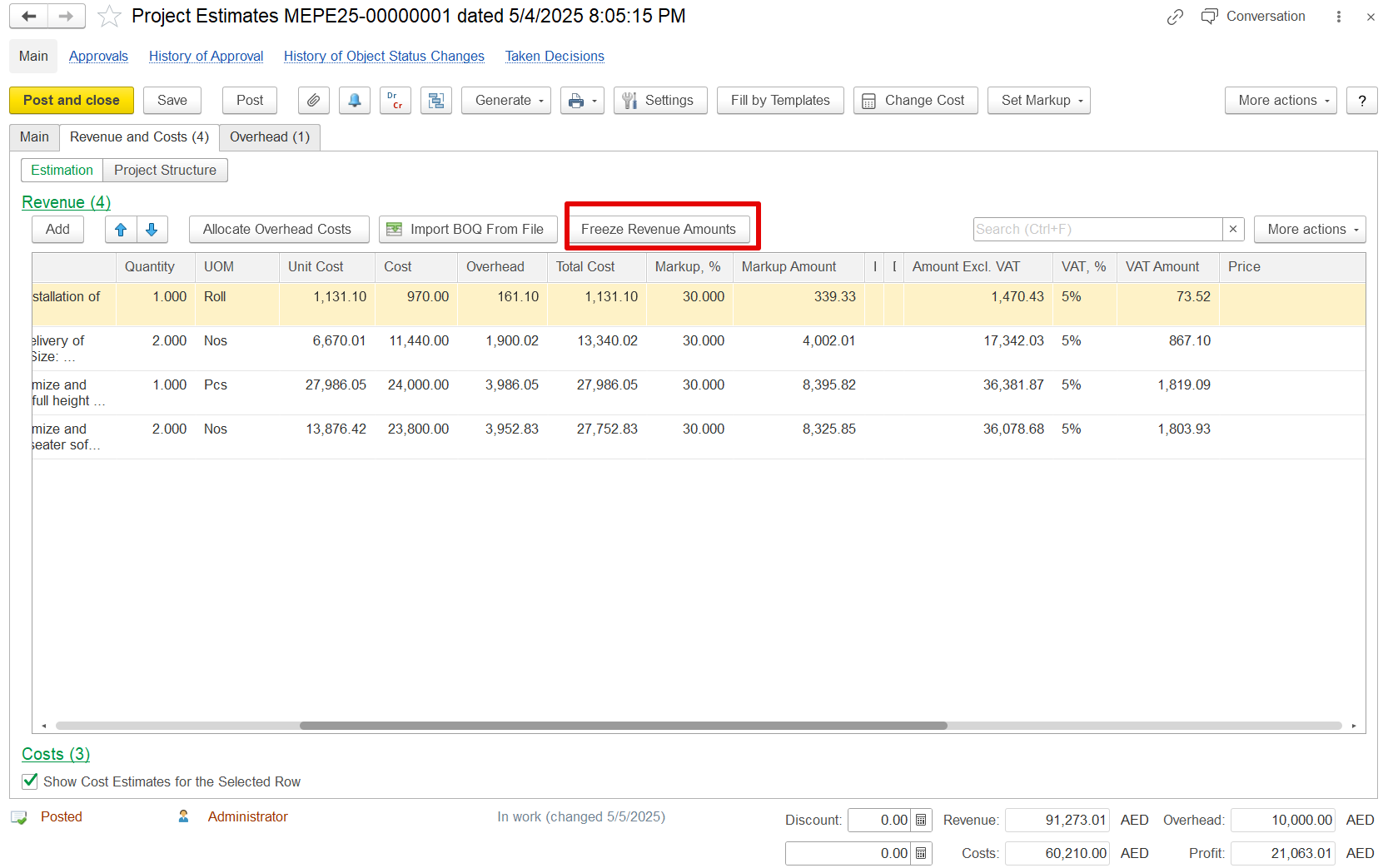
If the Freeze Revenue Amounts button is pressed:
Revenue values in parent lines remain fixed.
Only the associated costs and markups are recalculated.
This applies both to direct cost modifications and to overhead allocations performed through the allocation functionality.
Suppose an estimation line shows a revenue amount of 1450.15. If the overhead amount is changed, and the "Allocate Overhead Costs" option is used to reallocate those costs, this revenue figure would normally be recalculated to reflect the updated overheads as 1,470.43
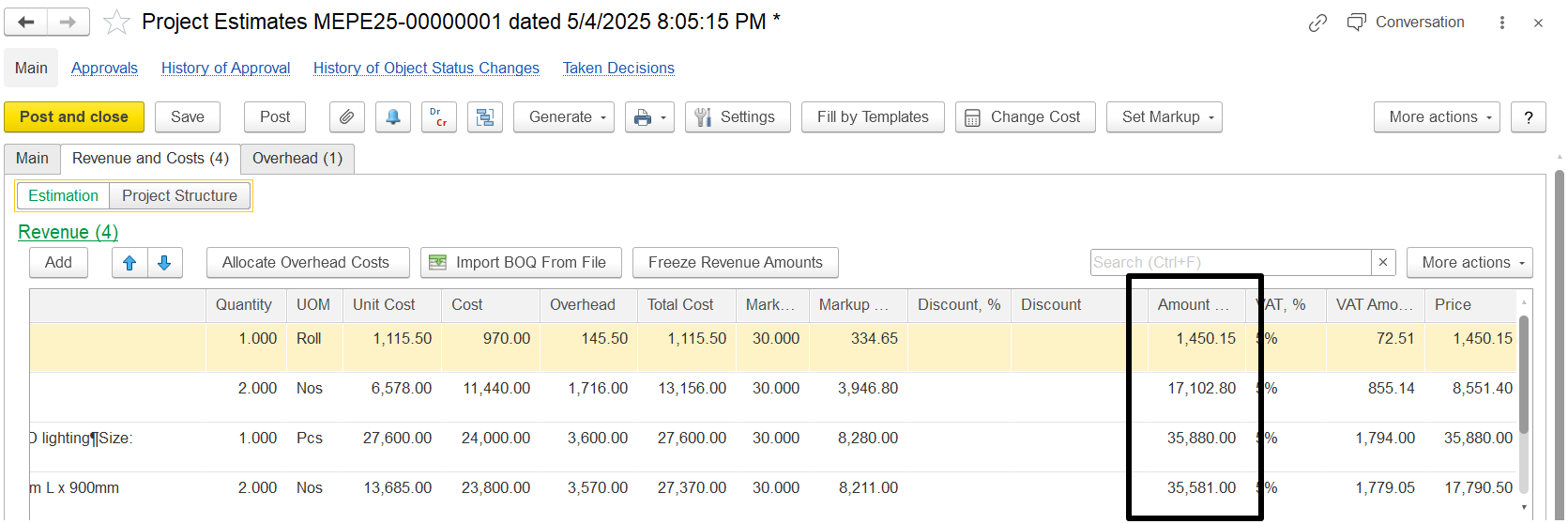
But if the Freeze Revenue Amounts button is pressed before making changes, then even after changing the overhead and allocating it again, the revenue stays the same at AED 1,450.15.
Only the overhead cost, total cost, and markup will change. This helps keep the revenue fixed, even when the costs are updated.
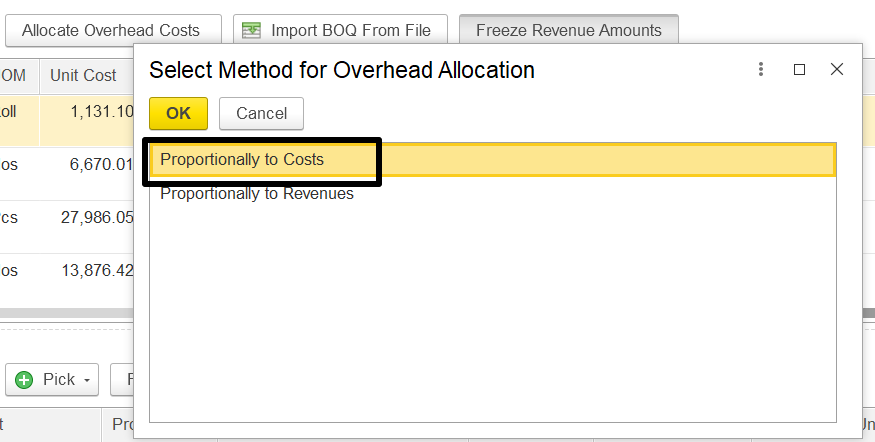
The revenue will remain same, but the overhead, Total cost and markup will be changed. For example previously the revenue was 1450.15 and changed in overhead it remain the same.
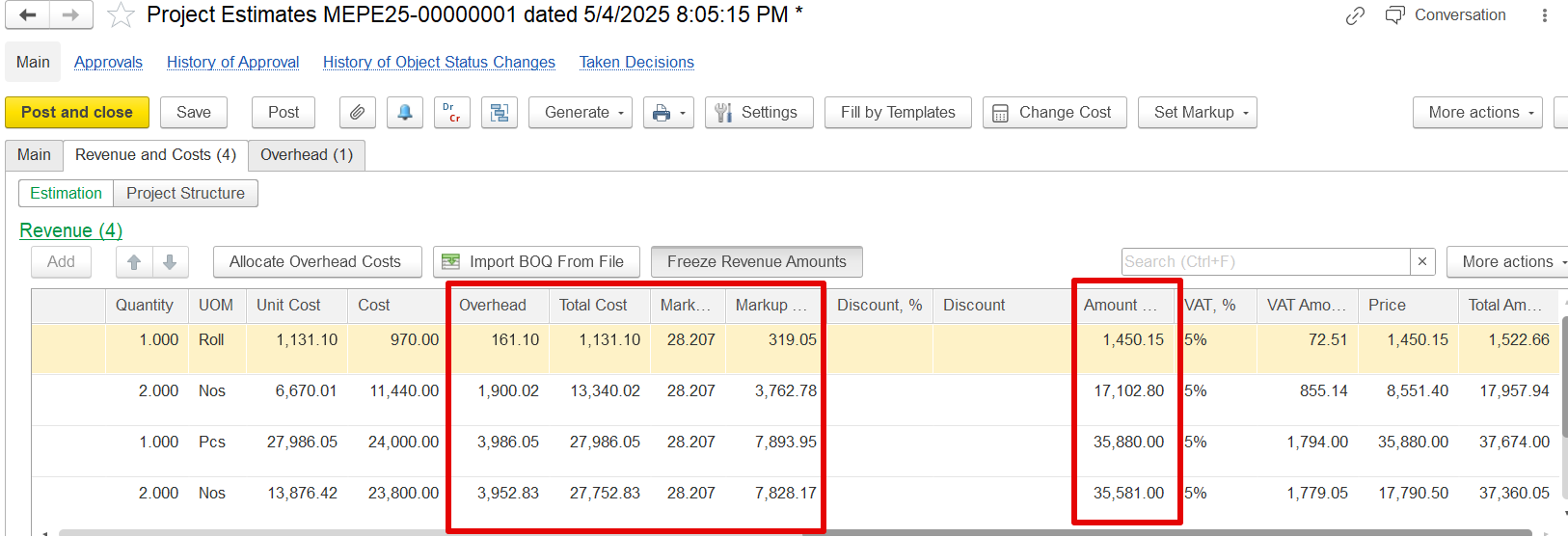
Import BOQ from file
This feature simplifies the process of entering BOQ data by importing it from an Excel file instead of manually typing each line.
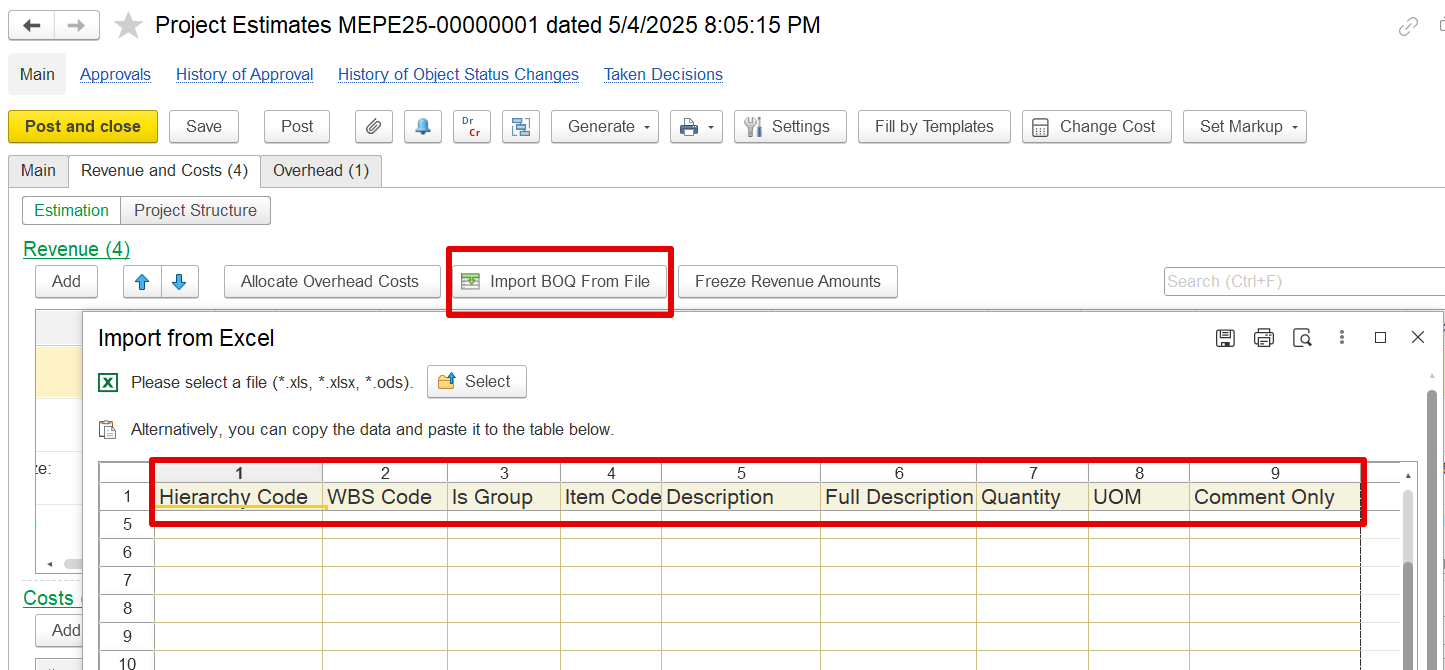
The imported Excel file (or pasted data) must match these columns:
Hierarchy Code – Code indicating the level or structure of the BOQ item in the project hierarchy.
WBS Code – Work Breakdown Structure code for organizing work packages.
Is Group – Boolean (yes/no or 1/0) to indicate if the item is a group header.
Item Code – Unique code for the BOQ item.
Description – Short description of the item.
Full Description – Detailed description of the item (optional).
Quantity – Number of units required.
UOM – Unit of Measure (e.g., m², kg, hr).
Comment Only – Optional notes for reference only (not used in calculation).