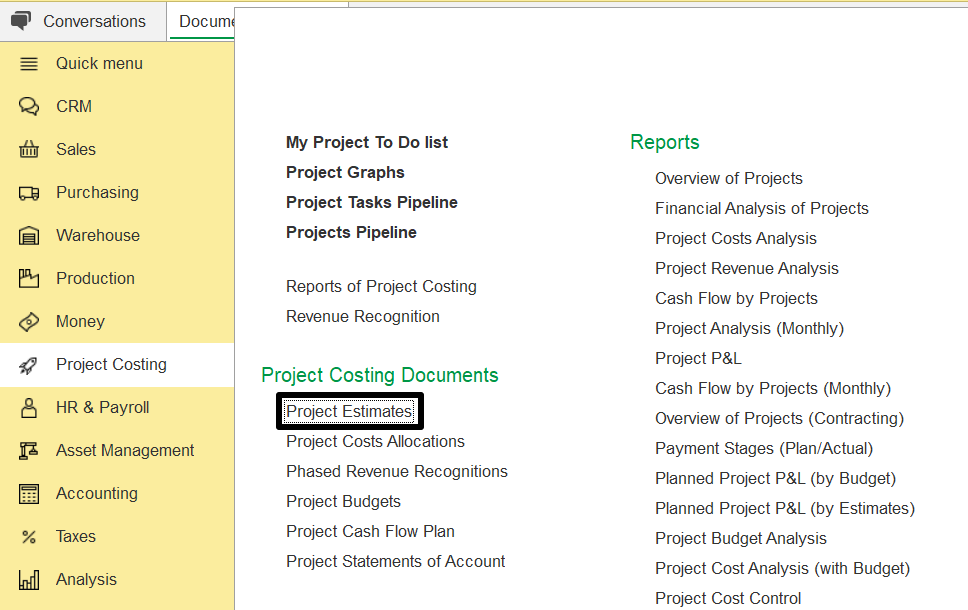
Project estimation refers to forecasting the coststhe costs, resources, and time required to complete a project. It is critical to project planning and financial management in contracting, serving as the basis for calculating expected costs and profit when submitting a proposal. Estimates can be created directly from the project or by going to Project Costing → Project Costing Documents → Project Estimates.
This process includes:
Estimating direct costs (such as labor, materials, subcontractors, and equipment)
Estimating overhead expenses (such as administration, supervision, and utilities)
Adding markups to ensure profitability
To manage estimates in the system:
Create Estimate – used to generate a new estimate based on current project data. This is typically done when preparing a proposal or starting a new phase of planning.

- Edit Estimate – used to open and modify the most recent existing estimate. This option allows updates or corrections to previously saved data but does not create a new estimate.
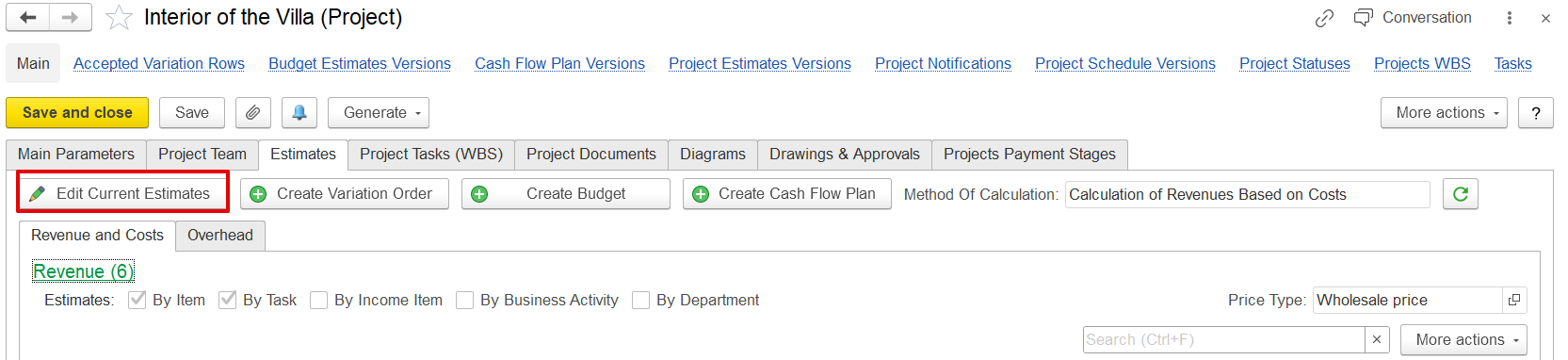
Project Estimation Method
The calculation method for project estimates is set in Administration → Project Costing → Default Method of Project Estimate Calculation.

There are two budgeting methods:
Independent Calculation of Costs and Revenues
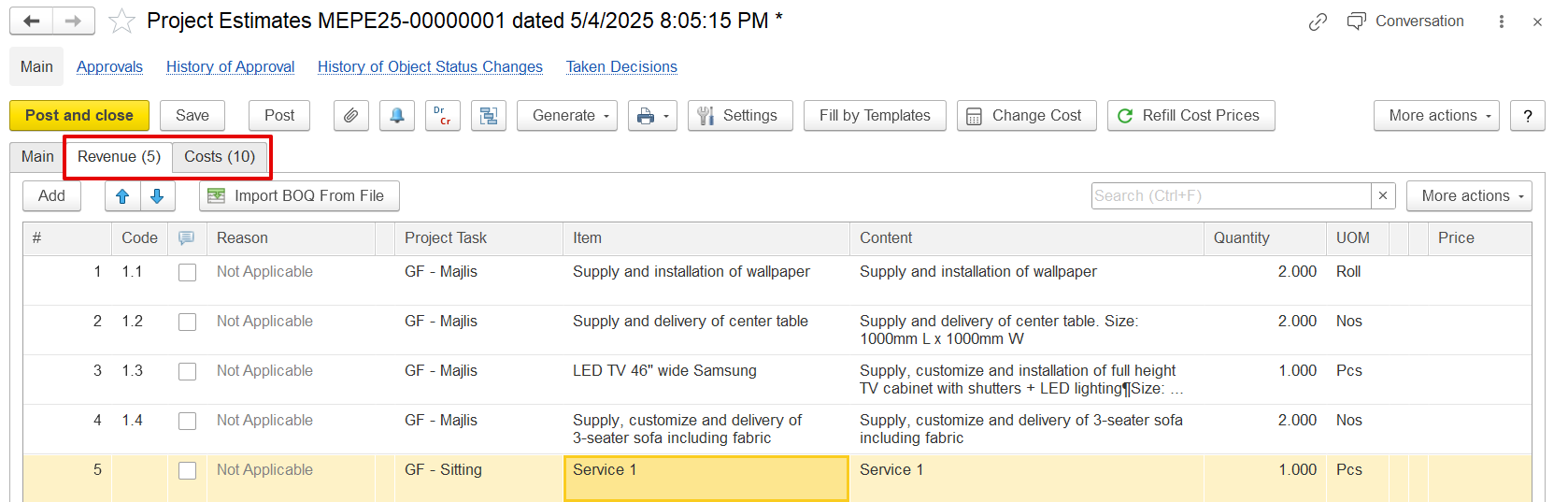
In this method, revenue and cost estimates are entered separately and independently. Revenue figures are manually set and do not depend on cost data. This approach is typically used when revenue is fixed or predetermined, such as in fixed-price contracts, while costs are estimated separately for budgeting and tracking purposes.
2. Calculation of Revenues Based on Costs
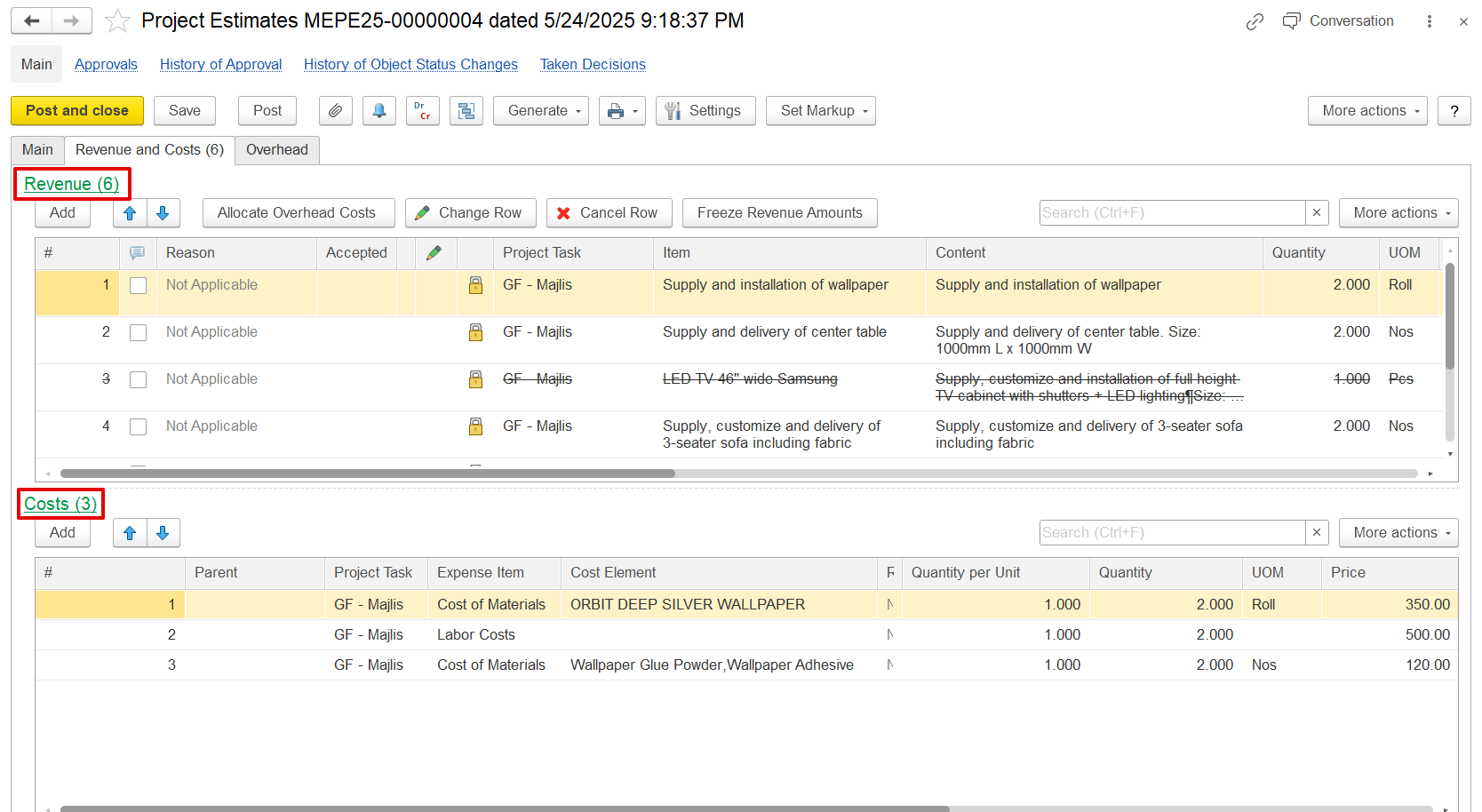
Revenue is automatically calculated by applying a markup percentage to the estimated costs. Costs such as labor, materials, and overhead are entered first, and revenue is derived based on these figures plus the markup. This method is ideal when pricing is closely tied to the actual or expected cost structure and when profitability depends on managing costs effectively.
If time-based planning is enabled, the Estimates by Period tab appears. It splits revenue, cost, and overhead estimates across specific planning periods to help track the budget over time.
Ways to Create Project Estimates
There are two main ways to create a project estimate:
a) From within the project
Open the relevant project Project → Click Create/Edit Current Estimate or use Generate → Project Estimate to create an estimate based on the project data.
...
b) From the document list
Go to Project Costing → Project Costing Documents → Project Estimates → Click Create to start a new estimation document.
Creating a Project Estimate document. The Main tab
On this tab, you can enter general information about the project's estimate: the project, customer, project type, entity, and the employee who is responsible for the project. Also, you can specify whether you need to split estimates by planning period.
...
Number: Shows
<Auto>, meaning the document number is assigned automatically when you save.From: Filled automatically with today’s business date. You can change it if needed.
Type: Shows whether the estimate is an initial version, revision, or variation. This is set by the system automatically.
Entity: Choose the legal entity (company) for which the document is being prepared.
Project: Select the project for which the estimate is being created.
Company: Choose the company associated with the selected project.
Contract: Filled automatically with the default contract linked to the company. You can select a different contract if required.
Estimates by Period: If you want to create estimates for each planning period, check this box. This will show the Estimates by Period tab.
Responsible: Select the employee responsible for the project.
Version: This field is auto-filled with the current version of the project budget.
VAT Applied / Prices Include VAT: Click this to open the Prices and Currency dialog. Here, you can change pricing and VAT settings for the estimate. For more info, see the Prices and Currency dialog box section.
Comment: Add any notes or additional information related to the project budget.
Creating a Project Estimate document. The Revenue and Costs tab
This tab is used to build the project budget using the Calculation of Revenue Based on Costs method. It includes two main sections:
...
This pane is used to define revenue items (BOQ lines) for the project. Each revenue line can be linked to one or more cost lines in the Costs pane.
...
Project Task: Auto-filled from the linked revenue line.
Expense Item: Select the cost type (e.g., materials, labor).
Cost Elements: Choose a cost item from Items, Employees, Positions, or Fixed Assets.
Qty per unit: Enter the quantity needed for one revenue unit; cost quantities will adjust when revenue quantity changes.
Quantity: Auto-filled from Qty per unit, or enter manually.
UOM: Auto-filled based on the item, but can be changed.
Price: Enter the unit cost of the expense item.
Amount: Total cost, including VAT if applicable.
Markup, %: Optionally enter a markup percentage for profit calculation.
Markup Amount: Auto-calculated based on the percentage or can be entered manually.
Amount Incl. Markup: Final cost including the markup.
Creating a Project Estimate document. The Overheads tab
This tab is used to enter the estimates of overhead costs for the project. This tab is available if the estimation method is Independent Calculation of Costs and Revenues.
...