If the user encounters notifications or errors when posting a Fixed Asset Entry document, they should verify the following settings:
- Error message: "The fixed asset has been accepted for accounting."
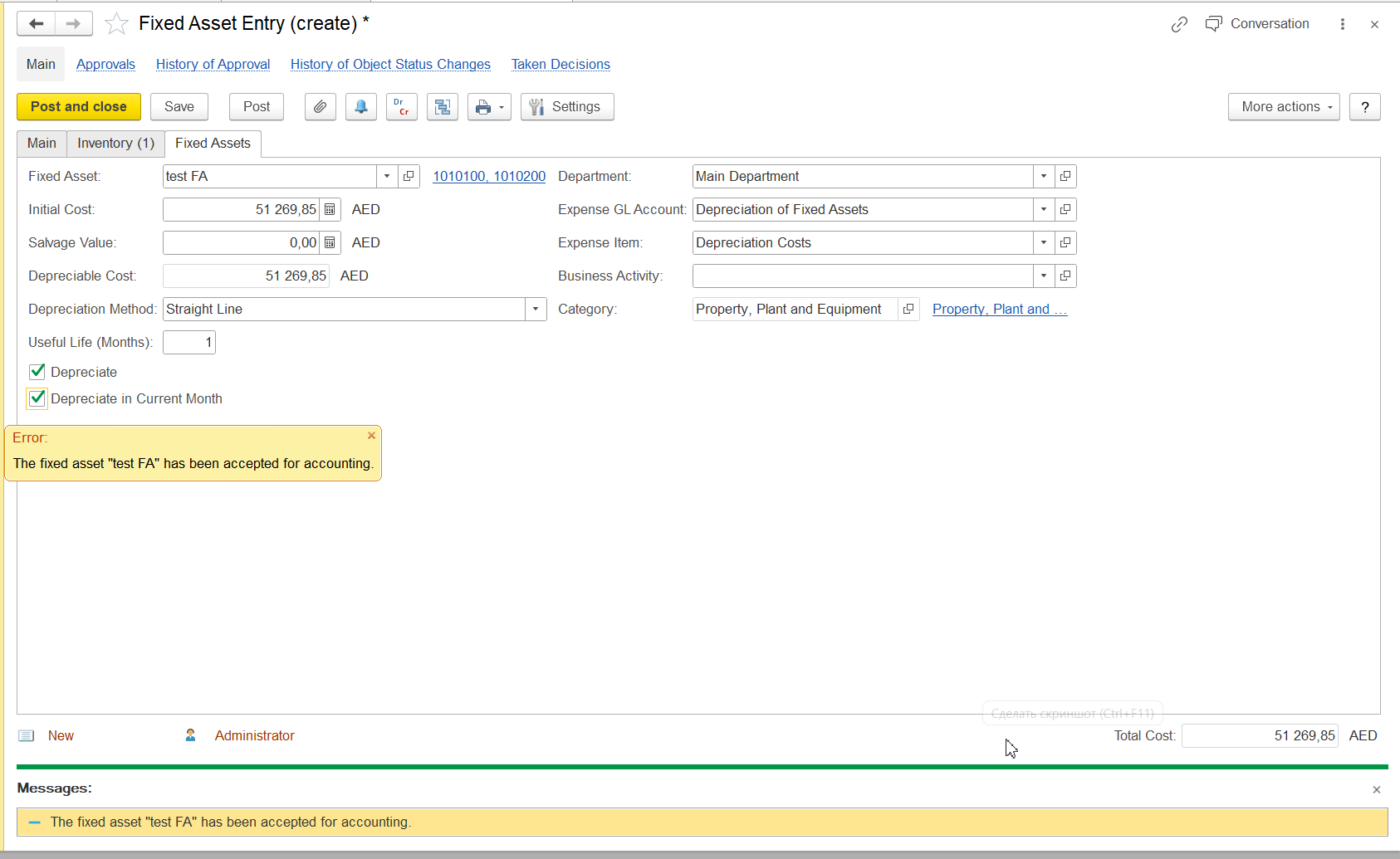
To avoid this error, the user should check the status of the Fixed Asset in the Fixed Asset Master Data:
...
After making these corrections, the Fixed Asset Entry document can be posted without any errors.
- Error with Error message while Fixed Assets entry "Not enough stock balance" text:
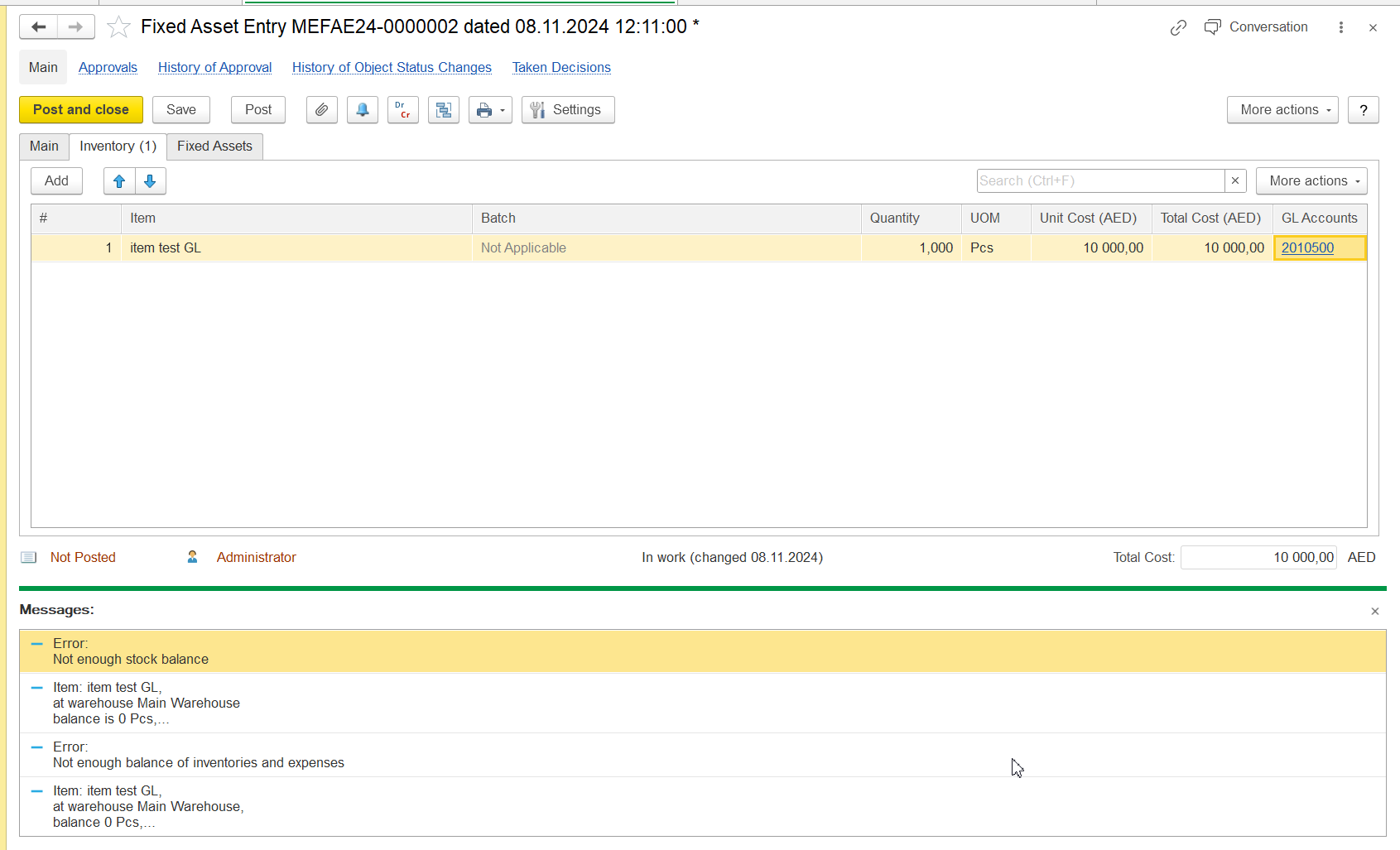
The reason for this type of error is related to items that were purchased before being accounted for as Fixed Assets.
...
In the Fixed Asset Entry document, the GL Account must match the one in the Inventory Card of the item. If the GL accounts do not match, the system will not be able to find the stock balance on the other GL account and this will prevent the document from being posted.
- In case of an issue with Fixed Asset Depreciation (the document generated automatically during Month-End Closing), the user should check the depreciation parameters set in the Fixed Asset Entry document.
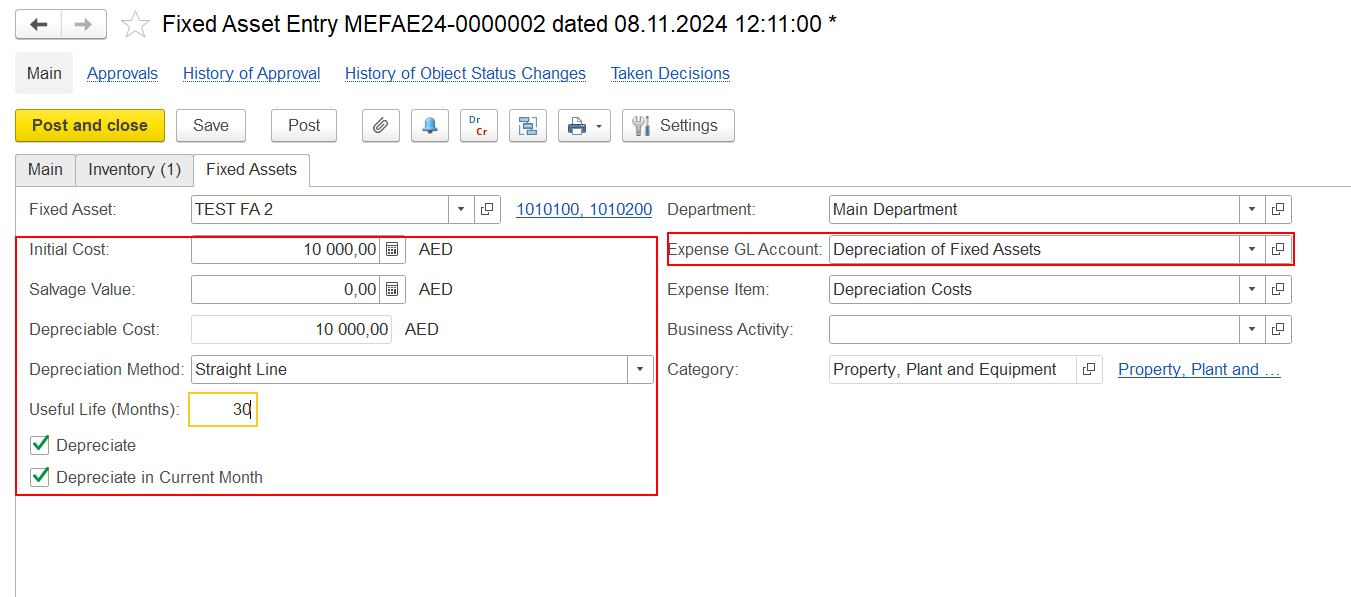
All parameters in the Fixed Asset Entry document should be correctly filled out:
- Expense GL Account
- Initial Cost, Depreciable Cost
- Useful Life (in months)
- Depreciate and Depreciate in current month checkboxes
These parameters are essential for the accurate calculation of depreciation during the month-end closing procedure.
In case if fixed asset were accepted into accounting correct - with marked checkbox Depreciate Fixed Assets tab of Fixed Asset Entry document, but with Month end closing procedure execution depreciation was von calculated:
it is necessary to check record in Fixed Asset Statuses tab:
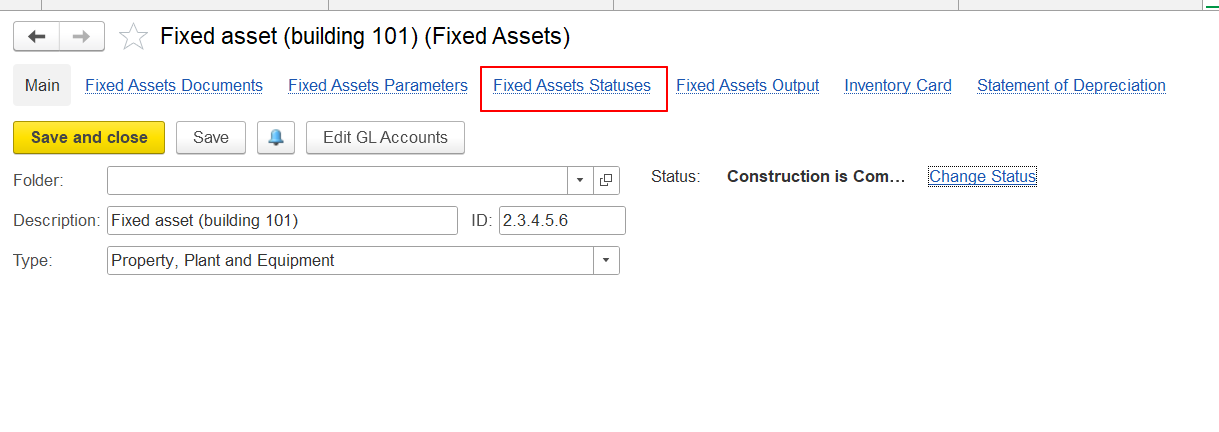
In last line Depreciate checkbox should be marked - only in this case system will calculate depreciation with Month End Closing procedure automatically:
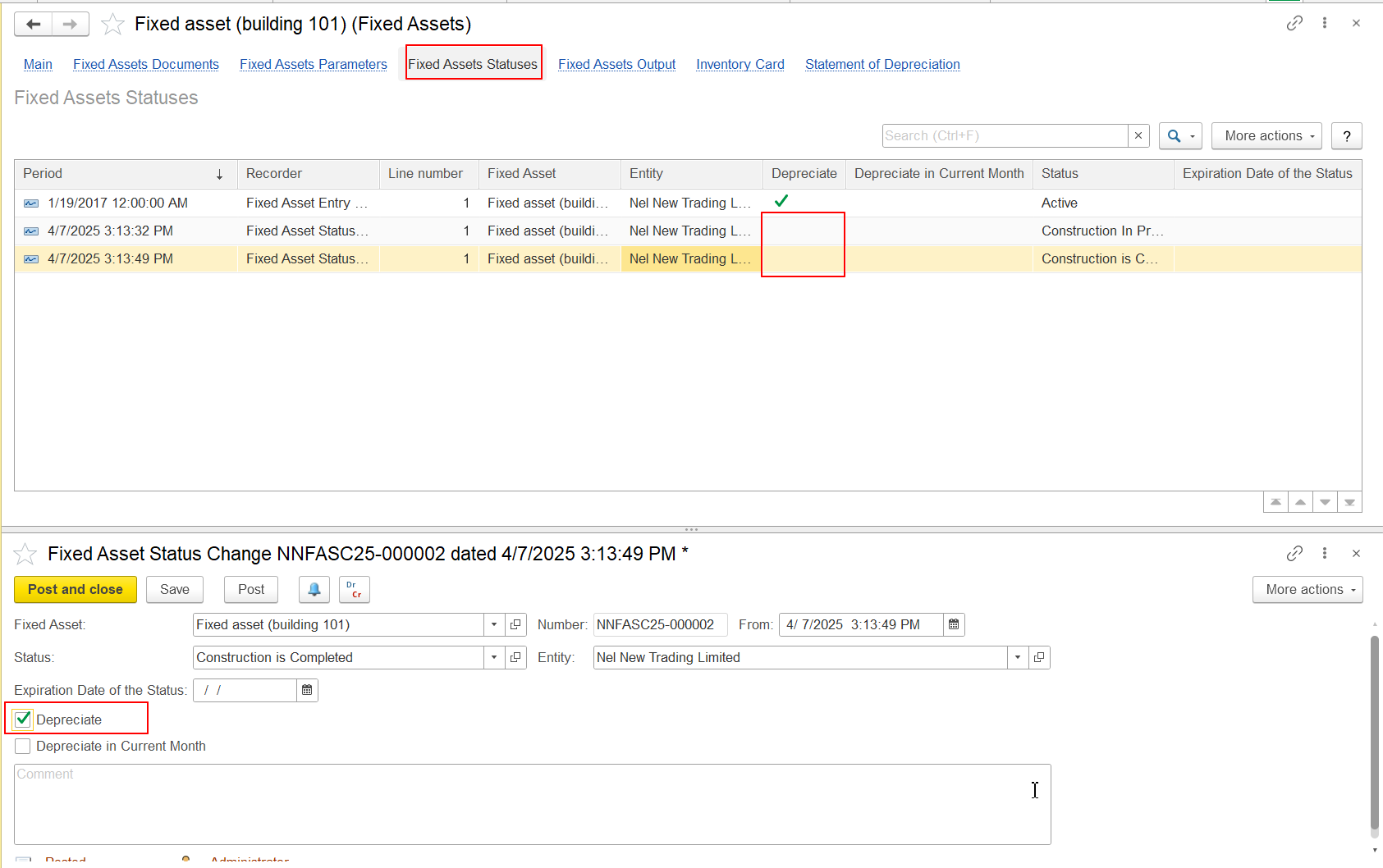
If in Fixed Asset Status Change document Depreciate checkbox is not marked, it is needed to mark it, re-post Fixed Asset Status Change document and re-execute Mont End Closing procedure.
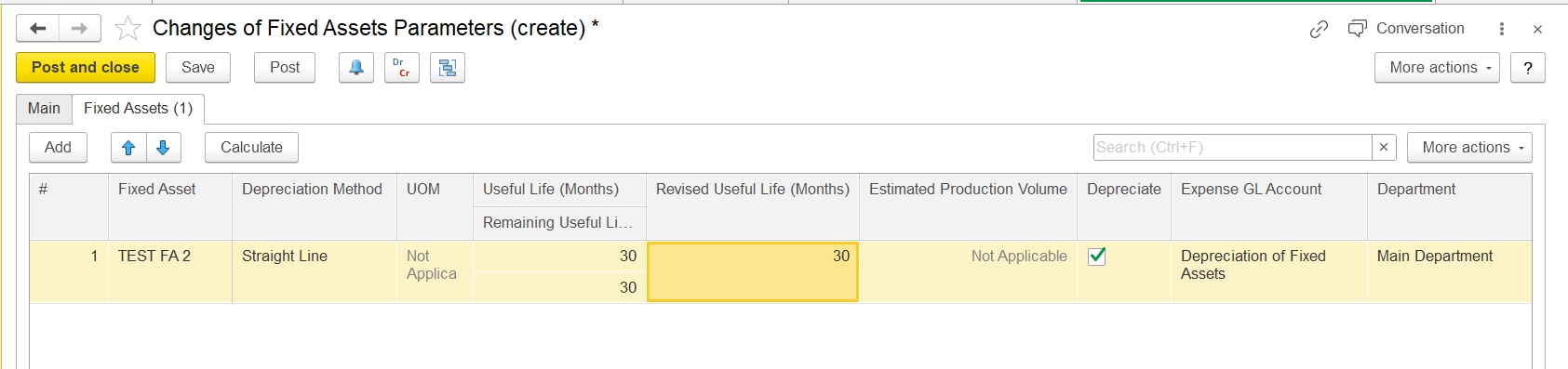
If the user finds any issues with these depreciation parameters, it is best to adjust them using the Changes of Fixed Asset Parameters document (Asset Management > Fixed Asset Documents > Changes of Fixed Asset Parameters).
Thank you for being FirstBit customer! #Fixed asset error #Difference in GL #Changes of Fixed assets parameters