...
If the source of the discrepancy is not identified, continue with the following checks.
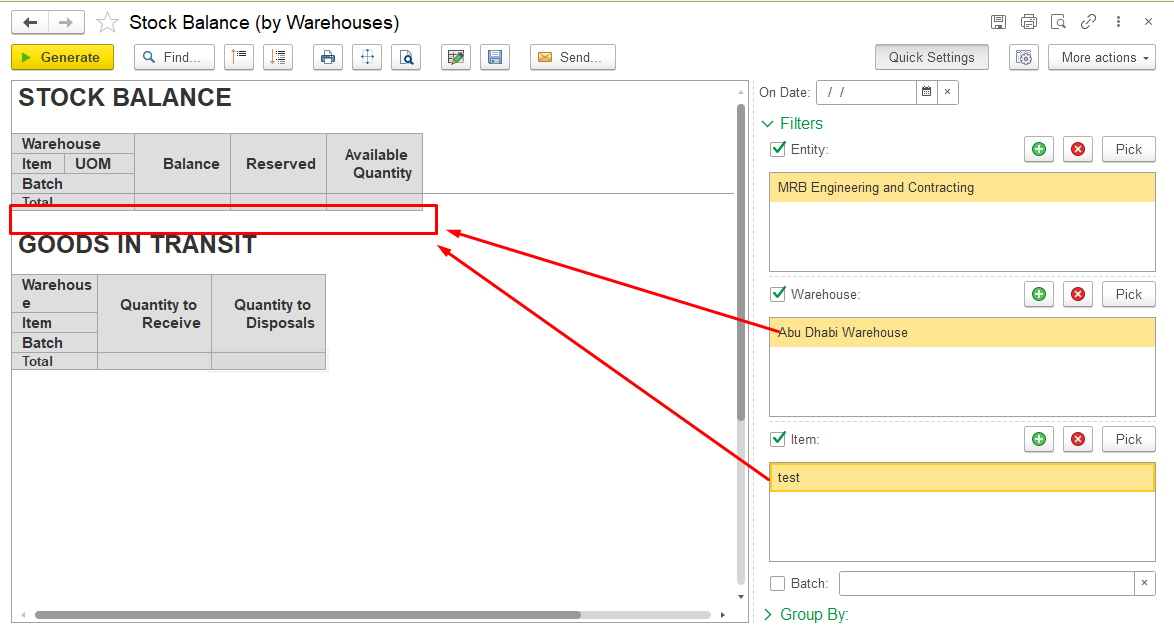
2. Check inventory dimensions
...
Check the following dimensions:
- warehouse;
- entity;item characteristic;
- batch;serial number;
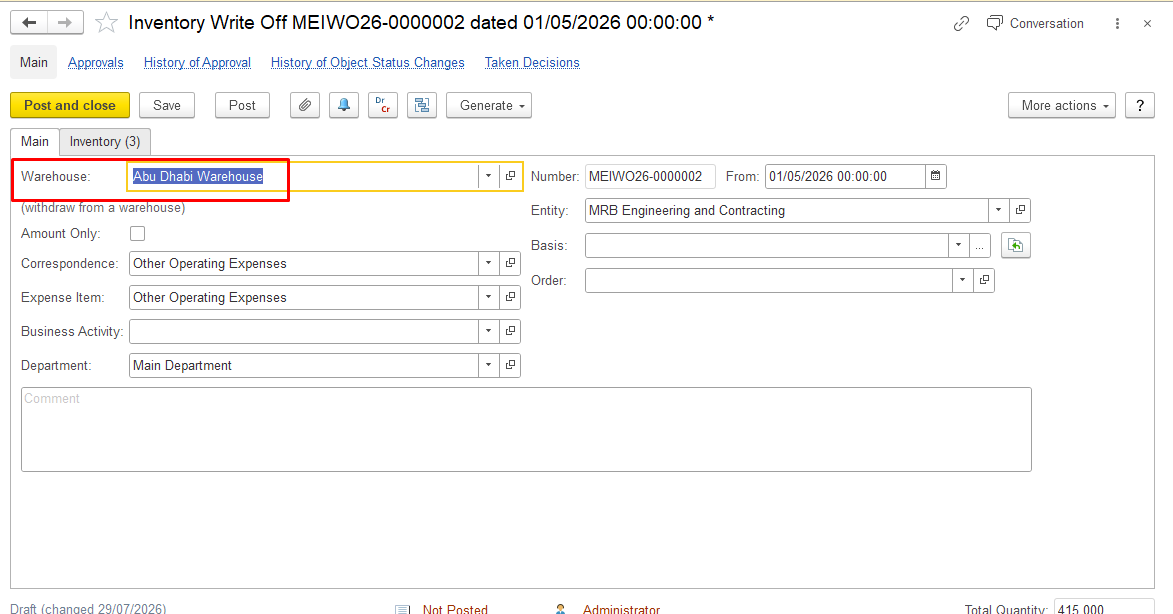
3. Check Control Balances setting
Verify that Control Balances is enabled.
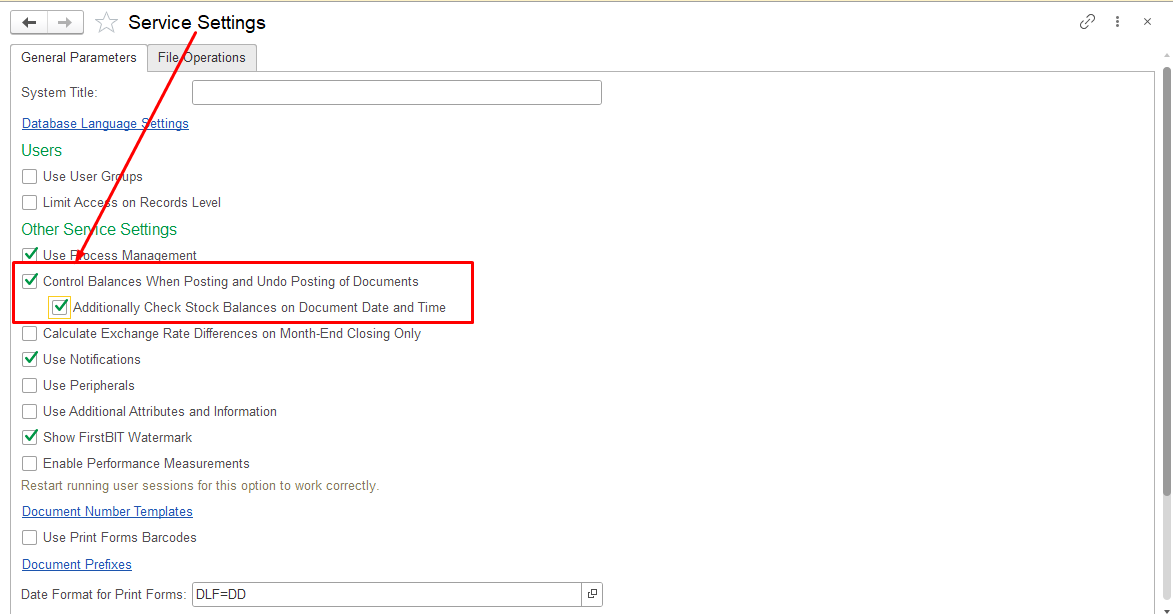
When Control Balances is enabled, the system prevents posting documents if there is insufficient inventory balance.
If Control Balances is disabled, documents can be posted even when sufficient inventory quantity is not available. This may lead to inventory discrepancies that can affect further operations, including Inventory Write-Off.
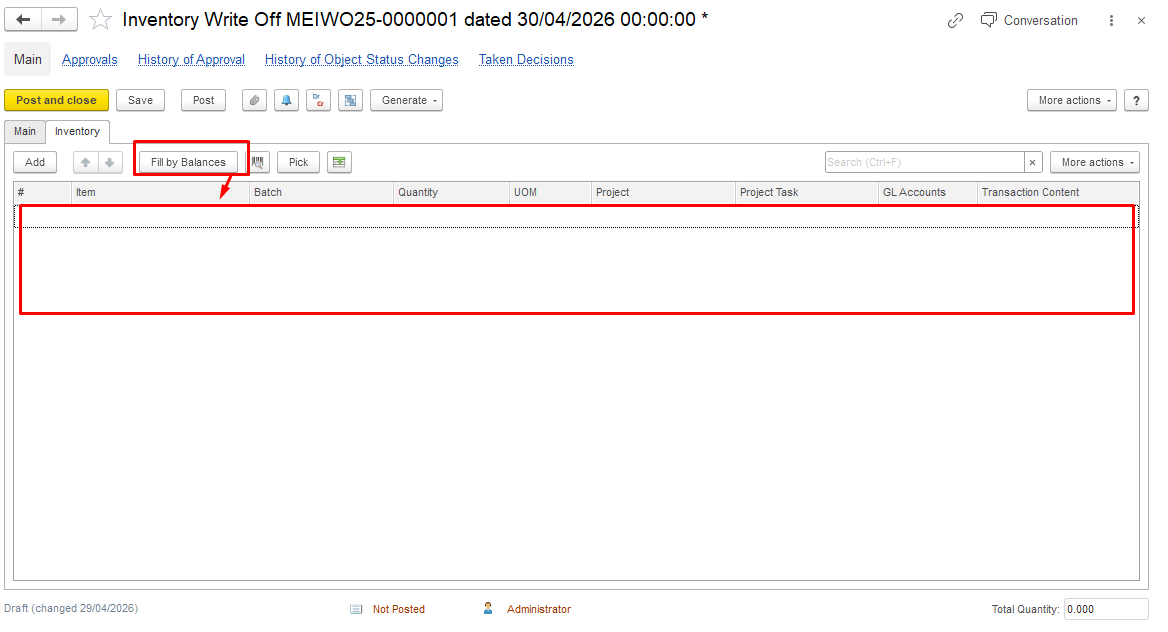
If the item balance exists under different dimensions, it may not be available for the current Inventory Write-Off operation or may be incorrectly included when using Fill by balance.
Correct the document dimensions or inventory movements and run Fill by balance again.
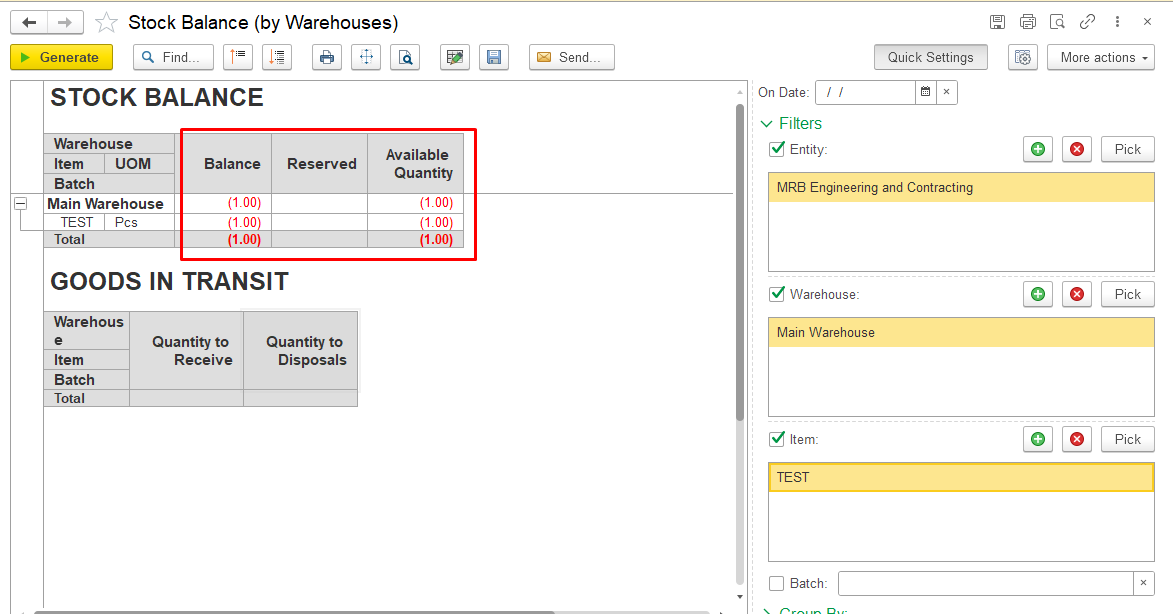
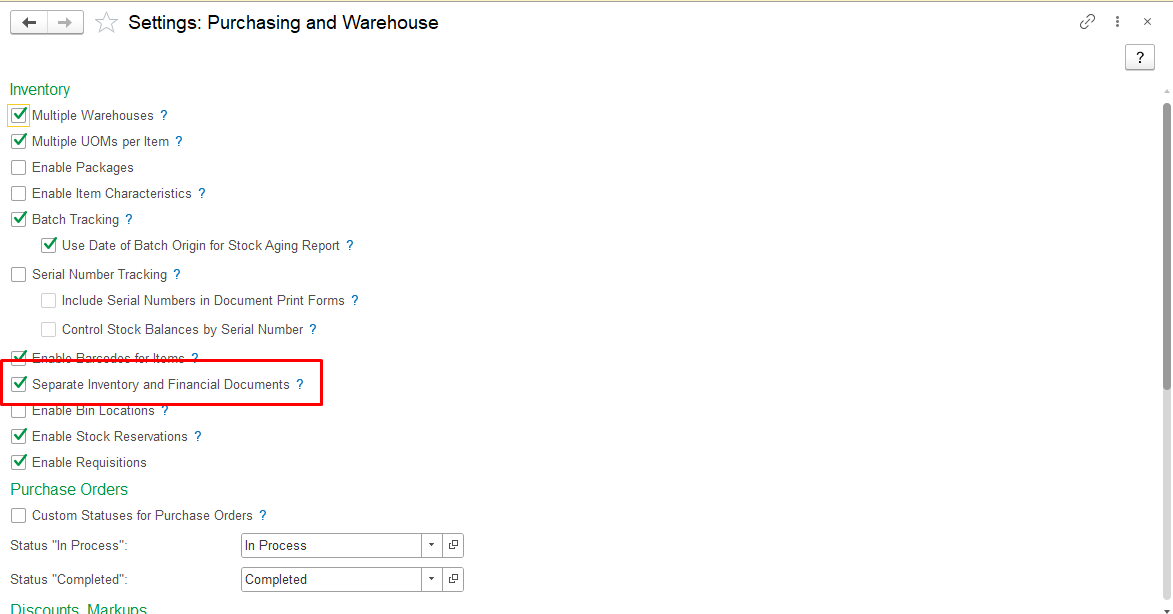
4. Check Separate Inventory and Financial Documents setting
Verify whether the Separate Inventory and Financial Documents option is enabled.
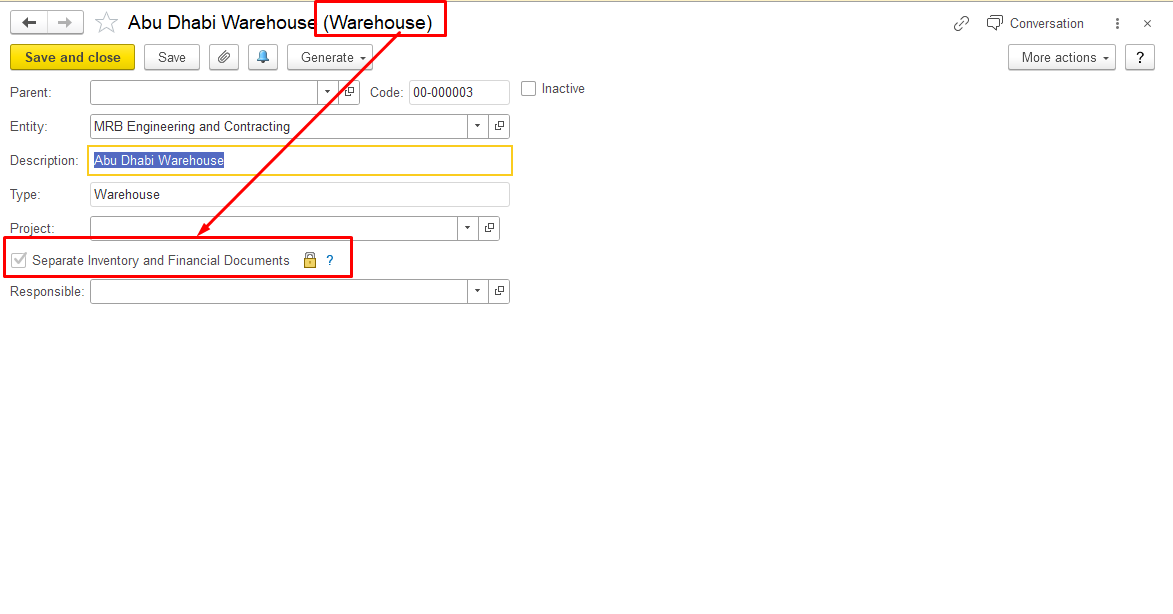
If the option is disabled:
Inventory Write-Off updates both financial and warehouse inventory registers. When the document is posted, the warehouse quantity is reduced.
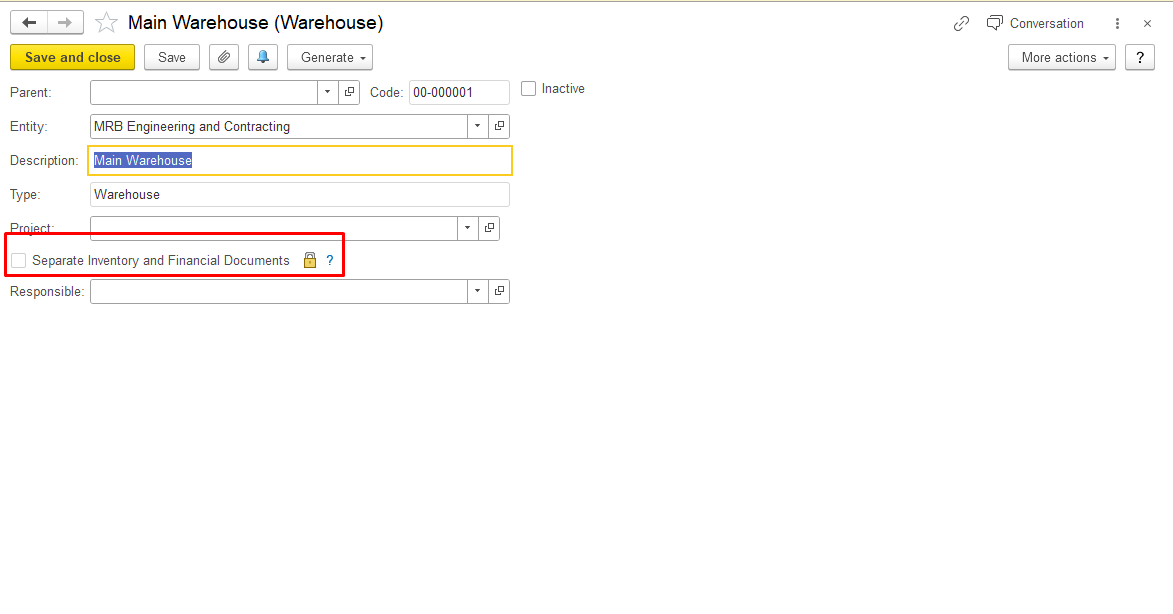
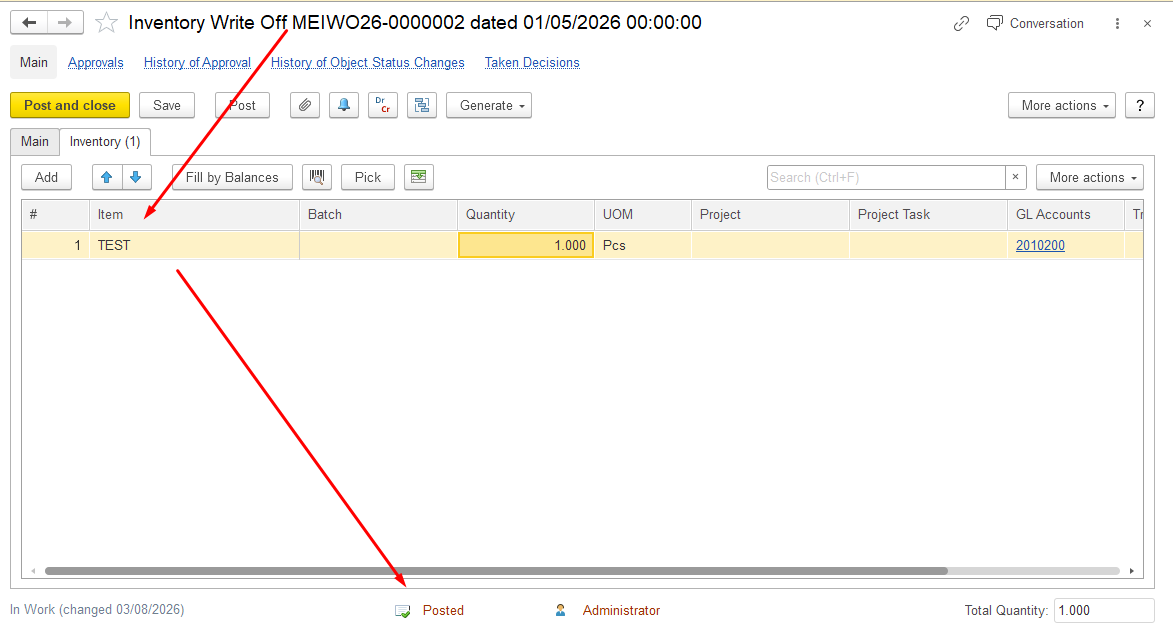
If the option is enabled:
Financial inventory movements and warehouse inventory movements are processed separately.
Inventory Write-Off updates financial registers but does not reduce warehouse stock.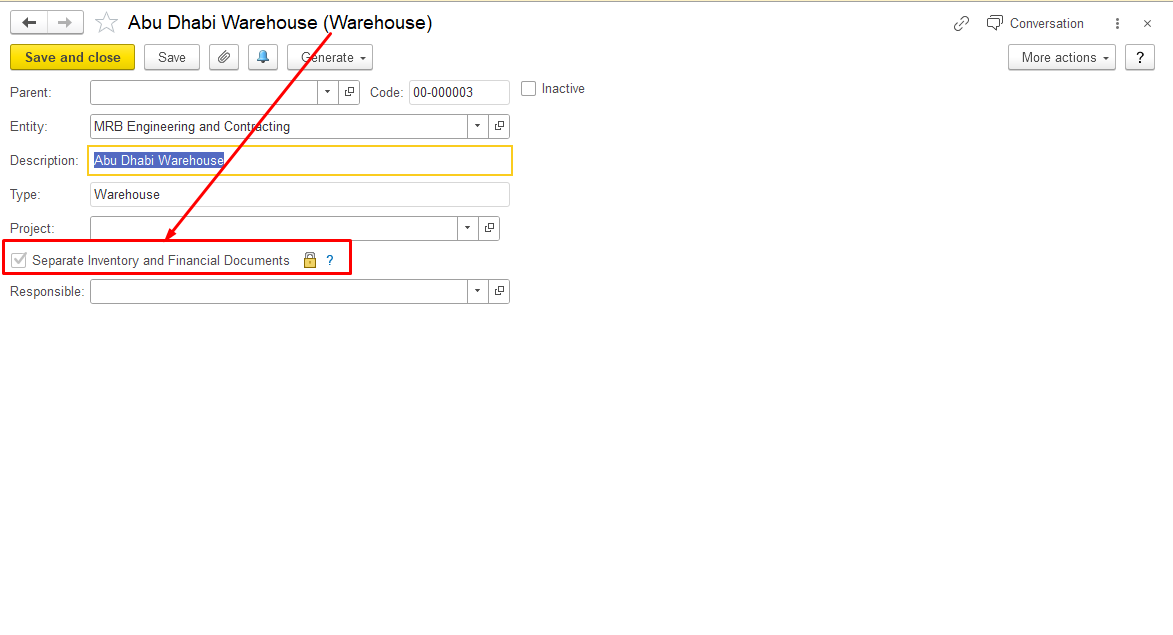
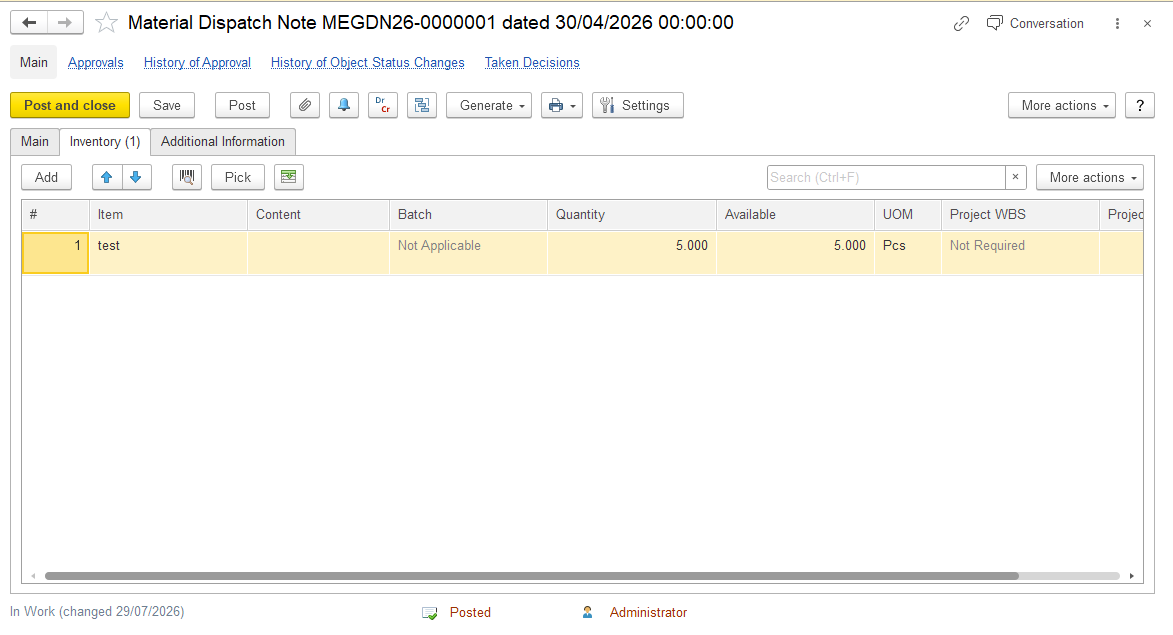
For sales transactions, verify that make sure the required corresponding warehouse document (Material (Goods) Dispatch Note) was has been created and posted. If the Material Dispatch Note is missingOtherwise, the warehouse inventory register is not updated. As a result, and the item may still appear in the warehouse balance and may be included in Inventory Write-Off when using Fill by balance.
When you attempt to post the Inventory Write-Off, an error occurs if the item is included in the write-off but the corresponding warehouse movement has not been recorded. This can happen when the required Material (Goods) Dispatch Note is missing or has not been posted.
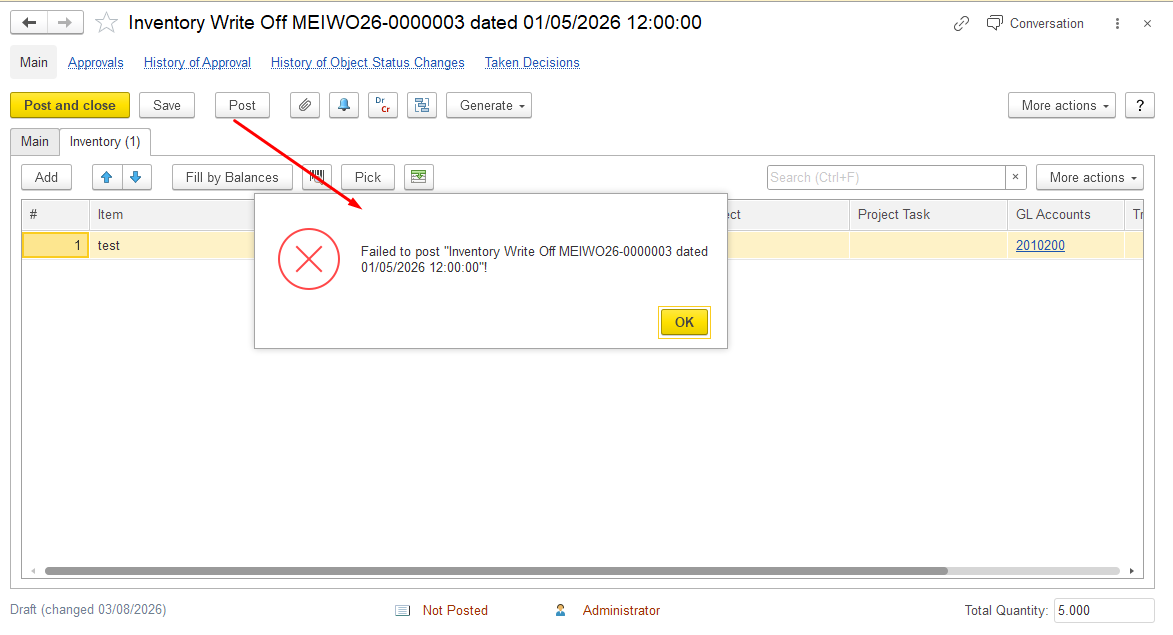
To avoid the error, create Create and post the required Material (Goods) Dispatch Note to update the warehouse stock.before posting the Inventory Write-Off document.
5. Check financial inventory availability
...
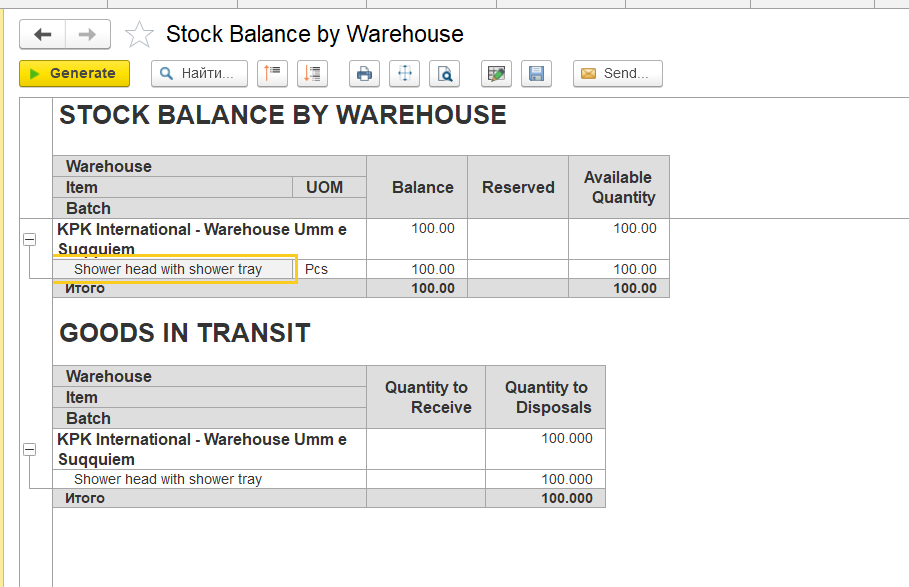
The Stock Balance (by Warehouse) report shows warehouse quantities based on the Inventory on hand accumulation register (warehouse quantity register).However, Inventory
Top Section (Stock Balance)
Data source:
- Inventory on hand accumulation register (warehouse quantity register)
This report reflects physical stock in the warehouse (e.g., 100 units).
However:
- Write-Off checks
...
- the Inventory and expenses accumulation register (financial accounting).
If no stock exists in the financial register, the operation cannot be completedfinancial inventory register).
A discrepancy may occur when:
...
Review the Goods in Transit section in the Stock Balance (by Warehouse) report.
Goods in Transit (Bottom Section)
This section is based on two registers:
- Inventory to Receive → Quantity to receive accumulation register
- Inventory to Transfer → Quantity to Disposal accumulation register
If the item quantity is shown in this section, verify whether the related inventory transfer or dispatch processes have been completed.
...
In some cases, if an Inventory Write-Off was posted but the corresponding warehouse document (Material (Goods) Dispatch Note) was not created, the quantity may remain in the Quantity to Disposal section.
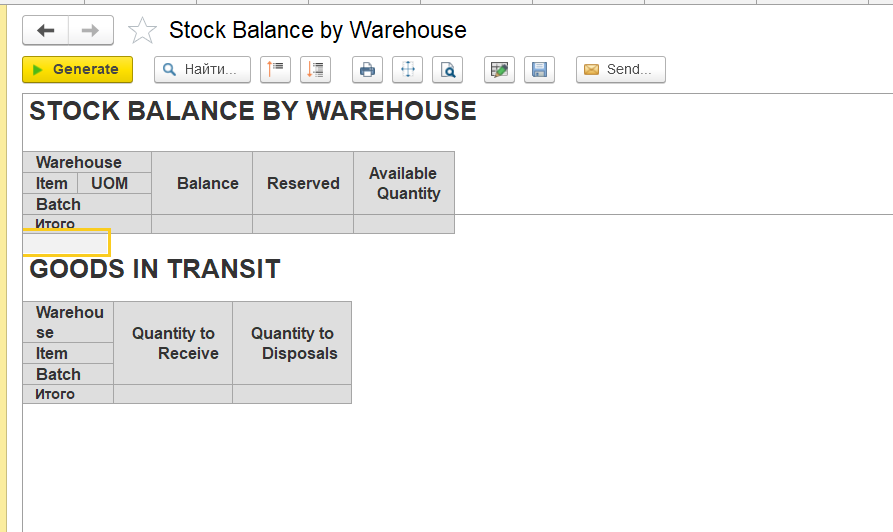
After the required warehouse document is created and posted, the outstanding quantity should be cleared.
Summary
Stock Balance (by Warehouse) shows warehouse inventory quantities.
Inventory Write-Off uses inventory availability from financial inventory registers.
Differences between warehouse and financial registers may cause unexpected results during write-off operations.
Separate inventory and financial document processing may require additional warehouse documents to complete inventory movements.
Check inventory dimensions, settings, document processing, inventory registers, warehouse processes, and other possible causes to identify the source of the discrepancy
For example, a company purchased 5 units of an item, and later all 5 units were fully sold. As a result, the actual stock balance of this item is zero.
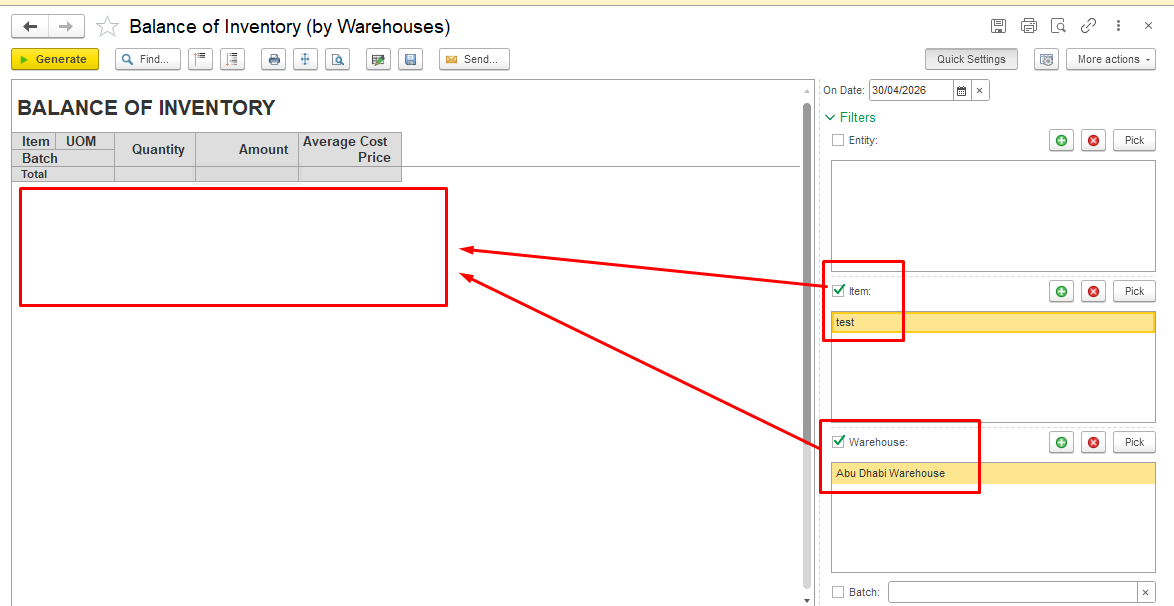
However, when creating an Inventory Write-Off document to write off other materials, this item is still automatically pulled into the document lines when using the Fill by balance option, even though there is no physical stock available.
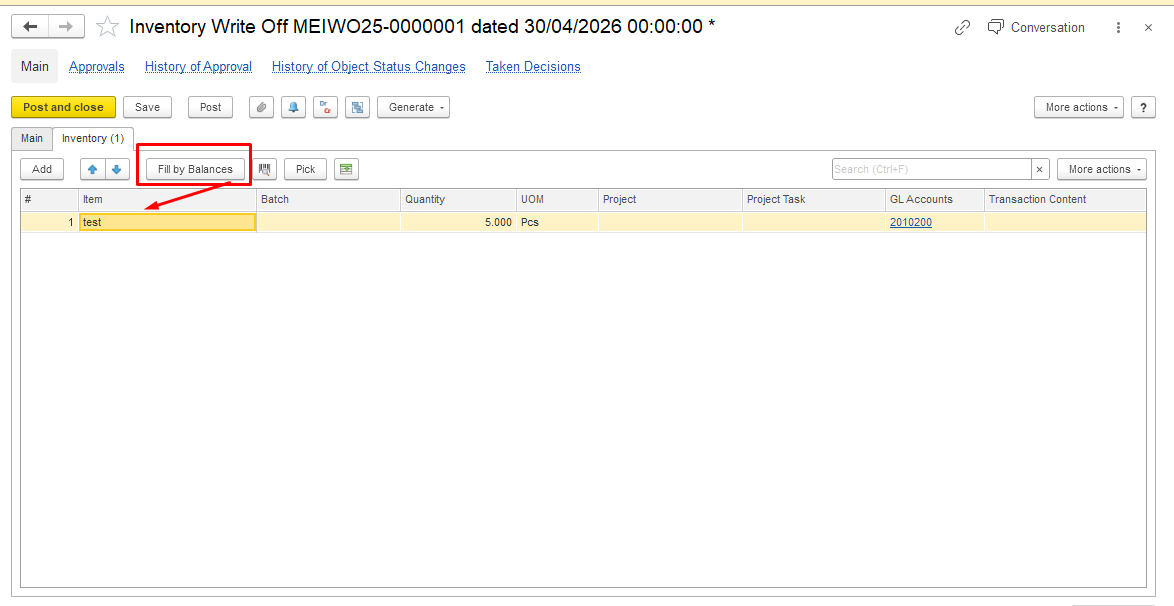
This behavior is related to warehouse settings. Please check if the Separate Inventory and Financial Documents option is enabled.
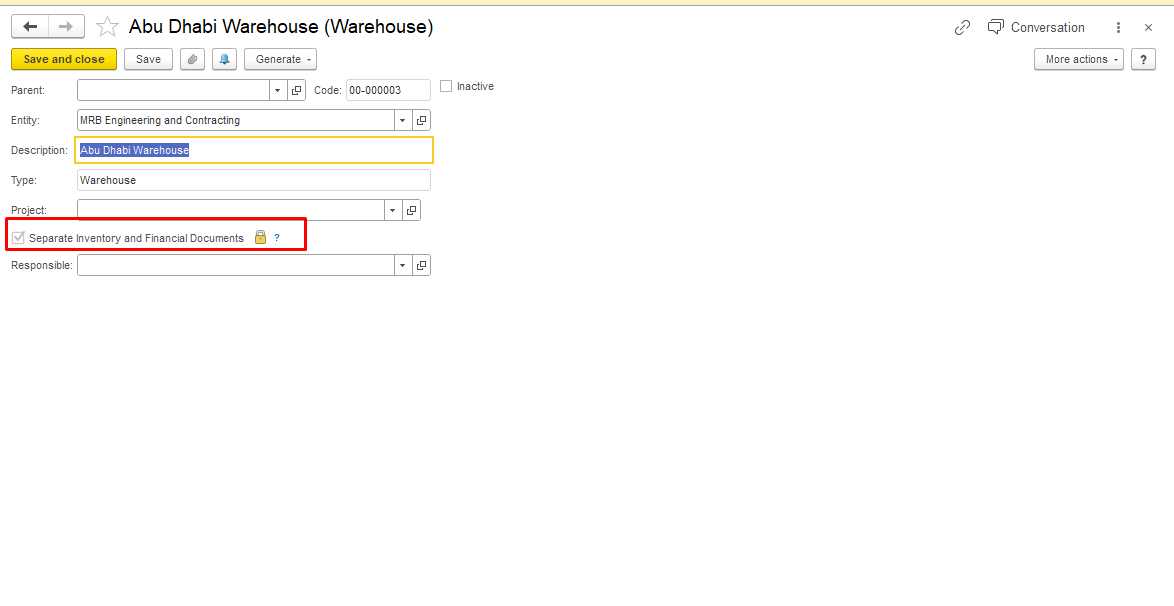
When the Separate Inventory and Financial Documents option is enabled, the system does not write off items from the warehouse (stock) registers.
To ensure that the item is properly written off from inventory registers and does not appear in the Inventory Write-Off document, an additional Material Dispatch Note must be created.
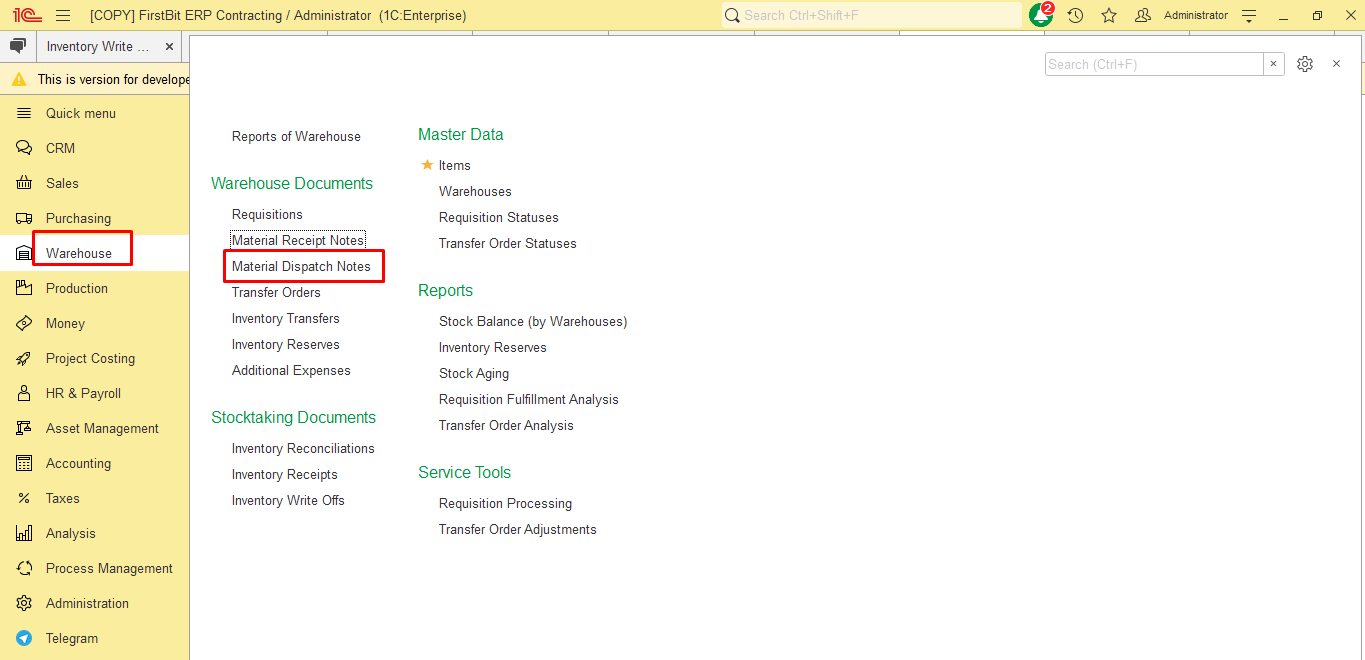
Go to Warehouse module - Warehouse Documents - Material Dispatch Note, and create a new document.
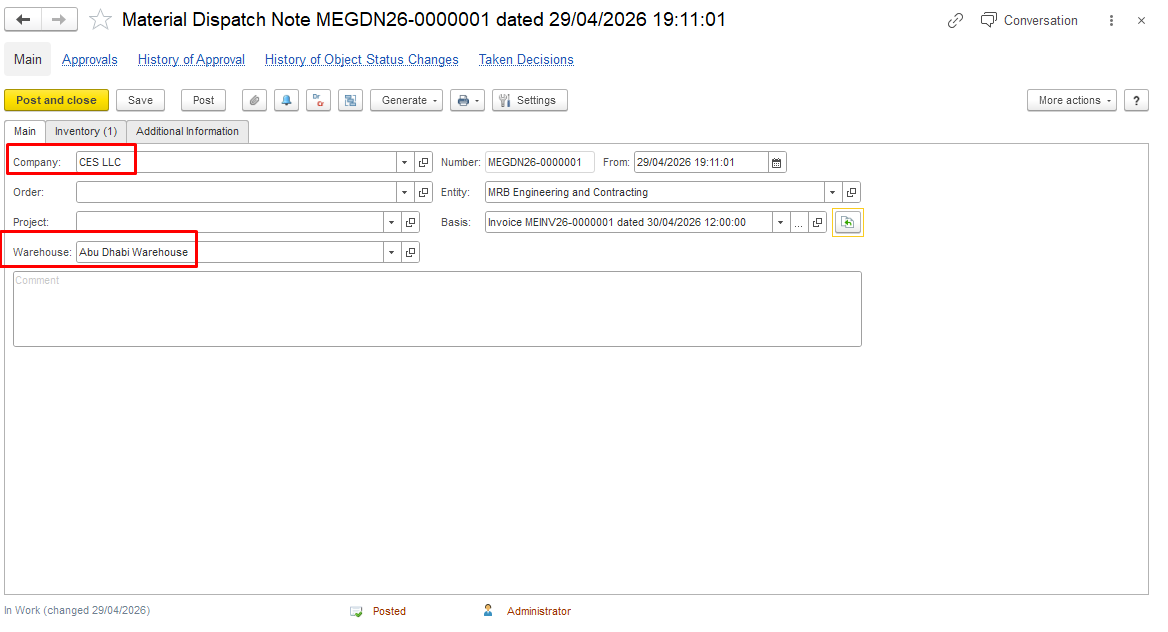
Fill in the Company field and select the required Warehouse on the main tab.
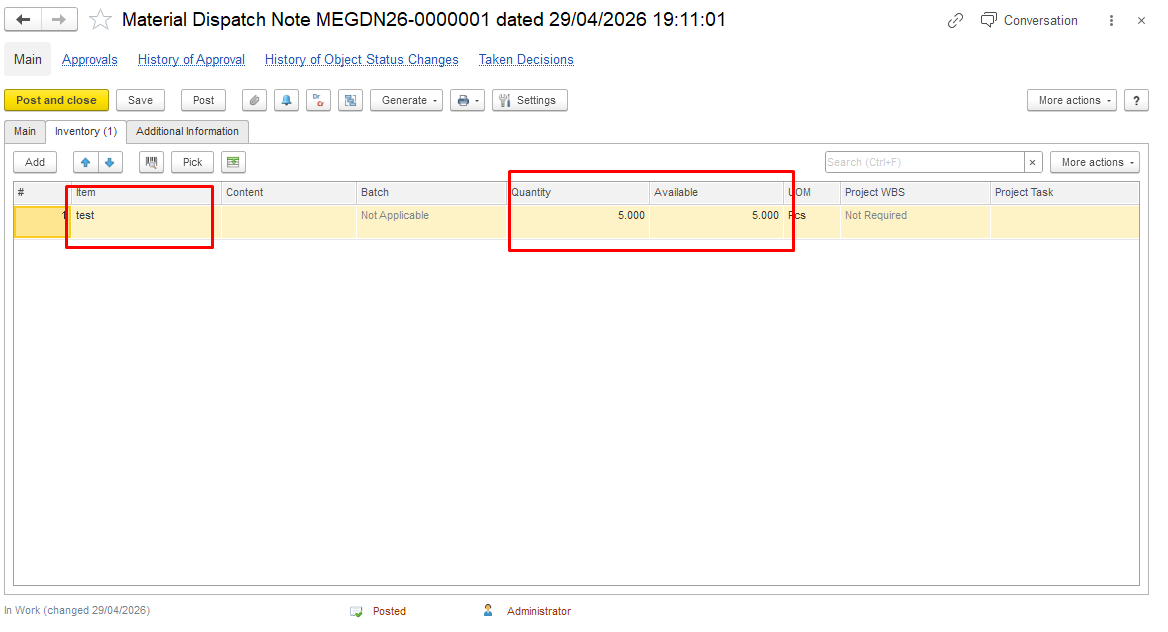
On the Inventory tab, specify the item and the quantity of goods sold. Save and post the document.
Then proceed with the Inventory Write-Off. The sold items will no longer appear in the Inventory Write-Off document.
Opposite scenario: no stock is available for operations because the financial register shows zero, while the warehouse report still shows a balance
In such cases, the system may block operations (e.g., Write-Off) due to lack of financial availability.
This type may be found with Stock Balance (by Warehouse) report
Navigate Warehouse - Reports - Stock Balance (by Warehouse)
Top Section (Stock Balance)
Data source :
- Inventory on hand accumulation register (warehouse quantity register)
This report reflects physical stock in the warehouse (e.g., 100 units).
However:
- Write-Off checks the Inventory and expenses accumulation register (financial accounting).
If no stock exists in the financial register, the operation cannot be completed.
Why discrepancies occur
Typical reasons:
- Different posting sequences
- Documents affecting only one register
Common document types:
- Invoice Received
- Inventory Transfer
- Inventory Write-Off
How to investigate
...
of
...
- document postings
- sequence
- status
This helps identify which document caused the discrepancy.
Goods in Transit (Bottom Section)
This section is based on two registers:
- Inventory to Receive → Quantity to receive accumulation register
- Inventory to Transfer → Quantity to Disposal accumulation register
In the current example, the user can verify that a financial write-off was performed (Inventory Write-Off for 100 units), while no corresponding warehouse document (Material Dispatch Note) was created. As a result, the quantity of 100 is reflected in the Quantity to Disposal column.
And if Material Dispatch Note will be correctly generated, report will not show any outstanding balances:
.
Thanks for being a Firstbit Customer!
...