Structure for document description as you did before for Invoice.
Purpose of use. Need to explain , that doc is main option to request and initiate processing of any resource types for project.
This document is the start point and can be used as a basis for future Purchase order, Subcontractor agreement, and Resource Planning transactions.
How to creare
- From Purchasing section
- From project management bbbbbbbhin project costing.
Main tab
Inventory and services tab
- make separate topics for resource management group of columns and separate Default UOM group of columns, since it is new functionality.
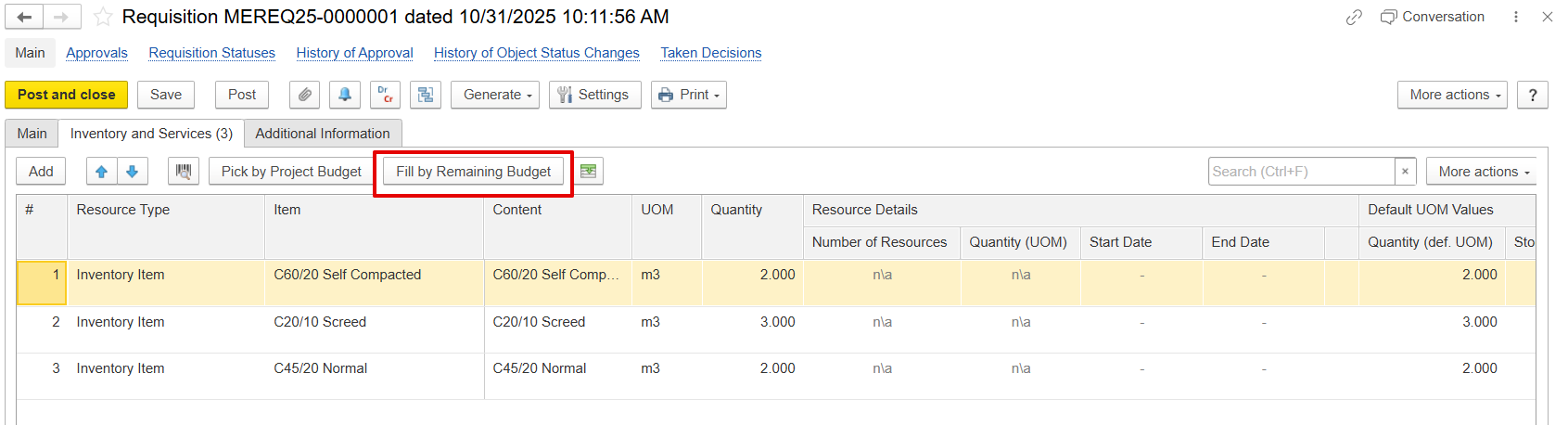
- fill by remaining budget button and Pick by project button.
- separate topic for pick by project budget form.
Additional information page
Print form
A Requisition document is an internal form used within an organization to formally request the purchase of goods or services. It specifies what is needed, who is requesting it, and when it is required. It ensures that every purchase is properly authorized, budgeted, and recorded before any external order is made.
This document serves as the primary option to request and initiate the processing of any type of project resource. It acts as the starting point and forms the basis for subsequent transactions such as Purchase Orders , and Subcontractor Agreements, and Resource Planning.
How to create
A Requisition can be created from the following locations:-
Purchasing Section
Purchasing → Purchasing documents → Requisitions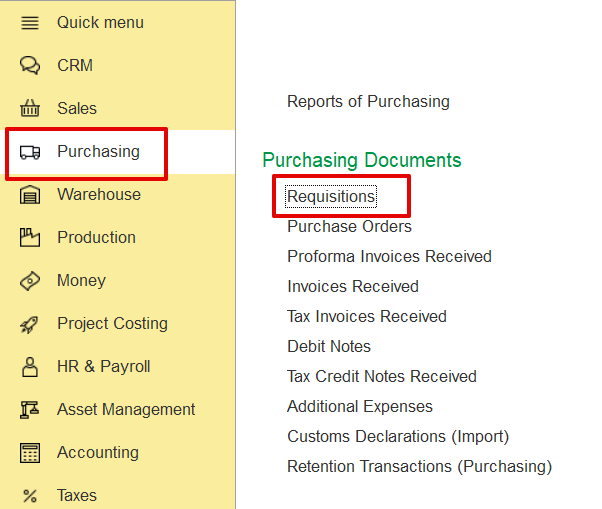
Click Create to open the Requisition (create) form.
Project Costing section
...
Project Costing → Project Management Documents → Requisitions
...
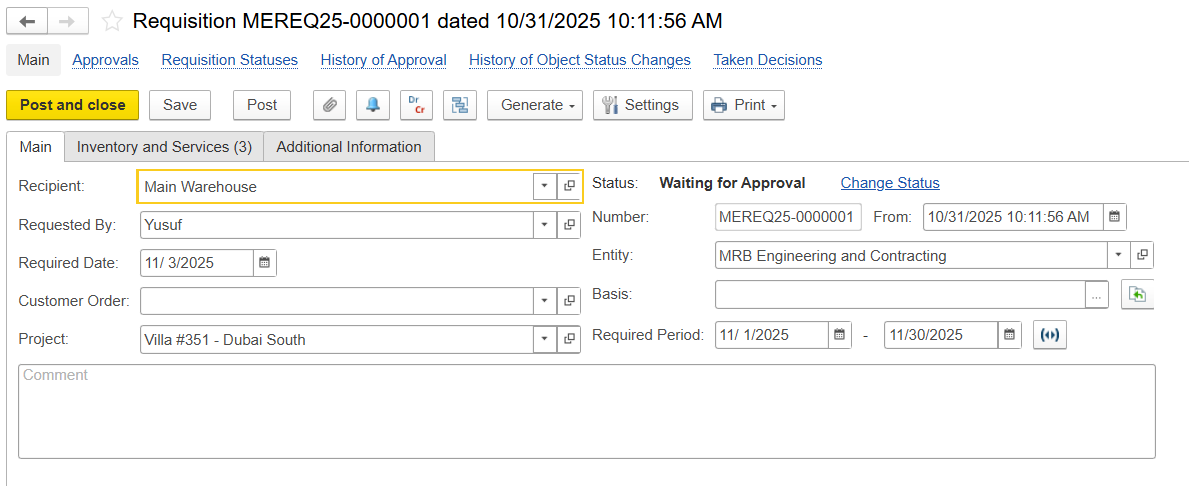
The Main tab contains the general information about the Requisition. Key fields include:
Recipient - The department or warehouse that will receive the requested items or services.
Requested By - The employee who created or requested the items.
Required Date - The date by which the requested items or services are needed.
Customer Order - Reference to a related customer order, if applicable.
Project - Links the Requisition to a specific project, if project-related.
Status - Shows the current stage of the document (e.g., Draft, Waiting for Processing, Waiting for Approval).
Entity - Indicates the entity responsible for the Requisition.
Basis - Refers to the source document (Customer Order, Project Estimate, or Production Order) from which data can be filled using the Fill by Basis button.
Required Period - Defines the time frame within which the requested goods or services are needed or expected to be fulfilled.
Inventory and Services Tab
...
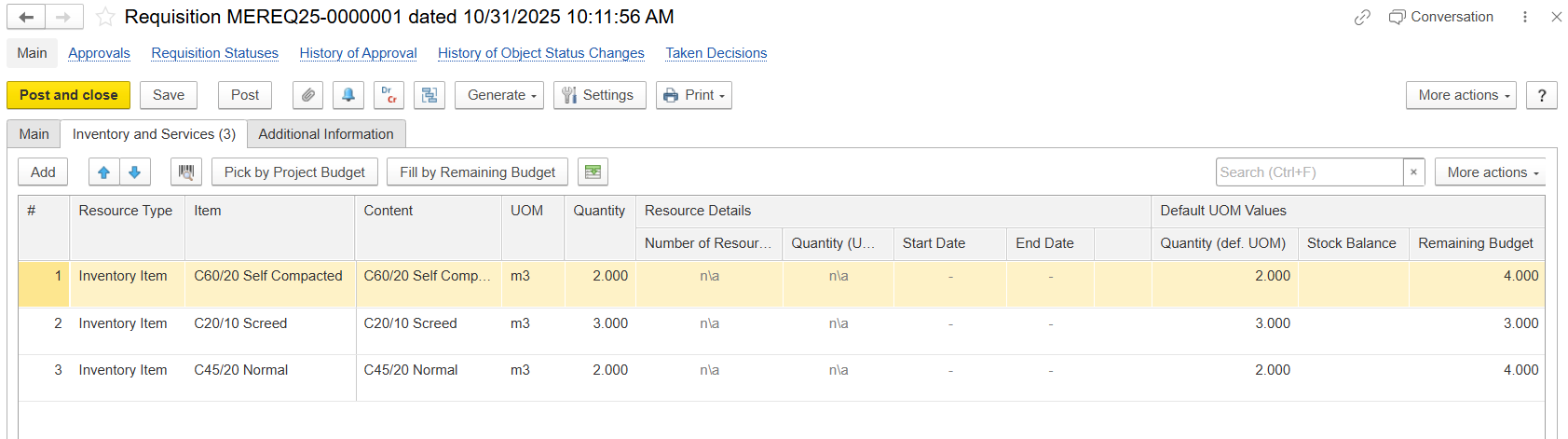
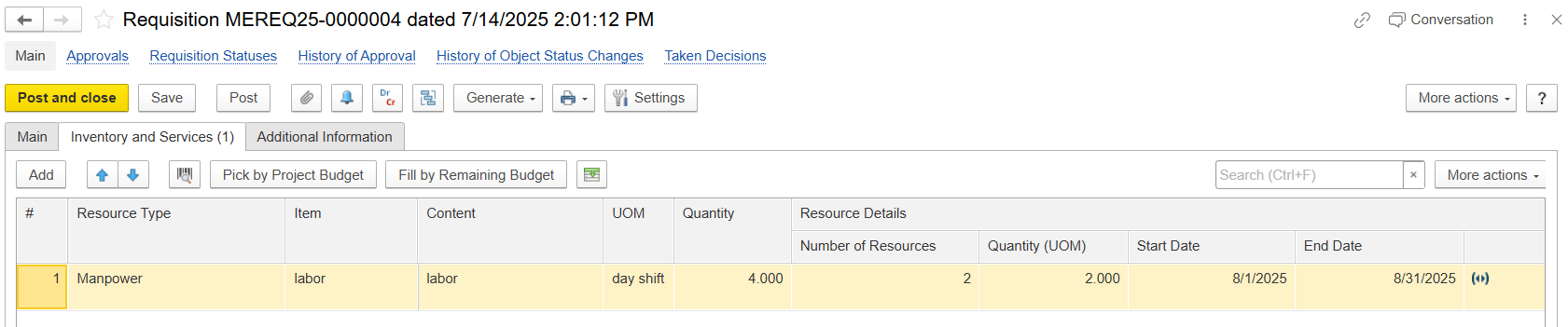
Resource Type - Specifies the type of requested resources (e.g., Material, Service, Fixed Asset, Manpower, and all).
- Item - Choose the required item from the Item master.
Content - Automatically filled with the item’s description; can be modified if needed.
- Unit of Measure- Specify the Unit of Measure (UOM) for the item; supports multiple UOMs if enabled.
Quantity - Enter To enter the number quantity of units requestedthe item requested. For resource types “Manpower” or “Fixed Assets”, the quantity will be automatically recalculated based on the Resource Details columns if the request is raised in Shifts rather than in Hours.
- Resource details -This section captures key information about the resources being picked or allocated to a project task. The columns in this section are available only for rows with resource types “Manpower” or “Fixed Assets”, where the Unit of Measure (UOM) is linked to the Shifts catalog.
Number of Resources - Shows how many resources (e.g., workers, equipment, or units) are required.
Quantity (UOM) - Indicates the requested
amount of resources along with the unit of measure (e.g.,
months, weeks, days
).
Start Date - The date when the resource or activity is planned to start.
End Date - The date when the resource or activity is planned to finish
- Default UOM Values -Indicates the requested quantity of the resource along with its unit of measure (e.g., hours, days, pieces).
- Quantity (def. UOM) - Displays the quantity in the item’s default unit of measure as defined in the Item master.
Stock Balance - Shows the available stock quantity for the selected item in the system.
Remaining Budget - Indicates the remaining quantity
in the project budget for this item.
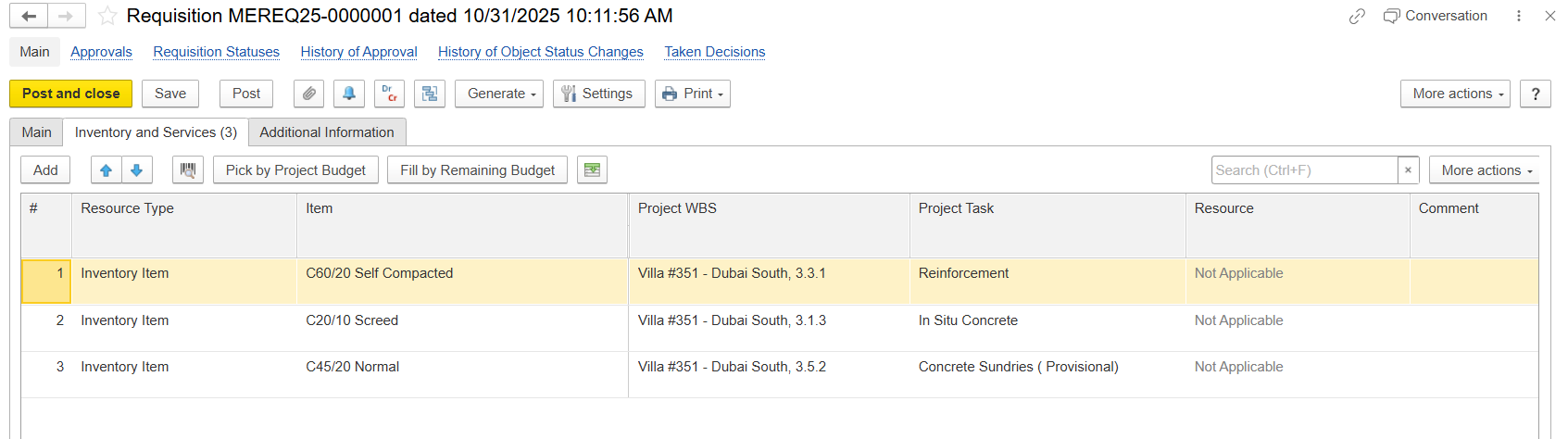
- Project WBS - Specific WBS code of the project that the item belongs to. It is used to indicate which part of the project the material should be charged to.
- Project Task - Refers to the specific project task or work package related to the requisitioned resource.
Resource - Identifies the resource type or category (e.g., Material, Equipment, Manpower). Displays “Not Applicable” if no resource type is linked.
...
- Comment - Field to add additional text or information.
Pick from the budget
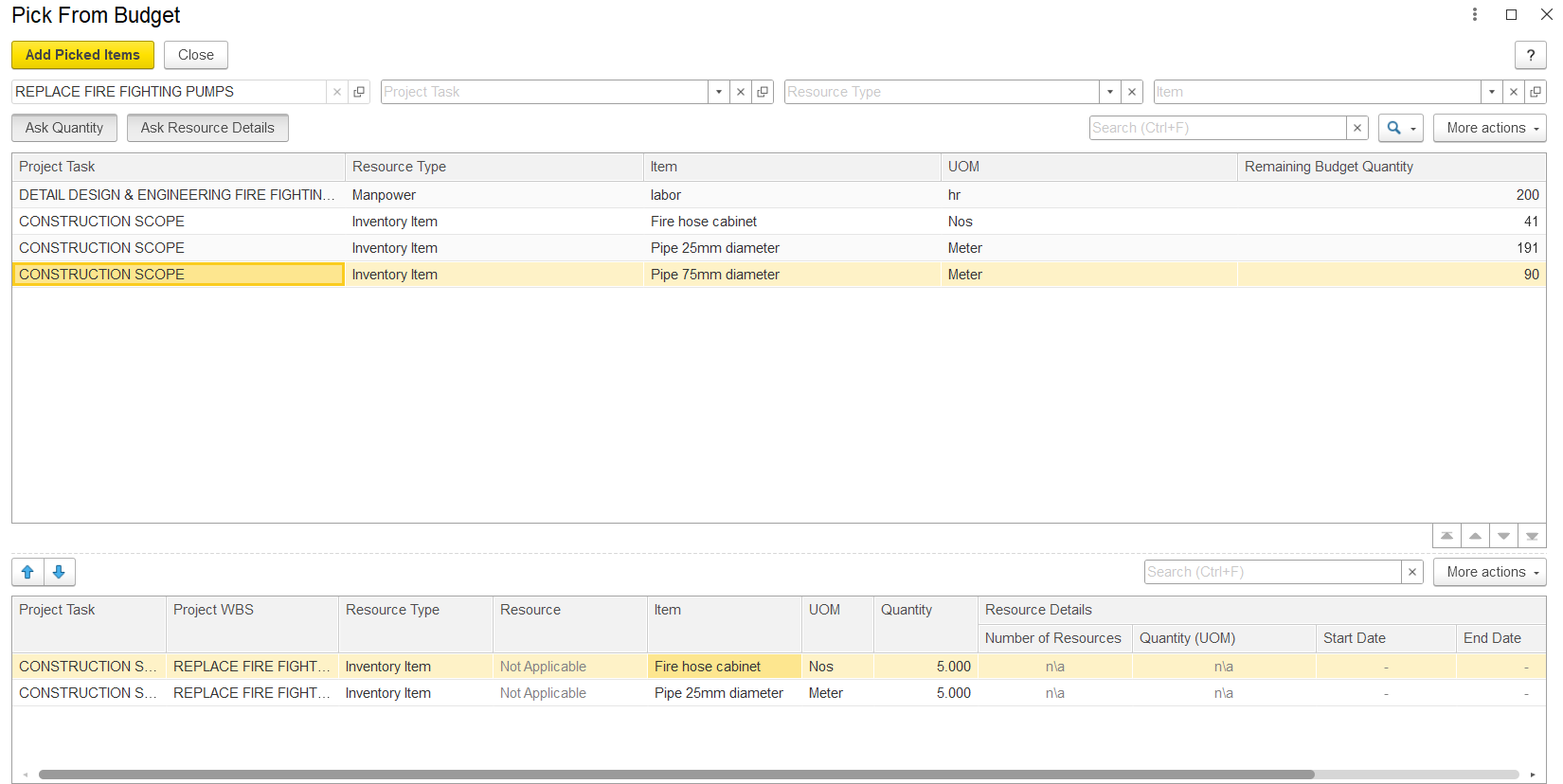
This screen allows users to allocate budgeted materials, labor, or other resources to specific project tasks. It ensures that only pre-approved quantities (as defined in the project budget) are assigned.
Picked Items Table - Displays all currently selected (picked) items for the task, pending confirmation or saving.
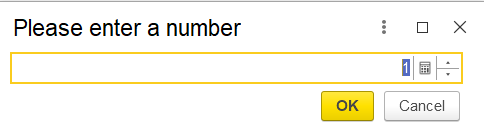
Ask Quantity - Allows the user to specify the amount of a resource to be picked.
To use, click Add Quantity, then select the relevant line item. A dialog box will appear where the required quantity can be entered.
Ask Resource Details - Opens a form for entering supplementary information about the resource.
To use, click Ask Resource Details, then select the specific line item. A dialog box will open for entering details such as location, assigned team, or remarks.
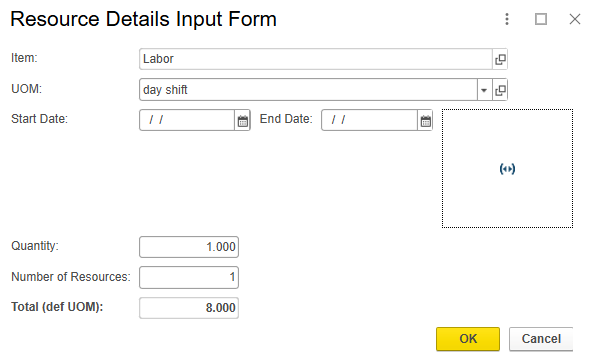
- Add Picked Items - the button transfers the selected items or resources with project analytics to the Requisition document table.
Fill by Remaining Budget
Using this option automatically fills item quantities based on how much budget is left in the project or cost center. It makes sure the total request doesn’t go over the available budget.
Additional Information tab
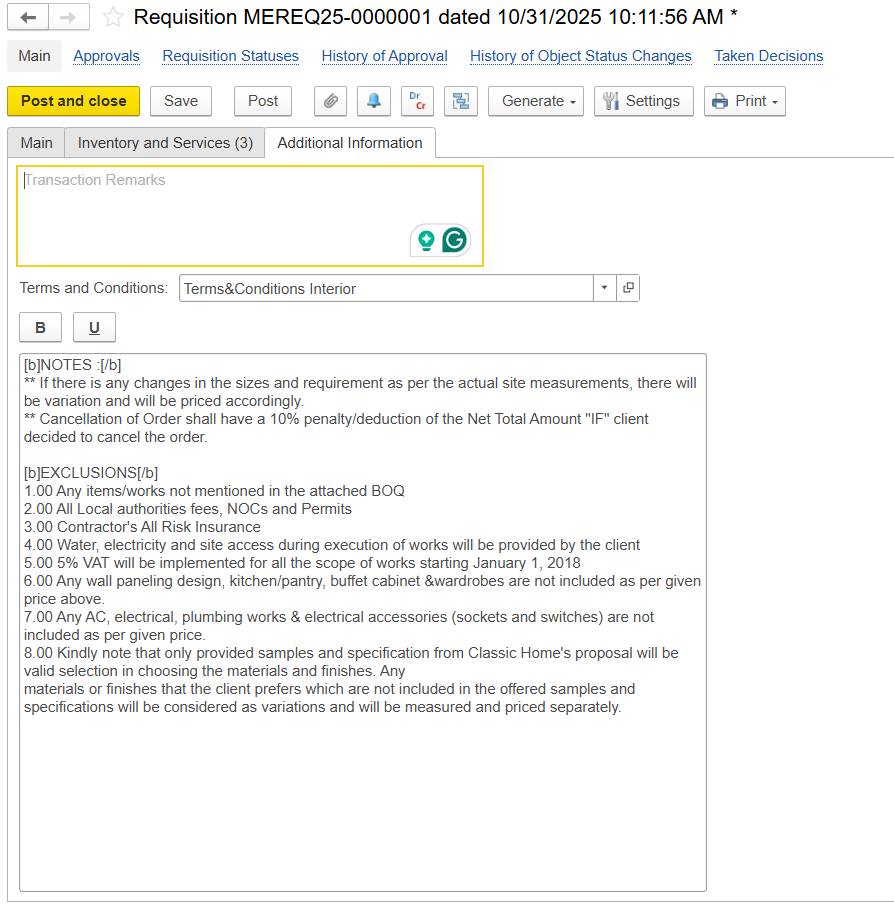
The Additional Information tab allows for the entry of supplementary remarks or internal notes related to the Requisition.
Transaction Remarks - free text field for internal comments.
Terms and Conditions - dropdown field indicating the applicable set of terms for this requisition, and further appears in the print form.
Print form
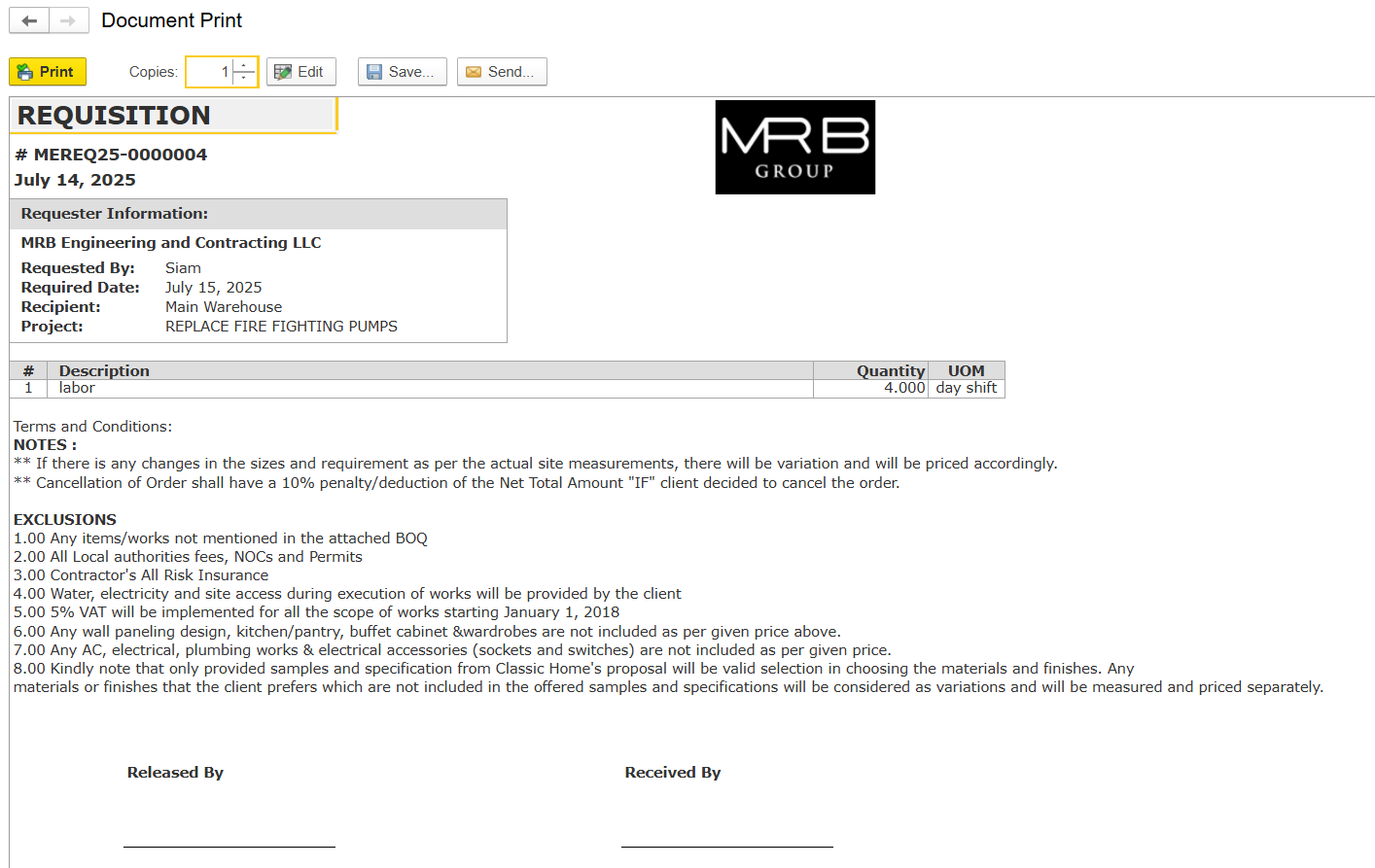
The Requisition Print Form provides a summarized view of the request, including requester details, project, and required date. It lists all requested items with quantity and UOM, along with notes or exclusions.