Need to explain, that any expenses registered with employee or FA (insurance or maintenance invoice received as example, it is required GL account with proper section) can be allocated by projects based on time card data.
Settings.
- Period to select when expense happened.
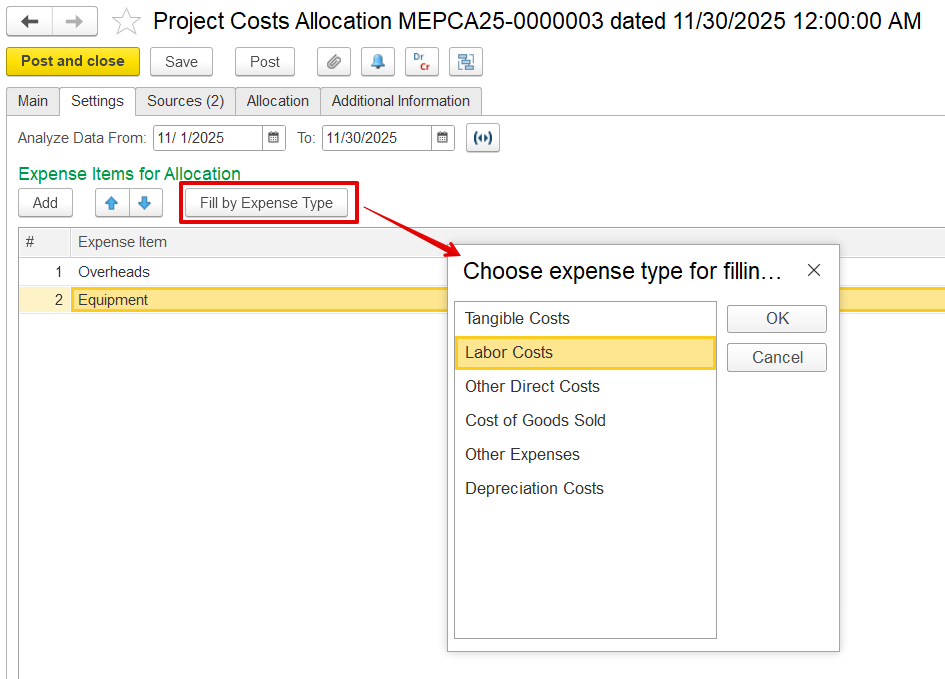
- Fill by expense item to select expense type.
Source
- will show registered expenses from selected period by list of expense items.
Allocation
- Allocation source
- Allocation results
- Fill and Allocate button.
- Allocate by time cards.
Direct costs are expenses recorded in the GL, such as employee costs associated with employee or fixed asset costs cost element (for example, an insurance or maintenance invoice received) , that can be allocated charged to projects. These entries costs must use be recorded using the correct appropriate GL account and section . Since with the dimension employee or fixed asset. Although they are linked tied to a resource but not yet , if they haven’t been assigned to a specific project yet, they can be distributed allocated across projects using this document, potentially based on time card data to reflect the actual work performed.
How to create
To access Project Costs Allocation, go to Project costing → Project Costing documents → Project costs Allocations
...
On this tab, users can specify the general information for the project cost allocation document, i.e., the date, entity, and transaction type.
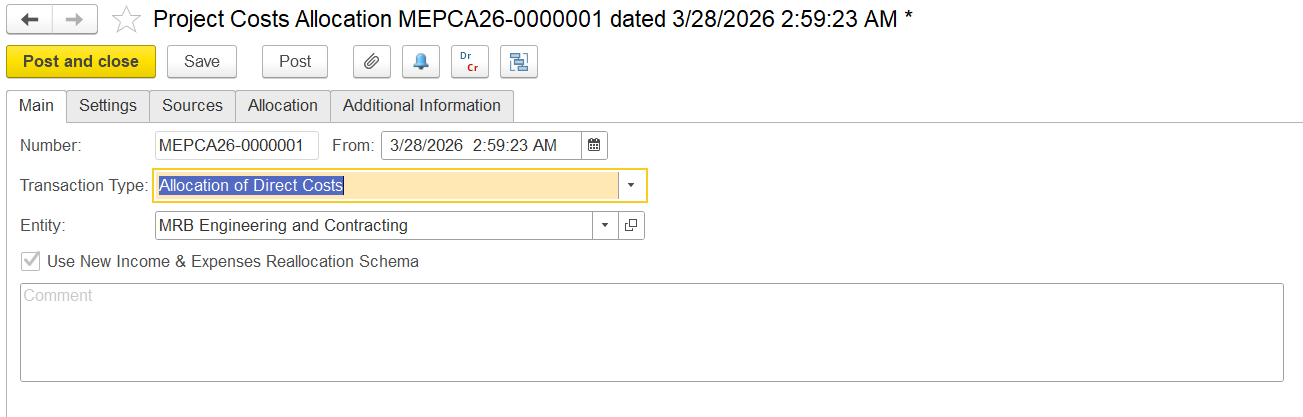
The “Use New Income & Expenses Reallocation Schema” option refers to an updated internal method (schema) used by the system to manage cost allocation logic.
Note: This is a system-controlled setting and is not amendable by users.
Settings Tab
This tab defines how direct costs are allocated to projects.
- Analyze data from - Select the time period when the expense occurred.
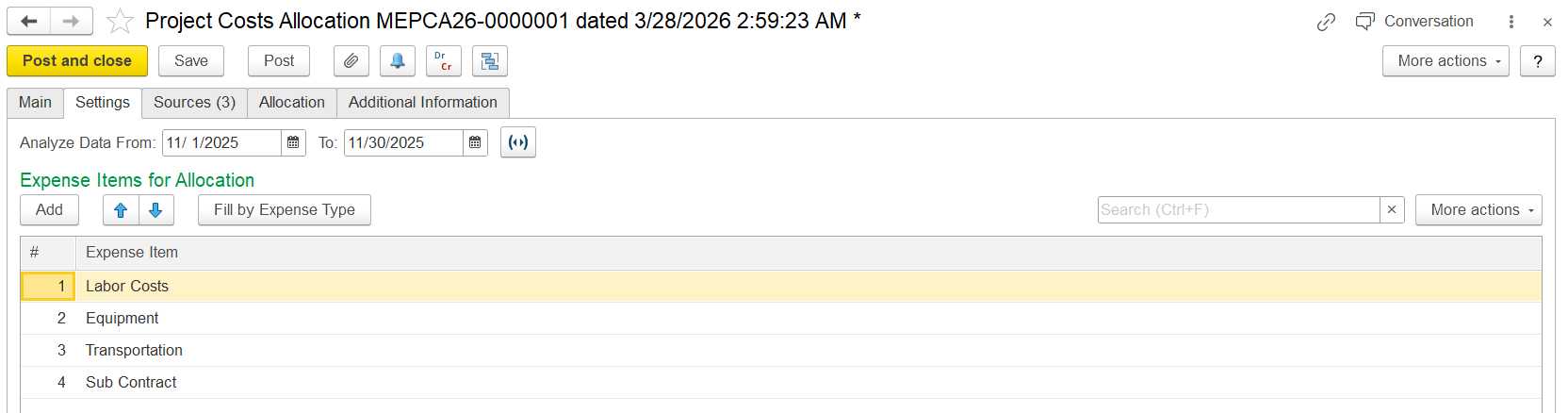
- Expense Item for allocation - Specify the expense type for allocation.
...
- Add - It is used to add the expense item manually from all existing expense items.
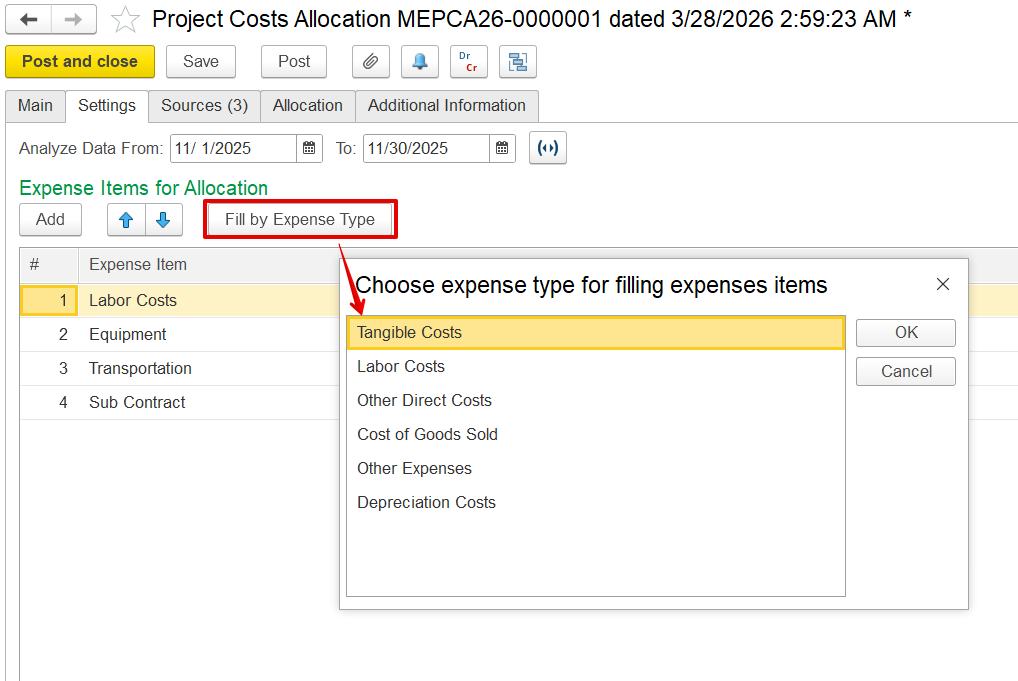
- Fill by Expense Type : This - This option lets users select an expense type and automatically populate the list of relevant expenses for allocation based on the chosen category.
Source Tab
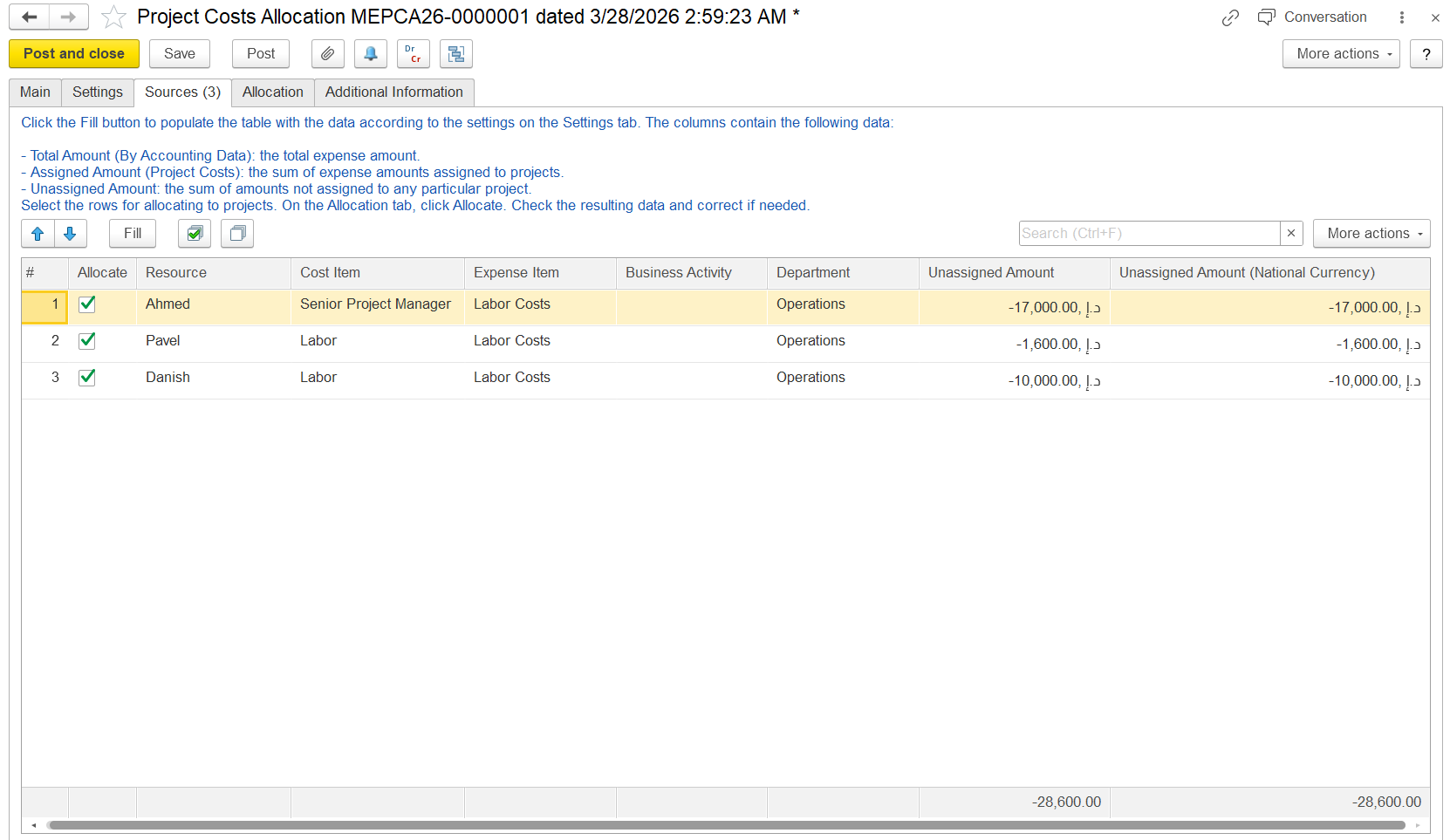
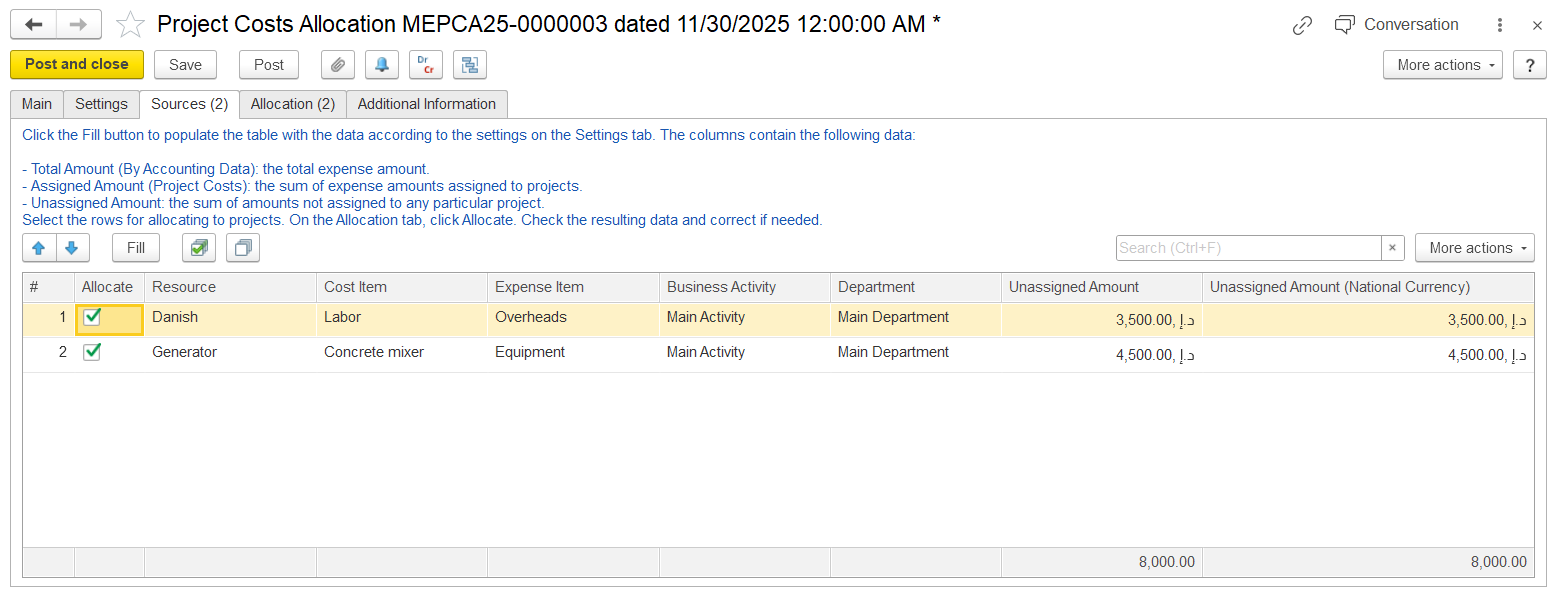
This tab lists shows all expenses available expenses for allocation, based on the settings you defined in using the configurations from the Settings tab. Click the Fill button to populate the data based on those settings.
- Allocate :- Checkbox to include this row in allocation. Only checked rows will be distributed to projects.
- Resource : The employee or cost origin- The type of resources, such as Employee or Fixed asset.
- Cost Item :- The type of cost recorded
- Expense Item :- Expense type
- Business Activity / Department : Context for cost allocation- business activity or department of the sources added.
- Unassigned Amount :- The portion of the expense that has not yet been allocated to any project.
- Unassigned Amount (National Currency) :- Same as above, shown in the local currency.
Allocation Tab
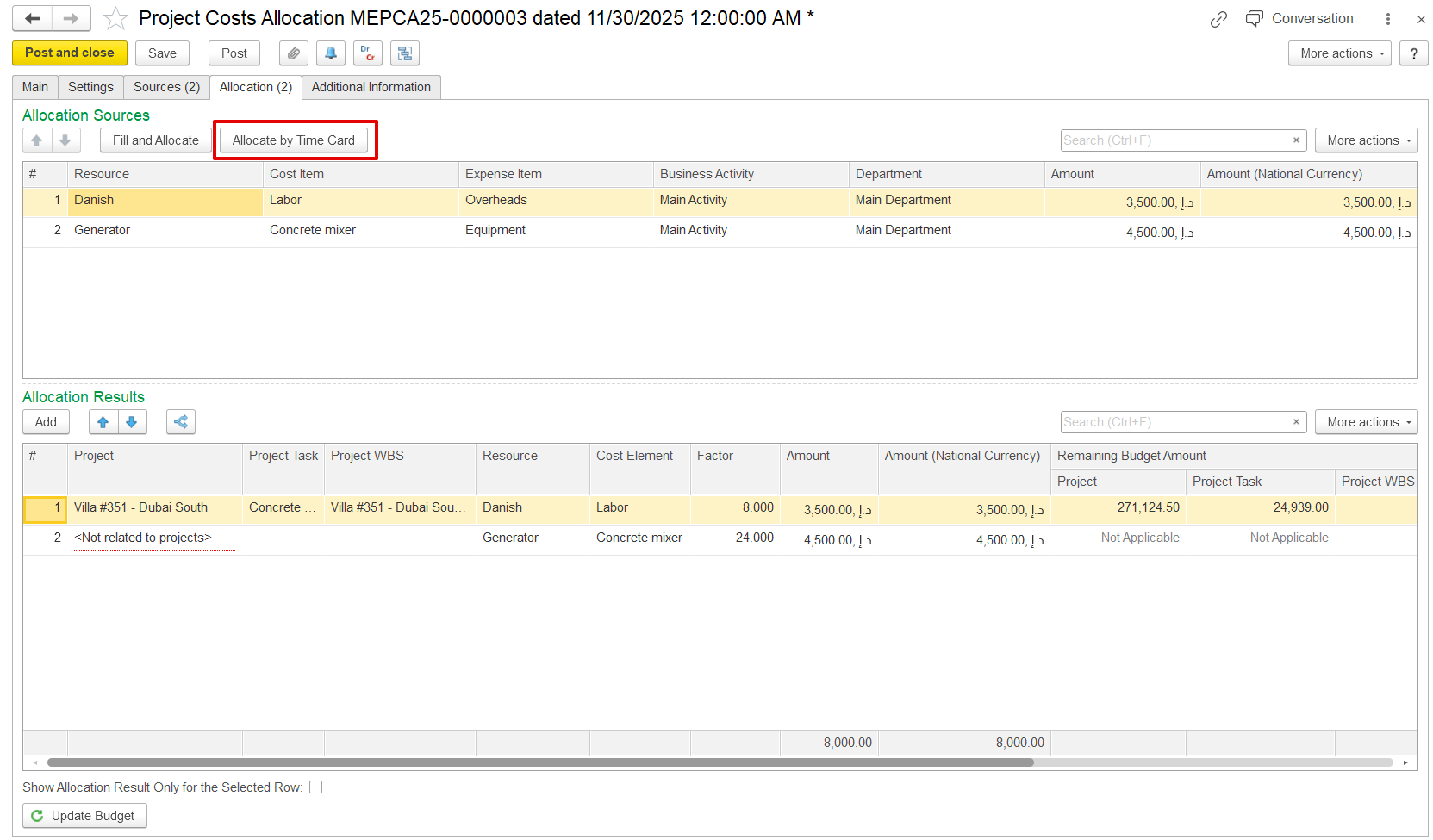
Fill allocate. logic is same. here we have an option to fill by time card.
...
The Allocation tab is used to assign direct costs to projects. It is divided into two sections:
- Upper pane - Displays the selected allocation sources
- Lower pane - Shows the resulting allocations
Click Fill and Allocate in the upper pane to copy the selected allocation sources from the Sources tab and perform the allocation based on the configurations defined in the Settings tab. Users can also manually add or remove sources by unticking the Allocate option in the Sources tab, and the allocation results in the lower pane can be adjusted as needed.
By default, the Factor column reflects the values defined in the Settings tab, representing how costs are distributed across projects as a percentage.
To allocate only part of a source cost to projects, add a new row and select a project. If the cost should not be linked to any project, choose <Not Related to Projects> in the Project column. Then assign the appropriate factor:
- Adjusting the factor will automatically recalculate the allocated amounts
- Modifying the allocated amounts will automatically update the factors
The application ensures that the total allocated amount always equals the original expense amount.
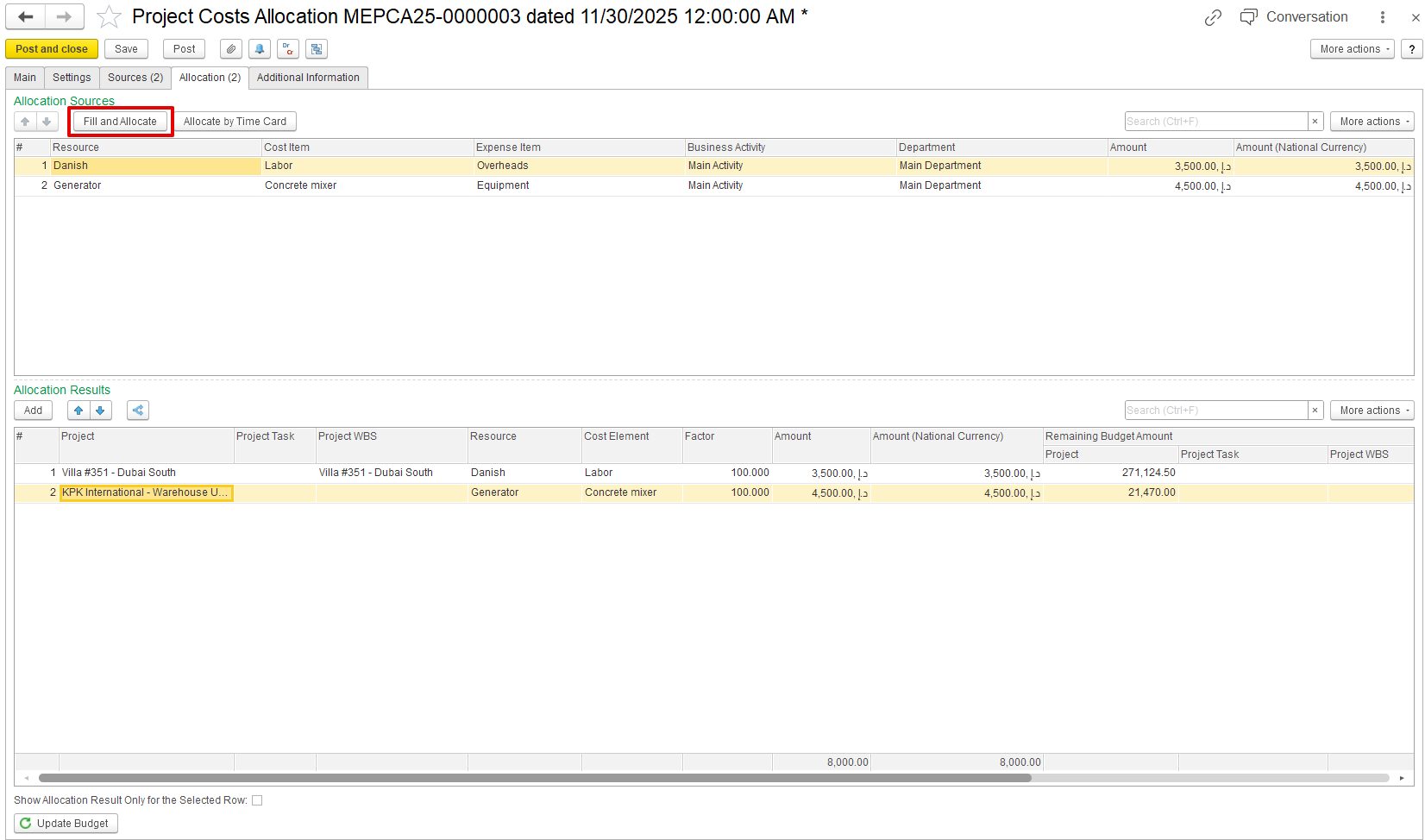
Click the Allocate by Time Card button to automatically distribute costs based on the time cards of employees and fixed assets. For each employee or fixed asset assigned to projects in Active or Proposed status, the associated costs are automatically allocated to the relevant projects listed in the Allocation Results table.
If an employee or fixed asset is not assigned to any project, <Not Related to Projects> appears in the Project column, indicating that the costs are not allocated to projects.
Additional Information tab
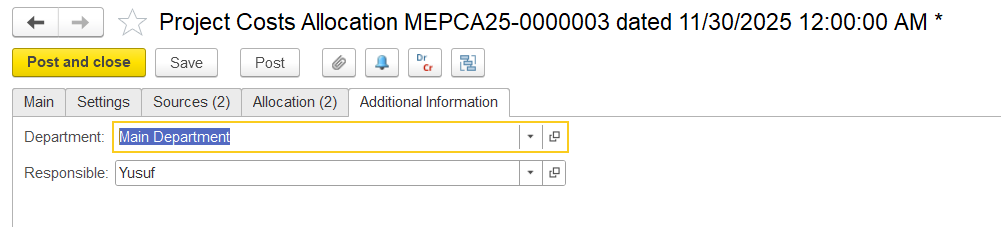
This tab is used to add extra information for the document. No fields are mandatory.
- Department - Choose the department for the project costs.
- Responsible - Shows the employee in charge of this document.