how to create
How to use
Full project templates.
Cost fill by templates.
Project templates serve as preconfigured blueprints that streamline the creation of Project templates are ready-made templates that simplify creating new project estimates. They help maintain ensure consistency across projects and reduce setup save time by reusing standard formats and structures.
This section explains how to create a full project template, use it for a new project, and auto-fill costs using that template.
Each template contains predefined:
WBS (Work Breakdown Structure) or hierarchy
Cost and revenue structures
Standard tasks, UOMs, and pricing
Overheads and markup percentages (if applicable)
Using Full Project Templates in Project Estimates
...
1. How to Create a
...
Project Template
Go to the Projects Module,
...
navigate to the Projects screen from the main menu.
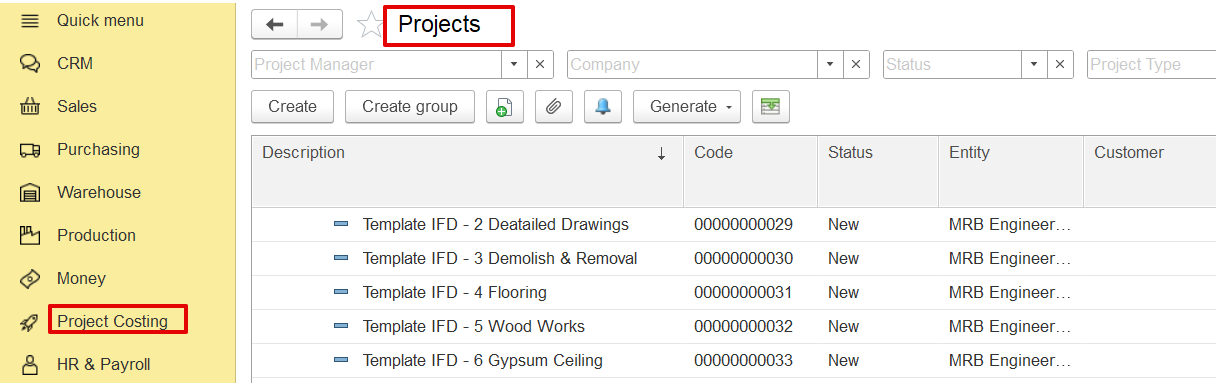
Click “Create.” to open a new project entry form.
Enter Template Details
Description: Name of the template (e.g., “Template MEP – ELECTRICAL”).
Status: Set as “New”.
Check ‘Is Template’
...
: This marks the project as a reusable template.
Entity, Company, and Project Type: Fill these as needed for categorization.
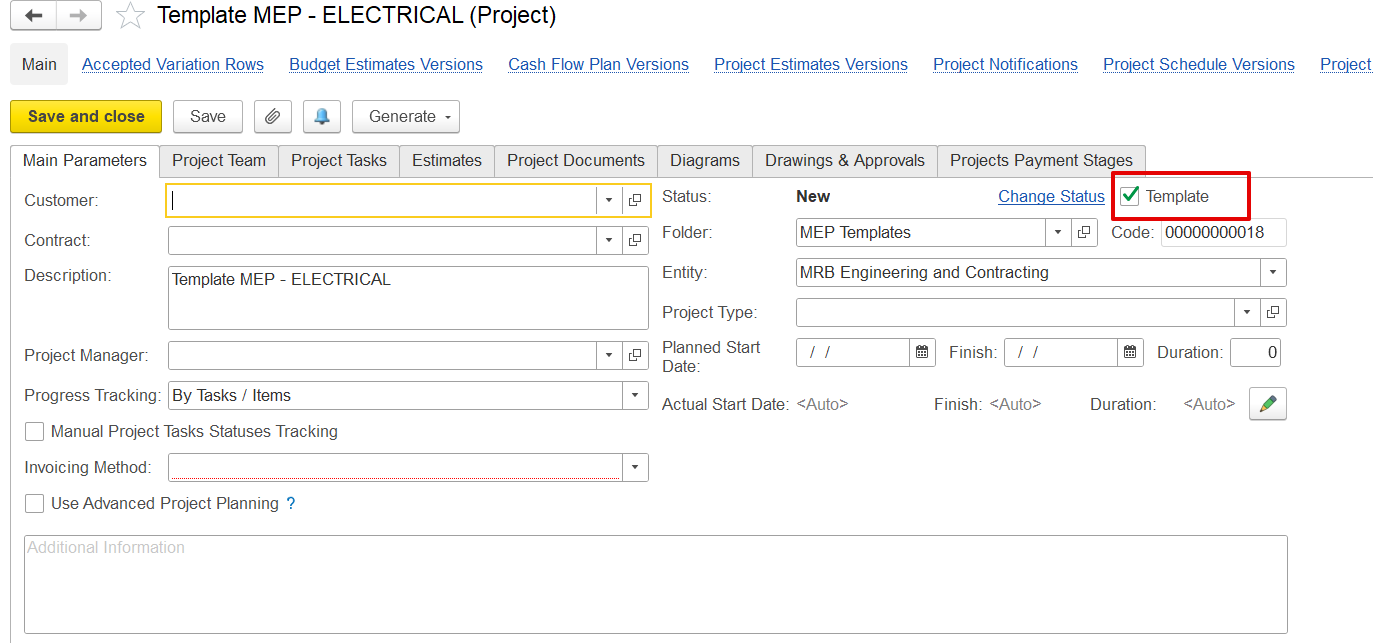
Build the Estimate Structure
Go to the Estimates tab.
Manually enter cost and revenue items or import BOQ from Excel.
Include WBS codes, units, prices, overheads, and markups.
Save
Once the structure is complete, click Save. The project is now available as a template.
...
2. How to Use a
...
Project Template
Go to Projects > Project Templates
Locate the relevant template group (e.g., Construction Bill Templates, MEP Templates).Select a Template
Highlight the template to use (e.g., “Template MEP – ELECTRICAL”).Click “Generate”
Select Generate > Create Project from Template.
A new project will be created using the full structure of the template.
Enter Specific Project Details
Modify project name, customer, dates, and any unique tasks or quantities.
Leave the standard cost structure intact, or adjust it as needed.
Save and Proceed
The new project is now ready with a pre-filled estimate.
3. Fill Cost Using a Template (Cost Fill by Templates)
If the project already exists but the cost items are missing or incomplete, the template can be used to fill just the cost details:
Open the Project Estimate
Navigate to the Estimates tab in the existing project.Click “Fill by Templates”
A selection window will open with available templates.
Choose the relevant template (e.g., MEP Electrical, Interior Works).
Apply Template
Confirm the import. The system will copy the cost structure (items, quantities, UOM, prices) into the project estimate.
Revenue and markup may also be filled, depending on template settings.
Review and Save
Adjust any items if needed.
Click Save to update the project with the filled-in cost data.
...
The Fill by Template feature allows the Project Estimate document to be automatically populated using predefined templates. These templates, stored in the database, contain standardized revenue structures that promote consistency and improve efficiency across multiple projects.
Templates are displayed according to the selected cost calculation method. For estimates where the “Cost is calculated based on revenue,” only templates with matching settings will be shown, and the same applies in the case of Independent Calculations of Costs and Revenues.
This functionality is accessible directly within the Project Estimate document.
Click on the Fill by Template option to fill in the revenue and cost tab.
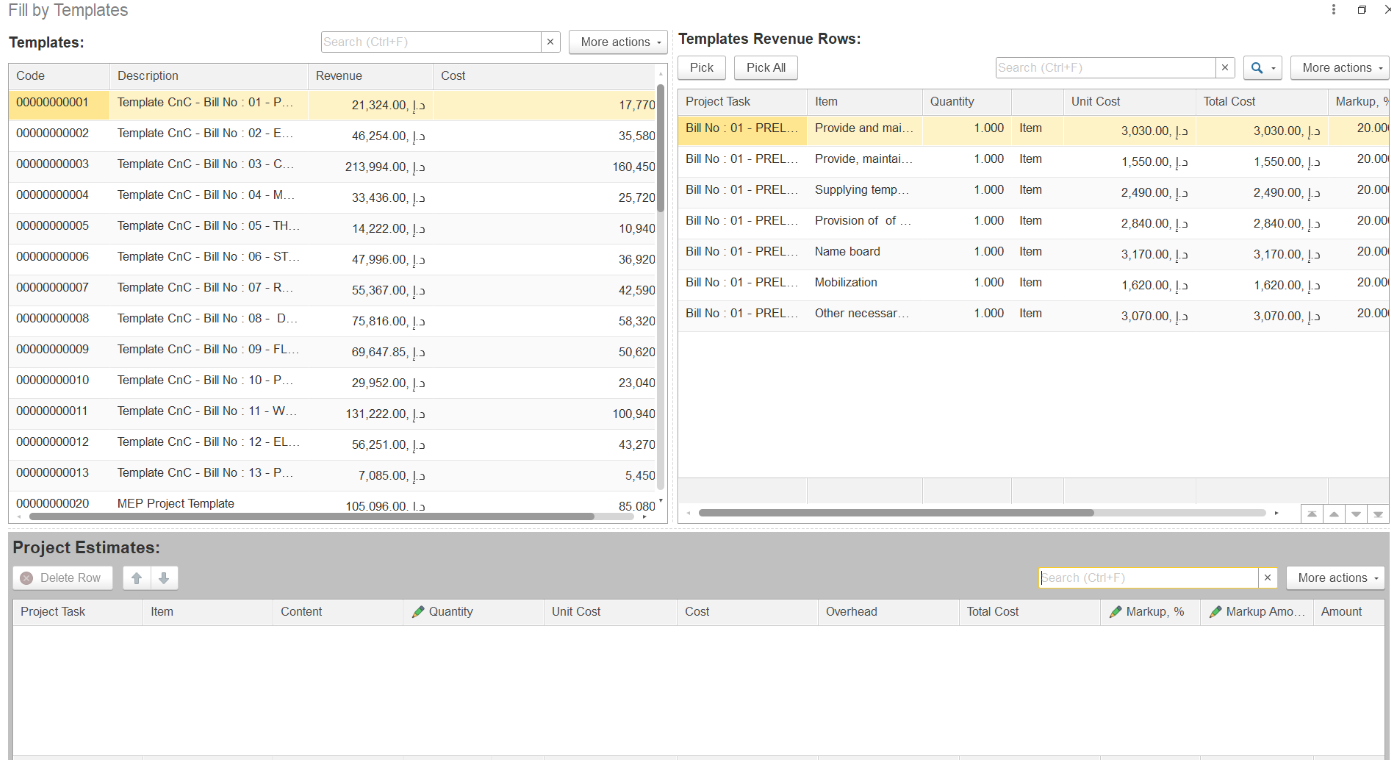
The screen is divided into two parts:
Left Side: Displays a list of all available template projects marked as templates in the database.
Right Side: Shows the revenue rows from the selected template.
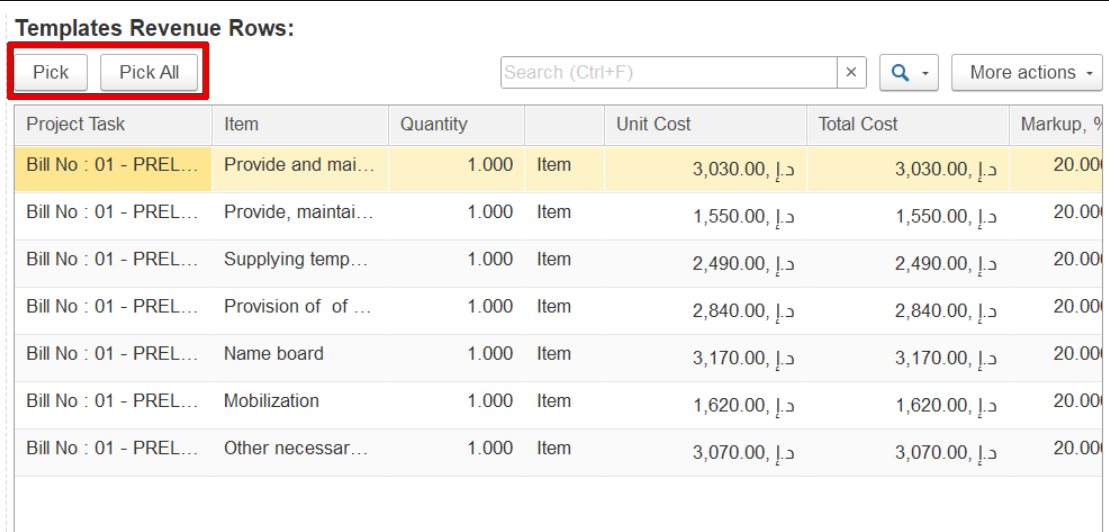
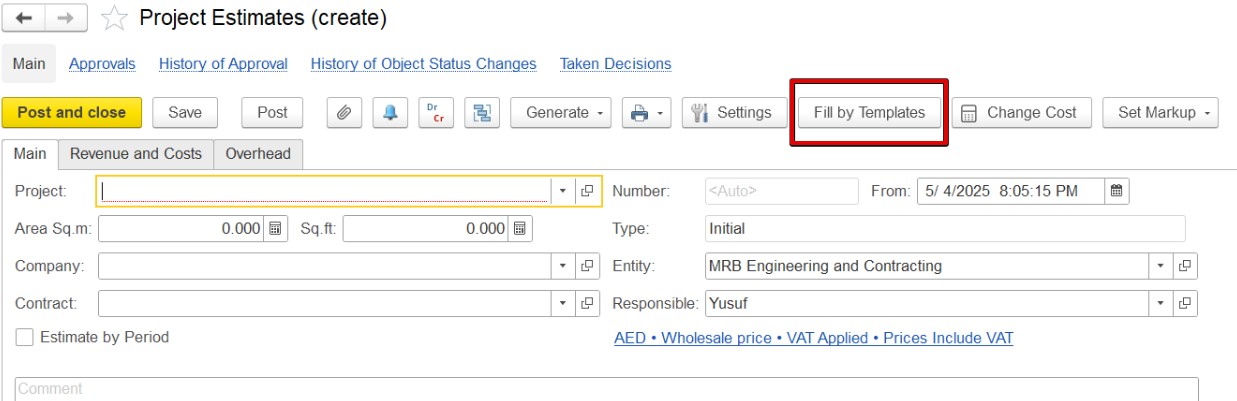
You can select a single line, multiple lines, or all lines. To add a line to your project estimate, hover over it and click Pick. The selected line will appear in the estimate table below, where quantity and markup can be adjusted. Cost, total cost, and markup amount will be calculated automatically.
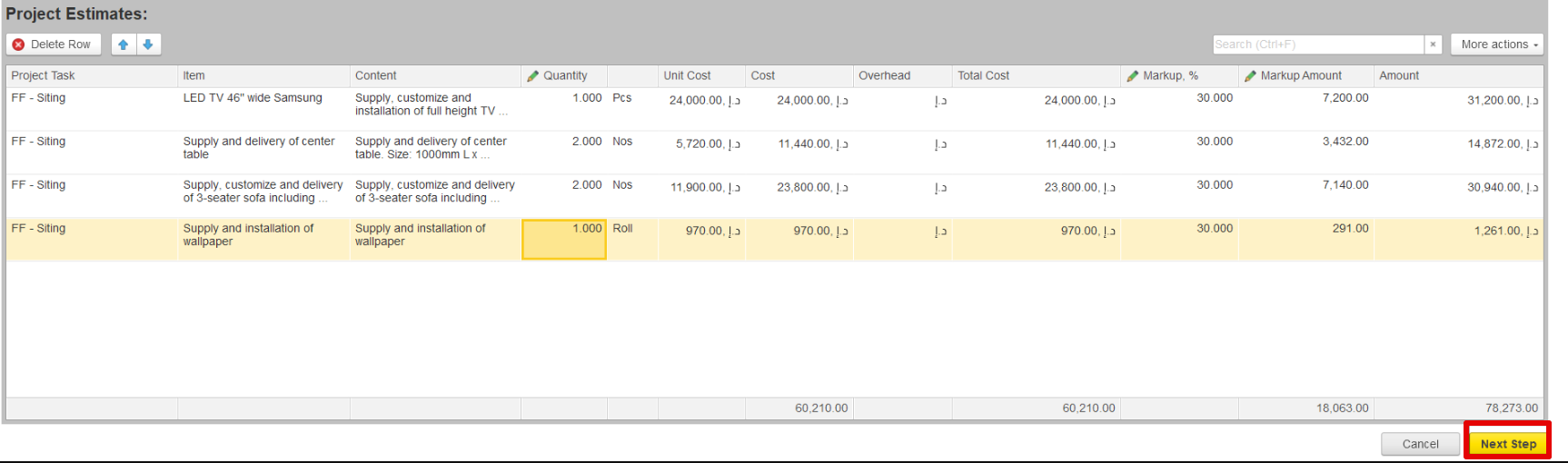
Click Next Step once the project estimate tab is filled.

This displays all tasks and subtasks, along with detailed revenue lines, quantity, unit cost, and markup. Click Fill to transfer this structure to the project.
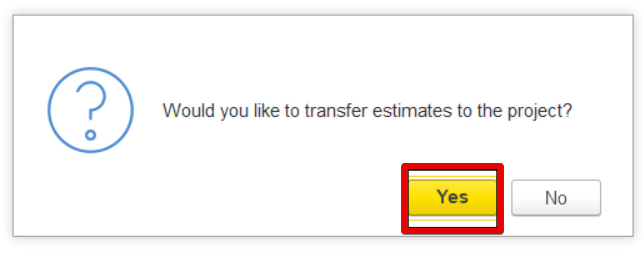
The Estimation Document will be filled out accordingly.
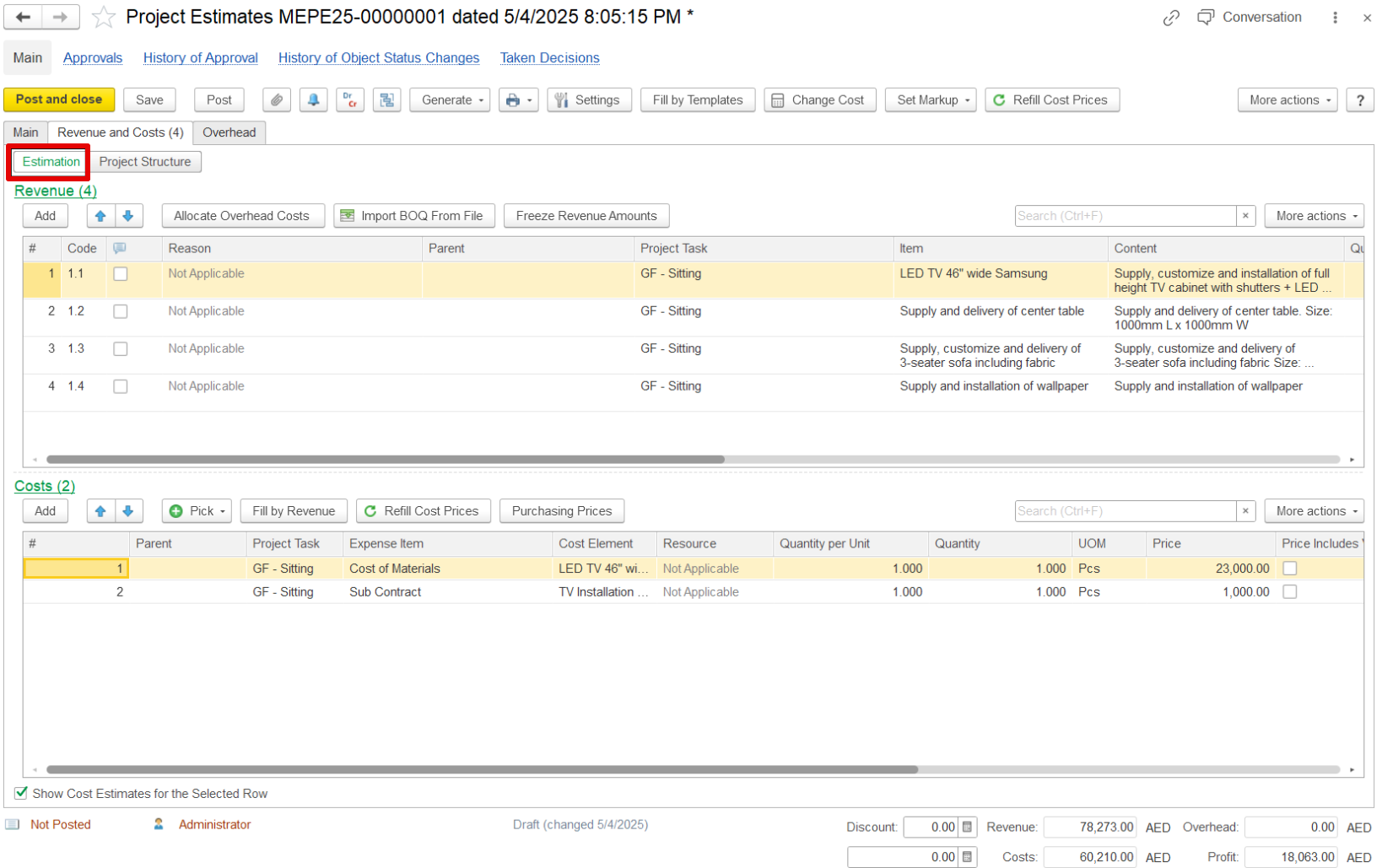
If the template included cost lines linked to revenue, those links will be transferred as well.
Review the details and click on the post to complete the process.