Problem: How to make a reserve for obsolescence and then sell the item?
Solution: Make a reserve for obsolescence through the Other Expenses document, enter the Invoice, write off the reserve for obsolescence
...
.
1. Create a reserve for obsolescence using the Other Expenses document with Transaction Type: Accrual
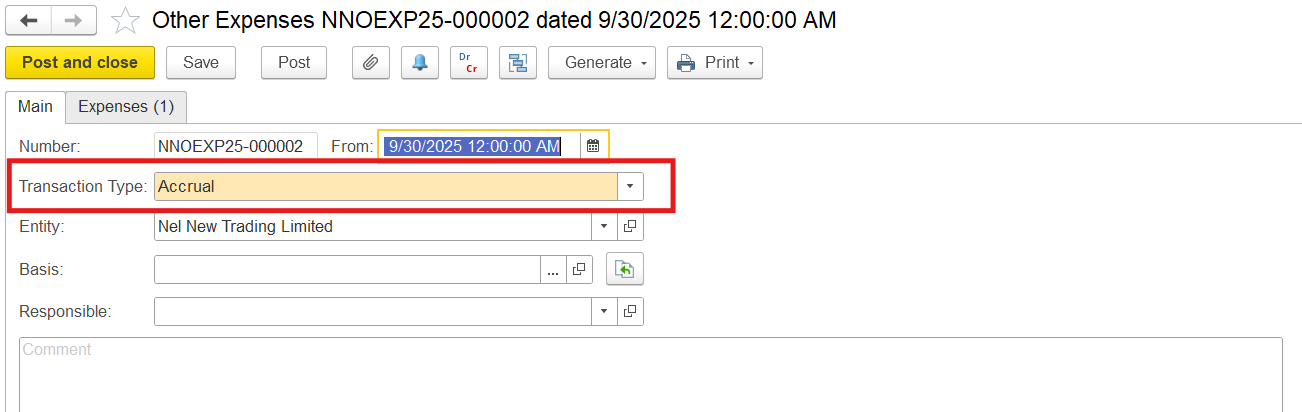
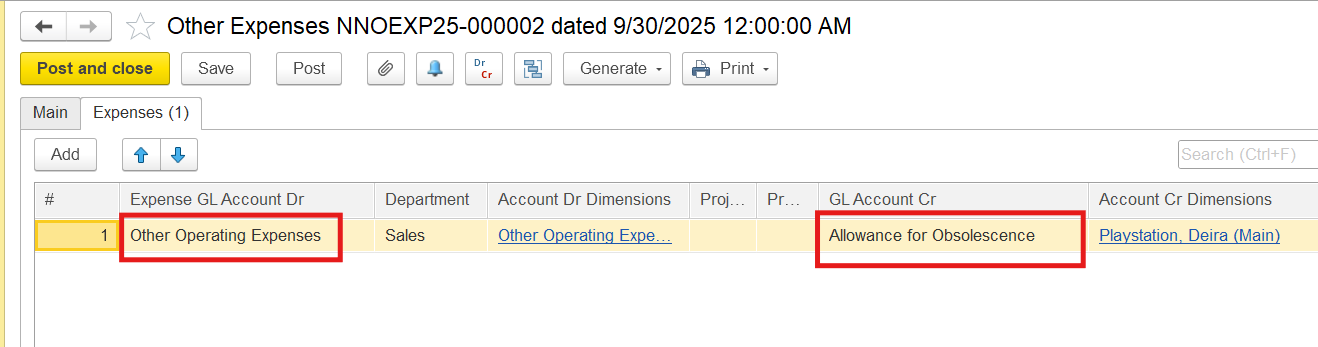
On the Expenses tab, select an expense GL account in the debit, the 2010600 Allowance for Obsolescence account (also called inventory valuation allowance, write-down reserve, or provision for inventory obsolescence) in the credit column, and enter the amount of obsolescence reserve
2. Enter the Invoice document.
Note!!
- The item itself is written off at its full book value
...
- The expense accounts in the Other Expenses document and in the Invoice differ. In invoices, the COS: Goods for Resale account is used automatically to record the cost of goods sold (direct costs linked to sales, not for manual or indirect expenses) when items are sold. In the Other Expenses document, the COS: Goods for Resale account is not available because the Other Expenses document is used for overheads, not inventory-related costs.
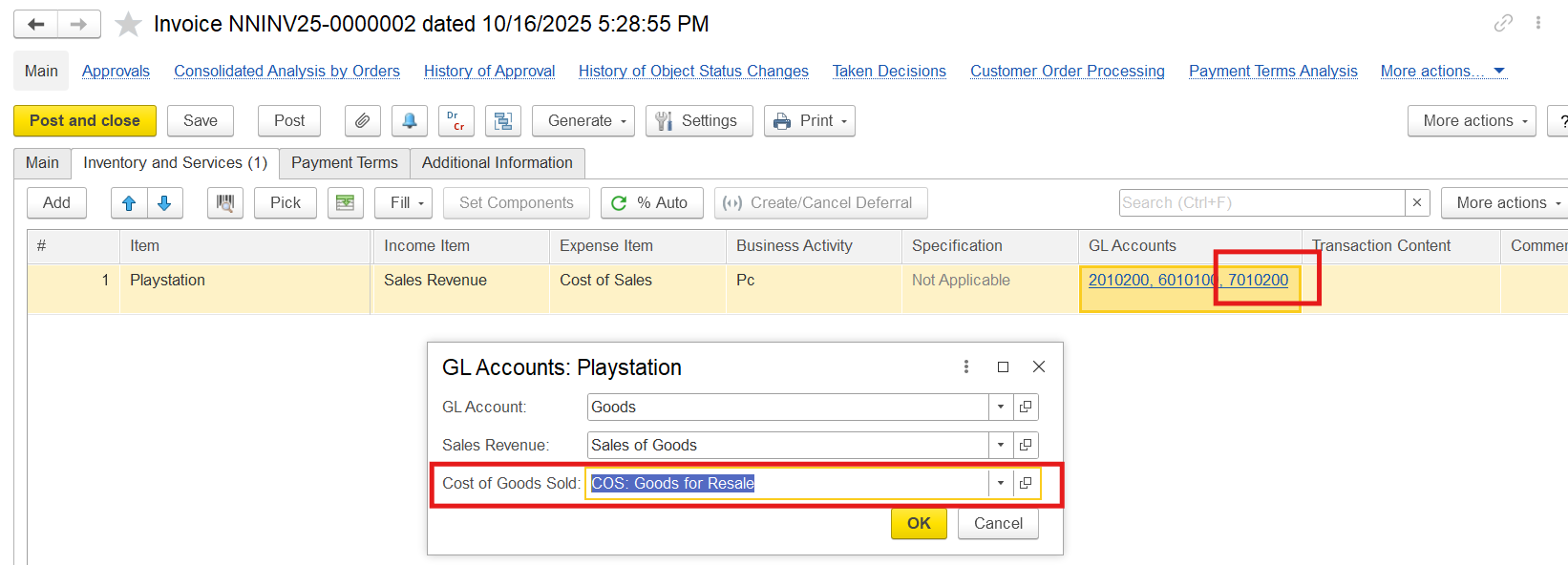
3. The cost of the item in our example is 4000,00 AED but the amount of expenses written off for this item is 5000,00 AED because there are two types of costs that are written off: Other Operating expenses + COS: Goods for Resale.
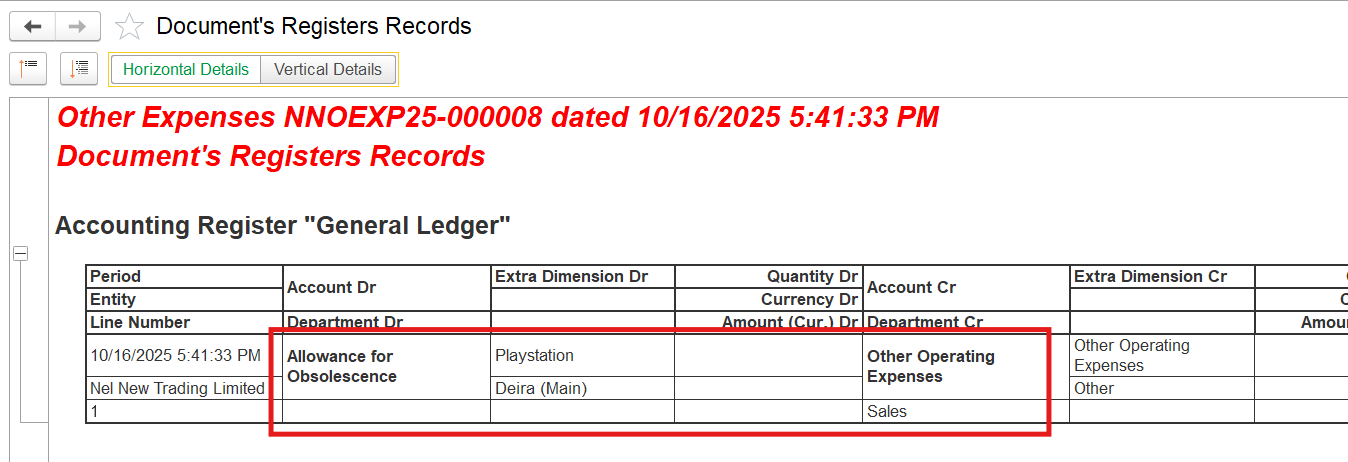
Dr Other Operating expenses - Cr Allowance for Obsolescence - 1000,00 AED - the entry of the reserve for obsolescence
Dr COS: Goods for Resale - Cr Goods - 4000,00 AED - the inventory write-off
Hence, it is necessary to reduce the amount of the expense account from the invoice as the partial expense write-off for this item has already been made at the moment of the entry of the obsolescence reserve.
Also, it is necessary to remove the reserve for obsolescence on the Allowance for Obsolescence account.
The necessary transaction can be done manually
...
4. Adjust the Accumulation Register "Income and Expenses"
- Go to Administration>Administration Document>Register Correction
- Create a new document
...
The entry in the Accumulation Register "Income and Expenses" should be the exact opposite of the entry in the register when the invoice is posted, as in the manual posting, we reduced the amount of the expense account from the invoice
The Invoice had the following entry:
Repeat all the analytics, but put the amount with a minus sign (in this example, -1000.00 AED), as the expense was reversed by a manual operation. Only after the register adjustment, the month will be closed correctly, and the expense will be written off properly.When goods that previously had an Allowance for Obsolescence (also called inventory valuation allowance, write-down reserve, or provision for inventory obsolescence) are sold, the allowance is reversed (cleared) because the inventory item it relates to is no longer held.
Locate the document where Allowance for Obsolescence was accrued. On the toolbar, click Generate > Reversal of Other Expenses. This will automatically create a reversal document that mirrors the original entry but with reversed debits and credits.
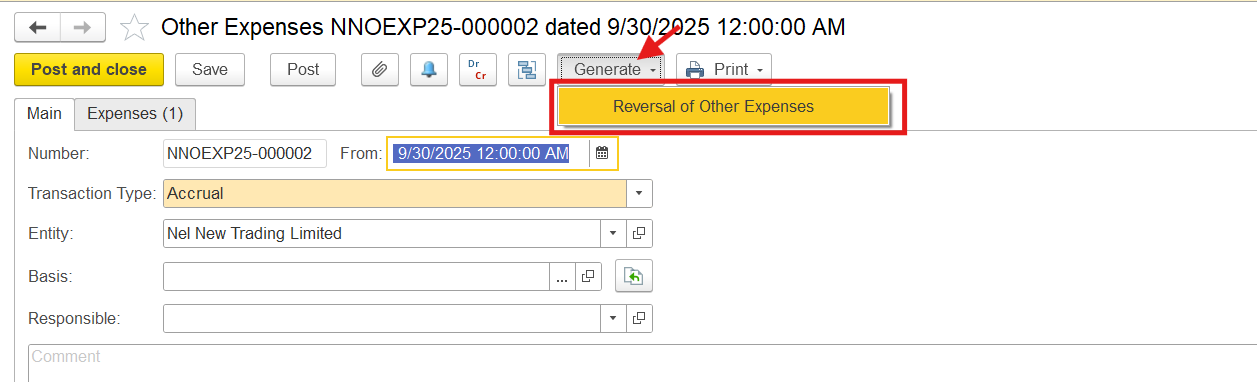
This will automatically create a reversal document.
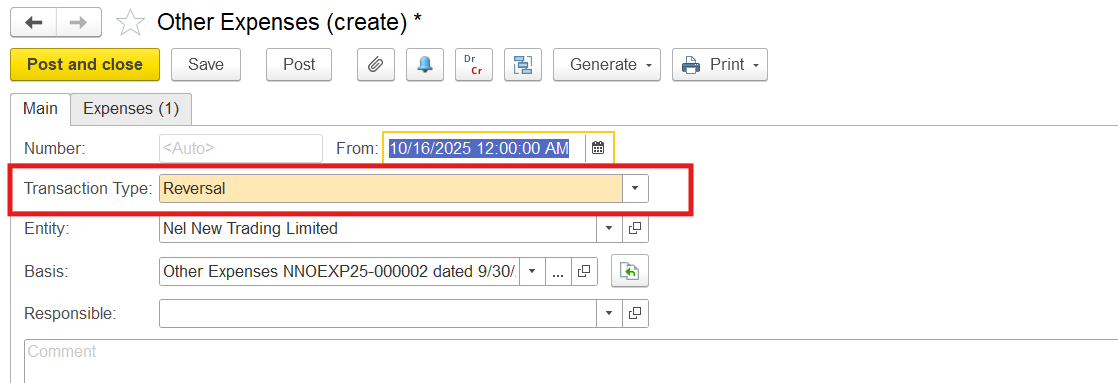
It mirrors the original entry but with reversed debits and credits. The reversal of the write-down reserve is recorded as a reduction of the same expense line where the original write-down was recognized.
Thanks for being a Firstbit Customer! #AllowanceForObsolescence
#AllowanceForObsolescence#InventoryValuationAllowance#Write-downReserve#ProvisionForInventoryObsolescence