When attempting Purchase Order (Revision) is used to officially record changes to an existing Purchase Order, allowing you to update quantities, prices, or delivery dates while maintaining a clear history of these changes.
You can find and create a Purchase Order Revision by clicking the Generate button on the Purchase Order form.
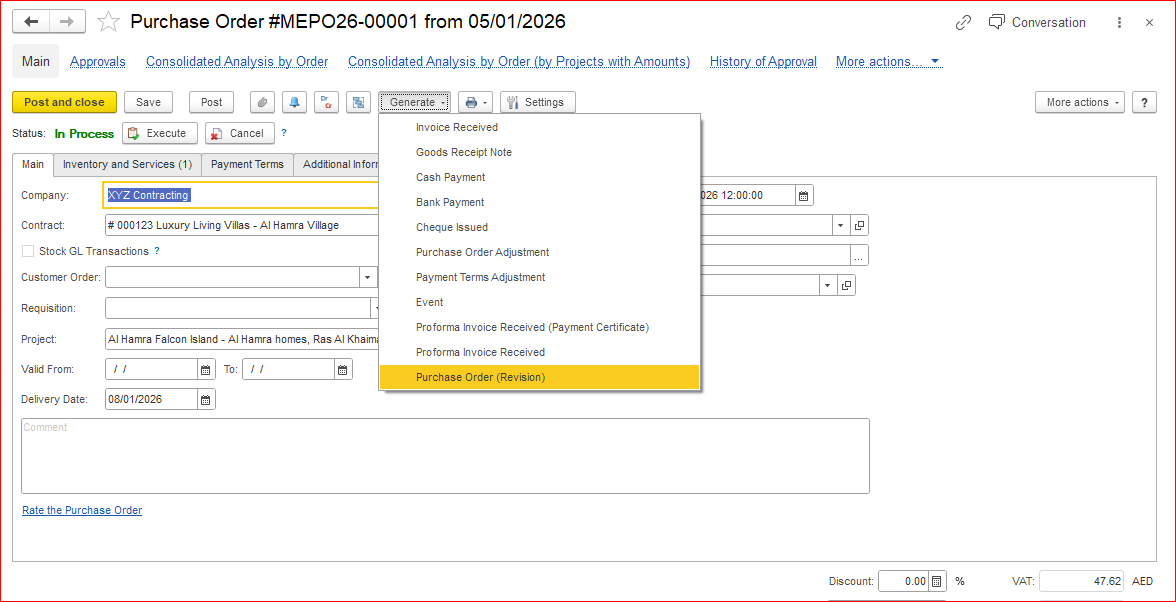
When you try to create a Purchase Order (Revision), the system displays a message and does not allow the revision to be created.may display the following message:
“Cannot create Revision Purchase Order because there are documents based on another revision document: Invoice Received MEIR26-00000007 dated 26/03/2026 17:03:16.”

This behaviour occurs because the Purchase Order has already been used in subsequent processes (such as Invoice Received) and is no longer available for revision.
To create a Purchase Order (Revision), follow these steps:
- Unpost the related Invoice Received and remove the Purchase Order link in the Order field. Save the changes.
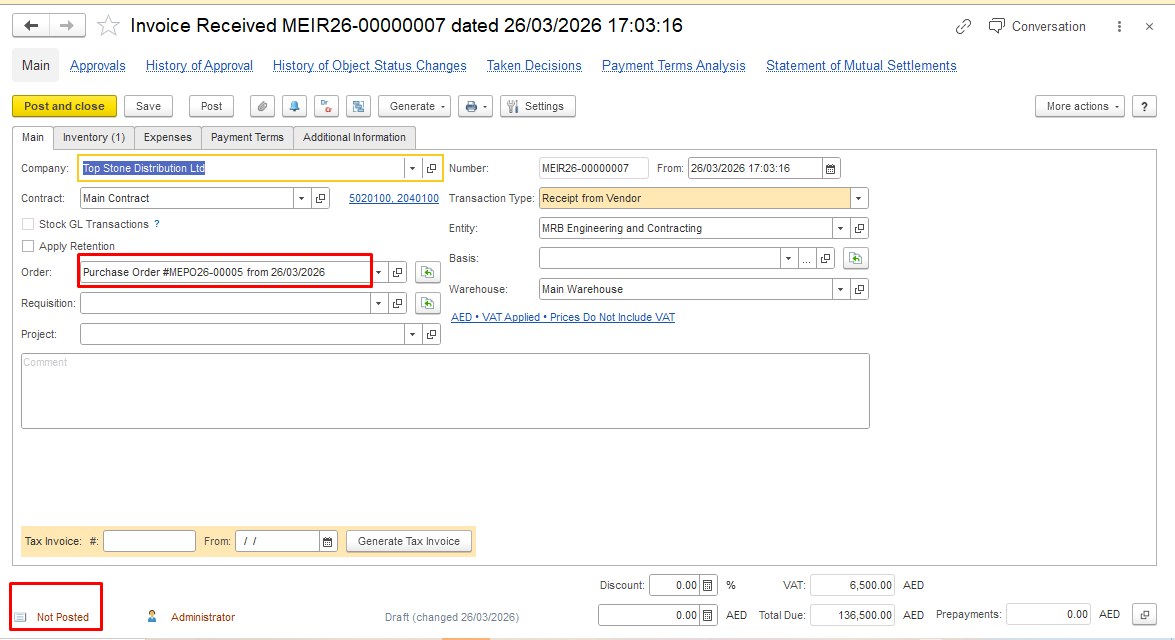
2. Create a Purchase Order Revision based on the original Purchase Order. Click Generate on the Purchase Order form and select Purchase Order (Revision).
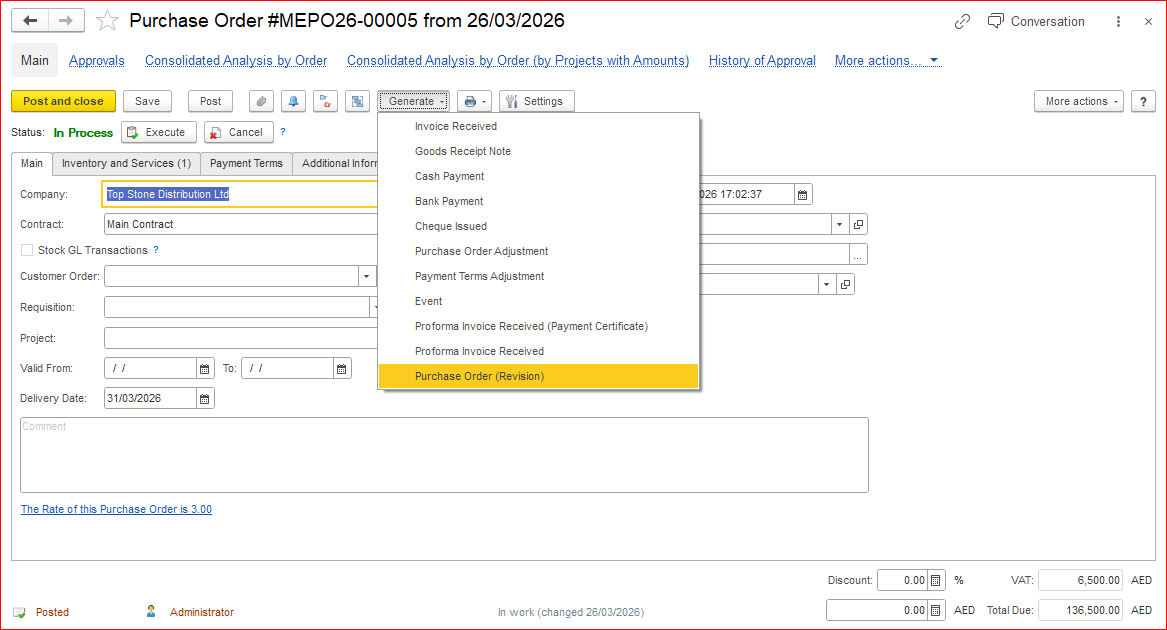
The Purchase Order Revision has now been created.
...
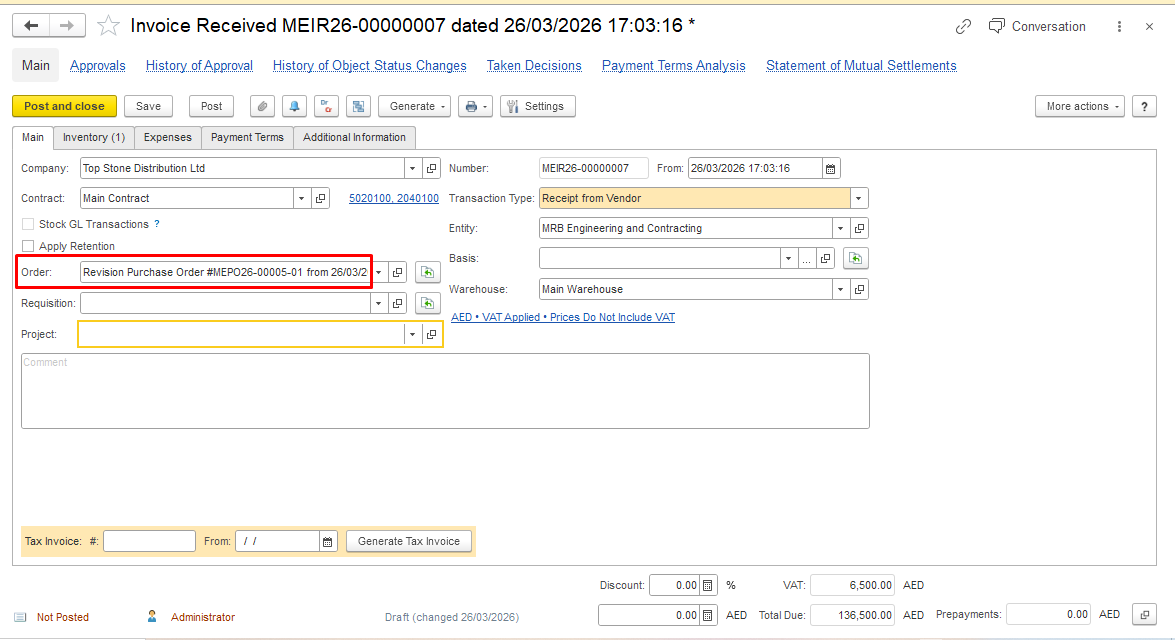
In the existing Invoice Received, you can now add a link to the Purchase Order (Revision) in the Order field, or create a new Invoice Received based on the Revision document.
Thank you for being a FirstBIT customer!
fghgfhfjf#revision#purchaseorder#purchaseorderrevision