Problem: How to recover (restore) the database from a backup (self-hosted)?
Solution:
...
Create an empty infobase and restore the database from a self-hosted backup into this infobase using 1C instruments as shown below.
Please find an example below of how to create an empty Infobase and restore a backup into this Infobase.1. Open the Application on your desktop > click Add.: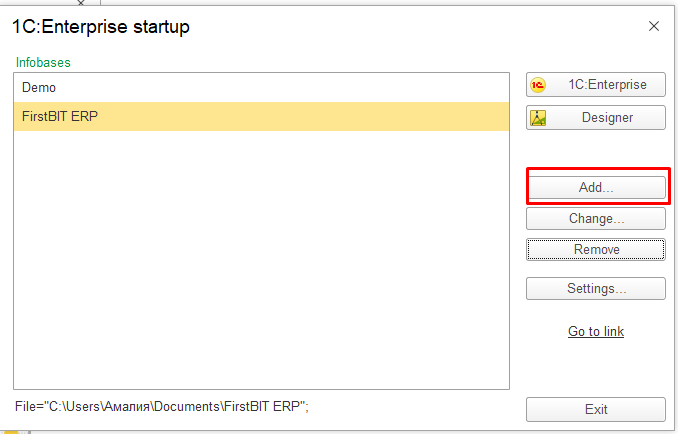
Select Create Infobase > Next.: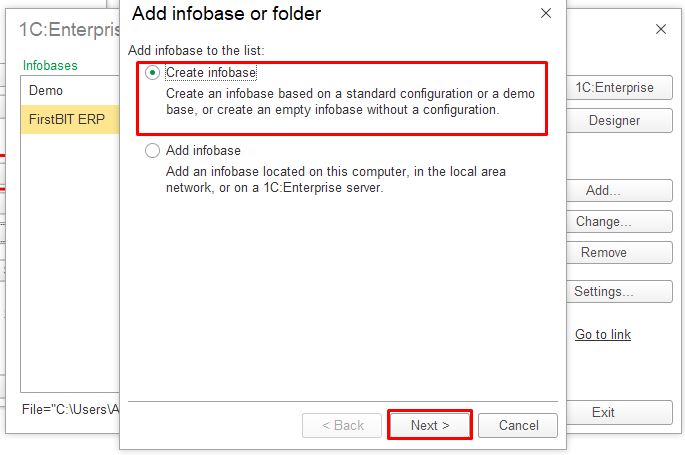
Choose Create Infobase with no configuration to develop a new configuration or restore a previously dumped infobase: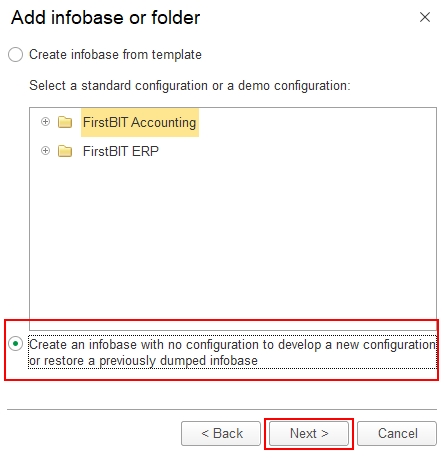
Enter the name of the Infobase > Next: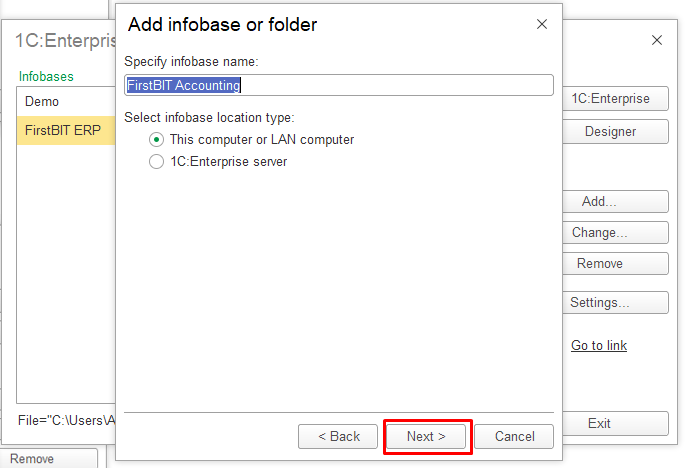
Specify the path or the software will write it then click nextwrites it automatically > Next: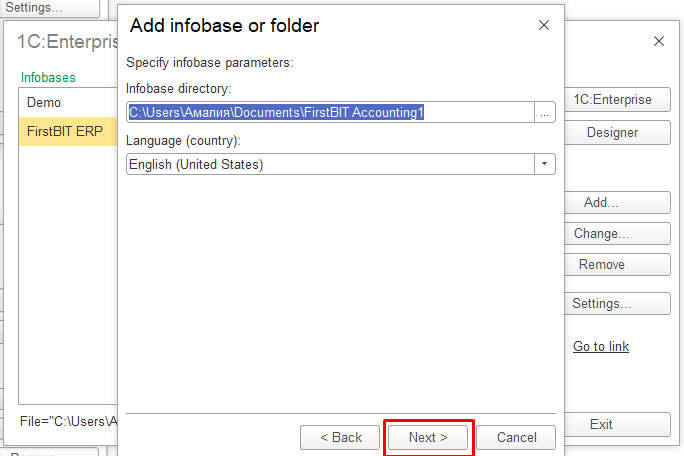
Finish adding Infobase: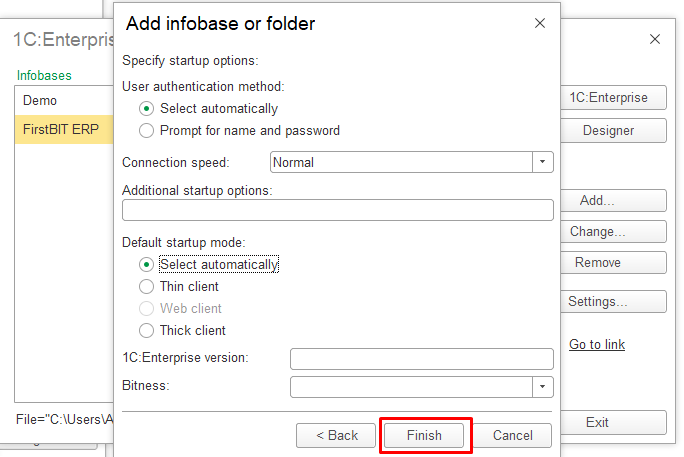
2. Open the program in Designer mode: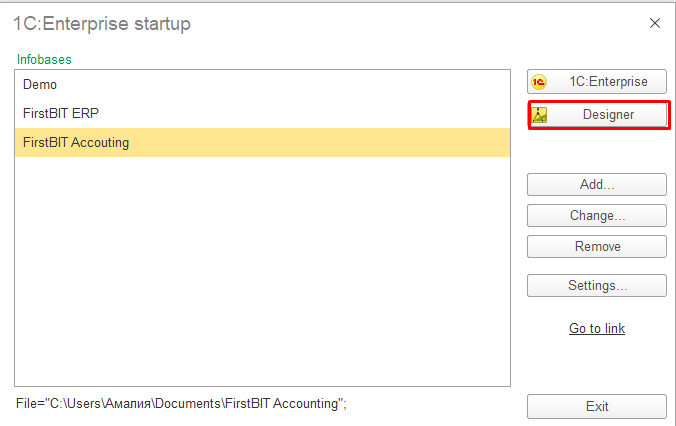
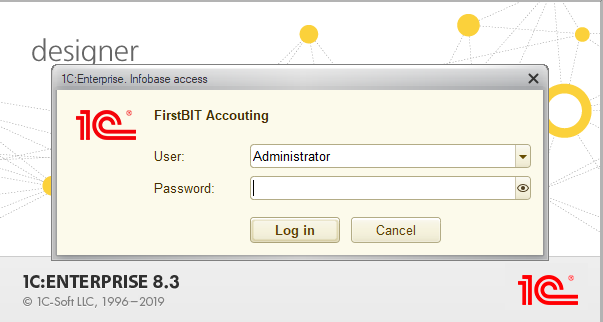
Go to Administration > Restore infobase. Specify and specify the file to download.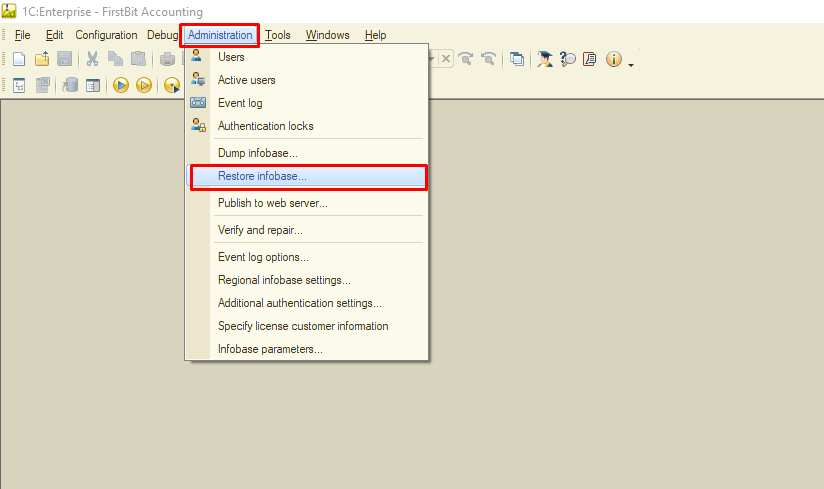
A pop-up message 'Do you agree to continue with the Infobase restoration?' will appear appears informing you that after the Infobase is restored, the designer will close and any open windows will be is lost.: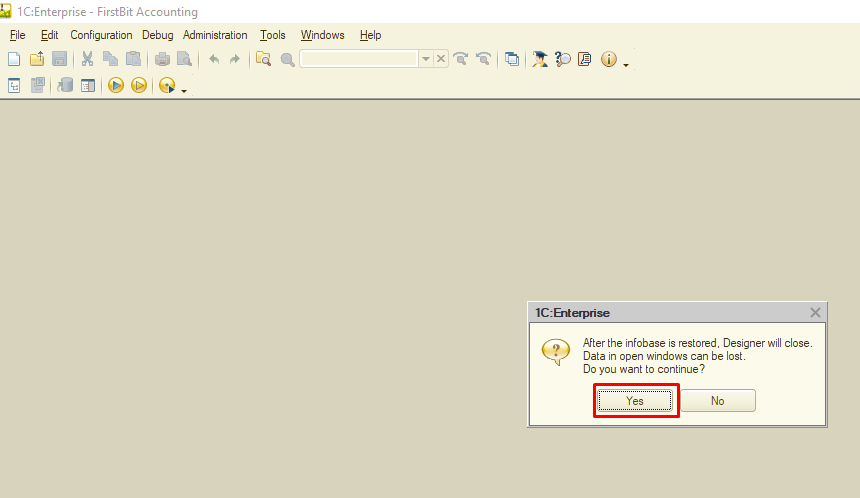
Restoring is in process: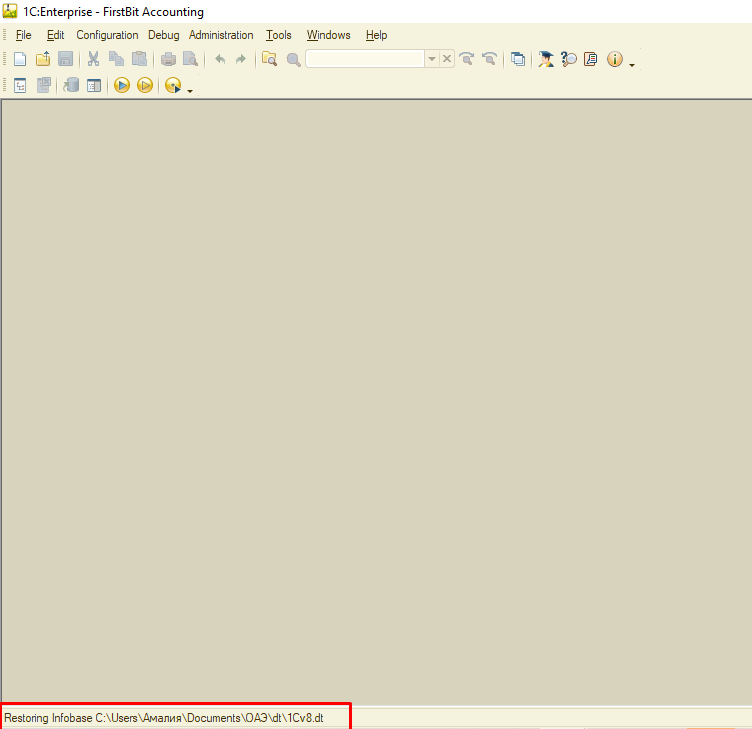
After the Infobase is successfully restored, a pop-up message will appearappears: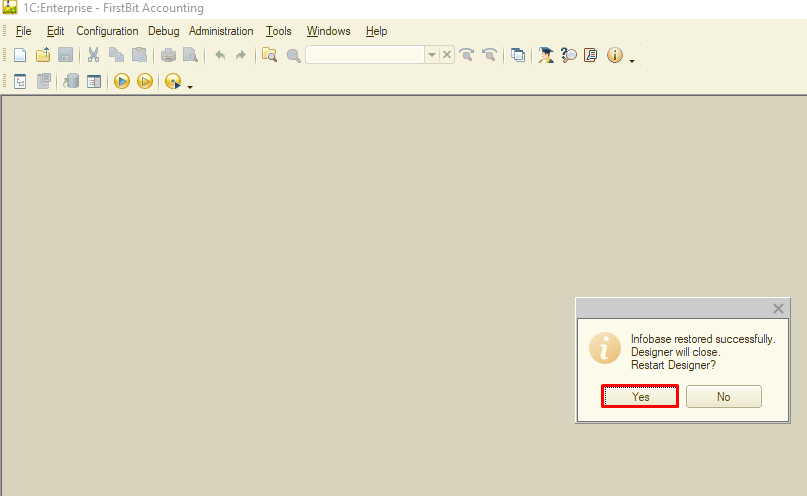
Once the Designer is reopened, navigate to the Enterprise section: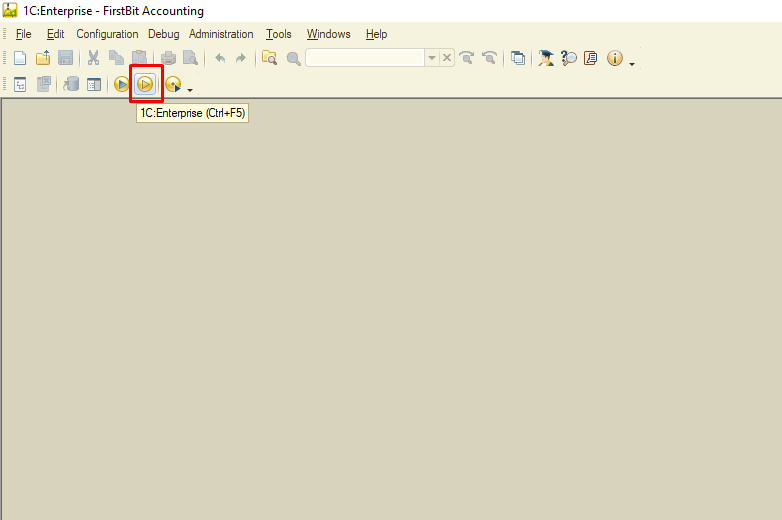
If you don't see this iconEnterprise icon is not performed, then add it as shown below: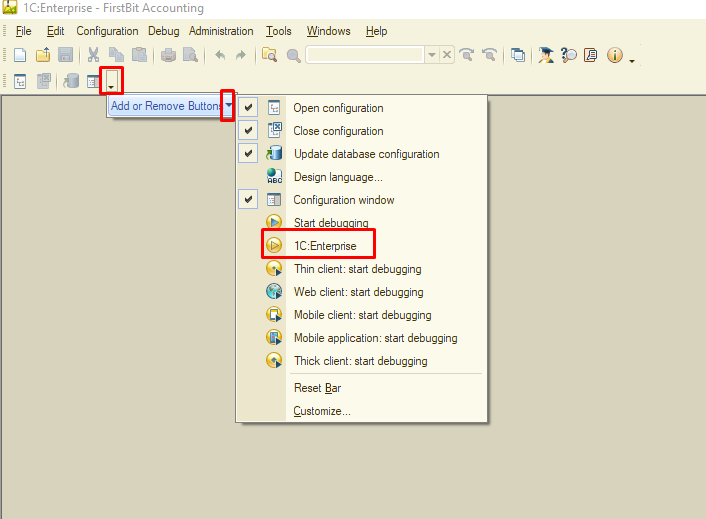
1C is now open opened and ready for use: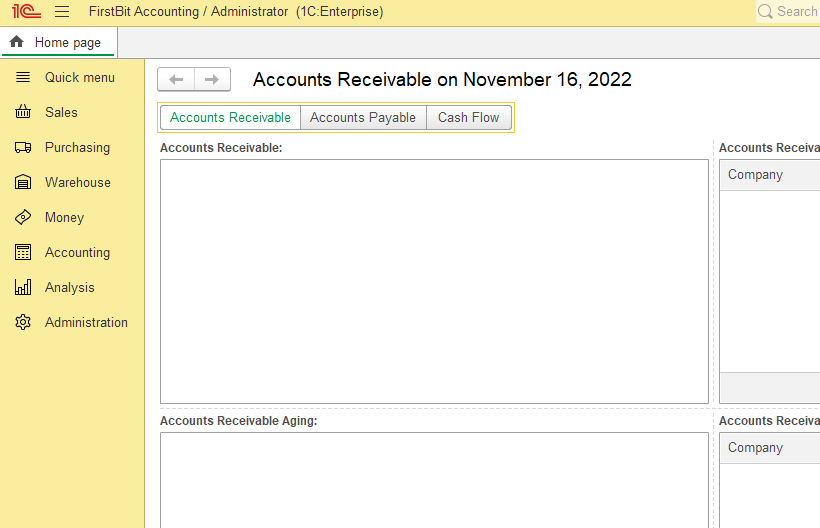
Thank you for being a FirstBIT customer!
#Restore backup #recover database #old backup restoration #Designer