...
The system fills in the details automatically based on the project’s structure and settings. This includes contract-related information like billing terms, retention rules, and VAT. Users can still manually adjust progress percentages, discounts, retention, amounts, and other relevant fields if needed.
Alternatively, it can be generated using the "Generate" option in the Project Progress Report document.
If a project progress report is added as the basis, the system can use it to fill in the document. A confirmation message will appear before replacing any existing data.
...
Note: Based on the selected invoice type, the relevant tabs, fields, and calculations will automatically adjust to suit the billing method.
...
1. If the Progressive option is enabled,
...
the following tabs will be available
Project Structure tab
It displays the list of project tasks with their hierarchy, estimates, progress, and billing details for preparing the payment application.
...
- Current% - Percentage of work being claimed in this application.
- Cumulative% - Total completed percentage, including current and previous.
- Quantity - Calculated from cumulative % and estimate.
- Amount (Excl. VAT) - Net value of current application before VAT.
- VAT% - Tax rate applied (e.g., 5%).
- Retention Total / % / Retention - Total (before retention): Gross amount before retention, retention rate, and retained amount.Retention VAT - VAT applied on the retained amountapplying retention.
% / Retention / Retention VAT: % indicates the retention rate, Retention is the withheld amount, and Retention VAT is the VAT calculated on that amount, displayed only when the Ret. VAT option is enabled in the retention invoice. - VAT Amount - VAT on the payable amount after retention.
- Total - Final payable amount (amount minus retention plus VAT).
- Comment - Any additional remarks, if needed.
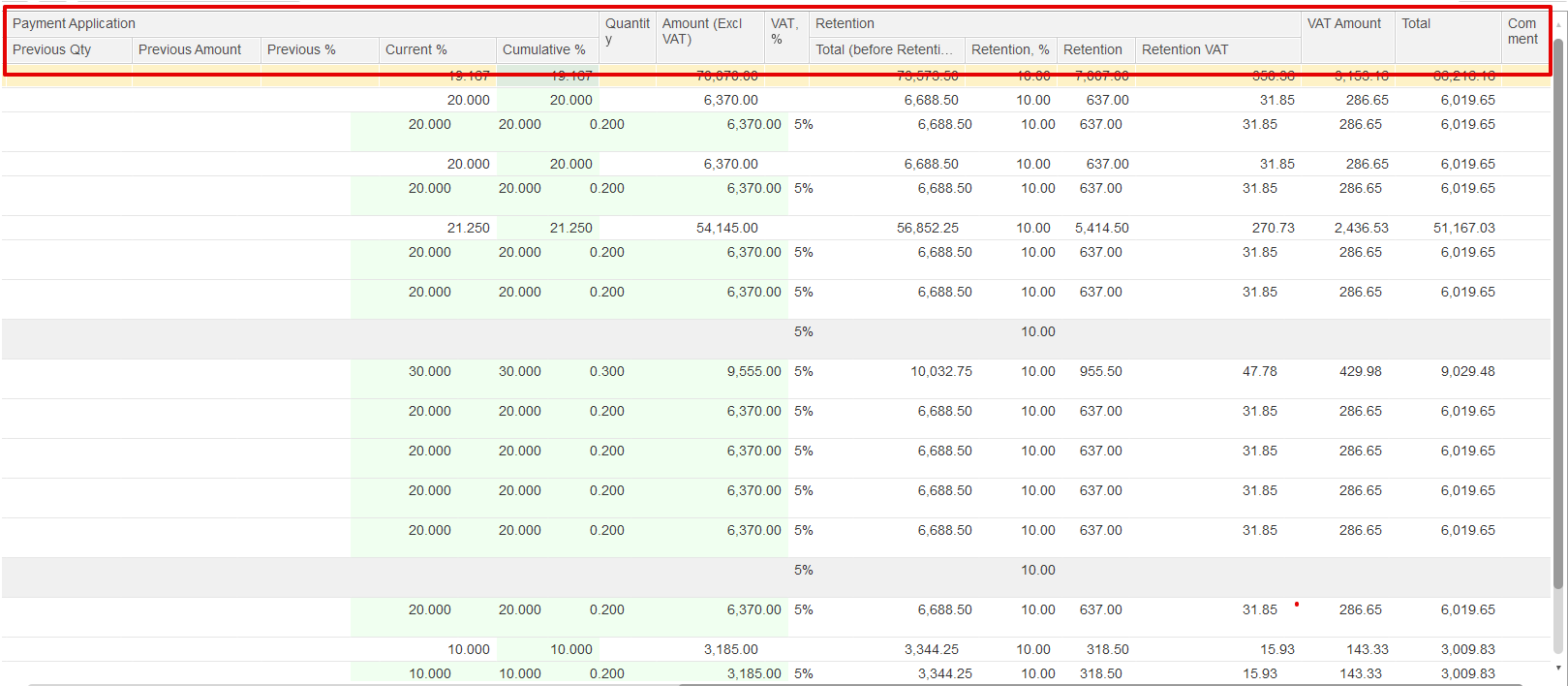
Note: Some columns are editable, including Price, Current %, Cumulative %, Quantity, and Amount (excluding VAT). All other columns are read-only and show reference or calculated values.
Summary linked table
At the bottom of the Project Structure tab, a financial summary section provides a quick view of all key billing values for the current period.
...
If the "Show Summary for the Selected Row" option is enabled, the summary table will display details based on the parent line that was selectedtable is a subordinate table that filters and displays details related to the selected parent row.
Deduction tab
The Deductions tab is used to apply reductions like penalties or back charges before calculating the net payable amount.
- Item / Content-Identifies the specific service, work, or resource being billed.
- Quantity: Indicates how many units are being applied for in this billing cycle.
- UOM (Unit of Measure): Defines the measurement types.
- Price: Unit rate defined in the contract.
- VAT% and VAT Amount: Shows Displays the tax percentage rate and the calculated VAT based on the price and quantitycalculated VAT for the selected item. This VAT is not posted for tax liability, as the deduction function creates no VAT accounting entries. Recommended mainly for out-of-scope expenses.
- Amount: The total value before tax, calculated from quantity multiplied by price.
- Total: Represents the complete billing amount, which may include VAT depending on system logic.
...
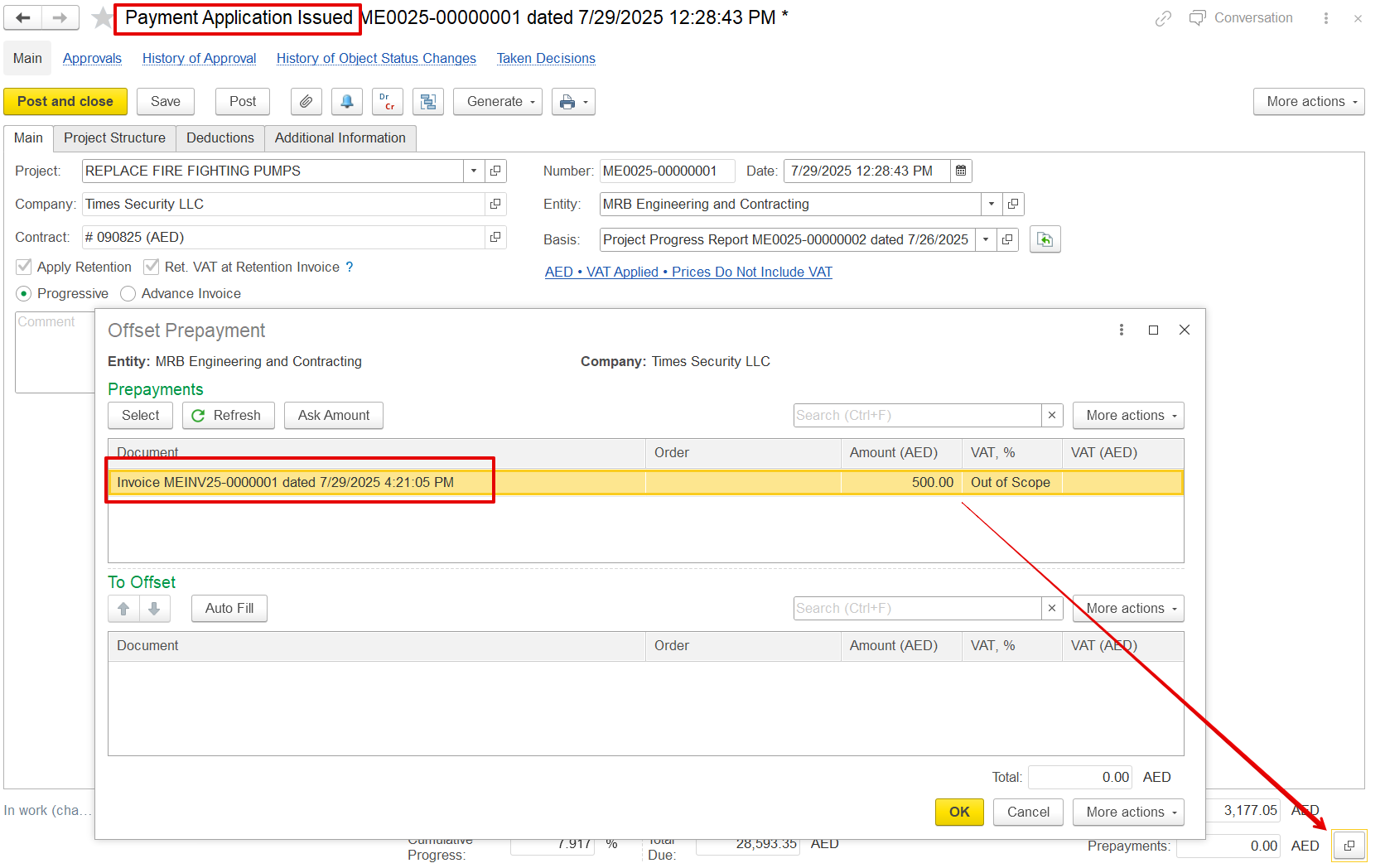
If only a Payment Application with the advance type is created without the corresponding advance invoice, it will not appear in the offset list. The advance invoice must be completed for it paid to be available for offsetting.
While offsetting can occur in the final invoice, including the advance in these documents serves two key purposes:
a) To reflect the advanced impact on the print form
b) To automatically carry forward the advance amount in the prepayment field to subsequent linked documents, such as payment certificates and invoices, thereby eliminating the need for manual selection on each document.
Print form
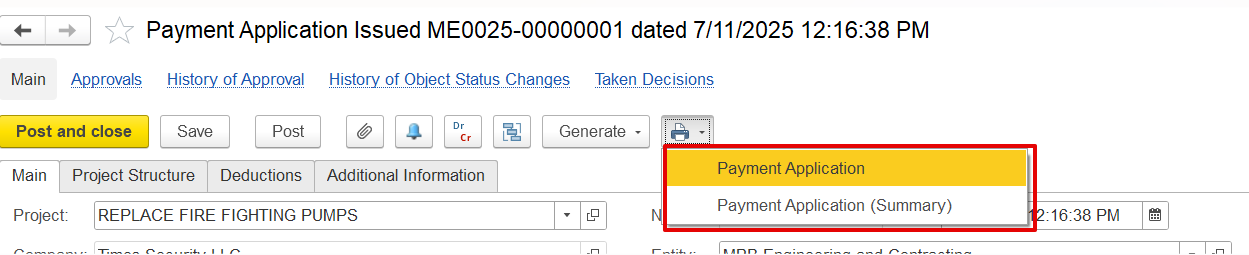
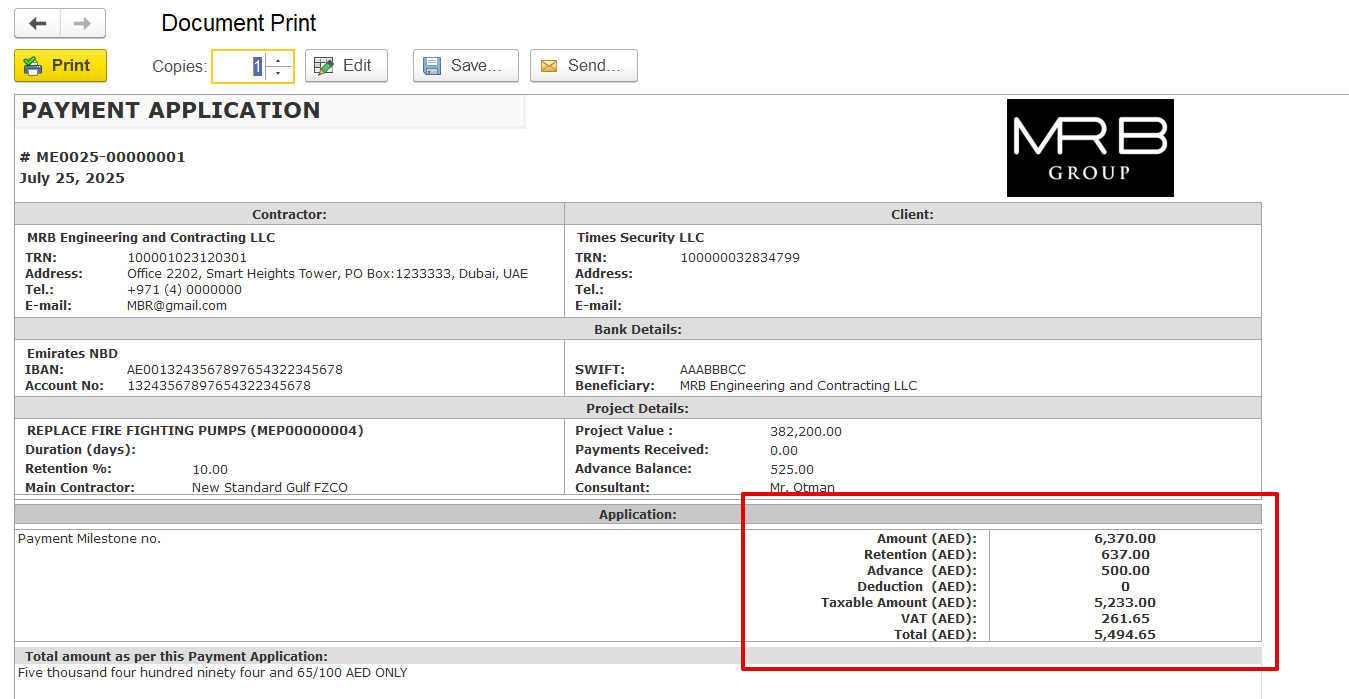
a) Payment Application- It provides a complete breakdown of all items, including VAT, retention amounts, progress details, and any deductions applied.
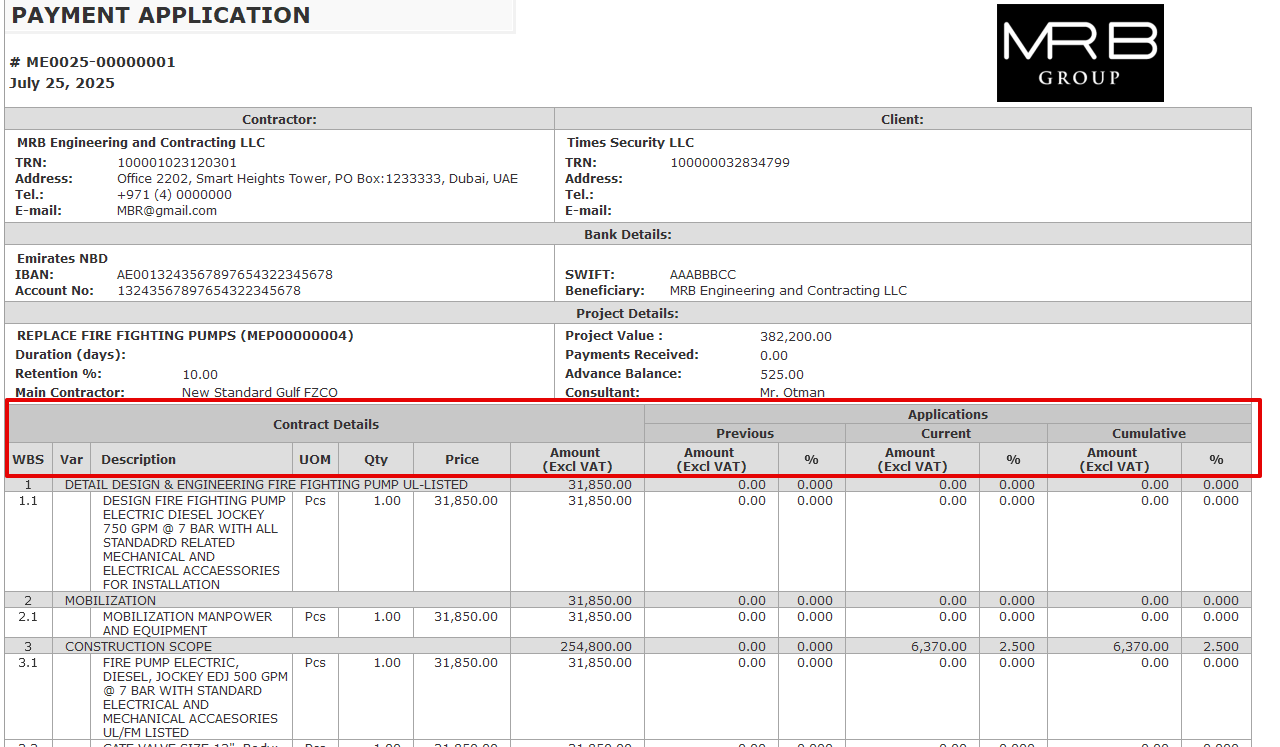
b) Payment Application (Summary)- Shows just the key totals like net payable amount, VAT, and advance offsets for a concise overview.