Problem: The 1C license fails regularly
Solution:Check your computer according to the following list of possible reasons, in the end of the list there is a table with recommendations for each case.
Note that you will need the help of your system administrator or other IT-specialist to check hardware and software in your IT-infrastructure.
...
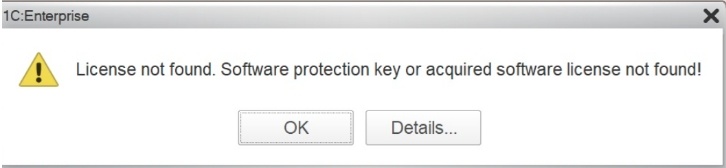
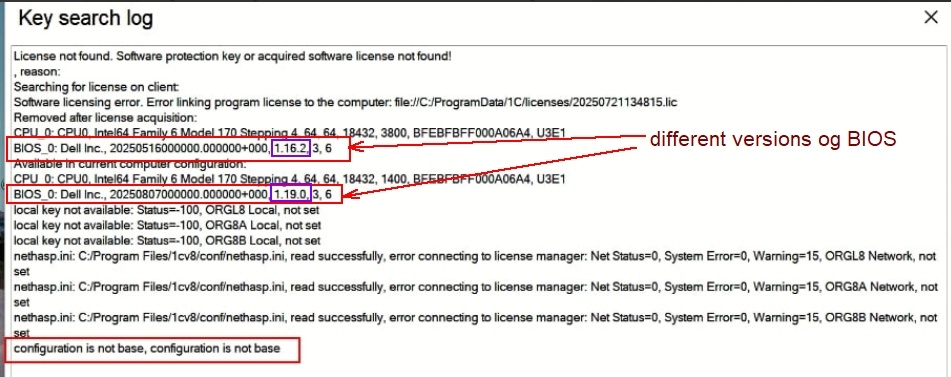
Below is an example of an error message that a program may generate (License not found. Software protection key or acquired software license not found ; Error linking program license to the computer; Software licensing error):
...
Here’s the list of reasons why a 1C license may stop working:
1. Technical reasons (hardware-related)
1.1. Replacing or failing hard drive / SSD where the license was installed.
1.2.Replacing the motherboard (hardware ID changes and the license becomes invalid).
1.3. Replacing the network card (MAC address is used for license identification).
1.4. Changing hardware configuration (e.g., adding/removing network interfaces or virtual adapters).
1.5. Using virtual machine images — cloning a VM breaks the hardware binding.
1.6. BIOS reset or motherboard firmware update.
1.7. Hardware failures (bad sectors, power surges, disk controller errors) damaging license data.
...
6. Other reasons
6.1. License expiration (temporary license).
6.2. Incorrect system date or time.
6.3. Activation errors — e.g., 1C activation server unavailable.
6.4. Administrative mistakes — license data accidentally deleted.
6.5. Corrupted registry or system files.7. What to do if the license stops working:
7.1. Check if the license appears in 1C → Help → About → Licenses.
7.2. Check the folder `C:\ProgramData\1C\licenses`.
7.3. Verify that Sentinel / Rlm / 1C Licensing Service is running.
7.4. Try to reactivate the license using the 1C Licensing Center.
7.5. If using a hardware key — check the dongle and drivers.
7.6. If necessary — contact 1C technical support for recovery assistance.8. Here’s a structured table summarizing all the main reasons why a 1C license might stop working and recommended recovery actions:
Reason | License Type Affected | How to Fix / Recommended Action |
Hard drive / SSD replaced or failed | Software | Reactivate via 1C Licensing Center; restore Restore from backup if possible; reactivate by 1С license vendor. |
Motherboard replaced | Software | Request reactivation from 1C support 1С license vendor (hardware ID changed) |
Network card replaced (MAC changed) | Software / Network | Reactivate or reissue license; |
BIOS reset / firmware update | Software | Reactivate license; ensure Ensure BIOS settings are stable; Reactivate license. |
Hardware failure (bad sectors, controller issues) | Software / Hardware key | Repair hardware and restore license or contact supportreactivate by 1С license vendor. |
Cloned or moved virtual machine | Software | Reactivate after moving VM; avoid cloning licensed VMs. |
OS reinstallation or upgrade | Software | Reactivate license; keep backup of license files. |
System restored from backup without license data | Software | Restore license folder or reactivate manually. |
Registry cleaning tools removed license keys | Software | Reactivate license; exclude Exclude 1C registry keys from cleaners; Reactivate license. |
License folder deleted (C:\ProgramData\1C\licenses) | Software | Restore from backup or reactivate. |
Failed 1C update damaged license | Software | Reinstall 1C platform; reactivate license. |
Antivirus or Defender blocked license files | Software / Network | Add exclusions to antivirus; restore and reactivate license. |
1C service or RLM server not running | Network | Restart services; check ports and firewall |
Lost connection to license server | Network | Check RLM server status and network connectivity |
Server IP changed | Network | Update client connection settings |
Firewall / antivirus blocking license ports | Network | Add exceptions for RLM ports |
Multiple license servers in same network | Network | Leave only one active RLM server |
License service crashed or failed to start | Network / Software | Restart service or server; check logs |
Dongle physically damaged | Hardware | Replace key; request duplicate from 1С license vendor |
Drivers not installed or corrupted | Hardware | Reinstall HASP/Sentinel drivers |
Key inserted into different USB port / not detected | Hardware | Plug into same port; check Device Manager |
USB instability or unsafe removal | Hardware | Use stable USB port; never unplug during use |
VM moved to another host | Software | Reactivate license; avoid moving without reactivation. |
Changed hypervisor (e.g., VMware → VirtualBox) | Software | Reactivate license; avoid changing virtualization platform |
Changed VM UUID / MAC address | Software | Restore original parameters or reactivate license. |
Snapshot rollback without license state | Software | Reactivate after rollback. |
License expired (temporary license) | All | Renew or purchase permanent license. |
Incorrect system date/time | Software / Network | Correct time settings; restart 1C servicesservices |
Activation failed (server unavailable) | All | Retry later or contact 1C support. |
Administrator deleted license data | All | Restore from backup or reactivate license. |
Corrupted registry or system files | Software | Run system repair and reactivate license. |
8. Important Notes:
8.1. Сontact FirstBit Hotline if you need assistance with requesting reactivation key from 1С license vendor.
8.2. Please note that changing technical parameters of computers is the responsibility of Customer system administrators and is not related to FirstBit software.
Thanks for being a Firstbit Customer!
#License #Recovery