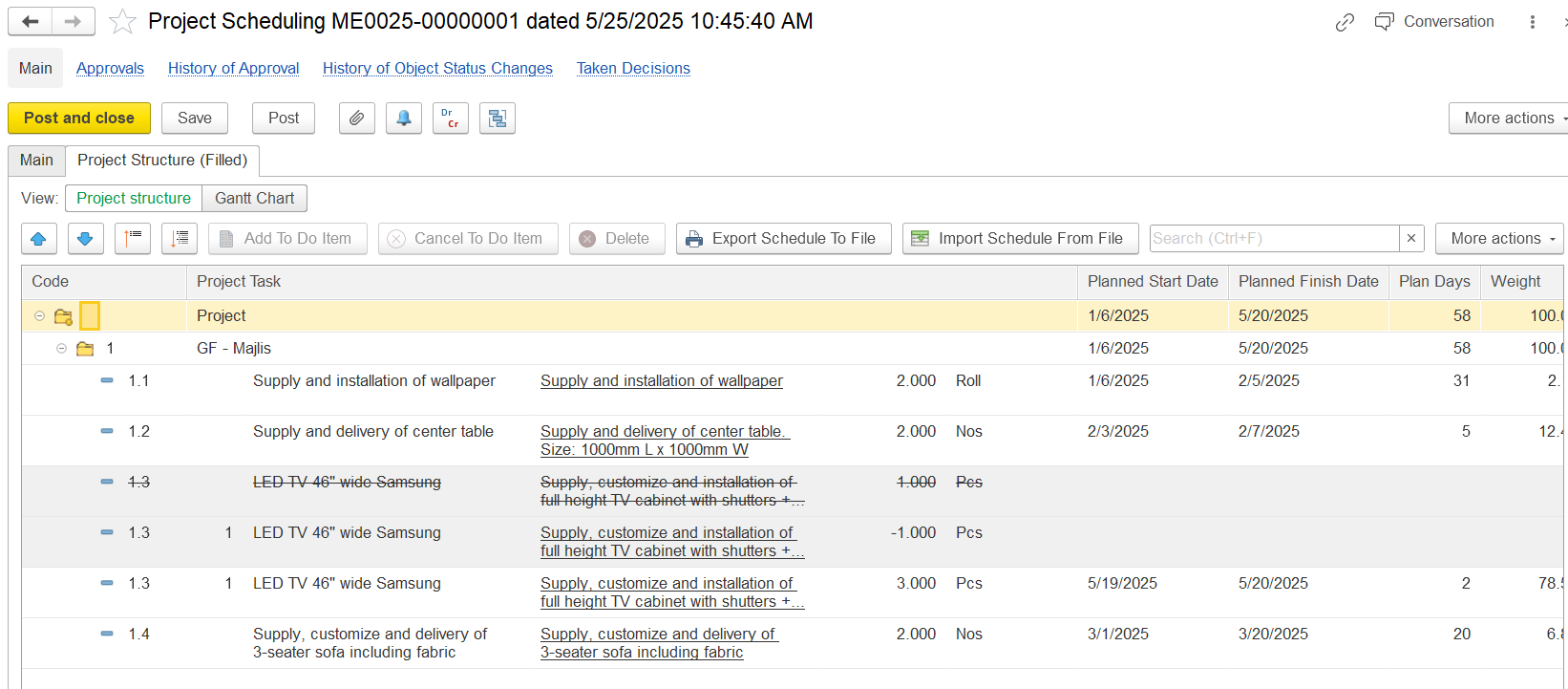
On this tab, you can review existing project tasks or add new ones to the project. It contains two nested tabs:
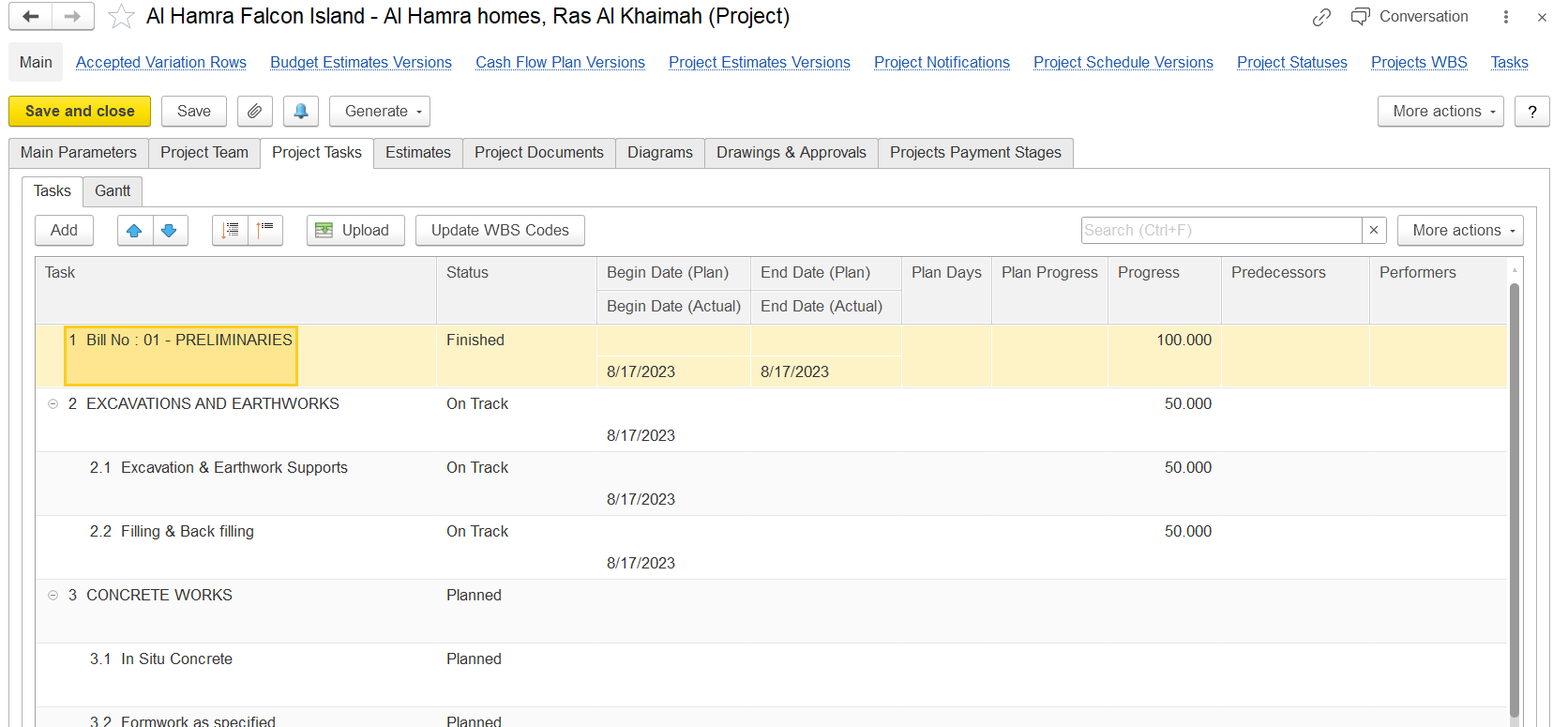
Tasks: Displays a list of project tasks along with their start and end dates, and statuses.
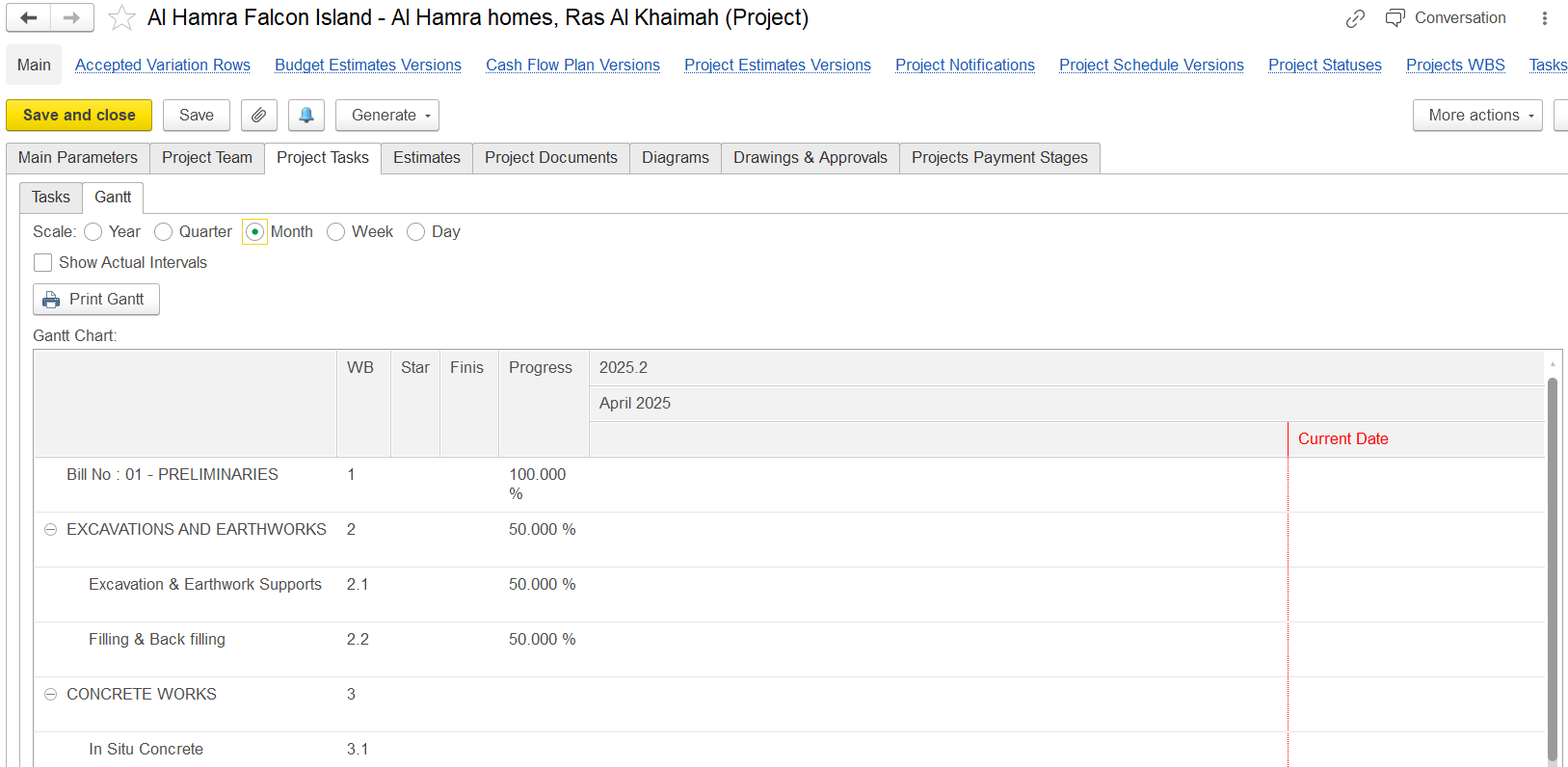
Gantt: Provides a graphical representation of tasks and their durations.
On the Tasks tab, you can view a list of tasks along with their attributes, and if needed, add new tasks to the project.
On the Gantt tab, you can see the task start and end dates, their durations, and how tasks are related to each other. This visual overview helps manage the project timeline and task dependencies effectively.
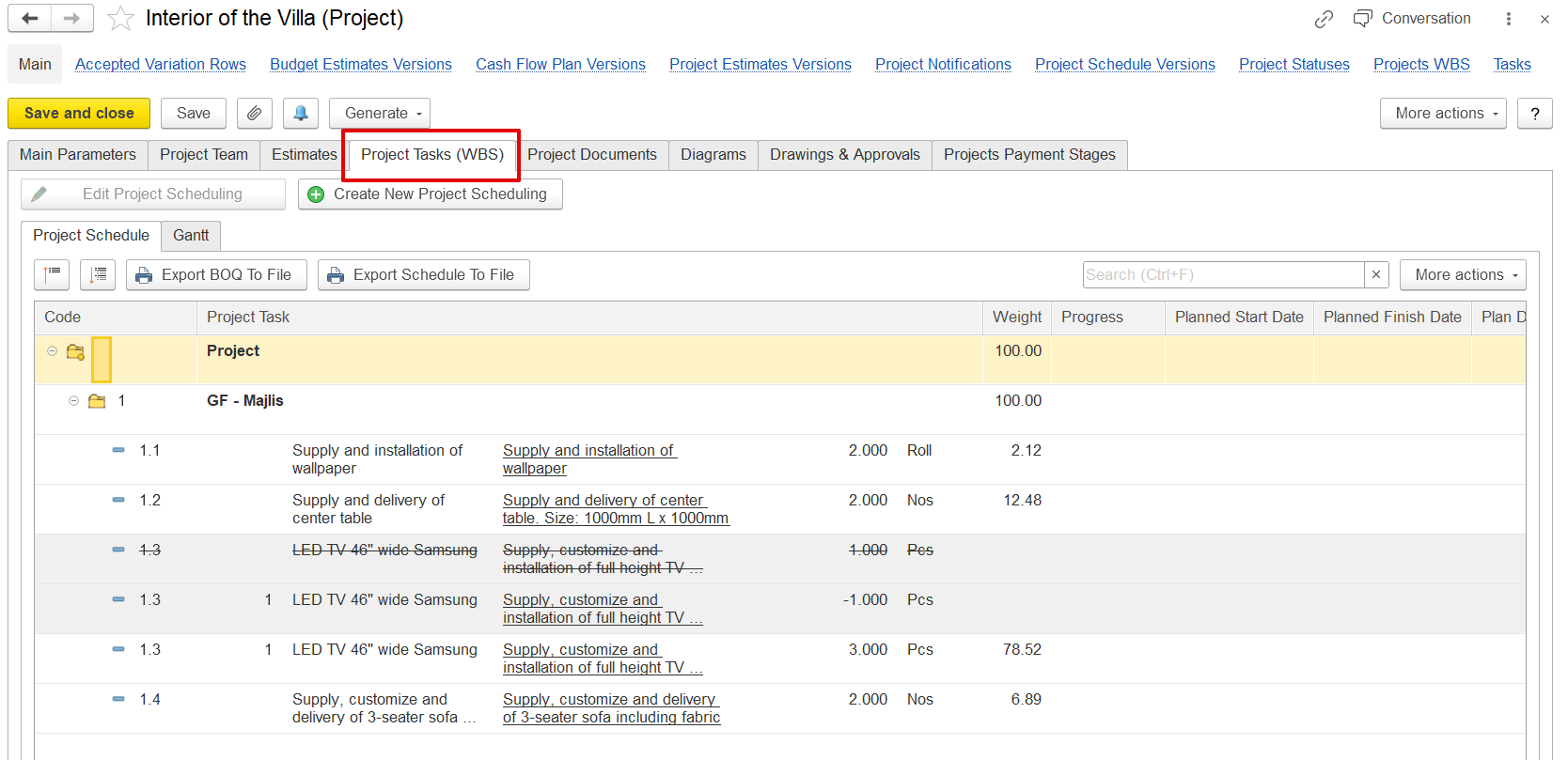
The Project Tasks (WBS) tab is used to manage the structure and progress of a project. WBS stands for Work Breakdown Structure, which organizes the project into smaller tasks grouped by section or Project Task (e.g., “GF - Majlis”).
The project schedule tab allows you to view all project tasks in a list format, add or update tasks such as material supply, installation, or delivery, and track progress using weight (%) and progress values. Each task includes planned start and finish dates to help manage the schedule.
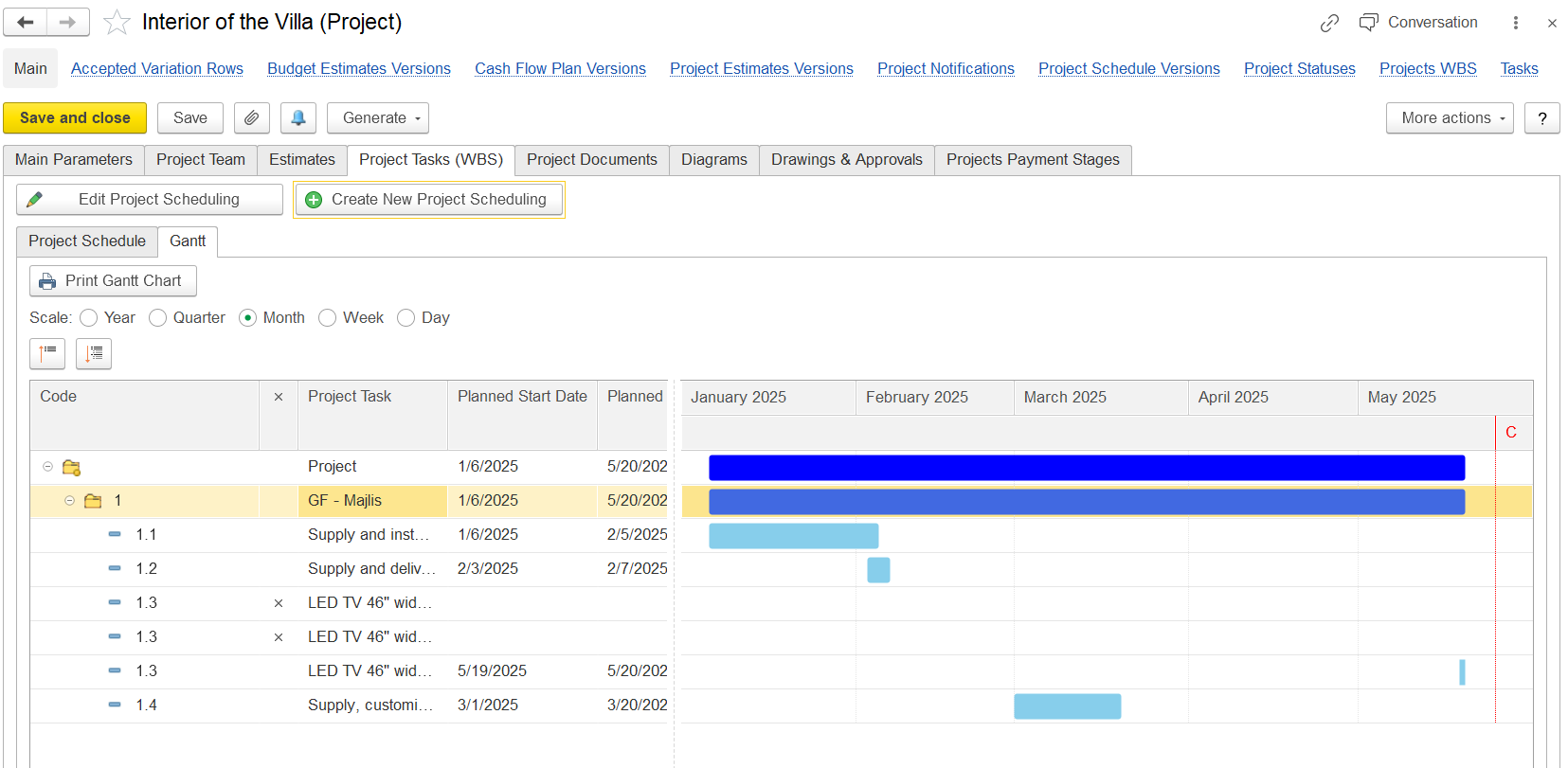
The Gantt tab provides a visual timeline of all project tasks. Each task appears as a bar showing its start and end dates. This view makes it easier to understand task sequences, identify delays, and manage the overall schedule.
Use Create New Project Scheduling to create project schedule. This will generate a document, fill in the required details accordingly.
The Project Schedule can be updated from or exported to a file when needed.
