...
It can be viewed in Estimation mode or Project structure mode.
- Task
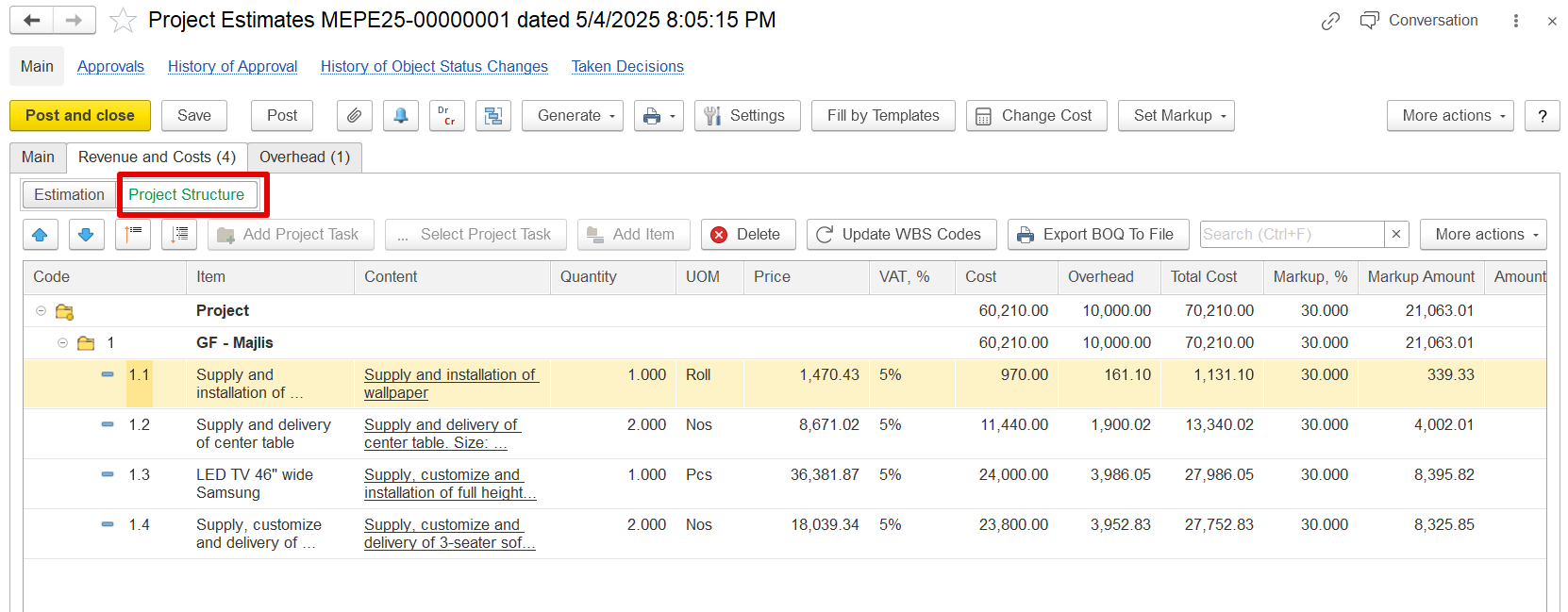
- Project Structure shows
This mode presents the hierarchical breakdown of a project by organizing tasks and
their hierarchy (what work is being done and how it's organized).
Details Shown:
work components. It displays task codes (e.g., 1, 1.1, 1.2)
Task along with task names and descriptions
(e.g., "GF – Majlis", "Supply and installation of wallpaper")Used to define where the work happens and how it’s grouped.
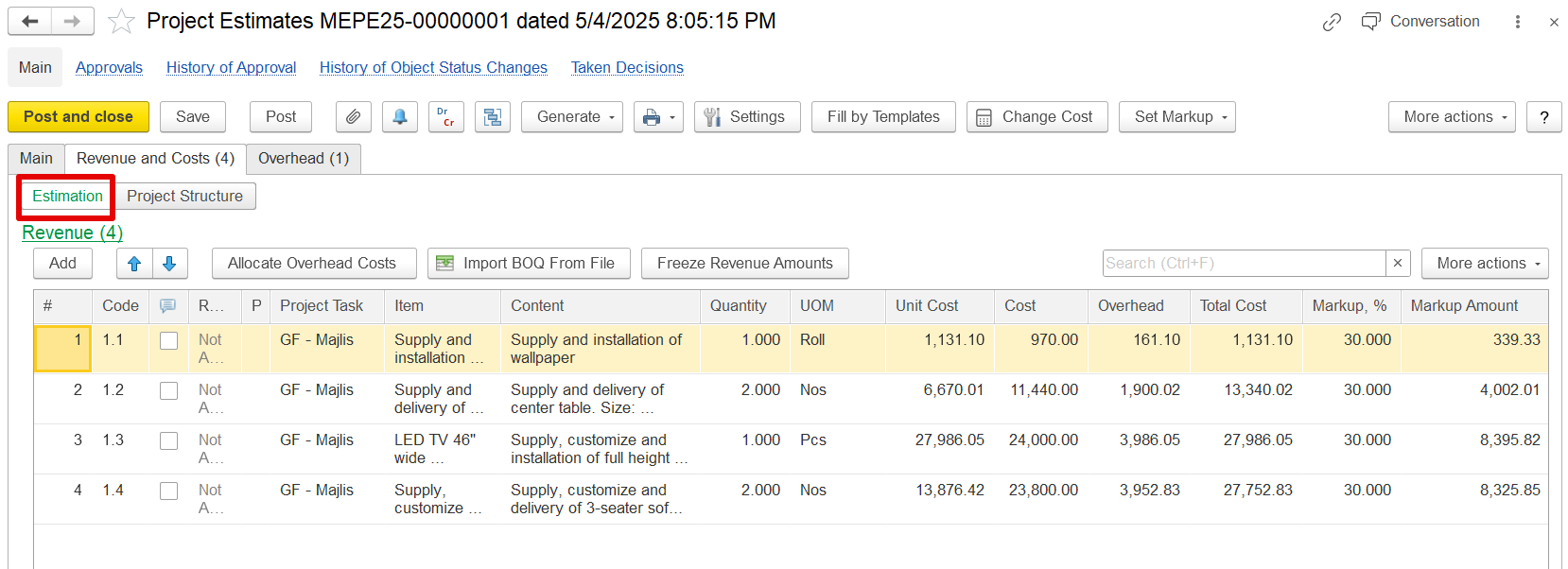
Estimation shows each task's cost, providing a clear view of the project’s scope and how work is grouped and sequenced. This mode is essential for organizing and understanding the overall project structure and task relationships.
Estimation
This mode focuses on the detailed financial aspects of the project. It is used to adjust specific line-level details, allowing precise entry and modification of costs, overhead, VAT, and markup
...
for each task.
Markup Functionality
The system calculates revenue for each estimation line by applying a markup—either a percentage or a fixed amount—to the entered cost.
...
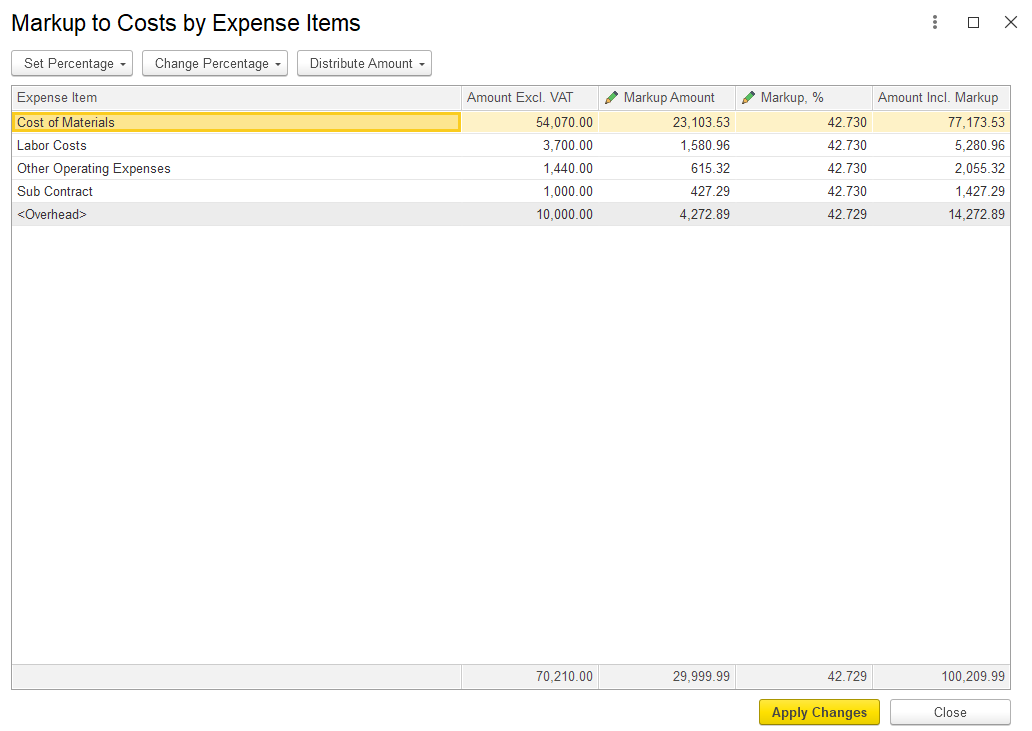
c) Based on Expense Item:
This option enables markup to be applied to specific expense items. Both the markup amount and percentage can be adjusted as needed.
Freeze Revenue Amounts
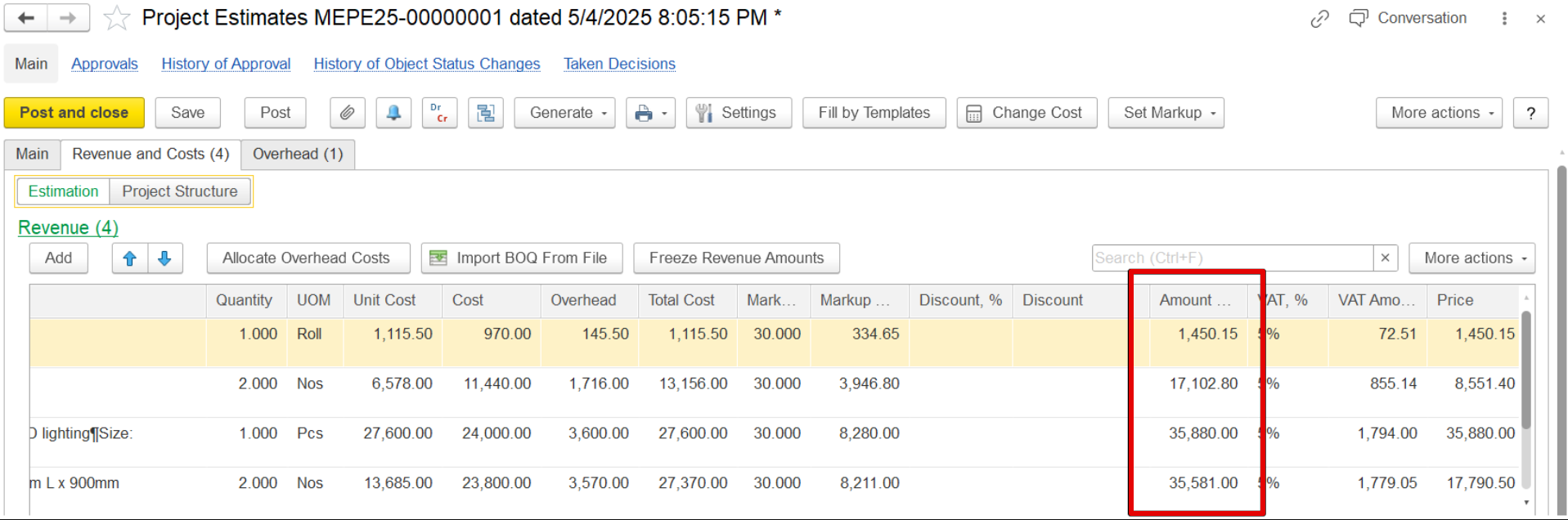
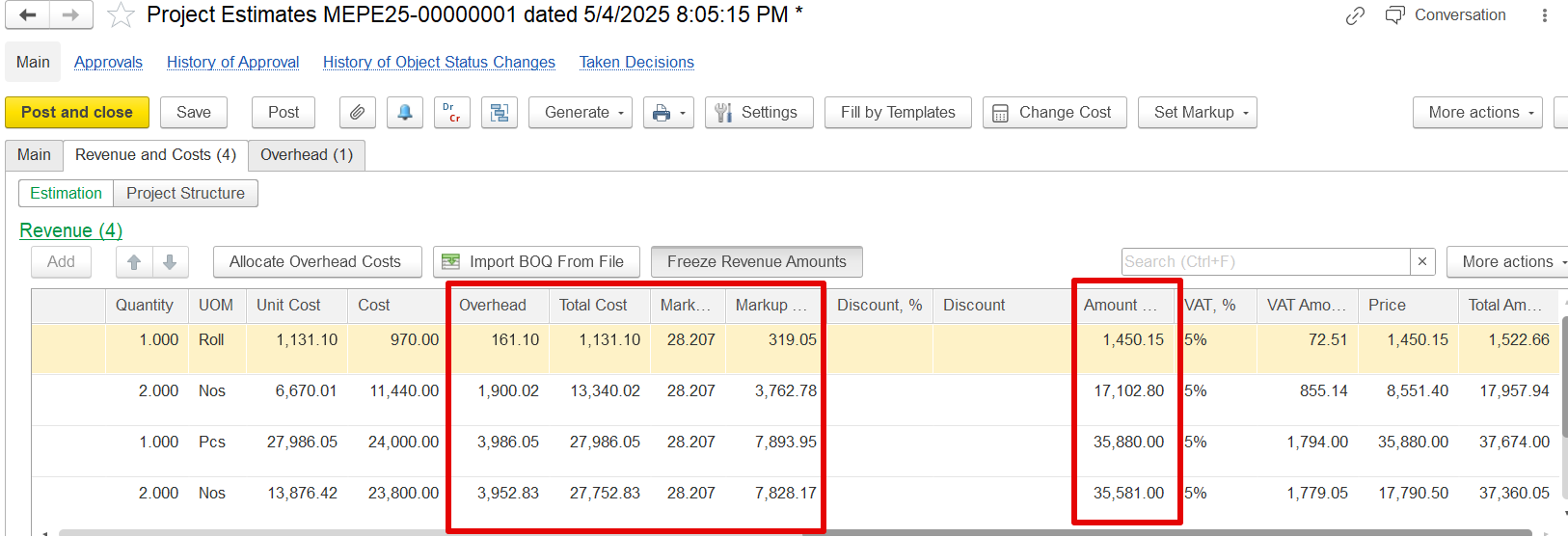
In practice, once revenue is agreed with a client, it should remain fixed, even if internal costs change. To support this, the Estimation Document includes a "Freeze Revenue Amounts" button that modifies the system’s recalculation behavior.
...
Example:
If a revenue value of 1,450.15 is frozen, and overheads are amended and adjusted using the "Allocate Overhead Costs" function, the revenue will remain unchanged, as seen when comparing the screenshots. Only the overheads, total cost, and markup will be updated accordingly.
Import BOQ from file
This feature simplifies the process of entering BOQ data by importing it from an Excel file instead of manually typing each line.
...
Hierarchy Code – Code indicating the level or structure of the BOQ item in the project hierarchy.
WBS Code – Work Breakdown Structure code for organizing work packages.
Is Group–Boolean (yes/no or 1/0) to indicate if the item is a group header.
Item Code – Unique code for the BOQ item.
Description – Short description of the item.
Full Description – Detailed description of the item (optional).
Quantity – Number of units required.
UOM – Unit of Measure (e.g., m², kg, hr).
Comment Only – Optional notes for reference only (not used in calculation).
Comment line (BOQ)
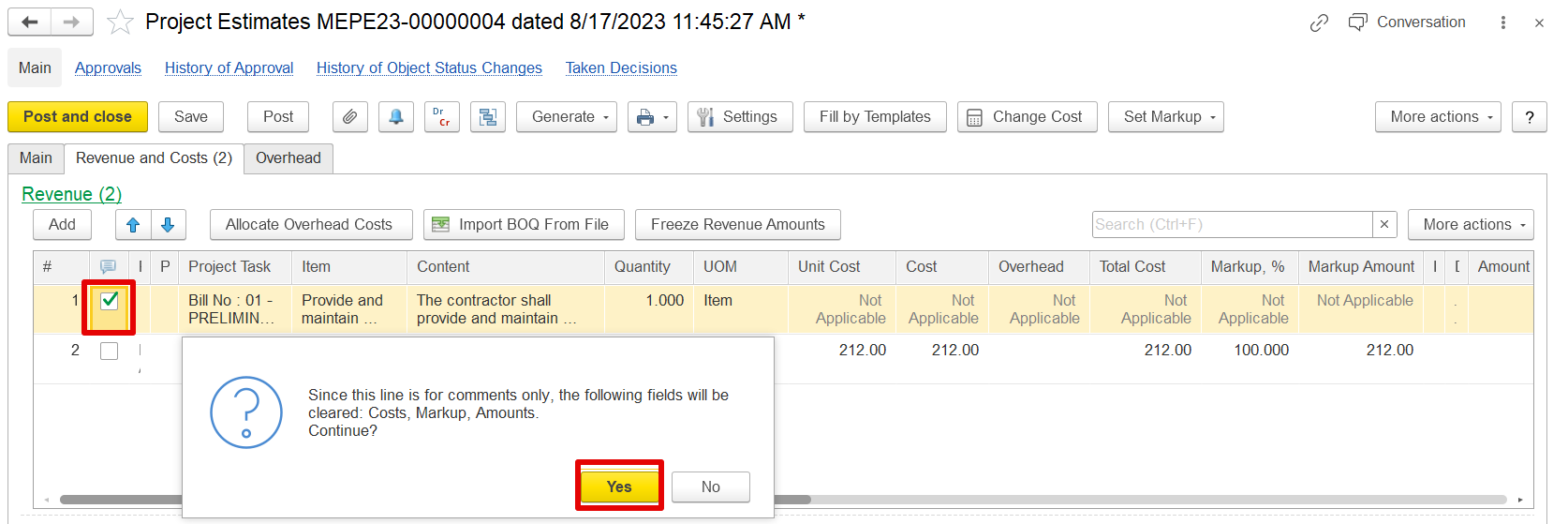
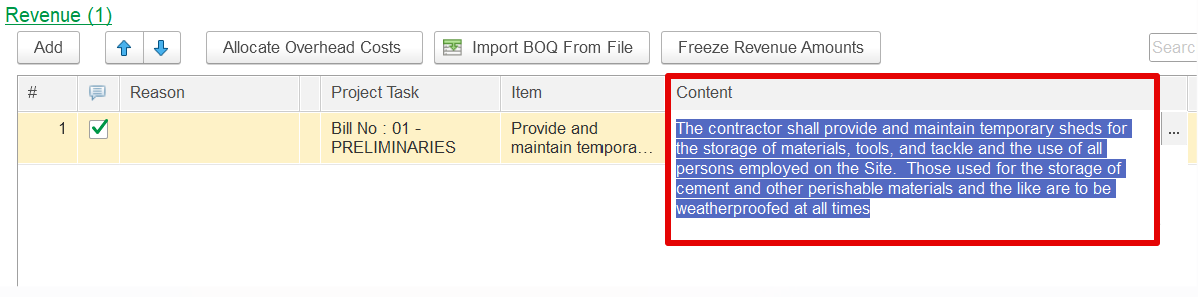
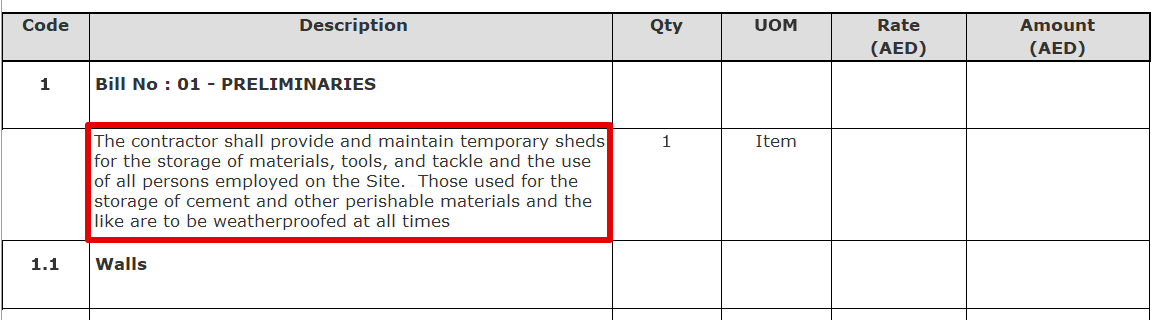
This option is intended solely for adding comments to the print form without entering any financial or quantity data. It is available within the revenue line. When the checkbox is enabled, the task, unit cost, and markup fields are cleared, and the respective column values are marked as 'Not Applicable.' Only the project task, item, and comment fields remain editable. The comment entered in the content column will appear in the print form.