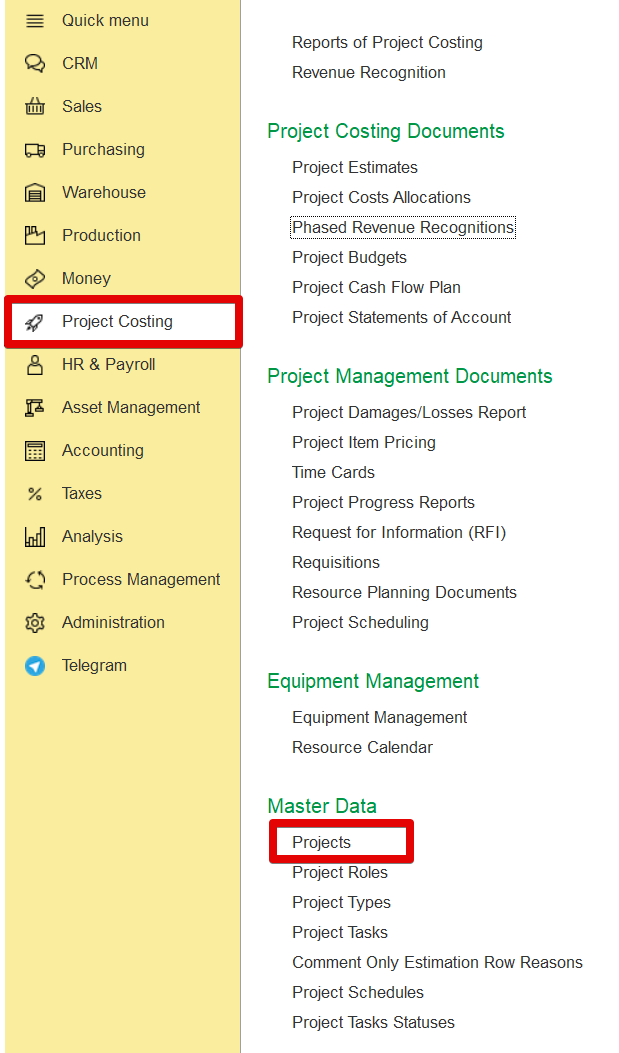
To access the list of projects, select Project Costing (the left panel) > → Master Data > → Projects.
The project master data contains information about the company's external and internal projects.
Before starting project creation, it may be necessary to create master records of the following types: 3.1.2.Project Roles and Project TypesTypes and 3.1.3.Project Roles. However, all required master records of these and other types can also be created easily during the project creation process.
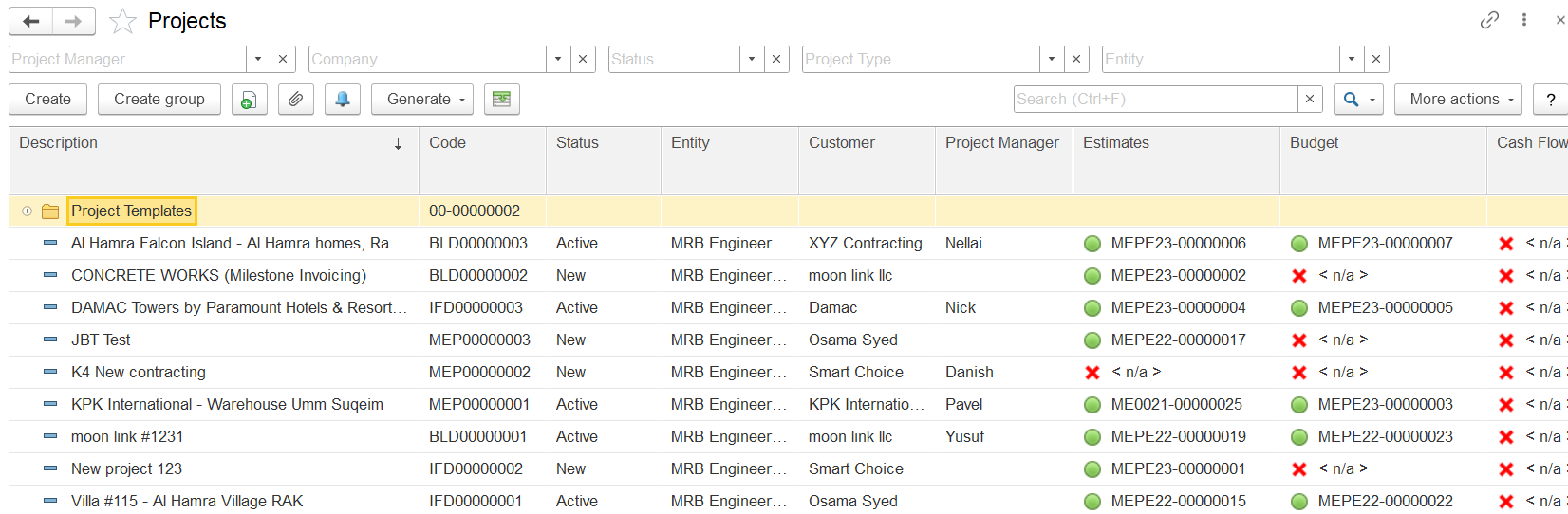
Project records can be organized in a folder (or group) structure. For example, projects can be grouped by customer, project type, or in any other logical way. No projects or folders are available by default in a newly implemented system.
The project list displays all projects in the system, organized in this hierarchical structure. If a specific project is not visible, try opening a different folder or using the Search field to locate the project by part of its description or the customer’s name.
The Toolbar Buttons
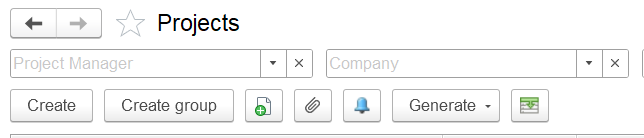
- To add a project, click the Create button on the toolbar. To edit an existing project, double-click the line containing its name. Alternatively, select the line, right-click it, and choose Edit, or use the toolbar option: More actions > Edit→ Edit.
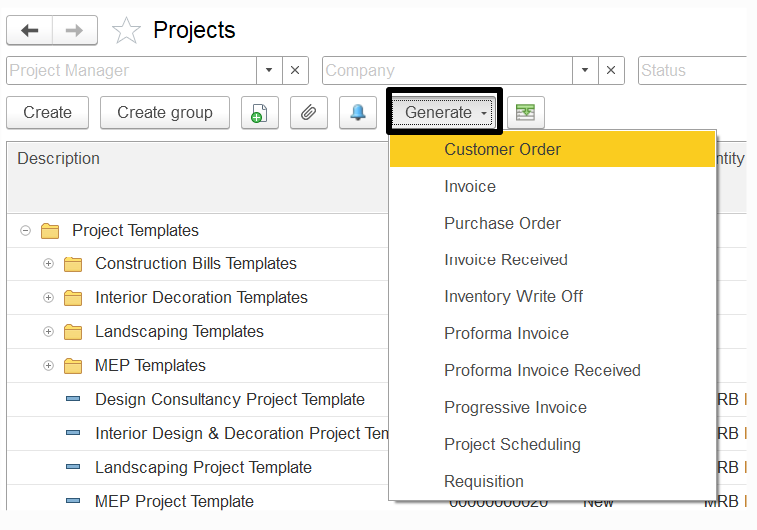
- For a selected project in the list, the Generate button enables the creation of the following document types:
Customer Order – Records the goods and services the customer requests for the project.
Invoice – Bills the customer (client) for goods and services provided within the project.
Purchase Order – Orders goods and services required for the project.
Invoice Received – Registers the purchase of goods and services for the project.
Inventory Write-Off – Records the issue of inventory items from a warehouse for project needs.
Requisition – Requests goods and services required for the project.
Proforma Invoice / Payment Application – Requests payment from the customer (client) for goods and services delivered.
Proforma Invoice Received – Records a supplier’s payment request for goods and services purchased for the project.
Progressive Invoice – Bills the customer (client) based on project progress.
Requisition (for Estimate) – Requests estimated prices of goods and services from the supplier.
3. Creating a folder
To add a group (folder), click the Create Group button on the form toolbar. This opens the Projects (Create folder) dialog box. In the Description field, enter the description of this group (folder).
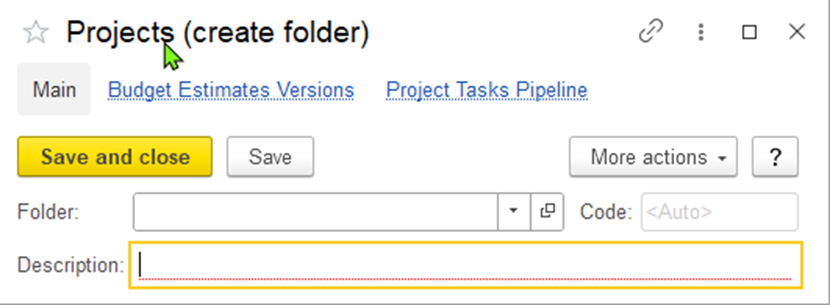
To create a group within another group (a parent group), specify the parent group in the Folder field (see the figure below). This action adds a new level to the hierarchy. There is no limit to the number of hierarchy levels that can be created. After setting the parent group, click Save and Close.
...