Question:
How can I get detailed report with included documents in it (details):
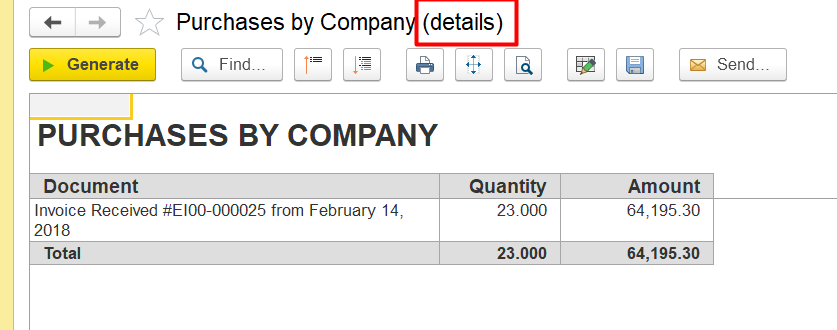
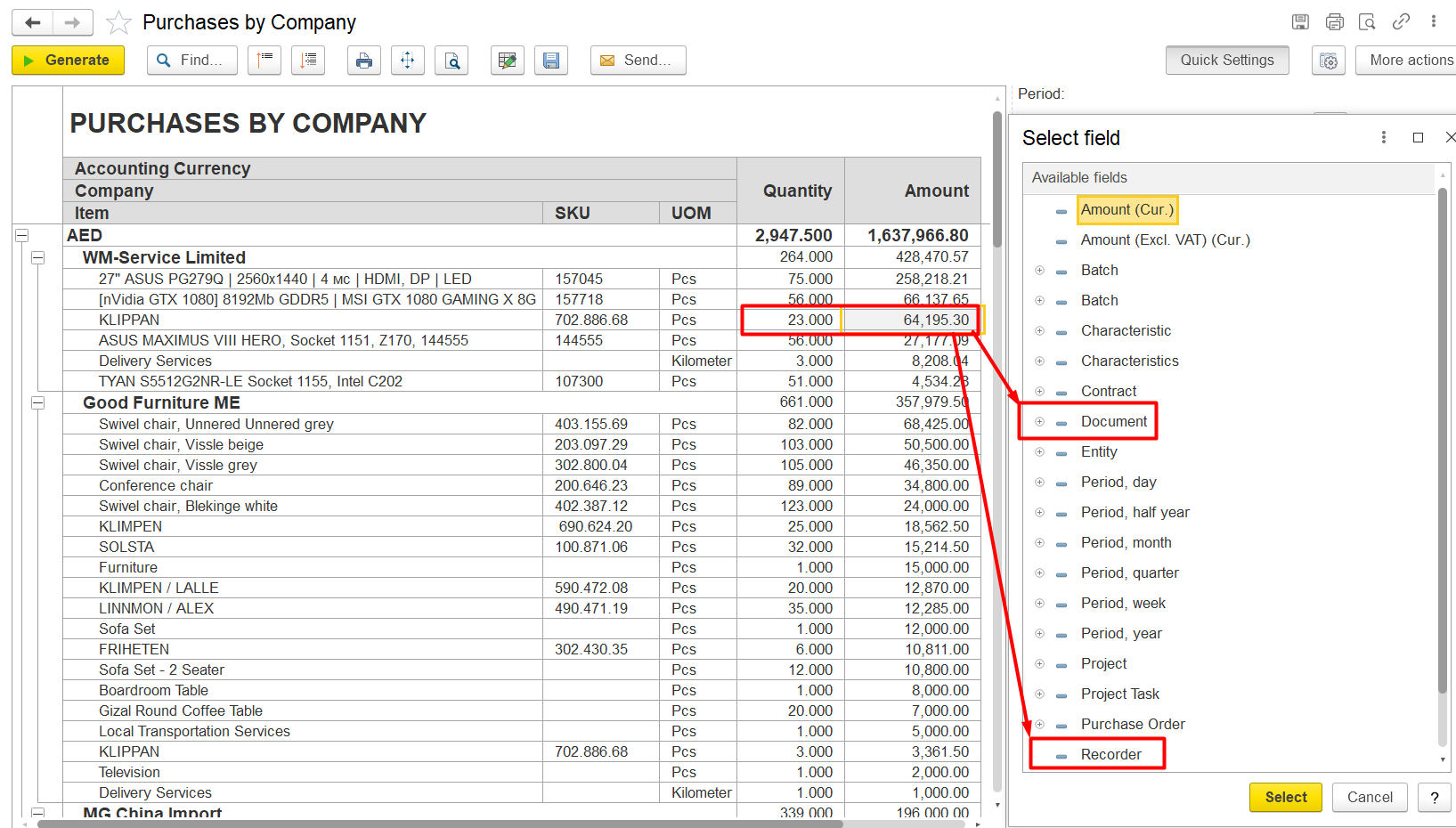
Answer: select Recorder or Documents fields:
-Go to Taxes module, open list of VAT Rates and select the problem one, for example, 5%:
...
-Make sure that selected type of rate is logically correct, means that not possible that 5% rate might be Out-Of-Scope or Export, so, that boxes should not be enable, example of incorrectness:
...
- which documents are included in the report;
- which documents form the report;
- what transactions or documents created the report values;
- source documents behind report balances, quantities, or amounts.
In FirstBit reports, you can view the underlying source documents by using the Recorder or Document field.
The Recorder functionality allows users to drill down into report data and see which documents created the corresponding movements or register entries in the system. This helps users understand how report figures were formed and identify the exact transactions affecting the report.
How to Open Detailed Information
- Open the required report.
- Find the needed:
- quantity value,
- amount value,
- balance,
- or other indicator.
- Double-click on the required value.
- A detailed dialog window will open.
- Select:
- Recorder, or
- Document.
The system will display the list of source documents related to the selected report value.
Thank you for being FirstBIT customer!