Fixed Asset categories are used to correctly classify assets in the system. Selecting a category ensures that assets with similar characteristics are recorded in a consistent way.
This helps simplify data entry, makes it easier to work with asset records, and improves reporting by allowing assets to be grouped and analyzed by type.
When creating a Fixed Asset, the Category field is mandatory.
If a category is not selected, the asset cannot be properly recorded.
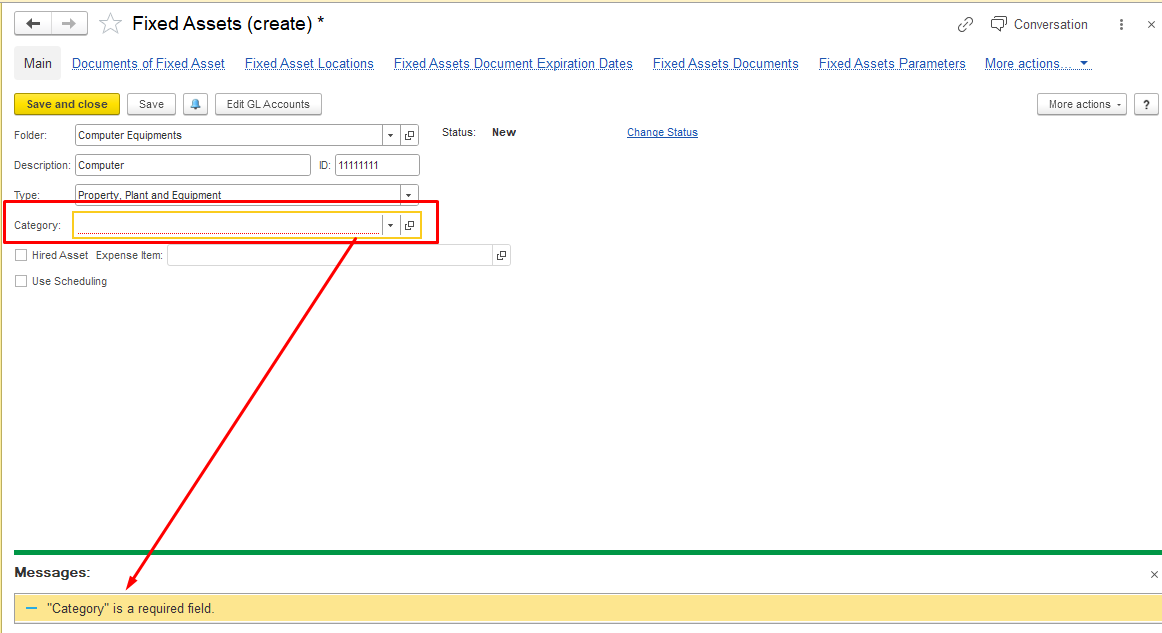
In the FirstBit Software you are able to create and use Fixed Assets (FA) categories.
To access a list of FA Fixed Assets categories, go to Asset Management → Master Data → Fixed Assets Categories form.
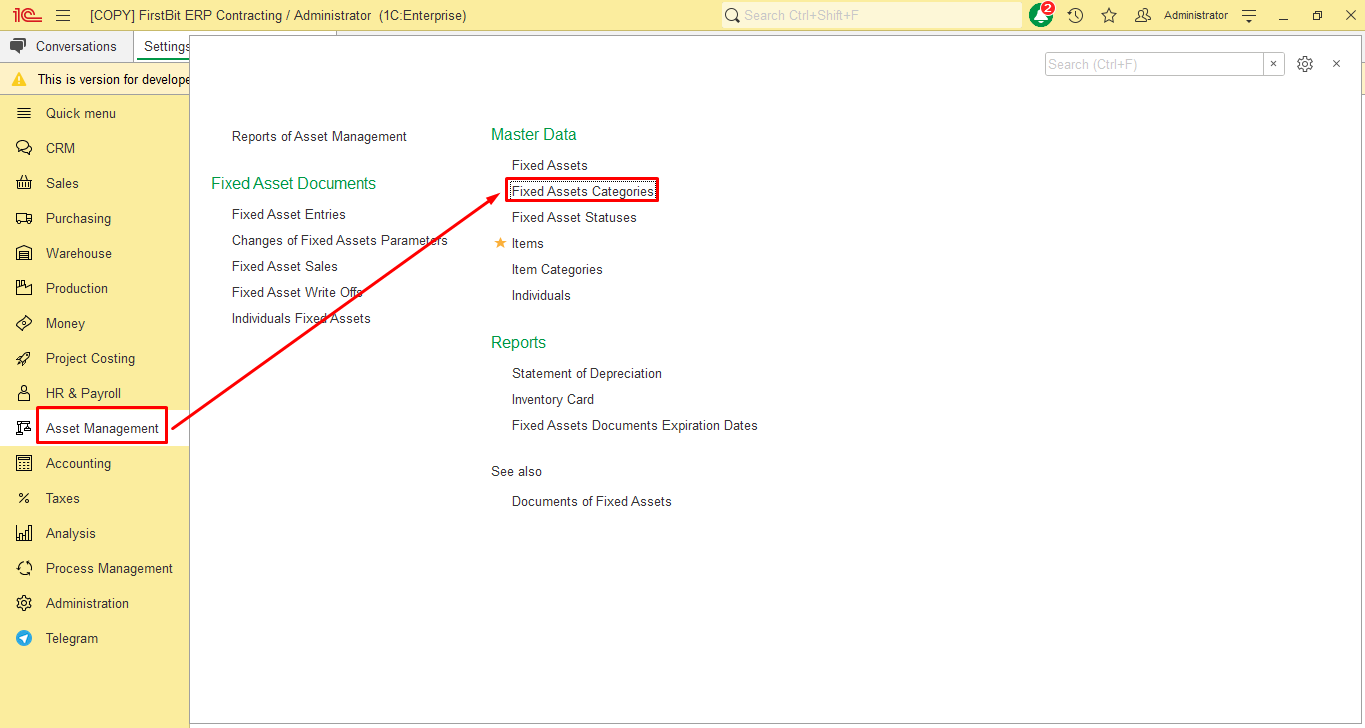
FA Fixed Assets categories can be used to group of similar Fixed Assets with the same characteristics. You can create either a category group to organize multiple categories, or individual categories without grouping.
If you need to create a FA Fixed Asset Category Group as a parent folder:
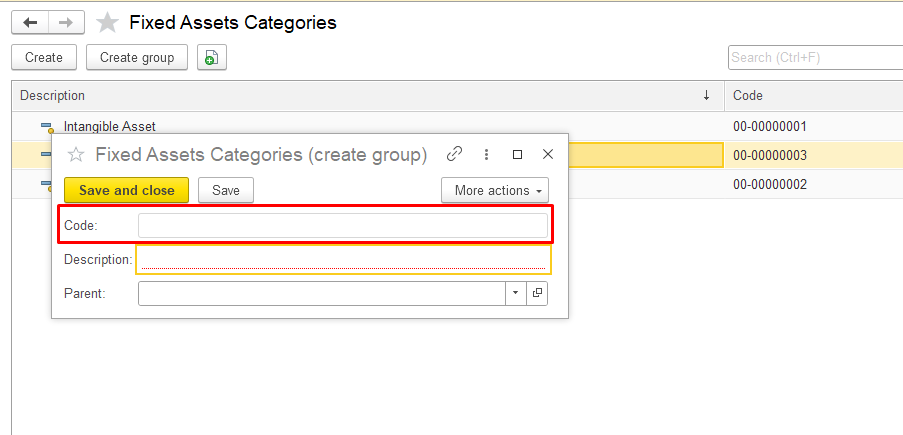
Open the Fixed Assets Categories section in the system, click the Create group button at the top and in the pop-up window, fill in the required fields:
Code - the system generates the code automatically, and it is saved when the object is saved.
Description — enter the name of the category group
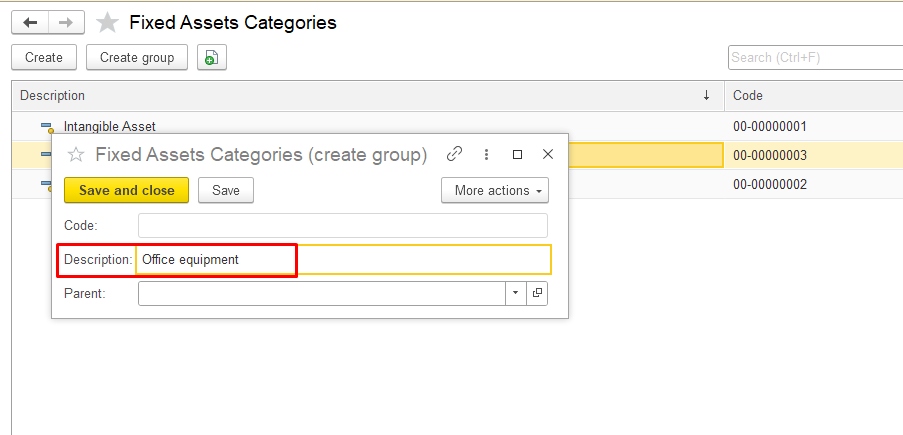
Parent — select a parent category leave blank if it’s a top-level group.
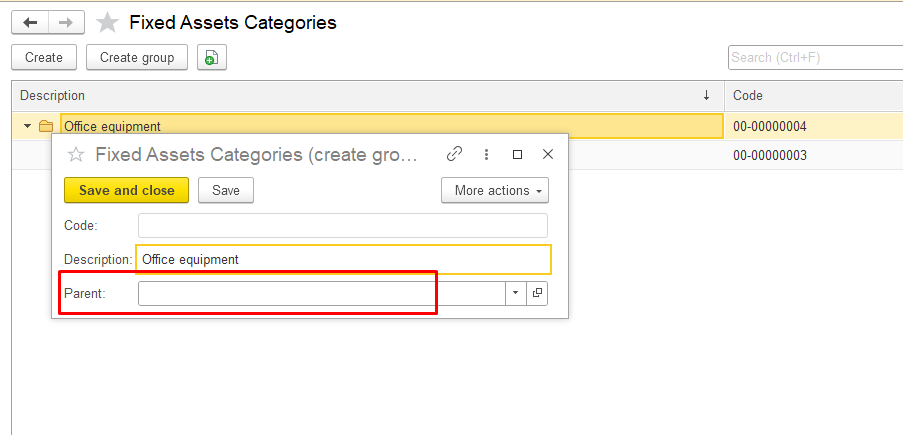
Click Save and close to save the new group. The new category group will appear in the list of fixed asset categories.
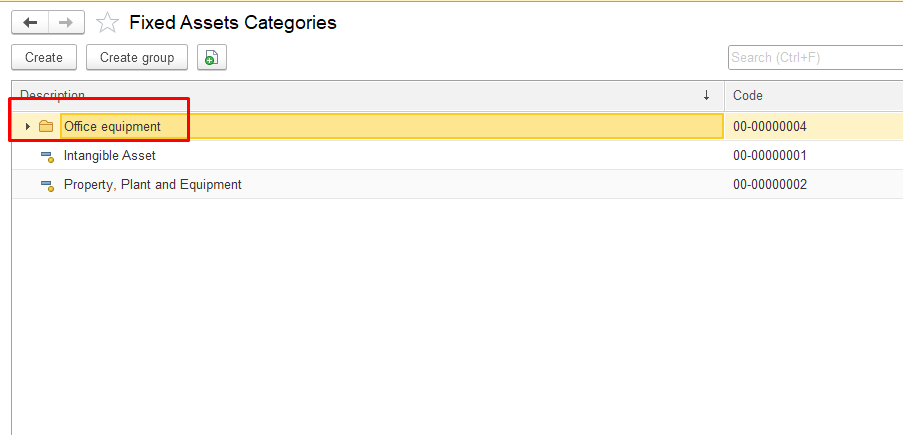
To create a fixed asset subcategory, fill in the Parent field.
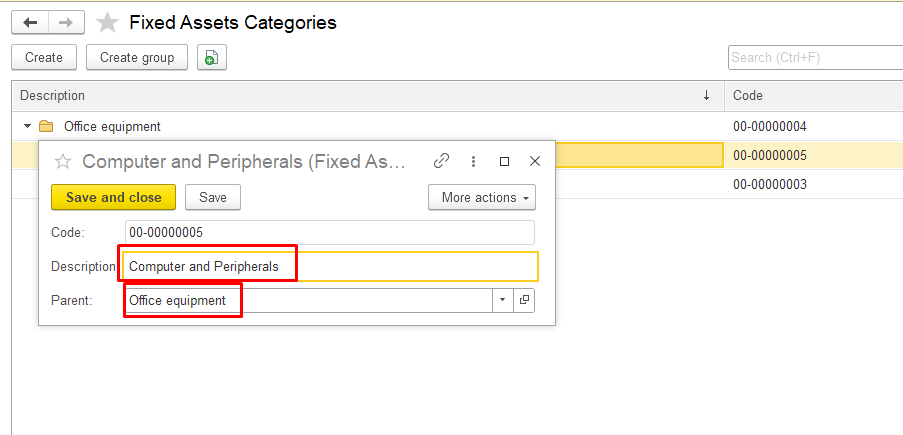
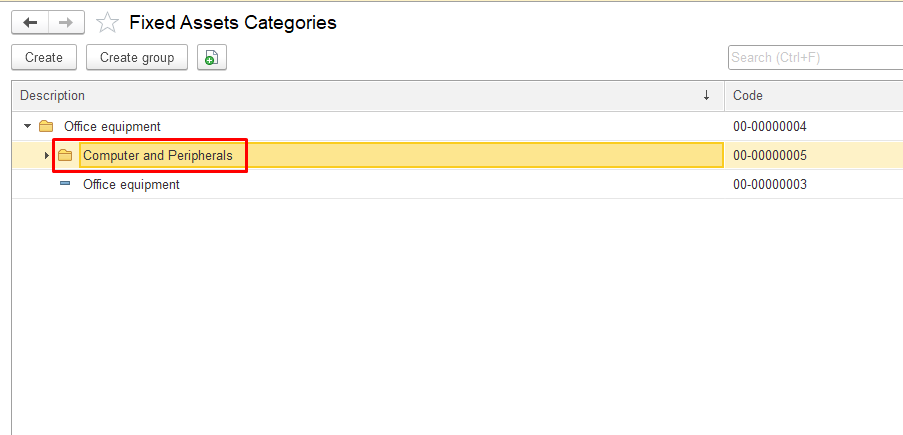
To create a Fixed Asset Category inside an existing group or as a separate category click Create button at the top and in the pop-up window, fill in the required fields:
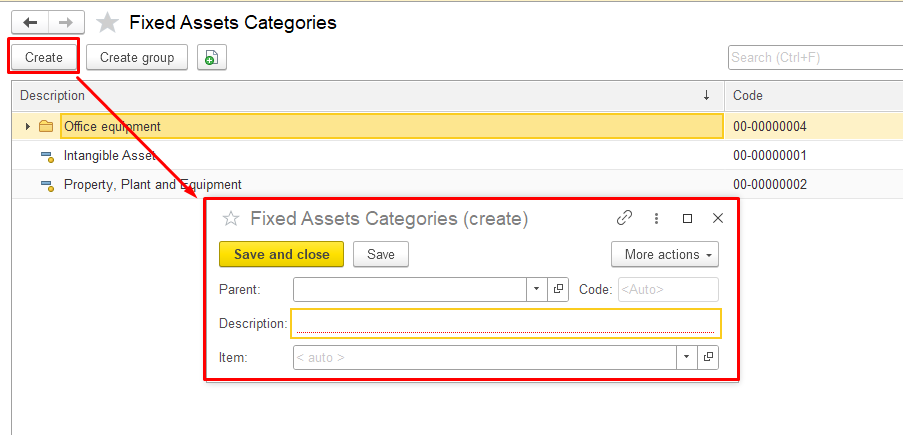
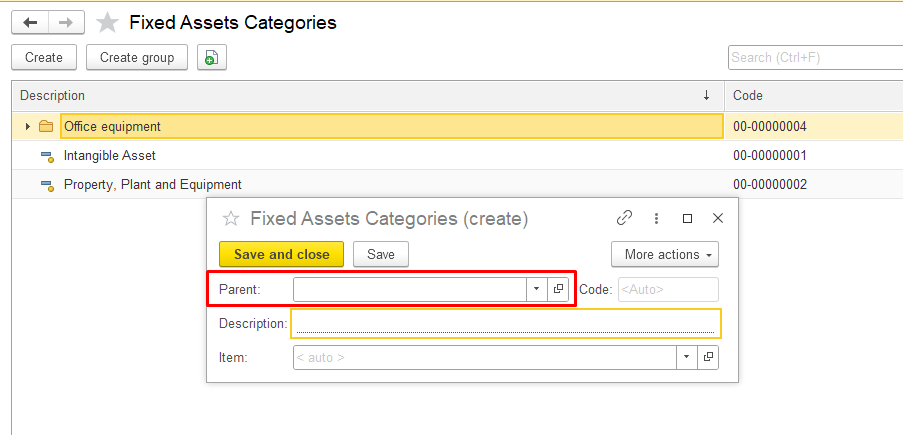
Parent — fill in this field if you want to create a subgroup (leave blank if it’s a top-level group).vbnvbvnmvmnplace the category in a specific group, or leave it blank if grouping is not required.
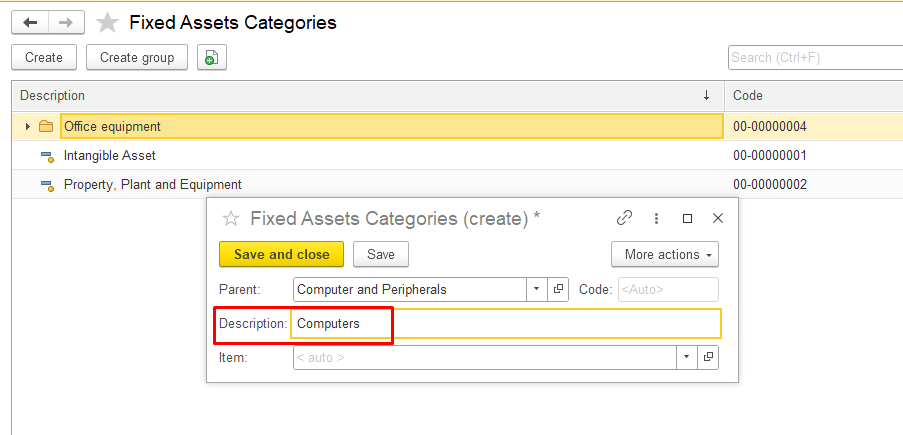
Description — enter the name of the category.
Item - this field is filled automatically by the system when the category is saved.
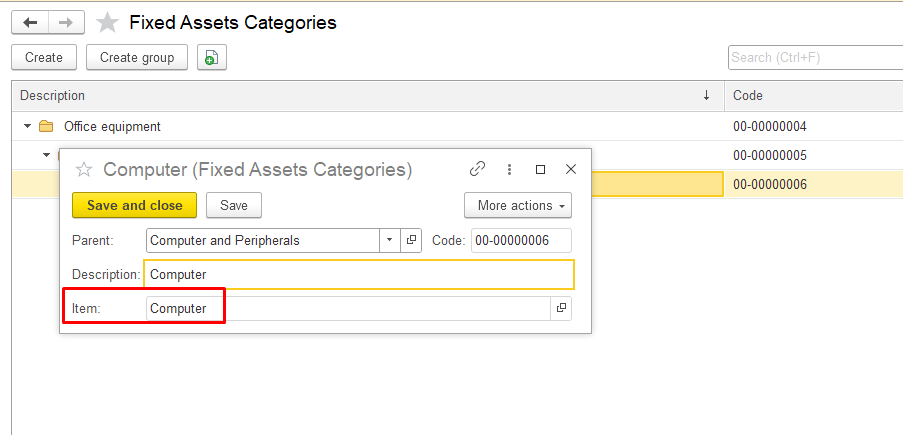
Click Save and close to save the new category. The new category will appear in the list of fixed asset categories or in the parent group.
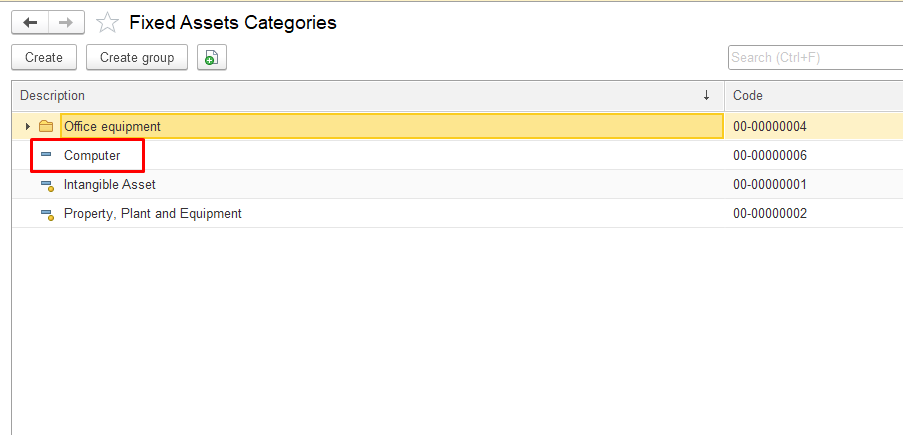
At the category level.
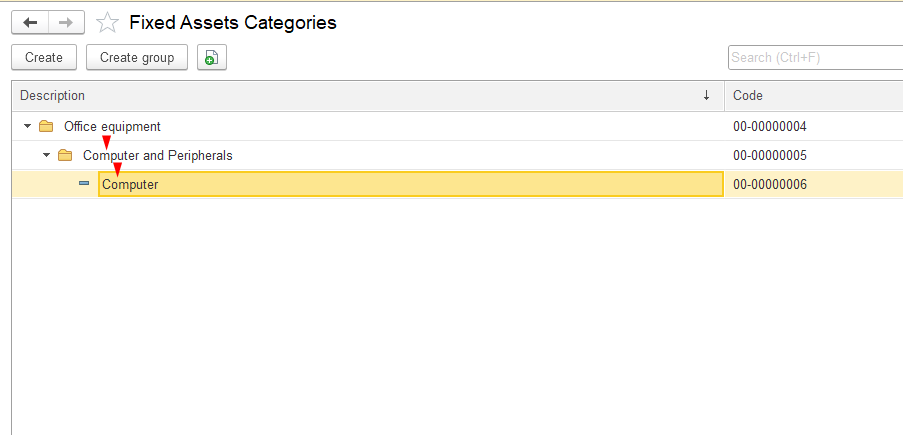
At the group level .
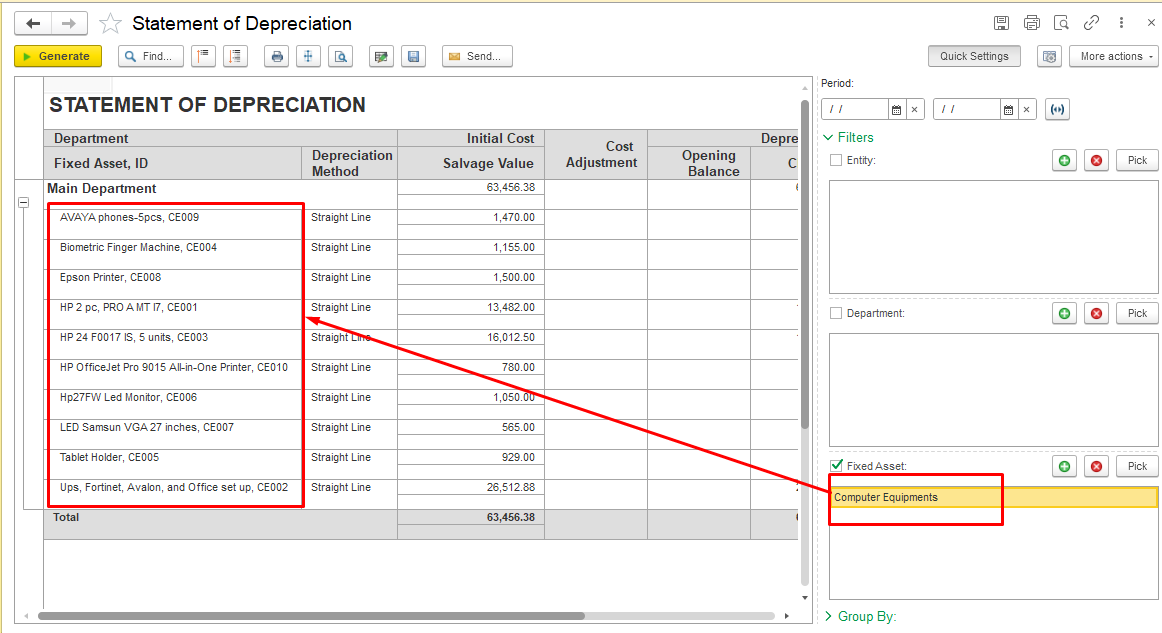
Reports on Fixed Assets can be generated both by category and for individual Fixed Assets, such as the Inventory Card and the Statement of Depreciation.
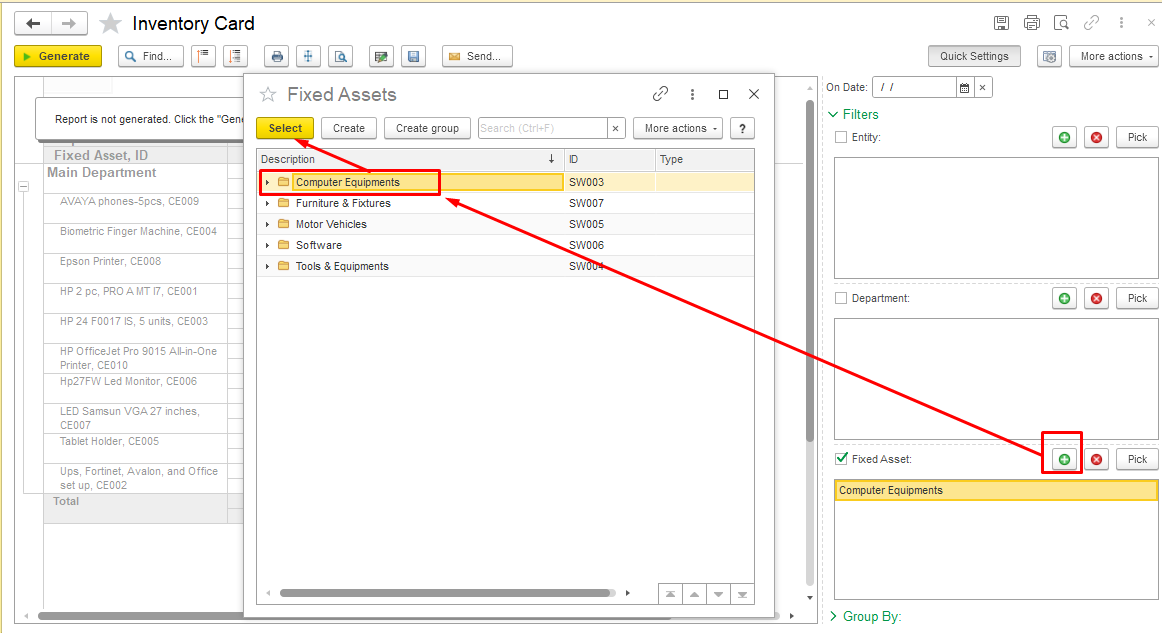
To do this, in the report Filters, in the Fixed Asset field, click the “+” (plus) button to add an object. In the new window, select the required category.
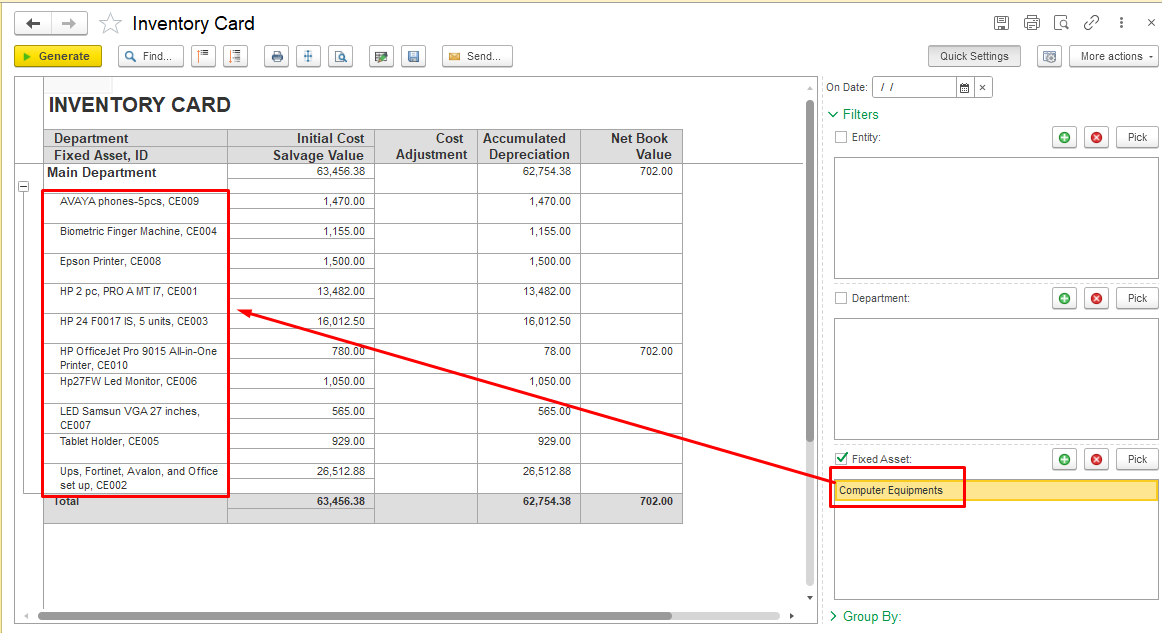
In the report, all Fixed Assets assigned to this category will be displayed.
Thank you for being a FirstBIT customer!
# FixedAssetsCategories#categoriesoffixedassets