need to describe document with previously agreed format.
A Time Card is a document used to track theactual time spent by a person on work or tasks.
How to create
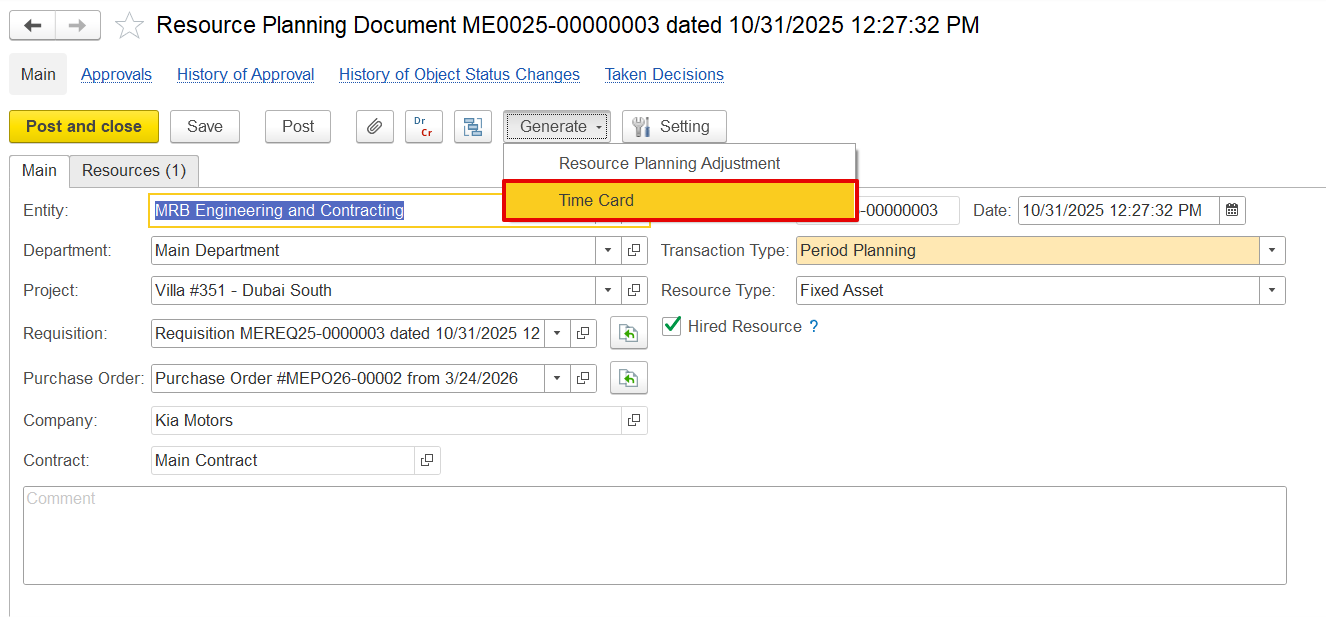
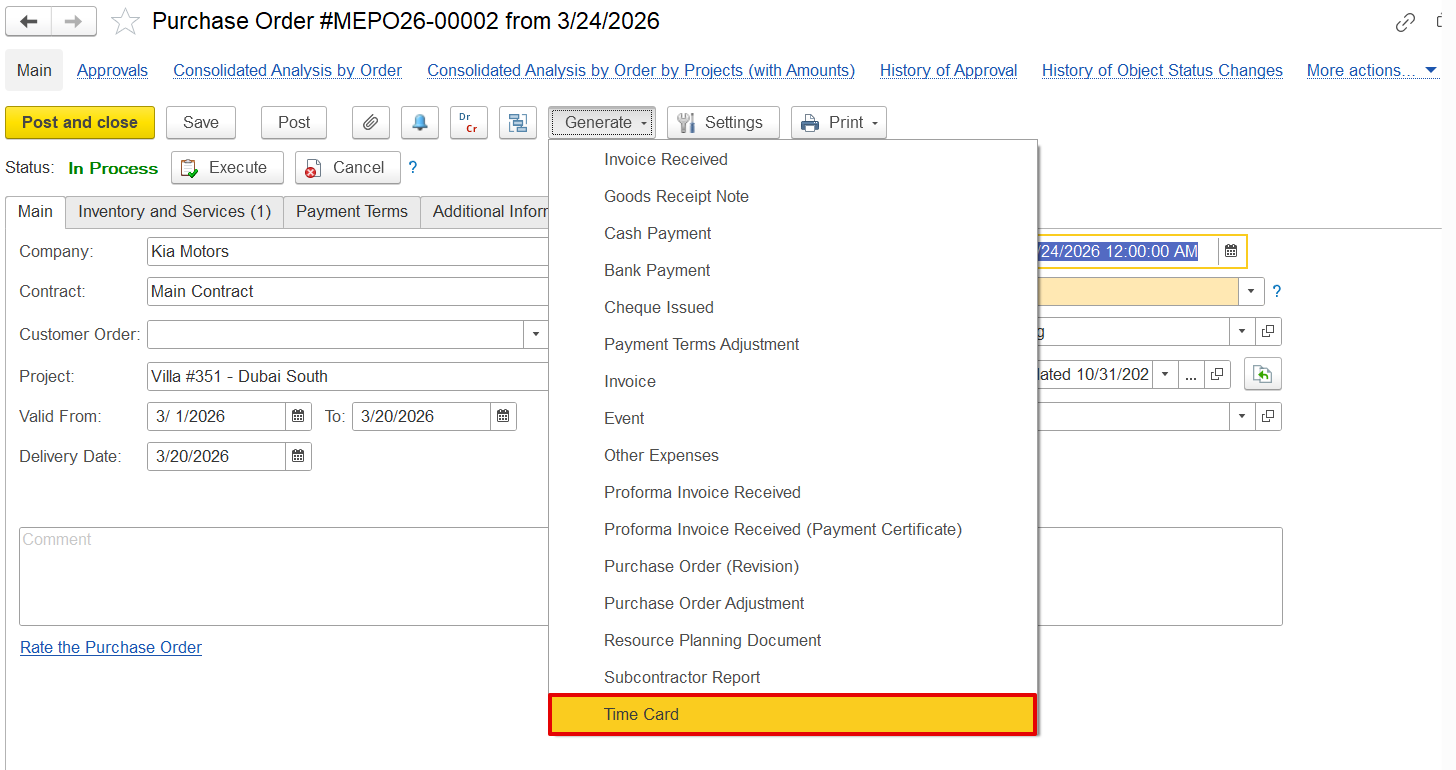
It can be created/generated based on resource planning, PO, requisition, or from list.
Settings button to change attributes position. option needs to be explained. 1 -2 sentences about what is this for.
Main
- attributes description as usual
- Resource type
- Allocate cost
- Hired resources.
Time details table
...
- non working chaeck box.
- Time types.
- Hours and rates (if allocate cost).
...
- by entity
- by department (if department in the header)
- by resource allocation (period planning and long term both planning will be considered while filling)
...
- by resource (rate searched by exact employee or fixed assets)
- by item (rate is searched by item (position or FA category).
...
-
Resource Planning
Purchase Order (PO)
Requisition
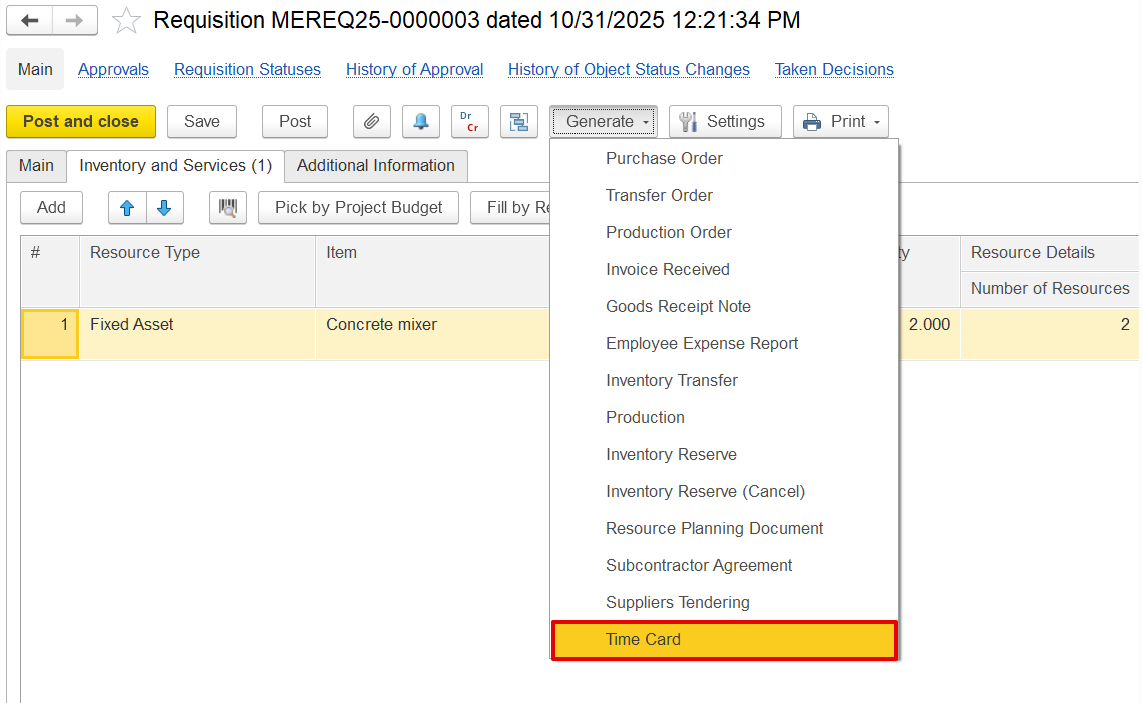
When generated from Resource Planning, a Purchase Order, or a Requisition, the Time Card is automatically pre-filled with planned data, allowing users to review, adjust, and enter the actual hours worked.
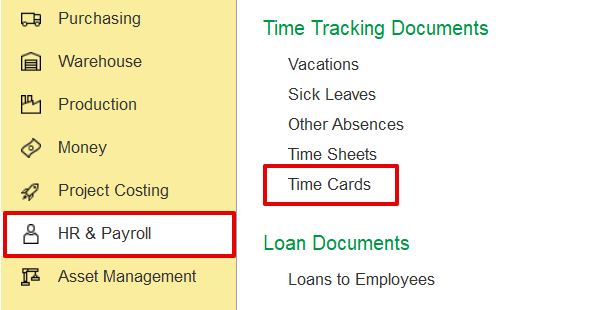
HR & Payroll Section
HR & Payroll → Time tracking Documents → Time cards
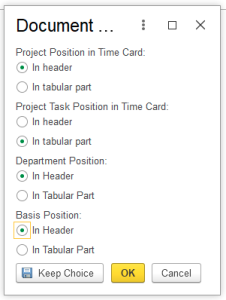
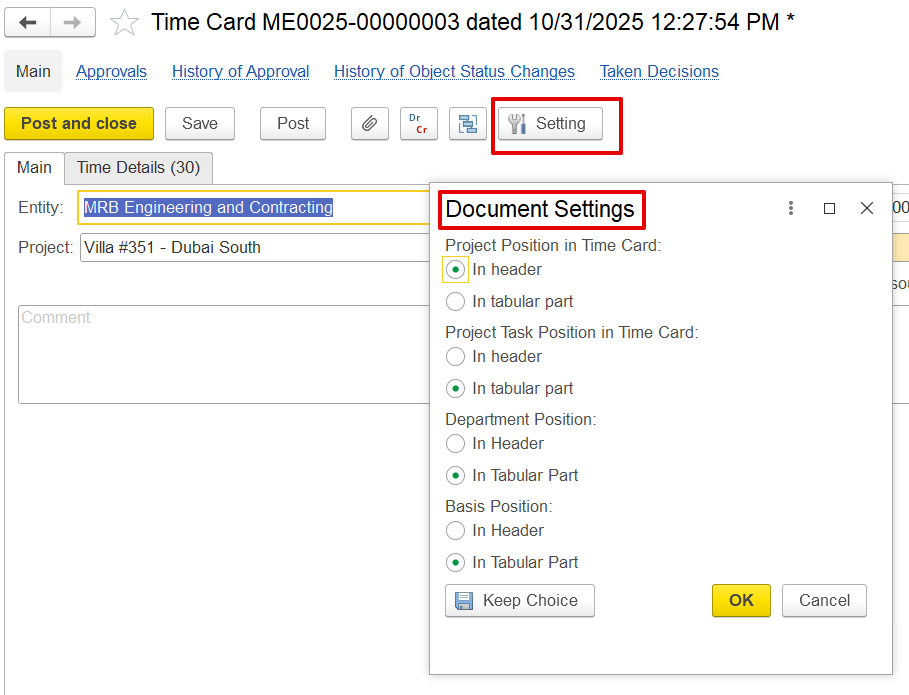
Document Settings
The dialog box lets users control how information is displayed and recorded on a time card.
- Project Position in Time Card - Use Header if the project applies to the entire time card; use Tabular if employees/Fixed Assets need to record multiple projects.
- Project Task Position in Time Card - Use Tabular to show tasks per line for multiple tasks under one project; use Header if there’s only one project and task.
- Department Position - Use Tabular to assign departments per line when work spans multiple departments; use Header if all entries belong to a single department.
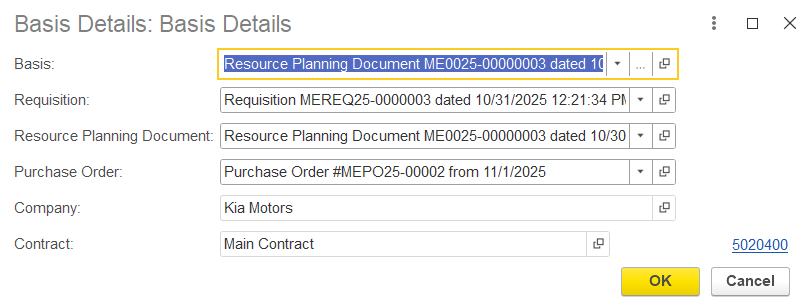
- Basis Position - Includes details like requisitions, POs, and resource planning. UseTabular to show the basis per line; use Header if the entire document is based on a single basis.
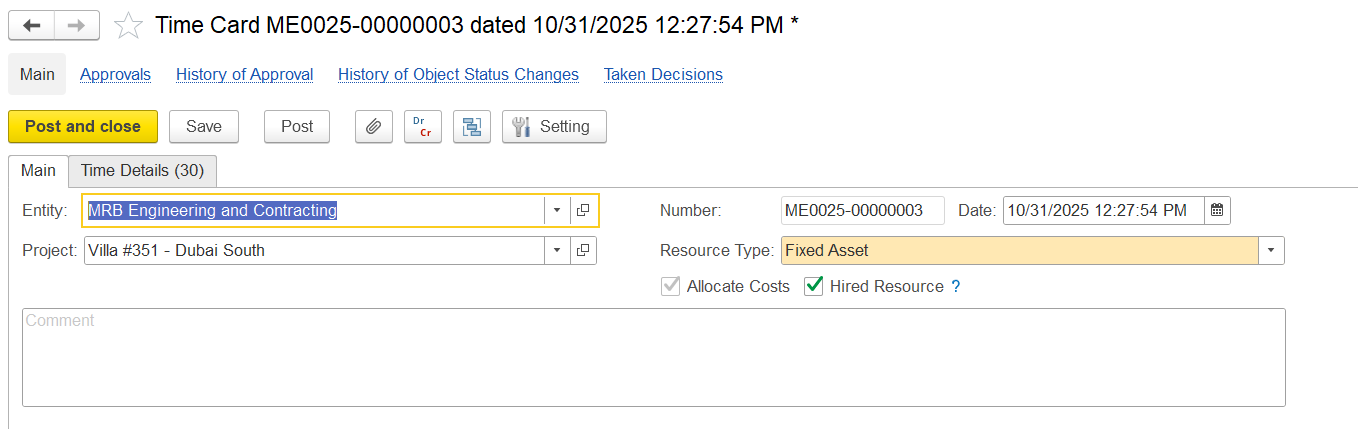
Main Tab
The Main tab is used to record the general information about the Time card.
- Entity - The entity recording the time card document.
- Project - the project for the time entry; can apply to the whole card or each line based on settings
- Resource type - the type of resource (Fixed Asset or Employees); this affects how the cost is calculated
- Allocate cost - decides if the time should create a project cost
- checked - cost will be calculated and added to the project
- unchecked - time is only recorded, no cost added
- Hired resources - shows if the resource is external (hired) or internal
Time Details
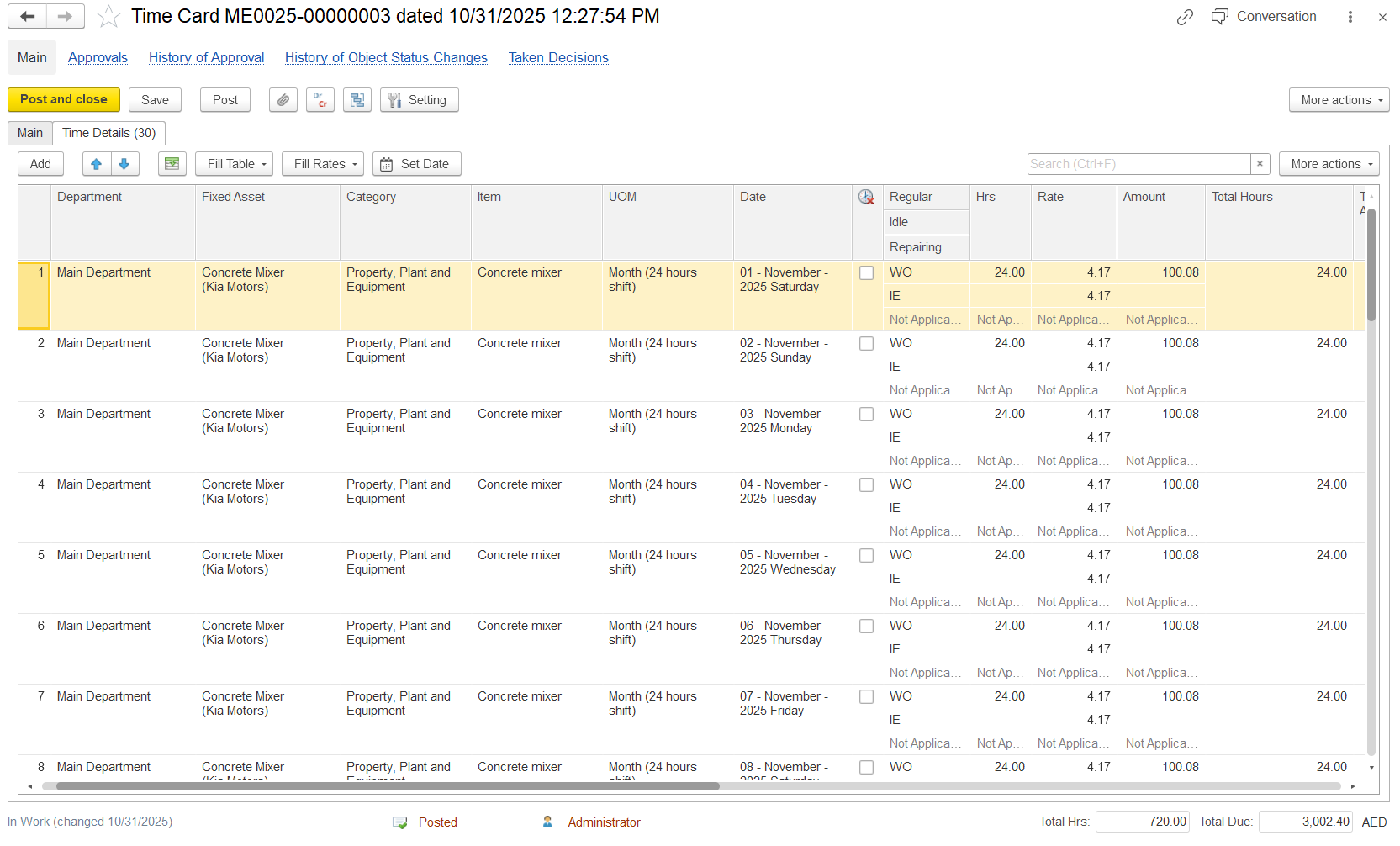
The Time Details tab is used to enter and manage time entries at the line-item level. The fields available in this tab depend on the selected resource type.
For example, when the resource type is Employee, the system displays details such as the employee's name, position, and working hours, including regular and overtime hours. In case of Fixed assets, the following fields will be available
- Department - Department responsible for the time card.
- Fixed Asset - Asset to be hired for the task.
- Category - Type or category of fixed assets. It is not changeable, it is linked to a fixed asset.
- Item - Item was being recorded in the time card
- UOM (Unit of Measure) - Unit used to measure the entry.
- Date - Date of the activity
- Non-Working Day - This checkbox can be selected for a specific employee and date when the employee is absent. The non-working hours will be recorded and reflected in the Time Card Report.
- Time type
- Regular - Productive work hour (daytime working duration)
- Idle (IE) - Non-productive hours
- Repairing - Maintenance or repair time of the fixed asset.
- Hrs - Total time recorded
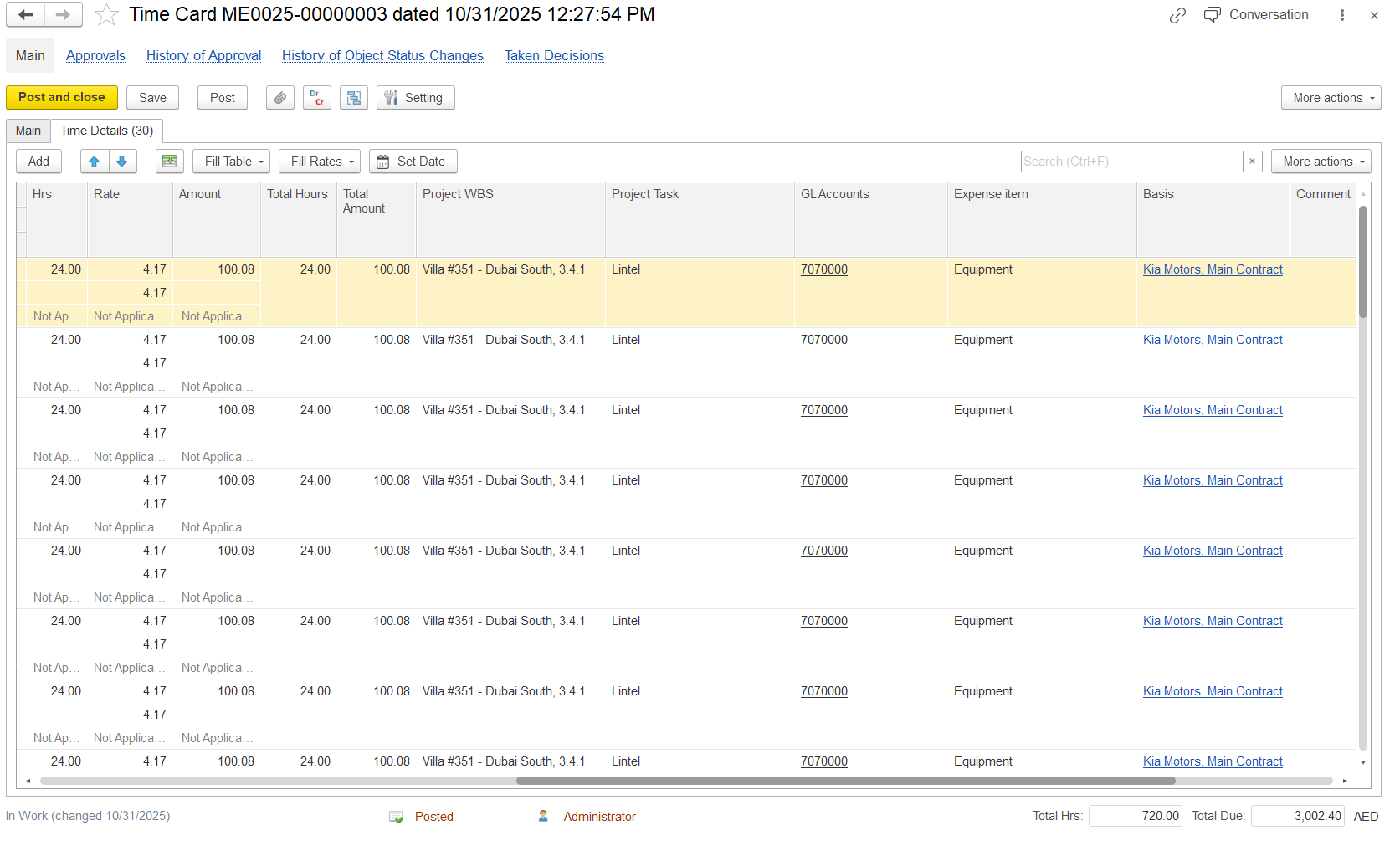
- Time & Cost Fields- These fields appear when the allocate cost option is enabled in the main tab.
- Hrs - Total time recorded
- Rate - Cost per unit of time
- Amount - Calculated cost (based on hours × rate)
- Total Hours- Total time per entry
- Total Amount - Total cost for the specific line entry
- Project WBS - WBS code of the project to which the item or resource belongs.
- Project Task - Specific project task linked to the time card entry
- GL Accounts - General Ledger account to which the cost is recorded
- Expense Item - Category of expense being recorded (such as equipment or labor)
- Basis - Can be entered manually; however, if filled by using the fill table option, each entry is automatically linked to the corresponding requisition, resource planning document, or purchase order line.
- Comment - Field for adding additional notes or description
Fill Table
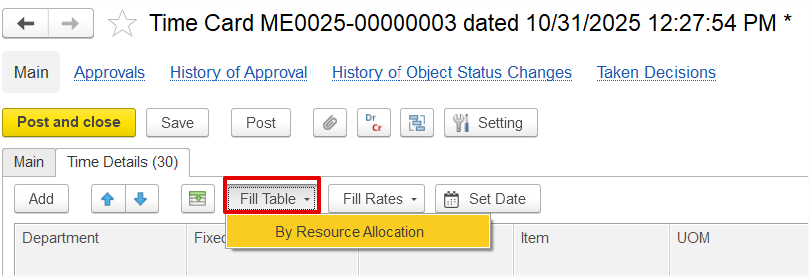
The Fill Table option lets users automatically populate data instead of entering it manually. For internal employees or fixed assets, it can be filled by entity, department (if the department field is in the header), or resource allocation. For hired resources, it can only be filled by resource allocation.
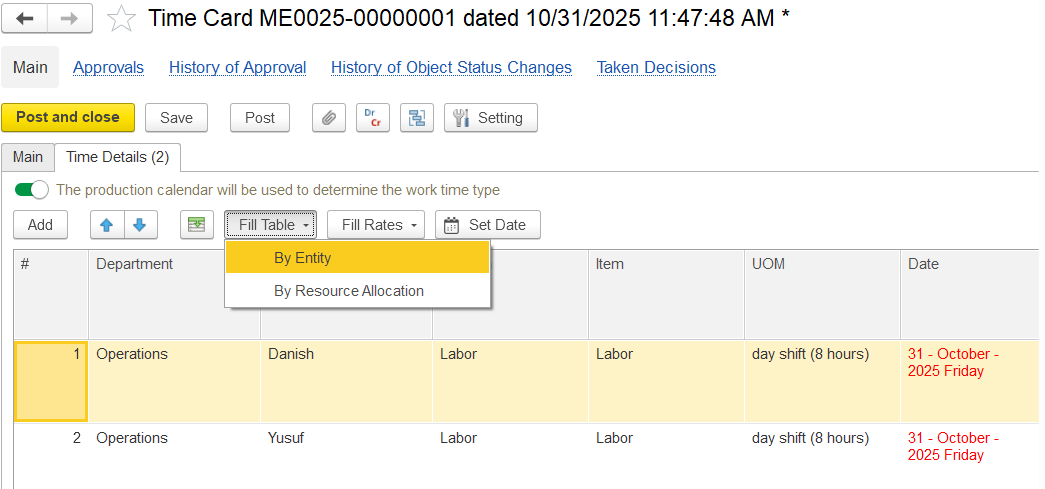
When the Resource Allocation option is selected, a dialog box appears to enter the date. The system then pulls the details from the Resource Planning Document, automatically filling the time card with the specific employee or fixed asset assigned to that project on the selected date.
Fill Rates
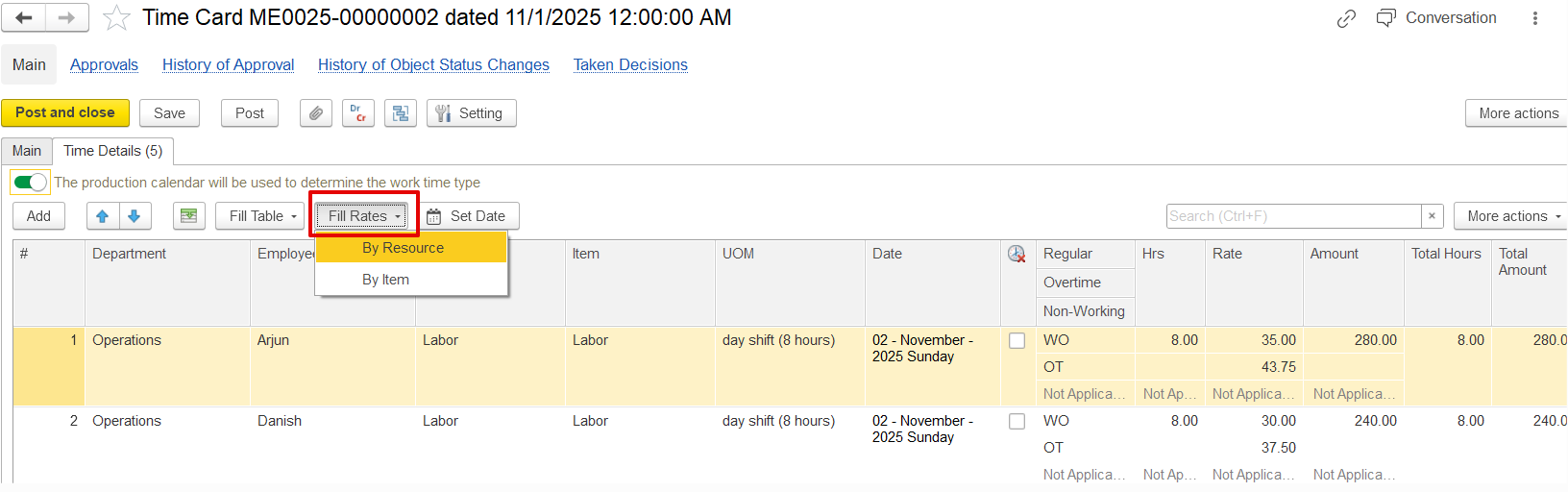
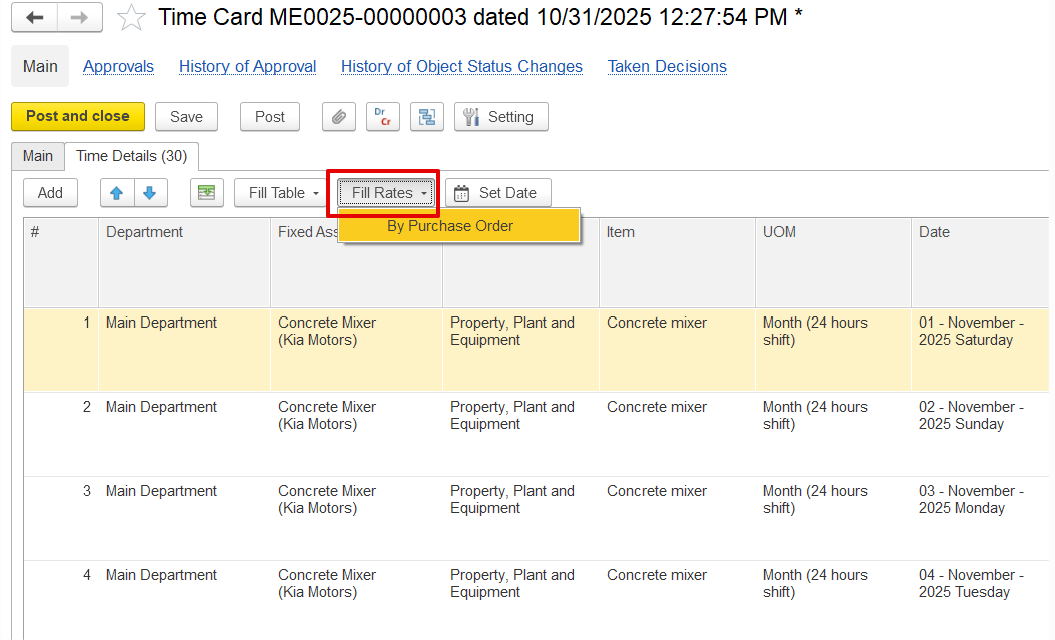
The Fill Rates button automatically populates rates in the time card. This option appears when the Allocate cost option is enabled in the main tab.
For hired resources, rates are taken from the purchase order. For internal resources, rates come from either Project Item Pricing or the Resource Rates document (HR and Payroll→ Master data→ Register rates), depending on system settings. Rates can be filled by resource, using the exact employee or fixed asset, or by item, using the position or fixed asset category.
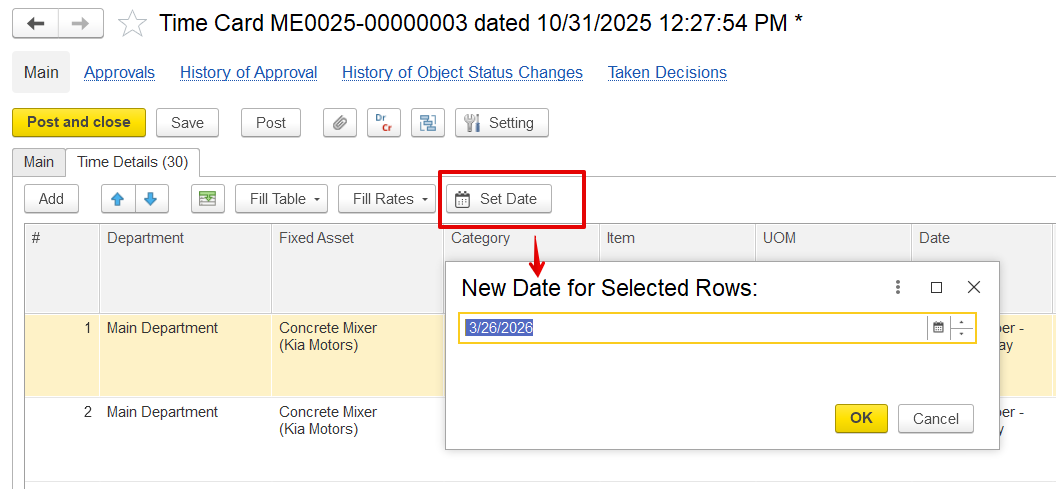
Set Date Button
The Set Date option allows users to change the date for one or more selected entries in the time card. Once the rows are selected and the Set Date button is clicked, a pop-up appears where users can enter the new date. Clicking OK updates all the selected entries to the new date at once, making it easy to add the date at once.