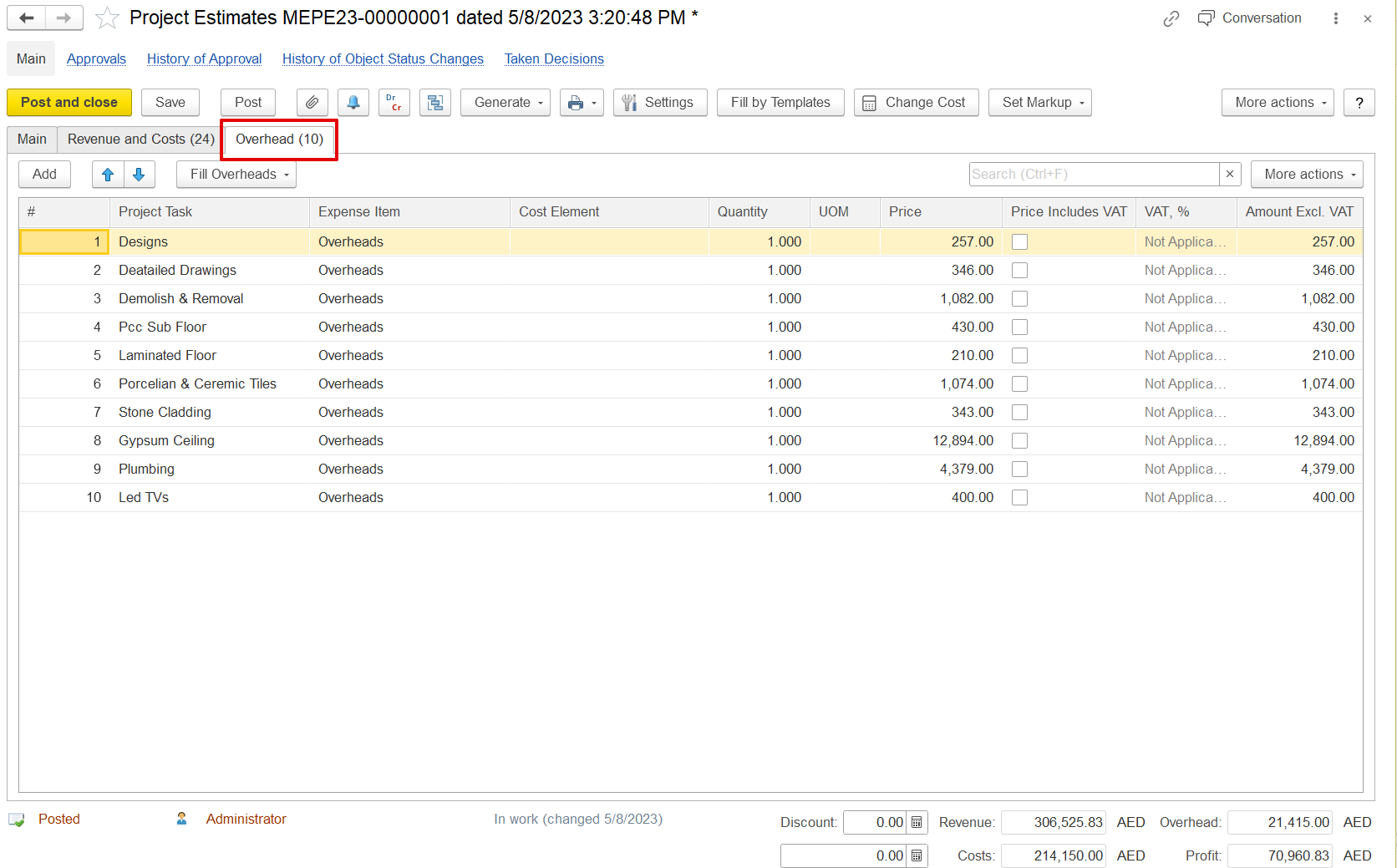
The Overhead tab in the Project Estimates form records and manages indirect project costs, such as administrative fees, office expenses, or general services that are not directly linked to specific project activities.
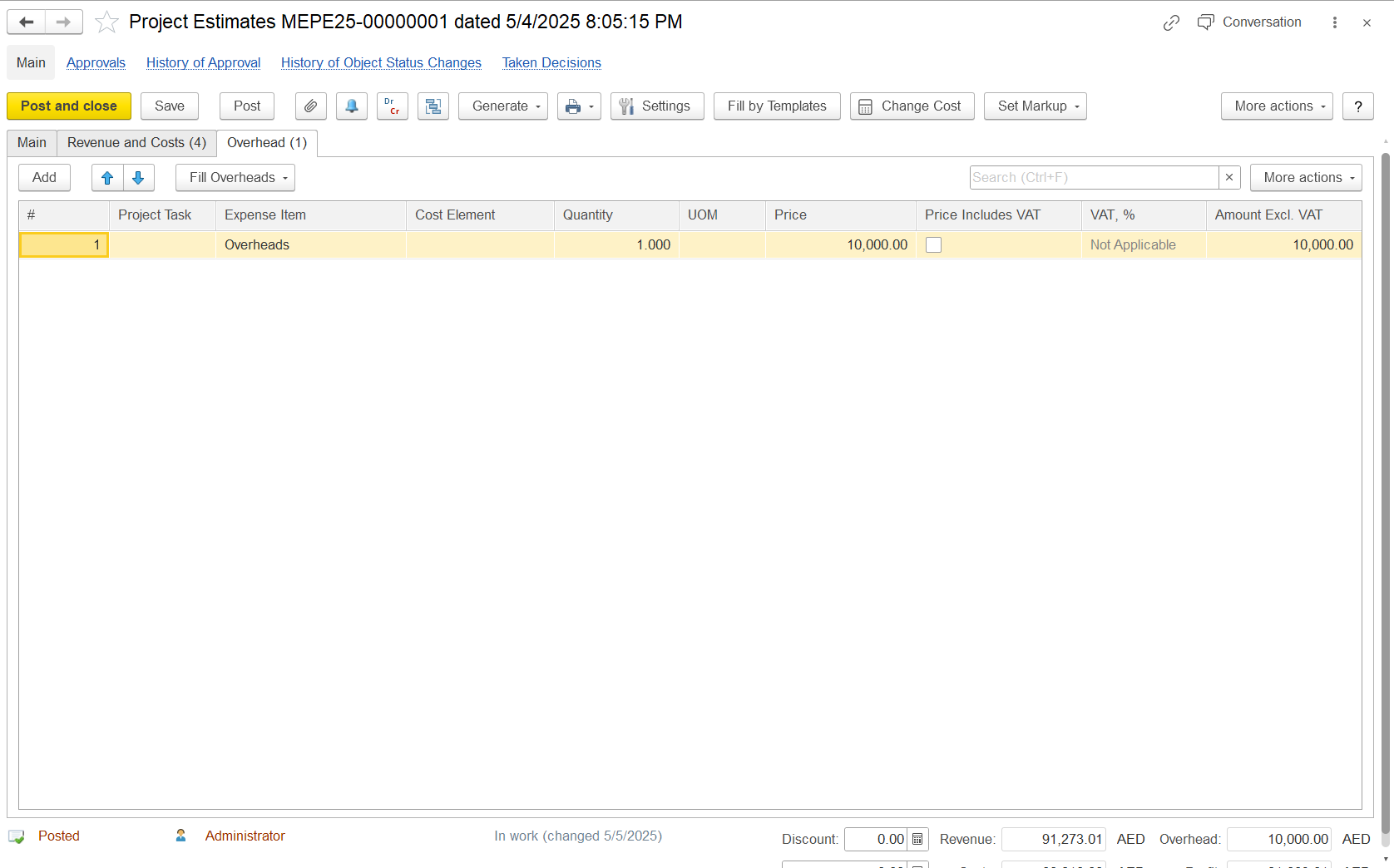
Project Task: This is optional. It can be used to link the overhead to a specific task. Leave it blank for general overhead.
Expense Item: Select the relevant overhead category, such as “Overheads” or “Administrative Costs”.
Cost Element: Optional field used to link the cost to a general ledger or internal cost code.
Quantity: Enter the number of units. For a fixed overhead cost, enter “1.000”.
UOM (Unit of Measure): Enter the applicable unit. For lump-sum costs, this may be left blank or set to “Lump Sum”.
Price: Enter the total overhead cost. This should not include VAT unless the checkbox is selected.
Price Includes VAT: Tick this checkbox only if the price entered includes VAT. Otherwise, leave it unchecked.
VAT %: The system will indicate if VAT applies. For exempt or non-taxable items, it will display “Not Applicable”.
Amount Excl. VAT: This is auto-calculated. If VAT is not included, this will equal the price entered.
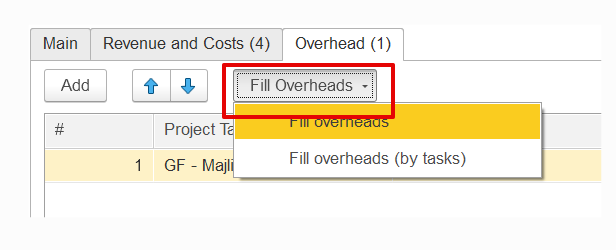
Fill Overheads
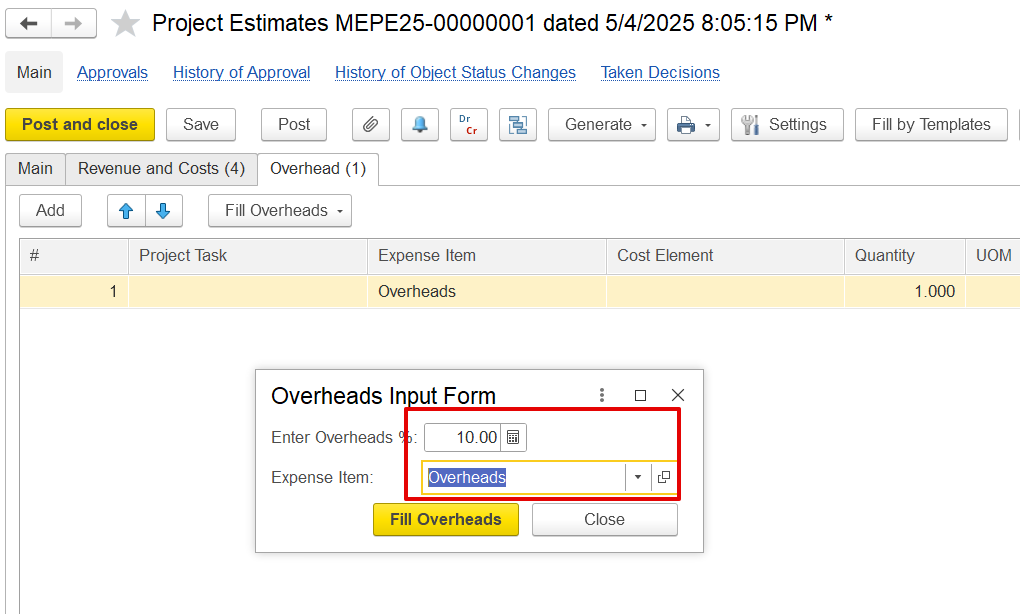
This option is used to calculate overhead based on a percentage of the direct costs listed in the Costs table. When the "Fill Overhead" option is selected, two choices are available: "Fill Overheads" and "Fill Overhead (by Task)." Once an option is selected, a dialog box will appear, prompting the user to enter the overhead percentage and select the relevant expense item. If "Fill Overhead (by Task)" is selected, the system will create separate overhead entries for each project task.
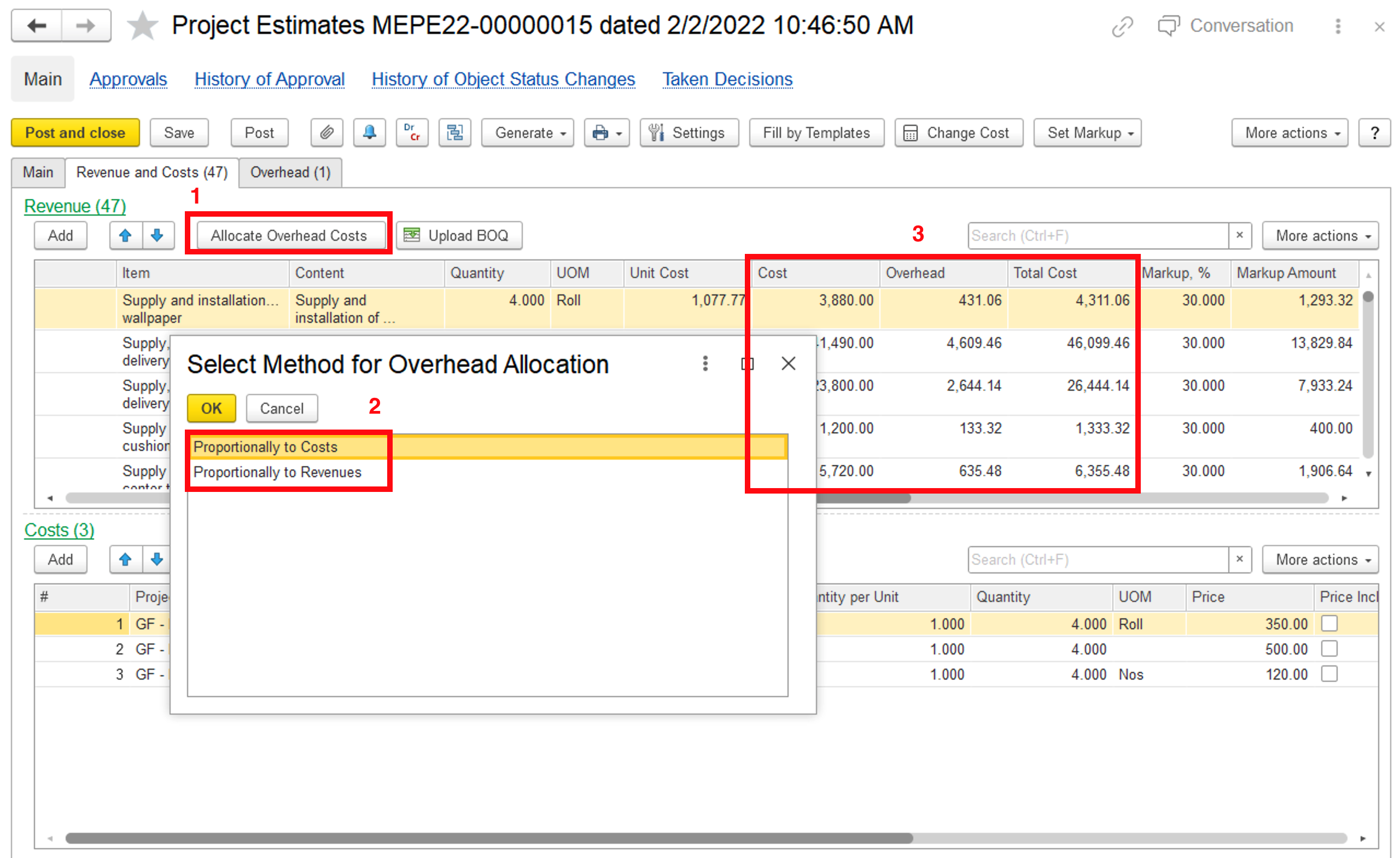
Once overheads are entered, they should be distributed across the revenue lines for accurate total cost calculation. This helps apply markups that include both direct and overhead costs.