Problem:
...
How can we update the GL account for all items in the same folder, considering they were created with their own GL accounts and have already posted documents?
Solution:
Warehouse - Items - Go to Warehouse > Items > Default GL Accounts > right- Tab click on Inventory Item, and choose the edit option.
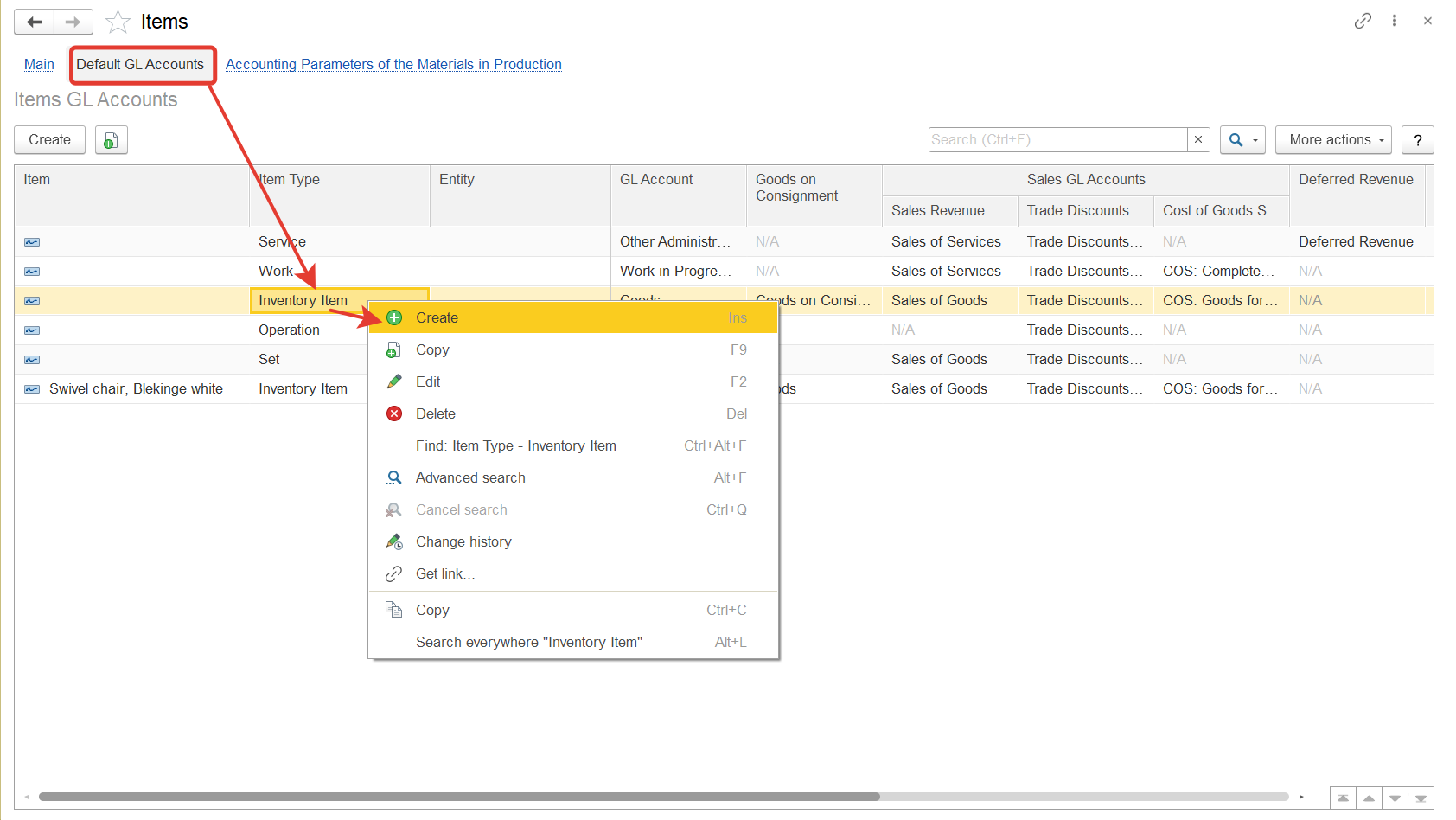 Set up an account. Check the items in the folder - they should all be with the same account
The GL can be modified for item types either independently of an item or based on the item itself. When an item is selected, the new GL will apply only to that specific item. However, if the change is made to the item type, it will apply to all items of that type.
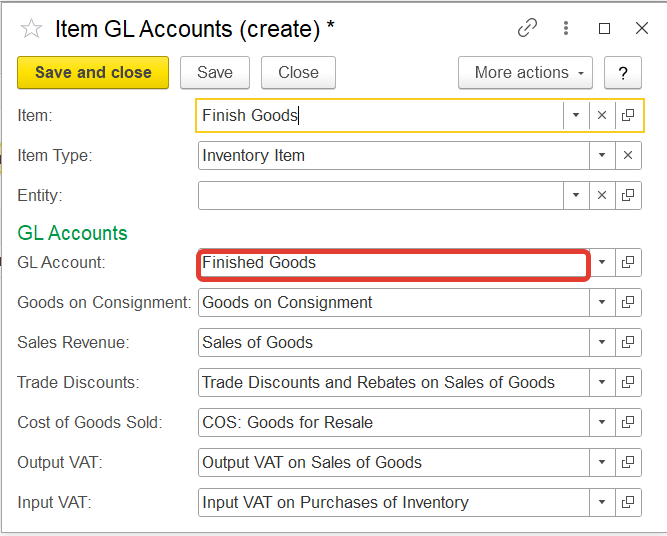
After changing updating the account in the for an item, in the new documents the parameters are automatically applied automatically. But to new documents. However, if any operations have already been were performed with this item on documents that were posted before the account was changed, documents were formed, then in each such document it is necessary to re-select the item so that it is reflected with a new account.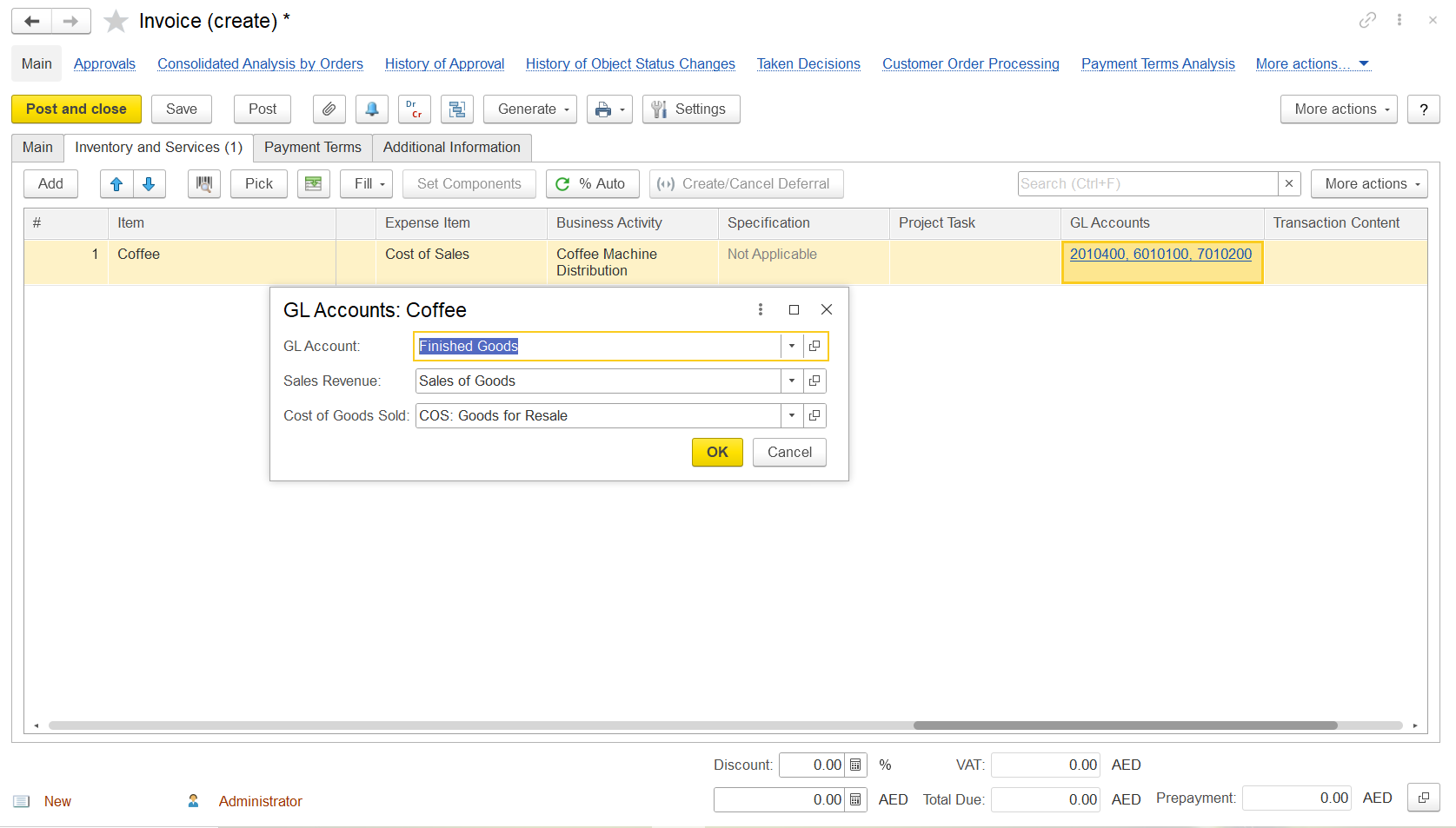 change, those existing documents will still reflect the GL account that was in place before the update.
For example, go to the Invoice document, add the item, select the GL accounts column in the inventory and services tab, and you can see that the NEW GL account is available
It is advisable to implement changes at the beginning of the period to ensure the balance is reflected in a single GL account at month-end. For already posted documents, it is preferable to modify the previous documents manually.
To do this, open the posted invoice, navigate to the Inventory and Services tab, click on the GL accounts, and select the appropriate GL. Then, post the document to apply the change. Each document will need to be amended individually.
Thanks for being a Firstbit customer! #Change in GL Account #Default GL account