...
On the Main tab, employment-related attributes are displayed in two columns:
Current (right column) displays the employee's current employment data.
New displays the values that will apply after the changes.
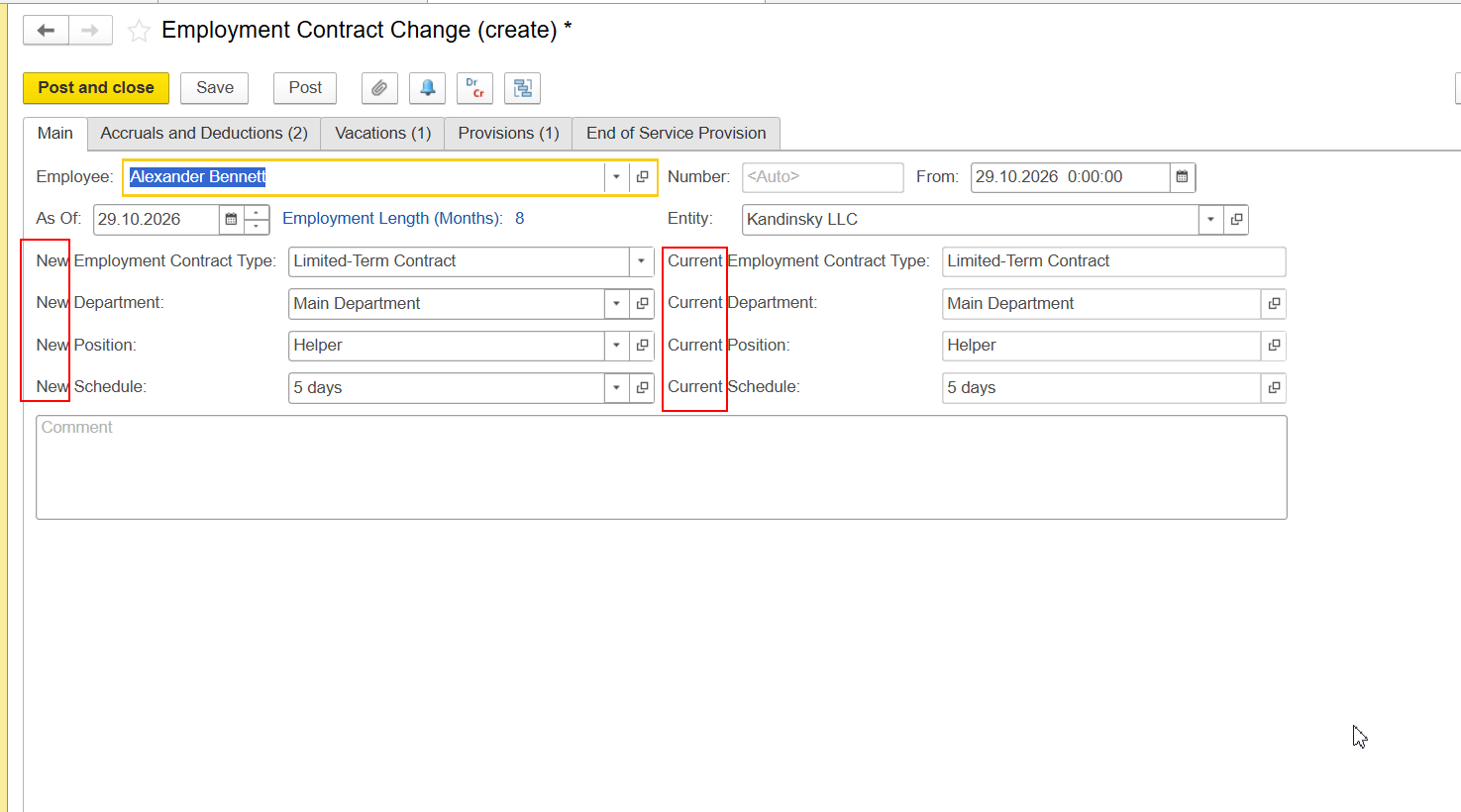
When you select an employee, the system automatically populates the New column with the employee's current values.
...
If the employee's employment terms need to change, update the corresponding attributes in the New column. These may include:
Employment Contract Type
Department
Position
Work Schedule
If no changes to the employee's employment terms are required, leave the automatically populated values in the New column unchanged.
...
Suppose an employee currently receives a Basic Salary of 8,000 AED, and the compensation structure is changing from a monthly Basic Salary to a Daily Salary.
Follow these steps:
Create an Employment Contract Change document and select the employee.
Open the Accruals and Deductions tab. The system automatically populates the existing Basic Salary accrual with an amount of 8,000 AED.
Add a new row and select Daily Salary.
Specify the applicable tariff for the Daily Salary accrual.
Locate the existing Basic Salary row and clear the Active checkbox.
Do not delete the Basic Salary row. The existing accrual must remain in the document with Active cleared.
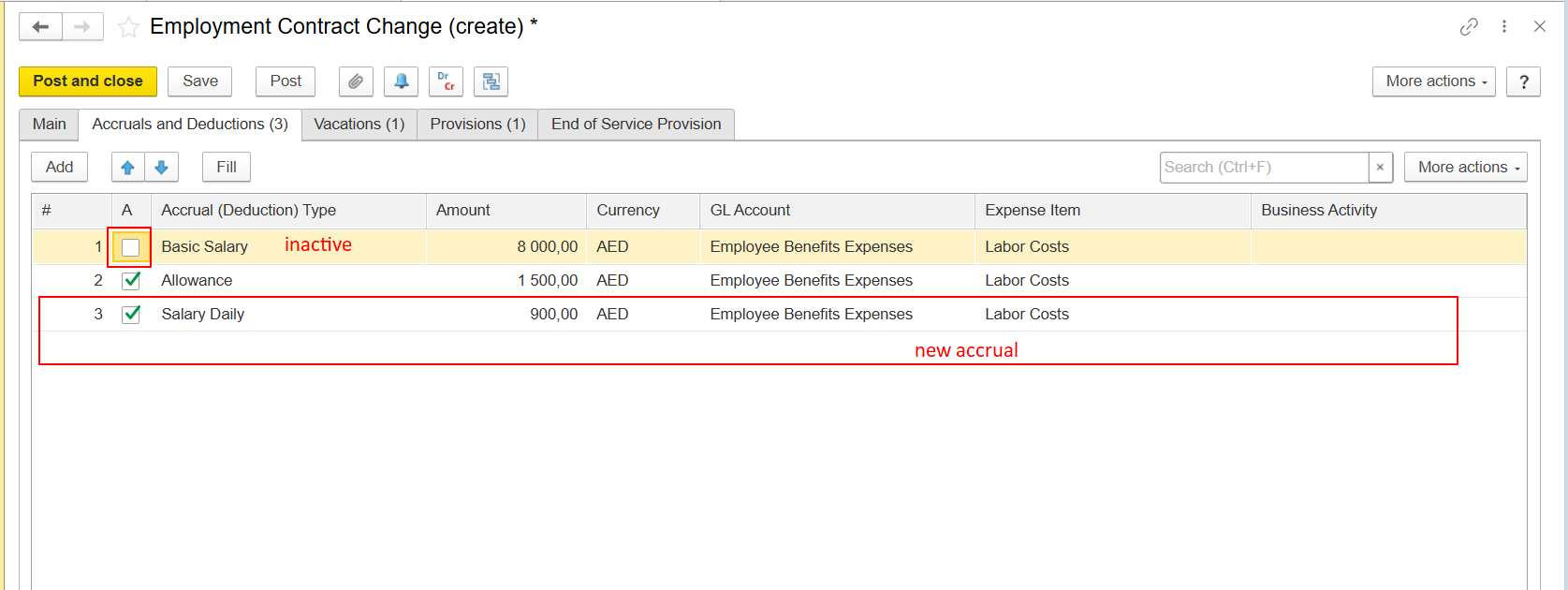
6. Complete and post the document.
After the document is posted, the system can correctly reflect the change in the employee's compensation structure from the document date:
Before the document date, the employee's Basic Salary of 8,000 AED remains applicable.
From the document date onward, the Daily Salary accrual applies, and the Basic Salary accrual is discontinued.
Important: Do not delete the existing Basic Salary row when replacing it with Daily Salary. Clear the Active checkbox instead. This preserves the information required to record the end of the previous accrual and the start of the new one correctly.
...
To update vacation-related data or provisions without changing the employee's employment terms, leave the employment-related attributes in the New column unchanged and make the required changes on the relevant tab:
Vacations — to update vacation-related data.
Provisions — to update provisions.
When a provision needs to be discontinued, the same principle applies: keep the existing provision row and clear the Active checkbox instead of deleting the row. This preserves the existing provision data while indicating that it should no longer apply.
...
When working with Employment Contract Change:
Select the employee first and allow the system to populate the existing data.
Do not edit the attributes in the Current column on the Main tab.
Update the attributes in the New column only when the employee's employment terms need to change.
When replacing an existing accrual with a new one, add a new row for the new accrual and clear the Active checkbox for the accrual that should no longer apply.
When discontinuing a provision, keep its row and clear the Active checkbox.
Do not delete existing accrual or provision rows when they need to be discontinued as part of an employment change.
Review the relevant tabs before posting the document to ensure that all required changes have been entered correctly.
Thank you for being FirstBIT customer!