...
If the source of the discrepancy is not identified, continue with the following checks.
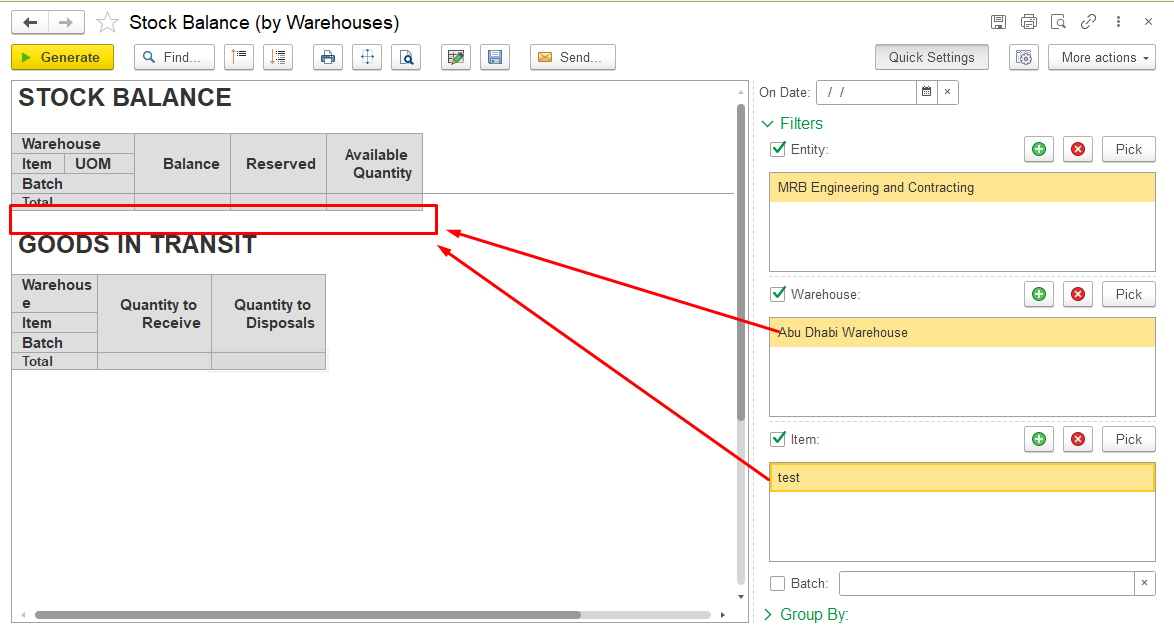
2. Check inventory dimensions
...
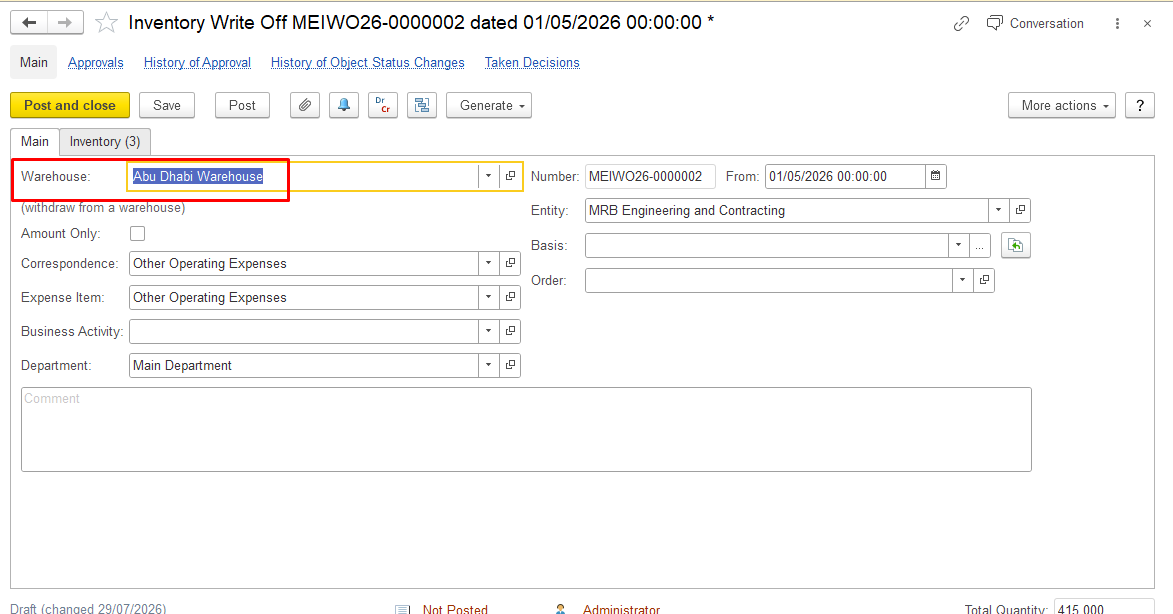
Check the following dimensions:
- warehouse;
- entity;item characteristic;
- batch;serial number;
3. Check Control Balances setting
Verify that Control Balances is enabled.
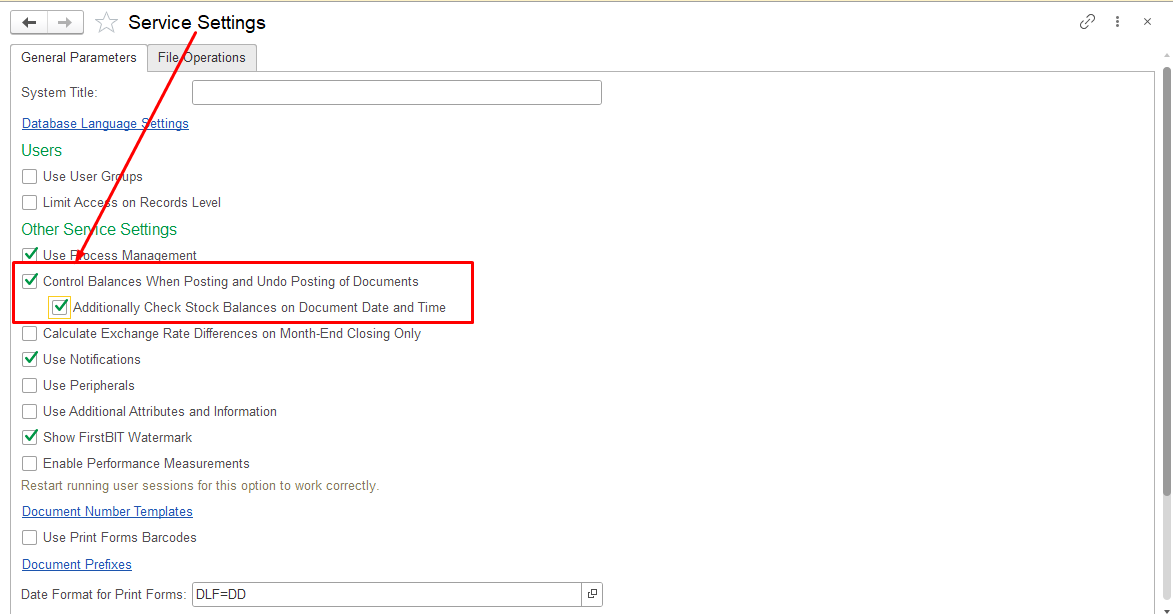
When Control Balances is enabled, the system prevents posting documents if there is insufficient inventory balance.
If Control Balances is disabled, documents can be posted even when sufficient inventory quantity is not available. This may lead to inventory discrepancies that can affect further operations, including Inventory Write-Off.
If the item balance exists under different dimensions, it may not be available for the current Inventory Write-Off operation or may be incorrectly included when using Fill by balance.
Correct the document dimensions or inventory movements and run Fill by balance again.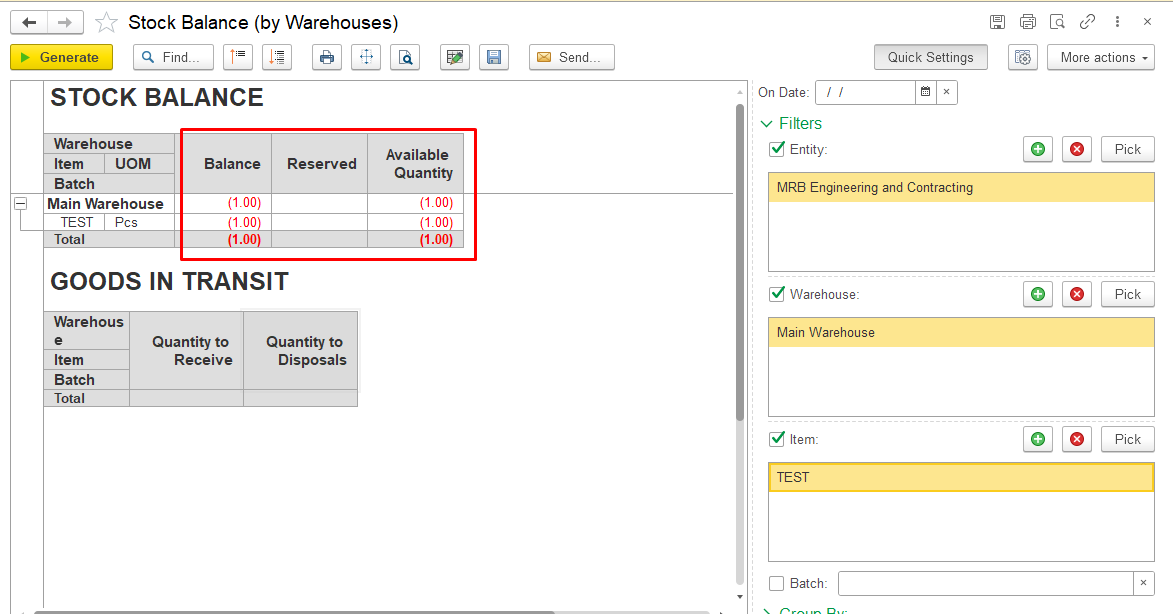
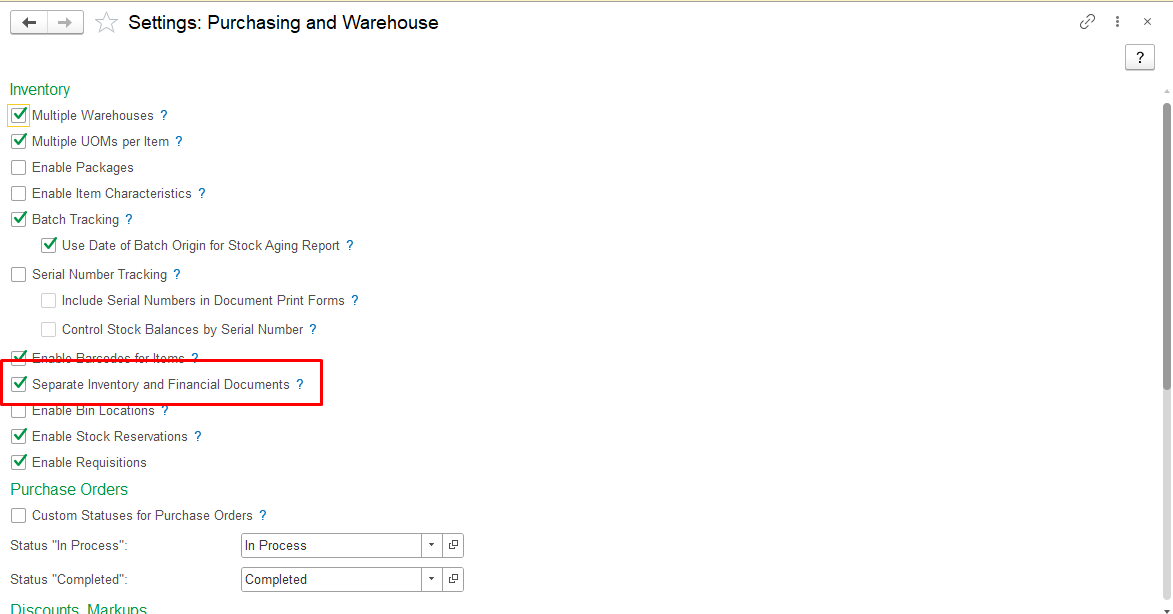
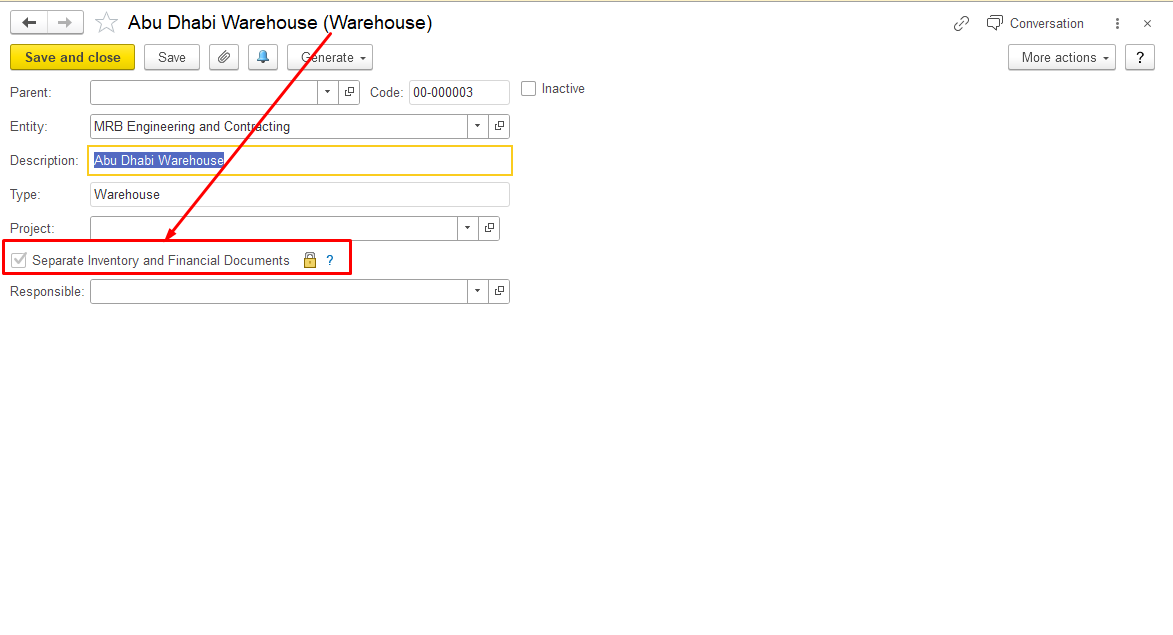
4. Check Separate Inventory and Financial Documents setting
Verify whether the Separate Inventory and Financial Documents option is enabled.
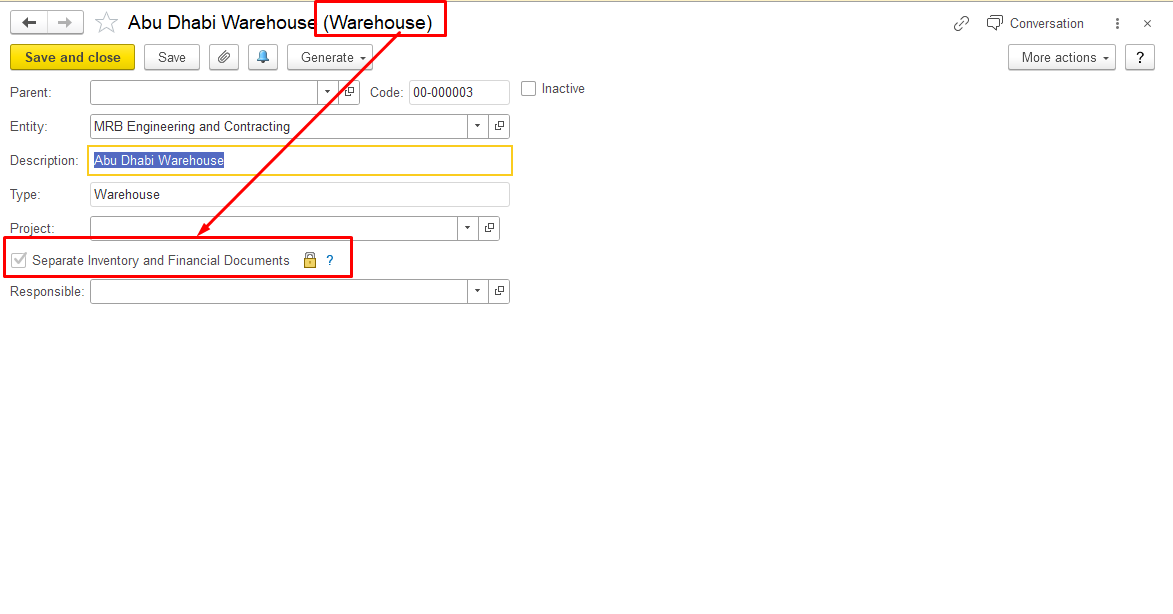
If the option is disabled:
Inventory Write-Off updates both financial and warehouse inventory registers. When the document is posted, the warehouse quantity is reduced.
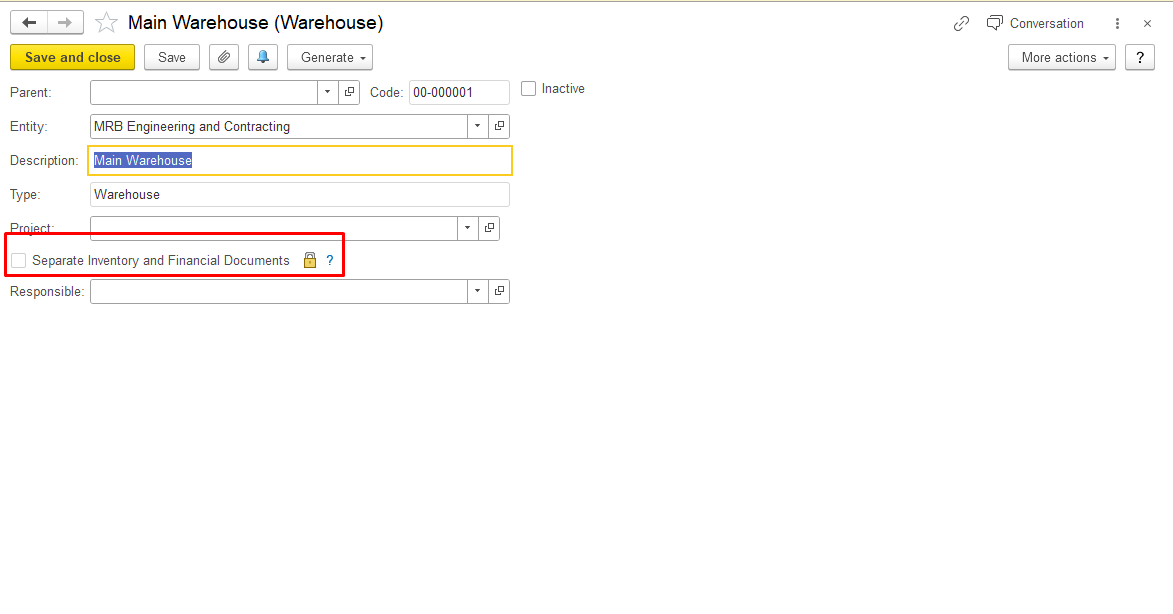
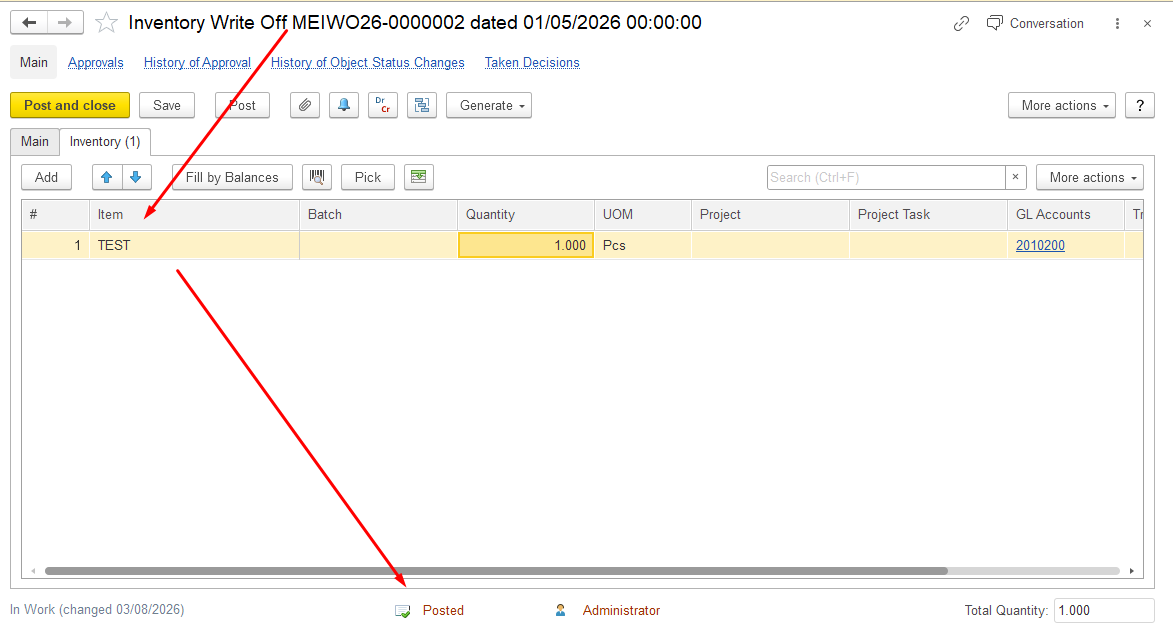
If the option is enabled:
...
Inventory Write-Off updates financial registers but does not reduce warehouse stock.
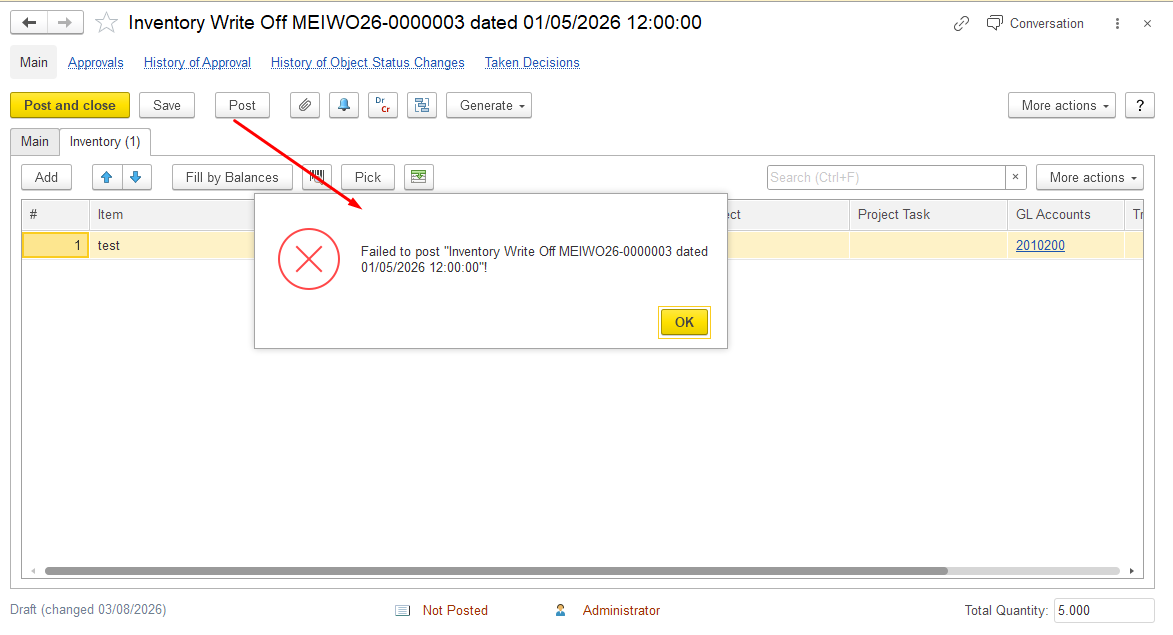
For sales transactions, verify that the required warehouse document (Material Dispatch Note) was created and posted.
...
Create and post the required Material Dispatch Note to update the warehouse stock.
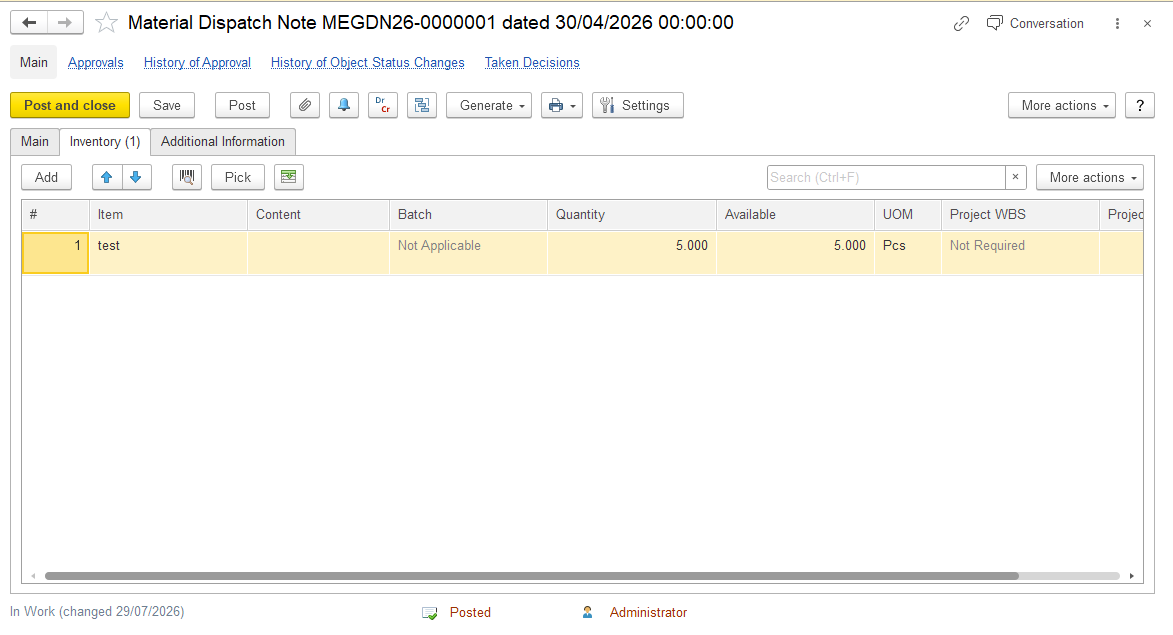
5. Check financial inventory availability
If the warehouse report shows available quantity, but Inventory Write-Off cannot be completed due to insufficient inventory availability, check the financial inventory register.
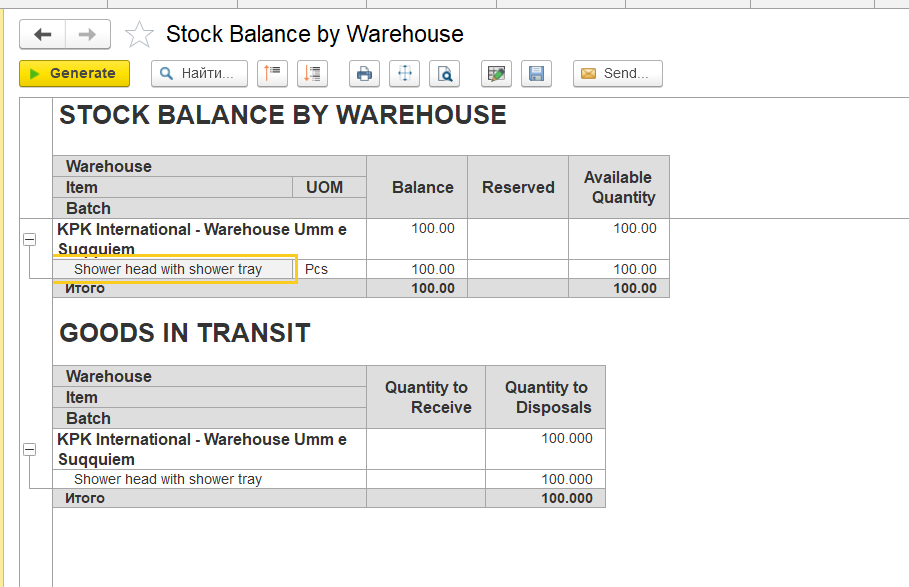
The Stock Balance (by Warehouse) report shows warehouse quantities based on the Inventory on hand accumulation register (warehouse quantity register).
...
After the required warehouse document is created and posted, the outstanding quantity should be cleared.
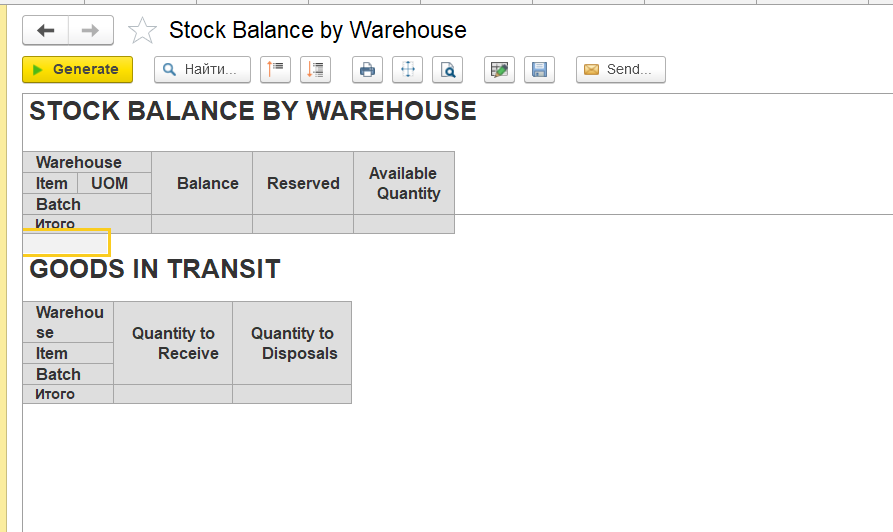
Summary
- Stock Balance (by Warehouse) shows warehouse inventory quantities.
- Inventory Write-Off uses inventory availability from financial inventory registers.
- Differences between warehouse and financial registers may cause unexpected results during write-off operations.
Check inventory dimensions, settings, document processing, inventory registers, and other possible causes to identify the source of the discrepancy
For example, a company purchased 5 units of an item, and later all 5 units were fully sold. As a result, the actual stock balance of this item is zero.
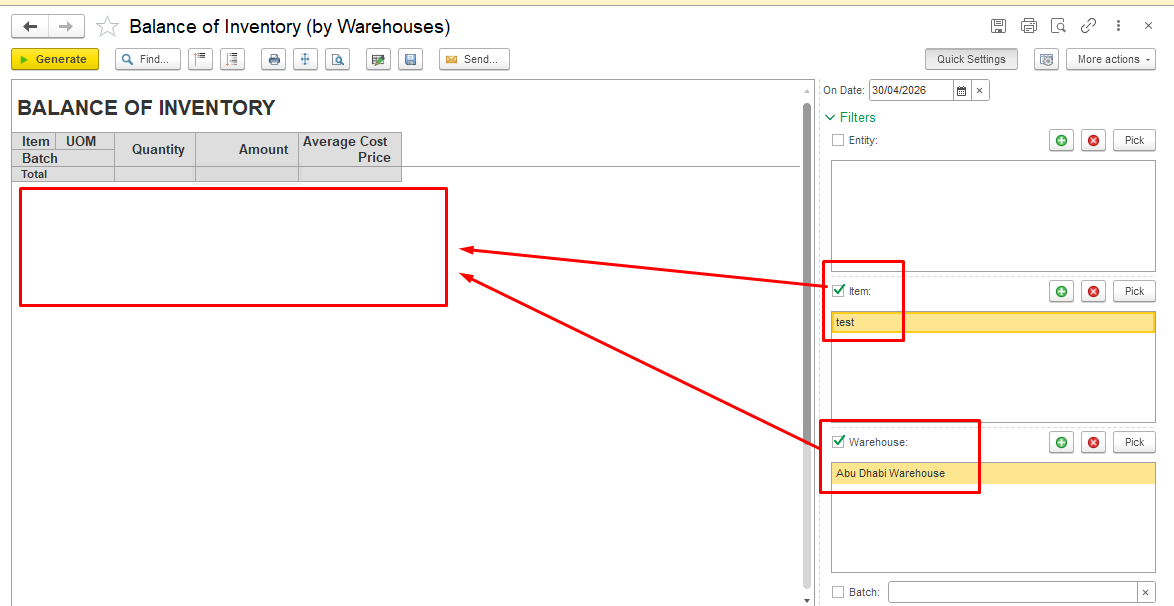
However, when creating an Inventory Write-Off document to write off other materials, this item is still automatically pulled into the document lines when using the Fill by balance option, even though there is no physical stock available.
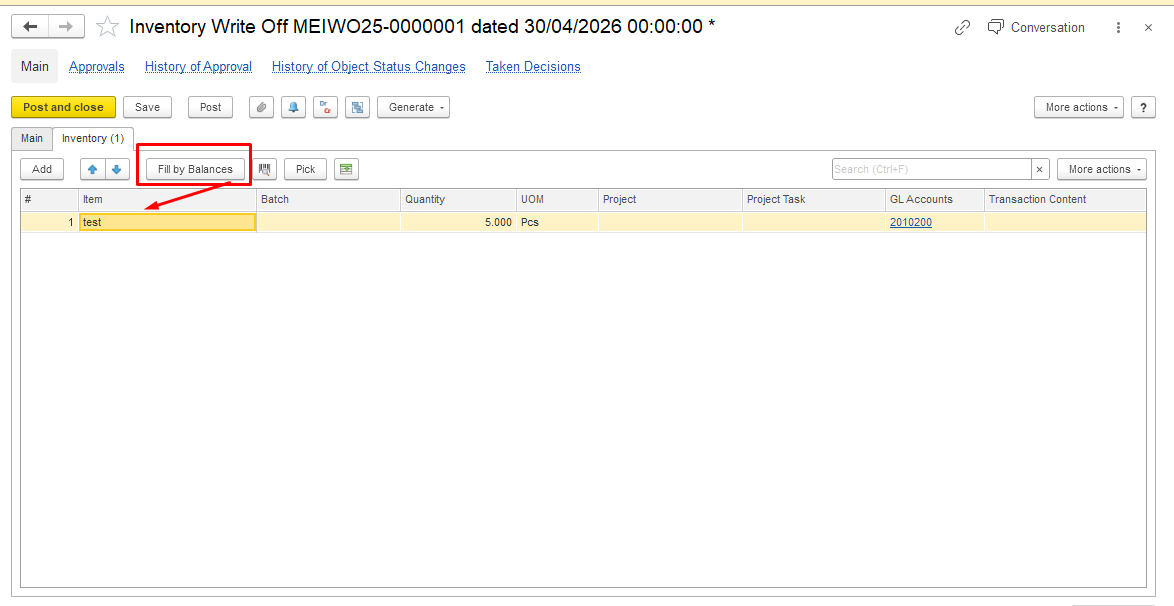
This behavior is related to warehouse settings. Please check if the Separate Inventory and Financial Documents option is enabled.
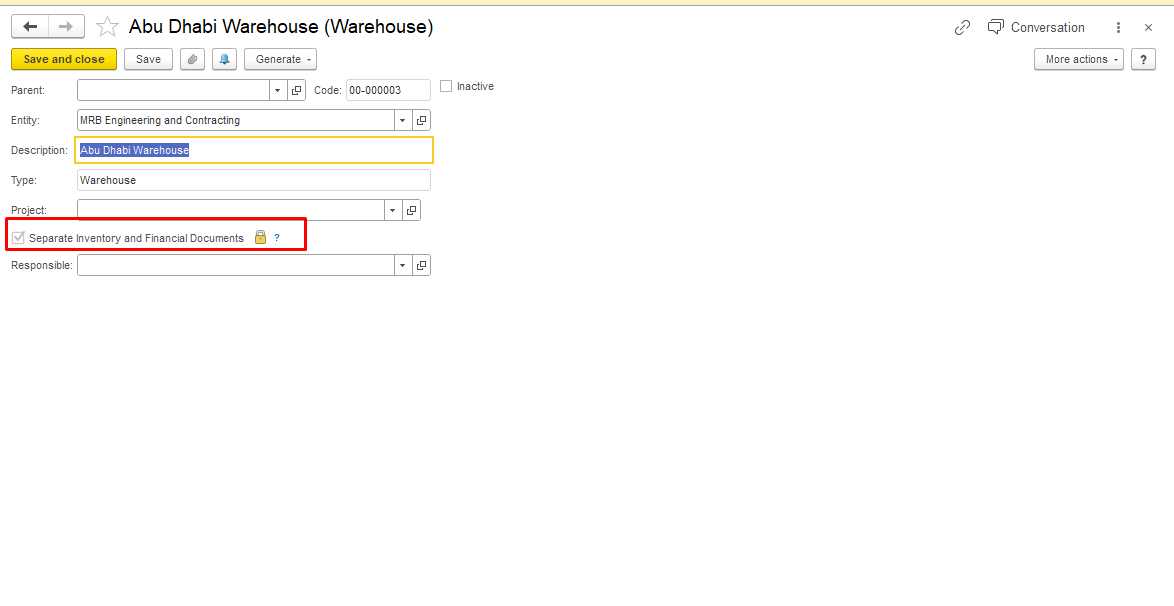
When the Separate Inventory and Financial Documents option is enabled, the system does not write off items from the warehouse (stock) registers.
...
Navigate Warehouse - Reports - Stock Balance (by Warehouse)
Top Section (Stock Balance)
...
And if Material Dispatch Note will be correctly generated, report will not show any outstanding balances:
.
Thanks for being a Firstbit Customer!
...