...
Scope
This article applies to all standard FirstBIT Software configurations.
It explains how the Description field displayed in standard print forms is generated, why it may differ from the selected Item, and how changes are propagated to derived documents.
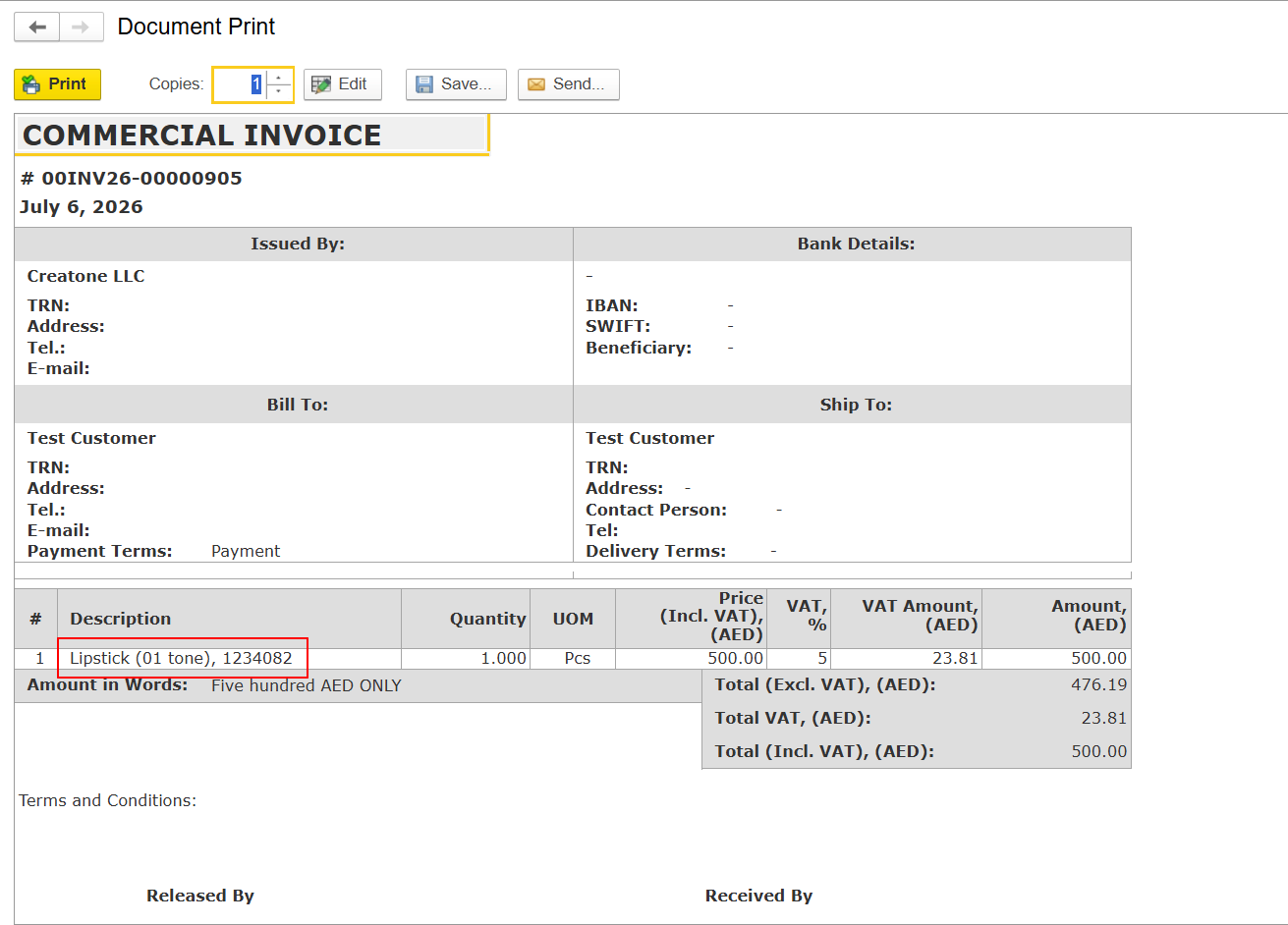
Overview
In standard print forms (such as Invoice, Invoice Received, Credit Note, Tax Invoice, Tax Credit Note, and
...
other standard documents), the Description field is not populated directly from the
...
Item field.
Instead, the
...
print form displays the value stored in the Content field of the document line.
The standard workflow is shown below.
User selects an Item
        │
        ▼
Full Description + SKU
from the Item master
        │
        ▼
Content field
(Document Line)
        │
        ▼
Description displayed
in the Standard Print Form
Why Does FirstBIT Use the Content Field?
Each field has a different purpose within the system.
| Field | Purpose |
|---|---|
| Item | Identifies the selected product or service. |
| Full Description | Stores the default description of the Item in the Item master. |
| Content | Stores the text that should appear in the document line and in the standard print form. Default value = Full Description+ SKU from Items master data |
| Description (Print Form) | Displays the current value stored in the Content field. |
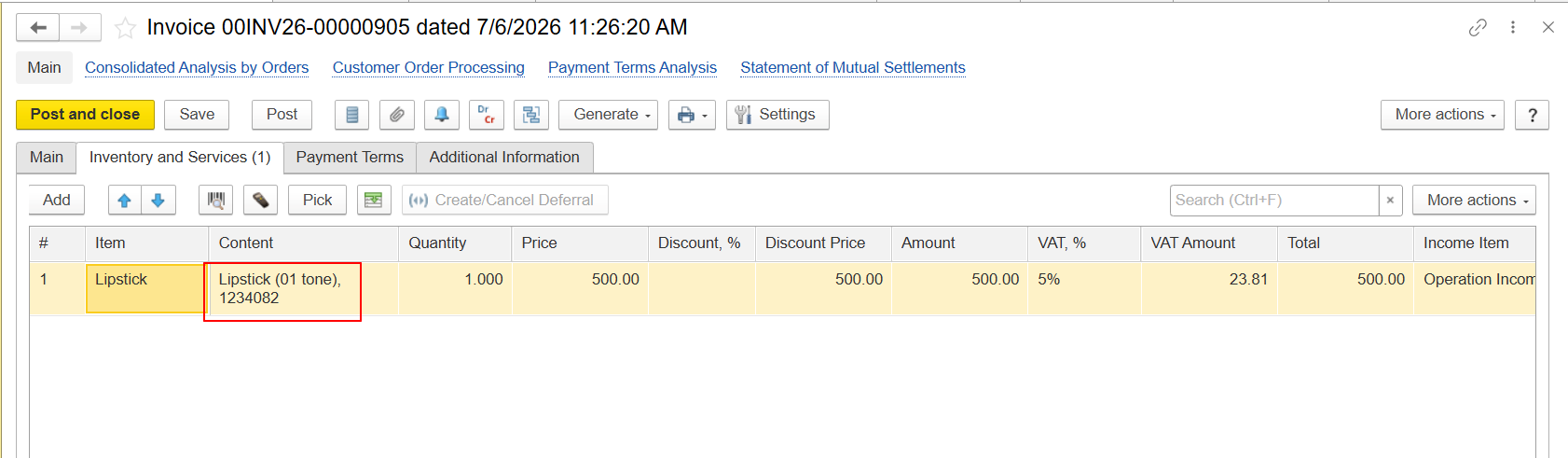
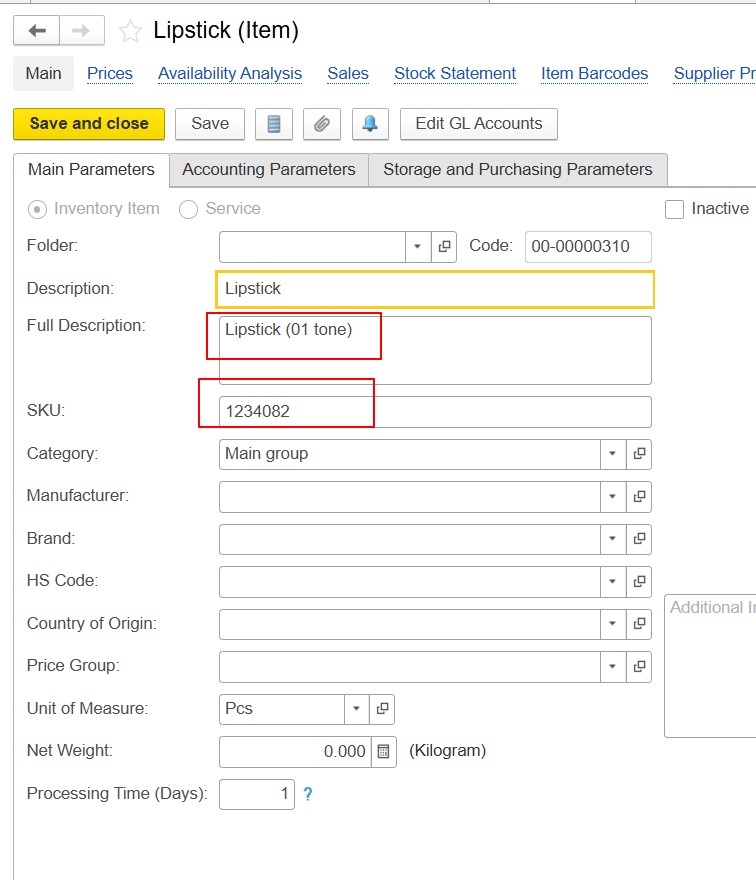
This design provides greater flexibility when preparing documents.
For example, users can:
- include additional information in printed documents;
- modify the description for a specific document without changing the Item master;
- preserve document-specific wording while continuing to use the same Item.
How the Content Field Is Populated
When an
...
Item is
...
selected in a document, the system automatically populates the Content field
...
using the following information from the
...
Item master:
- Full Description
- SKU
...
This value becomes the default text that will later appear in the standard print form.
If the document type supports editing, users can manually
...
change the Content field.
The standard print form always displays the current value stored in the Content field
...
.
Why the Description
...
May Be Blank
The standard print form reads the Description only from the Content field.
If the Content field is empty
...
, the Description
...
in the print form will also be
...
Please note that the value of the Item field does not affect the Description field displayed in the print form.
Derived Documents
...
empty.
This may occur, for example, when:
- the Content field was cleared manually;
- imported data did not populate the Content field;
- custom processing removed or replaced the value;
- the source document already contained an empty Content field.
Selecting an Item alone does not populate the Description in the print form if the Content field contains no value.
How Changes Propagate to Derived Documents
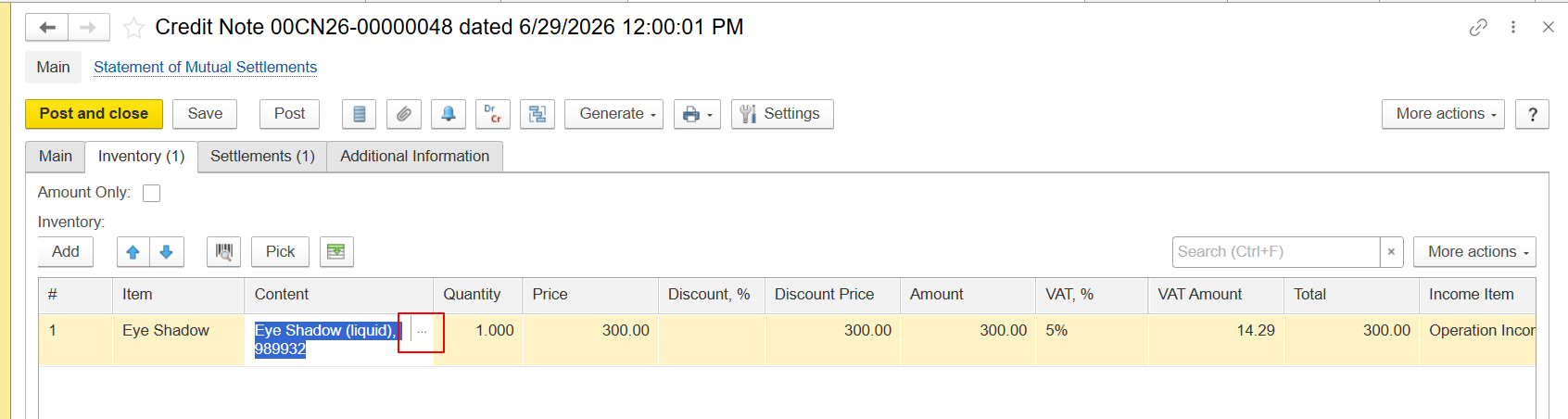
Some document types allow users to edit the Content field
...
manually.
For example,
...
users can edit the Content field
...
in a Credit Note.
...
Other document types are generated from source documents and inherit their values.
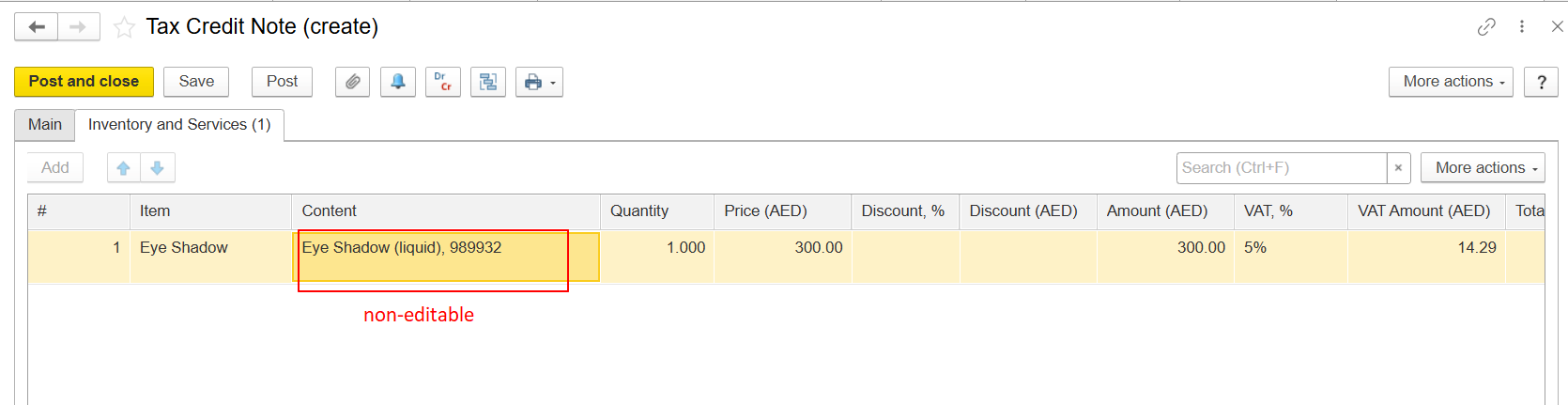
For example, a Tax Credit Note
...
inherits the Content field
...
...
from the related Credit Note.
The inheritance workflow is shown below.
Credit Note
(Content edited)
        │
        ▼
Tax Credit Note
(inherits Content)
        │
        ▼
Description
in Standard Print Form
Because the Content field is inherited, it cannot be edited directly in the Tax Credit Note.
If the Description displayed in the Tax Credit Note print form must be changed:
- Update the Content field in the source Credit Note.
- Refresh or recreate the related Tax Credit Note so that the updated values are inheritedit inherits the updated value.
Summary
The Description displayed in standard print forms is generated from the Content field of the document line, not from the selected Item.
The Content field is initially populated from the Item master using the Full Description and SKU, but it can be edited in document types that support manual changes.
Derived documents inherit the Content field from their source documents. Therefore, changes to the Description should always be made in the originating document before the derived document is recreated or refreshed.
Thank yuo for being FirstBIT Customer!