...
If parameters remain unchanged, leave the box checked and use the original PIN code.
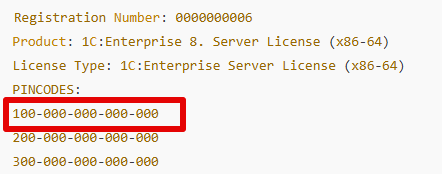
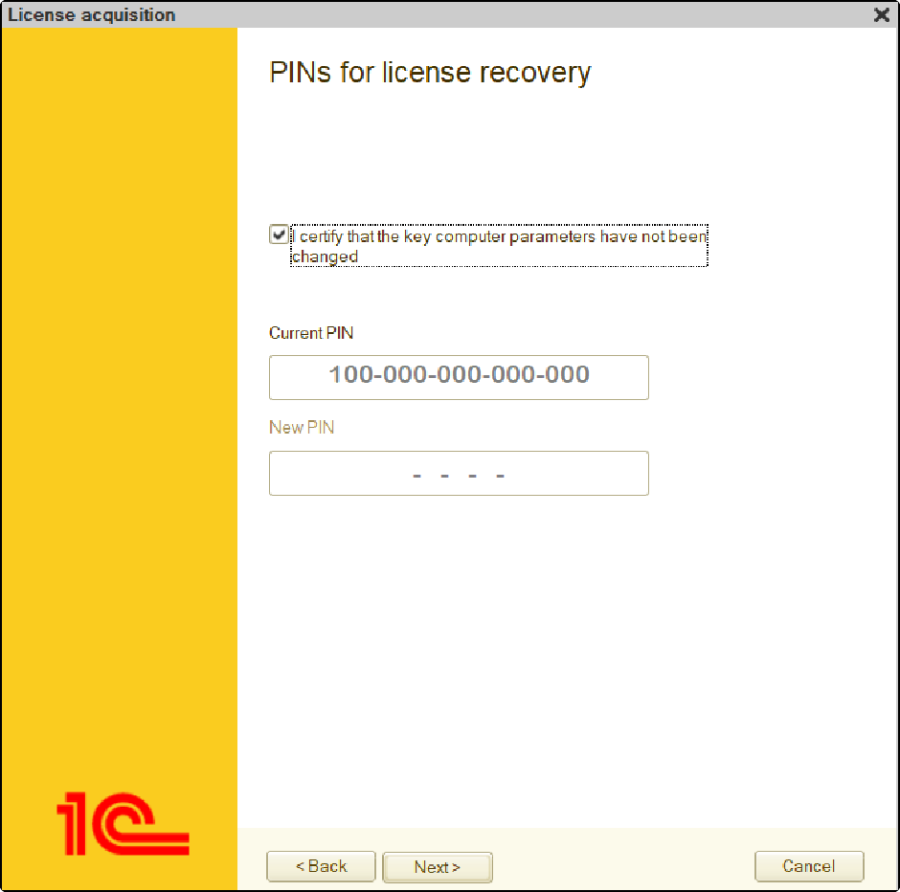
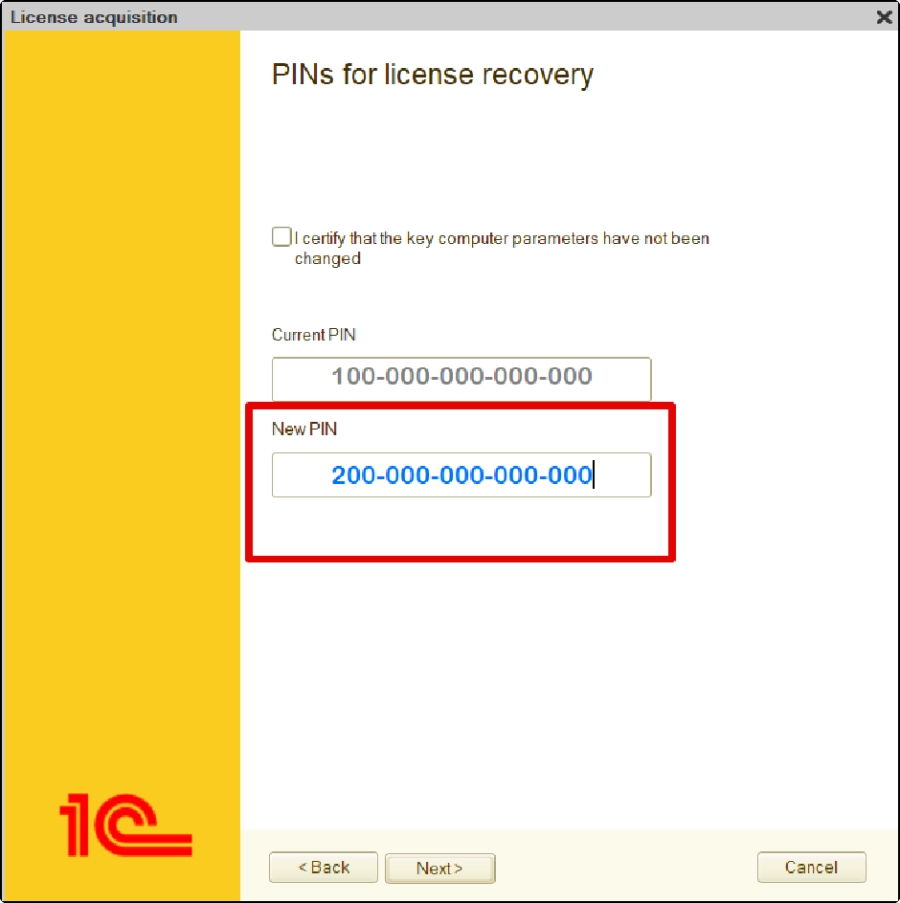
Uncheck "I am sure the key computer parameters have not been changed" and provide an unused PIN code, in the new PIN field.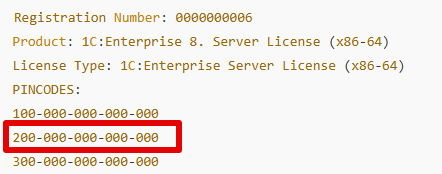
Enter the personal data verification details exactly as specified in the license file, ensuring all information matches perfectly.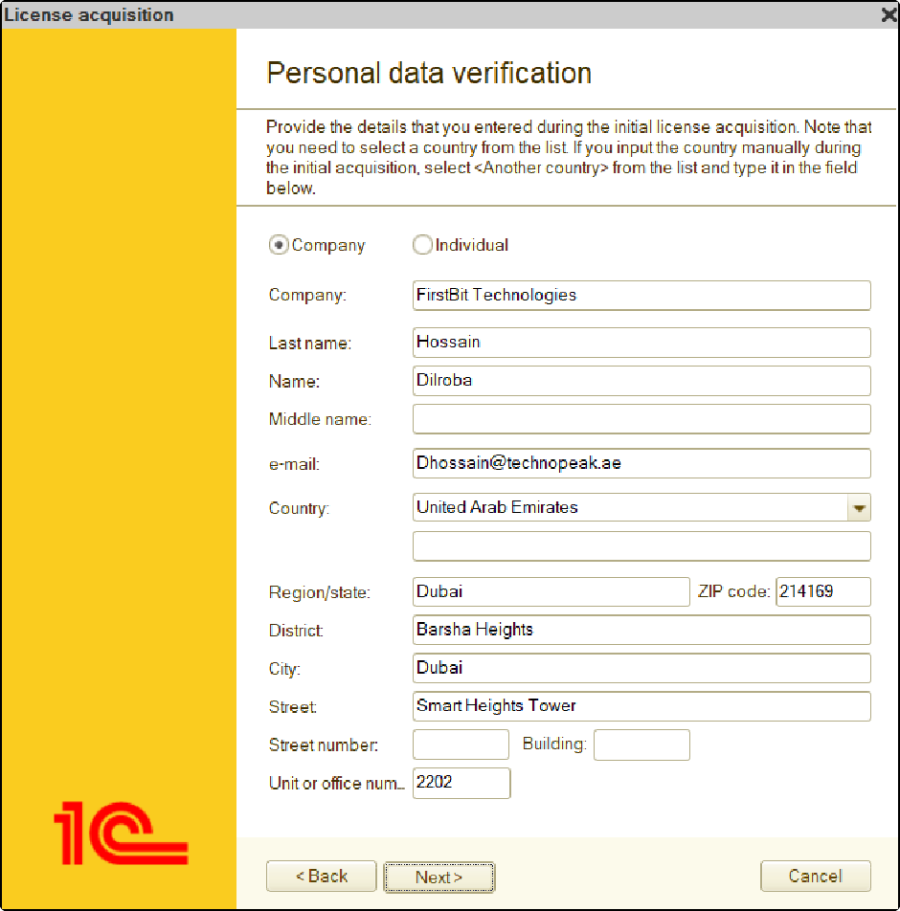
Then, click NEXT to complete the process. The license should be installed successfully. If you're unsure which PIN codes were unused, you can try the following combinations: First, try the 1st and 2nd PIN code combinations.
 If that doesn't work, try the 2nd and 3rd PIN code combination, keeping the 2nd PIN code as the current PIN and the 3rd PIN code as the new PIN.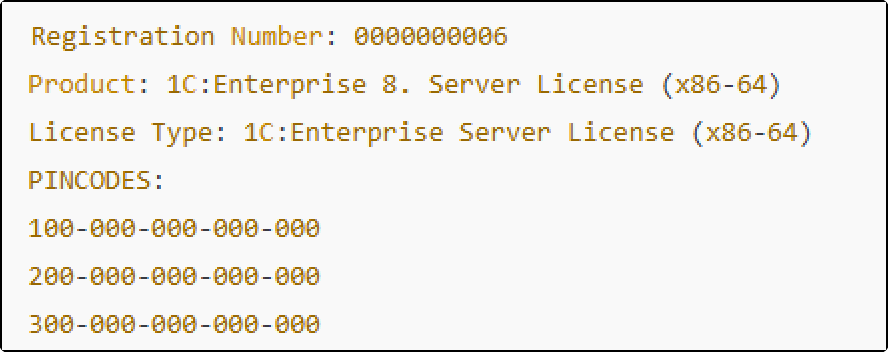
...
If all the necessary details are available but the license is still not activating, showing an error that "The license owner parameters do not match the previously entered ones" it is likely that the details entered do not align exactly with those in the initial LIC file.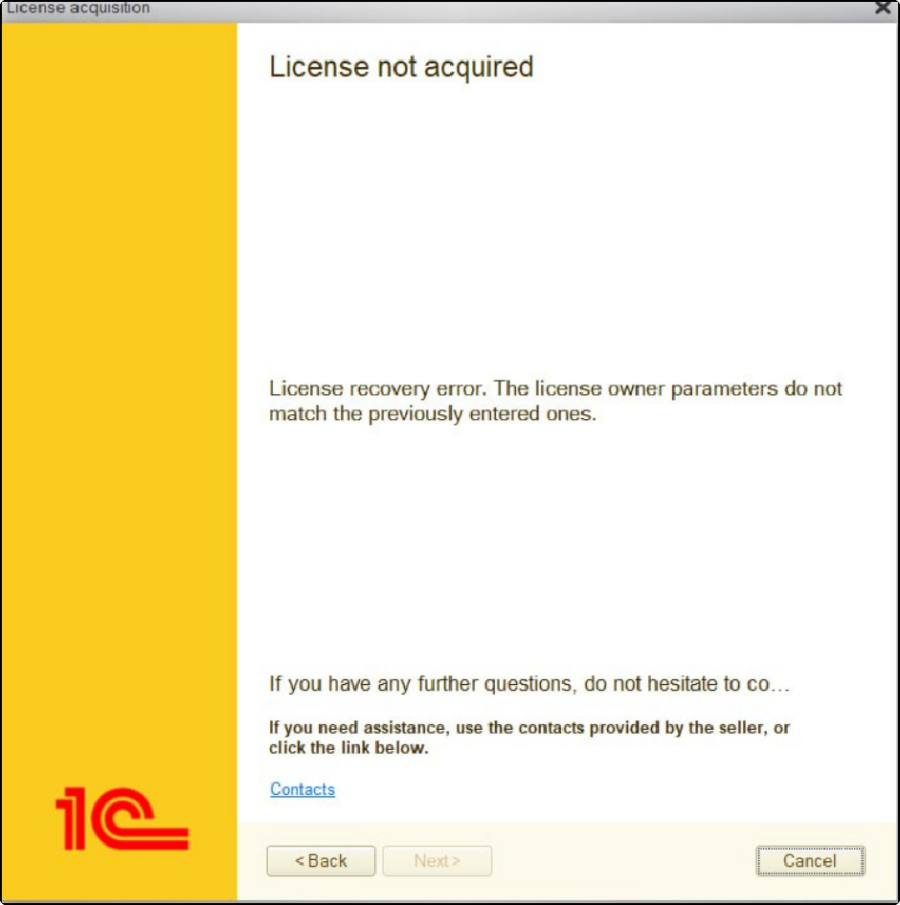 Remove Extra Spaces: Check for spaces before or after the data and remove them.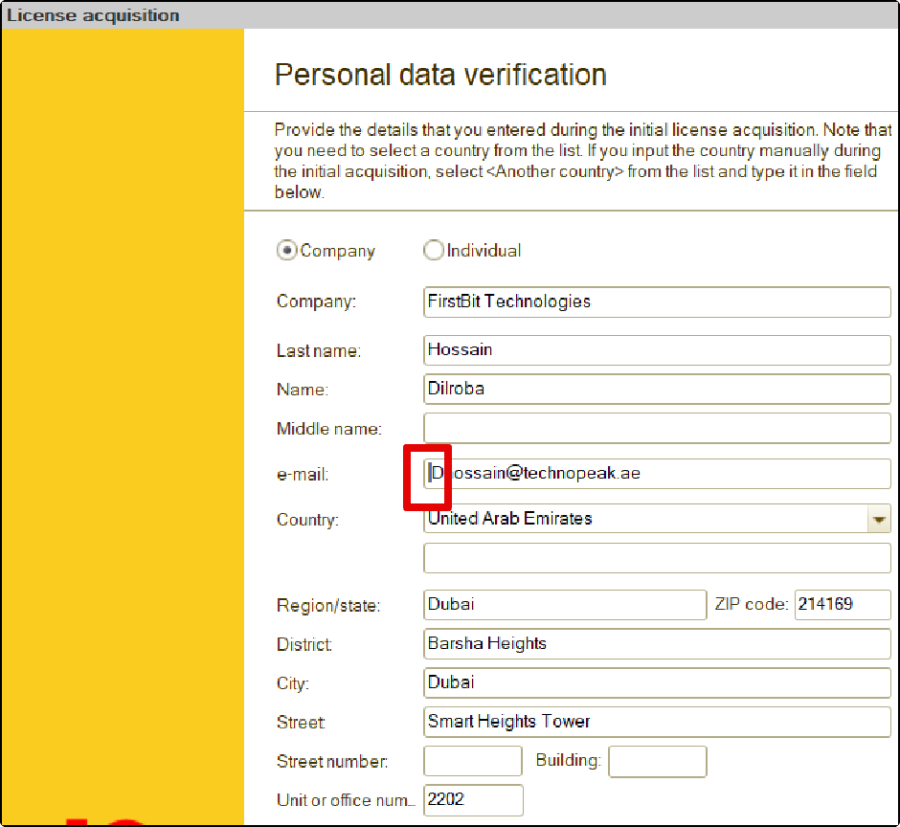
Check Data in Correct Fields: Make sure all information is entered in the right fields.
Match Country Name: Ensure the country name in the LIC data file and verification page is the same. If not, go to the country field, select another country, and then type "AE" (or the exact country format from the LIC file).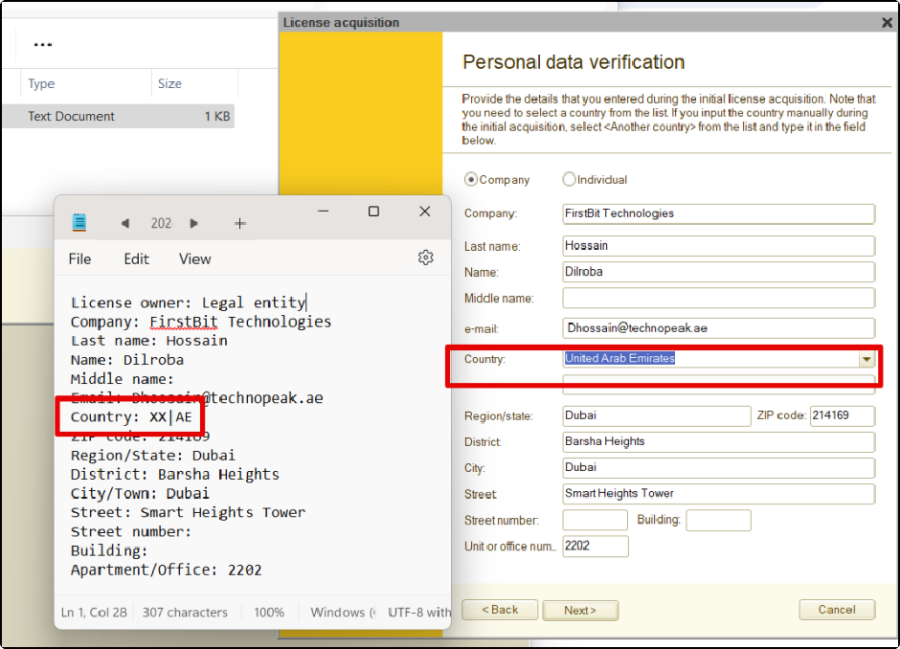
...