...
Follow the steps below to resolve it.
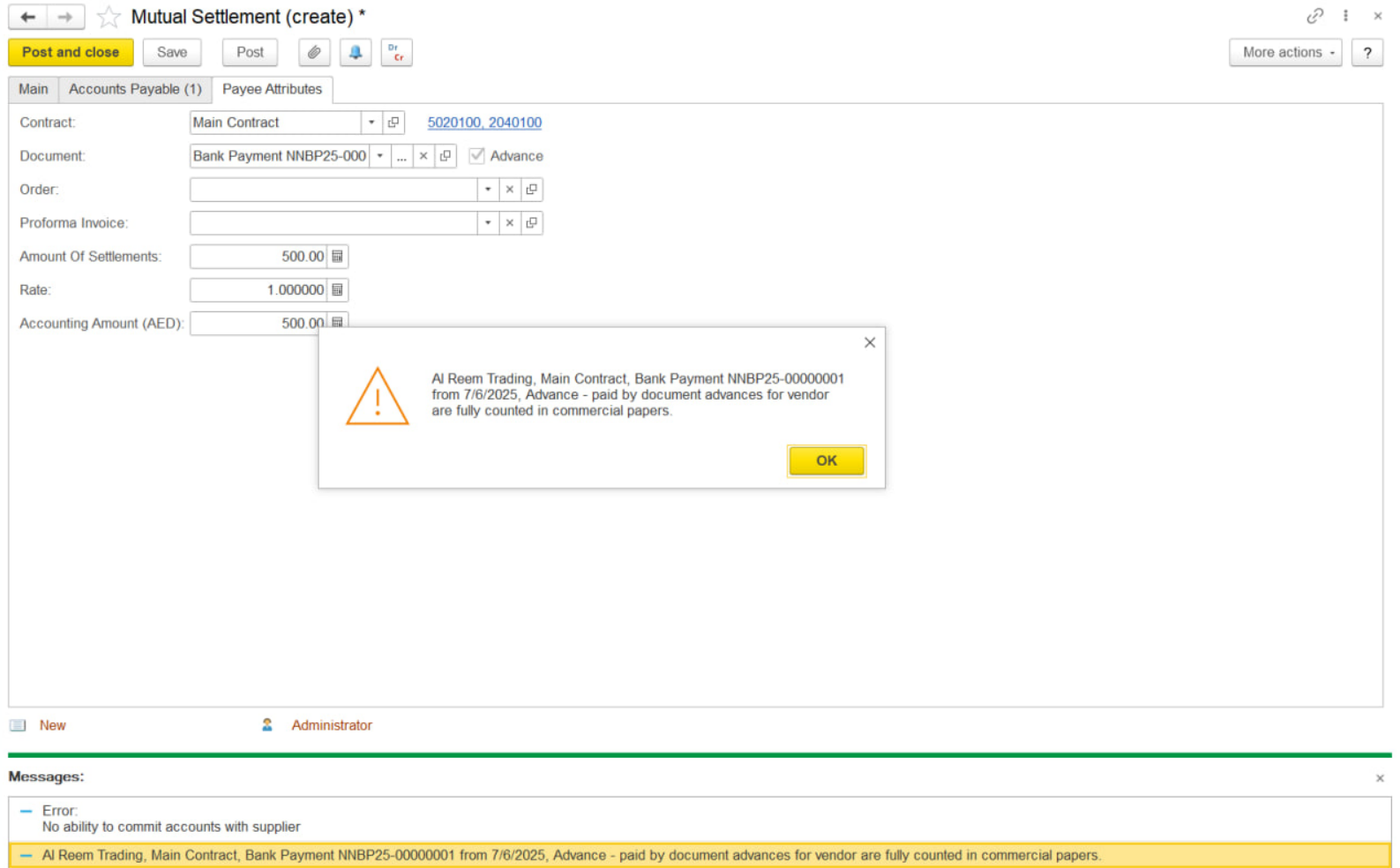
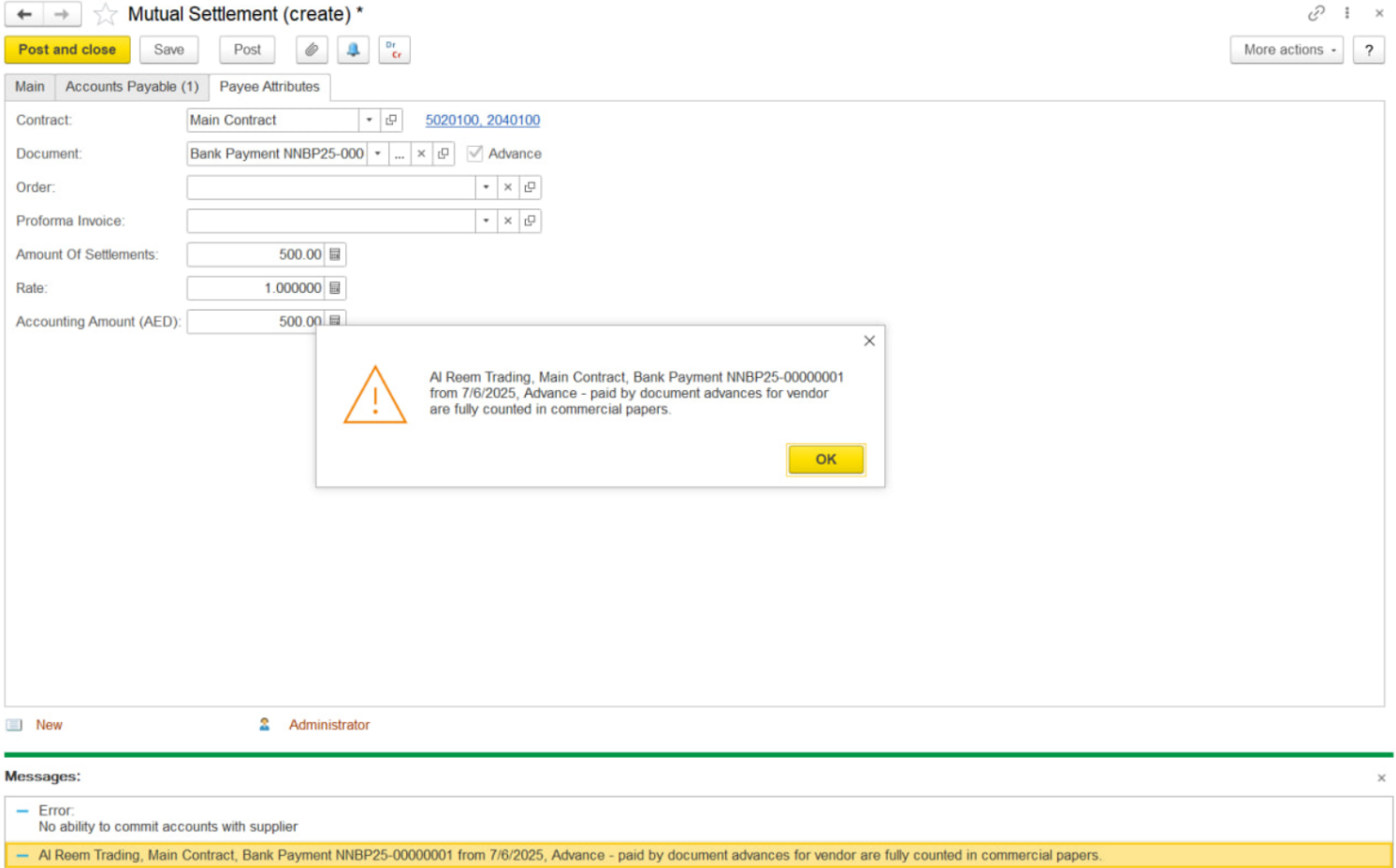
1. Check GL Account Match-
Click on the Document Linked from the Payee Attributes tab of the mutual settlement to open the original advance document.
Go to the Payment Details tab in the original document and note the GL account used.
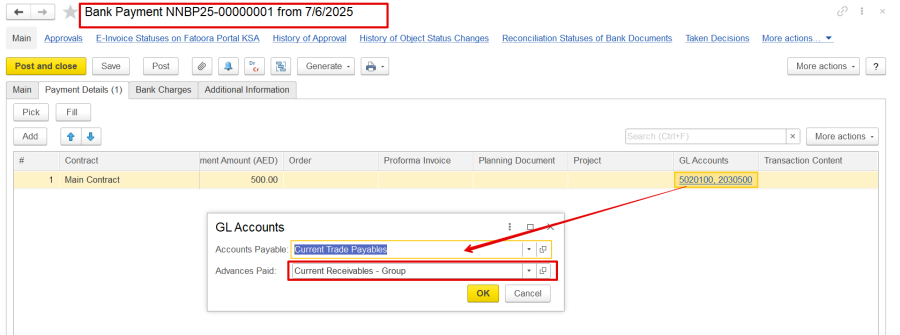
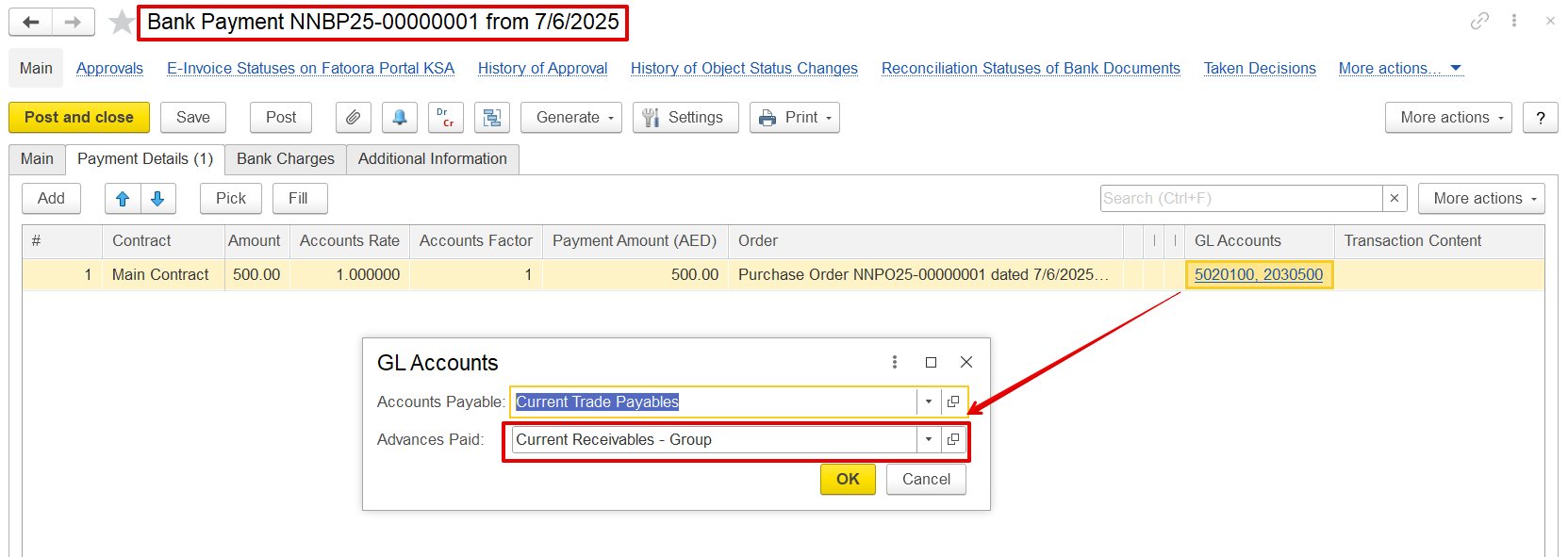
Return to the mutual settlement and make sure the same GL account is selected in the Payee Attributes tab. If it differs, manually update it to match the original.
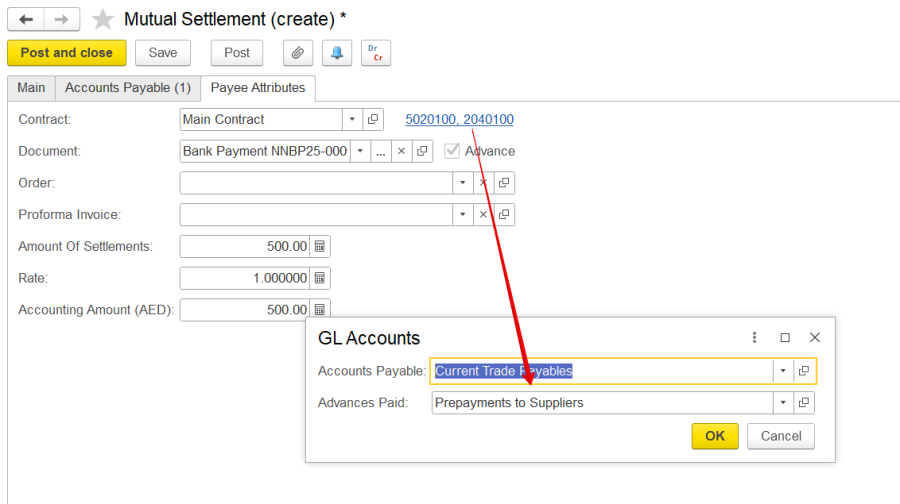
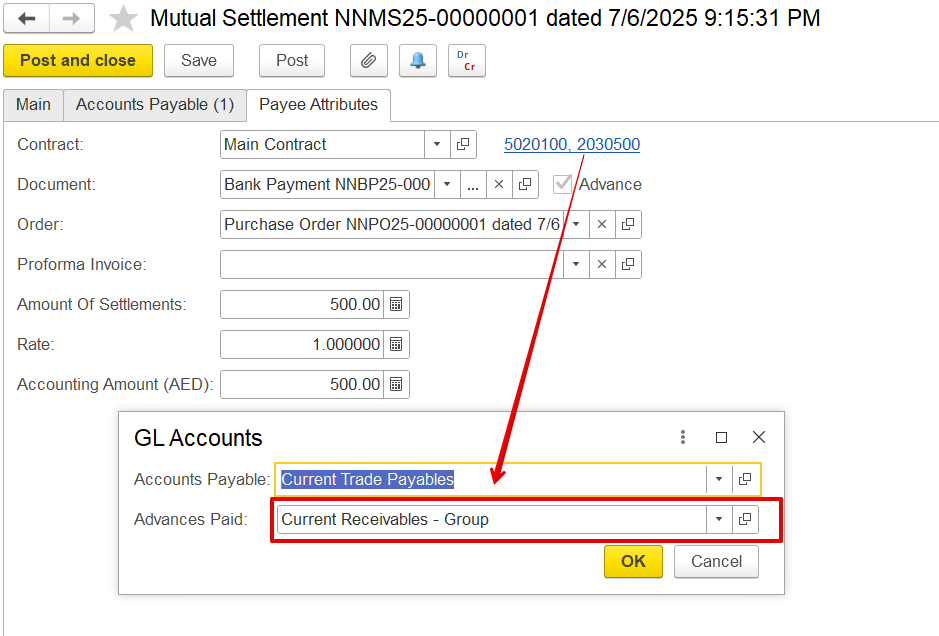
2. Check 'Order' Field-
In the original document's Payment Details tab, check if the Order field is filled.
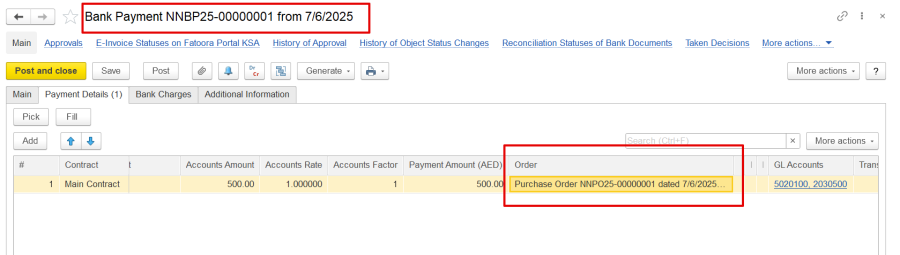
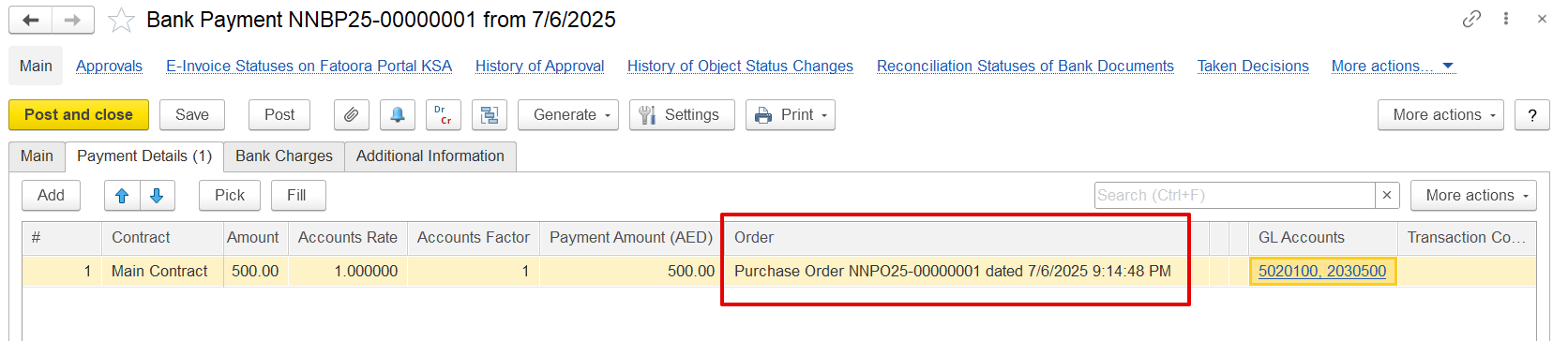
If yes, return to the mutual settlement → Payee Attributes tab.
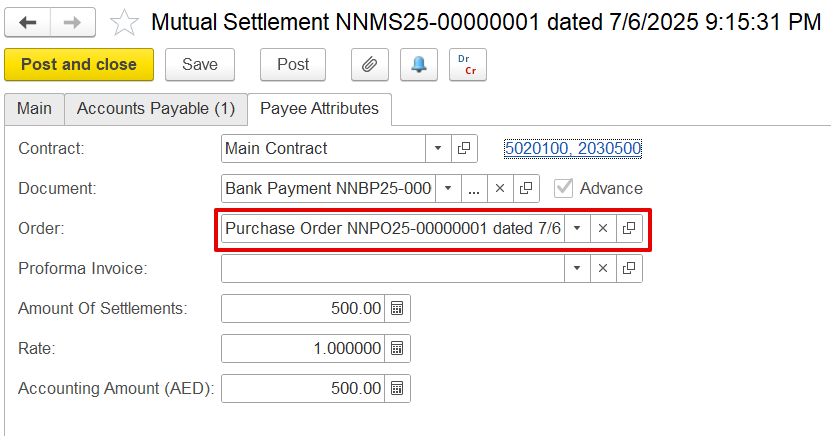
3. Check the Contract selected.
Ensure that the selected documents have the same contract, as only documents with matching contracts can be offset when performing mutual settlement transactions type for adjustments between payables and receivables of the same company. If picked it will automatically fill the required fields but if typed it is bettwe to verify to avoid the error.


When the Customer Debt Assignment or Supplier Debt Assignment transaction type is used to adjust payable balances with advances paid, or receivables with advances received, the process involves offsetting documents within the same company and under the same contract. This offset is performed between an invoice received document and a payment, or between an invoice and a receipt.
In Accounts Receivable / Accounts Payable, the documents can be selected using the pick option so all details get picked exactly form the document; however, in the Payee attributes, the document must be selected manually. Ensure that the contract chosen in the Payee attributes matches the contract linked to the selected document and is also the same contract used in the Accounts Payable or Accounts Receivable tab to prevent errors.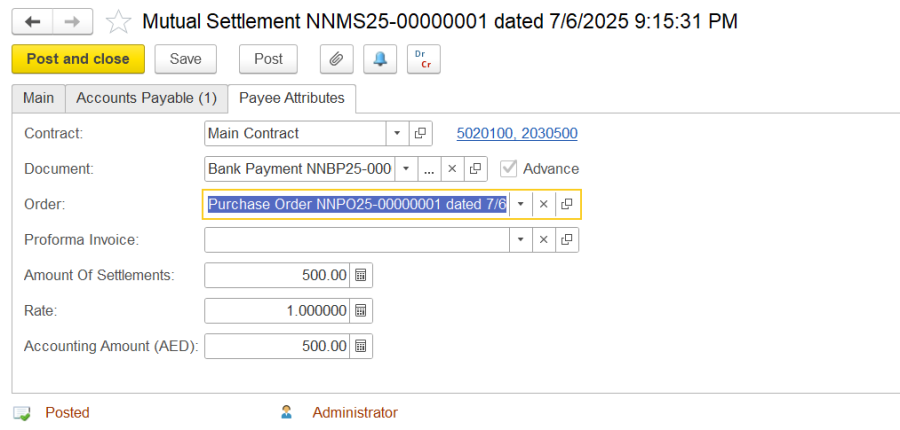
For example-
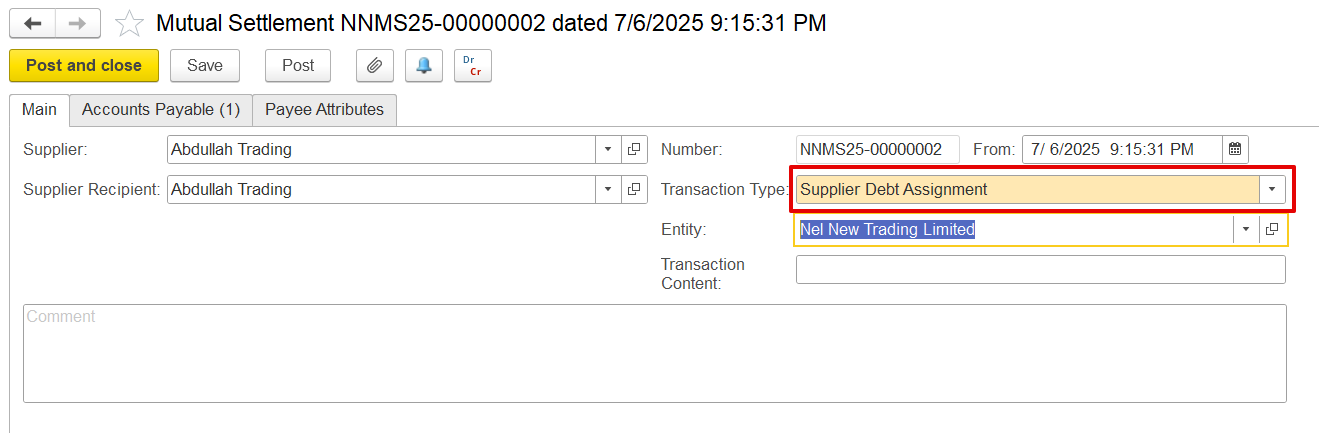

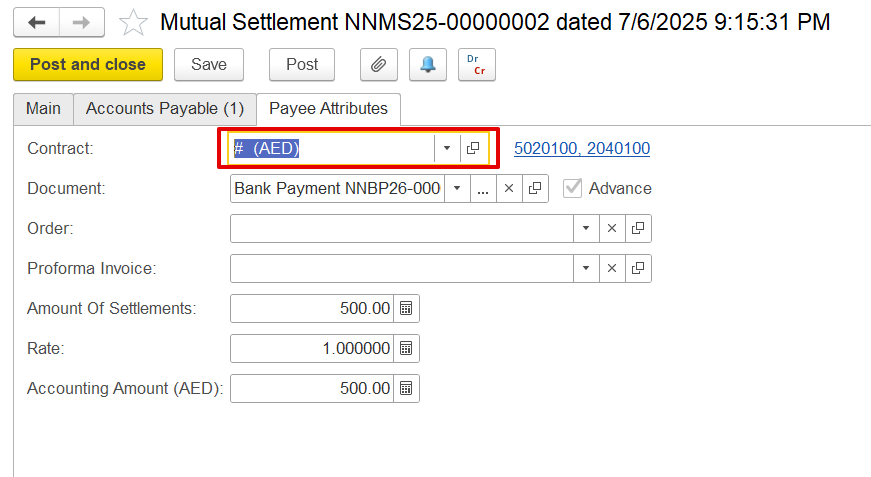
The above steps should resolve the error and allow the posting of the document.
...