...
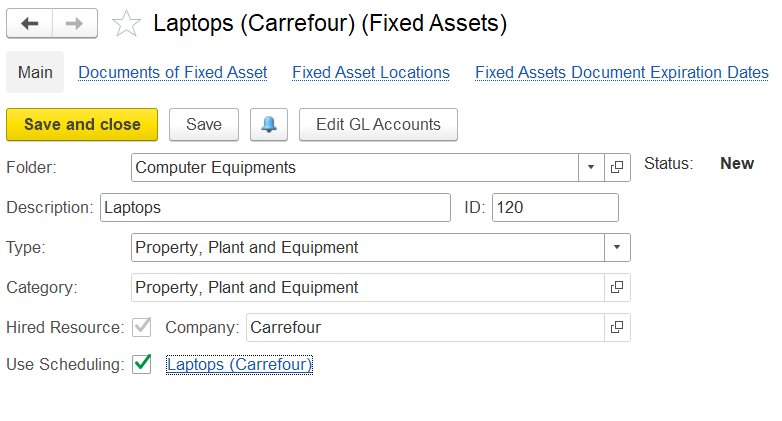
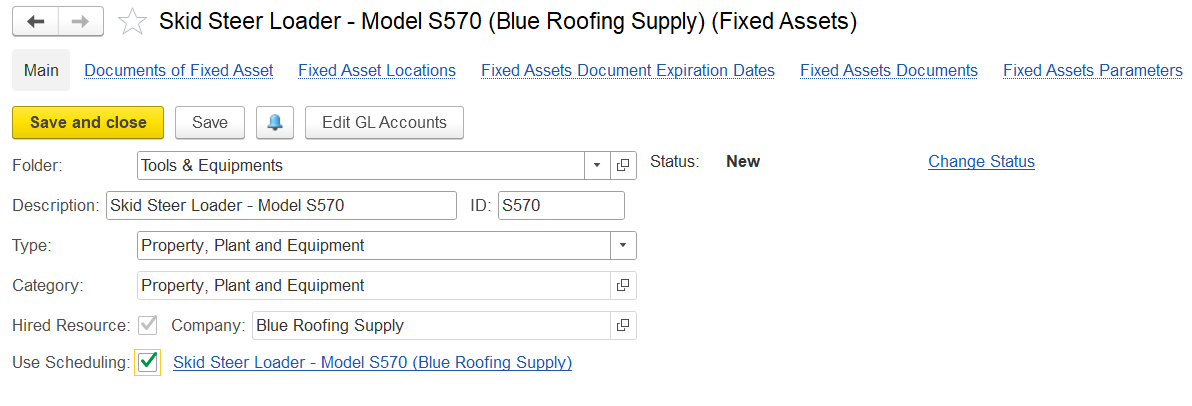
- Folder - Folder to group the asset.
- Status - Indicates the asset’s stage, e.g., New, Active, etc.
- Description - Short label or name of the asset.
- ID - Unique system-generated identifier.
- Type - Accounting classification.
- Category - Sub-classification under the asset type.
- Hired Resource-Company - Shows which entity owns the asset.
- Use Scheduling - Indicates that a fixed asset is linked to usage planning. When enabled, the asset becomes a schedulable resource with a calendar, allowing users to reserve and manage its availability.
Resource planning document
...
Project Task - Name of the task assigned to the resource.
Project WBS - Work Breakdown Structure of the project
Position - Role or job title of the resource.
Item - Type of resource.
UOM - Unit of Measure
Requested -
- Number of resources - Number of resources required per shift.
- Shifts - Total number of planned shifts.
- Start Date - Scheduled start date for resource deployment.
- End Date - Scheduled end date for resource deployment.
- Quantity - Total number of resources, calculated as Number of Resources × Shifts.
- Quantity (default UOM) - Total quantity converted into the system’s default unit of measure. For example, if one shift equals 8 hours, the calculation would be-Number of Resources × Number of Shifts × 8 hours per shift.
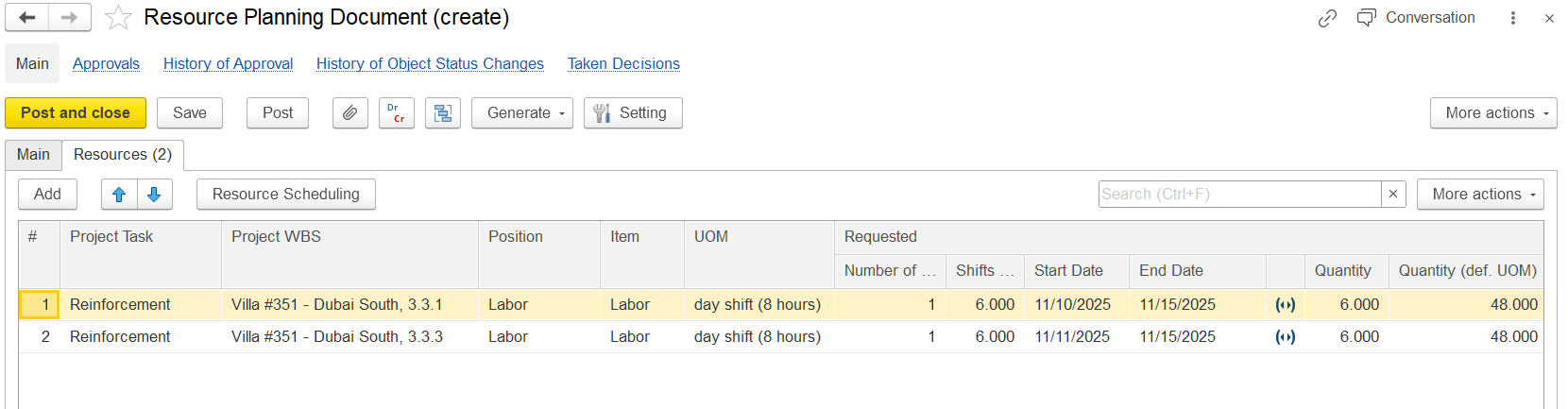
- Scheduled -
- Quantity -
...
- The number of resource units scheduled for that specific shift or date. This value is populated according to the resource scheduling document.
- Quantity (default UOM) -
...
- Converts the amount scheduled
...
- into the system’s default unit of measure
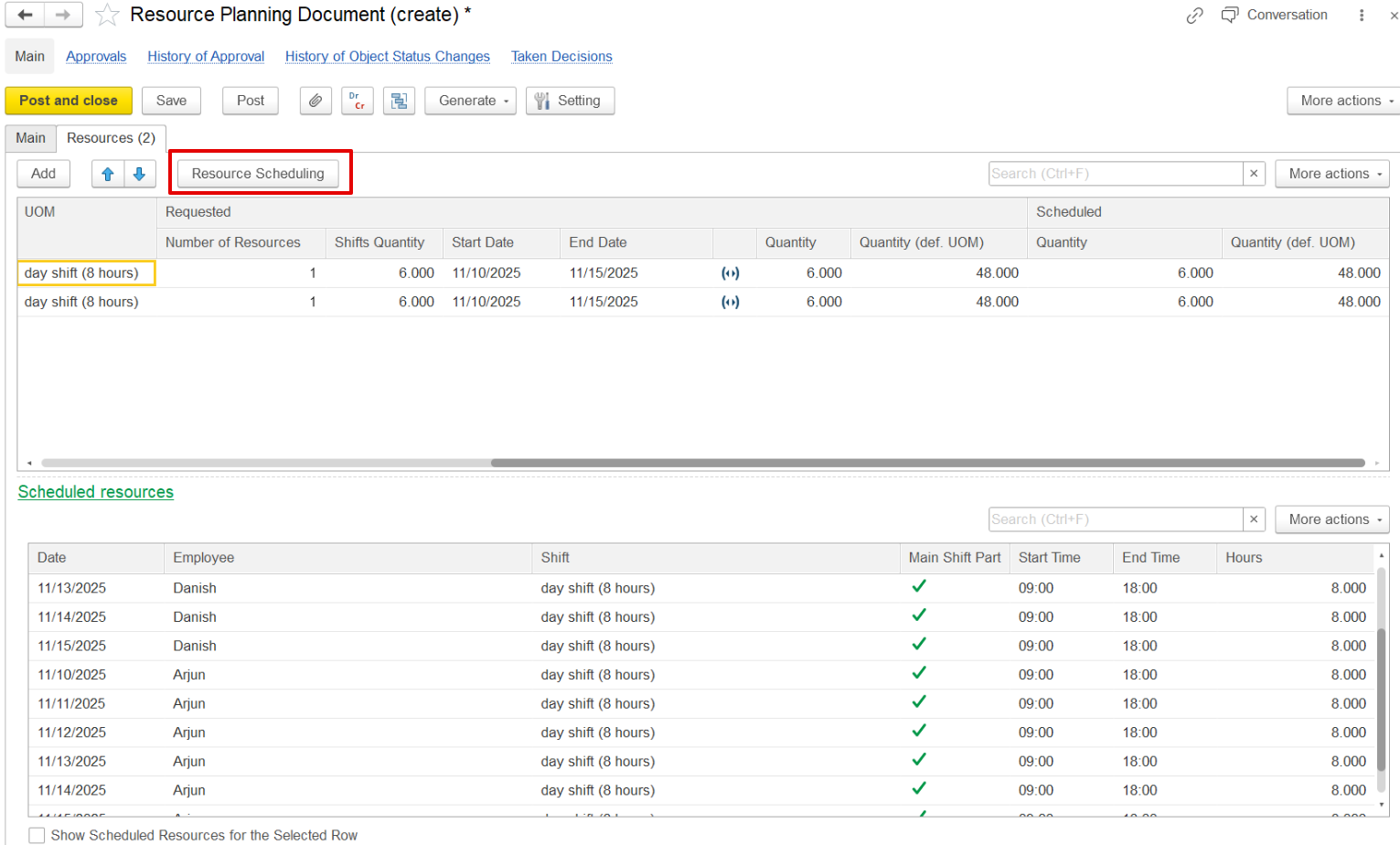
Resource Scheduling
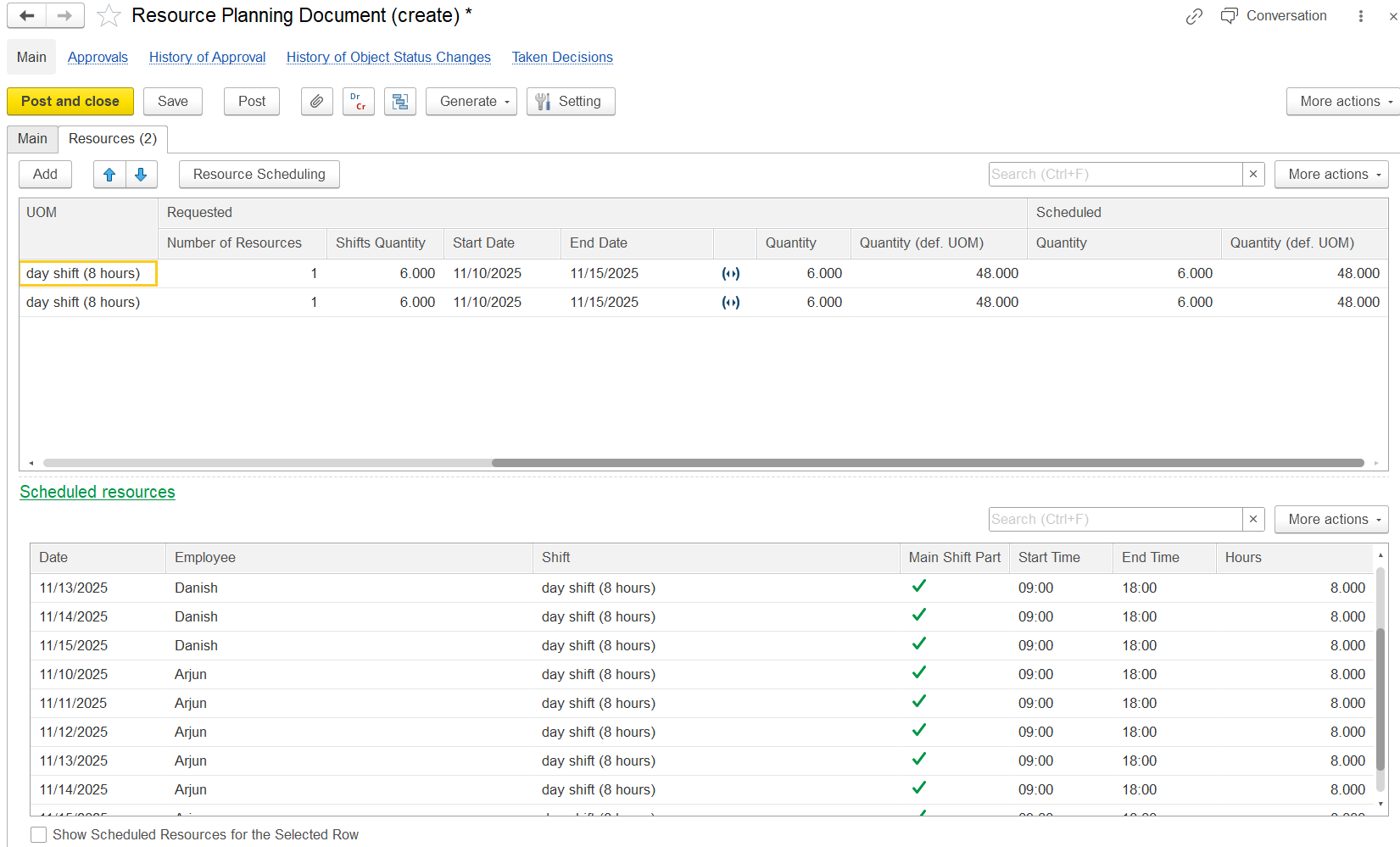
This option is used to allocate specific resources (e.g., labor) to project tasks across defined dates and shifts.
Header section
- Entity - The entity managing the resources
- Project - The specific project requiring the resources.
- Project Task - The particular task within the project.
- Position - The role or job title of the scheduled resources.
- Filter by Position Button - This button controls whether the schedule shows only employees with the selected position or all employees.
- Enabled - Shows only employees with the current position.
- Disabled - Shows all employees, allowing scheduling of resources from other positions.
- Shift - Type of working hours or shift pattern.
- No. of Resources - Total number of individuals needed.
- Shifts Quantity - Total count of shifts planned.
- Start/End Dates - The timeframe for which resources are scheduled.

Schedule/Release
- On Date - Assigns the selected employee to a single, specific date, ideal when the employee is needed for only one particular day, avoiding scheduling conflicts.
- For Period - Schedules the employee for the maximum possible days within a given period, covering as many consecutive or available days as possible during the requested timeframe.
- All Available - Automatically selects the first available resources based on the number of resources and days requested, prioritizing resources that can be scheduled continuously for the entire requested period to ensure efficient allocation.
Once a scheduling option is selected, employees are assigned according to that choiceaccordingly. Scheduled shifts are shown in green, and in the next resource scheduling document, they turn red to indicate the employees are already assigned.
...
Employee - Name of the worker assigned to shifts
Code - Unique code of the employee
Date - The specific workday being scheduled
Day - Day of the week corresponding to the date
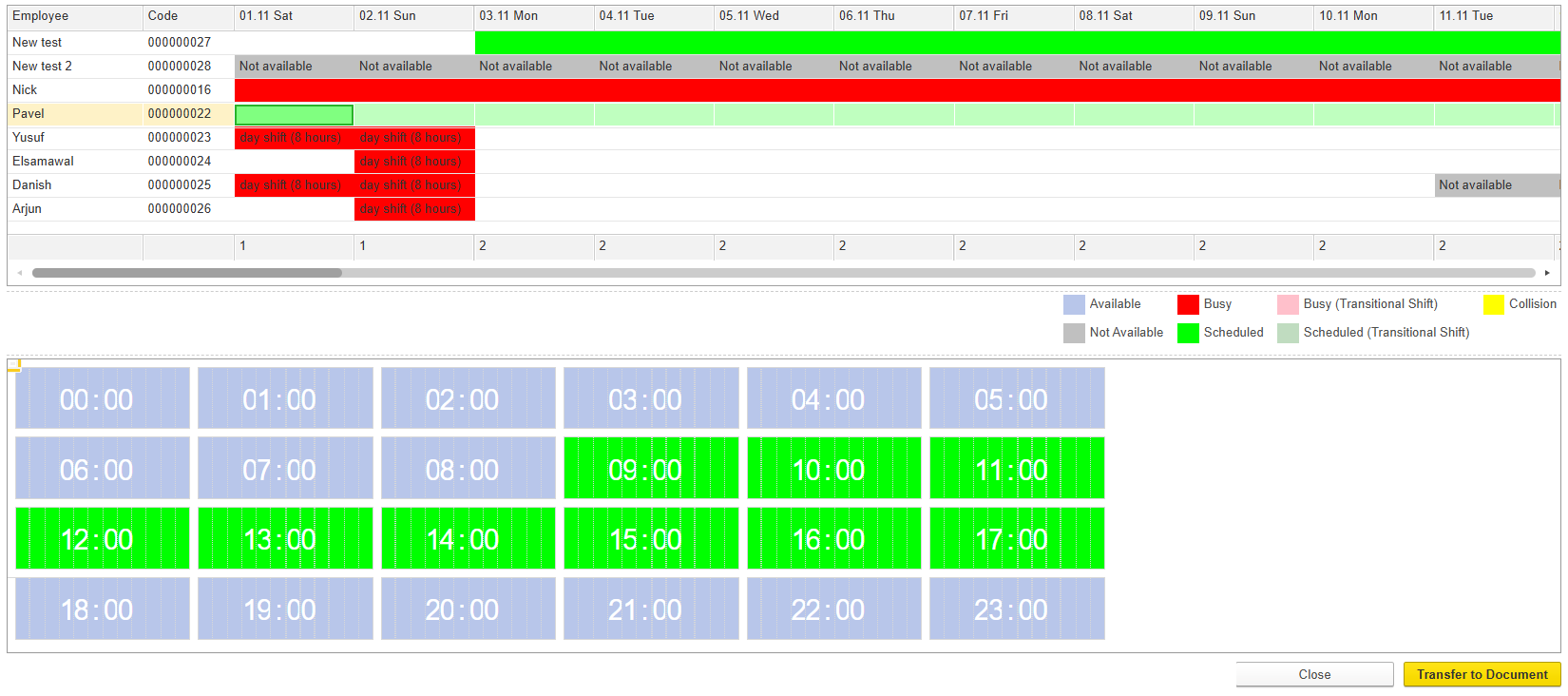
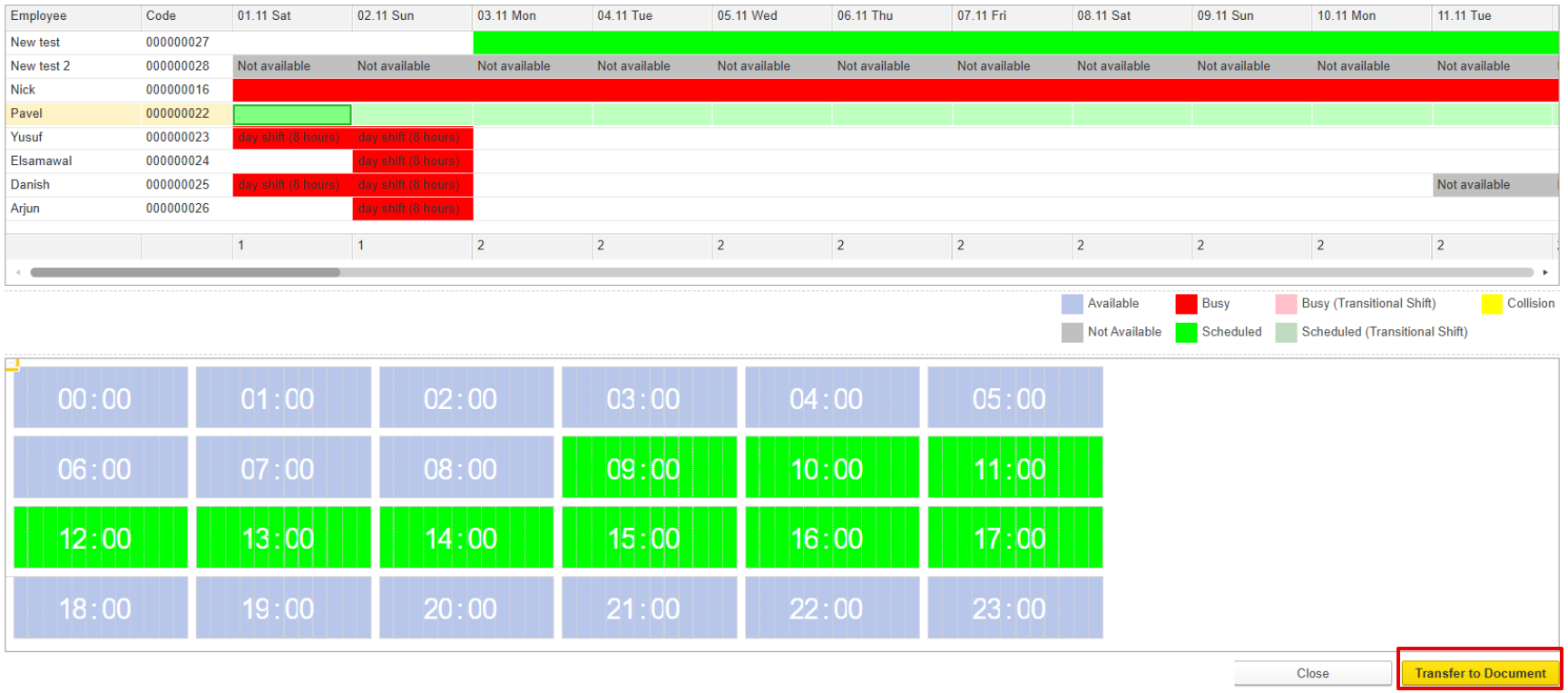
| Color | Meaning | Reason / Explanation |
|---|---|---|
Light Blue | Available | Indicates the resource is free and can be scheduled. |
Pink | Busy (Transitional Shift) | Indicates a partial or transitional busy shift overlapping with another activity. |
Yellow | Collision | Indicates a scheduling conflict where overlapping assignments occur. |
Gray | Not Available | Indicates the resource cannot be scheduled for this day (resigned or employed in the middle of the requested period). |
Red | Busy | Indicates the resource is occupied with a full shift and cannot be assigned. |
Bright Green | Scheduled | Indicates the resource is fully scheduled for the day. |
Light Green | Scheduled (Transitional Shift) | Indicates the resource is scheduled for the day with a transitional or partial shift. |
...