...
Employee - Name of the worker assigned to shifts
Code - Unique code of the employee
Date - The specific workday being scheduled
Day - Day of the week corresponding to the date
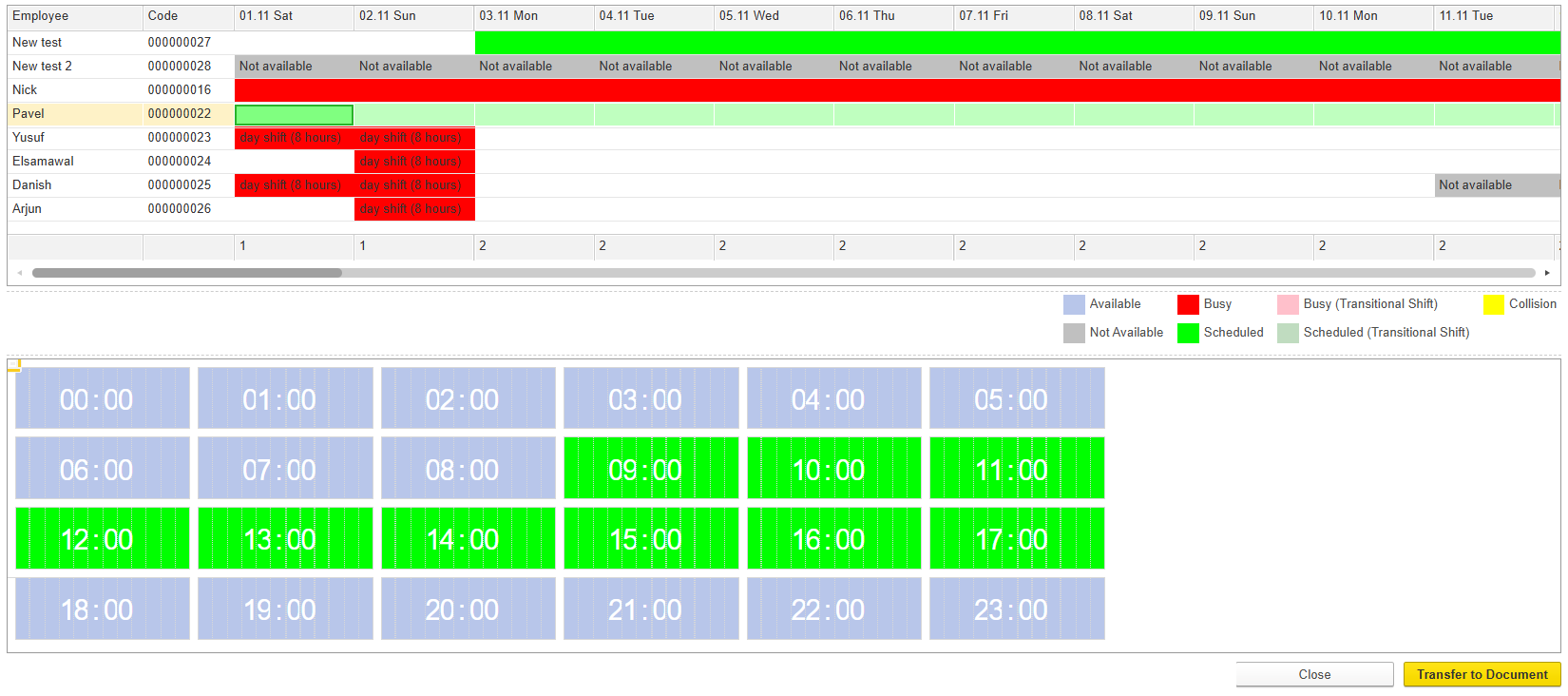
| Color | Meaning | Reason / Explanation |
|---|---|---|
Light Blue | Available | Indicates the resource is free and can be scheduled. |
Pink | Busy (Transitional Shift) | Indicates a partial or transitional busy shift overlapping with another activity. |
Yellow | Collision | Indicates a scheduling conflict where overlapping assignments occur. |
Gray | Not Available | Indicates the resource cannot be scheduled for this day. |
Red | Busy | Indicates the resource is occupied with a full shift and cannot be assigned. |
Bright Green | Scheduled | Indicates the resource is fully scheduled for the day. |
Light Green | Scheduled (Transitional Shift) | Indicates the resource is scheduled for the day with a transitional or partial shift. |
Once scheduled, the data can be sent to the document using the option Transfer to document to finalize the schedule.