...
In addition to the main settings, phased revenue recognition must also be activated within the contract itself. To do this, open the specific contract, go to the Terms tab, and enable the Phased Revenue Recognition option.
Contract→ Terms tab→ Use Phased revenue recognition
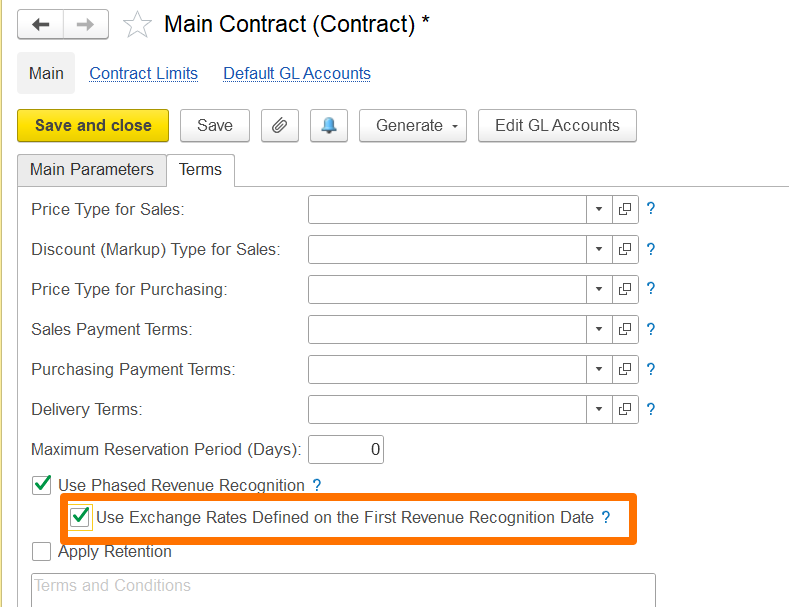
Additionally, if the contract involves a foreign currency, you can use the exchange rate defined on the first revenue recognition date to account for exchange rate fluctuations.
If enabled, the exchange rate set on the date of the first revenue recognition will apply to all subsequent phased revenue recognition documents, with gains or losses calculated only when the invoice is issued.
If disabled, gain/loss calculations will occur during month-end closing using the exchange rates applicable on each document's date.
...
The following fields are available. All details are filled automatically once a Project is selected:
Company-The The company for whom the recognition is being created.
Contract- Company contract linked to revenue recognition.
Project- Project for which phased revenue recognition is applied.
Customer Order- Link the customer order.
- Entity -The entity issuing the recognition.
Planned Expenses Source- Basis for expected costs used in calculations.
Basis- Source document from which the recognition is created (e.g., project estimate, customer order).
Comment- Field for additional notes.
...
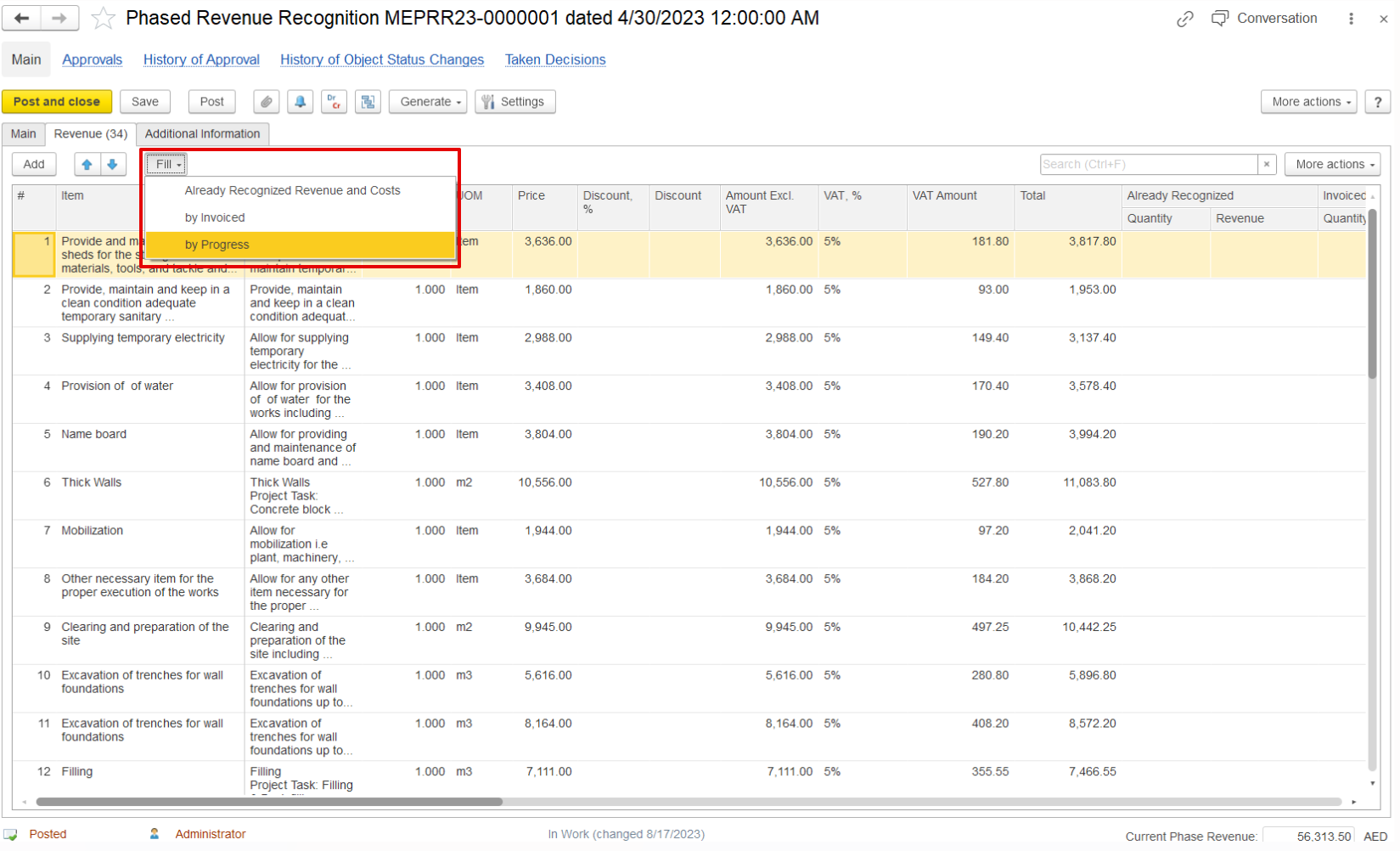
Refill- Reloads all tasks, estimates, and expenses linked to the selected project.
Code- Task reference number.
Project Task- Description of the task or activity.
Estimate-Planned Planned values from project estimates:
Price-Planned Planned unit price.
Amount- Planned total amount.
Already Recognized- Values already recognized in past periods
Qty- Quantity already recognized.
Amount- Value recognized.
%- Percentage of task completed/recognized.
Current Recognition- Values recognized in the current period:
Qty- Quantity to be recognized now.
Amount- Value recognized for this period.
Current %- Percentage recognized in the current period.
Cumulative %- Total percentage recognized up to now.
...
- Expenses- Planned, actual, and overhead expenses:
Amount (Planned)- Estimated cost of the task.
Amount (Actual)- Actual expenses recorded.
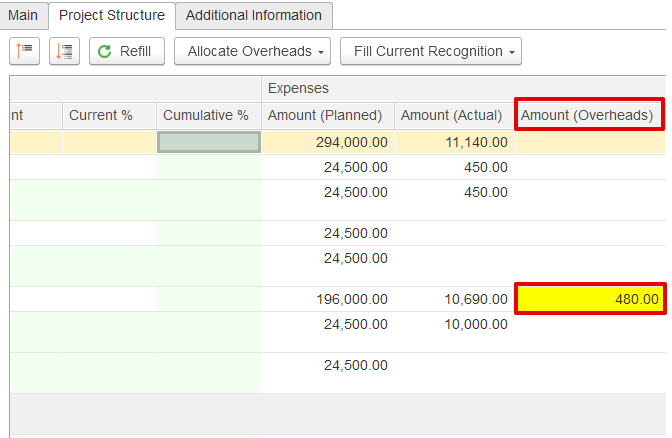
Amount (Overheads)- Overhead allocation, the Unallocated expenses are highlighted in yellow.
Invoiced Before- Values already invoiced to the customer.
Progress- Physical or financial progress Progress of the task.
Business Activity- Activity type (e.g., Main Activity).
Income Item- Revenue classification (e.g., Sales Revenue).
GL Accounts- Accounts used for posting recognized revenue.
Transaction Content- Used to add any Additional reference required.
...
Department- The department responsible for the project or recognition process.
Responsible- The employee or person accountable for preparing and managing the recognition.
Use Exchange Rates Defined on the First Revenue Recognition Date- An option to fix and apply the same exchange rates from the first recognition date for consistency across subsequent recognitions.
...
This function is used to distribute expenses that have not yet been assigned. Allocation methods include:
- By Planned Expenses
- By Actual Expenses
- Reset Allocation
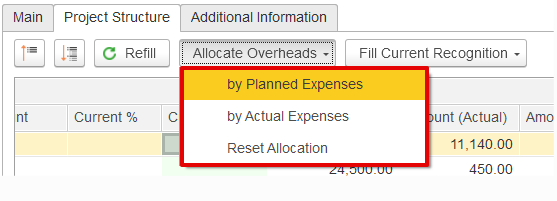
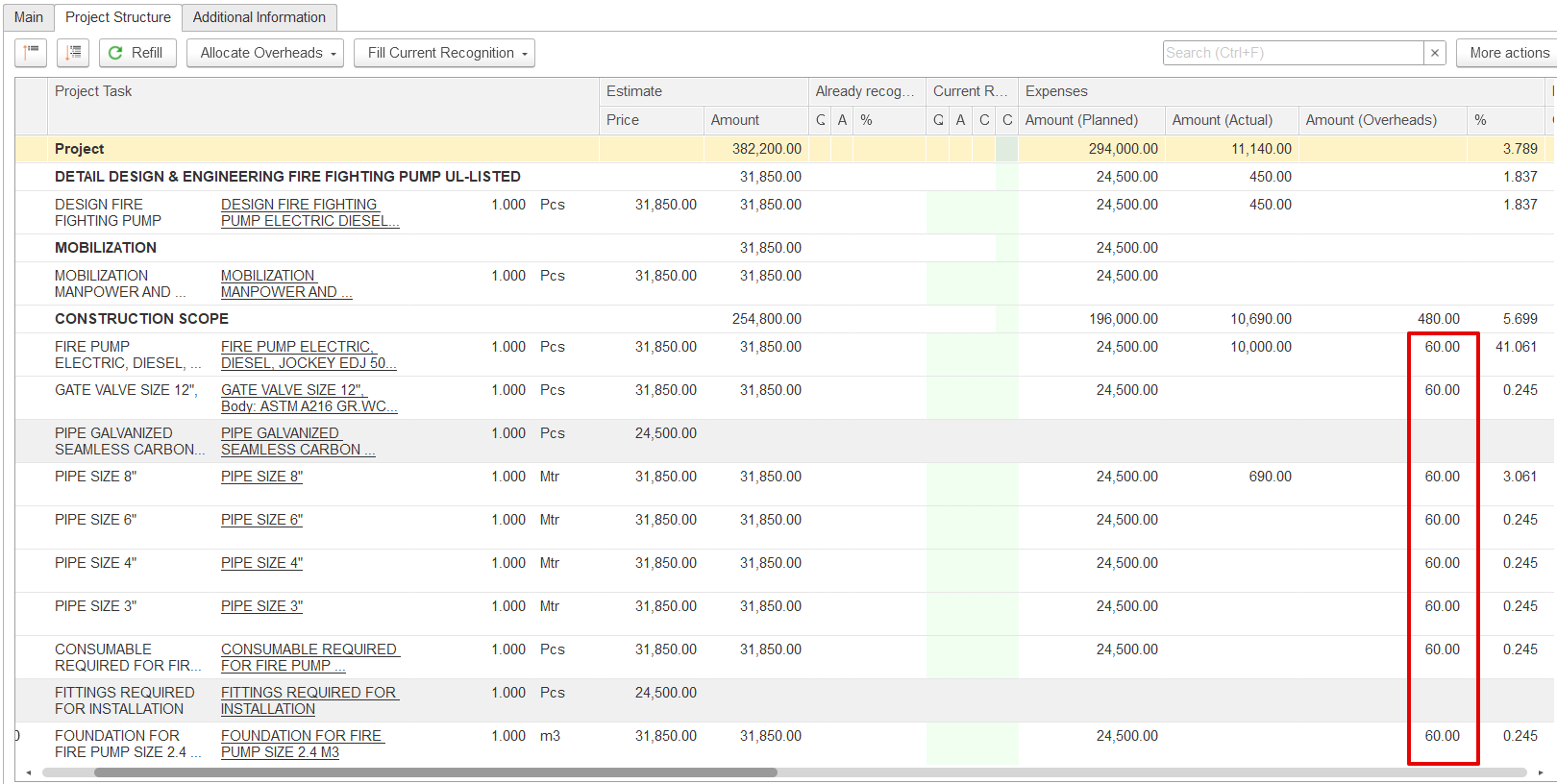
- By Planned Expenses – - Distributes overheads in proportion to the planned (estimated) expenses of each task.
For example, if the unallocated overhead is 480 and all tasks have equal planned amounts, the overhead will be divided equally among them since their proportional share is the same.
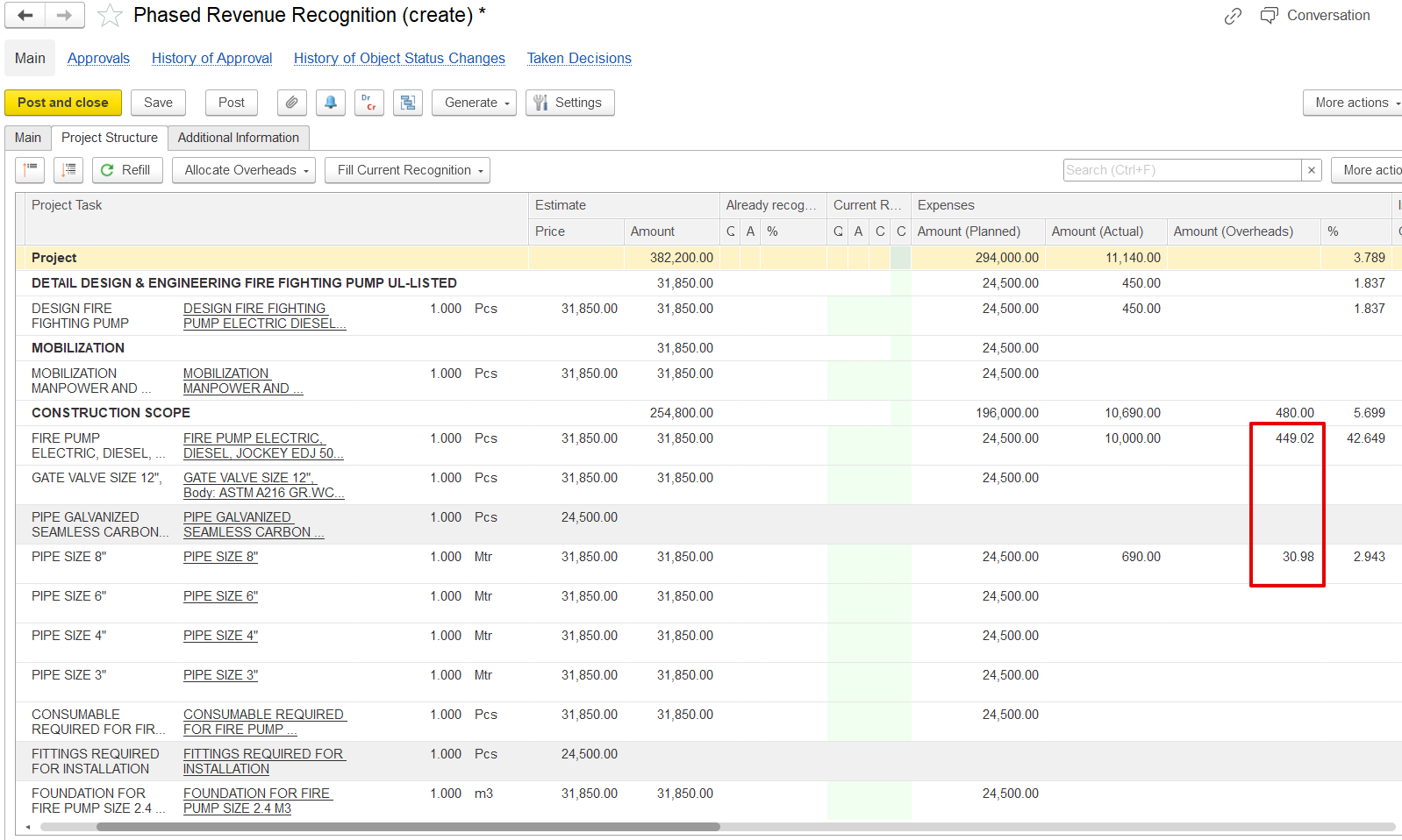
By Actual Expenses – - Overheads are distributed according to the actual costs of each task. Tasks with no expenses recorded do not receive any allocation.
Overhead = (Task Actual Expense ÷ of that Project task÷ Total Actual Expenses of all tasks) × Total Undistributed Overhead
CONSTRUCTION WORK- 10,000 ÷ 10,690 × 480 = 448449.9902
PIPE SIZE 6"- 690 ÷ 10,690 × 480 = 31.01
30.98
- Reset Allocation- Cancels previous allocations and returns expenses to an unallocated state.
...
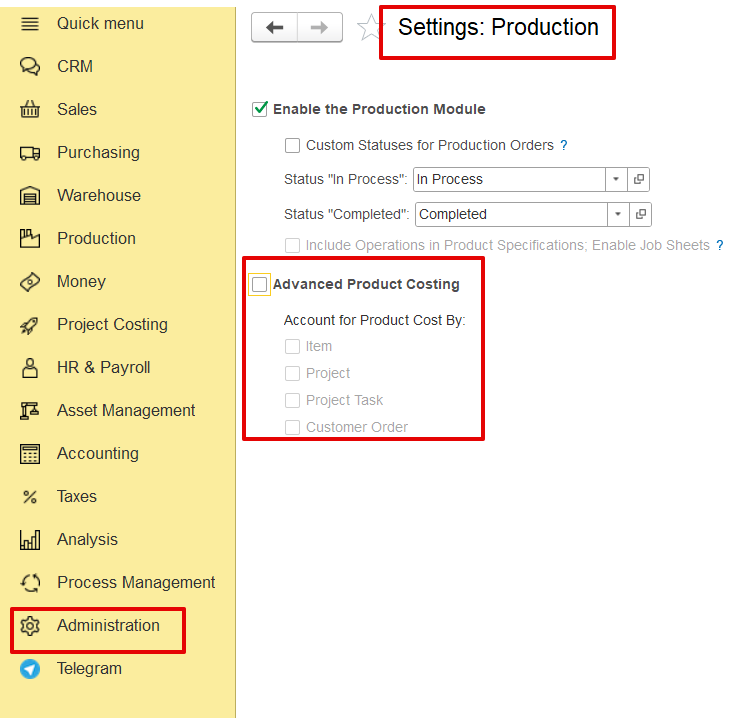
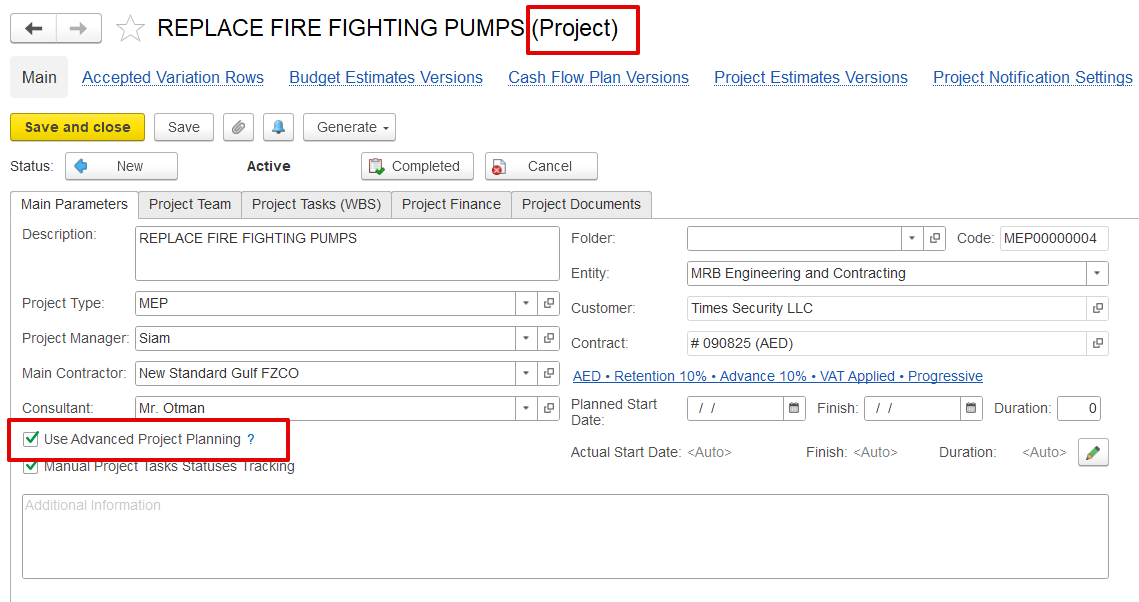
If the project is not enabled for Advanced Project Planning in the production settings, the system will use the old Phased Revenue Recognition mode, where project structure is not available and revenue is recognized only by expenses.