...
If the invoice is generated from a document like a Payment Certificate, the Progressive settings will be applied automatically. Key fields such as project, contract, and period will be pre-filled, and related data will be retrieved from the basis document.
...
Main tab
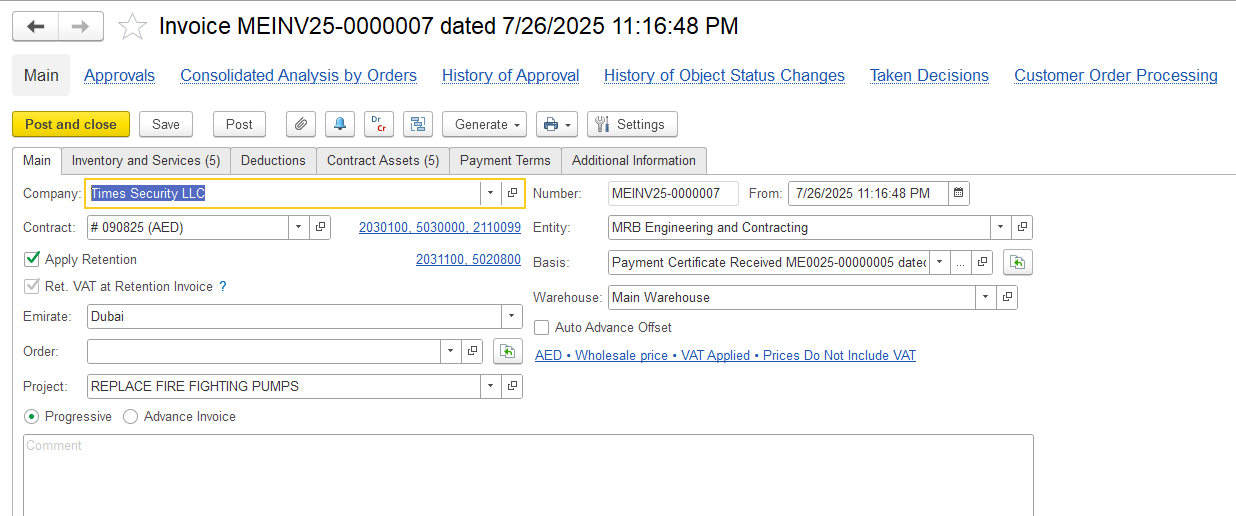 The Main Tab contains key information related to the invoice
Company
...
Name - The company for whom the invoice
...
is being created
Contract
...
- The contract linked to the invoice
...
Entity
...
Name - The entity issuing the invoice
Basis Document
...
- The document on which the invoice is based
...
Project
...
- The
...
project
...
related to the invoice
...
- Invoice Type
...
- - Indicates whether the invoice is Progressive, Advance, Milestone
...
- ,
...
- or Standard. Set automatically based on the contract
...
- .
...
- This setup ensures that invoicing aligns with the contract’s agreed terms, including how retention, VAT on retention, and advance payments are handled. If the contract allows for advance billing, an Advance Invoice can be issued to request payment before any work begins. The system then enables the creation of related payment documents such as bank receipts, cash receipts, or cheque entries to record the received advance. These payments are linked to the contract and properly reflected in financial records, allowing for accurate offsetting in future invoices.
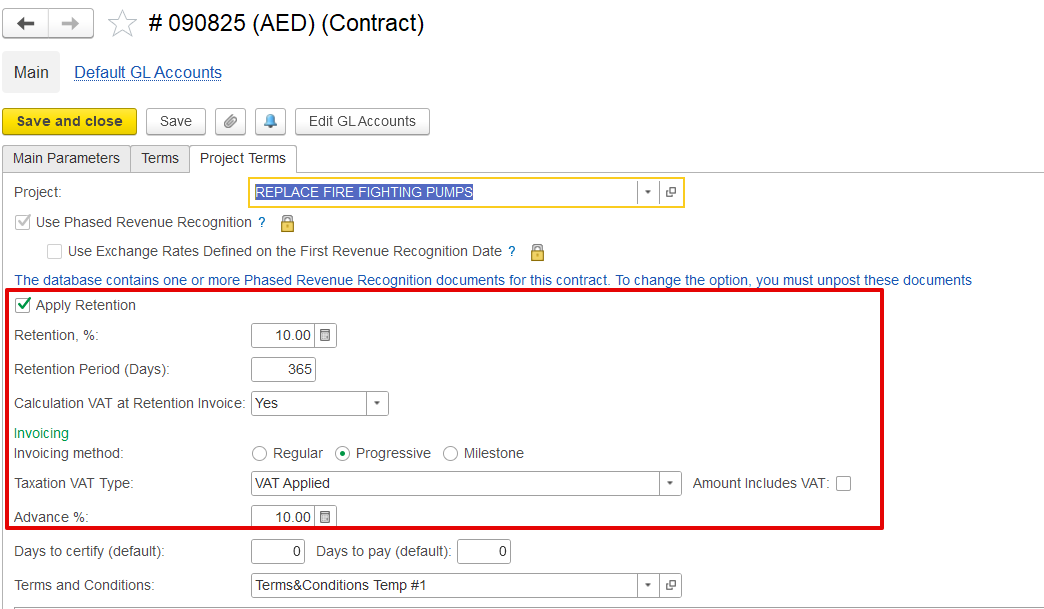
- Auto Advance Offset – When this option is on, the system automatically reduces the invoice by a portion of the advance payment received. It works by checking how much of the project is being billed and applies the same percentage to the advance, so the right amount is deducted without doing it manually.
Inventory and services tab
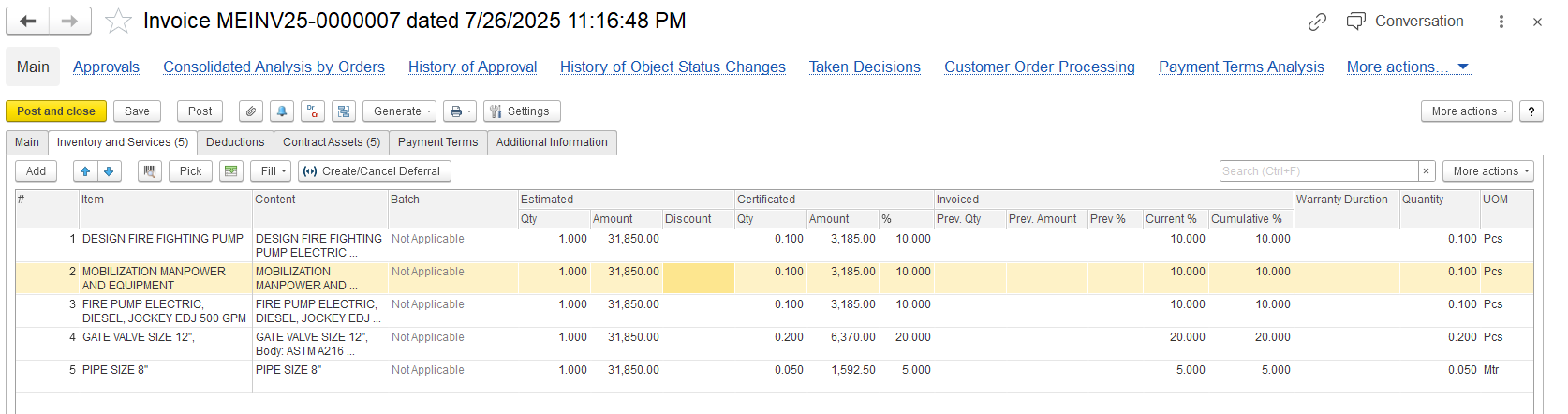
Item/content: Describes the specific item being billed, such as a fire pump, gate valve, or pipe
...
Unit of Measure (UOM): Defines the unit used for measurement, such as meters or pieces, depending on the item.
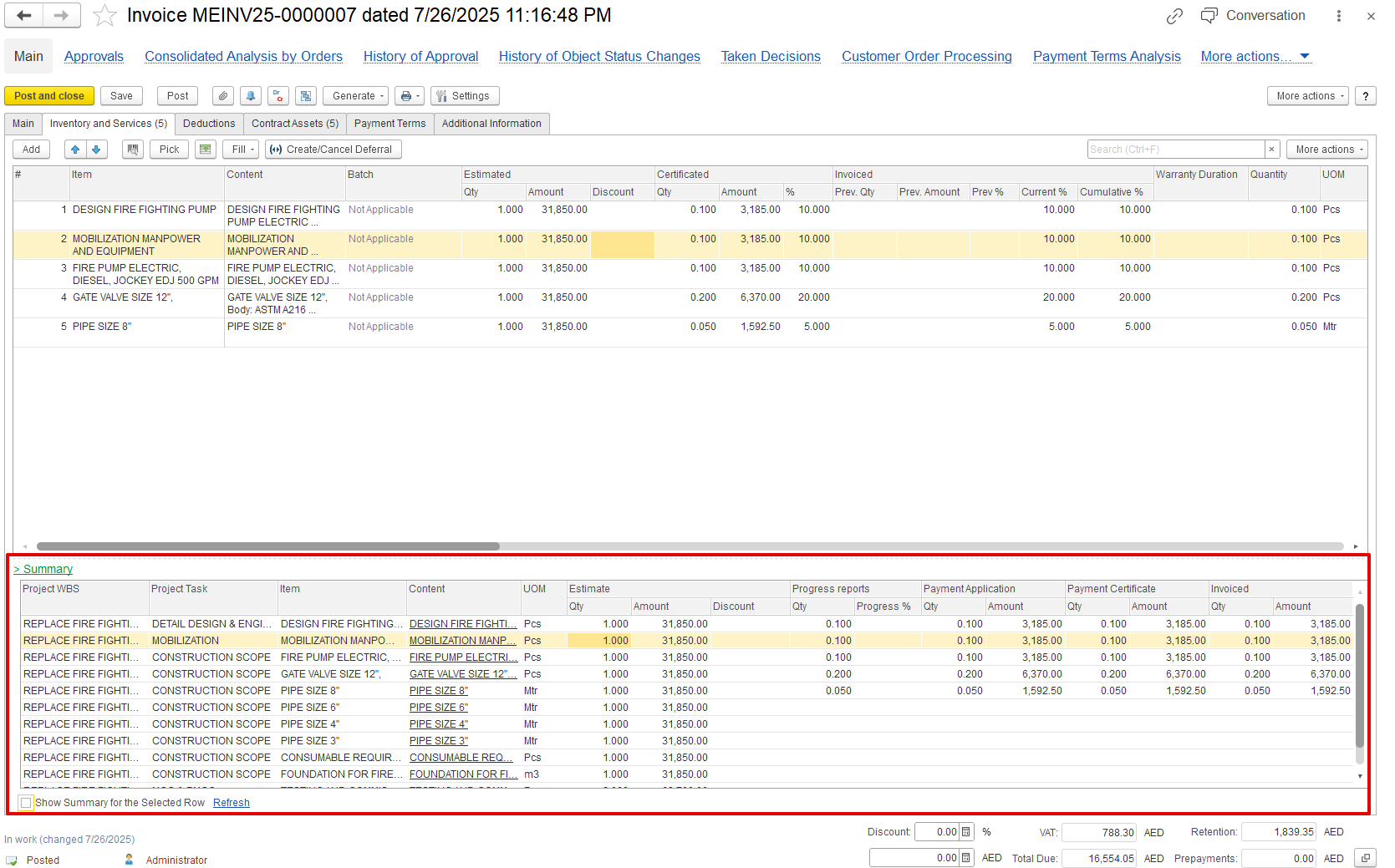
Summary linked table.
...
This section gives an overview using several checks and approvals:
...
Invoiced Quantity and Amount: The final approved quantity and value that will appear in the invoice.
Invoice with the Advance invoice option
...
However, issuing an advance invoice is not limited to this sequence and can be created without an associated application or certificate. Such invoices are treated as prepayments and can be subsequently offset against progressive invoices.
Advance offset
...
If any other invoice documents are created with the advance option enabled, they will be treated as advances that can be offset against another progressive invoice. These advanced documents appear in the prepayment list, where they can be manually selected and the amount adjusted as needed.
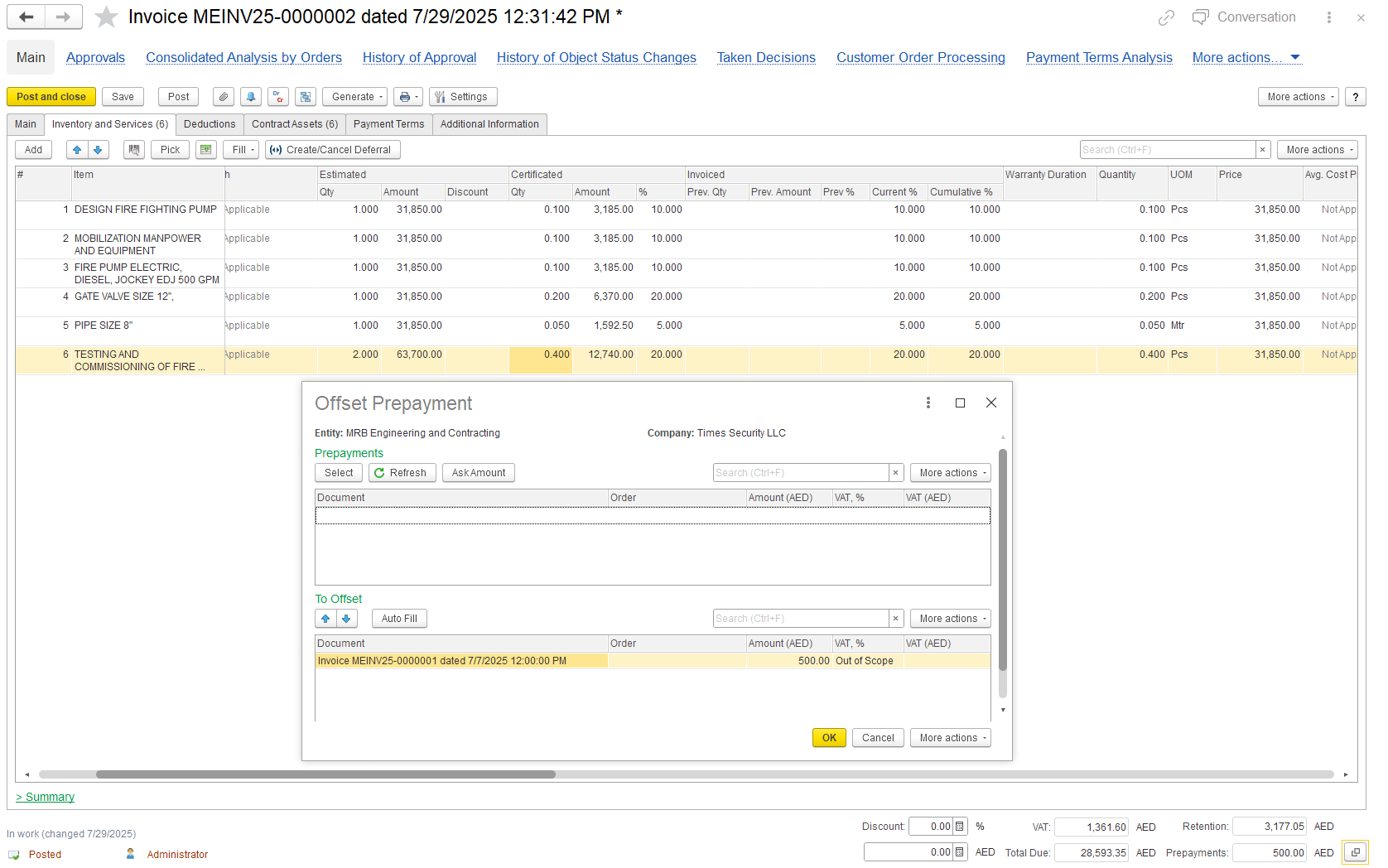
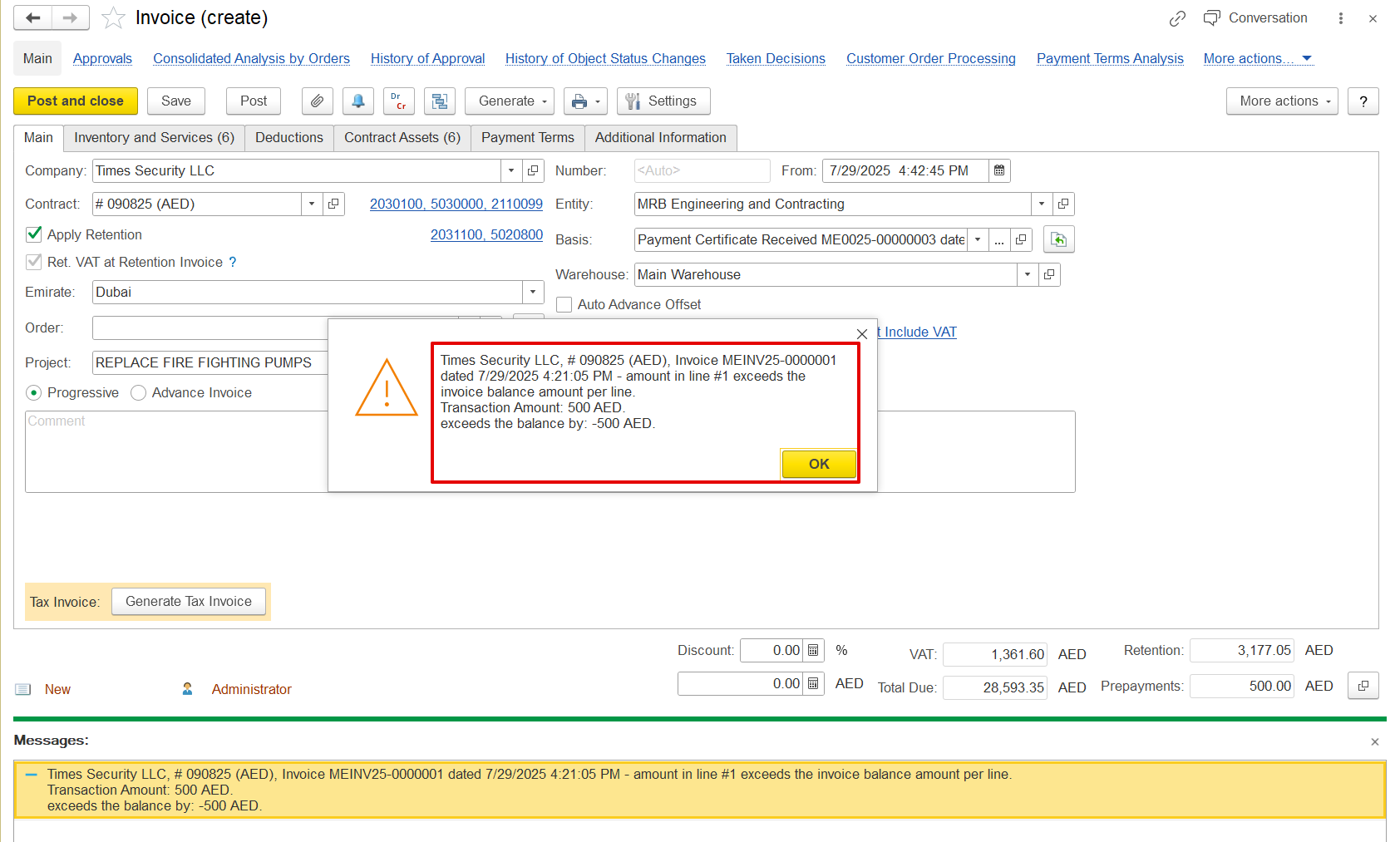
Offset will only be allowed if the document amount is received; otherwise, the following error will be shown.
This prepayment can be filled in automatically or carried over from other documents to the progressive invoice if the invoice is generated from those documents, provided that those documents also had the prepayment added using the offset option.
...