...
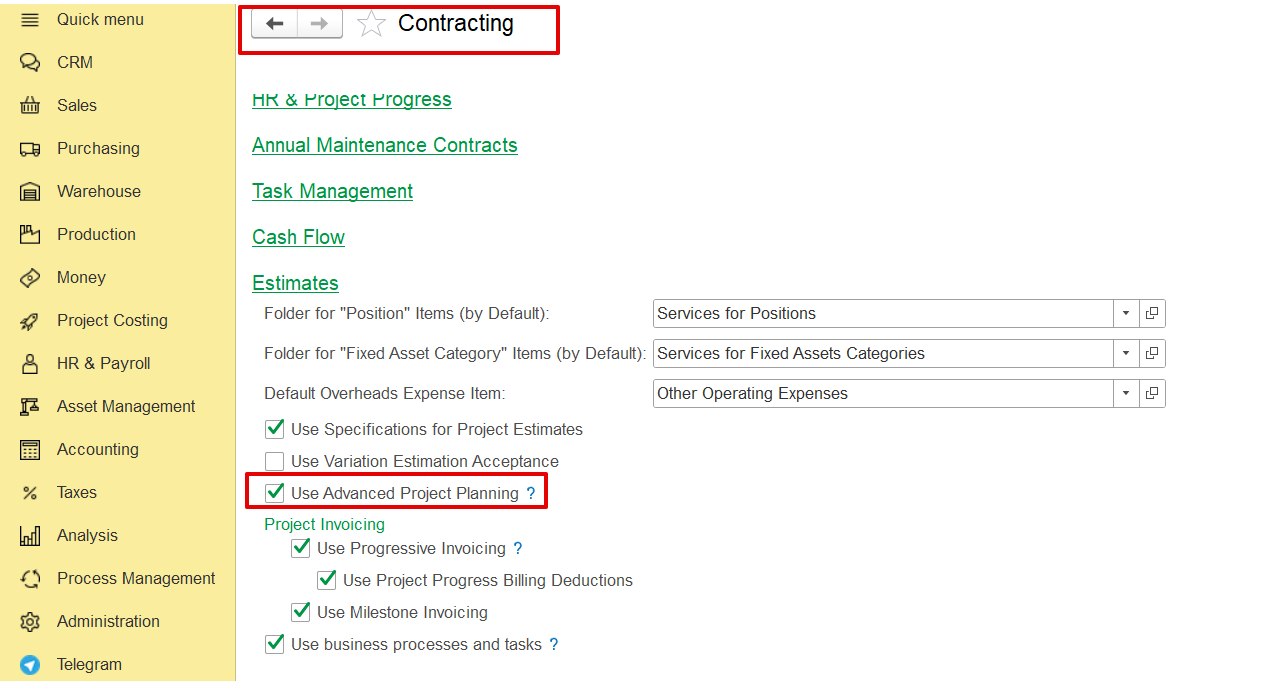
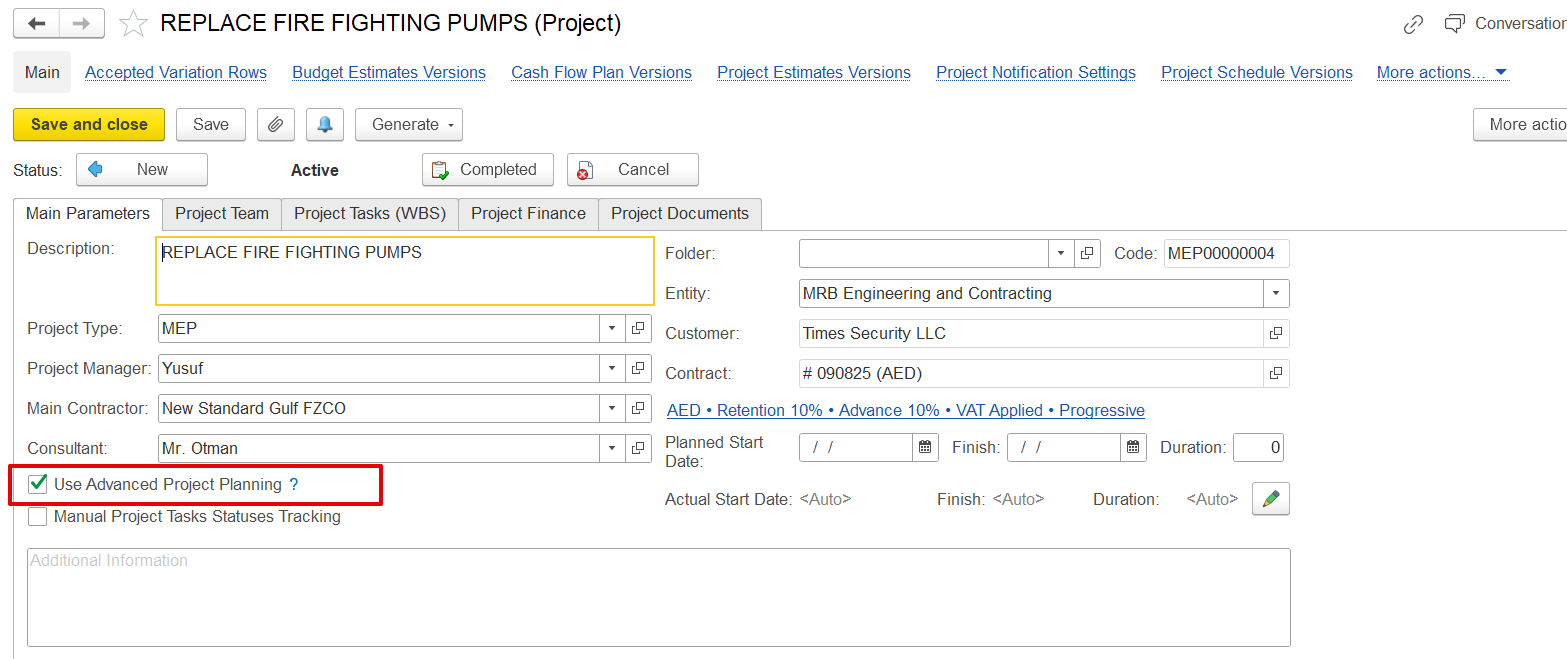
Note: This option becomes available only when "Use Advanced Project Planning" is enabled in both the Contracting Settings and the Project’s Main Parameters page.
1. How to Create the Project Schedule
This document can be created in two ways-
...
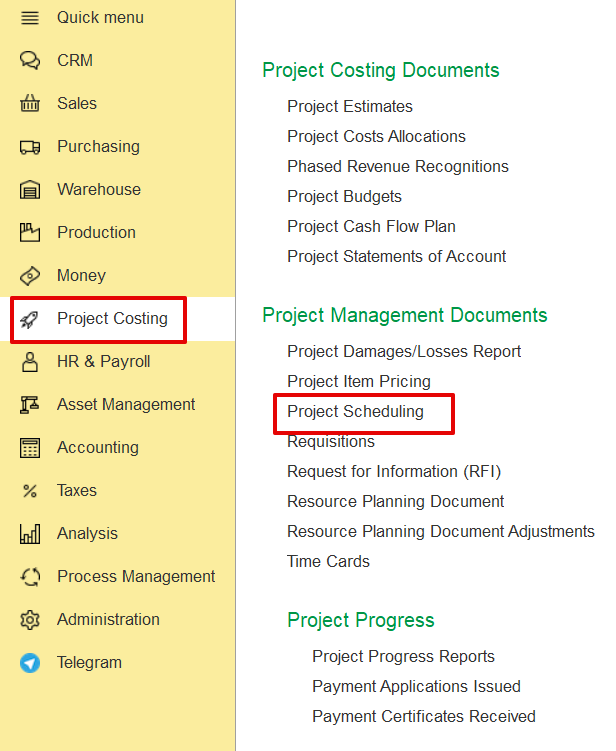
- From the Costing Module:
Go to Project Costing → Project Management Documents → Project Scheduling
2. New Scheduling Document
When creating a new Project Scheduling document, the system automatically pulls the structure from the previously created Estimation. The user can then modify and adjust the schedule as needed.
- In the main tab
...
Main tab
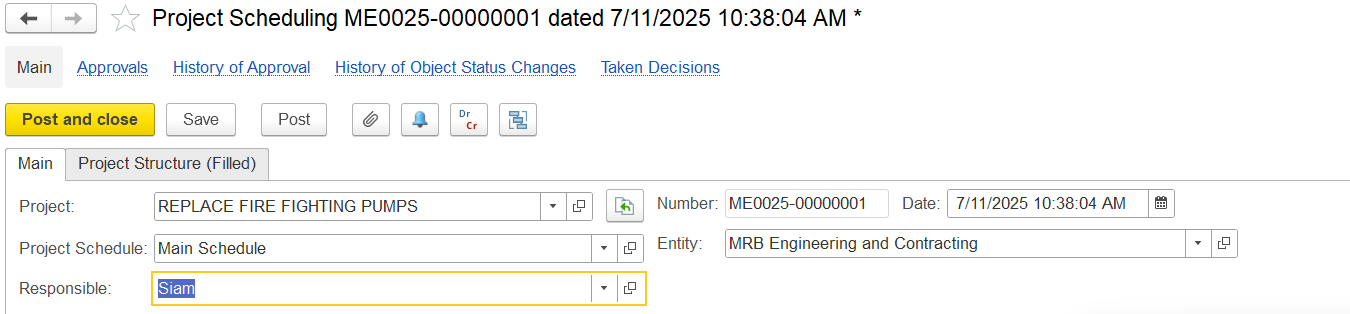
The Main tab is used to define general and essential details:
Project: The name of the project for which scheduling is done (e.g., REPLACE FIRE FIGHTING PUMPS).
...
Entity: The Entity handling the project (e.g., MRB Engineering and Contracting).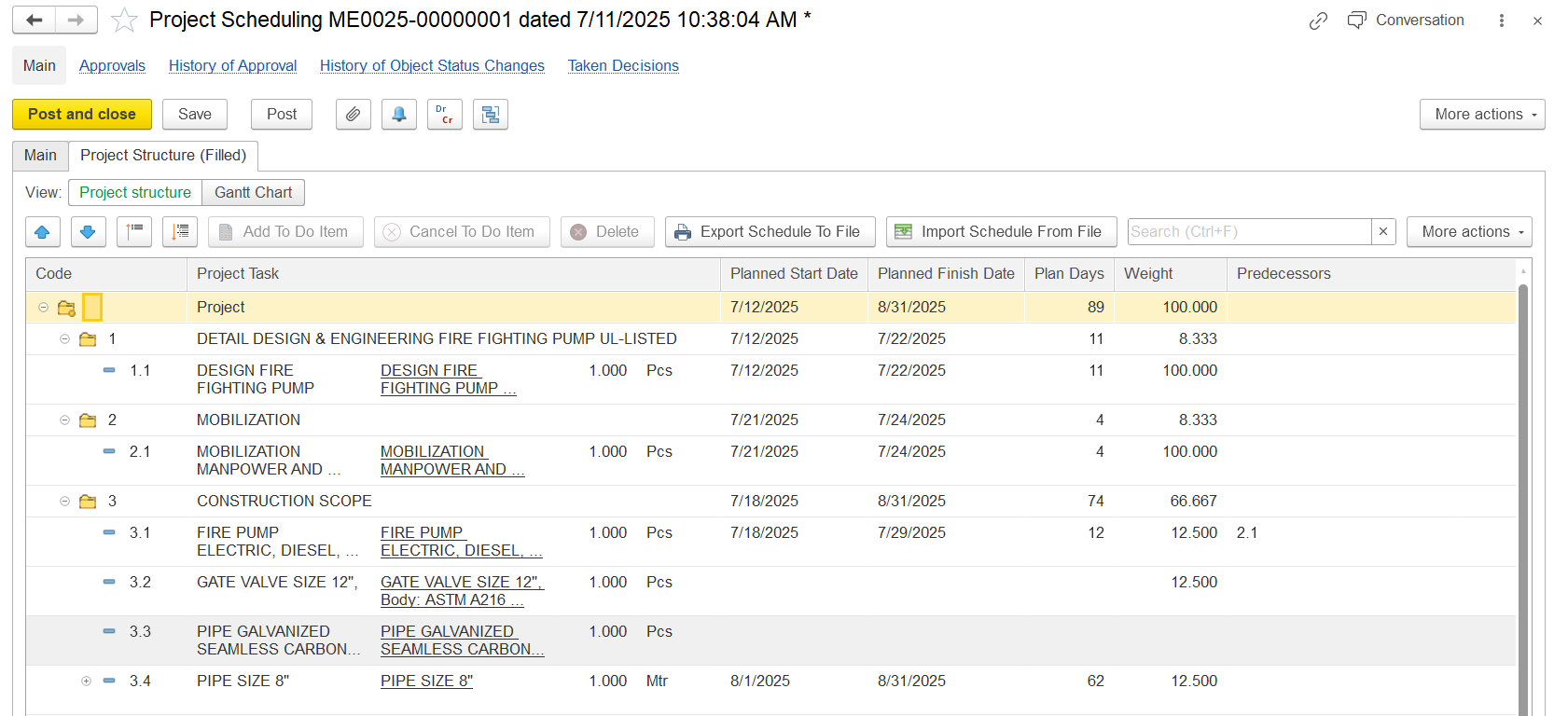
Project Structure tab
The Structure tab is used to define and organize the breakdown of work within a project. It serves the following purposes:
Task Code: Unique identifier for each task (e.g., 1.1, 2.1, 3.4) following WBS hierarchy.
...
Predecessors: Task dependencies (e.g., Task 3.1 starts after 2.1)
Note: This document is always connected to the most recent version of the estimation. Suppose any modifications, such as revisions or variation order, are made to the estimation. In that case, the system will detect them and notify that the current schedule is outdated, prompting an update.
...
A Gantt Chart is a timeline view of project tasks, showing start & end dates, duration, and dependencies.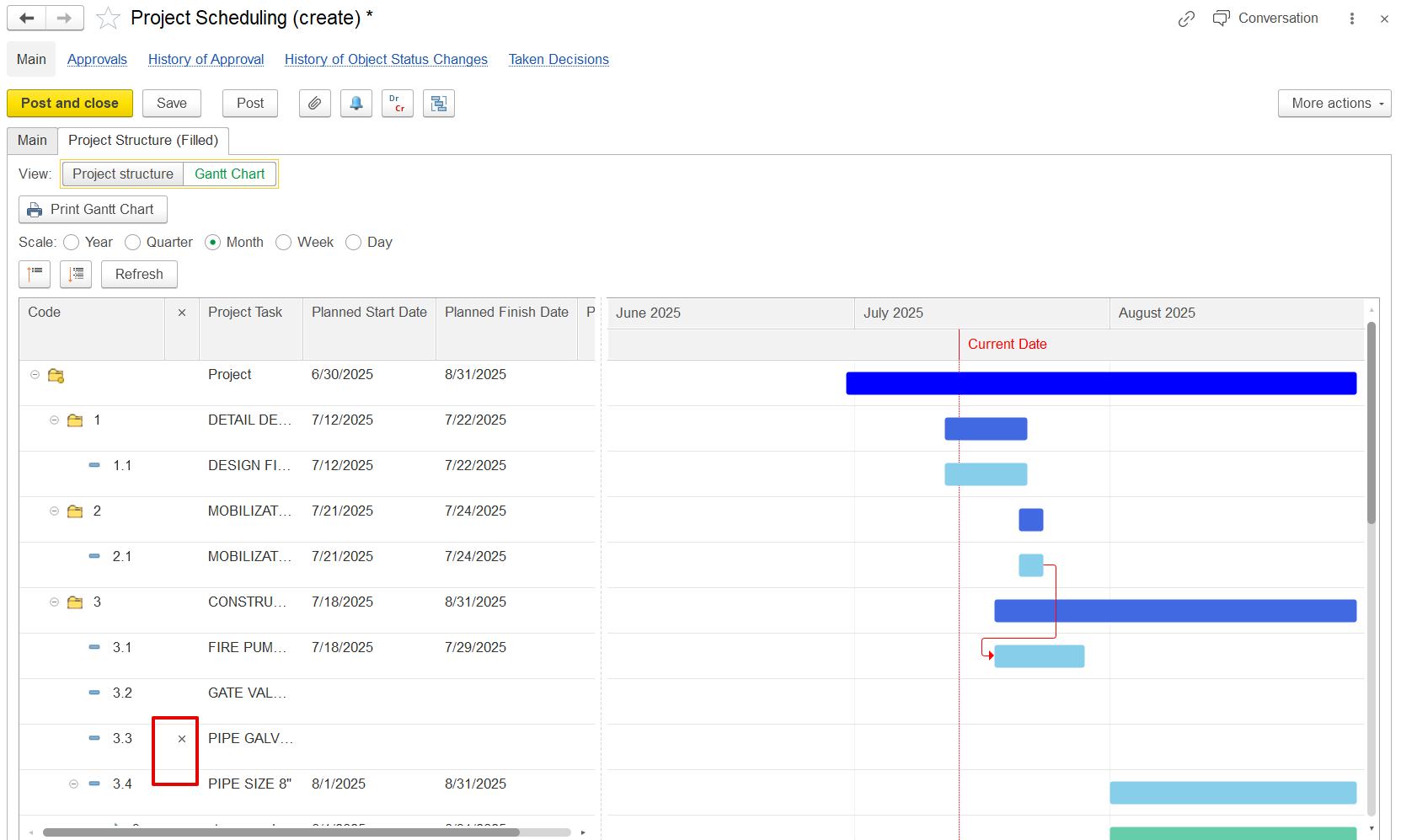
Allows drag-and-drop of tasks to set dependencies.
...
Indicators (x) help users identify cancelled or modified tasks.
4. To-Do Items
...