...
Click Create, then select the Project. The certificate details will be automatically filled based on the chosen project.
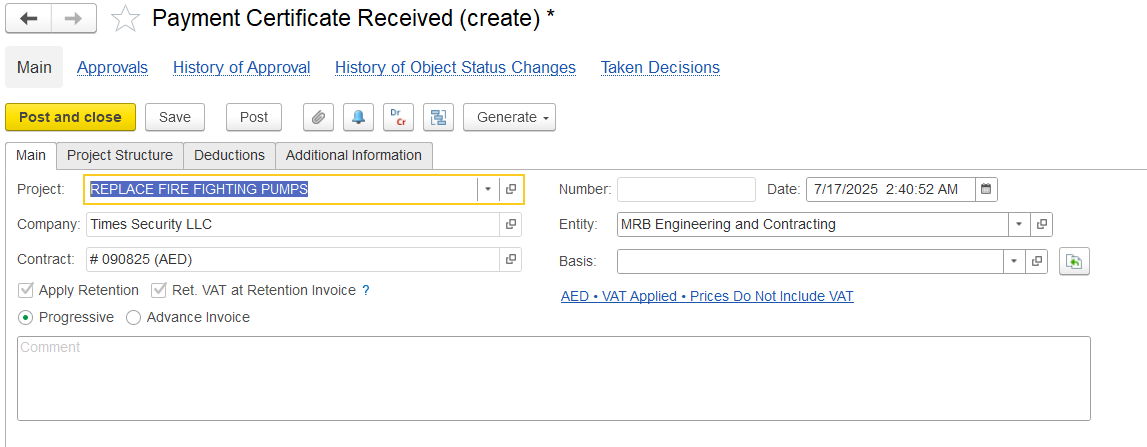
In the main tab,
Project: This project is associated with the certificate. It helps the system automatically fill details like the WBS, cost tracking, and the Services tabLinked project used to auto-fill WBS, service lines, and cost tracking information in the certificate.
Company: The legal entity issuing or receiving company that issues or receives the certificate.
Contract: Links the document to a contract. Enables contract-specific settings, such as retention, billing terms, and linked documents (e.g., Payment Applications, Invoices).
Retention: The portion of money held back, either as a percentage or a fixed amount. It’s automatically calculated from the certified amount. This will be taken from contract.
Entity: The legal entity issuing or receiving the certificate.
Basis: Shows if the certificate is created from a Payment Application or entered separately as progress.
Comment: A field for any notes, comments, or special Defines billing and certification rules based on the selected contract.
Includes project scope, parties, currency, and governs handling of VAT, retention, advances, and pricing.
Enables automatic fetching of BOQ/Estimation lines and populates Terms & Conditions.
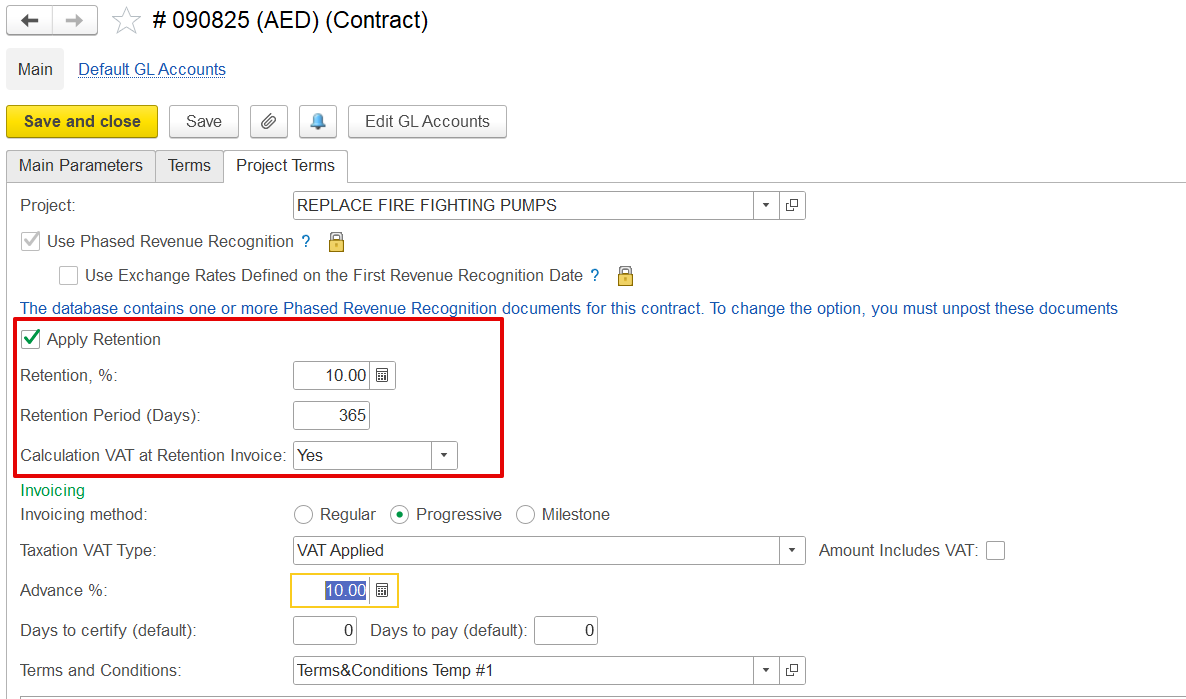
Retention: Amount withheld (percentage or fixed) from the certified value, calculated based on contract settings.
Entity: Legal party involved in issuing or receiving the certificate (same as Company, if relevant to system design).
Basis: Indicates whether the certificate is generated from a Payment Application or created manually for progress.
The Progress / Advance selector allows the user to define the purpose of the certificate:
Progress: For certifications tied to actual work completed.
Advance: For acknowledging advance payment eligibility or prepayments under the contract.
Comment: Field for entering additional notes, remarks, or instructions.
Project structure
...
Select Item/Content: Choose the appropriate service or work item related to the project.
Enter BOQ Estimated Amount: This is pre-filled from the contract or BOQ but can be edited.
Set Progress % or Quantity: Represents the amount of work completed. Can be negative for corrections or reversals.
Adjust Unit, Price, Discounts: Define the unit of measurement, rate per unit, and any applicable discounts.
Review Calculated Fields: The system computes amount, VAT, retention, and totals based on entered data.
Assign WBS, Task, and Project: This ensures that revenue and cost allocation is accurate in downstream reports.
Summary Tab
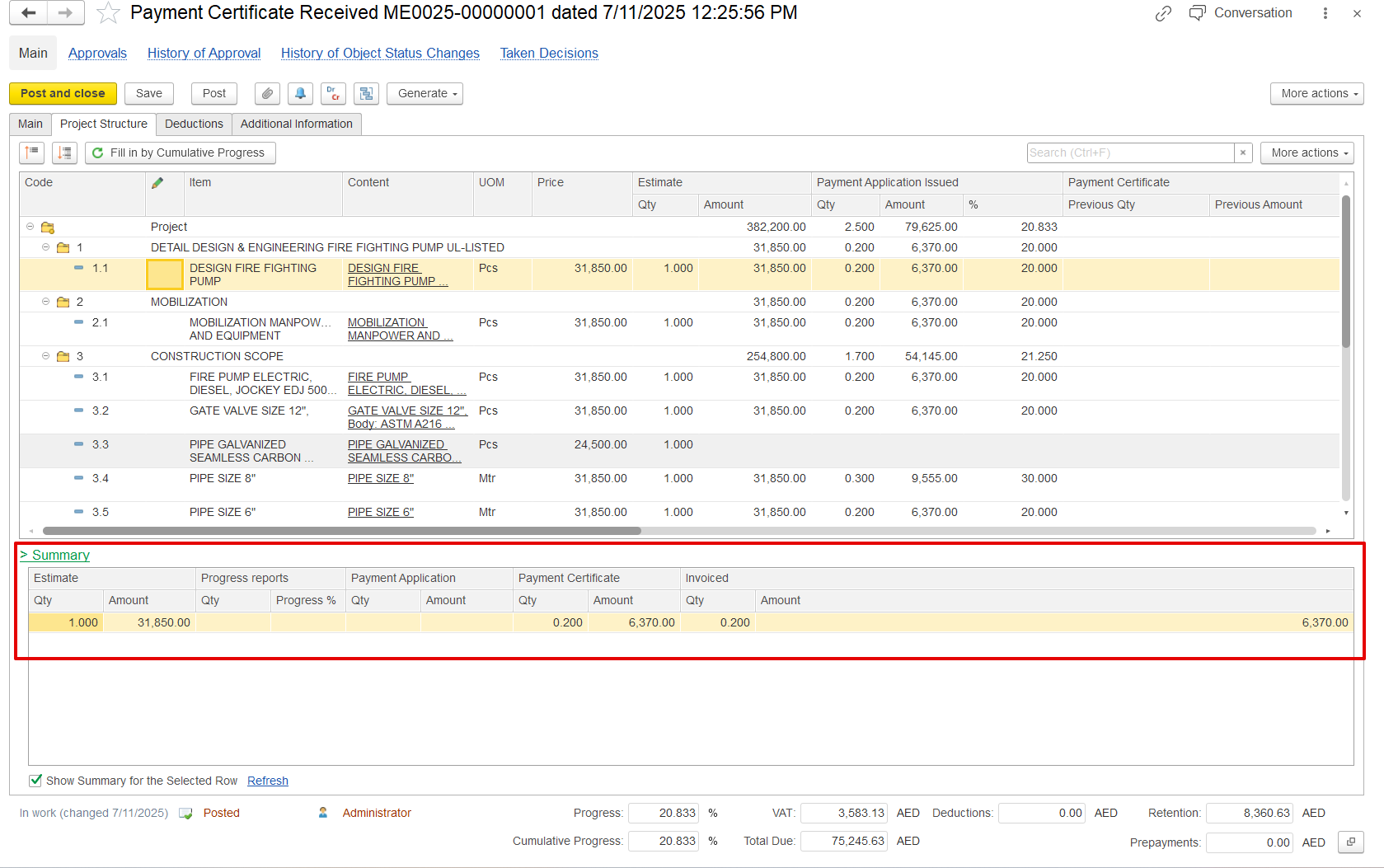
The Summary Tab provides This tab provides a consolidated, read-only view of certification vs application. It’s not editable but is critical for validation. Here’s what it shows:
Project Details: Displays the associated project, WBS, and task from the related service lines.
Item and UOM Info: Shows the service item, content/description, and unit of measure.
BOQ Values: Displays the baseline BOQ estimated amount and quantity for reference.
Progress Snapshot: Compares progress in percentage and quantity across different periods.
Application vs Certified: Highlights how much has been applied (from PA) vs how much has been certified (in this document).
Cumulative Recalculation: Automatically adjusts certified values if the linked Payment Application changes.
Purpose: Allows users to see the cumulative and current period metrics in one place, enabling audit, control, and reconciliation across documents.
Deduction tab
Additional information tab
...
When the Advanced option is selected, an Advance tab appears. This means the certificate is being used to request or record an advance payment, not to reflect actual work done.
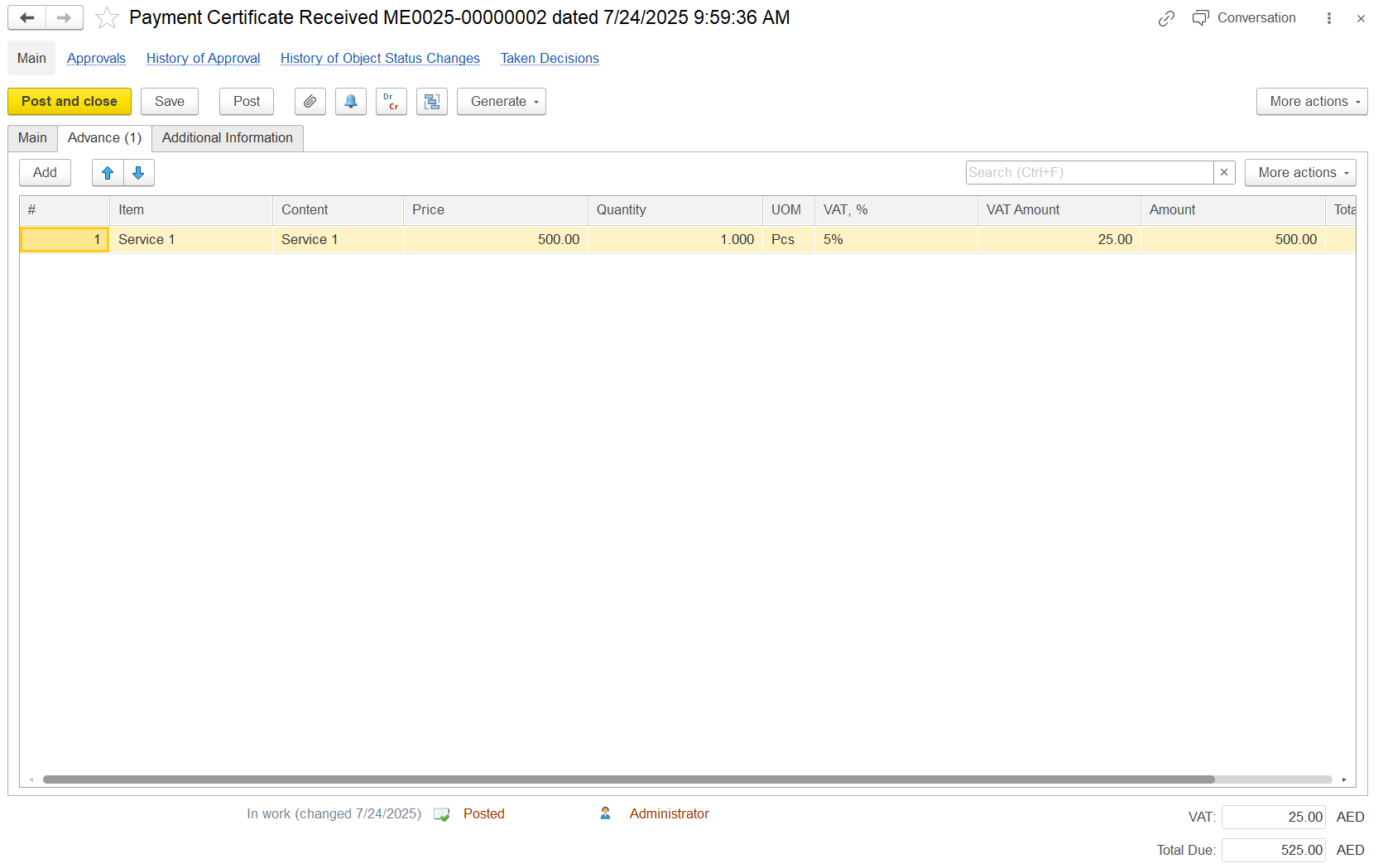
In this case:
The Prepayment tab does not show up, since there is no advance to offset yet. This document is the advance itself.
Later on, this advance will be offset against future progress certificates or invoices.
The service lines can be left empty or just show a single lump sum line for the advance amount.
...