...
- main tab attributes. explain about contract settings.
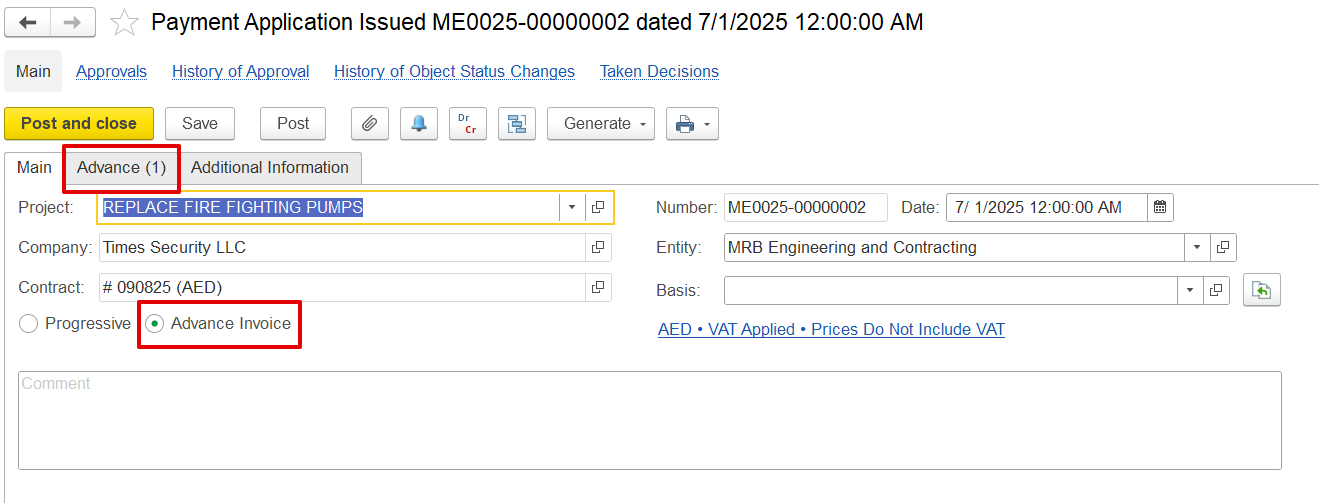
- Can be used for issuing Advance invoice.
- Table: how to fill, columns description.
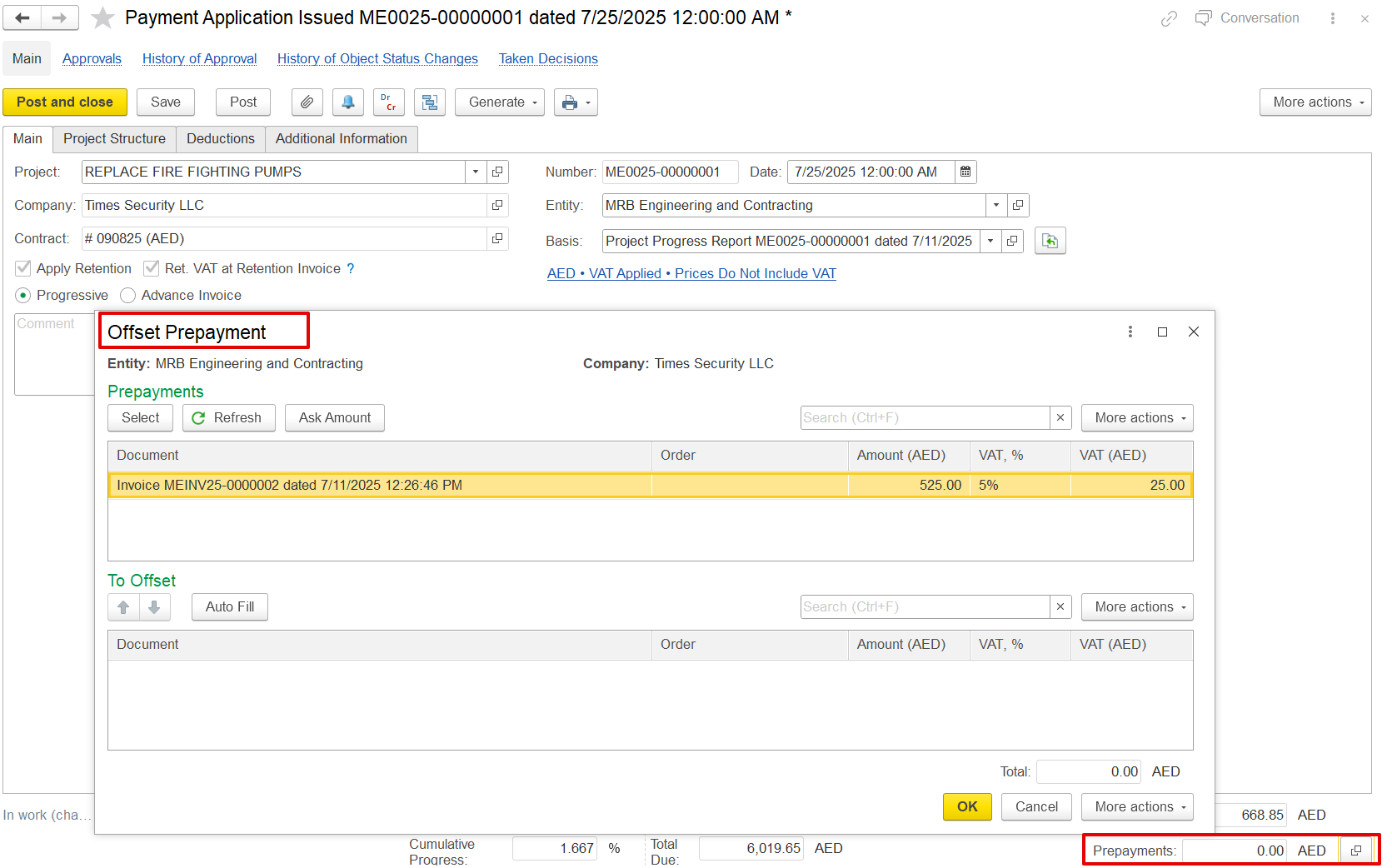
- Advance offset button and form. for planned advance offset.
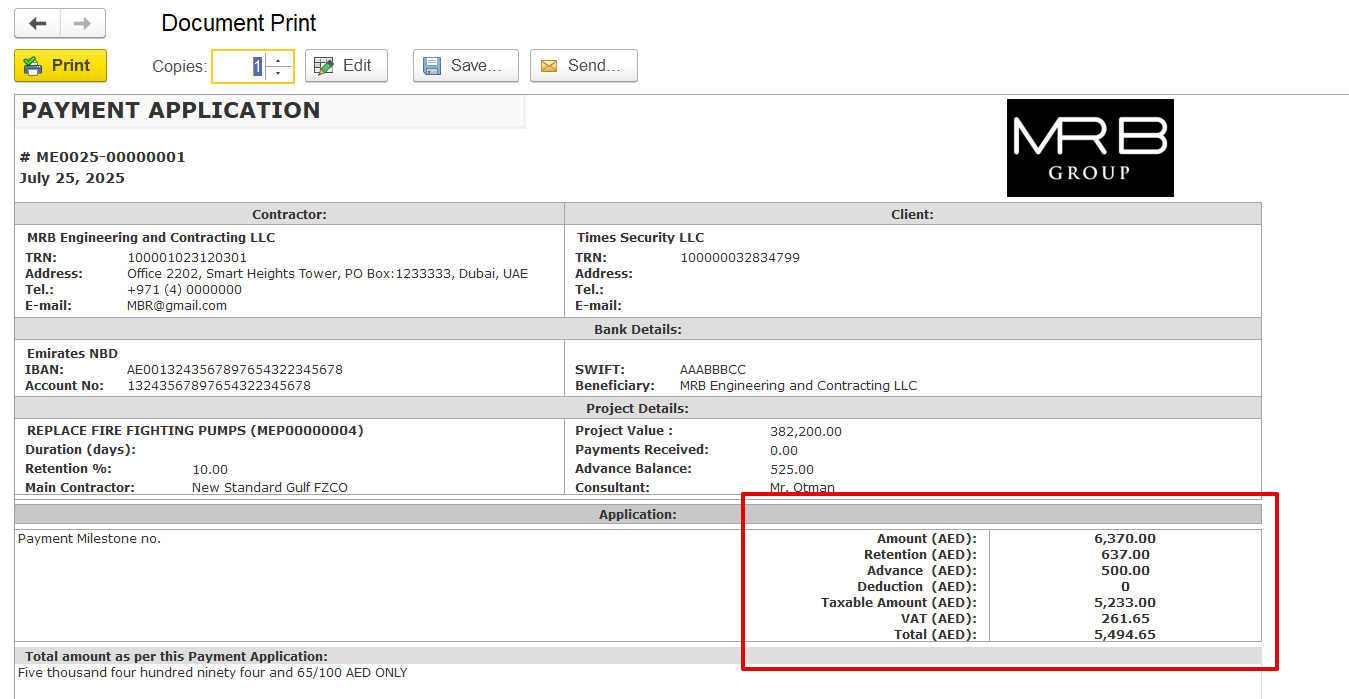
- Print forms (detailed and summary)
The Payment Application is used to request payment for completed project works, based on the progress achieved. It links project estimation, actual progress, and contractual terms to calculate the amount due for the current period. This document forms the basis for generating the Payment Certificate and eventually the Progressive Invoice.
...
If a project progress report is added as the basis, the system can use it to fill in the document. A confirmation message will appear before replacing any existing data.
...
Note: Based on the selected invoice type, the relevant tabs, fields, and calculations will automatically adjust to suit the billing method.
- If the Progressive option is enabled, below tabs will be available
Project Structure tab
It displays the list of project tasks with their hierarchy, estimates, progress, and billing details for preparing the payment application.
...
Payment Application Qty & Amount – The portion of progress being claimed for payment in this application may differ from the actual progress.
Payment Certificate Qty & Amount – The approved amount from the client or consultant after reviewing the payment application.
...
The Deductions tab is used to apply reductions like penalties or back charges before calculating the net payable amount.
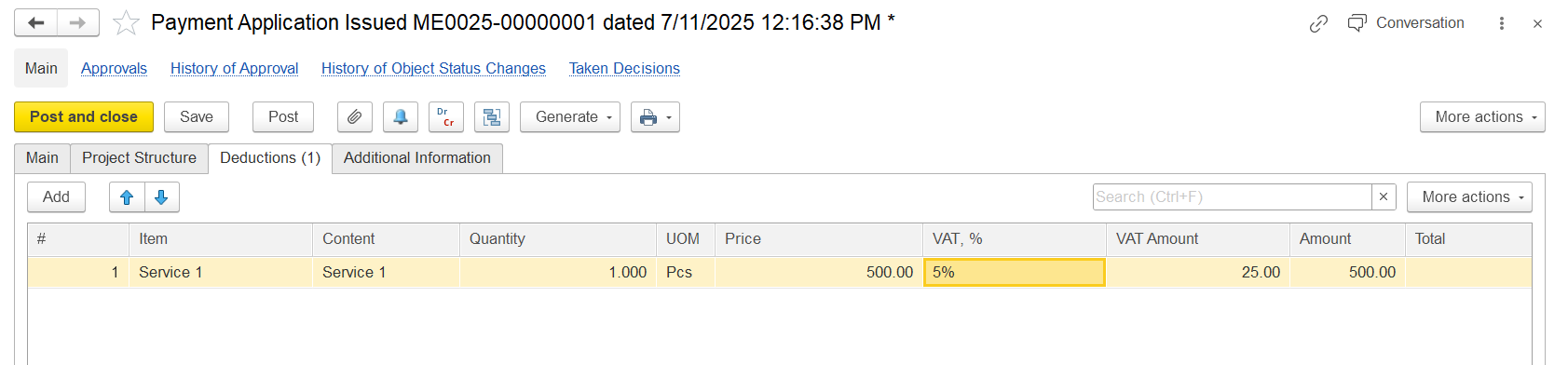
Item / Content-Identifies the specific service, work, or resource being billed.
...
Price: Unit rate defined in the contract.
VAT% VAT % and VAT Amount: Shows the tax percentage and the calculated VAT based on the price and quantity.
...
Total: Represents the complete billing amount, which may include VAT depending on system logic.
2. If the Advance option is enabled, below tabs will be available
When the Advance Invoice type is selected in the document, the Advance tab becomes available, where users must enter all relevant details. Once the Payment Application is posted, it can be used to generate a Payment Certificate, which in turn serves as the basis for creating an Invoice with the advance type.
Advance/ Prepayment offset
When a company issues an invoice with the Advance Invoice option enabled, the amount received is treated as a prepayment. This prepayment can later be applied against future billing through a Payment Application.
Within the Payment Application, there is an Offset Prepayment option. It allows users to select a previously paid advance invoice and apply part or all of its amount to reduce the current billing.
For example, if the contractor received AED 525 (including VAT) as an advance, that amount can be offset in the current Payment Application, reducing the amount the client needs to pay.
Print form
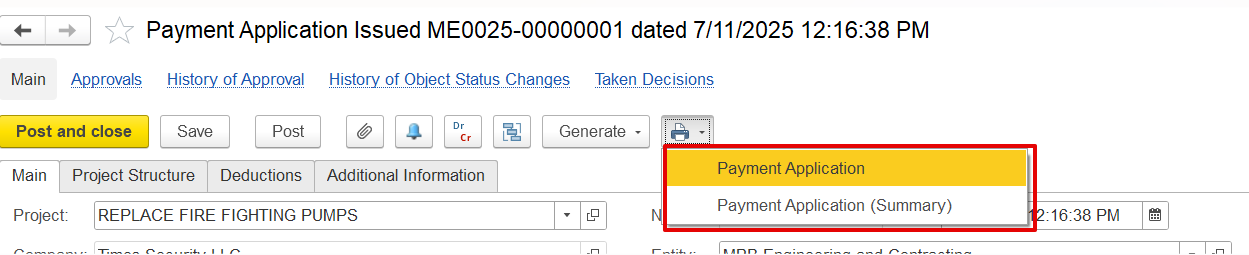
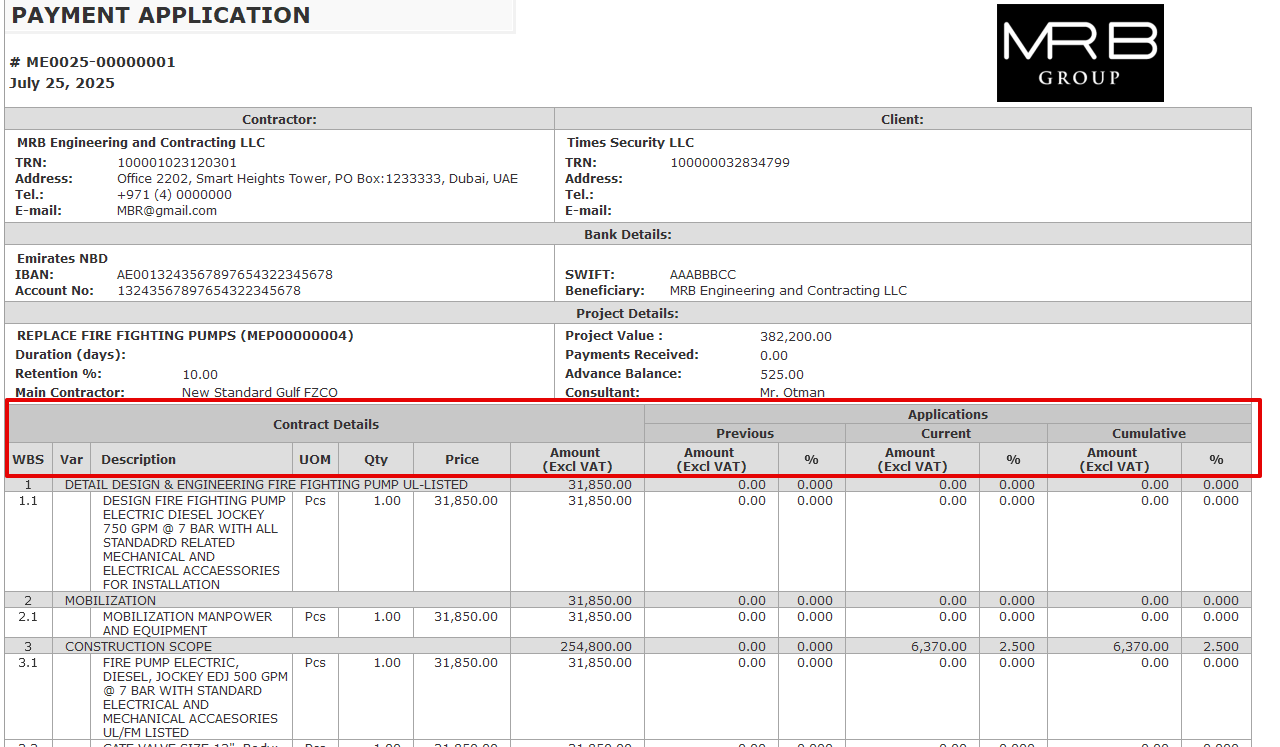
Detailed Print: Provides a) Payment Application- It provides a complete breakdown of all items, including VAT, retention amounts, progress details, and any deductions applied.Summary Print: Shows
b) Payment Application (Summary)- Shows just the key totals like net payable amount, VAT, and advance offsets for a concise overview.