...
Click Create, then select the Project. The certificate details will be automatically filled based on the chosen project.
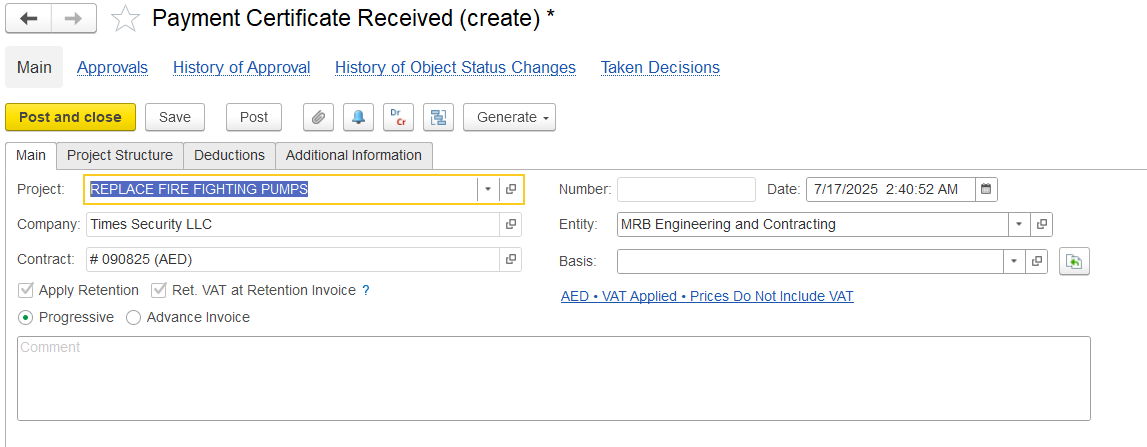
In the main tab,
Project: The project connected to this certificate. It helps the system automatically fill details like the WBS, cost tracking, and the Services tab.
...
Comment: A field for any notes, comments, or special instructions.
Project structure
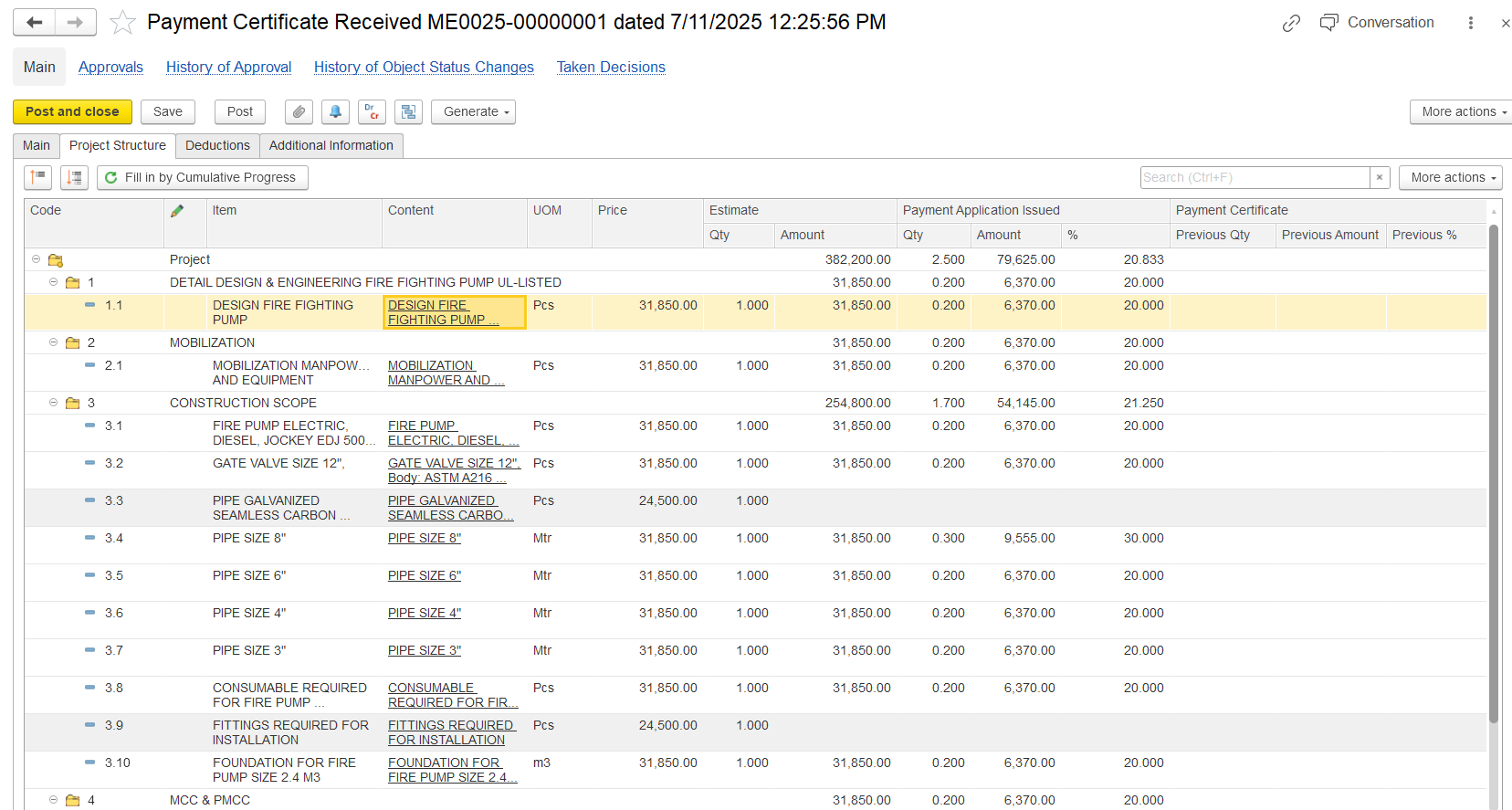
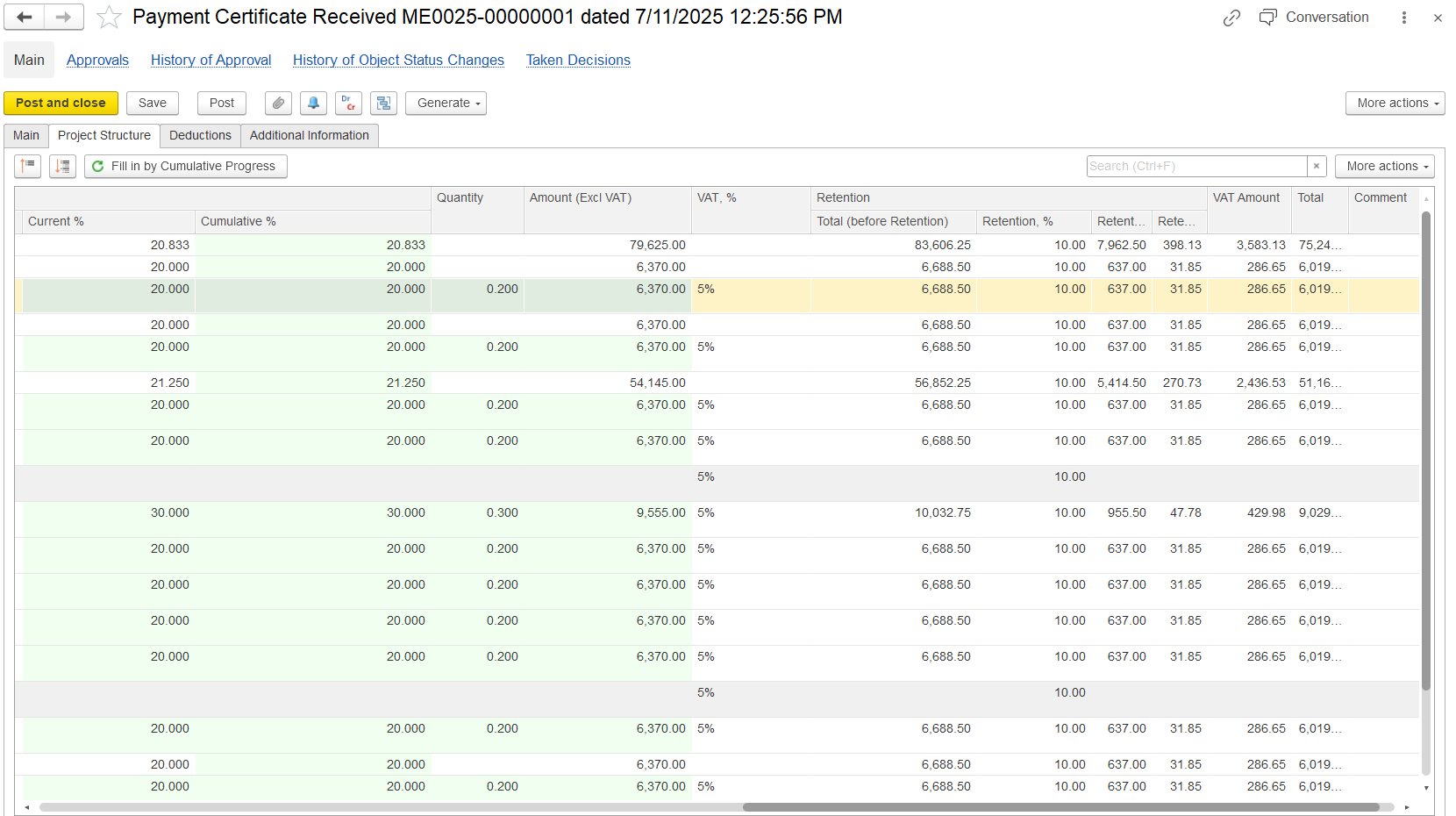
The table under the Services Tab Structure tab is auto-filled based on project progress or can be manually edited. Here's how to fill it:
Select Item/Content: Choose the appropriate service or work item related to the project.
Enter BOQ Estimated Amount: This is pre-filled from the contract or BOQ but can be edited.
Set Progress % or Quantity: Represents the amount of work completed. Can be negative for corrections or reversals.
Adjust Unit, Price, Discounts: Define the unit of measurement, rate per unit, and any applicable discounts.
Review Calculated Fields: The system computes amount, VAT, retention, and totals based on entered data.
Assign WBS, Task, and Project: This ensures that revenue and cost allocation is accurate in downstream reports.
Summary Tab
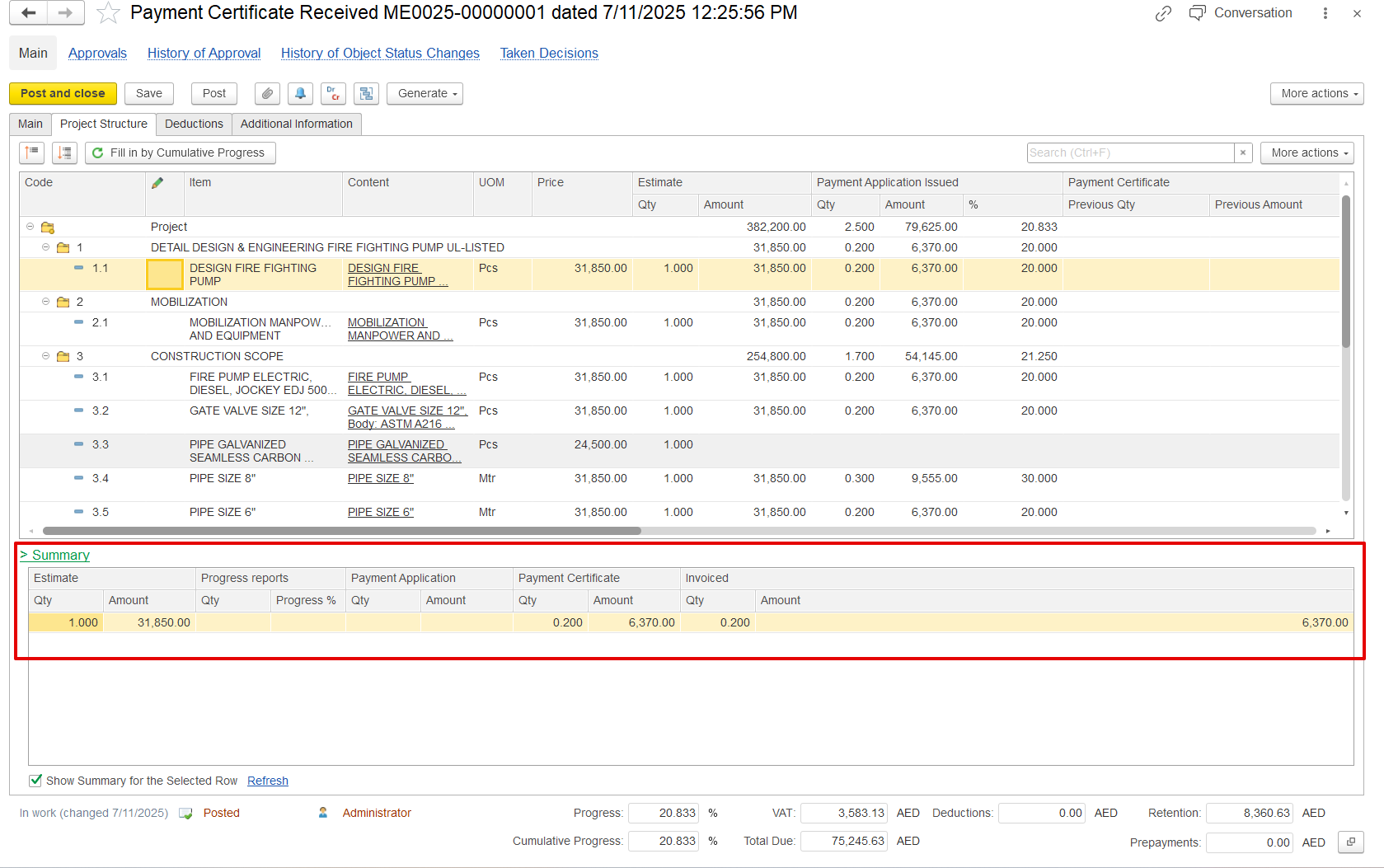
The Summary Tab provides a consolidated, read-only view of certification vs application. It’s not editable but is critical for validation. Here’s what it shows:
...