...
- main tab attributes. explain about contract settings.
- Can be used for issuing Advance invoice.
- Table: how to fill, columns description.
- Advance offset button and form. for planned advance offset.
- Summary linked table
- Print forms (detailed and summary)
...
How to Create the Document
Click Create and select select the required Projectproject from the list.
The system automatically fills in the fields using the defined project details automatically based on the project’s structure and associated parameters. Contract-specific settings such as settings. This includes contract-related information like billing terms, retention rules, and VAT are also applied during this process. Users can still manually adjust progress percentages, discounts, retention, amounts, and other relevant detailsfields if needed.
Additionally, the document may be populated from the Project Progress Report; if existing values are present, the system will prompt for confirmation before overriding themIf a project progress report is added as the basis, the system can use it to fill the document. A confirmation message will appear before replacing any existing data.
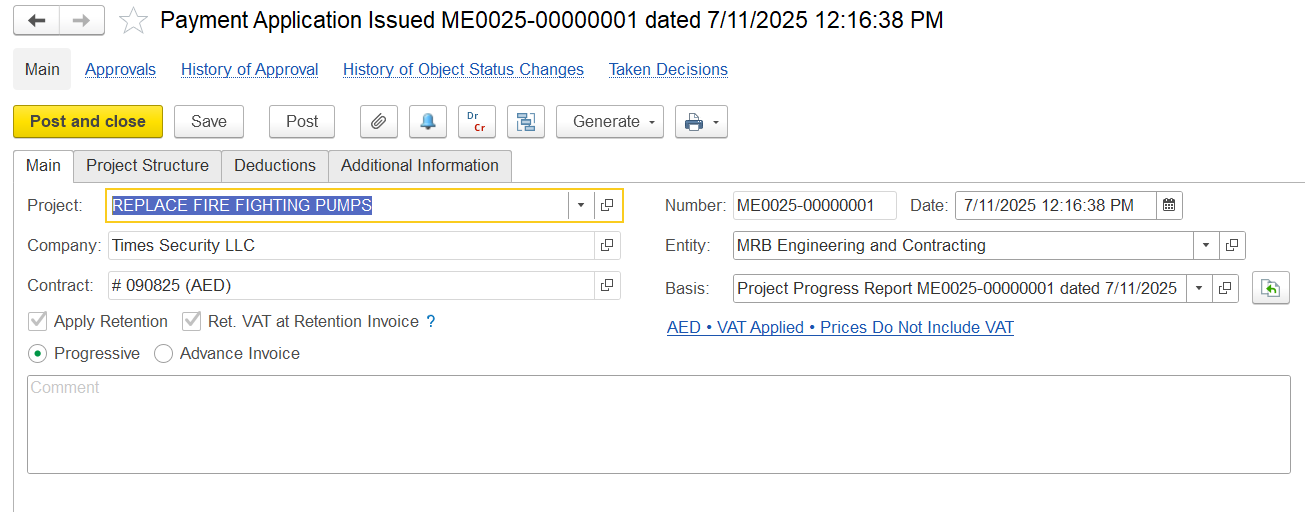
Main Tab
Project - Connects the document to the project and its data.
...
Entity - Legal entity creating the document.
Date - When the document was created.
Number - Auto-generated document number.
Basis - Shows where the data comes from, like a Project Progress Report.
Retention - Indicates if retention rules are used.Advance Applied - Shows if an advance is included or deducted
Ret. VAT at Retention Invoice – If enabled, VAT will be included as part of the retention amount and calculated when the retention invoice is issued.
Currency and Price Settings - Taken from the contract.
Comment - Optional note or remark.
Progress / Advance – Choose how to invoice:
...
Select the invoice type to determine the applicable structure:
Progressive – Used for billing based on
milestones or completed work or project milestones.
Advance –
For upfront payment requestsUsed for requesting upfront payments before work begins.
Note: Based on the selected invoice type, the relevant tabs, fields, and calculations will automatically adjust to suit the billing method.
If Progressive option is enabled, below tabs will be available
Project Structure tab
It displays the list of project tasks with their hierarchy, estimates, progress, and billing details for preparing the payment application.
...
Previous Qty / Amount / % – Work quantities, values, and percentages previously billed.
Current Current% % – Percentage of work being claimed in this application.
Cumulative % – Cumulative% – Total completed percentage including current and previous.
Quantity – Calculated from cumulative % and estimate.
Amount (Excl. VAT) – Net value of current application before VAT.
VAT % – VAT% – Tax rate applied (e.g., 5%).
Retention Total / % / Retention – Gross amount before retention, retention rate, and retained amount.
Retention VAT – VAT applied on retained amount.
VAT Amount – VAT on the payable amount after retention.
Total – Final payable amount (amount minus retention plus VAT).
Comment – Any additional remarks, if needed.
Summary linked table
At the bottom of the Project Structure tab, a financial summary section provides a quick view of all key billing values for the current period.
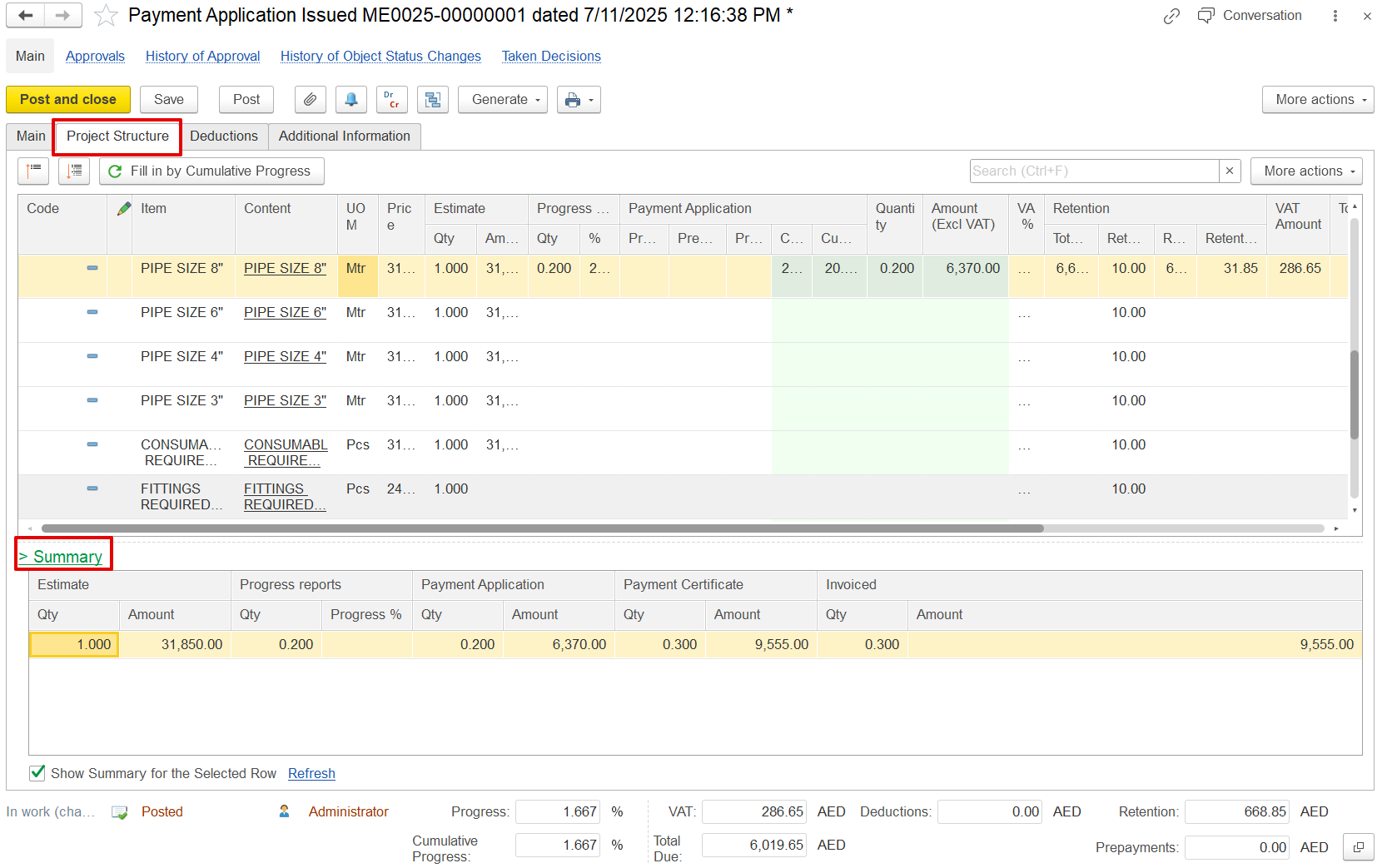
Estimate Qty & Amount – The original planned quantity and value from the contract or BOQ, used as the baseline.
Progress Report Qty & % – The completed work so far, shown as quantity or %, based on the latest progress report (can be negative if reversed).
Payment Application Qty & Amount – The portion of progress being claimed for payment in this application may differ from actual progress.
Payment Certificate Qty & Amount – The approved amount from the client or consultant after reviewing the payment application.
Invoiced Qty & Amount – The value already invoiced, typically matching the certified amount unless split or deferred.
Deduction tab
The Deductions tab is used to apply reductions like penalties or back charges before calculating the net payable amount.
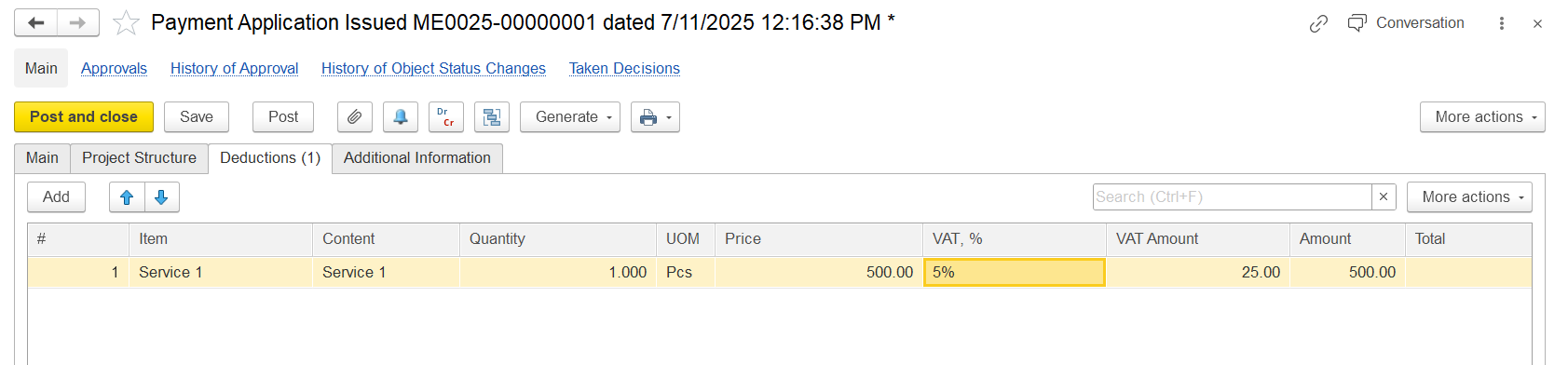
Item / Content-Identifies the specific service, work, or resource being billed.
Quantity: Indicates how many units are being applied for in this billing cycle.
UOM (Unit of Measure): Defines the measurement types.
Price: Unit rate defined in the contract.
VAT% % and VAT Amount: Shows the tax percentage and the calculated VAT based on the price and quantity.
Amount: The total value before tax, calculated from quantity multiplied by price.
Total: Represents the complete billing amount, which may include VAT depending on system logic.
If the Advance option is enabled, below tabs will be available
Print form
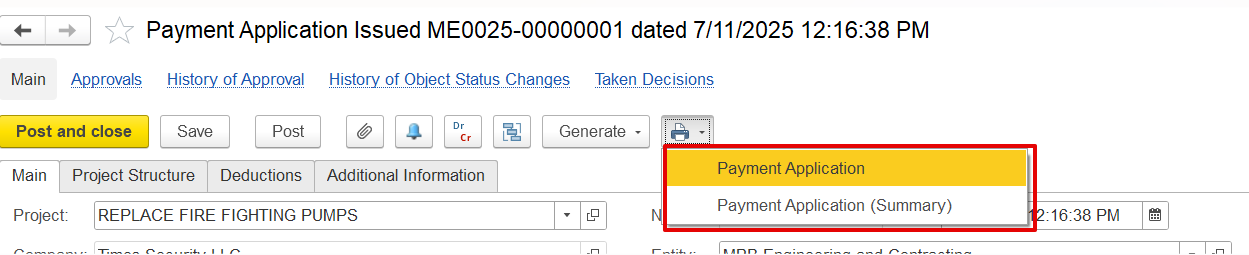
Detailed Print: Provides a complete breakdown of all items, including VAT, retention amounts, progress details, and any deductions applied.
Summary Print: Shows just the key totals like net payable amount, VAT, and advance offsets for a concise overview.