...
The feature is included within the Project Scheduling and Project Progress modules.To
How to use the functionality
...
Project Schedule → right-click BOQ line → Create To-Do Item.
...
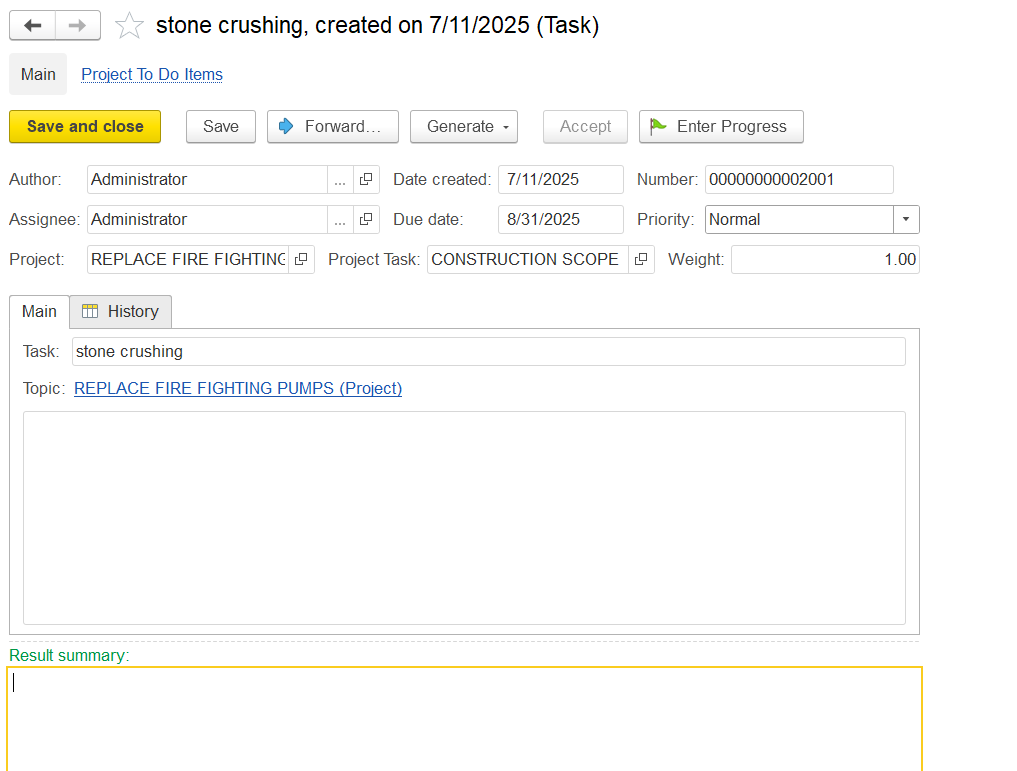
Author and Timestamps: Logs who created the task and when.
Once all details are filled, post the document.
Once all task details are filled in, post the To-Do item by clicking “Save” or “Save and Close.”
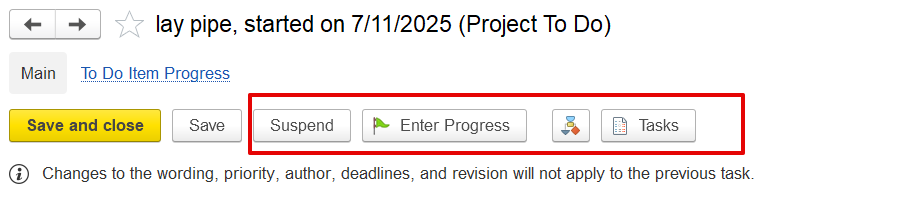
Suspend: Temporarily pauses the task.
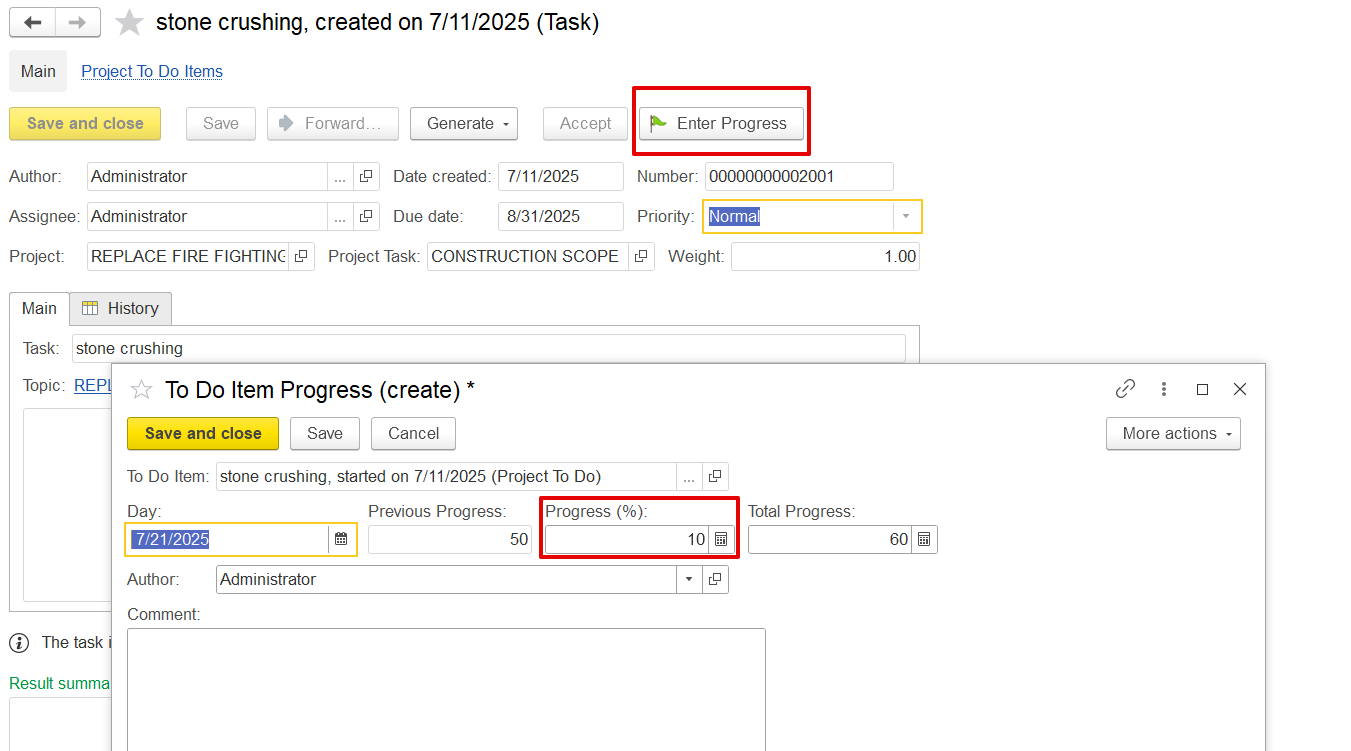
Enter Progress: Opens a dialog to record or update the task’s completion percentage.
Tasks: Opens related tasks or subtasks linked to this To-Do item.
How to record the progress
1. Record Progress in To-Do Item
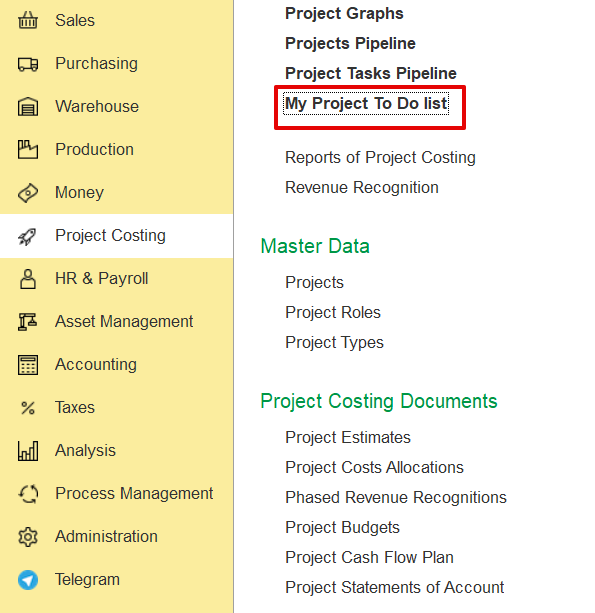
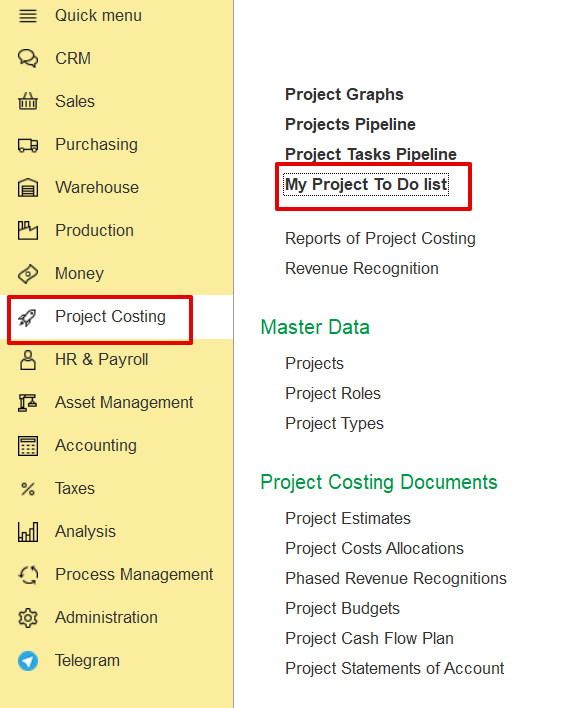
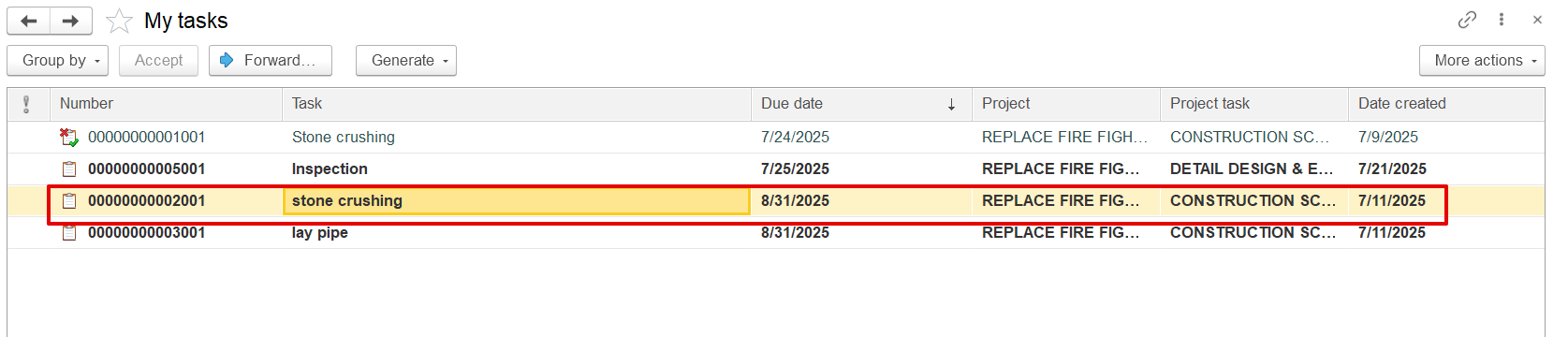
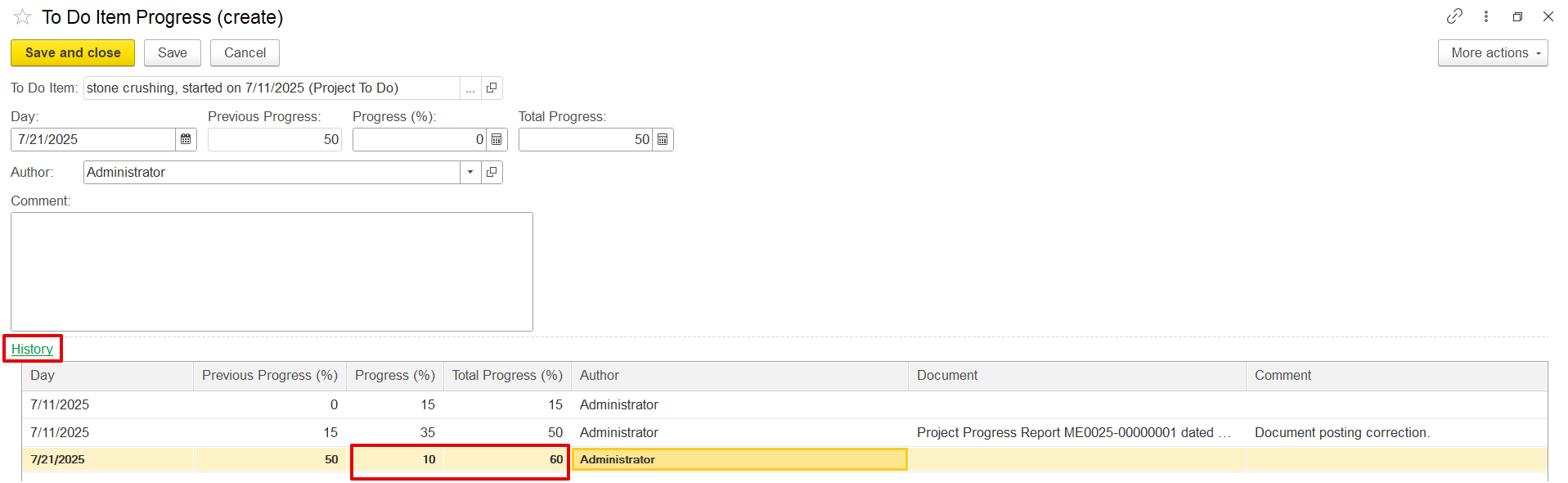
Open My Project To-Do List from Project Costing, click Enter Progress, input the current progress (e.g., 15%), and save. The update is recorded with a timestamp in the progress history.

2. Update Project Progress from To-Do Items
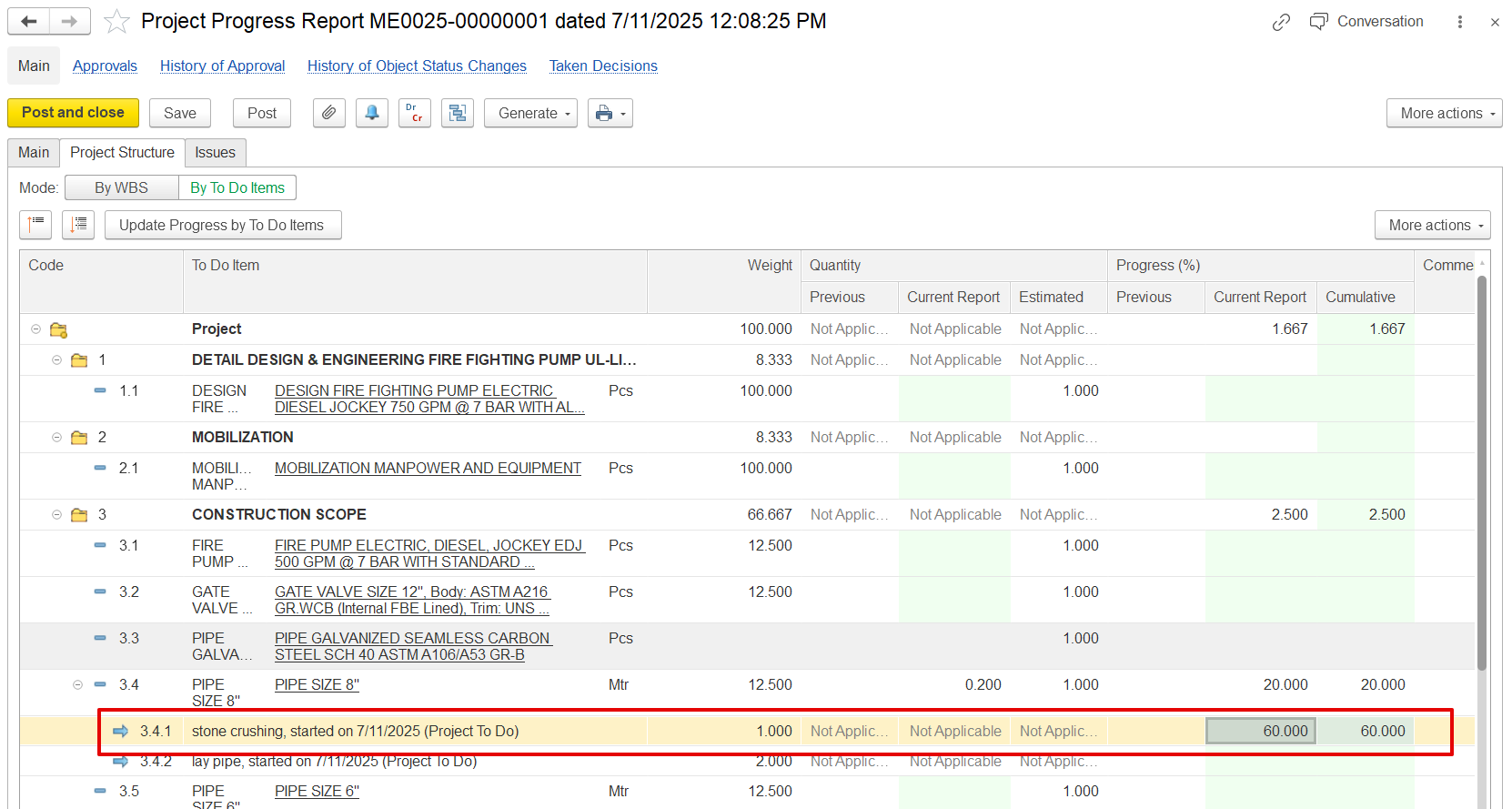
Open the Project Progress Report, select the period and project, and click "Update Progress by To-Do Items". The system retrieves the latest progress from the To-Do list and applies it to the BOQ line. User can also manually adjust the percentage (e.g., from 50% to 70%).
If progress is recorded this way, it appears in the To-Do history as "Recorded by Project Progress Document."