As before
- main tab attributes. explain about contract settings.
- Can be used for issuing Advance invoice.
- Table: how to fill, columns description.
- Advance offset button and form. for planned advance offset.
- Summary linked table
- Print forms (detailed and summary)
The Payment Application is used to request payment for completed project works, based on the progress achieved. It links project estimation, actual progress, and contractual terms to calculate the amount due for the current period. This document forms the basis for generating the Payment Certificate and eventually the Progressive Invoice.
It can be accessed from
Project costing→ Project Progress Reports → Payment Application
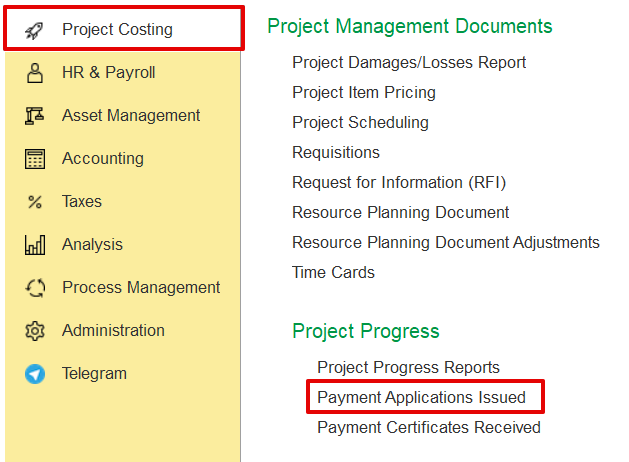
How to Create the Document
Click Create and select the required Project from the list.
The system automatically fills in the fields using the defined project structure and associated parameters. Contract-specific settings such as billing terms, retention rules, and VAT are also applied during this process. Users can manually adjust progress percentages, discounts, retention, amounts, and other relevant details.
Additionally, the document may be populated from the Project Progress Report; if existing values are present, the system will prompt for confirmation before overriding them.
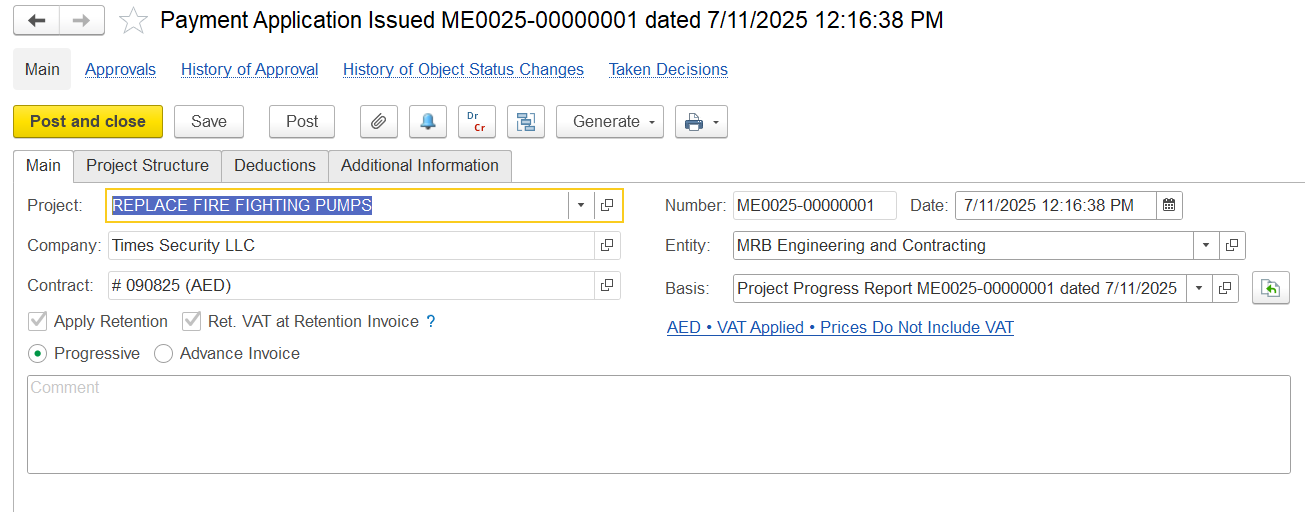
Main Tab
Project - Connects the document to the project and its data.
Company - The client or contracting company.
Contract - Taken from the project; includes pricing, retention, and advanced details.
Entity - Legal entity creating the document.
Date - When the document was created.
Number - Auto-generated document number.
Basis - Shows where the data comes from, like a Project Progress Report.
Retention - Indicates if retention rules are used.
Advance Applied - Shows if an advance is included or deducted.
Currency and Price Settings - Taken from the contract.
Comment - Optional note or remark.
Progress / Advance – Choose how to invoice:
Progress – For billing based on milestones or completed work
Advance – For upfront payment requests
Project Structure tab
It displays the list of project tasks with their hierarchy, estimates, progress, and billing details for preparing the payment application.
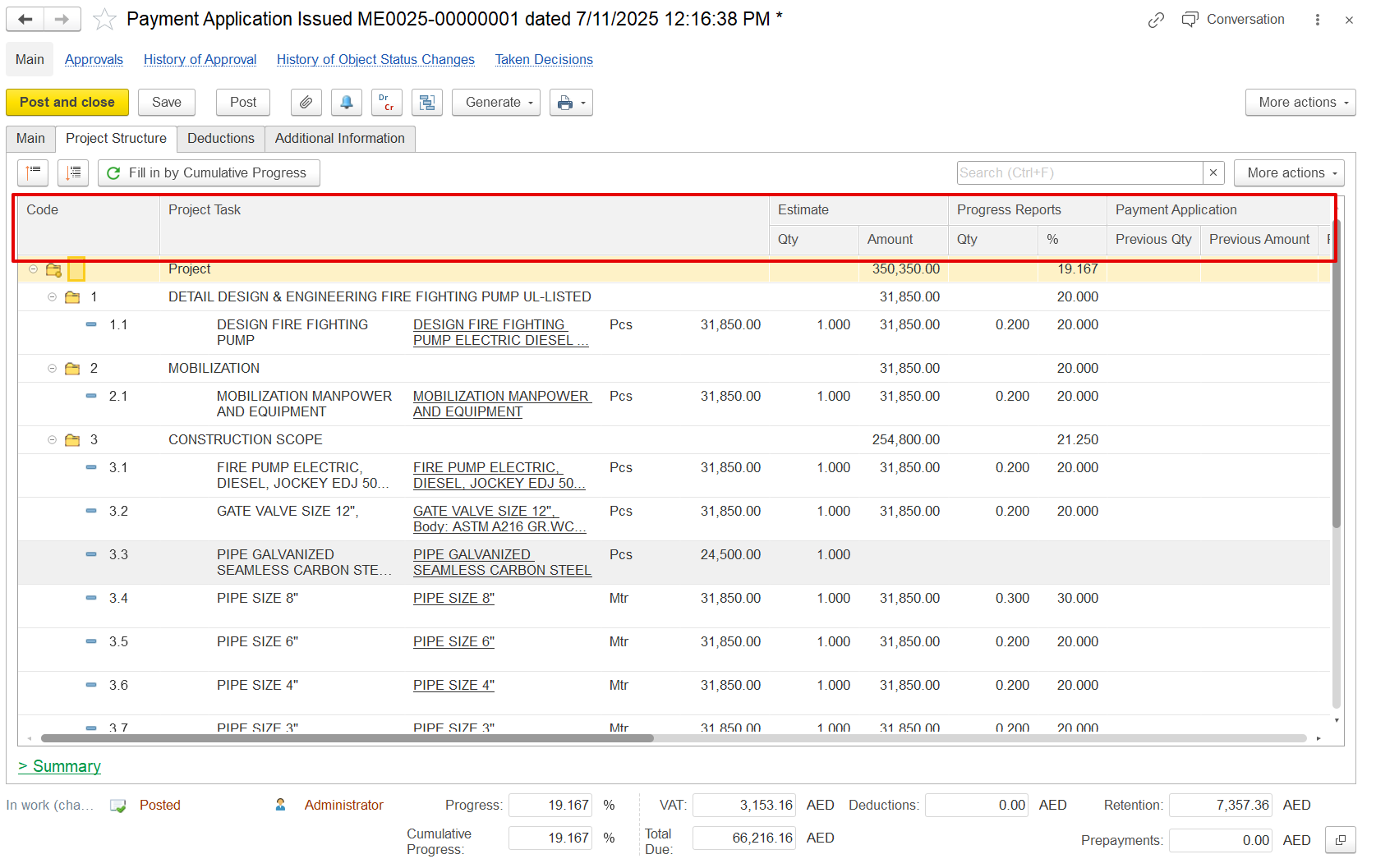
Code – WBS code showing task hierarchy.
Project Task – Name or description of the Task.
Estimate Qty/Amount – Planned quantity and planned total contract amount for the task.
Progress Reports Qty/% – Actual completed quantity and percentage based on progress updates.
Payment Application Previous Qty/Amount/% – Values already invoiced in earlier payment applications.
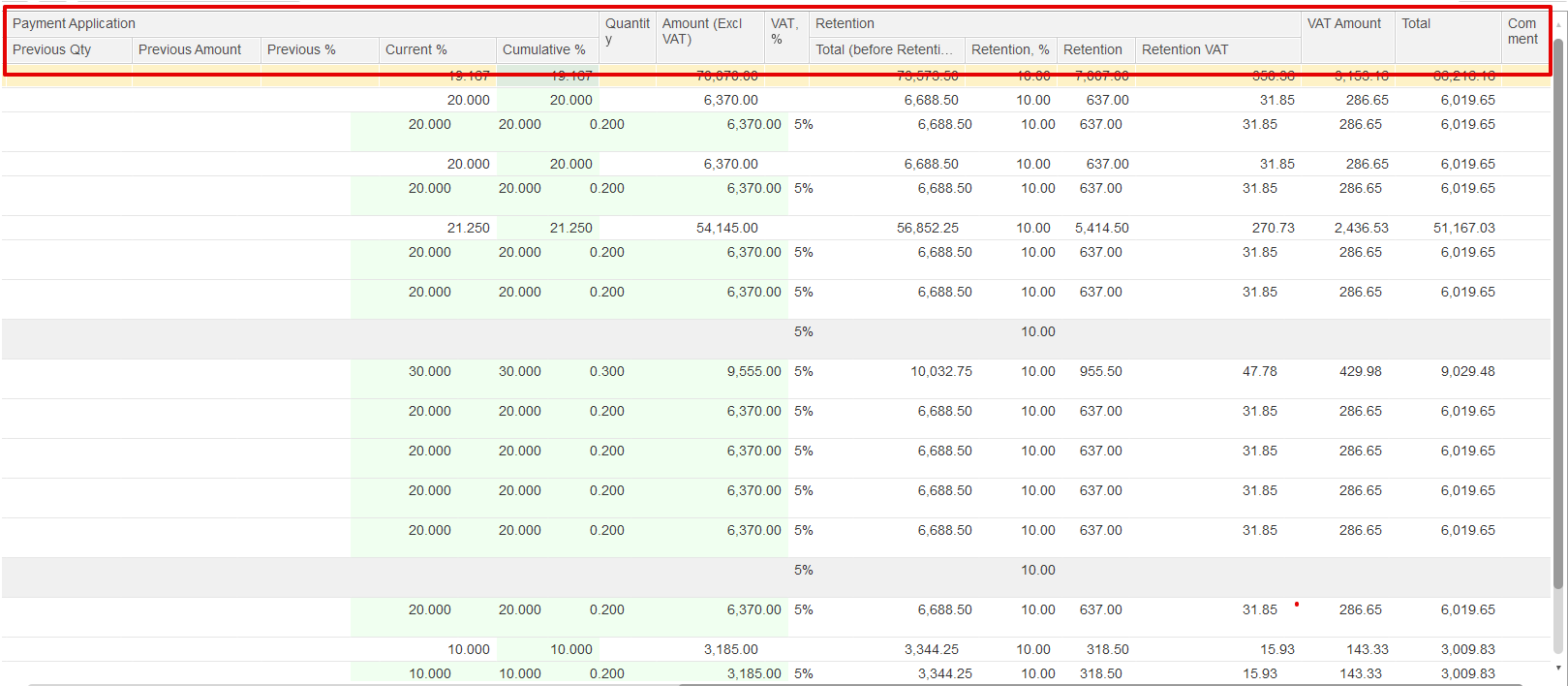
Previous Qty / Amount / % – Work quantities, values, and percentages previously billed.
Current % – Percentage of work being claimed in this application.
Cumulative % – Total completed percentage including current and previous.
Quantity – Calculated from cumulative % and estimate.
Amount (Excl. VAT) – Net value of current application before VAT.
VAT % – Tax rate applied (e.g., 5%).
Retention Total / % / Retention – Gross amount before retention, retention rate, and retained amount.
Retention VAT – VAT applied on retained amount.
VAT Amount – VAT on the payable amount after retention.
Total – Final payable amount (amount minus retention plus VAT).
Comment – Any additional remarks, if needed.