...
This feature is available within the project estimate document.

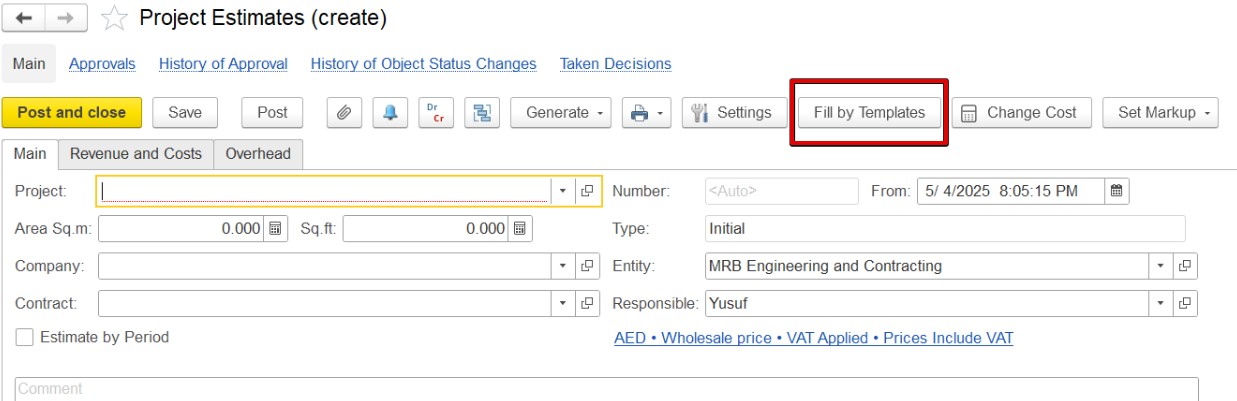
Click on the Fill by Template option to fill in the revenue and cost tab.

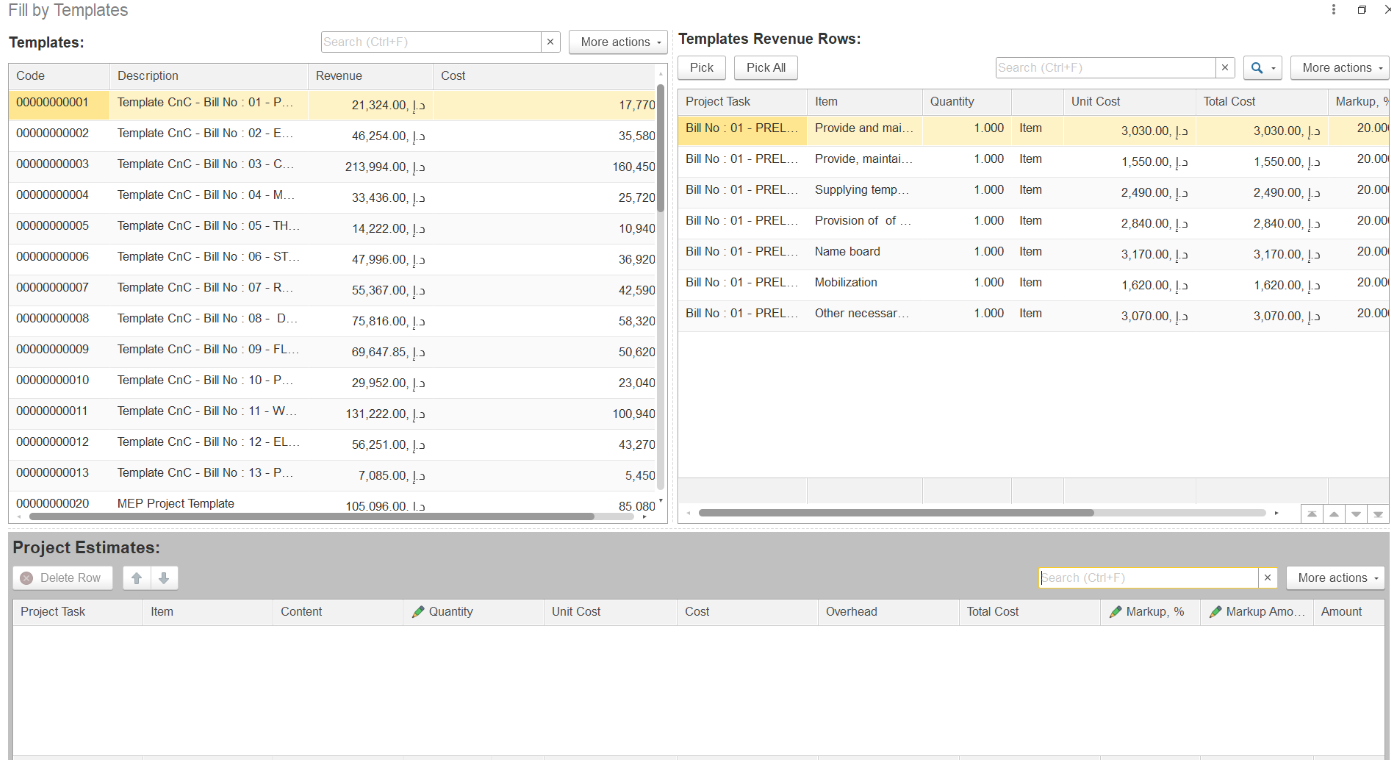
The screen is divided into two parts:
...
Right Side: Shows the revenue rows from the selected template.

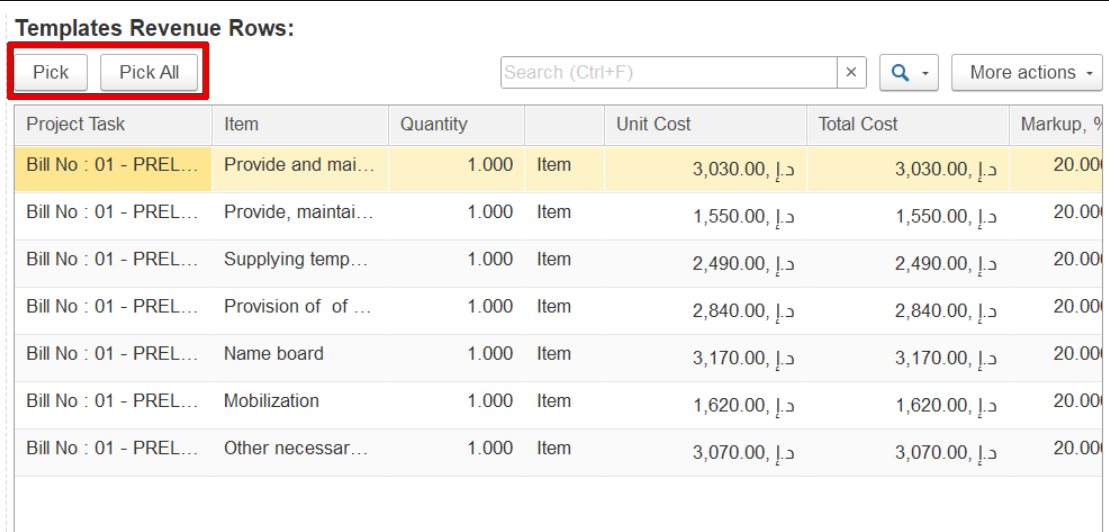
You can select a single line, multiple lines, or all lines. To add a line to your project estimate, hover over it and click Pick. The selected line will appear in the estimate table below, where quantity and markup can be adjusted. Cost, total cost, and markup amount will be calculated automatically.

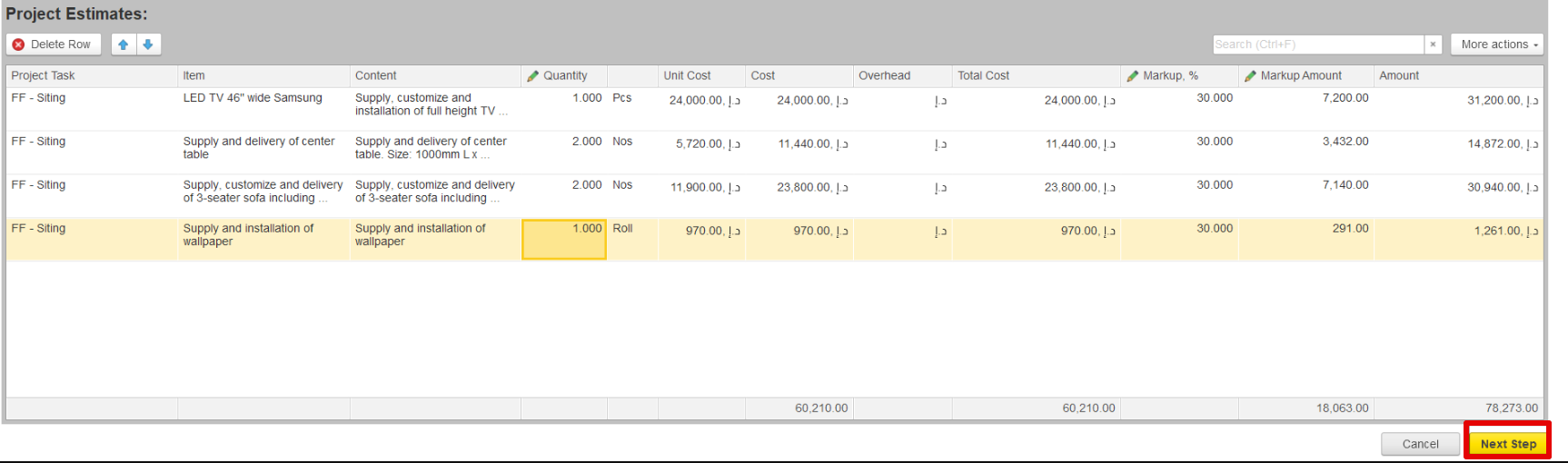
Click Next Step once the project estimate tab is filled.


This shows displays all tasks and subtasks, along with detailed revenue lines, quantity, unit cost, and markup. Click Click Fill to transfer this structure to the project.

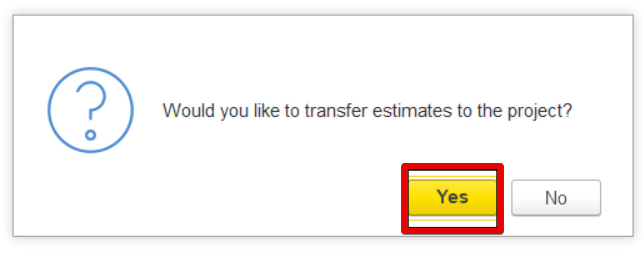
The Estimation Document will be filled out accordingly.

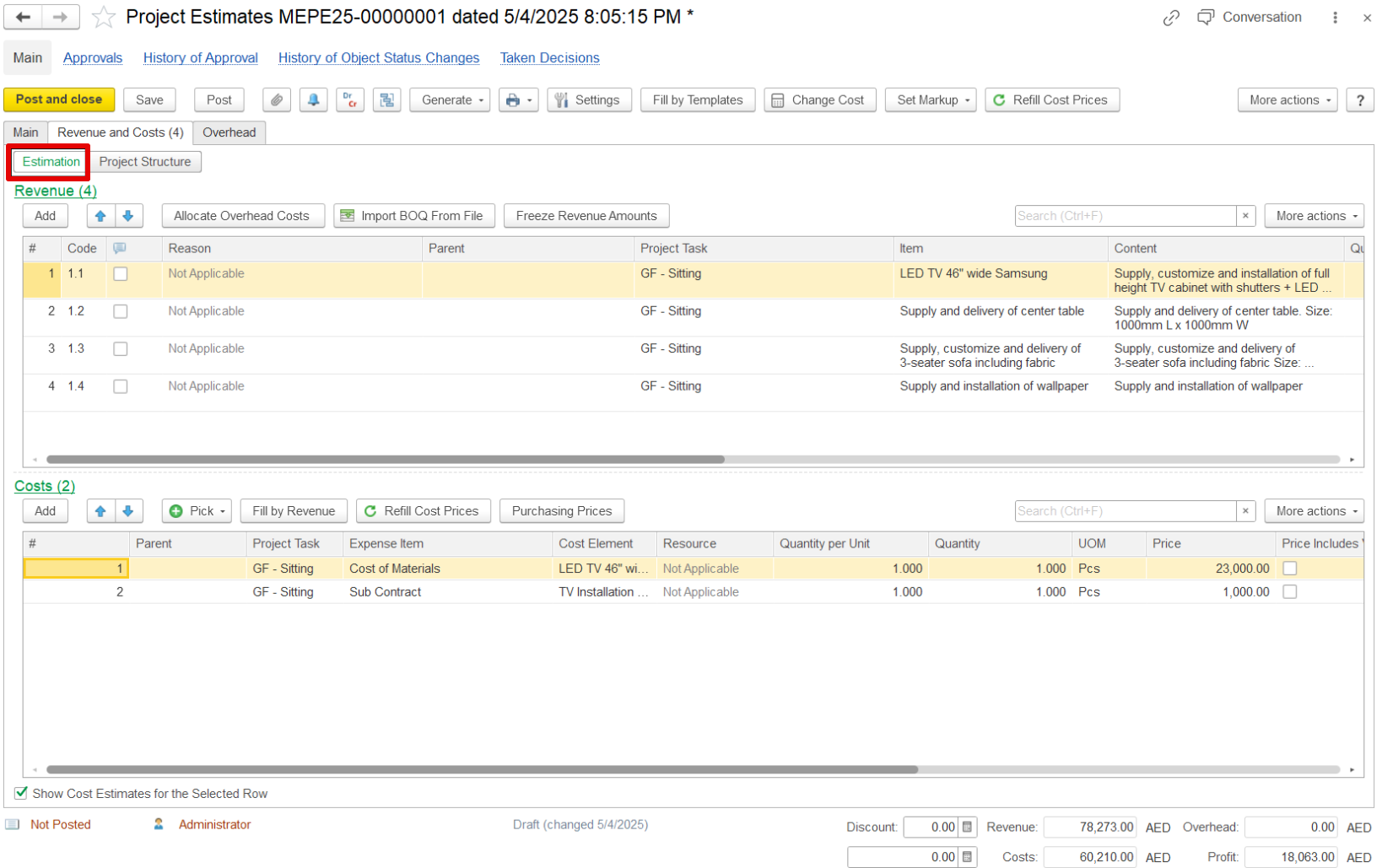
If the template included cost lines linked to revenue, those links will be transferred as well.
...