...
The Project Status Change (create) form appears when you click the Change status link.
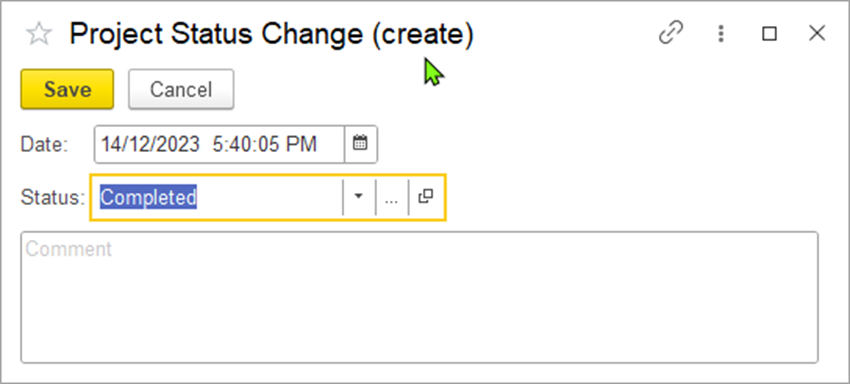
Select a new status for the project in the Status field. Optionally, you can edit the date of the status change.
Then, click Save to assign the selected new status.
To add a new status, go to the Project status section within the project, open any document from the status change history, and select Show all.

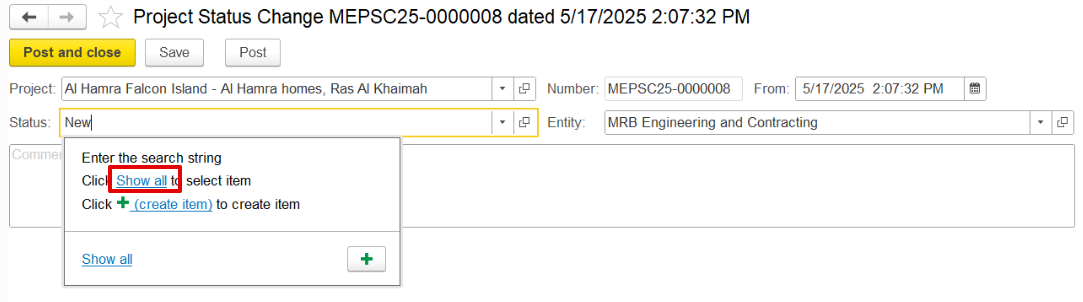
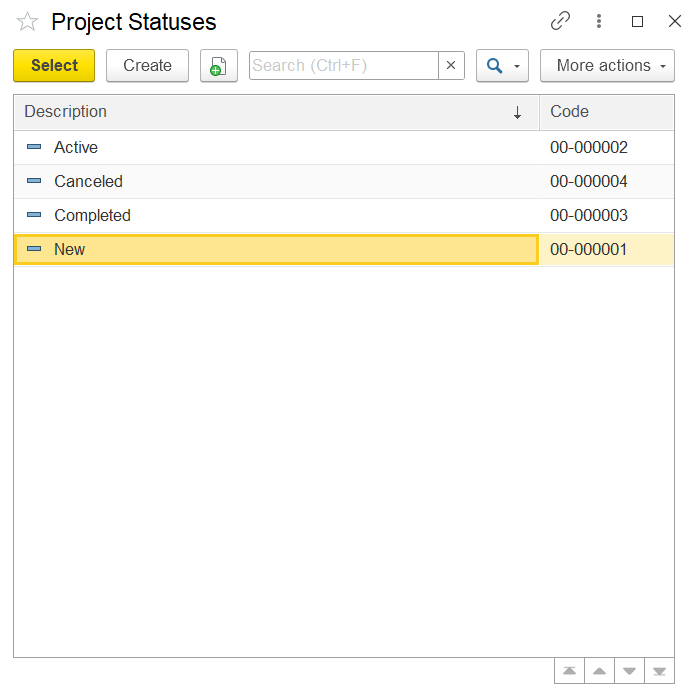
This will display the list of all project statuses. If needed, a new status can be created by clicking the Create button, which opens the New (Project Statuses) form.
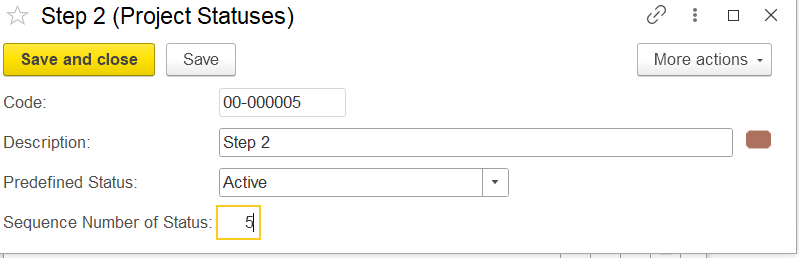
The New (Project Statuses) form lets you create a custom project status.
Save and Close / Save: Save the status and close the form, or just save and stay on the page.
Code: A unique code for the status.
Description: The name of the status is shown in the project.
Predefined Status: Choose a standard status type, like Proposed or Completed, from the list
Sequence Number: Sets the order of the status in the workflow.
Available links
The following links are available at the top of the form under the project title:
...