...
Before creating project tasks, it may be necessary to first create generate master records for the following types:
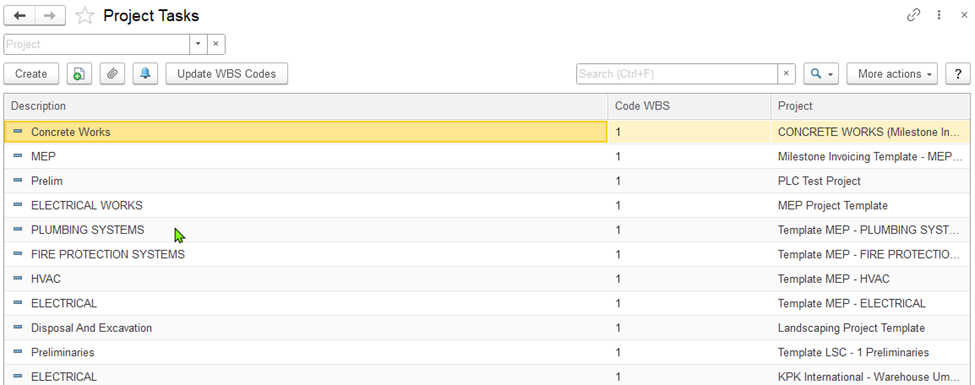 Figure 16: The Project Tasks list
To add a project task, click select the Create button on button from the toolbar. To edit the existing oneTo modify an existing task, double-click the corresponding line with its name. You can also select the line. Alternatively, right-click it, and select Edit or click on the toolbar: More actions > Edit.
...
the desired line and choose Edit, or use the toolbar by selecting More actions > Edit.
Adding a Project Task
This tab provides you with main information on the project task: project, planned dates of its start and finishThe main parameters tab displays key details about the task, including the associated project and its planned start and end dates. As the project moves progresses through different stages of its life cyclelifecycle, the dates of project task's actual start and finish dates can also be addedrecorded.
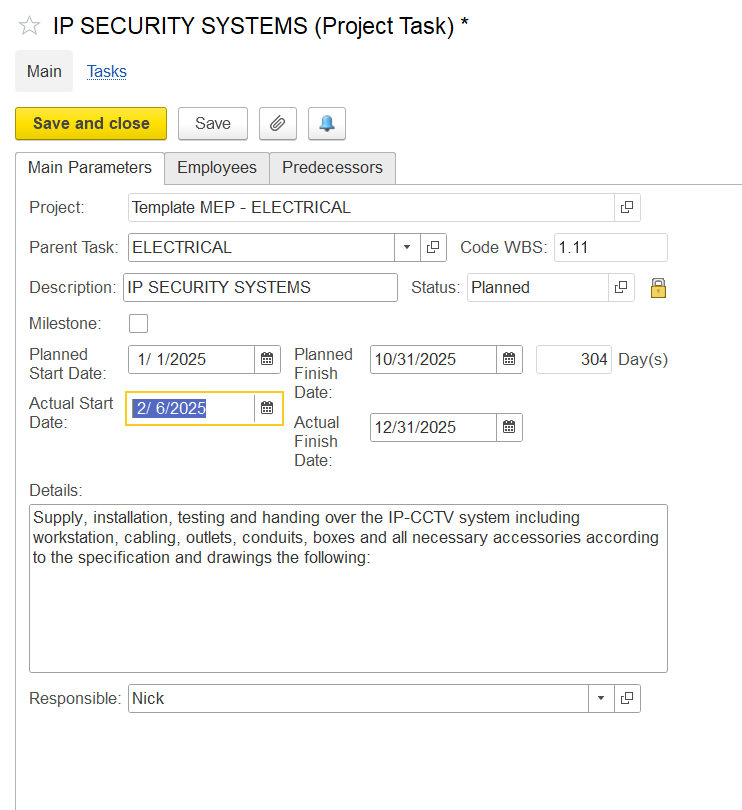
The required Description and Project fields are : Description and Project.
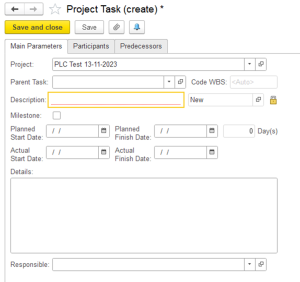
Figure 17: The "Project Task (create)" form. The Main tab
In the Description fieldmandatory.
- In the Description field, type a clear and concise description of the project task. This description will identify the project task in the project task lists.
- In
...
- the Project
...
- field, select the project to which this task is related.
- In
...
- the WBS Code
...
- field, enter the code assigned to the task.
- In
...
- the In Task field, specify the task that includes this task.
...
Use the Milestone checkbox to mark this task as a milestone within the project.
...
Specify the planned start date in the Planned Start Date
...
field and the
...
expected completion date in the Finish field.
The Start Date (Plan)
...
and End Date
...
(Plan)
...
fields allow you to
...
define the planned
...
duration of
...
the task
...
.
...
Once the task has started or been completed, the Start Date
...
and End Date
...
fields can be used to capture the actual
...
dates
...
.
...
Use the Details
...
text box to add any relevant information about the task
1.4.1.1: Employee’s tab
The information on this tab is optional.
...