Project estimation in contracting refers to the process of forecasting the costs, resources, and time needed required to complete a project. It forms a critical part of project planning and financial management in contracting.
This process includes estimating both direct and overhead costs, as well as adding markups to the total estimated cost to ensure the company earns a profit from the project.
Accurate project cost estimation and appropriate markups are essential for creating precise and competitive quotations.
Explain about the initial revision and variation
n
How to create and main page.
There are two ways to create project estimates:
...
:
Estimating direct costs (such as labor, materials, and equipment)
Estimating overhead costs (such as administration, supervision, and utilities)
Adding markups to ensure profitability
Ways to Create Project Estimates
There are two main ways to create a project estimate:
a) From within the project
Open the relevant project → Click Create/Edit Current Estimate or use Generate → Project Estimate to create an estimate based on the project data.
b) From the document list
Go to Project Costing → Project Costing Documents → Project Estimates → Click Create to start a new estimation document.
Creating a Project Estimate document. The Main tab
On this tab, you can enter general information about the project's estimate: the project, customer, project type, entity, and the employee who is responsible for the project. Also, you can specify whether you need to split estimates by planning period.
Depending on the selected method of estimate calculation, the form has different tabs:
- If the Independent Calculation of Revenues and Costs method is selected, there are the following tabs: Main, Costs, and Revenues.
- If the Calculation of Revenues Based on Costs method is selected, there are the following tabs: Main, Revenues and Costs, and Overheads
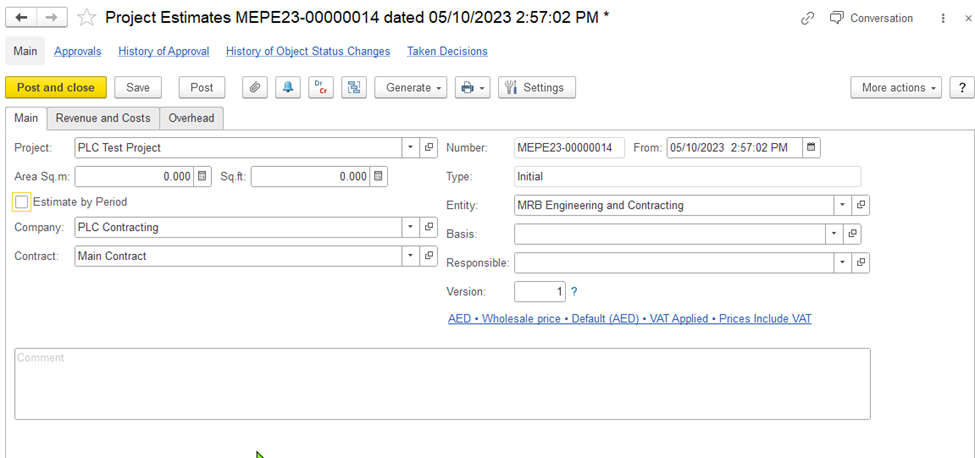
If for any method, the the Estimates by Period check box is selected, one more tab, Estimates by Period, appears.
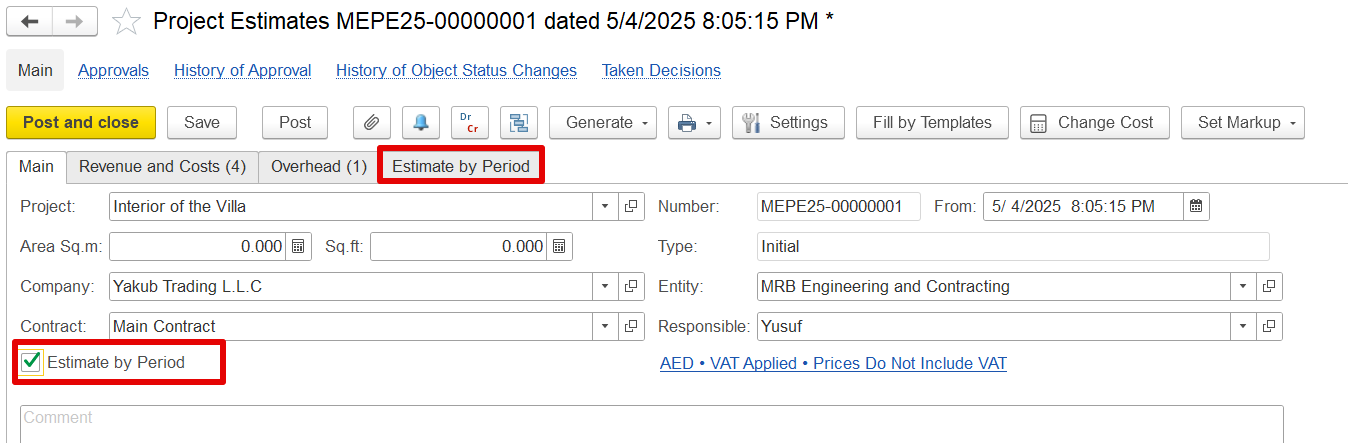
Figure 13: The "Project Estimates (create)" form. The Main tab
...
Number: Shows
<Auto>, meaning the document number is assigned automatically when you save
...
.
...
From: Filled automatically with
...
today’s business date.
...
In the Type field, its weather this estimate is a initial version or revision or variation, it will be populated automatically by the system.
...
You can change it if needed.
Type: Shows whether the estimate is an initial version, revision, or variation. This is set by the system automatically.
Entity: Choose the legal entity (company) for which the document is being prepared.
...
Project: Select the project for which
...
the estimate is being created.
In the Company field, specify the company for which this project is being planned.
...
Company: Choose the company associated with the selected project.
Contract: Filled automatically with the default contract
...
linked to the company
...
. You can select a different contract if
...
required.
...
Estimates by
...
Period: If you want to create estimates for each planning period
...
, check this box. This
...
will show the Estimates by Period
...
tab.
...
Responsible: Select the employee
...
responsible for
...
the project.
...
Version
...
: This field is auto-
...
filled with the current version of the project budget.
...
VAT Applied
...
/ Prices
...
Include VAT: Click this to open the Prices and Currency dialog. Here, you can change pricing and VAT settings for the estimate. For more info, see the Prices and Currency dialog box section.
...
Comment: Add any notes or additional information related to
...
the project
...
budget.
Creating a Project
...
Estimate document. The Revenue and Costs tab
This tab is used for building to build the project budget using the the Calculation of Revenue Based on Costs calculation method. The tab contains the following two panesIt includes two main sections:
Revenues
...
(upper pane)
...
Use this area to define the revenue lines for your estimate. Tick the Use Different Currency checkbox
...
if
...
invoices will be
...
issued in a currency different from the company’s base currency.
Costs
...
(lower pane)
...
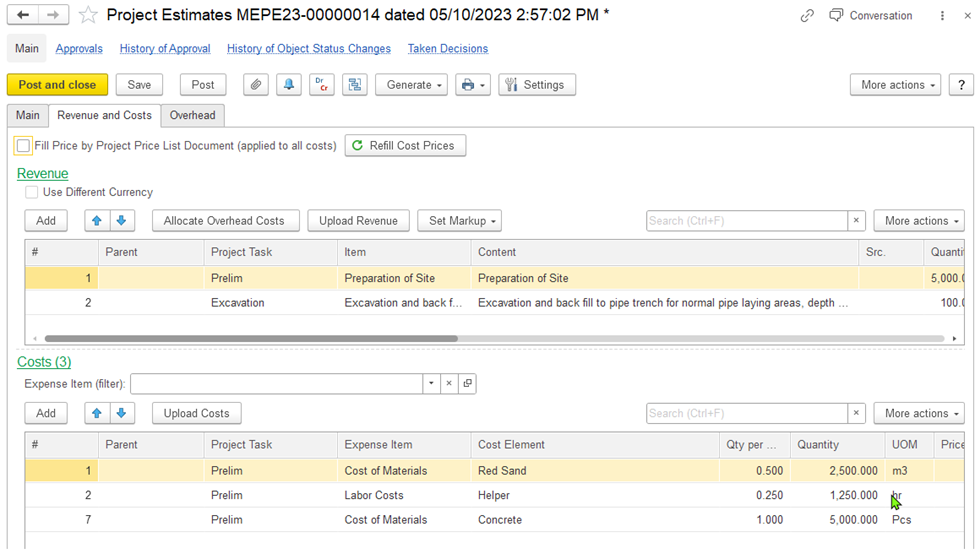
Figure 14: The "Project Estimates (create)" form. The Revenues and Costs tab
The Revenues pane
For each revenue listed in the upper pane, you can create a list of costs in lower pane.
In Project Task, select the project task for the revenue estimate.
In Item, select the item (revenue item/service) for the specific project task.
In Content, give detailed information for item (revenue item/service) it will populate by default when you select the item but it’s an editable field.
In Quantity, provide the quantity for the item (revenue item/service)
The UOM column (available if the Item is selected as the project revenue analytical parameter) is populated with the unit of measure used for the item.
If you don't need to specify estimates by item, you can type the revenue estimate amount in the Amount column.
In the Overhead column, enter the other costs and expenses related to the item. Generally, this column is auto-populated from the overhead amount allocated from the Overheads tab.
The Total Cost field shows the cost of the specified quantity of the item with the allocated overhead amount.
In the Markup, % column, you can specify the percentage of increase to be applied to costs to get the revenue estimation. Generally, the revenue amount can be calculated based on markups specified for related costs in the lower pane.
In the Markup Amount column, you can view the added amount for the specified percentage or you can enter the amount directly if no percentage is specified.
The Amount column shows the amount for the specified parameters.
The VAT,% column is auto-populated with the VAT rate applicable to the revenue.
The VAT Amount column shows the amount of VAT calculated for the revenue.
In the Price column, you can view the resulting revenue item price. If the Markup is specified, the price is calculated based on the cost and markup.
The Total Amount column shows the revenue amount.
The Cost Pane
For each revenue, you can specify multiple costs in the Costs pane.
Click Add to add a new cost for the revenue selected in the upper pane.
...
In Expense Item, select the type of expense you want to add (for ex: Cost of material, labor Cost etc).
In Cost Elements, select the Cost item to be able to view project costs detailed to cost elements which you can select from the Items, Employees, Positions, Fixed Assets lists.
In Qty per unit, select the quantity required for 1 revenue item, so whenever we change the quantity in revenue line, it will automatically change the quantity on cost side.
Quantity field will be populated automatically based on Qty per unit field, or you can enter manually also.
UOM Field will be populated based on item. We can change that also.
In Price, enter the cost price for the selected cost element.
In the Price column, you can enter the item price.
The Amount column shows the total amount for the specified expense or cost with the VAT amount added if applicable.
In the Markup, % column, you can enter the percent of increase to be applied to the cost to get the revenue estimate related to this cost or expense.
The Markup Amount column is auto-populated with the amount of markup. Alternatively, you can enter the amount and the markup percentage will be recalculated.
The Amount Incl. Markup column shows the cost with markup for this cost/expense.
...
This section is used to enter and manage the cost lines linked to each revenue item.
Both panes work together to calculate the total project cost and the resulting markup and revenue.
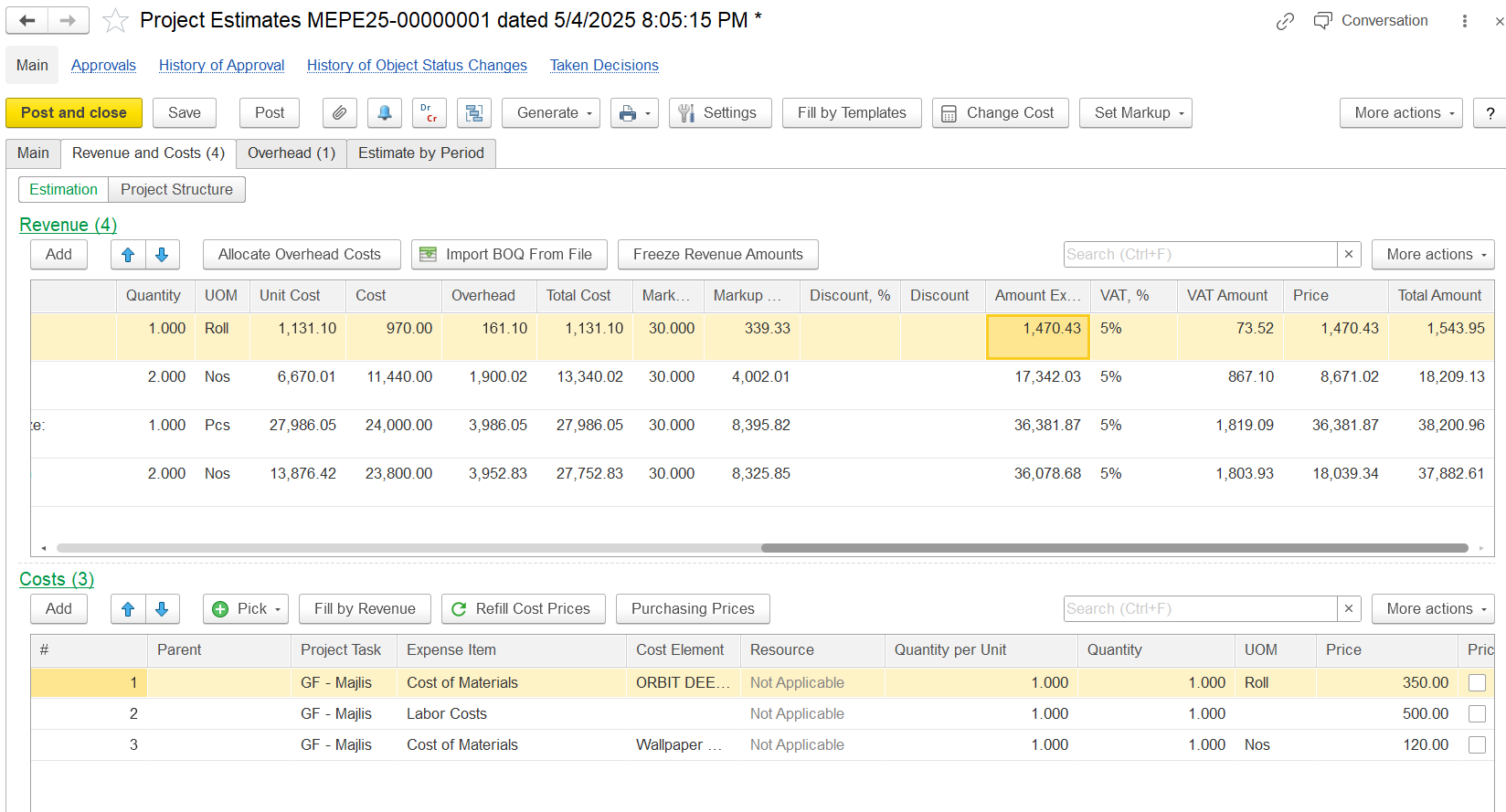
Revenues Pane (Upper Pane)
This pane is used to define revenue items for the project. Each revenue line can be linked to one or more cost lines in the Costs pane.
Project Task: Select the task the revenue is related to.
Item: Choose the revenue item or service.
Content: A description field; auto-filled from the item but can be edited.
Quantity: Enter the number of units for the item.
UOM: Unit of Measure, filled based on the selected item.
Amount: You can enter the estimated revenue amount directly if not using items or markups.
Overhead: Shows other costs related to this item, usually filled from the Overheads tab.
Total Cost: Displays the total cost (including overhead) for the quantity entered.
Markup, %: Enter a percentage to apply a profit margin on the cost.
Markup Amount: Shows the markup value based on the percentage or can be entered manually.
Amount: Shows the calculated revenue amount.
VAT, %: Auto-filled VAT rate based on the item.
VAT Amount: Displays the calculated VAT amount.
Price: Price per unit of the revenue item after applying the markup.
Total Amount: Final revenue amount, including VAT if applicable.
...
Costs Pane (Lower Pane)
This section is used to add and manage the costs associated with the selected revenue item.
To add a new cost, click Add with the relevant revenue line selected.
Project Task: Auto-filled from the linked revenue line.
Expense Item: Select the cost type (e.g., materials, labor).
Cost Elements: Choose a cost item from Items, Employees, Positions, or Fixed Assets.
Qty per unit: Enter the quantity needed for one revenue unit; cost quantities will adjust when revenue quantity changes.
Quantity: Auto-filled from Qty per unit, or enter manually.
UOM: Auto-filled based on the item, but can be changed.
Price: Enter the unit cost of the expense item.
Amount: Total cost, including VAT if applicable.
Markup, %: Optionally enter a markup percentage for profit calculation.
Markup Amount: Auto-calculated based on the percentage or can be entered manually.
Amount Incl. Markup: Final cost including the markup.
Creating a Project Estimate document. The Overheads tab
This tab is used to enter the estimates of overhead costs for the project. This tab is available if the estimation method is is Independent Calculation of Costs and Revenues.
To allocate the overhead costs, use the Allocate Overhead Costs button on the toolbar of the Revenues and Costs tab.
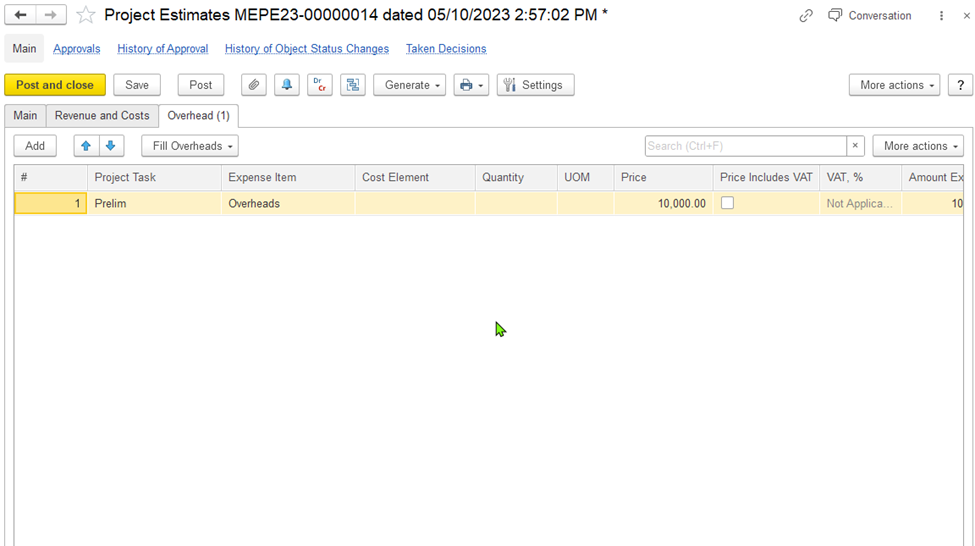
Figure 15: The "Project Estimates (create)" form. The Overheads tab
Click Add to add 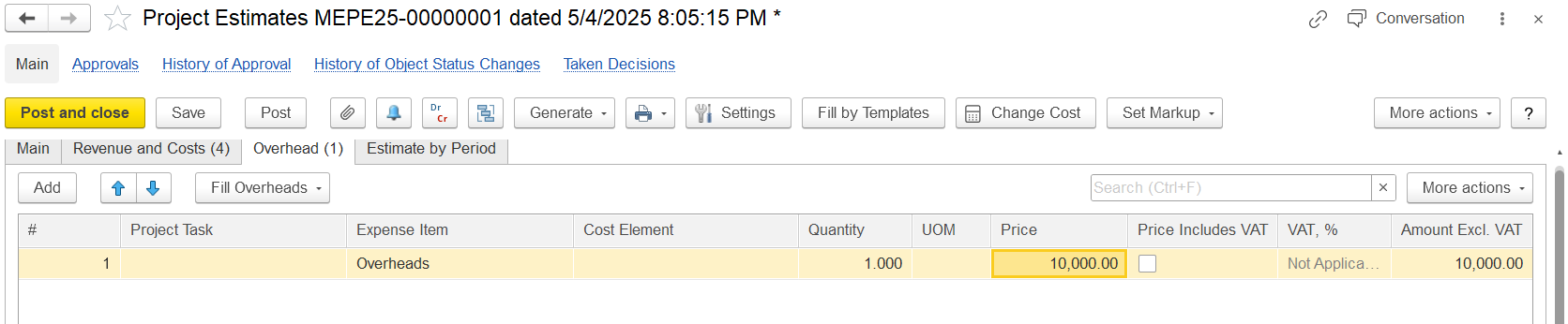
Click Add to include a new overhead cost associated with for the project, or you can fill overheads cost input overhead costs by project tasks.
Select Choose an Expense Item to categories classify the expense item overhead cost (ie.eg., Overheads).
Select the Cost Element, Quantity, and UOM. They are (optional fields).
Enter the Price of the overhead cost.The
The VAT, % column is populated with the percent of VAT applicable to column automatically displays the VAT percentage for the overhead cost. You can change the rate if needed.The , but you can adjust it if necessary.
The Amount Excl. VAT column shows the total amount cost of this the overhead cost without excluding VAT, and this amount . This amount will be allocated to included in the project estimates.