...
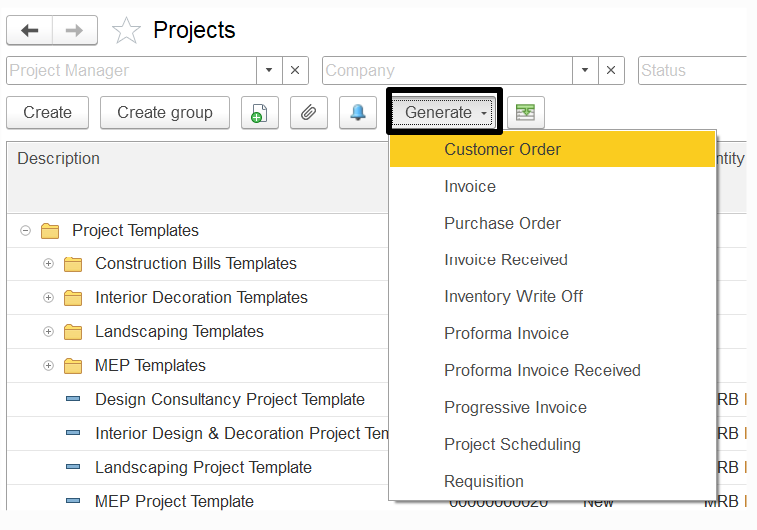
Customer Order – Records the goods and services the customer requests for the project.
Invoice – Bills the customer (client) for goods and services provided within the project.
Purchase Order – Orders goods and services required for the project.
Invoice Received – Registers the purchase of goods and services for the project.
Inventory Write-Off – Records the issue of inventory items from a warehouse for project needs.
Requisition – Requests goods and services required for the project.
Proforma Invoice / Payment Application – Requests payment from the customer (client) for goods and services delivered.
Proforma Invoice Received – Records a supplier’s payment request for goods and services purchased for the project.
Progressive Invoice – Bills the customer (client) based on project progress.
Requisition (for Estimate) – Requests estimated prices of goods and services from the supplier.
3. Creating a folder
...
After filling out the tab, click the Save button to save the project. Click Save and close to to save the project with all the changes and close the form.
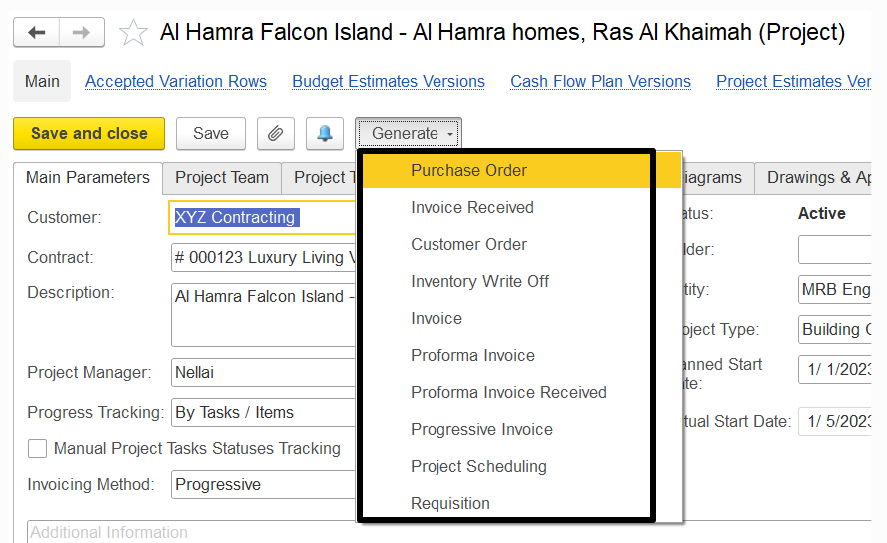
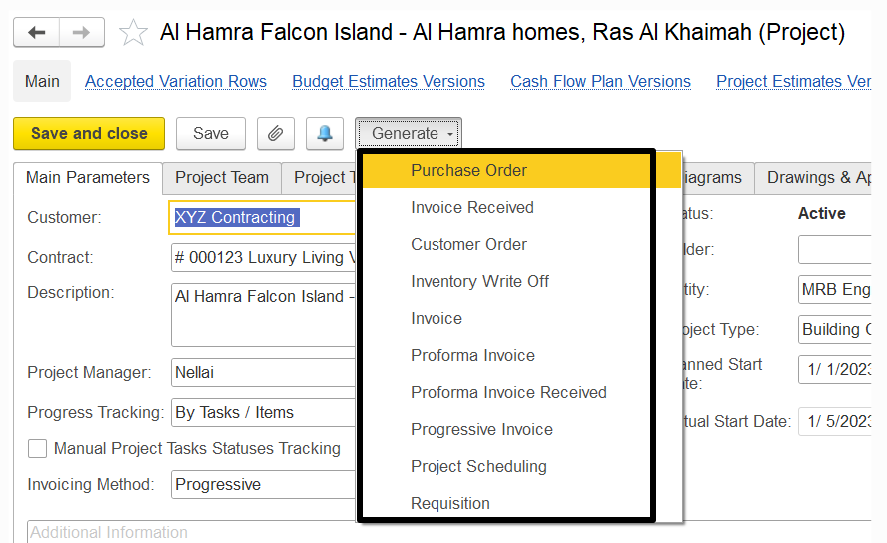
If you need to generate a new document for the project, click Generate on the toolbar and select the type of the document from the following ones:
- Quotation: To set the prices to be offered to the customer.
- Customer Order: To record the goods and services requested by the customer in this project.
- Invoice: To bill the customer (client) for the provided goods and rendered services.
- Purchase Order: To order the goods and services required for the project.
- Invoice Received: To register the purchase of goods and services required for the project.
- Inventory Write off: To write off inventory which has been consumed for the project.
- Requisition: To include the items needed for projects in requisition processing.
- Proforma Invoice Received: To record payment request sent by suppliers for the purchase of goods and services required for the project.
- Progressive Invoice: To bill the customer (client) based on the progress of the project.
- Requisition (for Estimate): To request prices of estimated goods and services from the supplier.
Project Status changes
You can change the project status by using the Change status link to the right of the current project status. The link appears once you save the project.
The Project
Project Status Changes
You can change the project status by using the Change status link to the right of the current project status. The link appears once you save the project.
The Project Status Change (create) form appears when you click the Change status link.
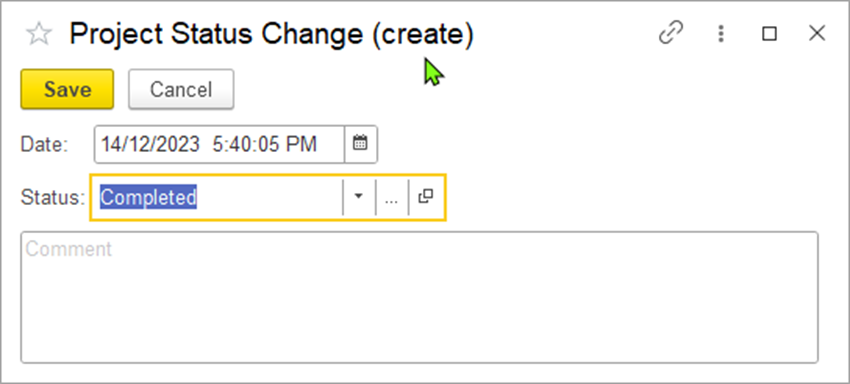
Figure 8: The "Project Status Change (create)" form.
Change status link.
Select a new status for the project in the Status field field.Optionally Optionally, you can edit the date of the status changingchange.
Then, click Save to assign the selected new status.To view the history of project's status changes, click the Project Statuses link right under the project title.
Available links
The following links are available at the top of the form under the project title::

- Accepted Variation Rows – Approved changes to project scope, cost, or schedule.
- Budget Estimates Versions: Click this link to view the history of budget estimates – History of budget changes.
- Cash Flow Plan Versions – Versions of projected cash inflows/outflows.
- Project Estimates Versions: Click this link to view the history of project estimates.
- Project Statuses: Click this link to view the history of status changes.
- Project Task Pipelines: Click this link to view the current statuses of project tasks – History of project cost/resource estimates.
- Project Notifications – Alerts or updates related to the project.
- Project Schedule Versions – Timeline changes tracked over time.
- Project Statuses – Log of project status changes.
- Project Task Pipelines – Current status of tasks.
- Project WBS – Work Breakdown Structure; hierarchy of project tasks.
- Task – Individual unit of work in the project.
Adding a Project. The Project Teams tab
...